reset JAGUAR XF 2009 1.G Owner's Manual
[x] Cancel search | Manufacturer: JAGUAR, Model Year: 2009, Model line: XF, Model: JAGUAR XF 2009 1.GPages: 391, PDF Size: 19.32 MB
Page 270 of 391
Audio unit overview
270
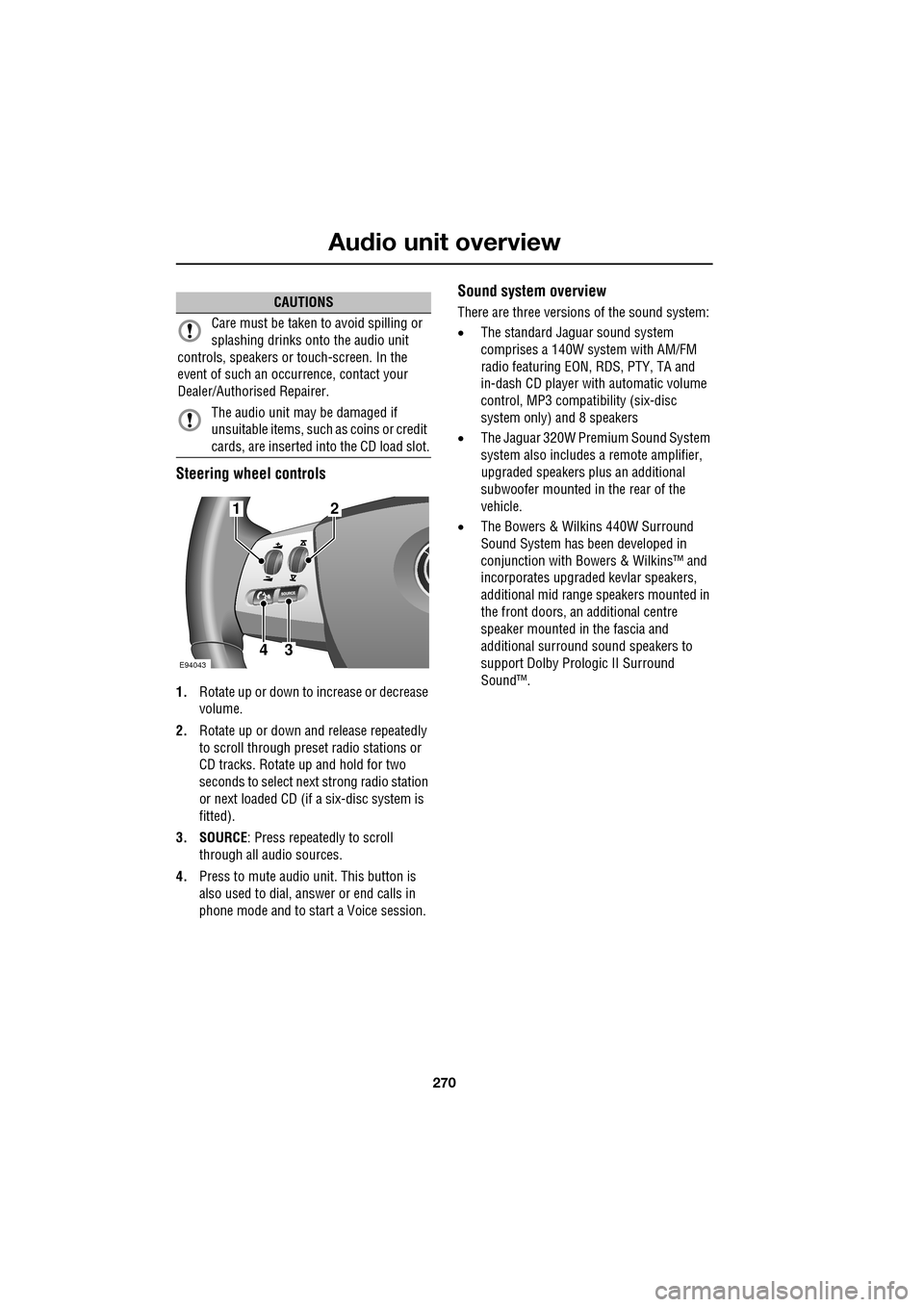
Steering wheel controls
1.Rotate up or down to increase or decrease
volume.
2. Rotate up or down and release repeatedly
to scroll through preset radio stations or
CD tracks. Rotate up and hold for two
seconds to select next strong radio station
or next loaded CD (if a six-disc system is
fitted).
3. SOURCE : Press repeatedly to scroll
through all audio sources.
4. Press to mute audio unit. This button is
also used to dial, answer or end calls in
phone mode and to st art a Voice session.
Sound system overview
There are three versions of the sound system:
• The standard Jaguar sound system
comprises a 140W sy stem with AM/FM
radio featuring EON, RDS, PTY, TA and
in-dash CD player with automatic volume
control, MP3 compatibility (six-disc
system only) and 8 speakers
• The Jaguar 320W Premium Sound System
system also includes a remote amplifier,
upgraded speakers plus an additional
subwoofer mounted in the rear of the
vehicle.
• The Bowers & Wilkins 440W Surround
Sound System has been developed in
conjunction with Bowe rs & Wilkins™ and
incorporates upgraded kevlar speakers,
additional mid range sp eakers mounted in
the front doors, an additional centre
speaker mounted in the fascia and
additional surround sound speakers to
support Dolby Prologic II Surround
Sound™.CAUTIONS
Care must be taken to avoid spilling or
splashing drinks onto the audio unit
controls, speakers or touch-screen. In the
event of such an occurrence, contact your
Dealer/Authorised Repairer.
The audio unit may be damaged if
unsuitable items, such as coins or credit
cards, are inserted into the CD load slot.
E94043
12
43
Page 272 of 391
Audio unit operation
272
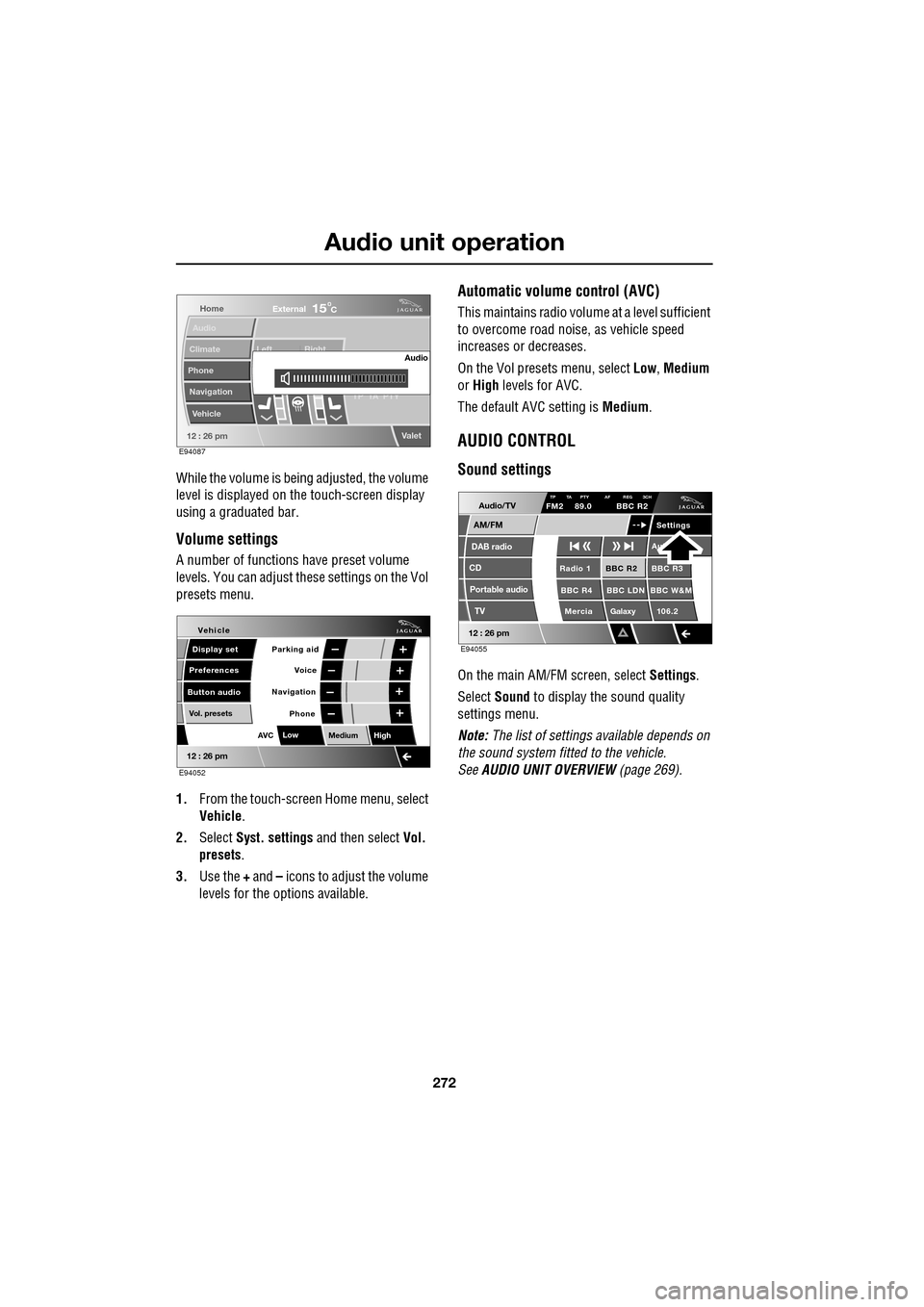
While the volume is being adjusted, the volume
level is displayed on the touch-screen display
using a graduated bar.
Volume settings
A number of functions have preset volume
levels. You can adjust these settings on the Vol
presets menu.
1. From the touch-screen Home menu, select
Vehicle .
2. Select Syst. settings and then select Vol.
presets .
3. Use the + and – icons to adjust the volume
levels for the options available.
Automatic volume control (AVC)
This maintains radio volume at a level sufficient
to overcome road noise, as vehicle speed
increases or decreases.
On the Vol presets menu, select Low, Medium
or High levels for AVC.
The default AVC setting is Medium.
AUDIO CONTROL
Sound settings
On the main AM/FM screen, select Settings.
Select Sound to display the sound quality
settings menu.
Note: The list of settings available depends on
the sound system fitted to the vehicle.
See AUDIO UNIT OVERVIEW (page 269).
Home
Audio
Climate
Phone
Navigation
Vehicle Left Right
TP T
A PTY
Valet12 : 26 pm
Audio
External15C
E94087
Voice
Vehicle
Display set
Preferences
Button audioParking aid
Vol. presets
AVC Low
MediumHigh
12 : 26 pm
Navigation
Phone
E94052
Audio/TV
DAB radio
CD
AM/FM
12 : 26 pm
BBC R2 BBC R3
BBC R4 BBC LDN BBC W&M Mercia Galaxy 106.2Radio 1
Settings
Aut
TP TA PTY AF REG 3CHFM2 89.0 BBC R2
Portable audio TV
E94055
Page 274 of 391
Audio unit operation
274
WAVEBAND BUTTON
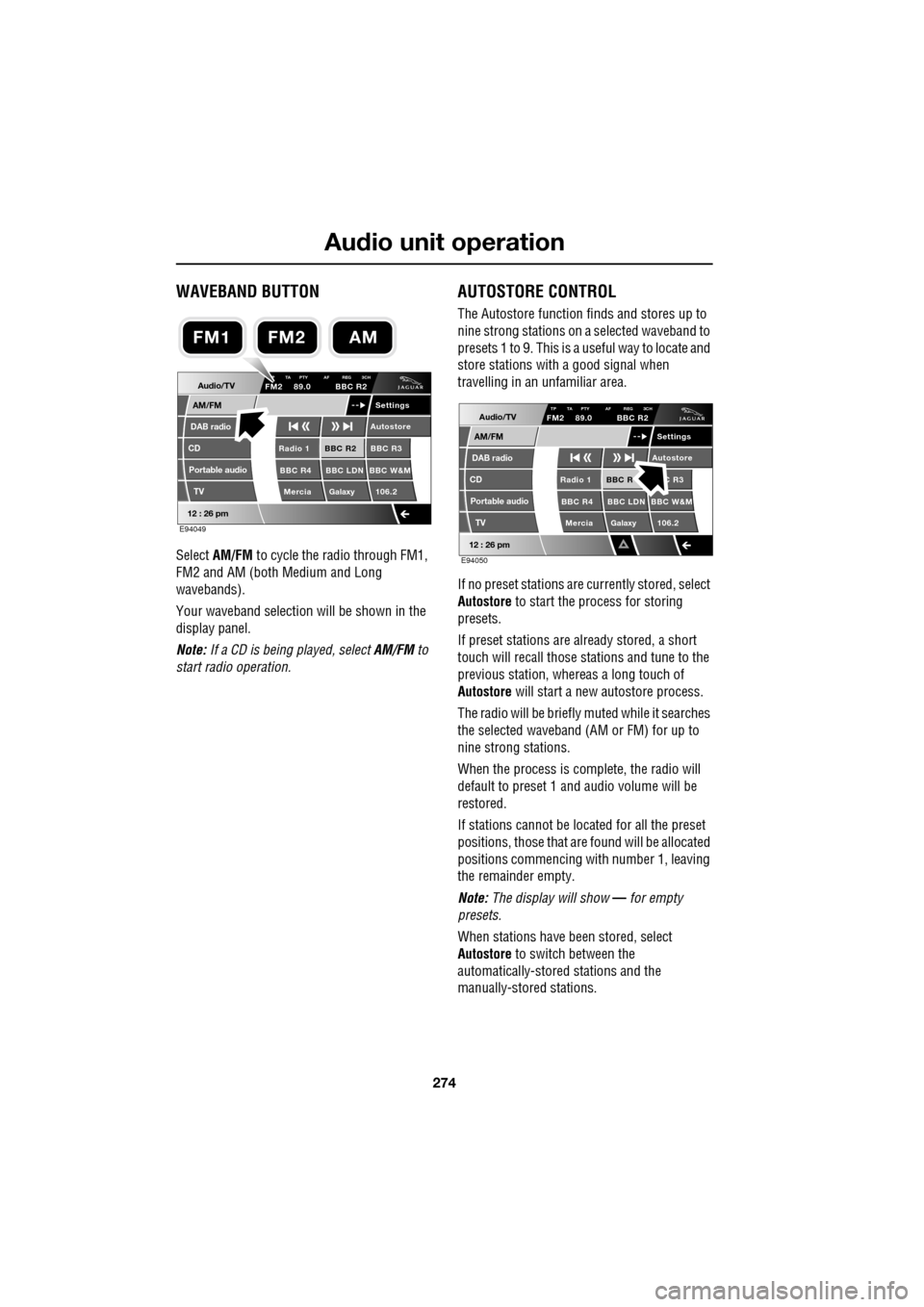
Select AM/FM to cycle the radio through FM1,
FM2 and AM (both Medium and Long
wavebands).
Your waveband selection will be shown in the
display panel.
Note: If a CD is being played, select AM/FM to
start radio operation.
AUTOSTORE CONTROL
The Autostore function fi nds and stores up to
nine strong stations on a selected waveband to
presets 1 to 9. This is a useful way to locate and
store stations with a good signal when
travelling in an unfamiliar area.
If no preset stations are currently stored, select
Autostore to start the process for storing
presets.
If preset stations are already stored, a short
touch will recall those stations and tune to the
previous station, whereas a long touch of
Autostore will start a new autostore process.
The radio will be briefly muted while it searches
the selected waveband (AM or FM) for up to
nine strong stations.
When the process is co mplete, the radio will
default to preset 1 and audio volume will be
restored.
If stations cannot be located for all the preset
positions, those that are found will be allocated
positions commencing with number 1, leaving
the remainder empty.
Note: The display will show — for empty
presets.
When stations have been stored, select
Autostore to switch between the
automatically-stored stations and the
manually-stored stations.
Audio/TV
DAB radio
CD
AM/FM
12 : 26 pm
BBC R2 BBC R3
BBC R4 BBC LDN BBC W&M Mercia Galaxy 106.2Radio 1
Settings
Autostore
P TA PTY AF REG 3CHFM2 89.0 BBC R2
Portable audio TV
E94049
FM2AMFM1
Audio/TV
DAB radio
CD
AM/FM
12 : 26 pm
BBC R C R3
BBC R4 BBC LDN BBC W&M Mercia Galaxy 106.2Radio 1
Settings
Autostore
TP TA PTY AF REG 3CHFM2 89.0 BBC R2
Portable audio TV
E94050
Page 275 of 391
275
Audio unit operation
STATION PRESET BUTTONS
Tuning stations
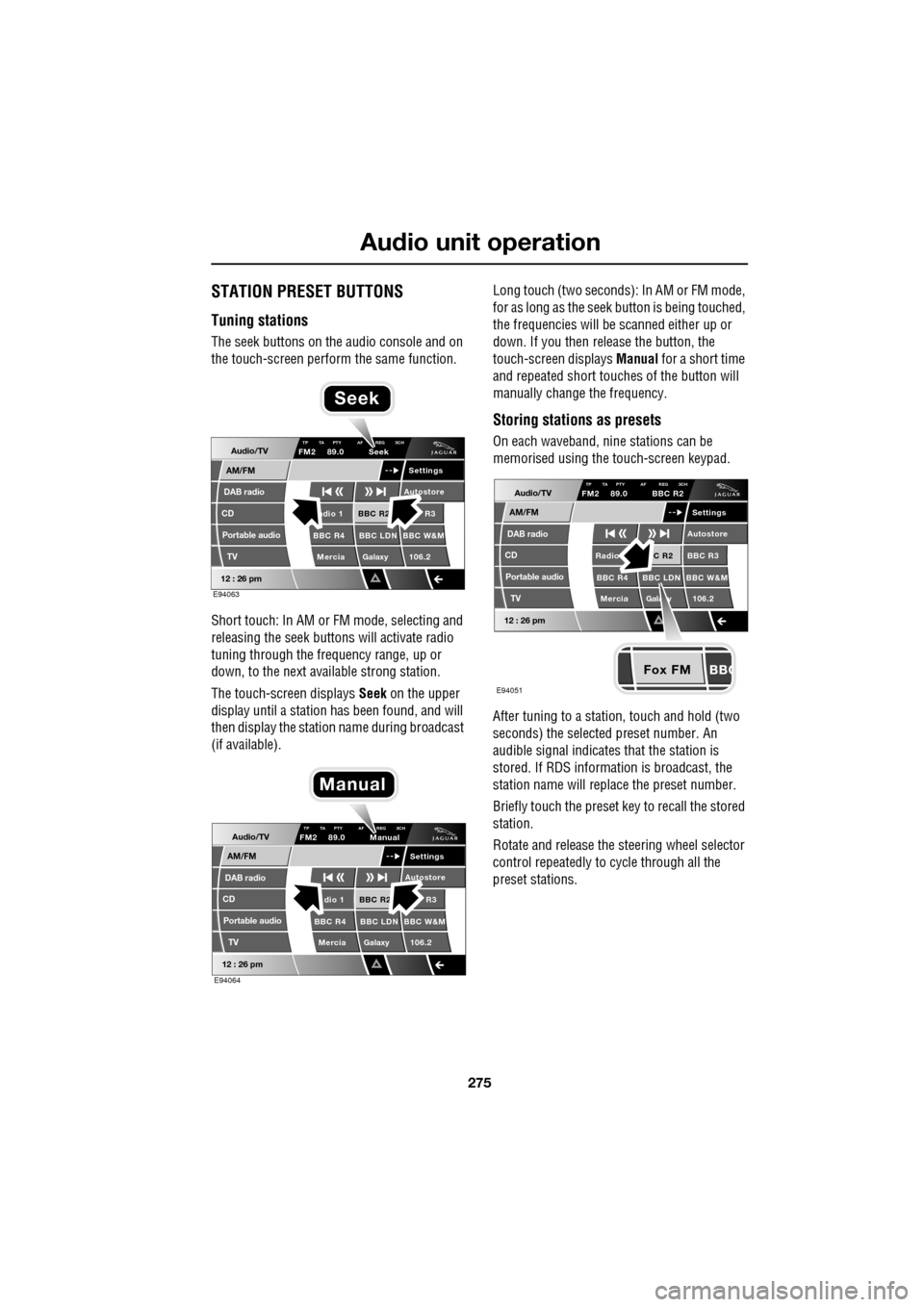
The seek buttons on the audio console and on
the touch-screen perform the same function.
Short touch: In AM or FM mode, selecting and
releasing the seek buttons will activate radio
tuning through the frequency range, up or
down, to the next available strong station.
The touch-screen displays Seek on the upper
display until a station has been found, and will
then display the station name during broadcast
(if available). Long touch (two seconds): In AM or FM mode,
for as long as the seek
button is being touched,
the frequencies will be scanned either up or
down. If you then release the button, the
touch-screen displays Manual for a short time
and repeated short touc hes of the button will
manually change the frequency.
Storing stations as presets
On each waveband, ni ne stations can be
memorised using the touch-screen keypad.
After tuning to a stati on, touch and hold (two
seconds) the selected preset number. An
audible signal indicates that the station is
stored. If RDS informat ion is broadcast, the
station name will replace the preset number.
Briefly touch the preset key to recall the stored
station.
Rotate and release the steering wheel selector
control repeatedly to cycle through all the
preset stations.Audio/TV
DAB radio
CD
AM/FM
12 : 26 pm
BBC R2 R3
BBC R4 BBC LDN BBC W&M Mercia Galaxy 106.2adio 1
Settings
Autostore
TP TA PTY AF REG 3CHFM2 89.0 Seek
Portable audio TV
E94063
Seek
Audio/TV
DAB radio
CD
AM/FM
12 : 26 pm
BBC R2 R3
BBC R4 BBC LDN BBC W&M Mercia Galaxy 106.2dio 1
Settings
Autostore
TP TA PTY AF REG 3CHFM2 89.0 Manual
Portable audio TV
E94064
Manual
Fox FM
Audio/TV
DAB radio
CD
AM/FM
12 : 26 pm
C R2 BBC R3
BBC R4 BBC LDN BBC W&M
Mercia Gala y 106.2Radio
Settings
Autostore
TP TA PTY AF REG 3CHFM2 89.0 BBC R2
Portable audio TV
E94051
Page 282 of 391
Digital audio broadcasting
282
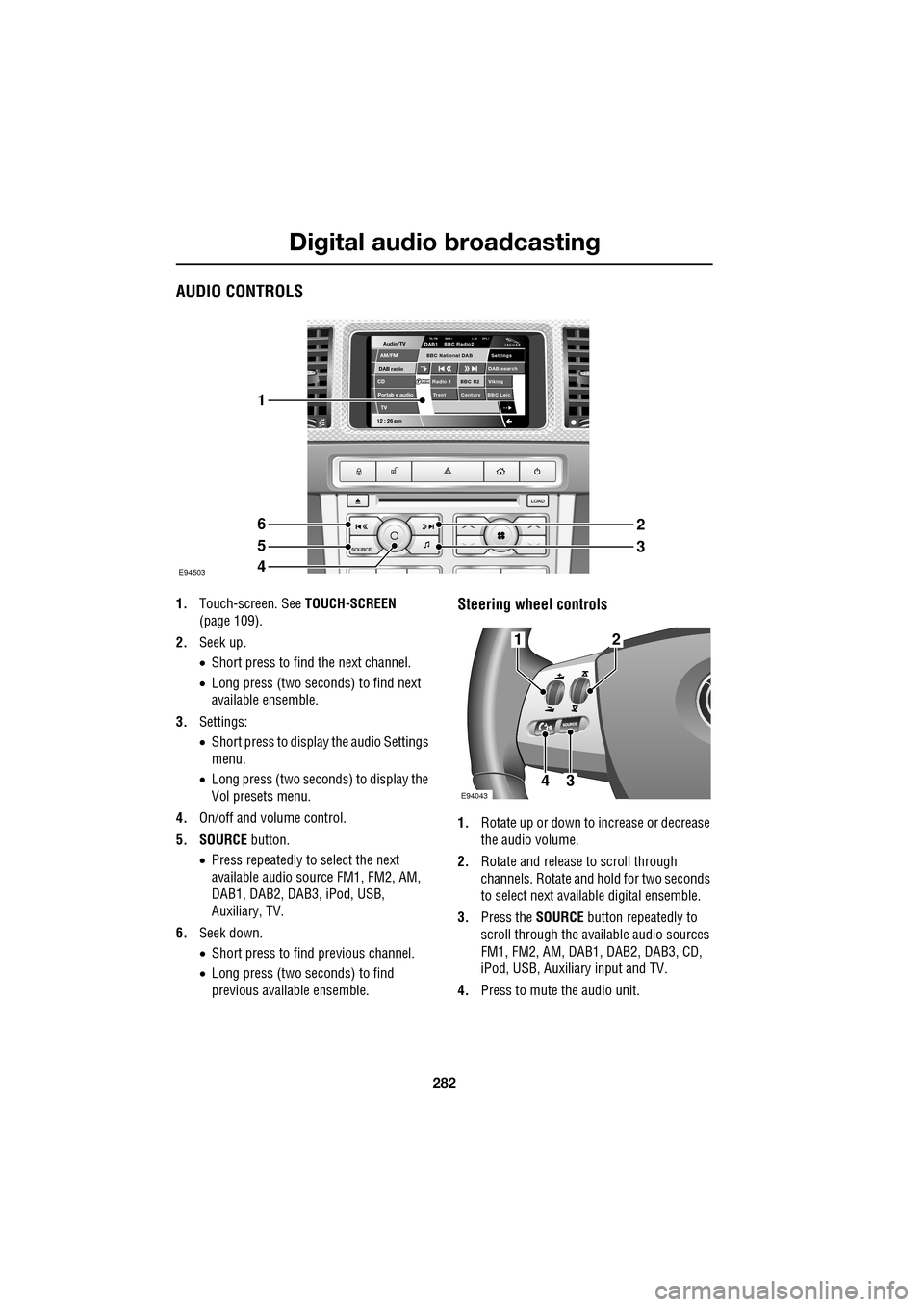
AUDIO CONTROLS
1.Touch-screen. See TOUCH-SCREEN
(page 109).
2. Seek up.
•Short press to find the next channel.
• Long press (two seconds) to find next
available ensemble.
3. Settings:
•Short press to display the audio Settings
menu.
• Long press (two seconds) to display the
Vol presets menu.
4. On/off and volume control.
5. SOURCE button.
• Press repeatedly to select the next
available audio sour ce FM1, FM2, AM,
DAB1, DAB2, DAB3, iPod, USB,
Auxiliary, TV.
6. Seek down.
•Short press to find previous channel.
• Long press (two seconds) to find
previous available ensemble.Steering wheel controls
1. Rotate up or down to increase or decrease
the audio volume.
2. Rotate and release to scroll through
channels. Rotate and hold for two seconds
to select next available digital ensemble.
3. Press the SOURCE button repeatedly to
scroll through the available audio sources
FM1, FM2, AM, DAB1, DAB2, DAB3, CD,
iPod, USB, Auxiliary input and TV.
4. Press to mute the audio unit.
Audio/TV
DAB radio
CDAM/FM
12 : 26 pm
BBC R2 Viking
Trent Century BBC LeicRadio 1
Settings
DAB search
TA-FM DAB-i L nk DPL IDAB1 BBC Radio2
Portab e audio
TV
BBC National DAB
E94503
1
6
5
4
2
3
E94043
12
43
Page 284 of 391
Digital audio broadcasting
284
CHANNEL AUTOMATIC TUNING
Note: When you first use the DAB radio, you
will be unable to listen to any digital broadcasts
until you have comp leted the auto-tune
process.
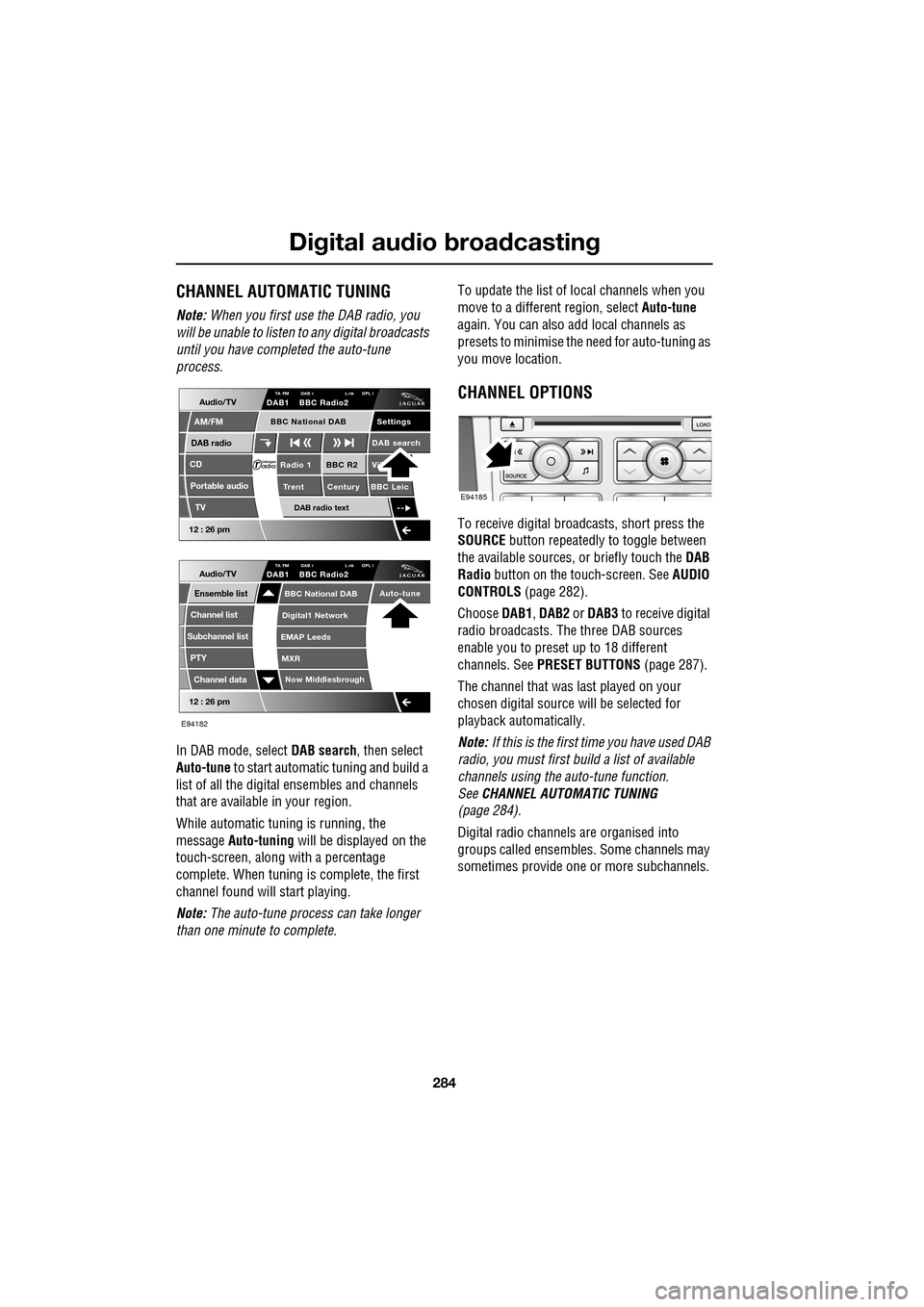
In DAB mode, select DAB search, then select
Auto-tune to start automatic tuning and build a
list of all the digital ensembles and channels
that are available in your region.
While automatic tuning is running, the
message Auto-tuning will be displayed on the
touch-screen, along with a percentage
complete. When tuning is complete, the first
channel found will start playing.
Note: The auto-tune process can take longer
than one minute to complete. To update the list of lo
cal channels when you
move to a different region, select Auto-tune
again. You can also add local channels as
presets to minimise the need for auto-tuning as
you move location.
CHANNEL OPTIONS
To receive digital broadcasts, short press the
SOURCE button repeatedly to toggle between
the available sources, or briefly touch the DAB
Radio button on the touch-screen. See AUDIO
CONTROLS (page 282).
Choose DAB1, DAB2 or DAB3 to receive digital
radio broadcasts. The three DAB sources
enable you to preset up to 18 different
channels. See PRESET BUTTONS (page 287).
The channel that was last played on your
chosen digital source will be selected for
playback automatically.
Note: If this is the first time you have used DAB
radio, you must first build a list of available
channels using the auto-tune function.
See CHANNEL AUTOMATIC TUNING
(page 284).
Digital radio channels are organised into
groups called ensembles. Some channels may
sometimes provide one or more subchannels.
Audio/TV
DAB radio
CD
AM/FM
12 : 26 pm
BBC R2 Vik
Trent Century BBC LeicRadio 1
Settings
DAB search
TA FM DAB i L nk DPL IDAB1 BBC Radio2
Portable audio
TV
DAB radio text
BBC National DAB
12 : 26 pm
Now Middlesbrough
BBC National DAB
Digital1 Network
EMAP Leeds
MXR
Audio/TVTA FM DAB i L nk DPL IDAB1 BBC Radio2
Channel list
Subchannel list
Ensemble list
PTY
Channel data
Auto-tune
E94182
E94185
Page 285 of 391
285
Digital audio broadcasting
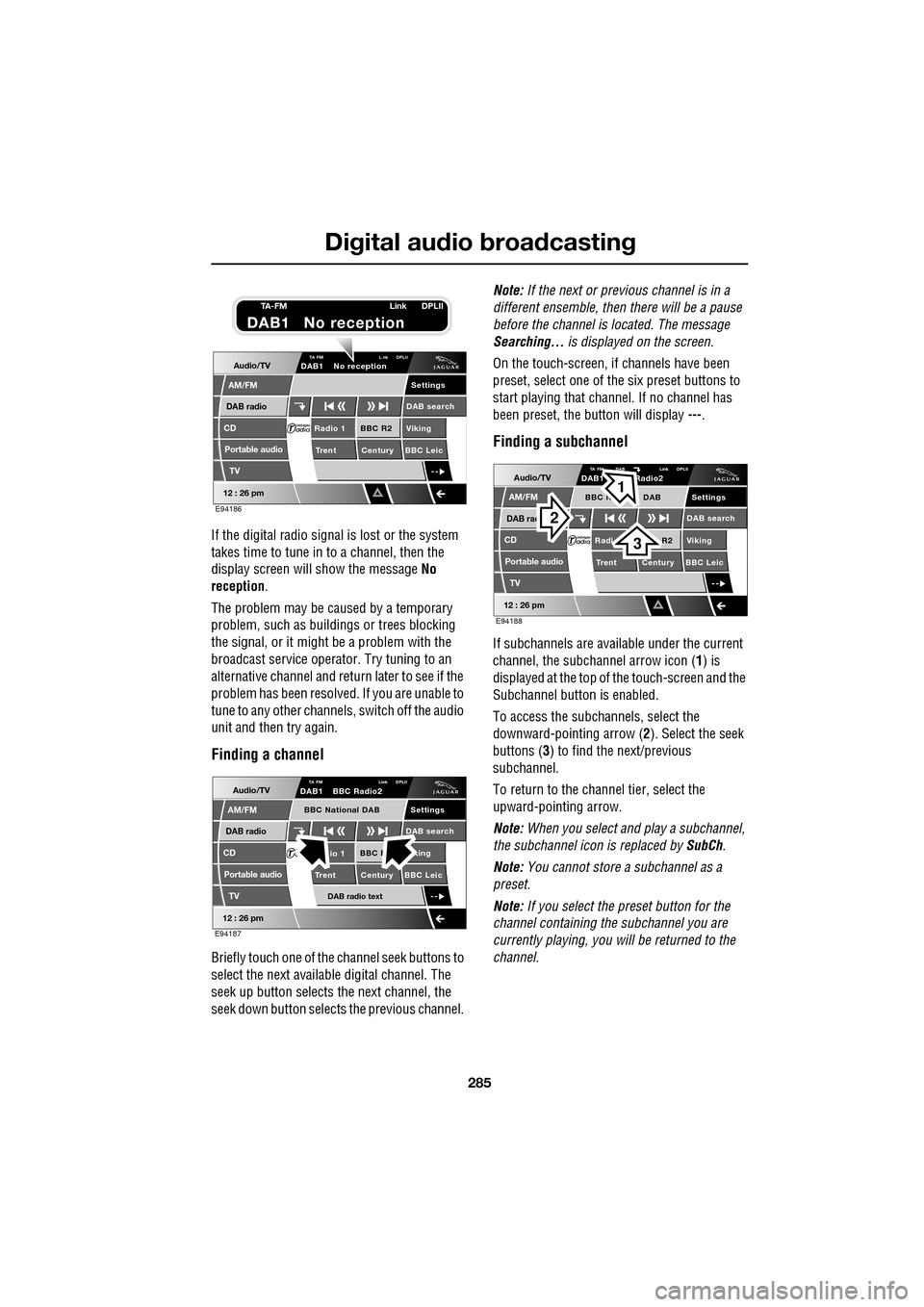
If the digital radio signal is lost or the system
takes time to tune in to a channel, then the
display screen will show the message No
reception.
The problem may be caused by a temporary
problem, such as buildings or trees blocking
the signal, or it might be a problem with the
broadcast servic e operator. Try tuning to an
alternative channel and return later to see if the
problem has been resolved. If you are unable to
tune to any other channe ls, switch off the audio
unit and then try again.
Finding a channel
Briefly touch one of the channel seek buttons to
select the next availabl e digital channel. The
seek up button selects th e next channel, the
seek down button selects the previous channel. Note:
If the next or previous channel is in a
different ensemble, then there will be a pause
before the channel is located. The message
Searching... is displayed on the screen.
On the touch-screen, if channels have been
preset, select one of the six preset buttons to
start playing that channel. If no channel has
been preset, the button will display ---.
Finding a subchannel
If subchannels are available under the current
channel, the subchannel arrow icon ( 1) is
displayed at the top of the touch-screen and the
Subchannel button is enabled.
To access the subchannels, select the
downward-pointing arrow ( 2). Select the seek
buttons ( 3) to find the next/previous
subchannel.
To return to the channel tier, select the
upward-pointing arrow.
Note: When you select and play a subchannel,
the subchannel icon is replaced by SubCh.
Note: You cannot store a subchannel as a
preset.
Note: If you select the preset button for the
channel containing the subchannel you are
currently playing, you will be returned to the
channel.
Audio/TV
DAB radio
CD
AM/FM
12 : 26 pm
BBC R2 Viking
Trent Century BBC LeicRadio 1
Settings
DAB search
TA FM L nk DPLIIDAB1 No reception
Portable audio
TV
E94186
TA-FM Link DPLII
DAB1 No reception
Audio/TV
DAB radio
CD
AM/FM
12 : 26 pm
BBC R king
Trent Century BBC Leicio 1
Settings
DAB search
TA FM Link DPLIIDAB1 BBC Radio2
Portable audio
TV
DAB radio text
BBC National DAB
E94187
Audio/TV
DAB rad
CD
AM/FM
12 : 26 pm
R2 Viking
T
rent Century BBC LeicRadi
Settings
DAB search
TA FM DAB Link DPLIIDAB1 Radio2
Portable audio
TV
BBC N DAB
E94188
2
3
1
Page 287 of 391
287
Digital audio broadcasting
PRESET BUTTONS
Storing channels as presets
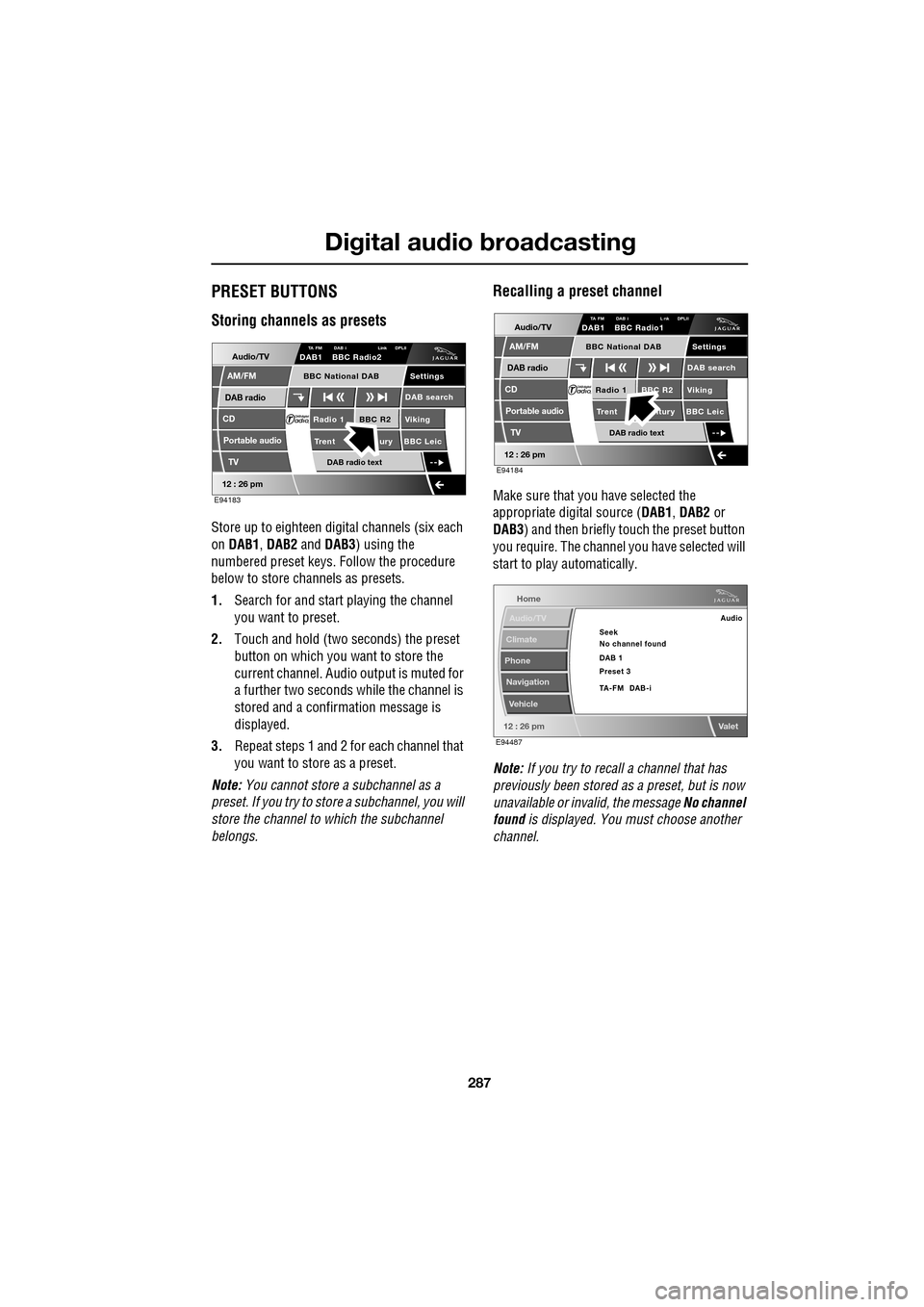
Store up to eighteen digital channels (six each
on DAB1 , DAB2 and DAB3 ) using the
numbered preset keys. Follow the procedure
below to store channels as presets.
1. Search for and start playing the channel
you want to preset.
2. Touch and hold (two seconds) the preset
button on which you want to store the
current channel. Audi o output is muted for
a further two seconds while the channel is
stored and a confirmation message is
displayed.
3. Repeat steps 1 and 2 for each channel that
you want to store as a preset.
Note: You cannot store a subchannel as a
preset. If you try to stor e a subchannel, you will
store the channel to which the subchannel
belongs.
Recalling a preset channel
Make sure that you have selected the
appropriate digital source ( DAB1, DAB2 or
DAB3 ) and then briefly touch the preset button
you require. The channel you have selected will
start to play automatically.
Note: If you try to recall a channel that has
previously been stored as a preset, but is now
unavailable or invalid, the message No channel
found is displayed. You must choose another
channel.
Audio/TV
DAB radio
CD
AM/FM
12 : 26 pm
BBC R2 Viking
Trent ury BBC LeicRadio 1
Settings
DAB search
TA FM DAB i Link DPLIIDAB1 BBC Radio2
Portable audio
TV
DAB radio text
BBC National DAB
E94183
Audio/TV
DAB radio
CD
AM/FM
12 : 26 pm
BBC R2 Viking
Trent ntury BBC LeicRadio 1
Settings
DAB search
TA FM DAB i L nk DPLIIDAB1 BBC Radio1
Portable audio
TV
DAB radio text
BBC National DAB
E94184
Home
Audio/TV
Climate
Phone
Navigation
Vehicle
Valet12 : 26 pm
Audio
Seek
No channel found
Preset 3 DAB 1
TA-FM DAB-i
E94487
Page 314 of 391
Telephone
314
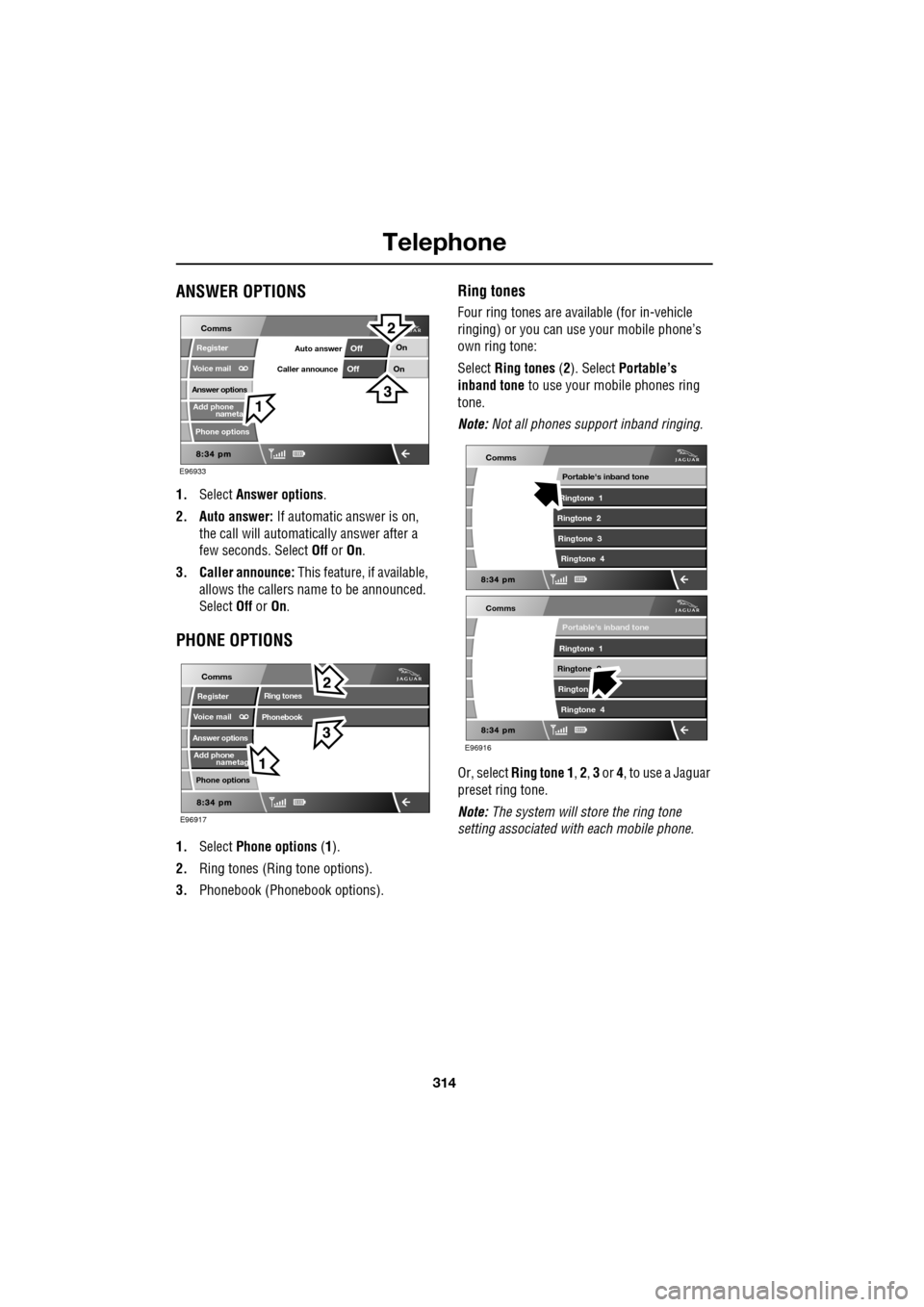
ANSWER OPTIONS
1.Select Answer options .
2. Auto answer: If automatic answer is on,
the call will automatically answer after a
few seconds. Select Off or On.
3. Caller announce: This feature, if available,
allows the callers na me to be announced.
Select Off or On.
PHONE OPTIONS
1. Select Phone options (1).
2. Ring tones (Ring tone options).
3. Phonebook (Phone book options).
Ring tones
Four ring tones are avai lable (for in-vehicle
ringing) or you can use your mobile phone’s
own ring tone:
Select Ring tones (2). Select Portable’s
inband tone to use your mobile phones ring
tone.
Note: Not all phones support inband ringing.
Or, select Ring tone 1 , 2 , 3 or 4, to use a Jaguar
preset ring tone.
Note: The system will store the ring tone
setting associated wi th each mobile phone.
nameta
Register
Voice mail
Answer options
Phone options
E96933
Comms
Add phone
On
On
Off
OffAuto answer
Caller announce
nametag
Register
Voice mail
Answer options
Phone options
E96917
Comms
Add phone
Ring tones
Phonebook
E96916
Comms
Portable's inband tone
Ringtone 1
Ringtone 2 Rington Ringtone 4
Comms
Portable's inband tone
Ringtone 1
Ringtone 2 Ringtone 3 Ringtone 4
Page 329 of 391
329
Television
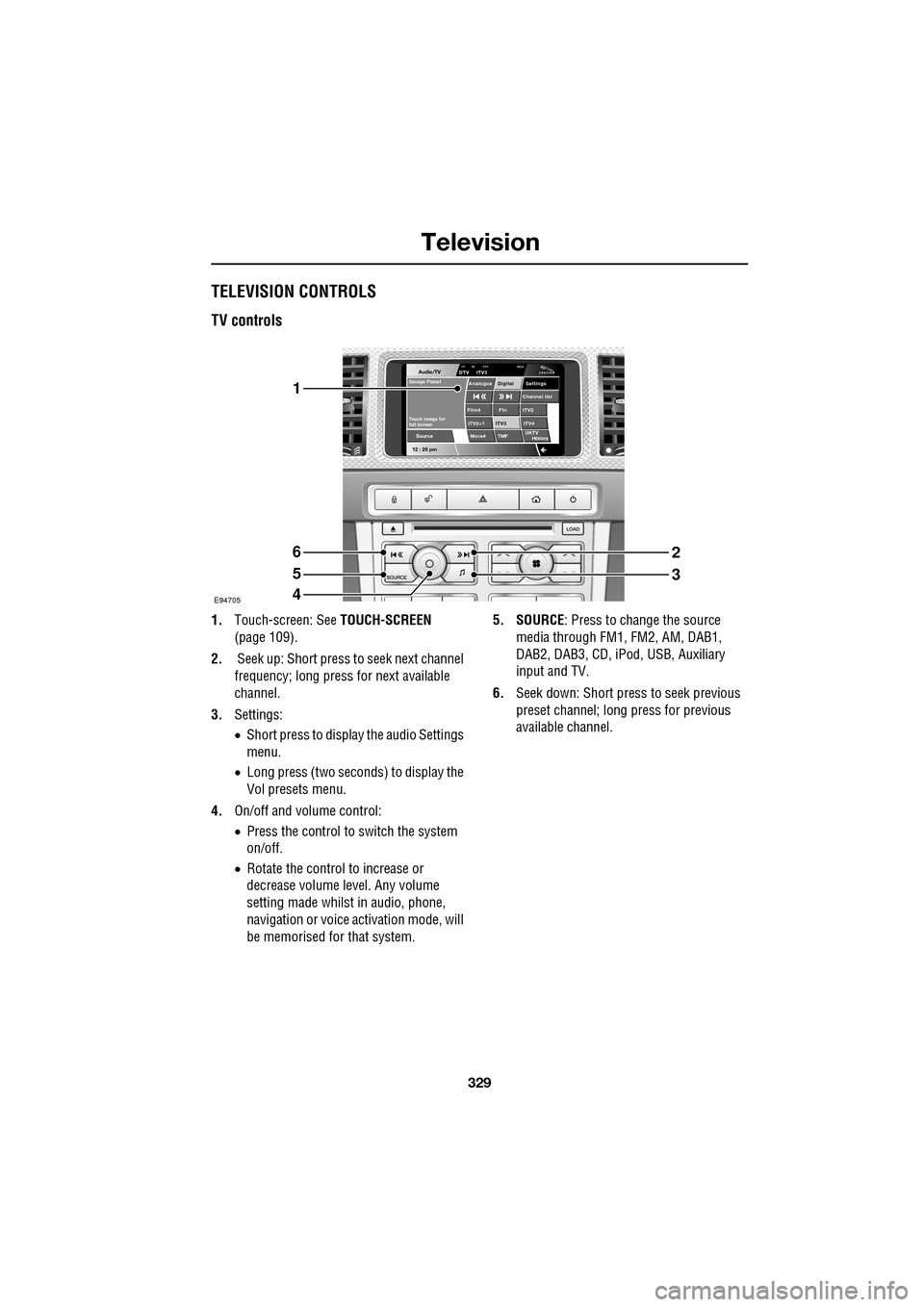
TELEVISION CONTROLS
TV controls
1.Touch-screen: See TOUCH-SCREEN
(page 109).
2. Seek up: Short press to seek next channel
frequency; long press for next available
channel.
3. Settings:
•Short press to display the audio Settings
menu.
• Long press (two seconds) to display the
Vol presets menu.
4. On/off and volume control:
•Press the control to switch the system
on/off.
• Rotate the control to increase or
decrease volume level. Any volume
setting made whilst in audio, phone,
navigation or voice ac tivation mode, will
be memorised for that system. 5. SOURCE
: Press to change the source
media through FM1, FM2, AM, DAB1,
DAB2, DAB3, CD, iPod, USB, Auxiliary
input and TV.
6. Seek down: Short press to seek previous
preset channel; long press for previous
available channel.
Audio/TV
12 : 26 pmMore4 TMF
TP TA PTY DPLIIDTV ITV3
UKTV
HistorySource
ITV2
ITV2+1 ITV4Film4
Settings
Channel listAnalogue Digital
Ftn
ITV3
Touch image for
full screen
Savage Planet
E94705
1
6
5
4
2
3