ESP JAGUAR XF 2009 1.G Workshop Manual
[x] Cancel search | Manufacturer: JAGUAR, Model Year: 2009, Model line: XF, Model: JAGUAR XF 2009 1.GPages: 391, PDF Size: 19.32 MB
Page 375 of 391
375
Navigation system
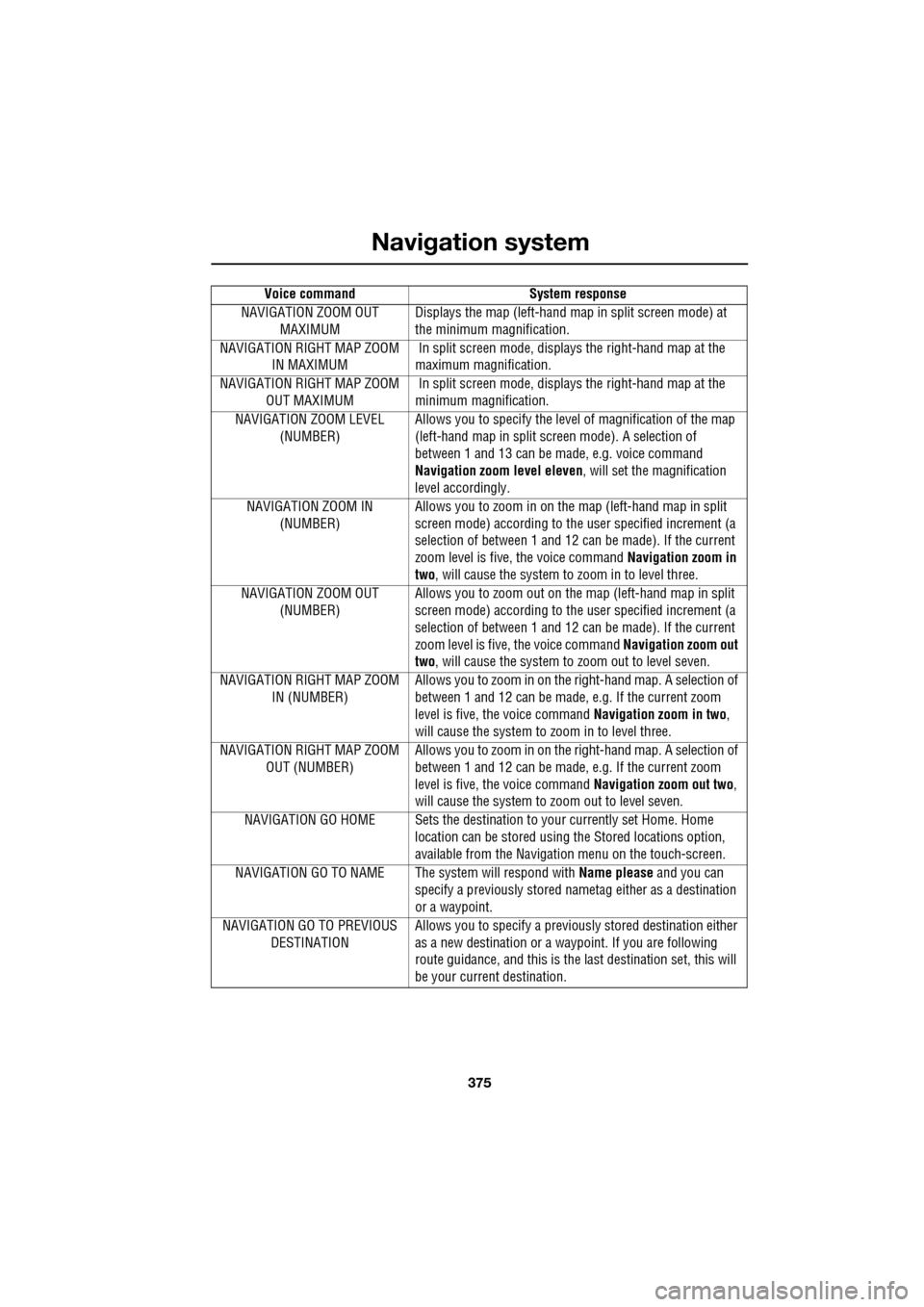
NAVIGATION ZOOM OUT MAXIMUM Displays the map (left-hand ma
p in split screen mode) at
the minimum magnification.
NAVIGATION RIGHT MAP ZOOM IN MAXIMUM In split screen mode, displa
ys the right-hand map at the
maximum magnification.
NAVIGATION RIGHT MAP ZOOM OUT MAXIMUM In split screen mode, displa
ys the right-hand map at the
minimum magnification.
NAVIGATION ZOOM LEVEL (NUMBER) Allows you to specify the leve
l of magnification of the map
(left-hand map in split scre en mode). A selection of
between 1 and 13 can be made, e.g. voice command
Navigation zoom level eleven , will set the magnification
level accordingly.
NAVIGATION ZOOM IN (NUMBER) Allows you to zoom in on th
e map (left-hand map in split
screen mode) according to the user specified increment (a
selection of between 1 and 12 ca n be made). If the current
zoom level is five, the voice command Navigation zoom in
two , will cause the system to zoom in to level three.
NAVIGATION ZOOM OUT (NUMBER) Allows you to zoom out on th
e map (left-hand map in split
screen mode) according to the user specified increment (a
selection of between 1 and 12 ca n be made). If the current
zoom level is five, the voice command Navigation zoom out
two , will cause the system to zoom out to level seven.
NAVIGATION RIGHT MAP ZOOM IN (NUMBER) Allows you to zoom in on the
right-hand map. A selection of
between 1 and 12 can be made, e.g. If the current zoom
level is five, the voice command Navigation zoom in two,
will cause the system to zoom in to level three.
NAVIGATION RIGHT MAP ZOOM OUT (NUMBER) Allows you to zoom in on the
right-hand map. A selection of
between 1 and 12 can be made, e.g. If the current zoom
level is five, the voice command Navigation zoom out two,
will cause the system to zoom out to level seven.
NAVIGATION GO HOME Sets the destinati on to your currently set Home. Home
location can be stored using the Stored locations option,
available from the Navigati on menu on the touch-screen.
NAVIGATION GO TO NAME The system will respond with Name please and you can
specify a previously stored na metag either as a destination
or a waypoint.
NAVIGATION GO TO PREVIOUS DESTINATION Allows you to specify a previous
ly stored destination either
as a new destination or a waypoint. If you are following
route guidance, and this is the la st destination set, this will
be your current destination.
Voice command
System response
Page 376 of 391
Navigation system
376
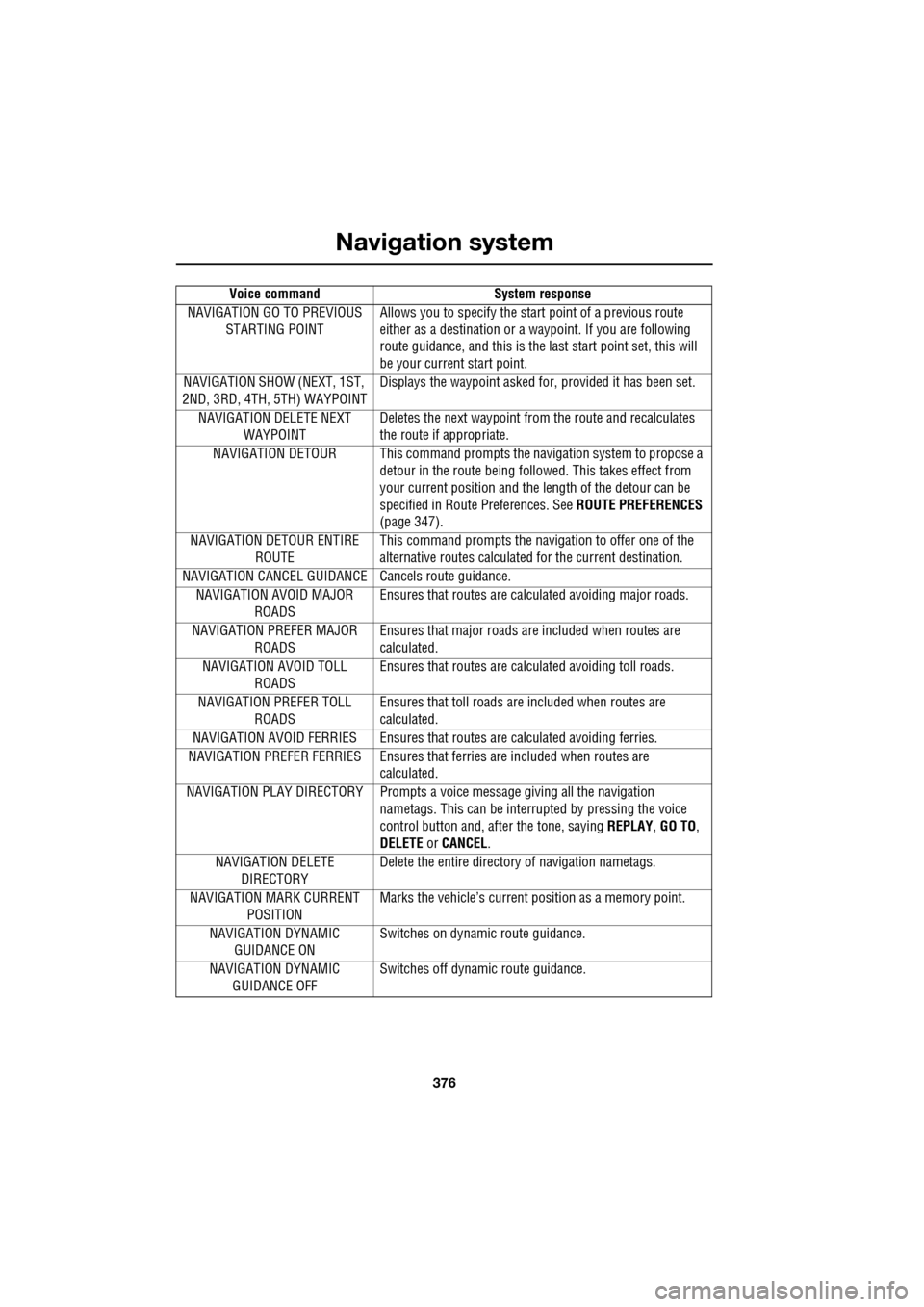
NAVIGATION GO TO PREVIOUS STARTING POINT Allows you to specify the star
t point of a previous route
either as a destination or a waypoint. If you are following
route guidance, and this is the la st start point set, this will
be your current start point.
NAVIGATION SHOW (NEXT, 1ST,
2ND, 3RD, 4TH, 5TH) WAYPOINT Displays the waypoint asked fo
r, provided it has been set.
NAVIGATION DELETE NEXT WAYPOINT Deletes the next waypoint from
the route and recalculates
the route if appropriate.
NAVIGATION DETOUR This co mmand prompts the navigation system to propose a
detour in the route being foll owed. This takes effect from
your current position and the length of the detour can be
specified in Route Preferences. See ROUTE PREFERENCES
(page 347).
NAVIGATION DETOUR ENTIRE ROUTE This command prompts the navi
gation to offer one of the
alternative routes calculated for the current destination.
NAVIGATION CANCEL GUIDAN CE Cancels route guidance.
NAVIGATION AVOID MAJOR ROADS Ensures that routes are calc
ulated avoiding major roads.
NAVIGATION PREFER MAJOR ROADS Ensures that major roads are included when routes are
calculated.
NAVIGATION AVOID TOLL ROADS Ensures that routes are calc
ulated avoiding toll roads.
NAVIGATION PREFER TOLL ROADS Ensures that toll roads are included when routes are
calculated.
NAVIGATION AVOID FERRIES Ens ures that routes are calculated avoiding ferries.
NAVIGATION PREFER FERRIES Ensures that ferries are included when routes are
calculated.
NAVIGATION PLAY DIRECTORY P rompts a voice message giving all the navigation
nametags. This can be interr upted by pressing the voice
control button and, after the tone, saying REPLAY, GO TO,
DELETE or CANCEL.
NAVIGATION DELETE DIRECTORY Delete the entire director
y of navigation nametags.
NAVIGATION MARK CURRENT POSITION Marks the vehicle’s current
position as a memory point.
NAVIGATION DYNAMIC GUIDANCE ON Switches on dynami
c route guidance.
NAVIGATION DYNAMIC GUIDANCE OFF Switches off dynamic route guidance.
Voice command System response
Page 377 of 391
377
Navigation system
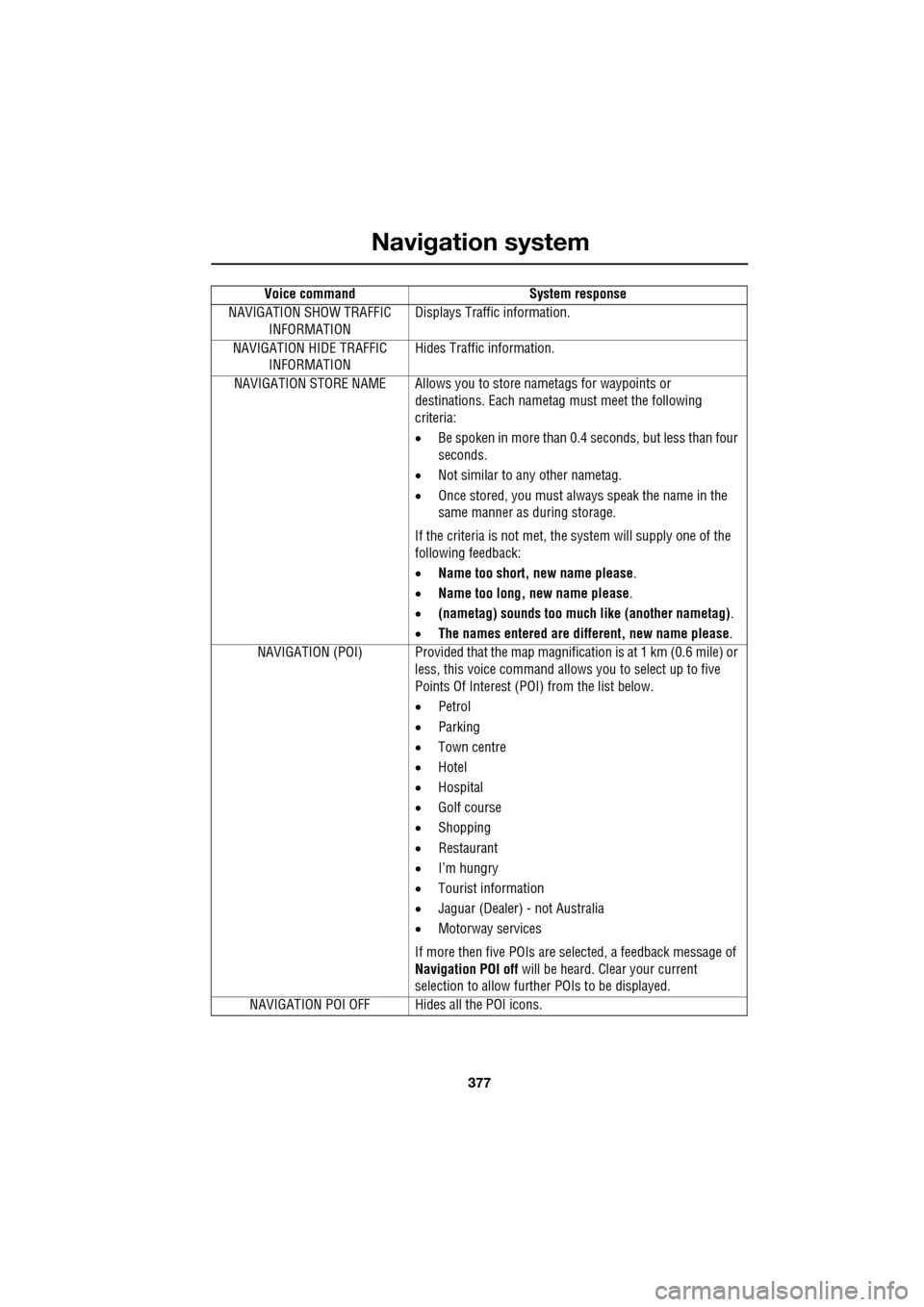
NAVIGATION SHOW TRAFFIC INFORMATION Displays Traffic information.
NAVIGATION HIDE TRAFFIC INFORMATION Hides Traffic information.
NAVIGATION STORE NAME Allows you to store nametags for waypoints or
destinations. Each nametag must meet the following
criteria:
• Be spoken in more than 0.4 seconds, but less than four
seconds.
• Not similar to any other nametag.
• Once stored, you must always speak the name in the
same manner as during storage.
If the criteria is not met, the system will supply one of the
following feedback:
• Name too short, new name please .
• Name too long, new name please .
• (nametag) sounds too much like (another nametag) .
• The names entered are different, new name please.
NAVIGATION (POI) Provided that the map ma gnification is at 1 km (0.6 mile) or
less, this voice command allows you to select up to five
Points Of Interest (POI) from the list below.
• Petrol
• Parking
• Town centre
• Hotel
• Hospital
• Golf course
• Shopping
• Restaurant
• I’m hungry
• Tourist information
• Jaguar (Dealer) - not Australia
• Motorway services
If more then five POIs are selected, a feedback message of
Navigation POI off will be heard. Clear your current
selection to allow furthe r POIs to be displayed.
NAVIGATION POI OFF Hid es all the POI icons.
Voice command
System response