set clock JAGUAR XF 2009 1.G Owners Manual
[x] Cancel search | Manufacturer: JAGUAR, Model Year: 2009, Model line: XF, Model: JAGUAR XF 2009 1.GPages: 391, PDF Size: 19.32 MB
Page 4 of 391
Contents
4
SIDE REPEATER LAMP .................................. 85
REAR LAMP BULBS ....................................... 85
BULB SPECIFICATION CHART ........................ 87
Wipers and washers
WINDSCREEN WIPERS .................................. 88
RAIN SENSOR ................................................ 89
WINDSCREEN WASHERS............................... 89
HEADLAMP WASHERS................................... 90
CHECKING THE WIPER BLADES .................... 90
CHANGING THE WIPER BLADES .................... 91
Windows and mirrors
ELECTRIC WINDOWS ..................................... 93
INTERIOR MIRROR ........................................ 94
EXTERIOR MIRRORS ..................................... 95
BLIND SPOT MONITOR .................................. 97
Instruments
INSTRUMENT PANEL OVERVIEW .................. 99
WARNING LAMPS AND INDICATORS .......... 100
AUDIBLE WARNINGS AND INDICATORS ..... 104
Information displays
GENERAL INFORMATION ............................. 105
WARNING AND INFORMATION MESSAGES. 106
TRIP COMPUTER ......................................... 107
TOUCH-SCREEN ........................................... 109
PERSONALISED SETTINGS .......................... 111
Climate control
AIR VENTS ................................................... 115
AUTOMATIC CLIMATE CONTROL ................. 116
ELECTRIC SUNROOF .................................... 121
Convenience features
SUN VISORS ................................................ 123
SUN BLINDS................................................. 123
INSTRUMENT LIGHTING DIMMER ............... 123
CLOCK .......................................................... 124
AUXILIARY POWER SOCKETS ..................... 125
GLOVE BOX .................................................. 125
CUP HOLDERS ............................................. 126
STORAGE COMPARTMENTS ........................ 127
GARAGE DOOR TRANSCEIVER .................... 128
PORTABLE AUDIO INTERFACE..................... 131
Starting the engine
GENERAL INFORMATION.............................. 132
KEYLESS STARTING ..................................... 133
SWITCHING OFF THE ENGINE....................... 134
DIESEL PARTICULATE FILTER (DPF)............ 135
Transmission
AUTOMATIC TRANSMISSION ....................... 137
Brakes
PRINCIPLE OF OPERATION .......................... 144
HINTS ON DRIVING WITH ABS ..................... 144
ELECTRIC PARKING BRAKE (EPB) ............... 146
Parking aid
PRINCIPLE OF OPERATION .......................... 148
USING THE PARKING AID ............................. 148
Rear view camera
PRINCIPLE OF OPERATION .......................... 152
Driving hints
RUNNING-IN ................................................. 154
ECONOMICAL DRIVING ................................ 155
Cruise control
PRINCIPLE OF OPERATION .......................... 156
USING CRUISE CONTROL............................. 156
Adaptive cruise control (ACC)
PRINCIPLE OF OPERATION .......................... 159
USING ACC ................................................... 159
FORWARD ALERT FUNCTION ....................... 164
ADVANCED EMERGENCY BRAKE ASSIST..... 165
Automatic speed limiter (ASL)
PRINCIPLE OF OPERATION .......................... 167
USING THE ASL ............................................ 167
Driving dynamics
GENERAL INFORMATION.............................. 169
WINTER MODE ............................................. 169
DYNAMIC MODE ........................................... 170
STABILITY CONTROL.................................... 170
Fuel and refuelling
SAFETY PRECAUTIONS................................. 174
Page 105 of 391
105
Information displays
GENERAL INFORMATION
The driver message centre display is situated
within the instrument panel between the
tachometer and speedometer gauges. The
message centre is active as soon as a door is
opened for access.
The primary function of the message centre is
to inform the driver of the following:
• Warning messages.
• Temporary alert messages.
• Information messages.
• Turn-by-turn navigation.
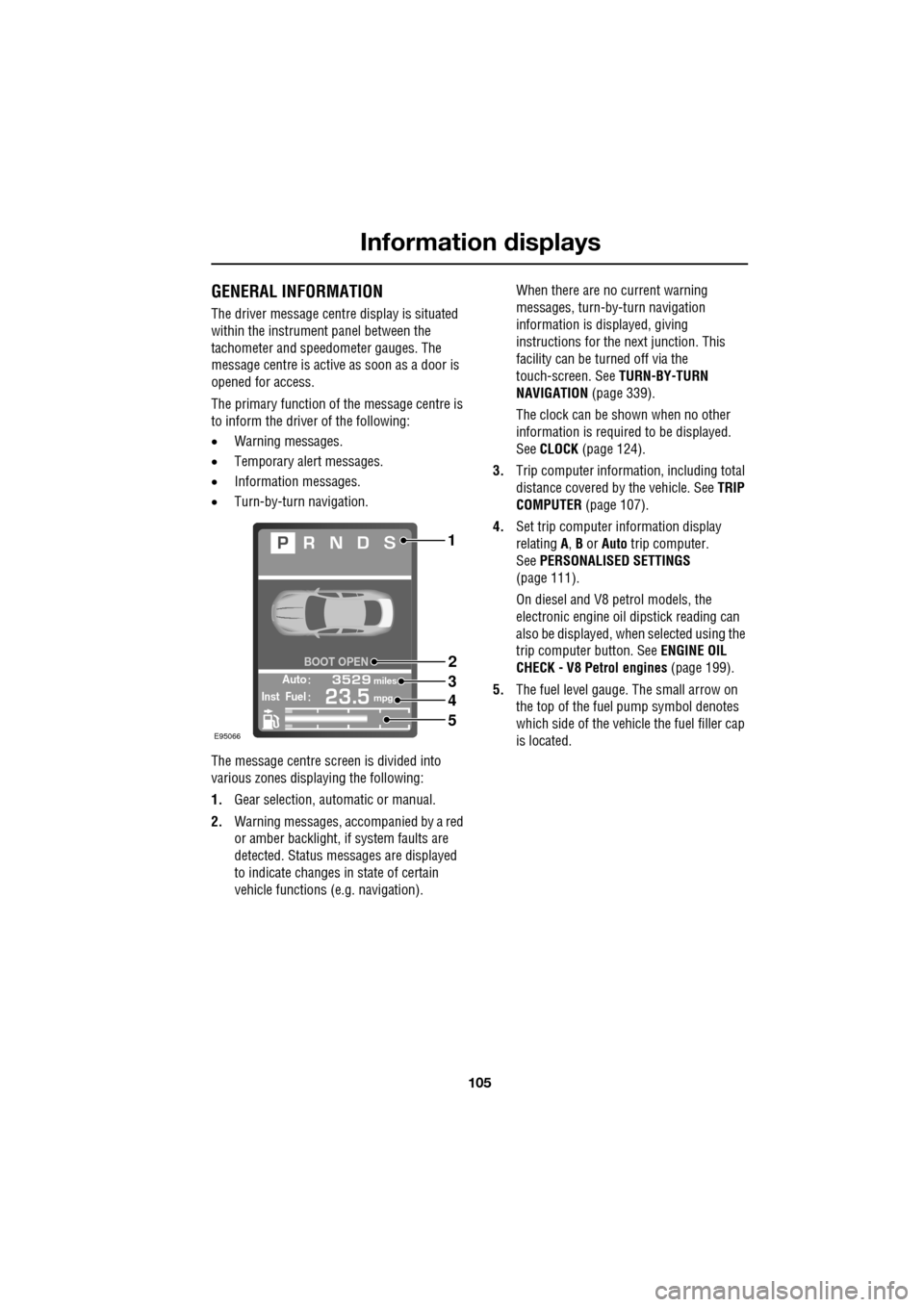
The message centre screen is divided into
various zones displaying the following:
1. Gear selection, automatic or manual.
2. Warning messages, accompanied by a red
or amber backlight, if system faults are
detected. Status messages are displayed
to indicate changes in state of certain
vehicle functions (e.g. navigation). When there are no current warning
messages, turn-by-turn navigation
information is displayed, giving
instructions for the next junction. This
facility can be turned off via the
touch-screen. See
TURN-BY-TURN
NAVIGATION (page 339).
The clock can be shown when no other
information is required to be displayed.
See CLOCK (page 124).
3. Trip computer information, including total
distance covered by the vehicle. See TRIP
COMPUTER (page 107).
4. Set trip computer information display
relating A, B or Auto trip computer.
See PERSONALISED SETTINGS
(page 111).
On diesel and V8 petrol models, the
electronic engine oil dipstick reading can
also be displayed, when selected using the
trip computer button. See ENGINE OIL
CHECK - V8 Petrol engines (page 199).
5. The fuel level gauge. The small arrow on
the top of the fuel pump symbol denotes
which side of the vehi cle the fuel filler cap
is located.
Automiles
Inst Fuelmpg
BOOT OPEN
E95066
1
2
3
4
5
Page 109 of 391
109
Information displays
TOUCH-SCREEN
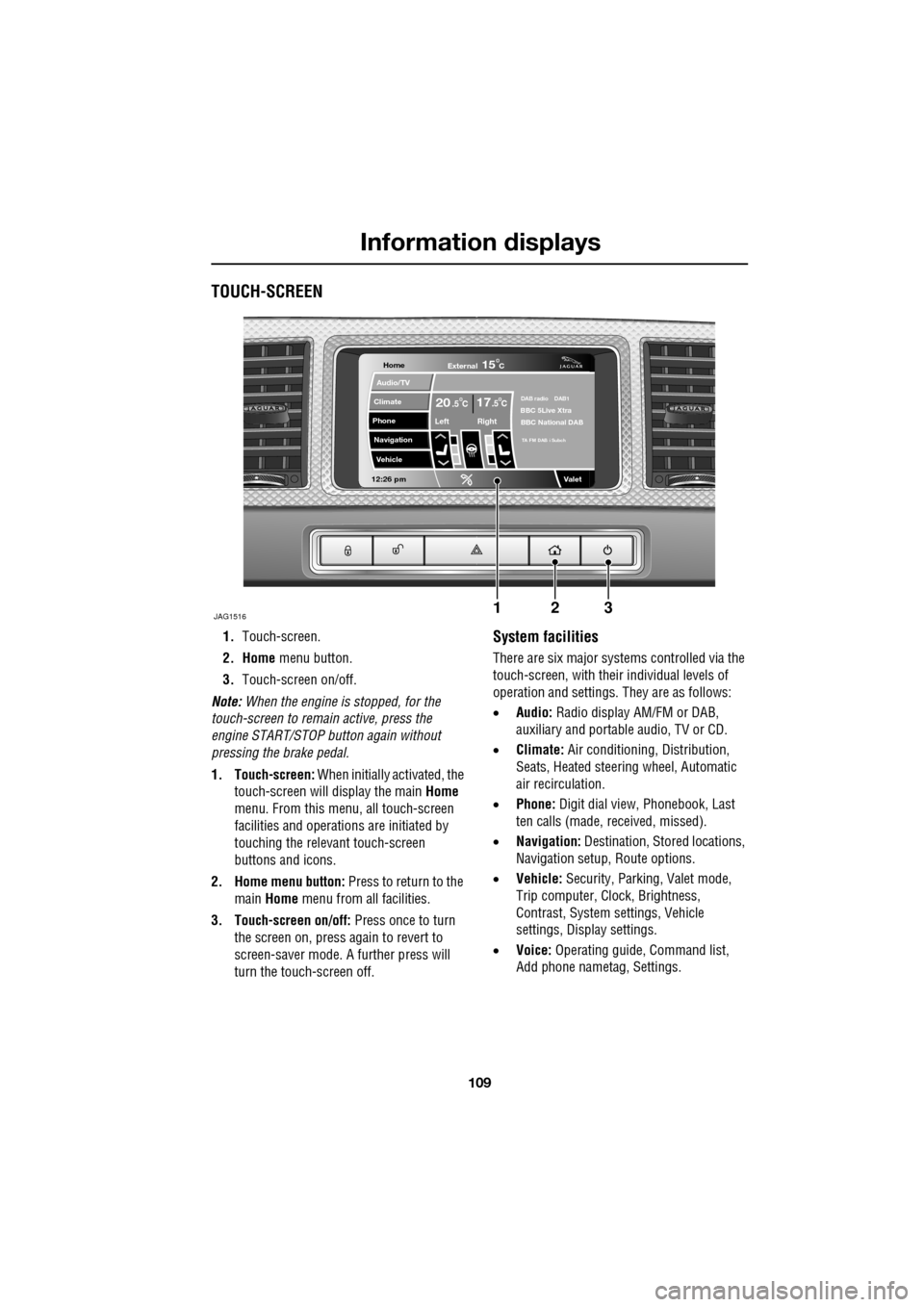
1.Touch-screen.
2. Home menu button.
3. Touch-screen on/off.
Note: When the engine is stopped, for the
touch-screen to remain active, press the
engine START/STOP button again without
pressing the brake pedal.
1. Touch-screen: When initially activated, the
touch-screen will display the main Home
menu. From this menu, all touch-screen
facilities and operati ons are initiated by
touching the relevant touch-screen
buttons and icons.
2. Home menu button: Press to return to the main Home menu from all facilities.
3. Touch-screen on/off: Press once to turn
the screen on, press again to revert to
screen-saver mode. A further press will
turn the touch-screen off.System facilities
There are six major systems controlled via the
touch-screen, with their individual levels of
operation and settings. They are as follows:
• Audio: Radio display AM/FM or DAB,
auxiliary and portable audio, TV or CD.
• Climate: Air conditioning, Distribution,
Seats, Heated steering wheel, Automatic
air recirculation.
• Phone: Digit dial view, Phonebook, Last
ten calls (made, received, missed).
• Navigation: Destination, St ored locations,
Navigation setup, Route options.
• Vehicle: Security, Parking, Valet mode,
Trip computer, Clock, Brightness,
Contrast, System settings, Vehicle
settings, Displa y settings.
• Voice: Operating guide, Command list,
Add phone nametag, Settings.
Home
Audio/TV
Climate
Phone
Navigation
Vehicle
Valet12:26 pm
JAG1516
External15C
Left Right
20 17CC.5 .5DAB radio DAB1BBC 5Live Xtra
BBC National DAB
TA FM DAB i Subch
123
Page 111 of 391
111
Information displays
Touch-screen care
Do not use any abrasive cleaners to clean your
touch-screen. For approved screen cleaners,
you should contact your Dealer/Authorised
Repairer.
The touch-screen inner bezel must be kept
clean to maintain optimum performance.
Finger marks and attracted dust should be
regularly removed usi ng a soft cloth and a
Jaguar approved cleaning agent.
Where possible, avoid exposing the
touch-screen to dire ct sunlight for long
periods.
PERSONALISED SETTINGS
General Information
The touch-screen provides touch-control of the
vehicle Audio, Climate, Phone, Navigation and
Vehicle systems, as fitted.
Note: When the engine is stopped, the
touch-screen reverts to the stand-by mode. To
activate the touch-screen press the engine
Start/Stop button again.
Home menu display
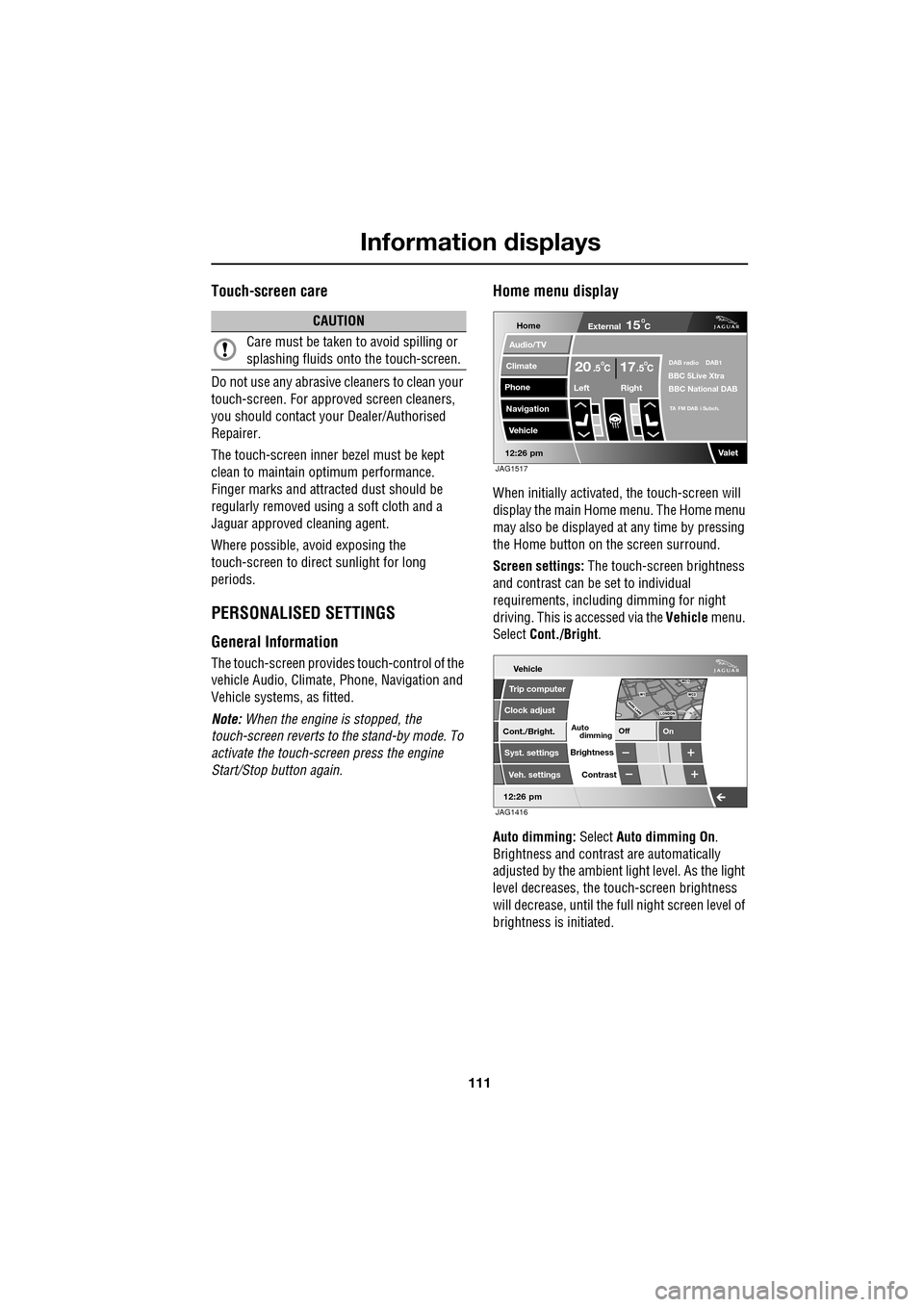
When initially activated, the touch-screen will
display the main Home menu. The Home menu
may also be displayed at any time by pressing
the Home button on the screen surround.
Screen settings: The touch-screen brightness
and contrast can be set to individual
requirements, including dimming for night
driving. This is accessed via the Vehicle menu.
Select Cont./Bright .
Auto dimming: Select Auto dimming On.
Brightness and contra st are automatically
adjusted by the ambient light level. As the light
level decreases, the t ouch-screen brightness
will decrease, until the fu ll night screen level of
brightness is initiated.
CAUTION
Care must be taken to avoid spilling or
splashing fluids onto the touch-screen.Home
Audio/TV
Climate
Phone
Navigation
Vehicle
Valet12:26 pm
External15C
Left Right
20 17CC.5 .5DAB radio DAB1BBC 5Live Xtra
BBC National DAB
TA FM DAB i Subch.
JAG1517
Vehicle
Off On
Auto
Trip computer
Clock adjust
Cont./Bright.
Syst. settings
Veh. settings Contrast
12:26 pm
dimming
Brightness
JAG1416
Page 113 of 391
113
Information displays
Vehicle system
The following system functions are set using
the touch-screen:
•Trip computer
• Clock adjust
• Brightness and contrast
• System settings
• Vehicle settings
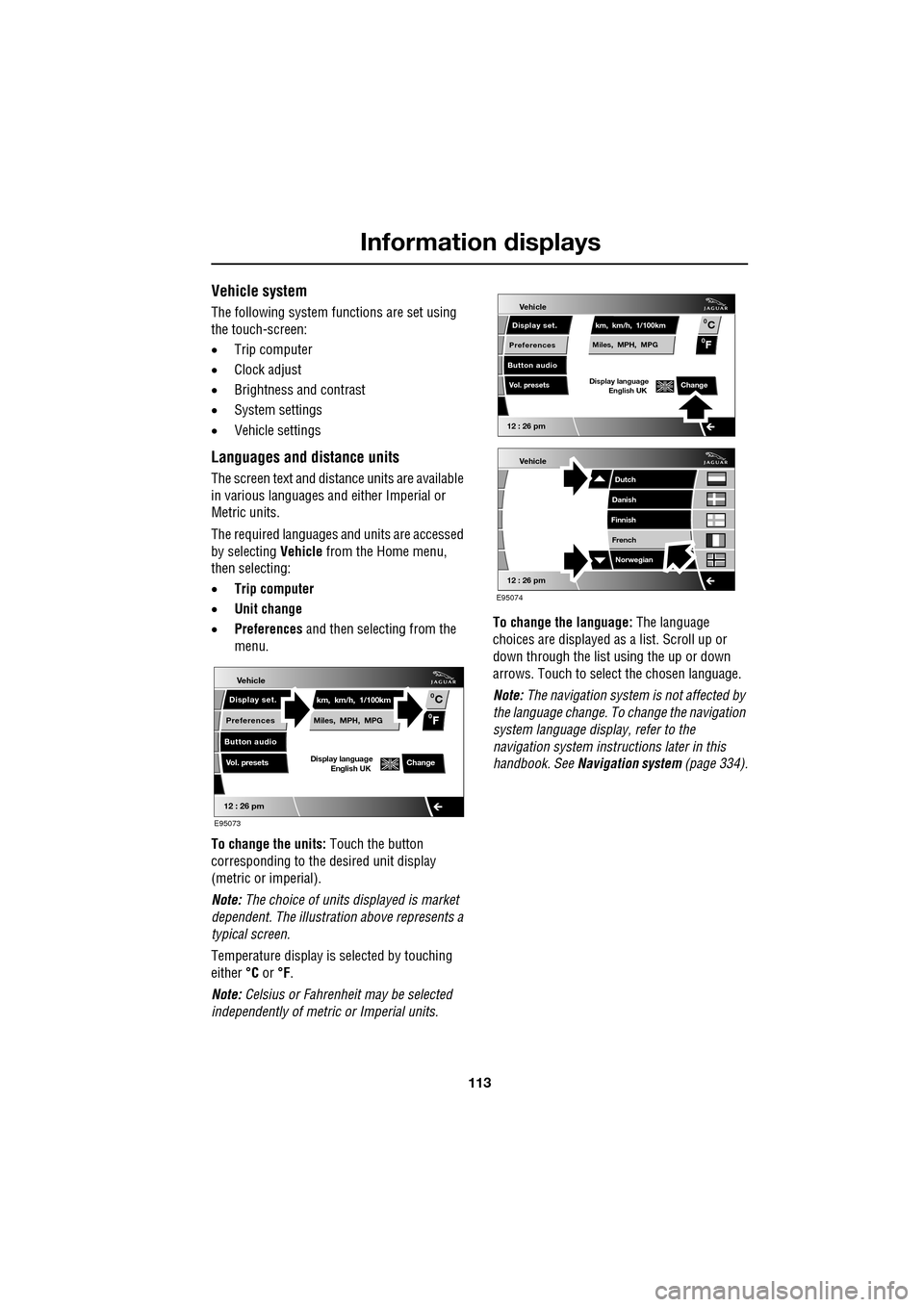
Languages and distance units
The screen text and distance units are available
in various languages and either Imperial or
Metric units.
The required languages a nd units are accessed
by selecting Vehicle from the Home menu,
then selecting:
• Trip computer
• Unit change
• Preferences and then selecting from the
menu.
To change the units: Touch the button
corresponding to the desired unit display
(metric or imperial).
Note: The choice of units displayed is market
dependent. The illustrati on above represents a
typical screen.
Temperature display is selected by touching
either °C or °F.
Note: Celsius or Fahrenheit may be selected
independently of metric or Imperial units. To change the language:
The language
choices are displayed as a list. Scroll up or
down through the list using the up or down
arrows. Touch to select the chosen language.
Note: The navigation sy stem is not affected by
the language change. To change the navigation
system language display, refer to the
navigation system instru ctions later in this
handbook. See Navigation system (page 334).
Vehicle
12 : 26 pm
Display set.
Preferences
Button audio
Miles, MPH, MPG km, km/h, 1/100kmF
C
0
0
Display language English UKVol. presetsChange
E95073
Vehicle
12 : 26 pm
Display set.
Preferences
Button audio
Miles, MPH, MPG km, km/h, 1/100kmF
C
0
0
Display language English UKVol. presetsChange
Vehicle
12 : 26 pm
Dutch
Danish
Finnish
French Norwegian
E95074
Page 114 of 391
Information displays
114
Timeout to home menu
The time period before the touch-screen
display reverts to the Home menu, after the last
user input, can be adjusted to suit personal
preference.
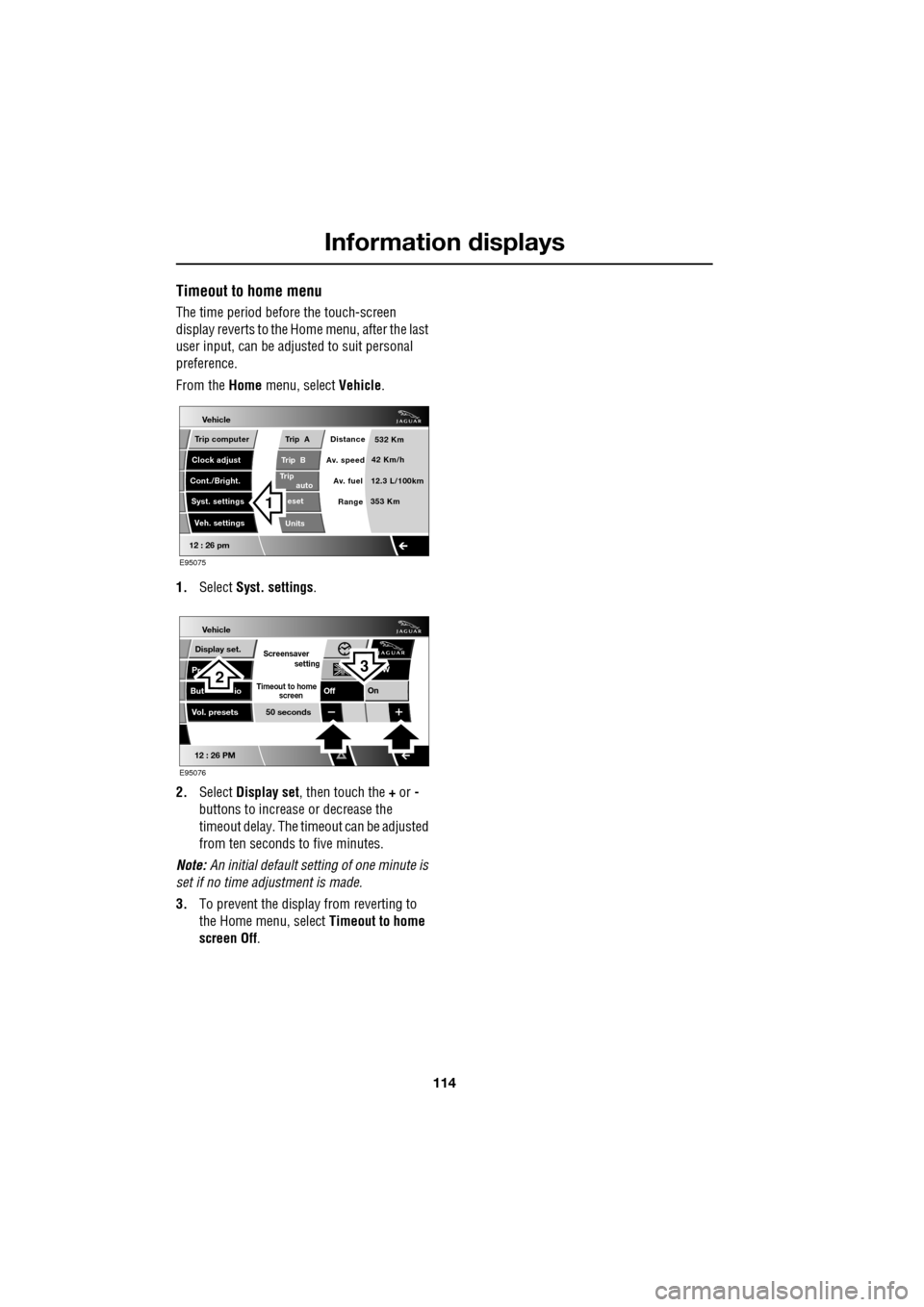
From the Home menu, select Vehicle.
1. Select Syst. settings .
2. Select Display set , then touch the + or -
buttons to increase or decrease the
timeout delay. The time out can be adjusted
from ten seconds to five minutes.
Note: An initial defa ult setting of one minute is
set if no time adjustment is made.
3. To prevent the display from reverting to
the Home menu, select Timeout to home
screen Off .
Vehicle
Trip B
Trip
auto eset
Units Distance
Av. speed
Av. fuel 532 Km
42 Km/h
12.3 L/100km
353 Km
RangeClock adjust
Cont./Bright. Trip computer
Syst. settings Veh. settings
Trip A
12 : 26 pm
E95075
1
Vehicle
Display set.
Pr
But io
Vol. presets
12 : 26 PM
50 seconds
OnOff
Screensaver
Timeout to home
setting
screen
W
E95076
32
Page 124 of 391
Convenience features
124
CLOCK
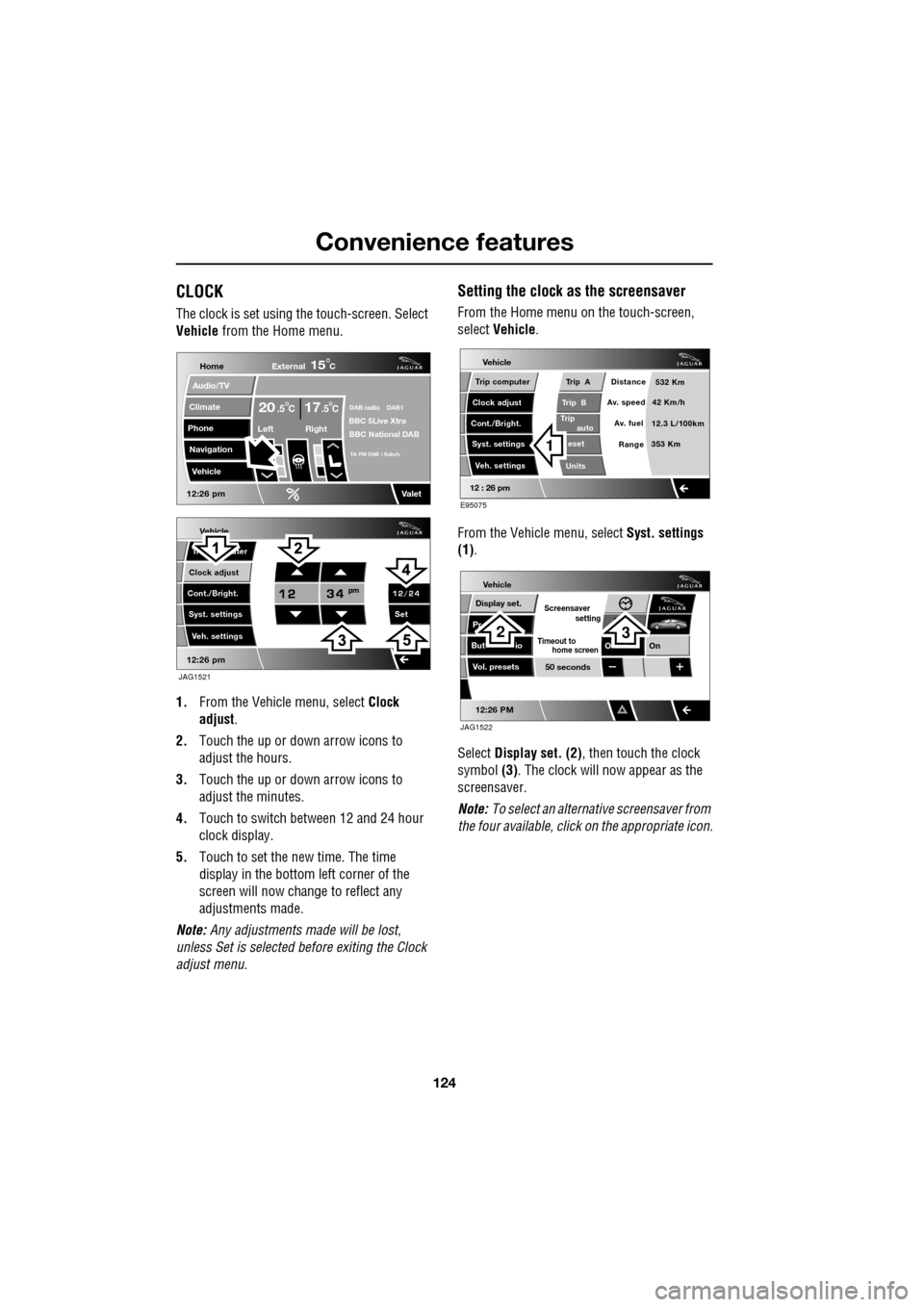
The clock is set using the touch-screen. Select
Vehicle from the Home menu.
1. From the Vehicl e menu, select Clock
adjust .
2. Touch the up or down arrow icons to
adjust the hours.
3. Touch the up or down arrow icons to
adjust the minutes.
4. Touch to switch between 12 and 24 hour
clock display.
5. Touch to set the new time. The time
display in the bottom left corner of the
screen will now change to reflect any
adjustments made.
Note: Any adjustments made will be lost,
unless Set is selected before exiting the Clock
adjust menu.
Setting the clock as the screensaver
From the Home menu on the touch-screen,
select Vehicle.
From the Vehicle menu, select Syst. settings
(1) .
Select Display set. (2) , then touch the clock
symbol (3). The clock will now appear as the
screensaver.
Note: To select an alternative screensaver from
the four available, click on the appropriate icon.
Vehicle
Clock adjust
Cont./Bright. Tr uter
Syst. settings Veh. settings Set
12:26 pm
JAG1521
Home
Audio/TV
Climate
Phone
Navigation
Vehicle
DAB radio DAB1BBC 5Live XtraBBC National DAB
TA FM DAB i Subch.
Va l e t12:26 pm
External15C
Left Right
20 17CC.5 .5
Vehicle
Trip B
Trip
auto eset
Units Distance
Av. speed
Av. fuel 532 Km
42 Km/h
12.3 L/100km
353 Km
RangeClock adjust
Cont./Bright. Trip computer
Syst. settings Veh. settings
Trip A
12 : 26 pm
E95075
1
Vehicle
Display set.
Pr
But io
Vol. presets
12:26 PM
50 seconds
OnO
Screensaver
Timeout to
setting
home screen
JAG1522
23
Page 178 of 391
Fuel and refuelling
178
Resetting the fuel cut-off
1.Switch the ignition off and wait for one
minute.
2. Turn the ignition on for 30 seconds.
3. Check the vehicle thor oughly for fuel leaks.
If a leak is detected switch the ignition off
immediately.
• Do not start the vehicle if a leak is
present. Seek qualified advice and have
the vehicle recovered.
4. If no leaks are detected, start the vehicle.
FUEL FILLER FLAP
Note: The fuel filler flap cannot be opened
when the alarm system is armed.
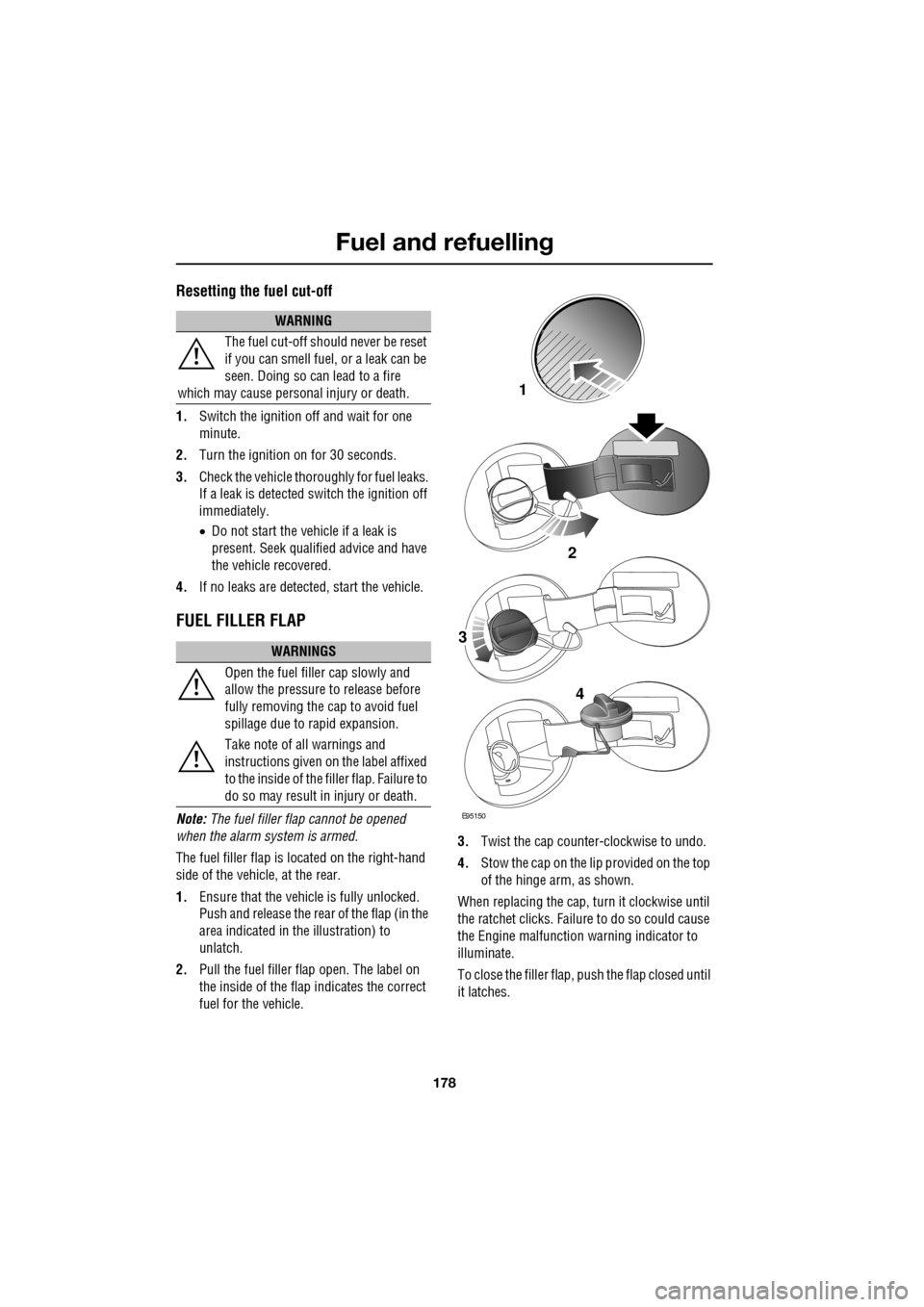
The fuel filler flap is located on the right-hand
side of the vehicle, at the rear.
1. Ensure that the vehicle is fully unlocked.
Push and release the rear of the flap (in the
area indicated in the illustration) to
unlatch.
2. Pull the fuel filler flap open. The label on
the inside of the flap indicates the correct
fuel for the vehicle. 3.
Twist the cap counte r-clockwise to undo.
4. Stow the cap on the lip provided on the top
of the hinge arm, as shown.
When replacing the cap, turn it clockwise until
the ratchet clicks. Failur e to do so could cause
the Engine malfunction warning indicator to
illuminate.
To close the filler flap, pus h the flap closed until
it latches.
WARNING
The fuel cut-off should never be reset
if you can smell fuel, or a leak can be
seen. Doing so can lead to a fire
which may cause persona l injury or death.
WARNINGS
Open the fuel filler cap slowly and
allow the pressure to release before
fully removing the cap to avoid fuel
spillage due to rapid expansion.
Take note of all warnings and
instructions given on the label affixed
to the inside of the fi ller flap. Failure to
do so may result in injury or death.
E95150
2
1
3
4
Page 190 of 391
Vehicle care
190
Leather
Leather is an easy to maintain natural product.
However, dust and subs tances can penetrate
the pores and crease the leather, causing
surface wear and brittleness.
To prevent ingrained dirt and staining, inspect
the seat upholstery regularly and clean every
one to two months, as follows:
• Wipe off fine dust from the seat surfaces
using a clean, damp, non-coloured cloth.
Change frequently to a clean area of cloth,
to avoid abrasive action on the leather
surface. Avoid over-wetting.
• If this is not suffic ient, use a cloth which
has been dampened with warm soapy
water and then wrung out. Use only mild
non-caustic soap.
• Use Jaguar Leather Cleaner for heavily
soiled areas. Dry off and rub with a clean
soft cloth, changing surfaces regularly.
When staining (e.g. from clothing) or spillage
occurs, clean the affected area immediately as
described above.
Use Jaguar Leather Cleaner several times a
year to maintain its appearance and
suppleness. The clea ner will nourish and
moisturise and help to improve the surface
protective film agains t dust and substances.
• Do not use solvents. Do not use
detergents, furniture polish or household
cleaners. While these products may
initially give impressi ve results, their use
will lead to rapid deterioration of the
leather and will inva lidate the warranty.
Jaguar recommend a basic set of products
that have been specially selected for the
type of leather in your vehicle.
• Dark clothing may stain leather seats just
like other upholstery products. •
Sharp objects such as belts, zip fasteners,
rivets, etc., can leave permanent scratches
and scratch marks on the leather surface.
• Unless spillages such as tea, coffee or ink
are washed away immediately, permanent
staining may have to be accepted.
If a valet service is used, ensure that the
specialist concerned is aware of, and follows,
these instructions precisely.
Cloth and fabric
Use Jaguar Upholstery Cleaner, following the
instructions. Avoid over-wetting.
Removing stains
Most stains on woollen fabric can be removed
if treatment is carried out immediately, before
the stain has a chance to dry-in.
Most stains can be treated with one of three
cleaning fluids: Jaguar U pholstery Cleaner, dry
cleaning fluid or clean water. Follow the
instructions on the package.
Instrument pack, clock, and audio
equipment
Only use a soft dry cloth to clean the
instrument pack, clock and audio equipment.
Do not use cleaning fluids or sprays.
CAUTIONS
Never use soap, ammonia, bleach or
other cleaners intended for use on hard
surfaces.
Do not use upholst ery cleaner on
electrical equipment such as fascia
switches.
When cleaning around electrical
equipment such as switches, ensure
that fluids do not leak into any gaps around the
components or between panels or trim.
Page 233 of 391
233
Wheels and tyres
9.Unless the vehicle is in an enclosed area,
start the engine.
10. Set the compressor switch to the on ( I)
position.
11. Inflate the tyre to a minimum of 1.9 bar
(26 lbf/in²) and a maximum of 3.5 bar
(51 lbf/in²).
•When pumping the sealant through the
tyre valve, the pressure may rise up to 6
bar (87 lbf/in²). The pressure will drop
again after approximately 30 seconds.
12. During the inflation, switch the
compressor off briefly, to check the tyre
pressure using the gauge mounted on the
compressor.
• It should not take longer than seven
minutes to inflate the tyre. If, after seven
minutes, the tyre has not yet reached
minimum pressure, the tyre should not
be used.
13. Once the tyre has been inflated, switch off
the compressor. If desired, the engine may
be turned off after the compressor has
been turned off.
14. Remove the power connector from the
auxiliary power socket.
15. Remove the inflation hose from the tyre
valve, by unscrewing it as quickly as
possible (count er-clockwise).
16. Replace the inflation hose protective cap
and the tyre valve cap.
17. Do not remove the sealant bottle from the
receiver.
18. Ensure that the tyre repair kit (including
the bottle and receiver caps) are placed
securely in the vehicle. You will need to
use the kit to check the tyre pressure after
approximately 3 km (2 miles), so ensure
they are easily accessible. 19.
Immediately drive the vehicle for
approximately 3 km (2 miles), to allow the
sealant to coat the inner surface of the tyre
and form a seal at the puncture.
Checking the tyre pressure after a repair
1.Drive the vehicle for 3 km (2 miles) then
stop in a safe place. Carry out a visual
examination of the tyres condition.
2. Make sure that the sealant container
section is in its original position.
3. Screw the inflation hos e connector firmly
onto the tyre valve.
4. Read the tyre pressure from the gauge.
5. If the pressure of the sealant filled tyre is
above 1.3 bar (19 lb/in²) adjust the
pressure to the correct value. See TYRE
CARE (page 217).
6. Ensure that the compressor switch is in
the off (O ) position and insert the power
cable connector into the auxiliary power
socket.
If the vehicle is in a well ventilated area,
start the engine.
WARNINGS
When driving the vehicle, if you
experience vibr ations, abnormal
steering, or noises, reduce speed
immediately. Drive with extreme caution and
reduced speed, to the first safe place to stop
the vehicle. Visually examine the tyre and
check its pressure. If there are any signs of
damage or deformity to the tyre, or the tyre
pressure is below 1.3 bar (19 lb/in²), do not
continue driving.
Consult a tyre repair centre or your
Dealer/Authorised Repairer, for
advice concerning the replacement of
a tyre after using a tyre repair kit.