AUX JAGUAR XFR 2010 1.G Service Manual
[x] Cancel search | Manufacturer: JAGUAR, Model Year: 2010, Model line: XFR, Model: JAGUAR XFR 2010 1.GPages: 3039, PDF Size: 58.49 MB
Page 1949 of 3039
systems.
A typical example of information transfer is vehicle speed information from the ABS (anti-lock brake system) module used to
control the automatic volume control function. The vehicle speed information from the ABS module is sent on the high speed
CAN network and collected by the instrument panel gateway. The signal is passed to the medium speed CAN network and onto the ICM gateway. The ICM calculates the volume adjustment required. The corrected audio volume level signal is sent on the
MOST network to the IAM or Power amplifier (dependant on vehicle equipment level) for output to the speaker system.
AUDIO SYSTEM USER CONTROLS
Touch-Screen
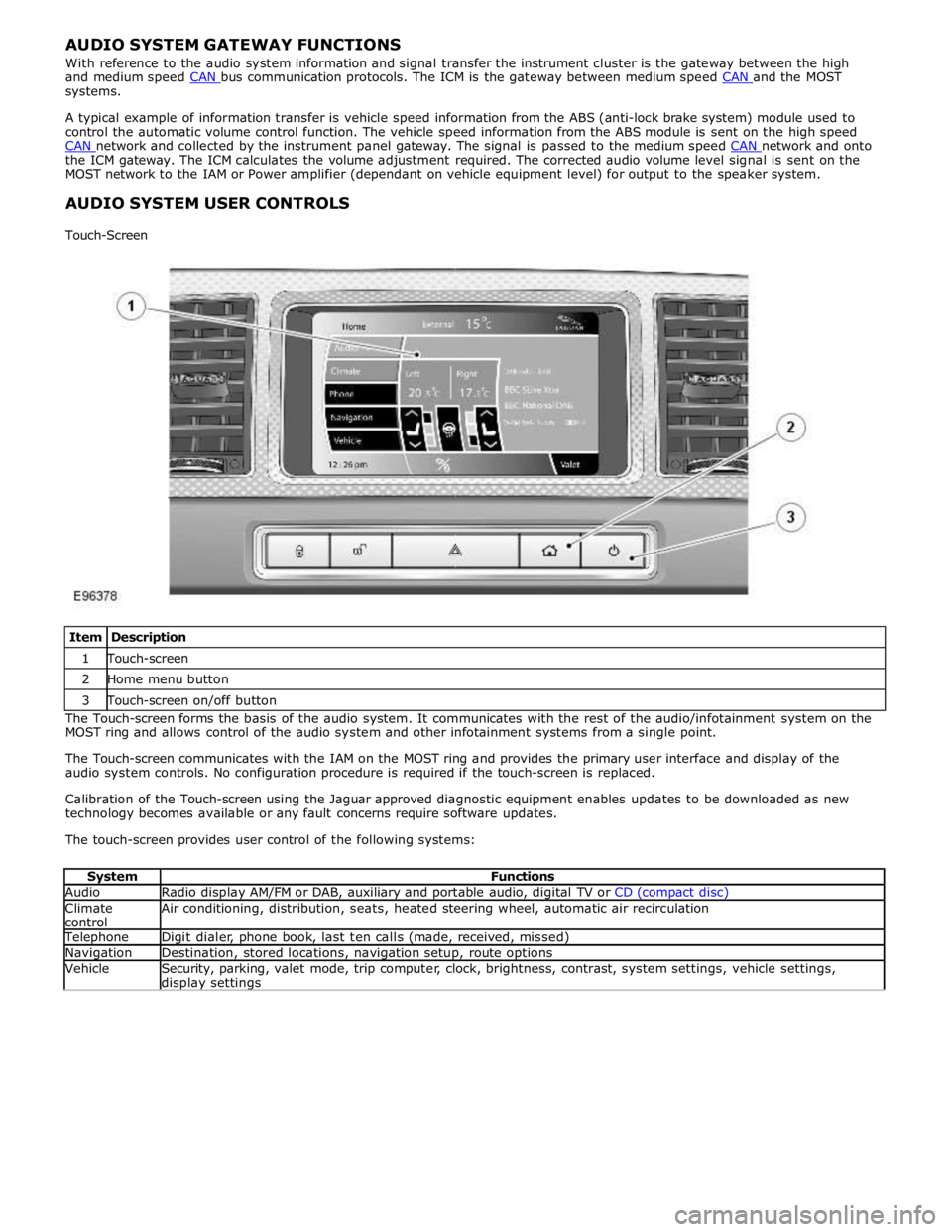
Item Description 1 Touch-screen 2 Home menu button 3 Touch-screen on/off button The Touch-screen forms the basis of the audio system. It communicates with the rest of the audio/infotainment system on the
MOST ring and allows control of the audio system and other infotainment systems from a single point.
The Touch-screen communicates with the IAM on the MOST ring and provides the primary user interface and display of the
audio system controls. No configuration procedure is required if the touch-screen is replaced.
Calibration of the Touch-screen using the Jaguar approved diagnostic equipment enables updates to be downloaded as new
technology becomes available or any fault concerns require software updates.
The touch-screen provides user control of the following systems:
System Functions Audio Radio display AM/FM or DAB, auxiliary and portable audio, digital TV or CD (compact disc) Climate
control Air conditioning, distribution, seats, heated steering wheel, automatic air recirculation Telephone Digit dialer, phone book, last ten calls (made, received, missed) Navigation Destination, stored locations, navigation setup, route options Vehicle
Security, parking, valet mode, trip computer, clock, brightness, contrast, system settings, vehicle settings, display settings
Page 1955 of 3039
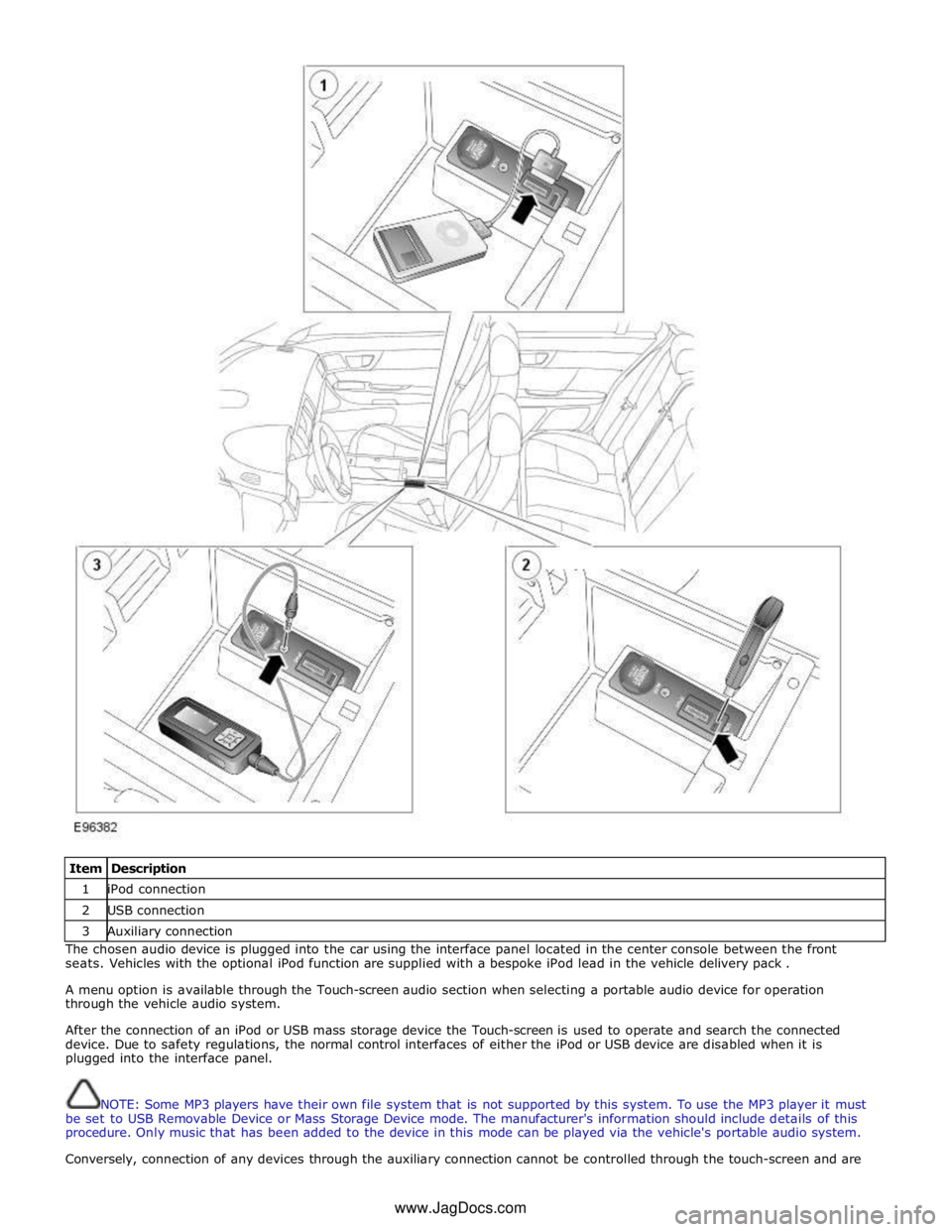
Item Description 1 iPod connection 2 USB connection 3 Auxiliary connection The chosen audio device is plugged into the car using the interface panel located in the center console between the front
seats. Vehicles with the optional iPod function are supplied with a bespoke iPod lead in the vehicle delivery pack .
A menu option is available through the Touch-screen audio section when selecting a portable audio device for operation
through the vehicle audio system.
After the connection of an iPod or USB mass storage device the Touch-screen is used to operate and search the connected
device. Due to safety regulations, the normal control interfaces of either the iPod or USB device are disabled when it is
plugged into the interface panel.
NOTE: Some MP3 players have their own file system that is not supported by this system. To use the MP3 player it must
be set to USB Removable Device or Mass Storage Device mode. The manufacturer's information should include details of this
procedure. Only music that has been added to the device in this mode can be played via the vehicle's portable audio system.
Conversely, connection of any devices through the auxiliary connection cannot be controlled through the touch-screen and are www.JagDocs.com
Page 1980 of 3039

the roof pod and is shared with the DAB (digital audio broadcasting) band L antenna or satellite radio antenna where fitted.
The roof pod is located externally in a central position towards the rear of the roof.
The GPS antenna is designed with 50 ohm output impedance. The navigation computer is fitted with 50 ohm fakra II connectors to ensure compatibility with the antenna. For optimum performance 50 ohm low loss coaxial cable is used between
the antenna and navigation computer.
It is possible for the GPS antenna to lose the signal from the GPS satellites; In hilly or tree lined areas
Built up areas with tall buildings
In multi storey car parks
In garages
In tunnels
On bridges
During heavy rain or thunderstorms
When the signal is lost the navigation computer will continue to give guidance using memory mapped data from the DVD map until the signal is restored.
TMC/VICS FM Antenna
Data messages for both TMC (traffic message channel) and VICS (vehicle information and communication system) are received
through the FM antennas and diversity antenna module located in the heated rear window.
VICS Beacon Antenna (Japan Only)
The VICS (vehicle information and communication system) beacon antenna receives infra red and RF (radio frequency) traffic
data signals from road side transmitters. The antenna is connected to the navigation computer which incorporates a VICS
(vehicle information and communication system) receiver.
Touch Screen Display
The Touch-screen is the control interface for the following vehicle systems;
System Functions Audio Radio display AM/FM or DAB (digital audio broadcast), auxiliary and portable audio, digital TV or CD Climate
control Air conditioning, distribution, seats, heated steering wheel, automatic air recirculation Telephone Digit dialer, phone book, last ten calls (made, received, missed) www.JagDocs.com
Page 1986 of 3039

System Operation
The Televis ion s ys tem has various l evels of us er cont rol t hrough the Touch-s creen, ICP (int egrated control panel) and
s teeri ng wheel control panel. The s ys tem includes nine analogue and nine di git al cha nnel pre-s et s . As wit h t he audio
s ys t em, the us er can s earch up or down and s tore by a l ong pres s of the s elect ed cha nnel but ton. The s ys t em offers a
choi ce of screen as pect rati os s imi lar t o a t ypi cal domes ti c receiver, givi ng opt ions bet ween the s t andard 4:3 format, wi de
s creen 16:9 format and zoom to fil l the screen.
To provide the s t rongest pos s ible si gnal t he Televis ion t uner recei ves s i gnal s from 4 ant enna s ources l ocat ed in the
heat ed rear wi ndow. Unl ike domes ti c s ys t ems t hi s s yst em gi ves a more progres s ive pict ure l oss if t he s ignal i s los t . The
s ignal los s is i ndicat ed t o t he user by a ‘los s of recepti on’ s creen mes s age.
The Televis ion s ys tem is primaril y cont rol led from the Touch-s creen and t he ICP (i nt egrat ed cont rol panel ) which are
located i n t he cent er of the i nst rument panel. Control s i gnals from t he Touch-screen di s pl ay are sent on t he MOST (media
ori ent ed s yst ems t rans port ) ri ng to the Televis i on tuner. The Televis i on tuner uses a dedi cat ed CVBS (compos it e video
s ignal) bus t o t ransmit video s i gnals to the Touch-s creen.
Control s i gnals from t he ICP (Integrat ed control panel) are rel ayed on the medi um s peed CAN bus t o t he ICM (i nformati on
cont rol module). The ICM (i nformati on cont rol module) rel ays the control s i gnal s to the Tel evi si on tuner on t he MOST
(medi a oriented s ys tems trans port ) ri ng. The ICM (i nformat ion control modul e) is t he t imi ng mas ter for the MOST (medi a
ori ent ed s yst ems t rans port ) ri ng and als o host s a gat eway functi on between t he medium s peed CAN bus and the MOST
(medi a oriented s ys tems trans port ) ri ng.
Dependi ng upon the audio sys tem vers ion fit ted the Televis i on tuner audi o output s ignals are s ent on the MOST (medi a
ori ent ed s yst ems t rans port ) ri ng to the IAM (int egrated audi o module) or the power a mpli fi er for s peaker out put.
Component Description
TELEVISION TUNERThe t el evi s ion t uner i s a DVB-T (di git al vi deo broadcas ti ng - terres trial ) receiver and cons is ts of a 'front end' whi ch is made
up of a t uner and a demodul at or. Foll owing pre-fi lt eri ng, t he t uner converts t he s ignal from t he antenna t o an i nt ermedi ate
frequency. In t he demodulator, the si gnal i s fi rs t convert ed t o a bas ic frequency, s o t hat a s ignal from a t rans ponder can
be forwarded t o t he MPEG decoder as a trans port s t ream. The t rans port s tream us ual ly contai ns several t el evi s ion
channels al ong wit h rel evant auxili ary s ervi ces s uch as t eletext , subt it les and electronic program guides .
• NOTE: Not all digi tal feat ures s uch as text and programme l is ti ngs are currentl y a vai lable.
Control s i gnals from t he Touch-screen di s pl ay are sent on t he MOST (media orient ed sys t ems transport) ring t o t he
t el evi s ion t uner. The tel evi si on tuner us es the dedicated CVBS (composi te vi deo s ignal) bus t o transmit i ts vi deo si gnal s
t o the Touch-s creen. The CVBS (composi te video s ignal) s yst em ut il izes a s i ngl e wire t rans mis s ion sys tem and is limit ed in
bandwi dth to l ess than 6MHz.
No confi gurati on procedure is required if t he tel evi si on t uner is replaced. Cal ibrat ion of t he t el evi s ion t uner us ing t he
Jaguar approved di agnos t ic equipment enabl es updat es to be downl oaded as new technol ogy becomes availabl e or any
faul t concerns require s oft ware updat es .
Page 2011 of 3039
Symptom Possible Cause Action
The connected iPOD® unit's
battery is not holding charge and
requires replacement
See diagnostic procedures as specified in pinpoint test A2
"Check The iPOD® Battery" below GO to Pinpoint Test A.
The iPOD® dock cable is not
securely installed
The iPOD® dock cable is faulty
See diagnostic procedures as specified in pinpoint test A3
"Check The iPOD® Is Charging When Connected To The
Audio Input Control Module" below GO to Pinpoint Test A. Symptom Chart - Intermittent Fault With Playback From USB Device
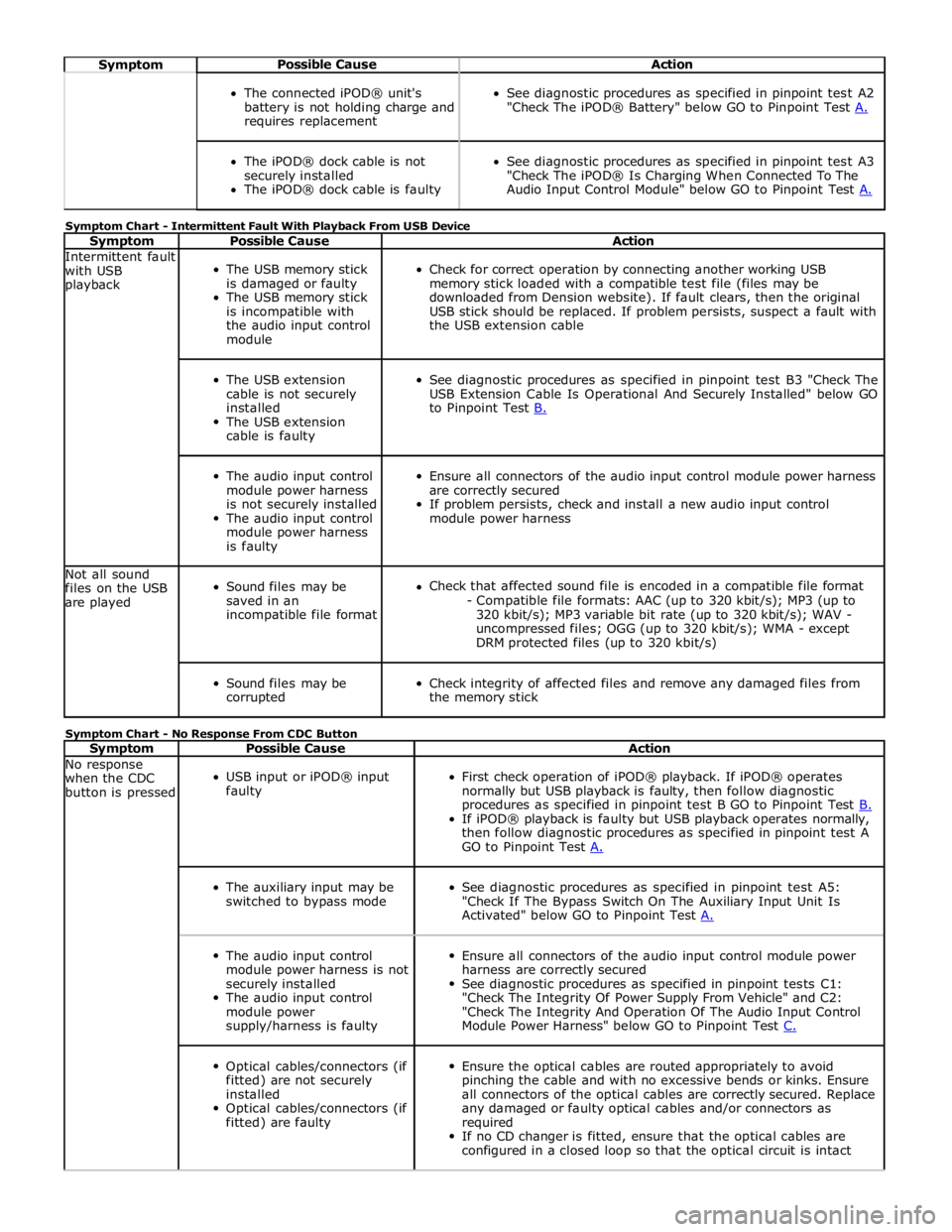
Symptom Possible Cause Action Intermittent fault
with USB
playback
The USB memory stick
is damaged or faulty
The USB memory stick
is incompatible with
the audio input control
module
Check for correct operation by connecting another working USB
memory stick loaded with a compatible test file (files may be
downloaded from Dension website). If fault clears, then the original
USB stick should be replaced. If problem persists, suspect a fault with
the USB extension cable
The USB extension
cable is not securely
installed
The USB extension
cable is faulty
See diagnostic procedures as specified in pinpoint test B3 "Check The
USB Extension Cable Is Operational And Securely Installed" below GO
to Pinpoint Test B.
The audio input control
module power harness
is not securely installed
The audio input control
module power harness
is faulty
Ensure all connectors of the audio input control module power harness
are correctly secured
If problem persists, check and install a new audio input control
module power harness Not all sound
files on the USB
are played
Sound files may be
saved in an
incompatible file format
Check that affected sound file is encoded in a compatible file format
- Compatible file formats: AAC (up to 320 kbit/s); MP3 (up to
320 kbit/s); MP3 variable bit rate (up to 320 kbit/s); WAV -
uncompressed files; OGG (up to 320 kbit/s); WMA - except
DRM protected files (up to 320 kbit/s)
Sound files may be
corrupted
Check integrity of affected files and remove any damaged files from
the memory stick Symptom Chart - No Response From CDC Button
Symptom Possible Cause Action No response
when the CDC
button is pressed
USB input or iPOD® input
faulty
First check operation of iPOD® playback. If iPOD® operates
normally but USB playback is faulty, then follow diagnostic
procedures as specified in pinpoint test B GO to Pinpoint Test B. If iPOD® playback is faulty but USB playback operates normally,
then follow diagnostic procedures as specified in pinpoint test A
GO to Pinpoint Test A.
The auxiliary input may be
switched to bypass mode
See diagnostic procedures as specified in pinpoint test A5:
"Check If The Bypass Switch On The Auxiliary Input Unit Is
Activated" below GO to Pinpoint Test A.
The audio input control
module power harness is not
securely installed
The audio input control
module power
supply/harness is faulty
Ensure all connectors of the audio input control module power
harness are correctly secured
See diagnostic procedures as specified in pinpoint tests C1:
"Check The Integrity Of Power Supply From Vehicle" and C2:
"Check The Integrity And Operation Of The Audio Input Control
Module Power Harness" below GO to Pinpoint Test C.
Optical cables/connectors (if
fitted) are not securely
installed
Optical cables/connectors (if
fitted) are faulty
Ensure the optical cables are routed appropriately to avoid
pinching the cable and with no excessive bends or kinks. Ensure
all connectors of the optical cables are correctly secured. Replace
any damaged or faulty optical cables and/or connectors as
required
If no CD changer is fitted, ensure that the optical cables are
configured in a closed loop so that the optical circuit is intact
Page 2012 of 3039
Symptom Chart - iPOD® Related Faults
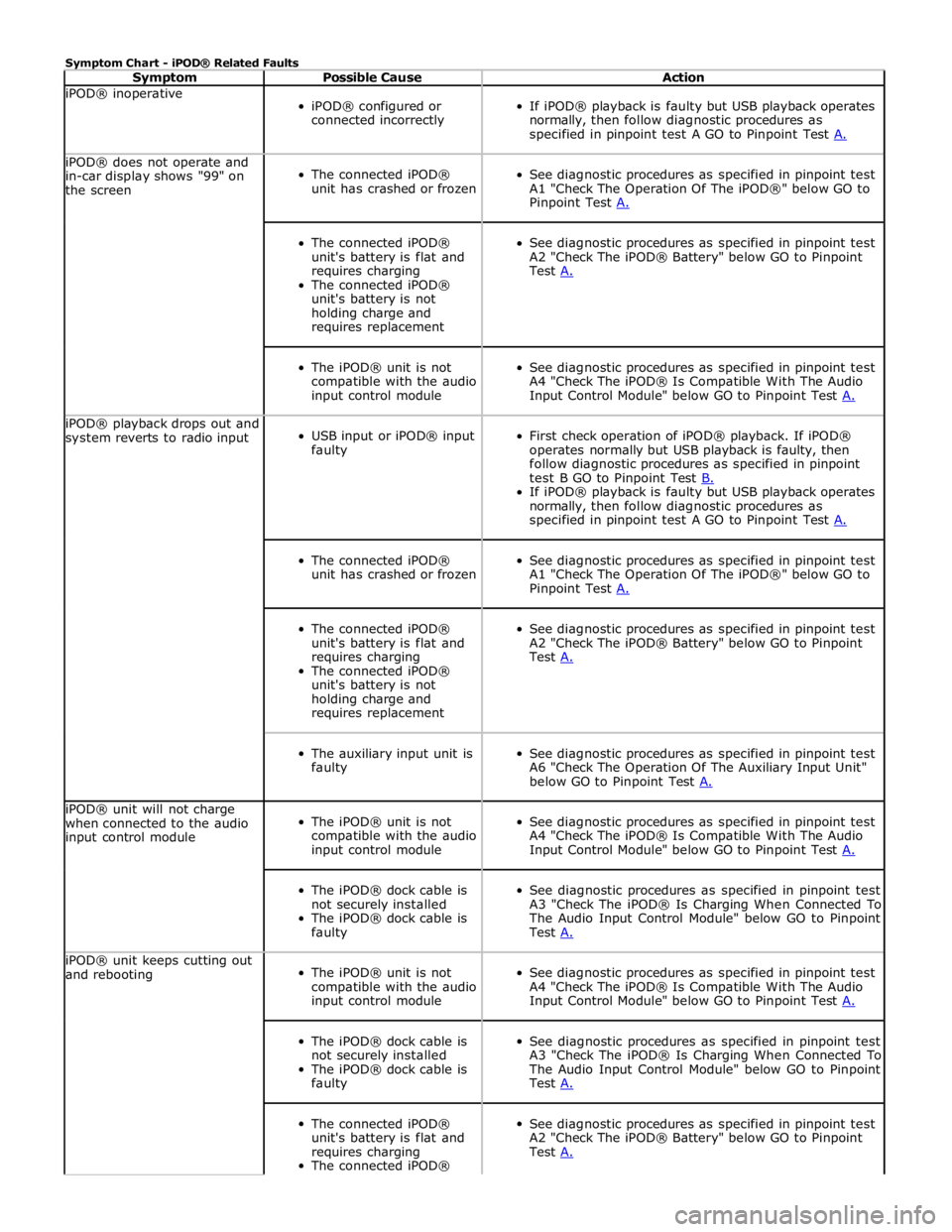
Symptom Possible Cause Action iPOD® inoperative
iPOD® configured or
connected incorrectly
If iPOD® playback is faulty but USB playback operates
normally, then follow diagnostic procedures as
specified in pinpoint test A GO to Pinpoint Test A. iPOD® does not operate and
in-car display shows "99" on
the screen
The connected iPOD®
unit has crashed or frozen
See diagnostic procedures as specified in pinpoint test
A1 "Check The Operation Of The iPOD®" below GO to
Pinpoint Test A.
The connected iPOD®
unit's battery is flat and
requires charging
The connected iPOD®
unit's battery is not
holding charge and
requires replacement
See diagnostic procedures as specified in pinpoint test
A2 "Check The iPOD® Battery" below GO to Pinpoint
Test A.
The iPOD® unit is not
compatible with the audio
input control module
See diagnostic procedures as specified in pinpoint test
A4 "Check The iPOD® Is Compatible With The Audio
Input Control Module" below GO to Pinpoint Test A. iPOD® playback drops out and
system reverts to radio input
USB input or iPOD® input
faulty
First check operation of iPOD® playback. If iPOD®
operates normally but USB playback is faulty, then
follow diagnostic procedures as specified in pinpoint
test B GO to Pinpoint Test B. If iPOD® playback is faulty but USB playback operates
normally, then follow diagnostic procedures as
specified in pinpoint test A GO to Pinpoint Test A.
The connected iPOD®
unit has crashed or frozen
See diagnostic procedures as specified in pinpoint test
A1 "Check The Operation Of The iPOD®" below GO to
Pinpoint Test A.
The connected iPOD®
unit's battery is flat and
requires charging
The connected iPOD®
unit's battery is not
holding charge and
requires replacement
See diagnostic procedures as specified in pinpoint test
A2 "Check The iPOD® Battery" below GO to Pinpoint
Test A.
The auxiliary input unit is
faulty
See diagnostic procedures as specified in pinpoint test
A6 "Check The Operation Of The Auxiliary Input Unit"
below GO to Pinpoint Test A. iPOD® unit will not charge
when connected to the audio
input control module
The iPOD® unit is not
compatible with the audio
input control module
See diagnostic procedures as specified in pinpoint test
A4 "Check The iPOD® Is Compatible With The Audio
Input Control Module" below GO to Pinpoint Test A.
The iPOD® dock cable is
not securely installed
The iPOD® dock cable is
faulty
See diagnostic procedures as specified in pinpoint test
A3 "Check The iPOD® Is Charging When Connected To
The Audio Input Control Module" below GO to Pinpoint
Test A. iPOD® unit keeps cutting out
and rebooting
The iPOD® unit is not
compatible with the audio
input control module
See diagnostic procedures as specified in pinpoint test
A4 "Check The iPOD® Is Compatible With The Audio
Input Control Module" below GO to Pinpoint Test A.
The iPOD® dock cable is
not securely installed
The iPOD® dock cable is
faulty
See diagnostic procedures as specified in pinpoint test
A3 "Check The iPOD® Is Charging When Connected To
The Audio Input Control Module" below GO to Pinpoint
Test A.
The connected iPOD®
unit's battery is flat and
requires charging
The connected iPOD®
See diagnostic procedures as specified in pinpoint test
A2 "Check The iPOD® Battery" below GO to Pinpoint
Test A.
Page 2013 of 3039
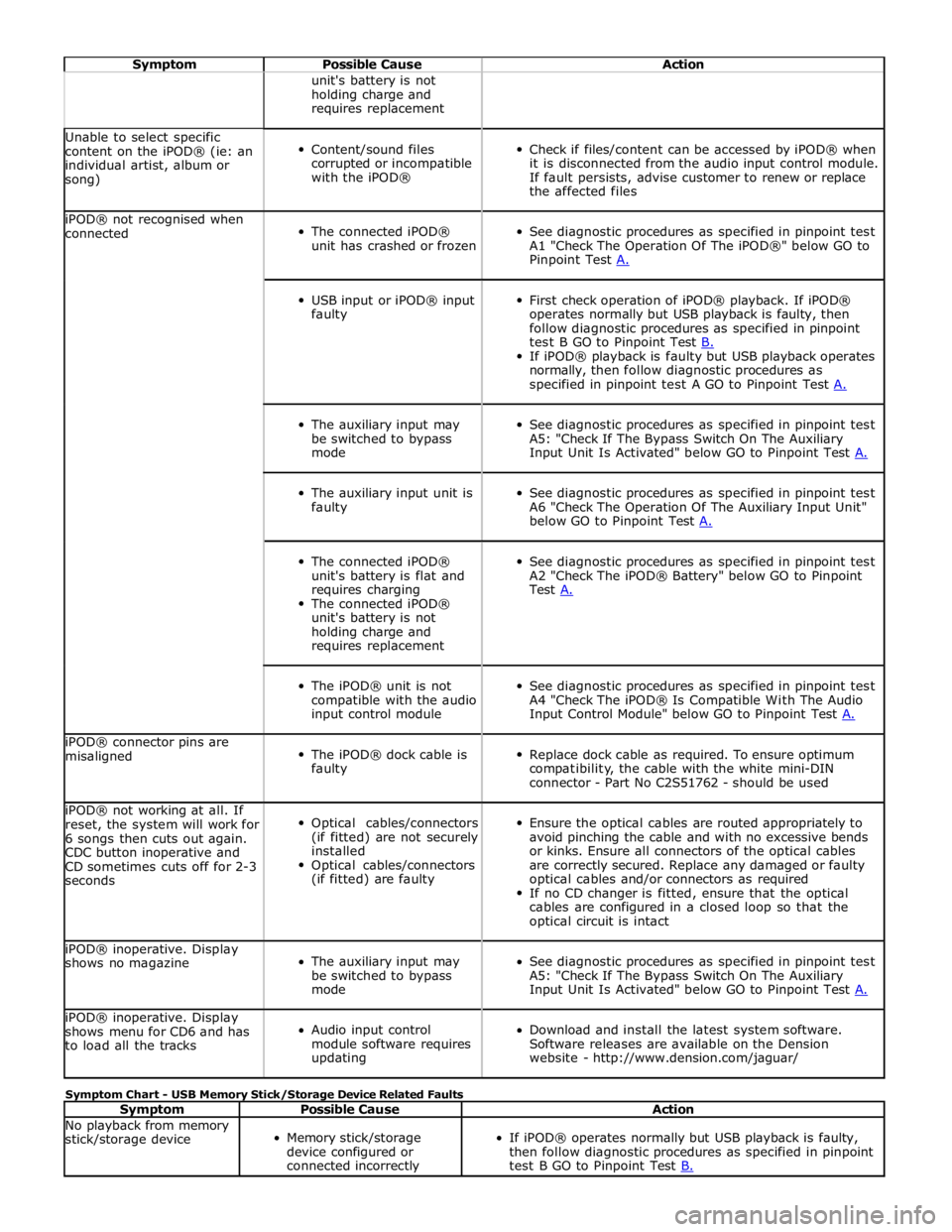
Symptom Possible Cause Action unit's battery is not
holding charge and
requires replacement Unable to select specific
content on the iPOD® (ie: an
individual artist, album or
song)
Content/sound files
corrupted or incompatible
with the iPOD®
Check if files/content can be accessed by iPOD® when
it is disconnected from the audio input control module.
If fault persists, advise customer to renew or replace
the affected files iPOD® not recognised when
connected
The connected iPOD®
unit has crashed or frozen
See diagnostic procedures as specified in pinpoint test
A1 "Check The Operation Of The iPOD®" below GO to
Pinpoint Test A.
USB input or iPOD® input
faulty
First check operation of iPOD® playback. If iPOD®
operates normally but USB playback is faulty, then
follow diagnostic procedures as specified in pinpoint
test B GO to Pinpoint Test B. If iPOD® playback is faulty but USB playback operates
normally, then follow diagnostic procedures as
specified in pinpoint test A GO to Pinpoint Test A.
The auxiliary input may
be switched to bypass
mode
See diagnostic procedures as specified in pinpoint test
A5: "Check If The Bypass Switch On The Auxiliary
Input Unit Is Activated" below GO to Pinpoint Test A.
The auxiliary input unit is
faulty
See diagnostic procedures as specified in pinpoint test
A6 "Check The Operation Of The Auxiliary Input Unit"
below GO to Pinpoint Test A.
The connected iPOD®
unit's battery is flat and
requires charging
The connected iPOD®
unit's battery is not
holding charge and
requires replacement
See diagnostic procedures as specified in pinpoint test
A2 "Check The iPOD® Battery" below GO to Pinpoint
Test A.
The iPOD® unit is not
compatible with the audio
input control module
See diagnostic procedures as specified in pinpoint test
A4 "Check The iPOD® Is Compatible With The Audio
Input Control Module" below GO to Pinpoint Test A. iPOD® connector pins are
misaligned
The iPOD® dock cable is
faulty
Replace dock cable as required. To ensure optimum
compatibility, the cable with the white mini-DIN
connector - Part No C2S51762 - should be used iPOD® not working at all. If
reset, the system will work for
6 songs then cuts out again.
CDC button inoperative and
CD sometimes cuts off for 2-3
seconds
Optical cables/connectors
(if fitted) are not securely
installed
Optical cables/connectors
(if fitted) are faulty
Ensure the optical cables are routed appropriately to
avoid pinching the cable and with no excessive bends
or kinks. Ensure all connectors of the optical cables
are correctly secured. Replace any damaged or faulty
optical cables and/or connectors as required
If no CD changer is fitted, ensure that the optical
cables are configured in a closed loop so that the
optical circuit is intact iPOD® inoperative. Display
shows no magazine
The auxiliary input may
be switched to bypass
mode
See diagnostic procedures as specified in pinpoint test
A5: "Check If The Bypass Switch On The Auxiliary
Input Unit Is Activated" below GO to Pinpoint Test A. iPOD® inoperative. Display
shows menu for CD6 and has
to load all the tracks
Audio input control
module software requires
updating
Download and install the latest system software.
Software releases are available on the Dension
website - http://www.dension.com/jaguar/ Symptom Chart - USB Memory Stick/Storage Device Related Faults
Symptom Possible Cause Action No playback from memory
stick/storage device
Memory stick/storage
device configured or
connected incorrectly
If iPOD® operates normally but USB playback is faulty,
then follow diagnostic procedures as specified in pinpoint
test B GO to Pinpoint Test B.
Page 2014 of 3039
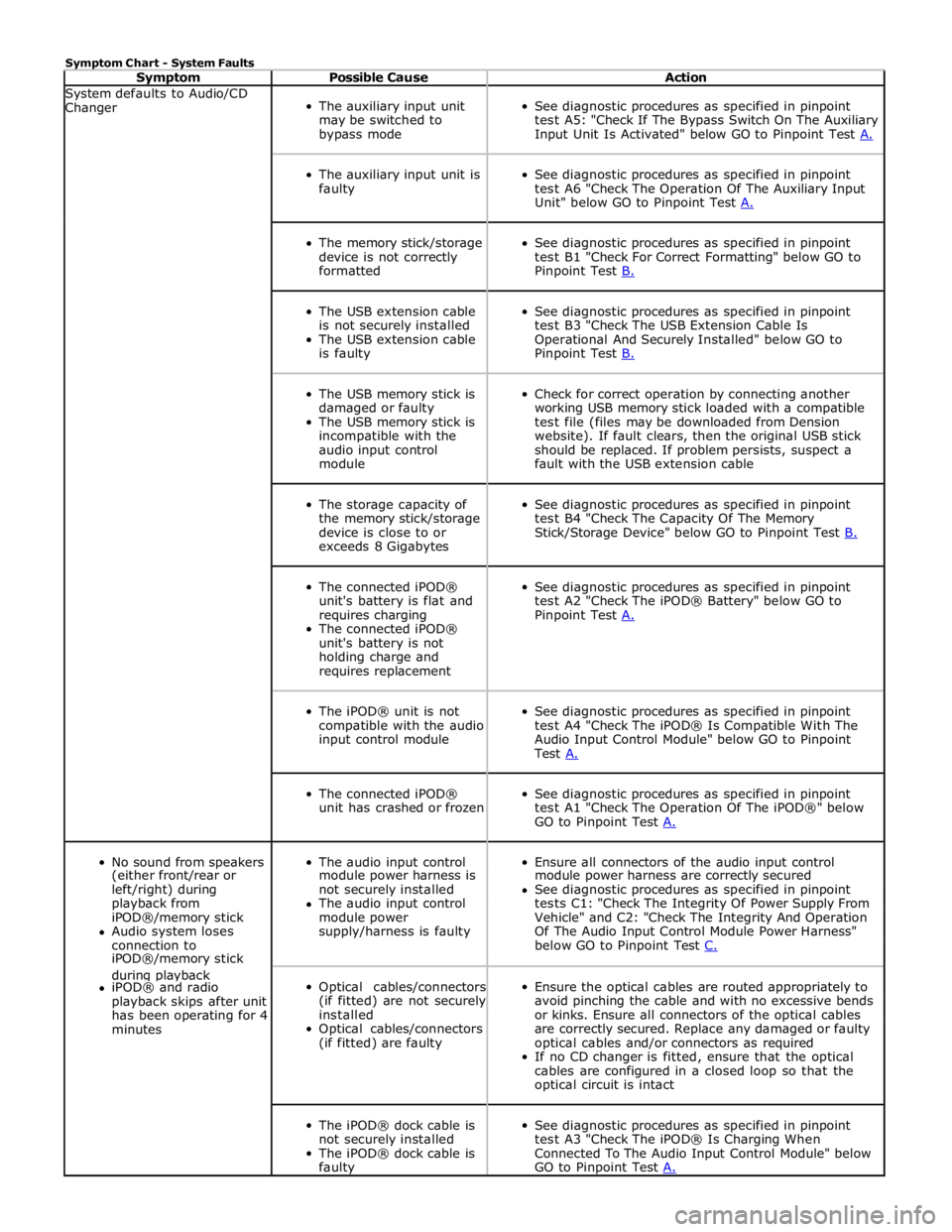
Symptom Chart - System Faults
Symptom Possible Cause Action System defaults to Audio/CD
Changer
The auxiliary input unit
may be switched to
bypass mode
See diagnostic procedures as specified in pinpoint
test A5: "Check If The Bypass Switch On The Auxiliary
Input Unit Is Activated" below GO to Pinpoint Test A.
The auxiliary input unit is
faulty
See diagnostic procedures as specified in pinpoint
test A6 "Check The Operation Of The Auxiliary Input
Unit" below GO to Pinpoint Test A.
The memory stick/storage
device is not correctly
formatted
See diagnostic procedures as specified in pinpoint
test B1 "Check For Correct Formatting" below GO to
Pinpoint Test B.
The USB extension cable
is not securely installed
The USB extension cable
is faulty
See diagnostic procedures as specified in pinpoint
test B3 "Check The USB Extension Cable Is
Operational And Securely Installed" below GO to
Pinpoint Test B.
The USB memory stick is
damaged or faulty
The USB memory stick is
incompatible with the
audio input control
module
Check for correct operation by connecting another
working USB memory stick loaded with a compatible
test file (files may be downloaded from Dension
website). If fault clears, then the original USB stick
should be replaced. If problem persists, suspect a
fault with the USB extension cable
The storage capacity of
the memory stick/storage
device is close to or
exceeds 8 Gigabytes
See diagnostic procedures as specified in pinpoint
test B4 "Check The Capacity Of The Memory
Stick/Storage Device" below GO to Pinpoint Test B.
The connected iPOD®
unit's battery is flat and
requires charging
The connected iPOD®
unit's battery is not
holding charge and
requires replacement
See diagnostic procedures as specified in pinpoint
test A2 "Check The iPOD® Battery" below GO to
Pinpoint Test A.
The iPOD® unit is not
compatible with the audio
input control module
See diagnostic procedures as specified in pinpoint
test A4 "Check The iPOD® Is Compatible With The
Audio Input Control Module" below GO to Pinpoint
Test A.
The connected iPOD®
unit has crashed or frozen
See diagnostic procedures as specified in pinpoint
test A1 "Check The Operation Of The iPOD®" below
GO to Pinpoint Test A.
No sound from speakers
The audio input control
Ensure all connectors of the audio input control (either front/rear or module power harness is module power harness are correctly secured left/right) during not securely installed See diagnostic procedures as specified in pinpoint playback from The audio input control tests C1: "Check The Integrity Of Power Supply From iPOD®/memory stick module power Vehicle" and C2: "Check The Integrity And Operation Audio system loses supply/harness is faulty Of The Audio Input Control Module Power Harness" connection to below GO to Pinpoint Test C. iPOD®/memory stick during playback
Optical cables/connectors
(if fitted) are not securely
installed
Optical cables/connectors
(if fitted) are faulty
Ensure the optical cables are routed appropriately to
avoid pinching the cable and with no excessive bends
or kinks. Ensure all connectors of the optical cables
are correctly secured. Replace any damaged or faulty
optical cables and/or connectors as required
If no CD changer is fitted, ensure that the optical
cables are configured in a closed loop so that the
optical circuit is intact iPOD® and radio playback skips after unit has been operating for 4 minutes
The iPOD® dock cable is
not securely installed
The iPOD® dock cable is
faulty
See diagnostic procedures as specified in pinpoint
test A3 "Check The iPOD® Is Charging When
Connected To The Audio Input Control Module" below
GO to Pinpoint Test A.
Page 2016 of 3039
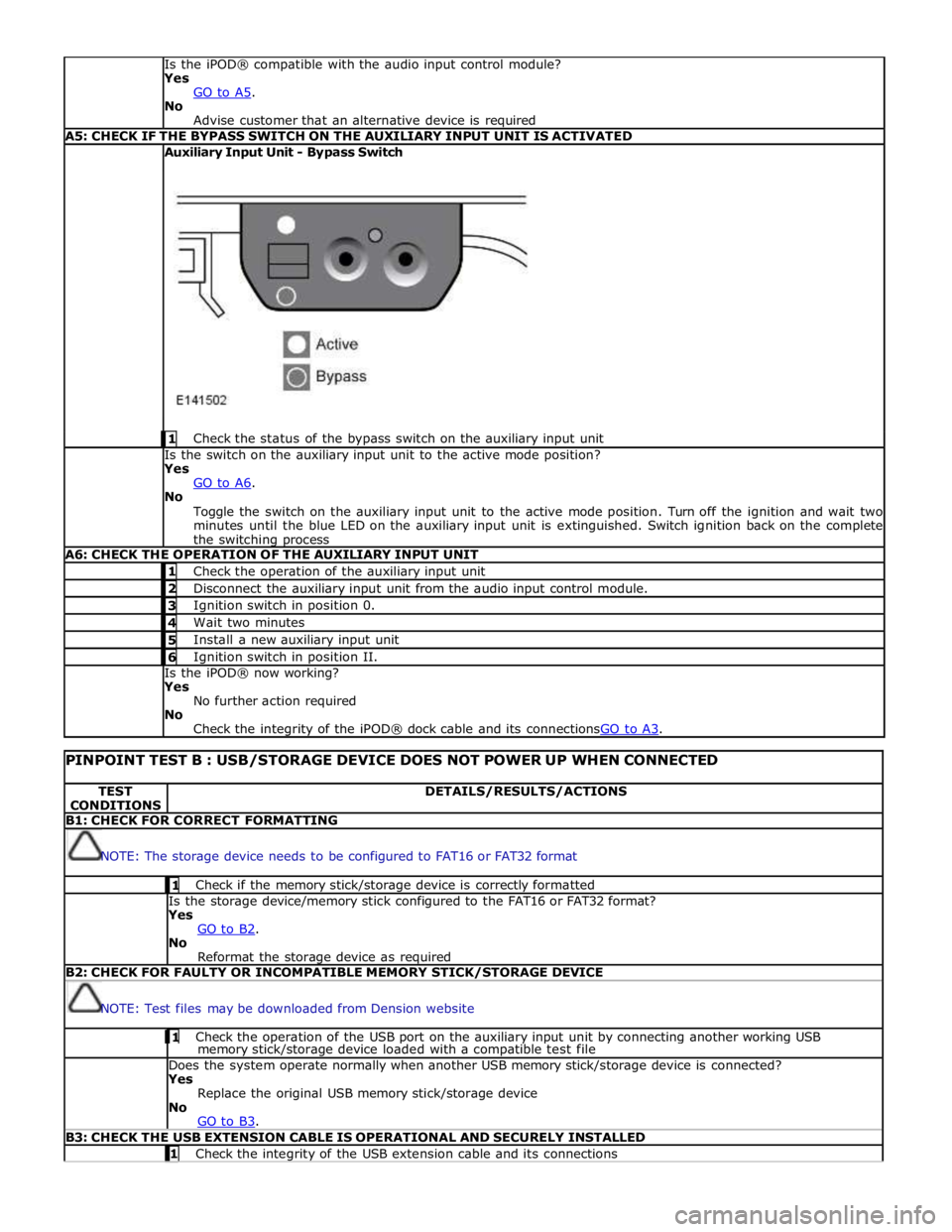
Is the iPOD® compatible with the audio input control module?
Yes
GO to A5. No
Advise customer that an alternative device is required A5: CHECK IF THE BYPASS SWITCH ON THE AUXILIARY INPUT UNIT IS ACTIVATED Auxiliary Input Unit - Bypass Switch
1 Check the status of the bypass switch on the auxiliary input unit Is the switch on the auxiliary input unit to the active mode position?
Yes
GO to A6. No
Toggle the switch on the auxiliary input unit to the active mode position. Turn off the ignition and wait two
minutes until the blue LED on the auxiliary input unit is extinguished. Switch ignition back on the complete
the switching process A6: CHECK THE OPERATION OF THE AUXILIARY INPUT UNIT 1 Check the operation of the auxiliary input unit 2 Disconnect the auxiliary input unit from the audio input control module. 3 Ignition switch in position 0. 4 Wait two minutes 5 Install a new auxiliary input unit 6 Ignition switch in position II. Is the iPOD® now working?
Yes
No further action required
No
Check the integrity of the iPOD® dock cable and its connectionsGO to A3.
PINPOINT TEST B : USB/STORAGE DEVICE DOES NOT POWER UP WHEN CONNECTED TEST
CONDITIONS DETAILS/RESULTS/ACTIONS B1: CHECK FOR CORRECT FORMATTING
NOTE: The storage device needs to be configured to FAT16 or FAT32 format 1 Check if the memory stick/storage device is correctly formatted Is the storage device/memory stick configured to the FAT16 or FAT32 format?
Yes
GO to B2. No
Reformat the storage device as required B2: CHECK FOR FAULTY OR INCOMPATIBLE MEMORY STICK/STORAGE DEVICE
NOTE: Test files may be downloaded from Dension website 1 Check the operation of the USB port on the auxiliary input unit by connecting another working USB memory stick/storage device loaded with a compatible test file Does the system operate normally when another USB memory stick/storage device is connected?
Yes
Replace the original USB memory stick/storage device
No
GO to B3. B3: CHECK THE USB EXTENSION CABLE IS OPERATIONAL AND SECURELY INSTALLED 1 Check the integrity of the USB extension cable and its connections
Page 2017 of 3039
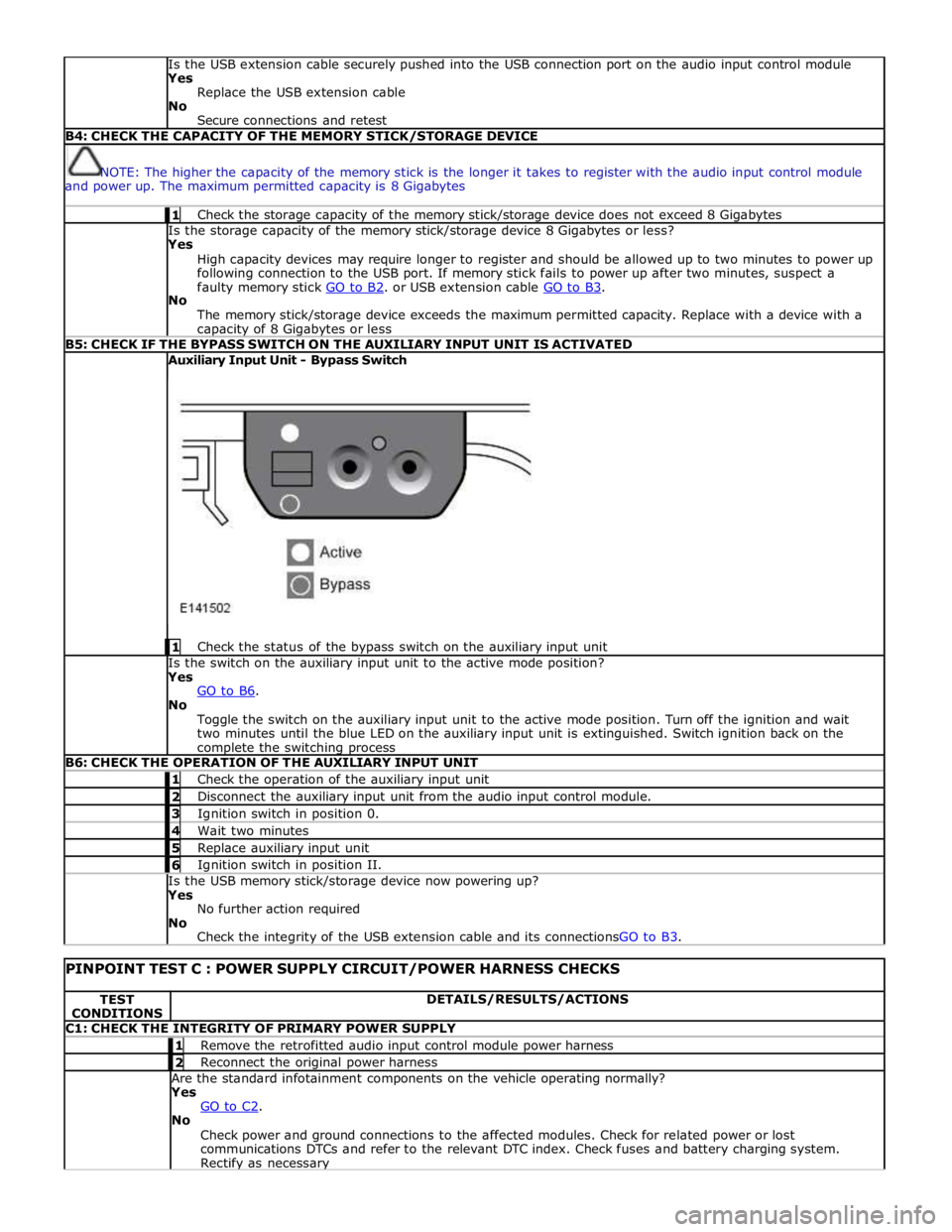
Is the USB extension cable securely pushed into the USB connection port on the audio input control module
Yes
Replace the USB extension cable
No
Secure connections and retest B4: CHECK THE CAPACITY OF THE MEMORY STICK/STORAGE DEVICE
NOTE: The higher the capacity of the memory stick is the longer it takes to register with the audio input control module
and power up. The maximum permitted capacity is 8 Gigabytes 1 Check the storage capacity of the memory stick/storage device does not exceed 8 Gigabytes Is the storage capacity of the memory stick/storage device 8 Gigabytes or less?
Yes
High capacity devices may require longer to register and should be allowed up to two minutes to power up
following connection to the USB port. If memory stick fails to power up after two minutes, suspect a
faulty memory stick GO to B2. or USB extension cable GO to B3. No
The memory stick/storage device exceeds the maximum permitted capacity. Replace with a device with a capacity of 8 Gigabytes or less B5: CHECK IF THE BYPASS SWITCH ON THE AUXILIARY INPUT UNIT IS ACTIVATED Auxiliary Input Unit - Bypass Switch
1 Check the status of the bypass switch on the auxiliary input unit Is the switch on the auxiliary input unit to the active mode position?
Yes
GO to B6. No
Toggle the switch on the auxiliary input unit to the active mode position. Turn off the ignition and wait
two minutes until the blue LED on the auxiliary input unit is extinguished. Switch ignition back on the complete the switching process B6: CHECK THE OPERATION OF THE AUXILIARY INPUT UNIT 1 Check the operation of the auxiliary input unit 2 Disconnect the auxiliary input unit from the audio input control module. 3 Ignition switch in position 0. 4 Wait two minutes 5 Replace auxiliary input unit 6 Ignition switch in position II. Is the USB memory stick/storage device now powering up?
Yes
No further action required
No
Check the integrity of the USB extension cable and its connectionsGO to B3.
PINPOINT TEST C : POWER SUPPLY CIRCUIT/POWER HARNESS CHECKS TEST
CONDITIONS DETAILS/RESULTS/ACTIONS C1: CHECK THE INTEGRITY OF PRIMARY POWER SUPPLY 1 Remove the retrofitted audio input control module power harness 2 Reconnect the original power harness Are the standard infotainment components on the vehicle operating normally?
Yes
GO to C2. No
Check power and ground connections to the affected modules. Check for related power or lost
communications DTCs and refer to the relevant DTC index. Check fuses and battery charging system. Rectify as necessary