USB JEEP GRAND CHEROKEE 2013 Owner handbook (in English)
[x] Cancel search | Manufacturer: JEEP, Model Year: 2013, Model line: GRAND CHEROKEE, Model: JEEP GRAND CHEROKEE 2013Pages: 408, PDF Size: 3.21 MB
Page 95 of 408
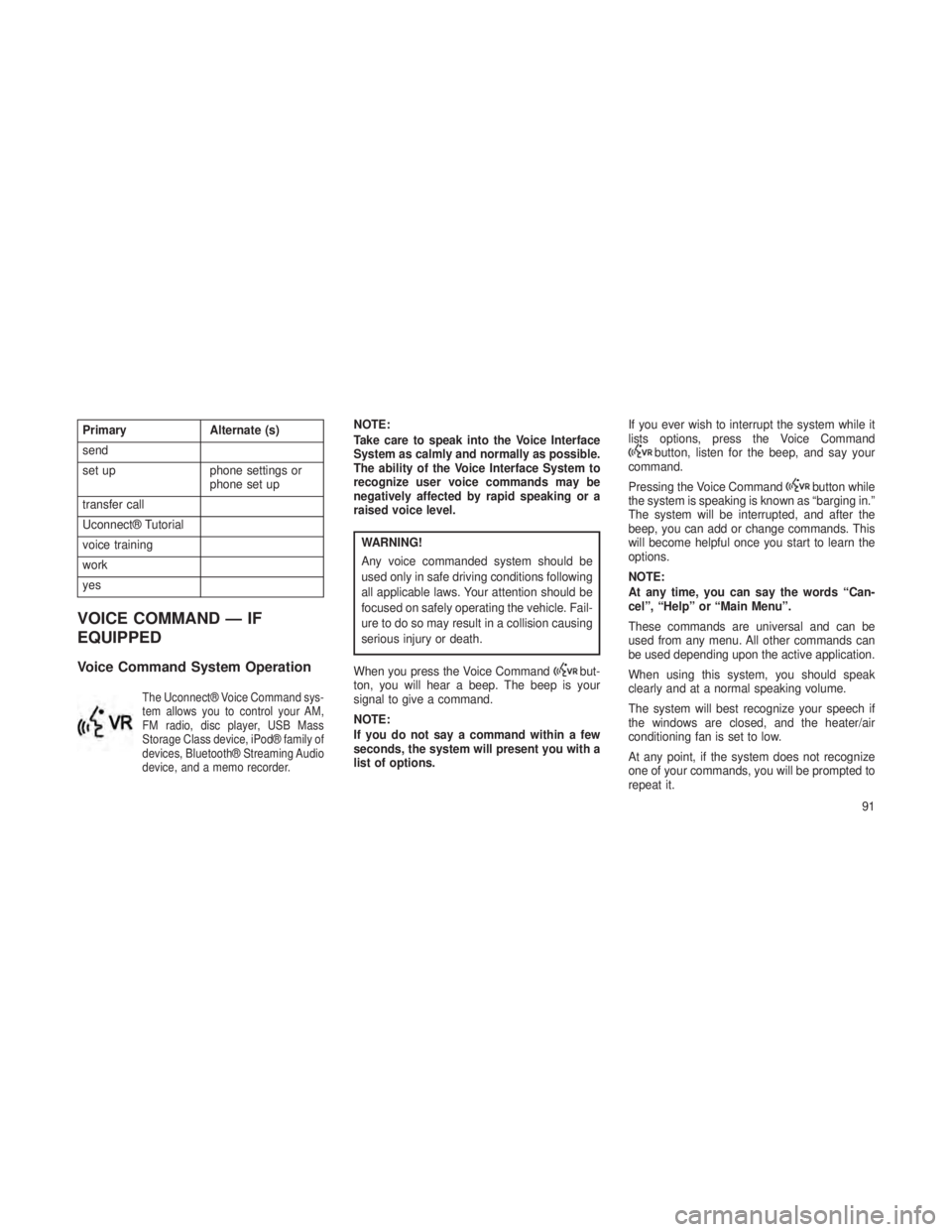
PrimaryAlternate (s)
send
set up phone settings or
phone set up
transfer call
Uconnect® Tutorial
voice training
work
yes
VOICE COMMAND — IF
EQUIPPED
Voice Command System Operation
The Uconnect® Voice Command sys-
tem allows you to control your AM,
FM radio, disc player, USB Mass
Storage Class device, iPod® family of
devices, Bluetooth® Streaming Audio
device, and a memo recorder.
NOTE:
Take care to speak into the Voice Interface
System as calmly and normally as possible.
The ability of the Voice Interface System to
recognize user voice commands may be
negatively affected by rapid speaking or a
raised voice level.
WARNING!
Any voice commanded system should be
used only in safe driving conditions following
all applicable laws. Your attention should be
focused on safely operating the vehicle. Fail-
ure to do so may result in a collision causing
serious injury or death.
When you press the Voice Command
but-
ton, you will hear a beep. The beep is your
signal to give a command.
NOTE:
If you do not say a command within a few
seconds, the system will present you with a
list of options. If you ever wish to interrupt the system while it
lists options, press the Voice Command
button, listen for the beep, and say your
command.
Pressing the Voice Command
button while
the system is speaking is known as “barging in.”
The system will be interrupted, and after the
beep, you can add or change commands. This
will become helpful once you start to learn the
options.
NOTE:
At any time, you can say the words “Can-
cel”, “Help” or “Main Menu”.
These commands are universal and can be
used from any menu. All other commands can
be used depending upon the active application.
When using this system, you should speak
clearly and at a normal speaking volume.
The system will best recognize your speech if
the windows are closed, and the heater/air
conditioning fan is set to low.
At any point, if the system does not recognize
one of your commands, you will be prompted to
repeat it.
91
Page 96 of 408
To hear the first available Menu, press the Voice
Commandbutton and say “Help” or “Main
Menu”.
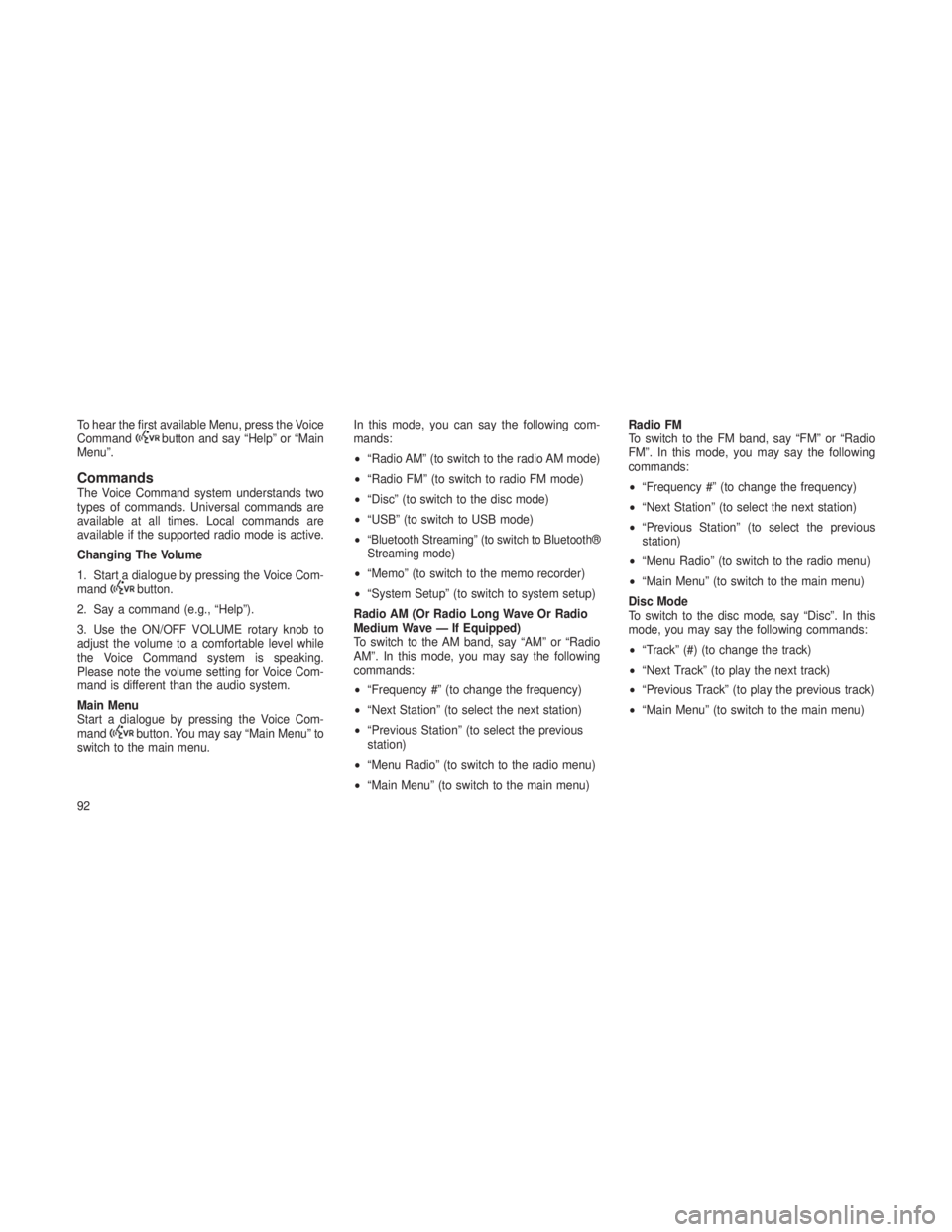
CommandsThe Voice Command system understands two
types of commands. Universal commands are
available at all times. Local commands are
available if the supported radio mode is active.
Changing The Volume
1. Start a dialogue by pressing the Voice Com-
mand
button.
2. Say a command (e.g., “Help”).
3. Use the ON/OFF VOLUME rotary knob to
adjust the volume to a comfortable level while
the Voice Command system is speaking.
Please note the volume setting for Voice Com-
mand is different than the audio system.
Main Menu
Start a dialogue by pressing the Voice Com-
mand
button. You may say “Main Menu” to
switch to the main menu. In this mode, you can say the following com-
mands:
•
“Radio AM” (to switch to the radio AM mode)
• “Radio FM” (to switch to radio FM mode)
• “Disc” (to switch to the disc mode)
• “USB” (to switch to USB mode)
•
“Bluetooth Streaming” (to switch to Bluetooth®
Streaming mode)
• “Memo” (to switch to the memo recorder)
• “System Setup” (to switch to system setup)
Radio AM (Or Radio Long Wave Or Radio
Medium Wave — If Equipped)
To switch to the AM band, say “AM” or “Radio
AM”. In this mode, you may say the following
commands:
• “Frequency #” (to change the frequency)
• “Next Station” (to select the next station)
• “Previous Station” (to select the previous
station)
• “Menu Radio” (to switch to the radio menu)
• “Main Menu” (to switch to the main menu) Radio FM
To switch to the FM band, say “FM” or “Radio
FM”. In this mode, you may say the following
commands:
•
“Frequency #” (to change the frequency)
• “Next Station” (to select the next station)
• “Previous Station” (to select the previous
station)
• “Menu Radio” (to switch to the radio menu)
• “Main Menu” (to switch to the main menu)
Disc Mode
To switch to the disc mode, say “Disc”. In this
mode, you may say the following commands:
• “Track” (#) (to change the track)
• “Next Track” (to play the next track)
• “Previous Track” (to play the previous track)
• “Main Menu” (to switch to the main menu)
92
Page 97 of 408
USB Mode
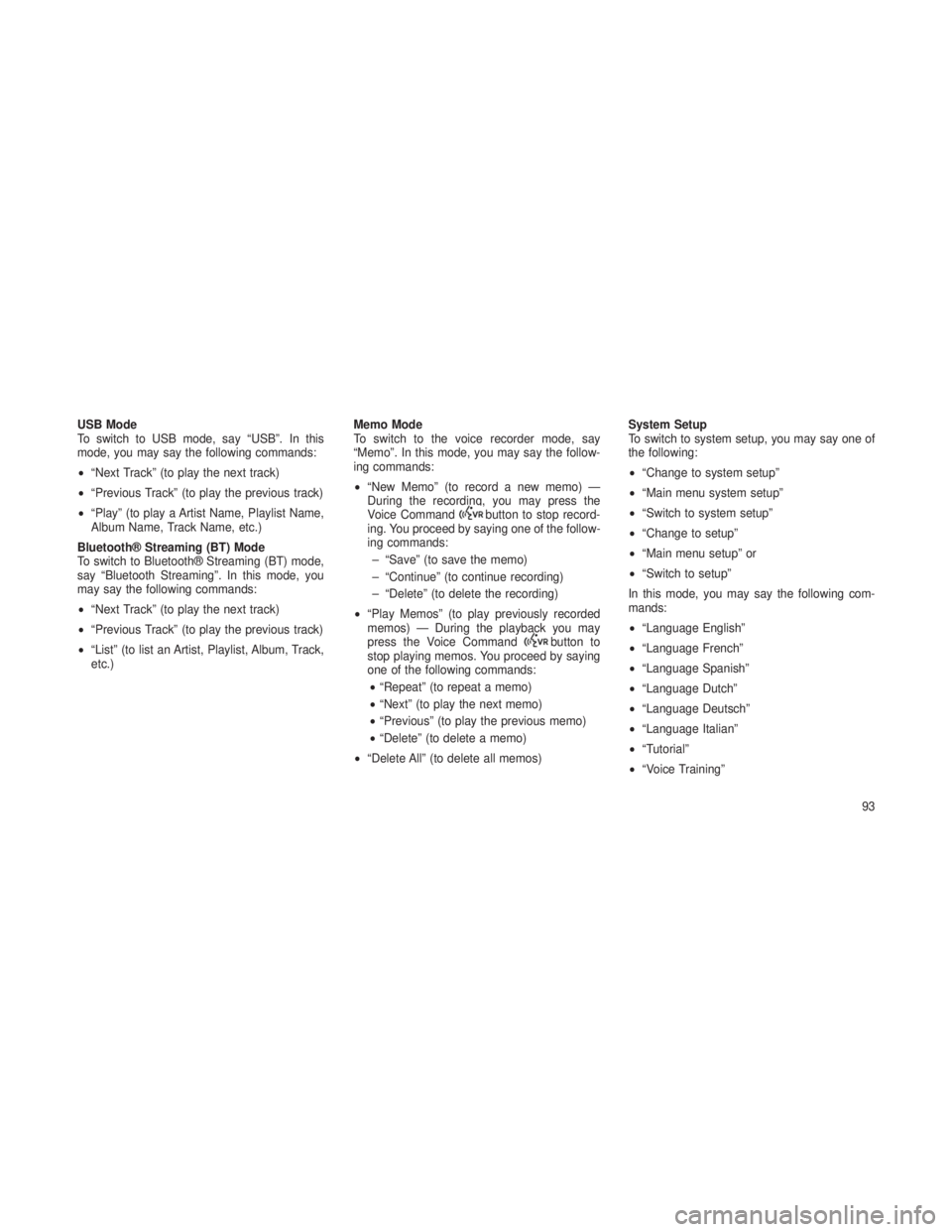
To switch to USB mode, say “USB”. In this
mode, you may say the following commands:
•“Next Track” (to play the next track)
• “Previous Track” (to play the previous track)
• “Play” (to play a Artist Name, Playlist Name,
Album Name, Track Name, etc.)
Bluetooth® Streaming (BT) Mode
To switch to Bluetooth® Streaming (BT) mode,
say “Bluetooth Streaming”. In this mode, you
may say the following commands:
• “Next Track” (to play the next track)
• “Previous Track” (to play the previous track)
• “List” (to list an Artist, Playlist, Album, Track,
etc.) Memo Mode
To switch to the voice recorder mode, say
“Memo”. In this mode, you may say the follow-
ing commands:
•
“New Memo” (to record a new memo) —
During the recording, you may press the
Voice Command
button to stop record-
ing. You proceed by saying one of the follow-
ing commands:
– “Save” (to save the memo)
– “Continue” (to continue recording)
– “Delete” (to delete the recording)
• “Play Memos” (to play previously recorded
memos) — During the playback you may
press the Voice Command
button to
stop playing memos. You proceed by saying
one of the following commands:
• “Repeat” (to repeat a memo)
• “Next” (to play the next memo)
• “Previous” (to play the previous memo)
• “Delete” (to delete a memo)
• “Delete All” (to delete all memos) System Setup
To switch to system setup, you may say one of
the following:
•
“Change to system setup”
• “Main menu system setup”
• “Switch to system setup”
• “Change to setup”
• “Main menu setup” or
• “Switch to setup”
In this mode, you may say the following com-
mands:
• “Language English”
• “Language French”
• “Language Spanish”
• “Language Dutch”
• “Language Deutsch”
• “Language Italian”
• “Tutorial”
• “Voice Training”
93
Page 162 of 408
•Keyless Enter-N-Go™ Display — If Equipped .............181
• Compass / Temperature Display .....................182
• Customer-Programmable Features (System Setup) ..........184
•SOUND SYSTEMS ..............................188
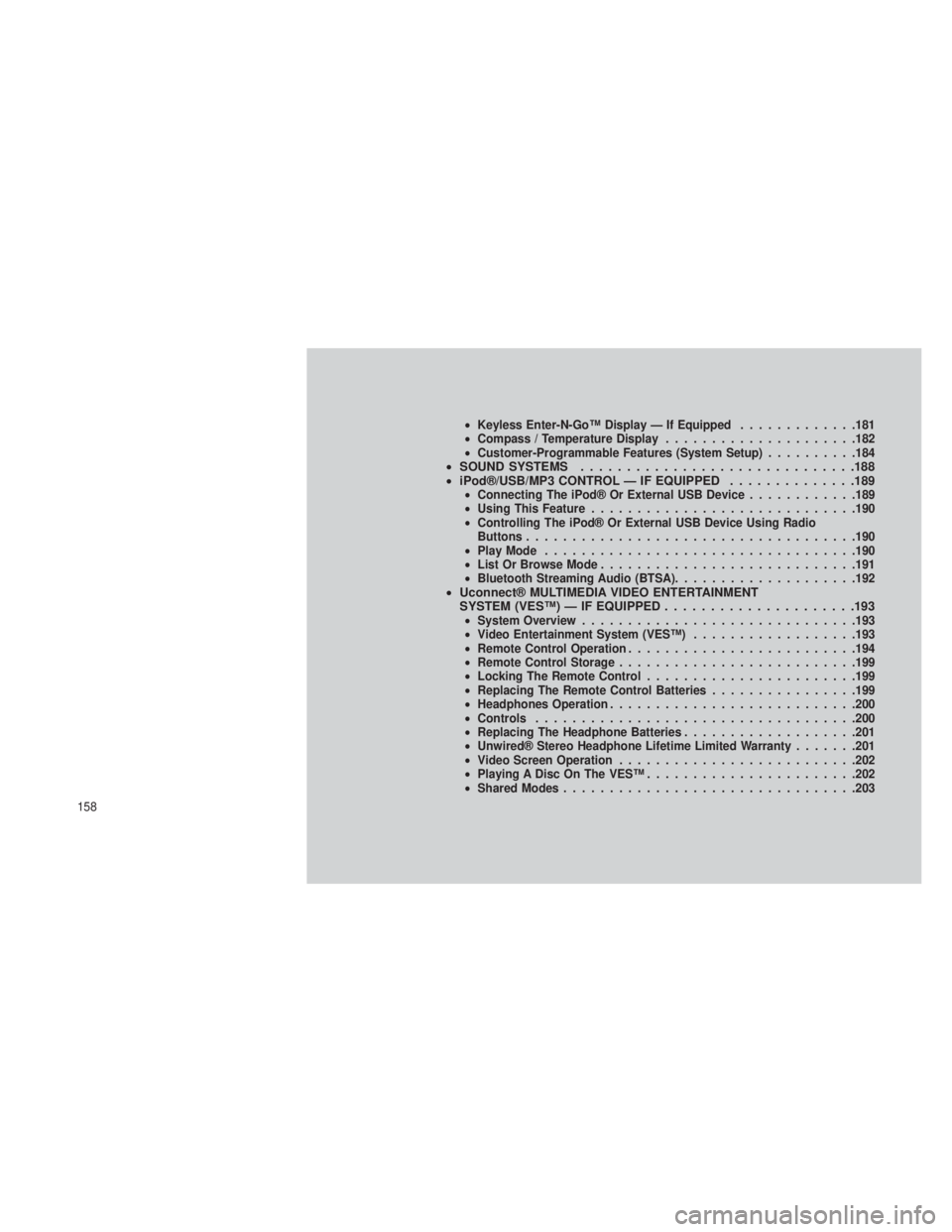
• iPod®/USB/MP3 CONTROL — IF EQUIPPED ..............189
•Connecting The iPod® Or External USB Device ............189
• Using This Feature ............................ .190
• Controlling The iPod® Or External USB Device Using Radio
Buttons ................................... .190
• Play Mode ................................. .190
• List Or Browse Mode ........................... .191
• Bluetooth Streaming Audio (BTSA) ....................192
•Uconnect® MULTIMEDIA VIDEO ENTERTAINMENT
SYSTEM (VES™) — IF EQUIPPED .....................193
•System Overview ............................. .193
• Video Entertainment System (VES™) ..................193
• Remote Control Operation ........................ .194
• Remote Control Storage ......................... .199
• Locking The Remote Control ...................... .199
• Replacing The Remote Control Batteries ................199
• Headphones Operation .......................... .200
• Controls .................................. .200
• Replacing The Headphone Batteries ...................201
• Unwired® Stereo Headphone Lifetime Limited Warranty .......201
• Video Screen Operation ......................... .202
• Playing A Disc On The VES™ ...................... .202
• Shared Modes ............................... .203
158
Page 193 of 408
iPod®/USB/MP3 CONTROL —
IF EQUIPPED
This feature allows an iPod® or external USB
device to be plugged into the USB port, located
in the center console or glove compartment.
iPod® control supports Mini, 4G, Photo, Nano,
5G iPod® and iPhone® devices. Some iPod®
software versions may not fully support the
iPod® control features. Please visit Apple’s
website for software updates.
NOTE:
•If the radio has a USB port, refer to the
appropriate Uconnect® Multimedia radio
User’s Manual for iPod® or external USB
device support capability.
• Connecting an iPod® or consumer elec-
tronic audio device to the AUX port lo-
cated in the radio faceplate, plays media,
but does not use the iPod® /MP3 control
feature to control the connected device.
Connecting The iPod® Or External
USB Device
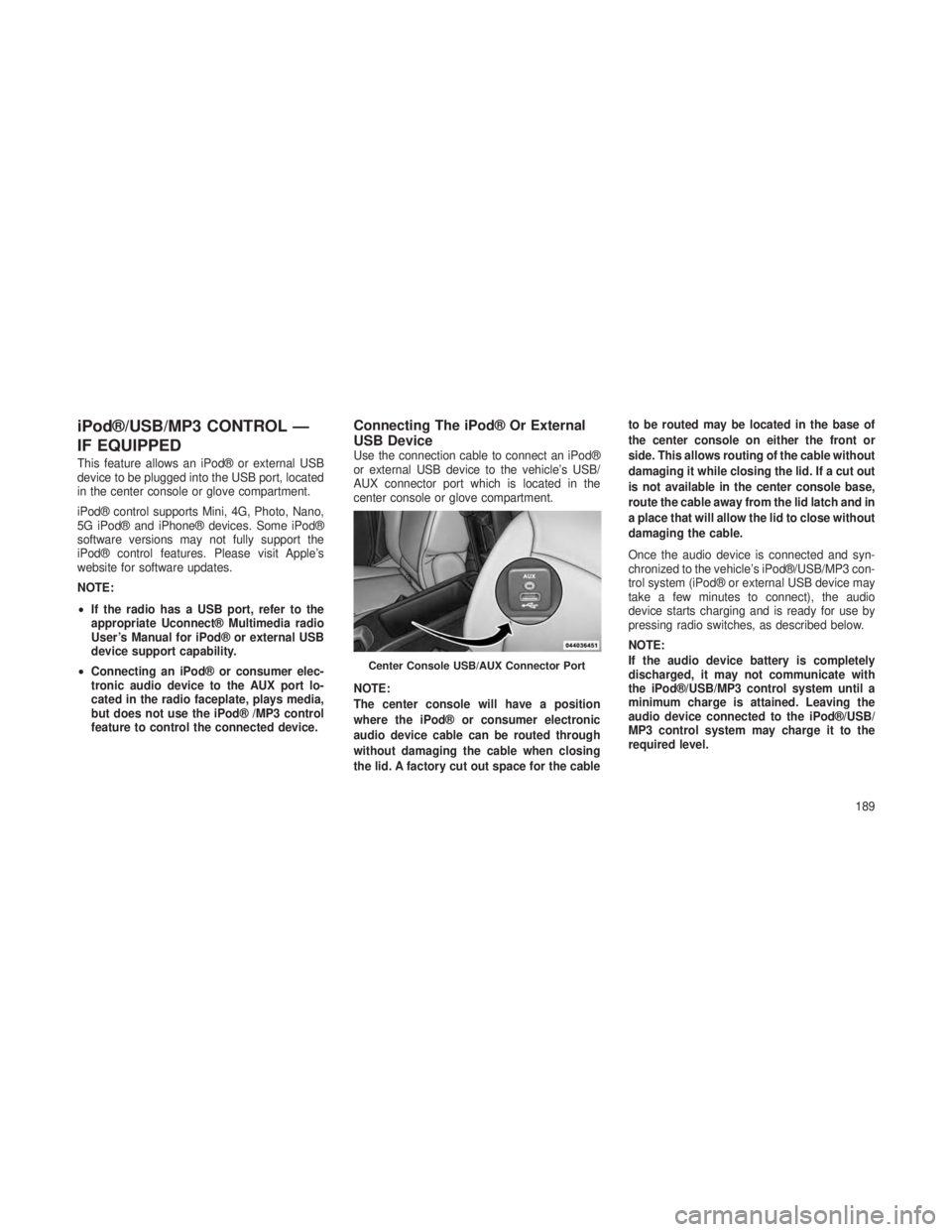
Use the connection cable to connect an iPod®
or external USB device to the vehicle’s USB/
AUX connector port which is located in the
center console or glove compartment.
NOTE:
The center console will have a position
where the iPod® or consumer electronic
audio device cable can be routed through
without damaging the cable when closing
the lid. A factory cut out space for the cable to be routed may be located in the base of
the center console on either the front or
side. This allows routing of the cable without
damaging it while closing the lid. If a cut out
is not available in the center console base,
route the cable away from the lid latch and in
a place that will allow the lid to close without
damaging the cable.
Once the audio device is connected and syn-
chronized to the vehicle’s iPod®/USB/MP3 con-
trol system (iPod® or external USB device may
take a few minutes to connect), the audio
device starts charging and is ready for use by
pressing radio switches, as described below.
NOTE:
If the audio device battery is completely
discharged, it may not communicate with
the iPod®/USB/MP3 control system until a
minimum charge is attained. Leaving the
audio device connected to the iPod®/USB/
MP3 control system may charge it to the
required level.
Center Console USB/AUX Connector Port
189
Page 194 of 408
Using This FeatureBy using an iPod® cable, or an external USB
device to connect to the USB port:
•The audio device can be played on the
vehicle’s sound system, providing metadata
(artist, track title, album, etc.) information on
the radio display.
• The audio device can be controlled using the
radio buttons to Play, Browse, and List the
iPod® contents.
• The audio device battery charges when
plugged into the USB/AUX connector (if sup-
ported by the specific audio device).
Controlling The iPod® Or External
USB Device Using Radio Buttons
To get into the iPod®/USB/MP3 control mode
and access a connected audio device, either
press the “AUX” button on the radio faceplate or
press the VR button and say "USB"or"Switch
to USB". Once in the iPod®/USB/MP3 control
mode, audio tracks (if available from audio
device) start playing over the vehicle’s audio
system.
Play ModeWhen switched to iPod®/USB/MP3 control
mode, the iPod® or external USB device auto-
matically starts Play mode. In Play mode, the
following buttons on the radio faceplate may be
used to control the iPod® or external USB
device and display data:
• Use the TUNE control knob to select the next
or previous track.
• Turning it clockwise (forward) by one click,
while playing a track, skips to the next
track or press the VR button and say "Next
Track".
• Turning it counterclockwise (backward) by
one click, will jump to the previous track in
the list or press the VR button and say
"Previous Track"
• Jump backward in the current track by press-
ing and holding the << RWbutton. Holding
the << RWbutton long enough will jump to
the beginning of the current track.
• Jump forward in the current track by pressing
and holding the FF>> button. •
A single press backward << RWor forward
FF>> will jump backward or forward respec-
tively, for five seconds.
•
Use the << SEEKandSEEK>> buttons to
jump to the previous or next track. Pressing the
SEEK>> button during play mode will jump to
the next track in the list, or press the VR button
and say "Next or Previous Track".
•While a track is playing, press the INFO
button to see the associated metadata (artist,
track title, album, etc.) for that track. Pressing
the INFO button again jumps to the next
screen of data for that track. Once all screens
have been viewed, the last INFObutton
press will go back to the play mode screen on
the radio.
• Pressing the REPEATbutton will change the
audio device mode to repeat the current
playing track or press the VR button and say
"Repeat ON" or"Repeat Off".
190
Page 195 of 408
•Press the SCANbutton to use iPod®/USB/
MP3 device scan mode, which will play the
first 10 seconds of each track in the current
list and then forward to the next song. To stop
SCAN mode and start playing the desired
track, when it is playing the track, press the
SCAN button again. During Scan mode,
pressing the << SEEKandSEEK >> buttons
will select the previous and next tracks.
•
RNDbutton (available on sales code RES
radio only): Pressing this button toggles be-
tween Shuffle ON and Shuffle OFF modes for
the iPod® or external USB device, or press
the VR button and say "Shuffle ON"or
"Shuffle Off".IftheRND icon is showing on
the radio display, then the shuffle mode is
ON.
List Or Browse ModeDuring Play mode, pressing any of the buttons
described below, will bring up List mode. List
mode enables scrolling through the list of
menus and tracks on the audio device. •
TUNE control knob: The TUNEcontrol knob
functions in a similar manner as the scroll
wheel on the audio device or external USB
device.
• Turning it clockwise (forward) and counter-
clockwise (backward) scrolls through the
lists, displaying the track detail on the radio
display. Once the track to be played is
highlighted on the radio display, press the
TUNE control knob to select and start
playing the track. Turning the TUNEcon-
trol knob fast will scroll through the list
faster. During fast scroll, a slight delay in
updating the information on the radio dis-
play may be noticeable.
• During all List modes, the iPod® displays
all lists in “wrap-around” mode. So if the
track is at the bottom of the list, just turn
the wheel backward (counterclockwise) to
get to the track faster.
• In List mode, the radio PRESETbuttons
are used as shortcuts to the following lists
on the iPod® or external USB device.
• Preset 1 – Playlists
• Preset 2 – Artists •
Preset 3 – Albums
• Preset 4 – Genres
• Preset 5 – Audiobooks
• Preset 6 – Podcasts
• Pressing a PRESET button will display the
current list on the top line and the first item
in that list on the second line.
• To exit List mode without selecting a track,
press the same PRESETbutton again to
go back to Play mode.
• LIST button: The LISTbutton will display the
top level menu of the iPod® or external USB
device. Turn the TUNEcontrol knob to list the
top-menu item to be selected and press the
TUNE control knob. This will display the next
sub-menu list item on the audio device, then
follow the same steps to go to the desired
track in that list. Not all iPod® or external
USB device sub-menu levels are available
on this system.
• MUSIC TYPE button: TheMUSIC TYPE
button is another shortcut button to the genre
listing on your audio device.
191
Page 196 of 408
CAUTION!
•Leaving the iPod® or external USB device
(or any supported device) anywhere in the
vehicle in extreme heat or cold can alter
the operation or damage the device. Fol-
low the device manufacturer’s guidelines.
• Placing items on the iPod® or external
USB device, or connections to the iPod®
or external USB device in the vehicle, can
cause damage to the device and/or to the
connectors.
WARNING!
Do not plug in or remove the iPod® or external
USB device while driving. Failure to follow this
warning could result in an accident.
Bluetooth Streaming Audio (BTSA)Music can be streamed from your cellular
phone to the Uconnect® phone system.
Controlling BTSA Using Radio Buttons
To get into the BTSA mode, press either “AUX”
button on the radio or press the VR button and
say “Bluetooth Streaming Audio”.
Play Mode
When switched to BTSA mode, some audio
devices can start playing music over the vehi-
cle’s audio system, but some devices require
the music to be initiated on the device first, then
it will get streamed to the Uconnect® phone
system. Seven devices can be paired to the
Uconnect® phone system, but just one can be
selected and played.
Selecting A Different Audio Device
1. Press the PHONE button to begin.
2. After the "Ready"prompt and following the
beep, say "Setup", then say "Select Audio De-
vices". 3. Say the name of the audio device or ask the
Uconnect® phone system to list the audio de-
vices.
Next Track
Use the SEEK UP button, or press the VR
button on the radio and say “Next Track”, to
jump to the next music track on your cellular
phone.
Previous Track
Use the SEEK DOWN button, or press the VR
button on the radio and say “Previous Track”, to
jump to the previous music track on your cellular
phone.
Browse
Browsing is not available on a Bluetooth
Streaming Audio (BTSA) device. Only the cur-
rent song that is playing will display info.
192
Page 256 of 408
ELECTRONIC BRAKE
CONTROL SYSTEM
Your vehicle is equipped with an advanced elec-
tronic brake control system that includes the
Anti-Lock Brake System (ABS), Traction Control
System (TCS), Brake Assist System (BAS), Elec-
tronic Roll Mitigation (ERM), and Electronic Sta-
bility Control (ESC). All five of these systems work
together to enhance vehicle stability and control in
various driving conditions.
Also, your vehicle is equipped with Trailer Sway
Control (TSC), Hill Start Assist (HSA), Brake
Lock Differential (BLD), Ready Alert Braking,
Rain Brake Support and, if it has four-wheel
drive with the MP 3023 two-speed transfer
case, Hill Descent Control (HDC).
Anti-Lock Brake System (ABS)This system aids the driver in maintaining ve-
hicle control under adverse braking conditions.
The system controls hydraulic brake pressure
to prevent wheel lock-up and help avoid skid-
ding on slippery surfaces during braking. Refer
to “Anti-Lock Brake System” in “Starting and
Operating” for further information.
WARNING!
The ABS cannot prevent the natural laws of
physics from acting on the vehicle, nor can it
increase the traction afforded by prevailing
road conditions. The ABS cannot prevent
collisions, including those resulting from ex-
cessive speed in turns, driving on very slip-
pery surfaces, or hydroplaning. The capabili-
ties of an ABS-equipped vehicle must never
be exploited in a reckless or dangerous
manner which could jeopardize the user’s
safety or the safety of others.
Traction Control System (TCS)This system monitors the amount of wheel spin
of each of the driven wheels. If wheel spin is
detected, brake pressure is applied to the slip-
ping wheel(s) and engine power is reduced to
provide enhanced acceleration and stability.
A feature of the TCS system, Brake Limited
Differential (BLD), functions similar to a limited-
slip differential and controls the wheel spin
across a driven axle. If one wheel on a drivenaxle is spinning faster than the other, the sys-
tem will apply the brake of the spinning wheel.
This will allow more engine torque to be applied
to the wheel that is not spinning. This feature
remains active even if ESC system is in the
“Partial Off” mode. Refer to “Electronic Stability
Control (ESC)” in this section for further infor-
mation.
Brake Assist System (BAS)The BAS is designed to optimize the vehicle’s
braking capability during emergency braking
maneuvers. The system detects an emergency
braking situation by sensing the rate and
amount of brake application and then applies
optimum pressure to the brakes. This can help
reduce braking distances. The BAS comple-
ments the anti-lock brake system (ABS). Apply-
ing the brakes very quickly results in the best
BAS assistance. To receive the benefit of the
system, you must apply
continuousbraking
pressure during the stopping sequence (do not
“pump” the brakes). Do not reduce brake pedal
pressure unless braking is no longer desired.
Once the brake pedal is released, the BAS is
deactivated.
252