change time JEEP WAGONEER 2023 Service Manual
[x] Cancel search | Manufacturer: JEEP, Model Year: 2023, Model line: WAGONEER, Model: JEEP WAGONEER 2023Pages: 396, PDF Size: 15.17 MB
Page 205 of 396

MULTIMEDIA203
Safety & Driving Assistance
When the Safety & Driving Assistance button is pressed on the touchscreen, the system displays the options related to the vehicle’s safety settings. These options will differ
depending on the features equipped on the vehicle. The settings may display in list form or within subfolders on the screen. To access a subfolder, select the desired folder; the
available options related to that feature will then display on the screen.
NOTE:Depending on the vehicle’s options, feature settings may vary.
Setting Name Description
Forward Collision Warning — Located In Automatic Emergency Braking Submenu This setting will turn the Forward Collision Warning (FCW) system on or off. The “Off”
setting will deactivate the FCW system. The “Warning Only” setting will provide only an
audible chime when a collision is detected. The “Warning + Active Braking” setting will
provide an audible chime and apply some brake pressure when a collision is detected.
Forward Collision Warning Sensitivity — Located In Automatic Emergency Braking
Submenu This setting will change the distance at which the Forward Collision Warning alert sounds.
The “Medium” setting will have the FCW system signal when an object is in view, and the
possibility of a collision is detected. The “Near” setting will have the FCW system signal
when the object is closer to the vehicle. The “Far” setting will have the FCW system signal
when an object is at a far distance from the vehicle.
Pedestrian Emergency Braking — Located In Automatic Emergency Braking Submenu This setting will turn the Pedestrian Emergency Braking system on or off. This setting is
located in “Automatic Emergency Braking”.
Active Lane Management This setting will alert the driver by vibrating the steering wheel and/or moving the steering
wheel, when a lane departure is detected. The available options within Active Lane
Management are Lane Management “Vibration Only”, “Steering Assist Only”, and
“Vibration + Steering Assist”; Lane Warning “Early”, “Medium”, and “Late”; Vibration
Strength “Low”, “Medium” and “High”; and Steering Assist Strength “Low”, “Medium”
and “High”.
Traffic Sign Assist This setting will turn Traffic Sign Assist on or off.
Traffic Sign Assist Warning This setting will allow you to set the warning type related to the traffic sign. The available
options are “Off”, “Visual”, and “Visual + Chime”.
5
23_WS_OM_EN_USC_t.book Page 203
Page 206 of 396

204MULTIMEDIA
Night Vision Video Warning This setting will turn the Night Vision Video Warning and green/gray cluster indicator light
on or off.
ParkSense This setting will change the type of ParkSense alert when a close object is detected and
can provide both an audible chime and a visual display.
Front ParkSense Volume This setting adjusts the volume of the Front ParkSense system. The available settings are
“Low”, “Medium”, and “High”.
Rear ParkSense Volume This setting adjusts the volume of the Rear ParkSense system. The available settings are
“Low”, “Medium”, and “High”.
Active ParkSense Mode This setting will adjust the level of vehicle control when the Active ParkSense Mode is
active. The available settings are “Full Auto” and “Steering Only”
Active ParkSense Proximity Chime This setting will turn the Active ParkSense Proximity Chime on or off.
Side Distance Warning This setting will adjust the warning for side distance. The available options are “Off”,
“Sound Only”, and “Sound & Display”.
Drowsy Driver Alert This setting will monitor the driver’s driving habits and warn you of any changes,
indicating that the driver may be drowsy. The available options are “On” and “Off”.
Blind Spot Alert This setting will change the type of alert provided when an object is detected in the
vehicle’s blind spot. The “Off” setting will turn off Blind Spot Alert. The “Lights” setting will
activate the Blind Spot Alert lights on the outside mirrors. The “Lights & Chime” setting
will activate the lights on the outside mirrors and an audible chime.
Electric Power Steering Default This setting will change the Electric Power Steering mode. The available options are
“Comfort” for a lower effort steering experience, “Normal” for the standard effort steering
experience, and “Sport” for a higher effort steering experience.
Power Side Step This setting will activate the Power Side Step. The “Auto” setting will lower the step when
the door is opened and retract it once the door is closed. The “Off” setting will deactivate
the feature.
Hill Start Assist This setting will turn the Hill Start Assist system on or off.
Tire Fill Assist This setting will turn Tire Fill Assist on or off.
Setting NameDescription
23_WS_OM_EN_USC_t.book Page 204
Page 207 of 396

MULTIMEDIA205
Clock
New Speed Zone Indication This setting will allow you to set if the system will warn you that the speed limit has
changed in an area. The available options are “Off”, “Visual”, and “Visual + Chime”.
Rear ParkSense Braking Assist This setting will turn the Rear ParkSense Braking Assist on or off.
Setting NameDescription
When the Clock button is pressed on the touchscreen, the system displays the different options related to the vehicle’s internal clock.
NOTE:Depending on the vehicle’s options, feature settings may vary.
Setting NameDescription
Sync Time With GPS This setting will sync the time to the GPS receiver in the system. The system will control
the time via the GPS location.
Set Time This setting will allow you to set the hours and minutes. Sync Time With GPS must be off
for this setting to be available. The “+” setting will increase the hours or minutes.
The “-” setting will decrease the hours or minutes.
Time Format This setting will allow you to set the time format (AM/PM). Sync Time With GPS must be
off for this setting to be available. The “12 hrs” setting will set the time to a 12-hour
format. The “24 hrs” setting will set the time to a 24-hour format.
Set Date This setting will allow you to set the day, month and year. Using “+” or “-”, you can scroll
through the available days, months, and years.
Show Time and Date During Screen Off This setting will allow you to show the time and date while the screen is off. Available
options are “On” and “Off”.
Set Time Hours This setting will allow you to set the hours. Sync Time With GPS must be off for this
setting to be available. The “+” setting will increase the hours. The “-” setting will
decrease the hours.
5
23_WS_OM_EN_USC_t.book Page 205
Page 209 of 396

MULTIMEDIA207
Voice
Navigation
When the Voice button is pressed on the touchscreen, the system displays the options related to the vehicle’s Voice Recognition feature.
NOTE:Depending on the vehicle’s options, feature settings may vary.
Setting Name Description
Primary Voice Assistant This setting allows you to choose your voice assistant between “Alexa” and “Uconnect”.
Voice Options This setting will allow you to change the system’s voice to either “Male” or “Female”.
Wake Up Word This setting will allow you to set the system’s “Wake Up” word. An available option is
“Hey Uconnect”.
Voice Barge-In This setting allows you to respond to a Voice Response before the statement is
completed by the system. The available options are “On” and “Off”.
Show Command List This setting will allow you to turn the Command List on or off. The “Always” setting will
always show the Command List. The “With Help” setting will show the Command List and
provide a brief description of what the command does. The “Never” setting will turn the
Command List off.
When the Navigation button is pressed on the touchscreen, the system displays options related to the vehicle’s built-in Navigation system. These settings can change which icons
display on the map, how “time to arrival is calculated”, and route types.
For more information on Navigation and settings, refer to your Uconnect Radio Instruction Manual.
5
23_WS_OM_EN_USC_t.book Page 207
Page 212 of 396

210MULTIMEDIA
Lights
When the Lights button is pressed on the touchscreen, the system displays the options related to the vehicle’s exterior and interior lights.
When the “Daytime Running Lights” feature is selected, the daytime running lights can be turned on or off. This feature is only allowed by law in the country of the vehicle purchase.
Depending on the vehicle’s options, feature settings may vary.
Setting Name Description
Ambient Color Personalization This setting will redirect to a new menu that will allow you to change the ambient lighting
color in the cabin.
Interior Ambient Lighting This setting will allow you to adjust the brightness of the interior ambient lights. The
available options are “Level 1” through “Level 6”.
Headlight Off Delay This setting will allow you to set the amount of time it takes for the headlights to shut off
after the vehicle is turned off. The available settings are “0 sec”, “30 sec”, “60 sec”, and
“90 sec”.
Headlight Illumination On Approach This setting will allow you to set the amount of time it takes for the headlights to shut off
after the vehicle is unlocked. “Greeting Lights” must be selected and “Headlight
Illumination On Approach” must be selected above 0 seconds for the feature to be
enabled. The available settings are “0 sec”, “30 sec”, “60 sec”, and “90 sec”.
Headlights with Wipers This setting will turn the headlights on when the wipers are activated.
Proximity Wake-Up Proximity detection is a system which activates specific interior and exterior lights as the
vehicle is approached with a valid key fob. This feature provides an increased sense of
welcome and security as the user enters the vehicle in the dark. This setting will turn the
Proximity Wake-Up on or off.
NOTE:For the exterior lighting to be activated, “Headlight Illumination On Approach” must be set
to a value other than zero.
23_WS_OM_EN_USC_t.book Page 210
Page 214 of 396

212MULTIMEDIA
Doors & Locks
When the Doors & Locks button is pressed on the touchscreen, the system displays the options related to locking and unlocking the vehicle’s doors.
NOTE:
The Auto Door Locks feature default condition is enabled. When enabled, the door locks will lock automatically when the vehicle’s speed exceeds 15 mph (24 km/h). The Auto
Door Locks feature can be enabled or disabled by an authorized dealer per written request of the customer. Please see an authorized dealer for service.
Depending on the vehicle’s options, feature settings may vary.
Setting Name Description
Auto Door Locks This setting will allow you to change if the doors lock automatically when the vehicle
reaches 15 mph (24 km/h).
Auto Unlock On Exit This setting will unlock the doors when any of the doors are opened from the inside.
Flash Lights With Lock This setting will allow you to turn the flashing of the lights when the Lock button is pushed
on the key fob on or off. Available settings are “On” and “Off”.
Sound Horn With Lock This setting will sound the horn when the Lock button is pushed on the key fob. The “Off”
setting will not sound the horn when the Lock button is pushed. The “1st Press” setting
will sound the horn when the Lock button is pushed once. The “2nd Press” setting will
sound the horn when the Lock button is pushed twice.
Sound Horn With Remote Start This setting will sound the horn when the remote start is activated from the key fob.
Remote Door Unlock, Door Lock/1st Press Of Key Fob Unlocks This setting will change how many pushes of the Unlock button on the key fob are needed
to unlock all the doors. The “Driver Door” setting will only unlock the driver door on the
first push on the Unlock button. The “All Doors” setting will unlock all doors with only one
push of the Unlock button.
Passive Entry This setting will allow you to turn the Passive Entry feature (Keyless Enter ‘n Go™)
on or off.
Personal Settings Linked To Key Fob This setting will recall preset radio stations and driver seat position that have been linked
to the key fob.
Power Liftgate Alert This setting will chime an audible alert when the power liftgate is raising or lowering.
Selectable options are “On” and “Off”.
23_WS_OM_EN_USC_t.book Page 212
Page 218 of 396

216MULTIMEDIA
Audio
When the Audio button is pressed on the touchscreen, the system displays options related to the vehicle’s sound system. These settings can change the audio location within the
vehicle, adjust the bass or treble levels, and auto-play settings from an audio device or smartphone.
NOTE:Depending on the vehicle’s options, feature settings may vary.
Setting Name Description
Balance/Fade This setting will adjust audio levels from specific speakers in the front/back and left/right
of the vehicle. The Speaker icon can be moved to set audio location.
Equalizer This setting will adjust the “Bass”, “Mid”, and “Treble” ranges of the audio.
Speed Adjusted Volume This setting will adjust audio volume as speeds increase. At a higher setting, the volume
will increase more as the vehicle speeds up. The available settings are “Off”, “1”, “2”,
and “3”.
Surround Sound This setting will turn the Surround Sound system on or off.
AUX Volume Offset This setting will tune the audio levels from a device connected through the AUX port. The
available settings are “+” and “-”.
Auto Play This setting will automatically begin playing audio from a connected device.
Auto-On Radio This setting will automatically turn the radio on when the vehicle is started, if selected.
The available settings are “Off”, “On”, and “Recall Last”. With Recall Last, the system
resumes the previous task before vehicle shut off.
Radio off With Door This setting will keep the radio on when a door is opened or until the “Radio Off Delay”
time is reached. The available settings are “On” and “Off”.
Volume Adjustment This setting will allow you to set the audio volume levels for each option
(Media, Phone, Navigation, etc.). You can set the volume between 0 and 38.
Media Expander This setting will allow you to turn the Media Expander setting “On” or “Off”.
23_WS_OM_EN_USC_t.book Page 216
Page 222 of 396

220MULTIMEDIA
Reset
When the Reset button is pressed on the touchscreen, the system displays the options related to resetting the Uconnect system back to its default settings. These settings can clear
personal data and reset selected settings from other menus.
NOTE:Depending on the vehicle’s options, feature settings may vary.
Setting Name Description
Restart Radio This setting will reboot the radio.
Reset Apps Drawer To Default Order This setting will return the apps drawer to the default order. The available options are
“Yes” and “Cancel”. The X button can also be pressed to cancel the screen.
Restore Settings to Default This setting will return all the previously changed settings to their factory defaults.
Clear Personal Data This setting will display a pop-up that gives you the option to clear all personal data from
the system, including Bluetooth® devices and presets.
Reset Wi-Fi Password For Projection This setting will allow you to reset the vehicle’s Wi-Fi password for smartphone projection.
The available options are “Yes” and “Cancel”. The X button can also be pressed to cancel
the screen.
Reset Performance Values This setting will reset the performance values from your vehicle.
Factory Reset This setting will restore the radio to its factory default settings.
23_WS_OM_EN_USC_t.book Page 220
Page 225 of 396
MULTIMEDIA223
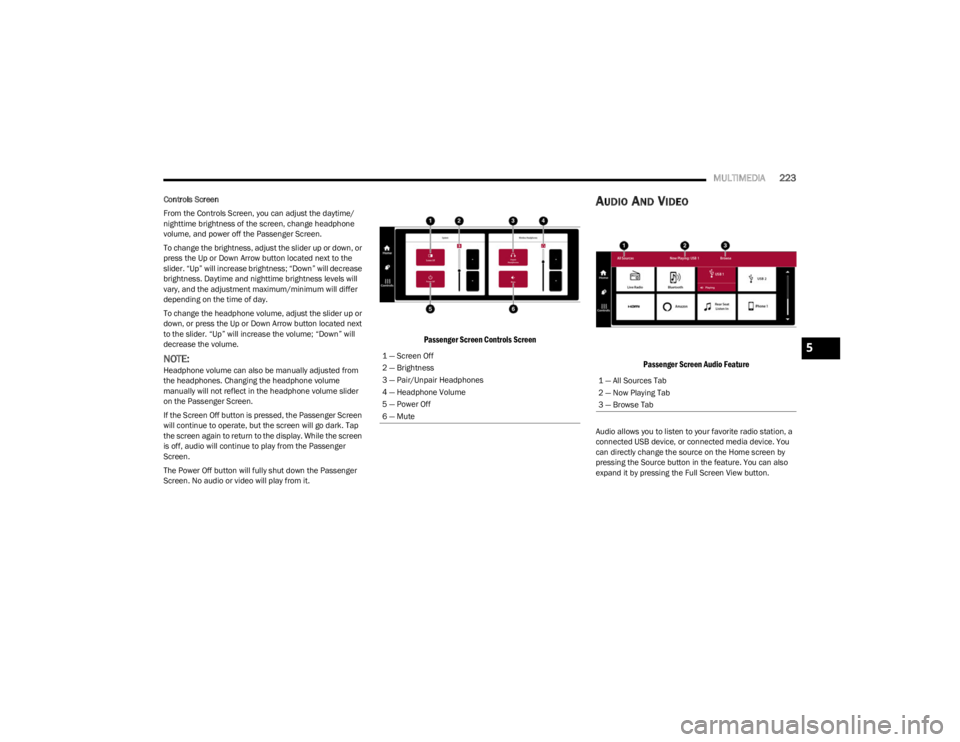
Controls Screen
From the Controls Screen, you can adjust the daytime/
nighttime brightness of the screen, change headphone
volume, and power off the Passenger Screen.
To change the brightness, adjust the slider up or down, or
press the Up or Down Arrow button located next to the
slider. “Up” will increase brightness; “Down” will decrease
brightness. Daytime and nighttime brightness levels will
vary, and the adjustment maximum/minimum will differ
depending on the time of day.
To change the headphone volume, adjust the slider up or
down, or press the Up or Down Arrow button located next
to the slider. “Up” will increase the volume; “Down” will
decrease the volume.
NOTE:Headphone volume can also be manually adjusted from
the headphones. Changing the headphone volume
manually will not reflect in the headphone volume slider
on the Passenger Screen.
If the Screen Off button is pressed, the Passenger Screen
will continue to operate, but the screen will go dark. Tap
the screen again to return to the display. While the screen
is off, audio will continue to play from the Passenger
Screen.
The Power Off button will fully shut down the Passenger
Screen. No audio or video will play from it.
Passenger Screen Controls Screen
AUDIO AND VIDEO
Passenger Screen Audio Feature
Audio allows you to listen to your favorite radio station, a
connected USB device, or connected media device. You
can directly change the source on the Home screen by
pressing the Source button in the feature. You can also
expand it by pressing the Full Screen View button.
1 — Screen Off
2 — Brightness
3 — Pair/Unpair Headphones
4 — Headphone Volume
5 — Power Off
6 — Mute
1 — All Sources Tab
2 — Now Playing Tab
3 — Browse Tab
5
23_WS_OM_EN_USC_t.book Page 223
Page 226 of 396
224MULTIMEDIA
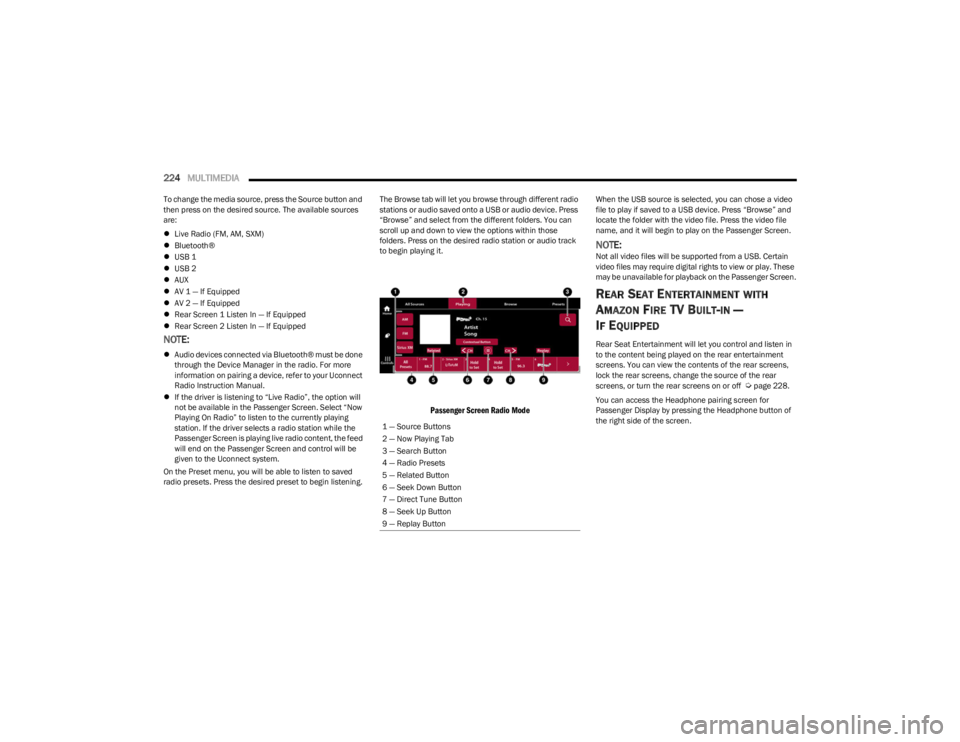
To change the media source, press the Source button and
then press on the desired source. The available sources
are:
Live Radio (FM, AM, SXM)
Bluetooth®
USB 1
USB 2
AUX
AV 1 — If Equipped
AV 2 — If Equipped
Rear Screen 1 Listen In — If Equipped
Rear Screen 2 Listen In — If Equipped
NOTE:
Audio devices connected via Bluetooth® must be done
through the Device Manager in the radio. For more
information on pairing a device, refer to your Uconnect
Radio Instruction Manual.
If the driver is listening to “Live Radio”, the option will
not be available in the Passenger Screen. Select “Now
Playing On Radio” to listen to the currently playing
station. If the driver selects a radio station while the
Passenger Screen is playing live radio content, the feed
will end on the Passenger Screen and control will be
given to the Uconnect system.
On the Preset menu, you will be able to listen to saved
radio presets. Press the desired preset to begin listening. The Browse tab will let you browse through different radio
stations or audio saved onto a USB or audio device. Press
“Browse” and select from the different folders. You can
scroll up and down to view the options within those
folders. Press on the desired radio station or audio track
to begin playing it.
Passenger Screen Radio Mode
When the USB source is selected, you can chose a video
file to play if saved to a USB device. Press “Browse” and
locate the folder with the video file. Press the video file
name, and it will begin to play on the Passenger Screen.
NOTE:Not all video files will be supported from a USB. Certain
video files may require digital rights to view or play. These
may be unavailable for playback on the Passenger Screen.
REAR SEAT ENTERTAINMENT WITH
A
MAZON FIRE TV BUILT-IN —
I
F EQUIPPED
Rear Seat Entertainment will let you control and listen in
to the content being played on the rear entertainment
screens. You can view the contents of the rear screens,
lock the rear screens, change the source of the rear
screens, or turn the rear screens on or off
Úpage 228.
You can access the Headphone pairing screen for
Passenger Display by pressing the Headphone button of
the right side of the screen.
1 — Source Buttons
2 — Now Playing Tab
3 — Search Button
4 — Radio Presets
5 — Related Button
6 — Seek Down Button
7 — Direct Tune Button
8 — Seek Up Button
9 — Replay Button
23_WS_OM_EN_USC_t.book Page 224