display KIA CEED 2015 Owners Manual
[x] Cancel search | Manufacturer: KIA, Model Year: 2015, Model line: CEED, Model: KIA CEED 2015Pages: 1210, PDF Size: 35.92 MB
Page 316 of 1210
4 235
Features of your vehicle
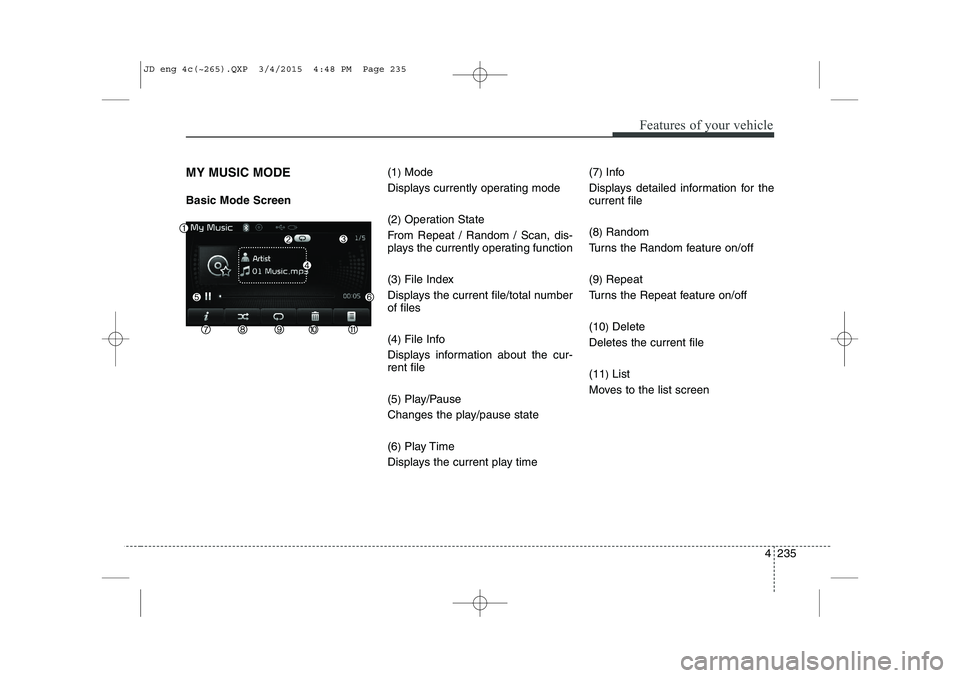
MY MUSIC MODE Basic Mode Screen(1
)Mode
Displays currently operating mode (2 )Operation State
From Repeat / Random / Scan, dis-
plays the currently operating function (3 )File Index
Displays the current file/total number of files (4 )File Info
Displays information about the cur- rent file (5 )Play/Pause
Changes the play/pause state(6 )Play Time
Displays the current play time (7
)
Info
Displays detailed information for the current file (8 )Random
Turns the Random feature on/off(9 )Repeat
Turns the Repeat feature on/off(10 )Delete
Deletes the current file(11 )List
Moves to the list screen
JD eng 4c(~265).QXP 3/4/2015 4:48 PM Page 235
Page 318 of 1210
4 237
Features of your vehicle
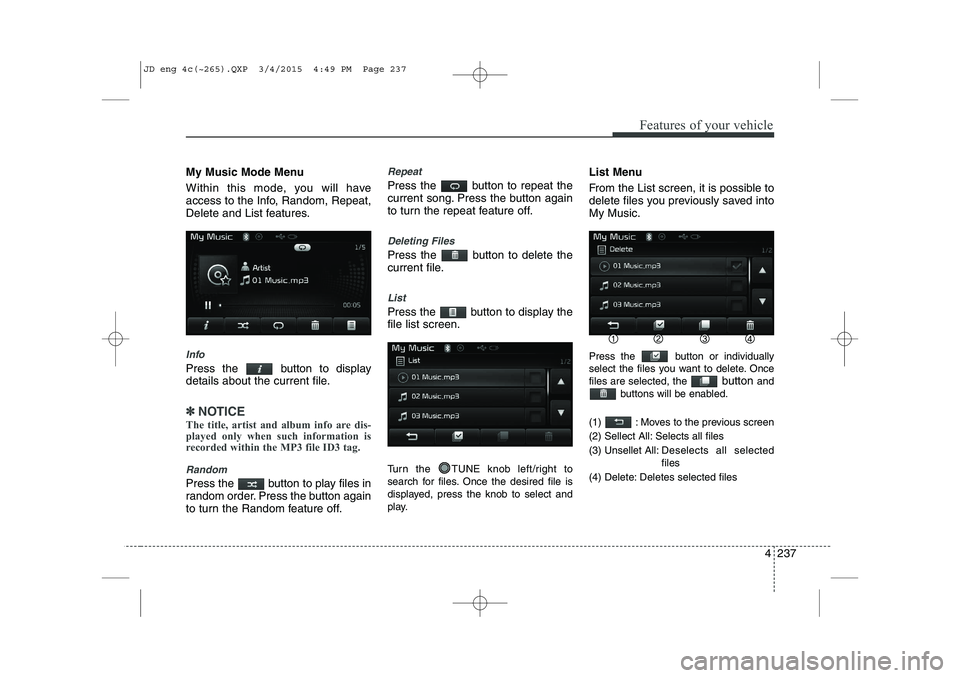
My Music Mode Menu
Within this mode, you will have
access to the Info, Random, Repeat,
Delete and List features.
Info
Press the button to display
details about the current file.
✽✽NOTICE
The title, artist and album info are dis-
played only when such information is
recorded within the MP3 file ID3 tag.
Random
Press the button to play files in
random order. Press the button again
to turn the Random feature off.
Repeat
Press the button to repeat the
current song. Press the button again
to turn the repeat feature off.
Deleting Files
Press the button to delete the
current file.
List
Press the button to display the file list screen.
Turn the TUNE knob left/right to
search for files. Once the desired file is
displayed, press the knob to select and
play. List Menu
From the List screen, it is possible to
delete files you previously saved intoMy Music.
Press the button or individually
select the files you want to delete. Oncefiles are selected, the
button and
buttons will be enabled.
(1) : Moves to the previous screen
(2) Sellect All: Selects all files
(3) Unsellet All: Des elects all selected
files
(4) Delete: Deletes selected files
JD eng 4c(~265).QXP 3/4/2015 4:49 PM Page 237
Page 320 of 1210
4 239
Features of your vehicle
✽✽NOTICE
The play/pause feature may operate dif-
ferently depending on the mobile phone.
Changing Files
Press the key to move to
the previous or next file.
Setting Connection
If a Bluetooth®Wireless Technology
device has not been connected, press
the key [Phone] button to
display the
Bluetooth®Wireless
Technology connection screen.
It is possible to use the pair phone, con-
nect/disconnect and delete features from
your
Bluetooth®Wireless Technology
phone.
✽✽ NOTICE
If the Bluetooth ®
Wireless Technology
audio is not operating properly, check
whether the feature is turned off at [Phone] [Audio stream-
ing]. If the feature is off, turn back on
and try again.
If music is not yet playing from your
mobile device after converting to
Bluetooth ®
Wireless Technology
Audio mode, pressing the play button
once may start playing the mode.
Check to see that music is playing
from the Bluetooth®
Wireless
Technology device after converting to
Bluetooth ®
Wireless Technology Audio
Mode.
SETUP
SETUP
SEEK
TRACK
JD eng 4c(~265).QXP 3/4/2015 4:49 PM Page 239
Page 324 of 1210
4 243
Features of your vehicle
(1) Device : Name of device as shownwhen searching from your
Bluetooth®
Wireless Technology device
(2) Passkey : Passkey used to pair the device
3. From your
Bluetooth®Wireless
Technology device (i.e. Mobile
Phone), search and select yourcar audio system.
4. After a few moments, a screen is displayed where the passkey isentered.
Here, enter the passkey “0000” to
pair your
Bluetooth®Wireless
Technology device with the caraudio system.
5. Once pairing is complete, the fol- lowing screen is displayed.
✽✽NOTICE
If Bluetooth ®
Wireless Technology
devices are paired but none are cur-
rently connected, pressing the
key or the key on the
steering remote controller displays the
following screen. Press the [Pair] but-
ton to pair a new device or press the
[Connect] to connect a previously pair
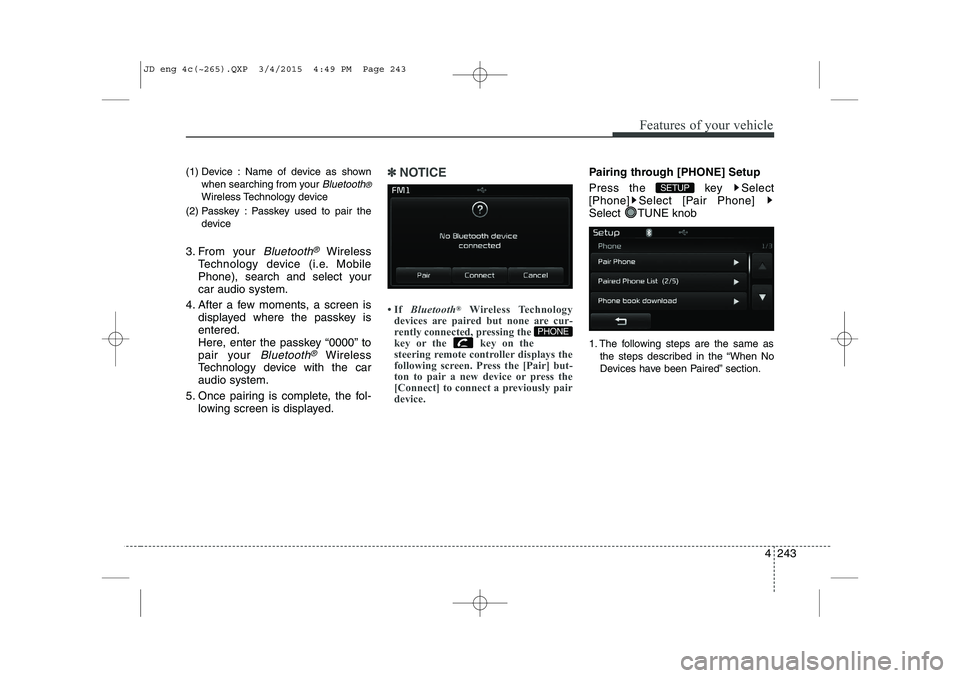
device.Pairing through [PHONE] Setup
Press the key Select
[Phone] Select [Pair Phone]
Select TUNE knob
1. The following steps are the same as
the steps described in the “When No
Devices have been Paired” section.
SETUP
PHONE
JD eng 4c(~265).QXP 3/4/2015 4:49 PM Page 243
Page 327 of 1210
![KIA CEED 2015 Owners Manual Features of your vehicle
246
4
Deleting a Device
Press the key Select
[Phone] Select [Paired Phone List]
From the paired phone list, select the
device you want to delete and press the
button.
✽](/img/2/57940/w960_57940-326.png "KIA CEED 2015 Owners Manual Features of your vehicle
246
4
Deleting a Device
Press the key Select
[Phone] Select [Paired Phone List]
From the paired phone list, select the
device you want to delete and press the
button.
✽")
Features of your vehicle
246
4
Deleting a Device
Press the key Select
[Phone] Select [Paired Phone List]
From the paired phone list, select the
device you want to delete and press the
button.
✽✽NOTICE
When deleting the currently connect- ed device, the device will automatical-
ly be disconnected to proceed with the
deleting process.
If a paired Bluetooth®
Wireless
Technology device is deleted, the
device’s call history and phone book
data will also be deleted.
To re-use a deleted device, you must pair the device again.
USING Bluetooth®Wireless
Technology
Phone Menu Screen
Phone Menus
With a Bluetooth®Wireless
Technology device connected, press
the key to display the Phone
menu screen. (1) Dial Number : Displays the dial
screen where numbers can be dialed
to make calls
(2) Call History : Device that is currently connected
(3) Phone book : Displays the Phone book list screen (4) Setup : Displays Phone related set-
tings
✽✽NOTICE
If you press the [Call History] button but there is no call history data, a
prompt is displayed which asks
whether to download call history data.
If you press the [Phone book] button but there is no phone book data, a
prompt is displayed which asks
whether to download phone book data..
This feature may not be supported in
some mobile phones. For more infor-
mation on download support, refer to
your mobile phone user’s manual.
PHONE
SETUP
JD eng 4c(~265).QXP 3/4/2015 4:49 PM Page 246
Page 328 of 1210
![KIA CEED 2015 Owners Manual 4 247
Features of your vehicle
Calling by Dialing a Number
Press the key Select [Dial Number]
(1) Dial Pad : Used to enter phone num-ber
(2) Call : If a number has been entered, calls the number If](/img/2/57940/w960_57940-327.png "KIA CEED 2015 Owners Manual 4 247
Features of your vehicle
Calling by Dialing a Number
Press the key Select [Dial Number]
(1) Dial Pad : Used to enter phone num-ber
(2) Call : If a number has been entered, calls the number If")
4 247
Features of your vehicle
Calling by Dialing a Number
Press the key Select [Dial Number]
(1) Dial Pad : Used to enter phone num-ber
(2) Call : If a number has been entered, calls the number If no number has
been entered, switches to call historyscreen
(3) End : Deletes the entered phone number
(4) Delete : Deletes entered numbers one digit at a time Answering Calls
Answering a Call
Answering a call with a Bluetooth®
Wireless Technology device connect-
ed will display the following screen. (1)
Caller : Displays the other part’s name when the incoming caller is
saved within your phone book
(2) Incoming Number : Displays the
incoming number
(3) Accept : Accept the incoming call
(4) Reject : Reject the incoming call
✽✽ NOTICE
When the incoming call pop-up is dis- played, most Audio and SETUP mode
features will not operate. Only the call
volume can be operated.
The telephone number may not be
properly displayed in some mobile
phones.
When a call is answered with the mobile phone, the call mode will auto-
matically convert to Private mode.
PHONE
JD eng 4c(~265).QXP 3/4/2015 4:49 PM Page 247
Page 329 of 1210
Features of your vehicle
248
4
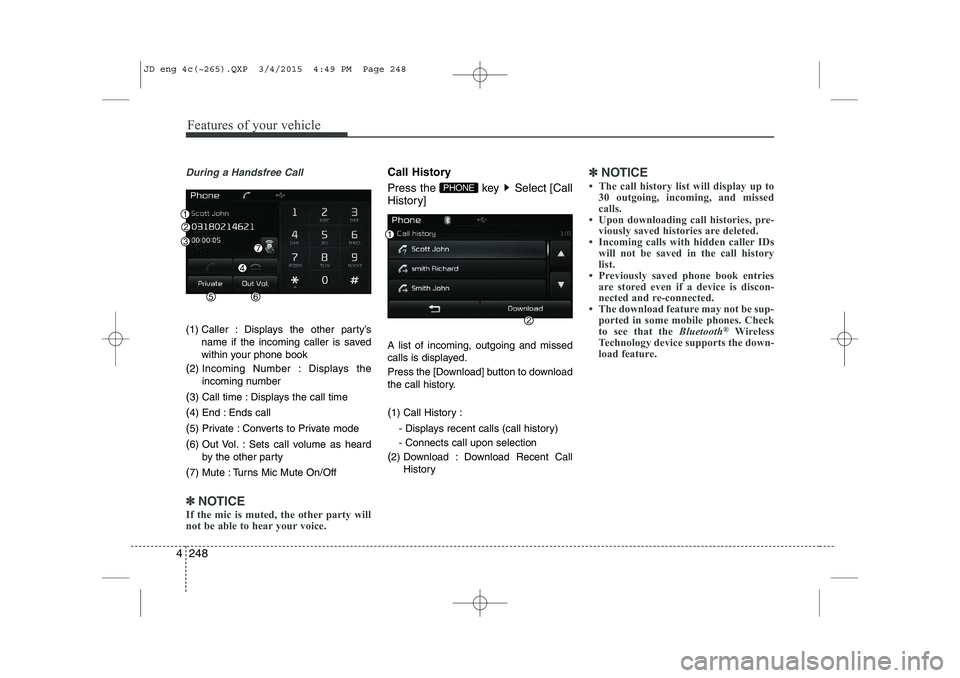
During a Handsfree Call
(1) Caller : Displays the other party’s
name if the incoming caller is saved
within your phone book
( 2) Incoming Number : Displays the
incoming number
( 3) Call time : Displays the call time
( 4) End : Ends call
( 5) Private : Converts to Private mode
( 6) Out Vol. : Sets call volume as heard
by the other party
( 7) Mute : Turns Mic Mute On/Off
✽✽
NOTICE
If the mic is muted, the other party will
not be able to hear your voice.
Call History
Press the key Select [Call
History] A list of incoming, outgoing and missed
calls is displayed.
Press the [Download] button to download
the call history. ( 1) Call History :
- Displays recent calls (call history) - Connects call upon selection
( 2) Download : Download Recent Call
History✽✽NOTICE
The call history list will display up to 30 outgoing, incoming, and missed
calls.
Upon downloading call histories, pre- viously saved histories are deleted.
Incoming calls with hidden caller IDs will not be saved in the call history
list.
Previously saved phone book entries
are stored even if a device is discon-
nected and re-connected.
The download feature may not be sup- ported in some mobile phones. Check
to see that the Bluetooth®
Wireless
Technology device supports the down-
load feature.
PHONE
JD eng 4c(~265).QXP 3/4/2015 4:49 PM Page 248
Page 330 of 1210
![KIA CEED 2015 Owners Manual 4 249
Features of your vehicle
Phone Book
Press the key Select [Phone book]
The list of saved phone book entries is
displayed. Press the [Download] button
to download the call history. (1) Contact](/img/2/57940/w960_57940-329.png "KIA CEED 2015 Owners Manual 4 249
Features of your vehicle
Phone Book
Press the key Select [Phone book]
The list of saved phone book entries is
displayed. Press the [Download] button
to download the call history. (1) Contact")
4 249
Features of your vehicle
Phone Book
Press the key Select [Phone book]
The list of saved phone book entries is
displayed. Press the [Download] button
to download the call history. (1) Contact List :
- Displays downloaded phone bookentries
- Connects call upon selection
( 2) Download : Download phone book
entries✽✽NOTICE
Up to 1,000 phone book entries can be copied into car phone book.
Upon downloading phone book data,
previously saved phone book data will
be deleted.
Downloading is not possible if the phone book download feature is
turned off within the Bluetooth®
Wireless Technology device. Also, some
devices may require device authoriza-
tion upon attempting to download. If
downloading cannot be normally con-
ducted, check the Bluetooth®
Wireless
Technology device setting or the screen
state.
Caller ID information will not be dis- played for unsaved callers.
The download feature may not be sup- ported in some mobile phones. Check
to see that the Bluetooth®
Wireless
Technology device supports the down-
load feature.
PHONE
JD eng 4c(~265).QXP 3/4/2015 4:49 PM Page 249
Page 334 of 1210
![KIA CEED 2015 Owners Manual 4 253
Features of your vehicle
SETUP
Starting Mode
Press the key to display the Setup screen.
You can select and control options relat-
ed to [Display], [Sound], [Phone] and[System].Display Setti](/img/2/57940/w960_57940-333.png "KIA CEED 2015 Owners Manual 4 253
Features of your vehicle
SETUP
Starting Mode
Press the key to display the Setup screen.
You can select and control options relat-
ed to [Display], [Sound], [Phone] and[System].Display Setti")
4 253
Features of your vehicle
SETUP
Starting Mode
Press the key to display the Setup screen.
You can select and control options relat-
ed to [Display], [Sound], [Phone] and[System].Display Settings
Adjusting the Brightness
Press the key Select
[Display] Select [Brightness]
Use the , buttons to adjust the
screen brightness or set the Brightness
on Automatic, Day, or Night mode.
Press the button to reset. (
1) Automatic : Adjusts the brightness
automatically
( 2) Day : Always maintains the bright-
ness on high
( 3) Night : Always maintains the bright-
ness on low
Pop-up Mode
Press the key Select
[Display] Select [Pop-up Mode]
This feature is used to display the Pop-up
Mode screen when entering radio and
media modes.
When this feature is turned on, pressing
the or key will display
the Pop-up Mode screen.
✽✽NOTICE
The media Pop-up Mode screen can be
displayed only when two or more media
modes have been connected.
MEDIA RADIO
SETUP
Default
SETUP SETUP
JD eng 4c(~265).QXP 3/4/2015 4:49 PM Page 253
Page 335 of 1210
![KIA CEED 2015 Owners Manual Features of your vehicle
254
4
Scroll Text
Press the key Select
[Display] Select [Scroll text]
This feature is used to scroll text dis-
played on the screen when it is too long
to be displayed at](/img/2/57940/w960_57940-334.png "KIA CEED 2015 Owners Manual Features of your vehicle
254
4
Scroll Text
Press the key Select
[Display] Select [Scroll text]
This feature is used to scroll text dis-
played on the screen when it is too long
to be displayed at")
Features of your vehicle
254
4
Scroll Text
Press the key Select
[Display] Select [Scroll text]
This feature is used to scroll text dis-
played on the screen when it is too long
to be displayed at once.
When turned on, the text is repeatedly
scrolled. When turned off, the text is
scrolled just once.
MP3 Information Display
Press the key Select
[Display] Select [Song Info]
This feature is used to change the infor-
mation displayed within USB and MP3
CD modes.
(1) Folder File : Displays file name and
folder name
(2) Album Artist Song : Displays album name/artist name/song Sound Settings
Sound Settings
Press the key Select
[Sound] Select [Audio Setting]
Use the , , , buttons to
adjust the Fader/Balance settings.
Use the , buttons to adjust the
Bass/Middle/Treble settings.
Press the button to reset.
Default
SETUP
SETUP
SETUP
JD eng 4c(~265).QXP 3/4/2015 4:49 PM Page 254