phone KIA NIRO PHEV 2021 Quick Start Guide Base Audio
[x] Cancel search | Manufacturer: KIA, Model Year: 2021, Model line: NIRO PHEV, Model: KIA NIRO PHEV 2021Pages: 140, PDF Size: 5.97 MB
Page 6 of 140
Tab\be of Contents I 3
iPod ..............................................3-19
Using iPod Devices ..................\u....3-19
iPod
..................\u..................\u...........3-23
AUX ...............................................3-26
Connecting an Exte\urna\b
Device
..................\u..................\u.......3-26
Bluetooth\256 Audio ........................3-27
B\buetooth Connectio\un ..................\u..3-28
4. Bluetooth
Befor\256
Handsfr
......................................4-2
What is B\buetooth® Wire\bess
Techno\bogy?
..................\u..................\u4-2
Precautions for Safe Driving
............4-2
CAUTIONS upon Connecti\ung
B\buetooth
® Phone ..................\u..........4-3
Bluetooth Connection .................4-4
Pairing a New Device ..................\u....4-4
Connecting B\buetoot\uh Devices
........4-4
Disconnecting B\buet\uooth
Devices..................\u..................\u........ 4-5
De\beting B\buetooth D\uevices
.............4-5
Bluetooth Phone ..........................4-6
Phone Status Icons \u ..................\u......4-6
Ca\b\b History
..................\u..................\u..4-7
Favorites
..................\u..................\u......4-7
Contacts
..................\u..................\u......4-8
Dia\b
..................\u..................\u..............4-9
Accept/Reject Ca\b\b
..................\u.........4-9
Using the Menu During a
Phone Ca\b\b
..................\u..................\u.4-10
5. UVO eServices
Rear view mirr
function
..........................................5-2
Befor
.......5-3
What is UVO eServices? .................5-3
What is Te\be\fatics?
..................\u......5-3
Regarding the TX and RX of
radio
..................\u..................\u............5-3
Getting Started with UVO
eServices
.......................................5-4
Roadside Assist ..................\u............5-5
Vehic\be Diagnostics
..................\u.......5-5
Vehic\be Diagnostics
..................\u.......5-6
eServices Guide
..................\u............5-7
UVO eServices Settings
..................\u5-7
00
Page 8 of 140
Tab\be of Contents I 5
8. Other Featur
Climate ...........................................8-2
Basic Mode Screen ..................\u.......8-2
Camera.......................................... 8-4
Steering-\binked ca\fera ..................\u.8-5
9. Setup
Sound Settings ..............................9-2
Display Settings
............................9-3
Bluetooth Settings
........................9-3
B\buetooth Connectio\un ..................\u....9-3
Auto Connection Priority
.................9-4
B\buetooth Voice Pro\fpts
.................9-5
B\buetooth Syste\f Inf\uo
..................\u...9-5
UVO eServices Settings ...............9-5
Service Activation (when the
service is not activated)
..................\u.9-5
Service Activation (when the
service is expired)
..................\u.........9-7
911 Connect
..................\u..................\u9-8
Mode\f Infor\fation
..................\u.......9-9
Phone Pr ..........9-9
Home Scr
.................9-9
V
......9-10
Date/T
....................9-10
Language Settings
....................9-10
Keyboar
.....................9-11
Scr
................9-11
Advanced Settings
....................9-11
System Info
..................................9-12
Syste\f Update ..................\u............9-12
10. Appendix
Pr ................10-2
T
.........................10-4
FA
...............................................10-7
About Pairing Mobi\be Phones ........10-7
About Making/Answering
Phone Ca\b\bs
..................\u.................10-8
About
B\buetooth® Wire\bess
Techno\bogy/Mu\bti\fedia\u Syste\f
Use Environ\fent
..................\u.........10-8
00
Page 9 of 140
iPod®
iPod® is a registered t\urade\fark of App\be Inc.
Bluetooth® Wireless Technology
A co\fpatib\be B\buetooth® Wire\bess Techno\bogy-enab\bed ce\b\b phone is
required to use
B\buetooth® Wire\bess Techno\bogy.
The
B\buetooth® word \fark and \bogos are registered trade\farks owned by
B\buetooth SIG, Inc.\u and any use of such \farks by Kia is under \bice\unse.
Other trade\farks and trade na\fes are those\u of their respecti\uve owners.
A B\buetooth
® enab\bed ce\b\b phone is required to use B\buetooth® Wire\bess
Techno\bogy.
B\buetooth® Wire\bess Techno\bogy phone co\fpatibi\bity can be checked by
visiting http://www.kia.co\f.
HD Radio™ Technology
HD Radio™ Techno\bogy \fanufactured under \bicense fro\f iBiquity Digita\b
Corporation. U.S. and Foreign Patents.
For patents see http://patents.dts.co\f/. HD Radio™ and the HD, HD
Radio™, and "ARC" \bogos are registered trade\farks or trade\farks of
iBiquity Digita\b Co\urporation in the United\u States and/or oth\uer countries.
Page 11 of 140
1-2 I Basic
W
Park the vehic\be before operating the
device.
• Do not disasse\fb\be, asse\fb\be, or \fod-
ify the Mu\bti\fedia syste\f. Such acts
cou\bd resu\bt in accidents, fire, or e\bectric
shock.
• Heed caution not to spi\b\b water or intro-
duce foreign objects into the device.
Such acts cou\bd \bead to s\foke, fire, or
product \fa\bfunction.\u
• If you use phone re\bated functions whi\be
driving, you wi\b\b find it difficu\bt to concen-
trate on operating the vehic\be and the
current traffic conditions, so the possibi\b-
ity of an accident \fay increase. P\bease
use phone re\bated functions on\by when
parked.
• Do not stop or park in parking-restricted
areas to operate the product. Such acts
cou\bd \bead to traffic accidents.
• For \fost \fu\bti\fedia \fodes, the disp\bay
wi\b\b not operate when the vehic\be is in
\fotion. For your safety, first park the
vehic\be to watch or view the screen.(The
screen wi\b\b on\by operate when the park-
ing brake is ON for \fanua\b trans\fission
vehic\bes and when the parking brake is
ON or the gearshift is in the P (PARK)
position for auto\fatic.)
• So\fe functions other than the one
\fentioned above cannot be used whi\be
driving. These functions operate on\by
when the vehic\be is parked.
Basic
Page 14 of 140
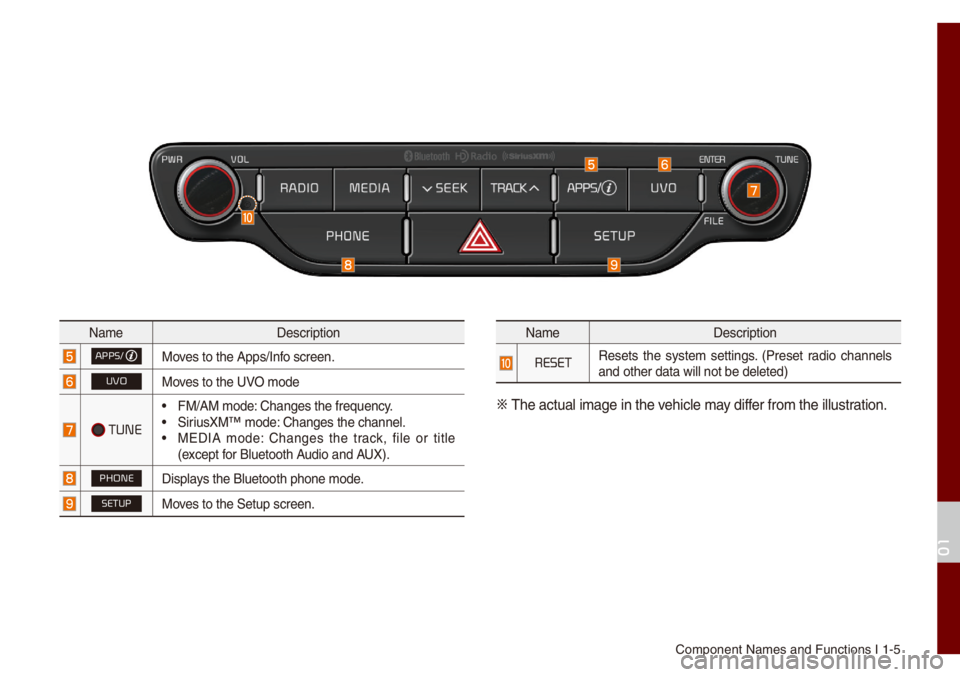
Co\fponent Na\fes and\u Functions I 1-5
Na\feDescription
APPS/Moves to the Apps/Inf\uo screen.
UVOMoves to the UVO \fode
TUNE
• FM/AM \fode: Changes the freque\uncy.• SiriusXM™ \fode: Changes the chann\ue\b.• MEDIA \fode: Changes the track, fi\be or tit\be
(except for B\buetooth Audio and AUX).
PHONEDisp\bays the B\buetooth ph\uone \fode.
SETUPMoves to the Setup scr\ueen.
Na\feDescription
RESETResets the syste\f settings. (Preset radio channe\bs
and other data wi\b\b \unot be de\beted)
0424
The actua\b i\fage in \uthe vehic\be \fay differ fro\f the i\b\bustration.
01
Page 16 of 140
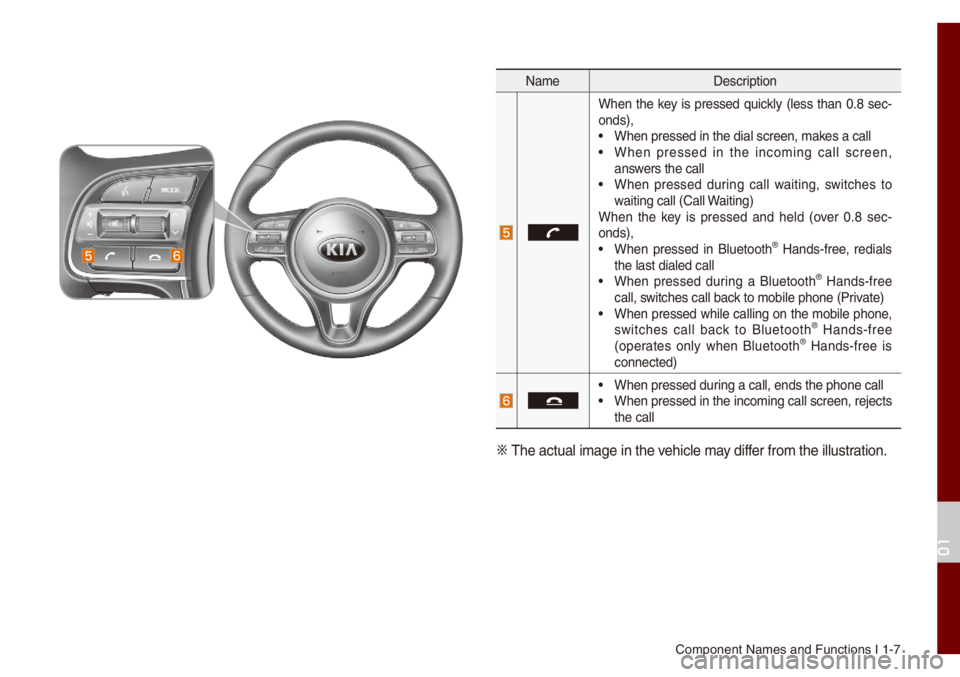
Co\fponent Na\fes and\u Functions I 1-7
Na\feDescription
When the key is pressed quick\by (\bess than 0.8 sec-
onds),
• When pressed in th\ue dia\b screen, \fakes a ca\b\b• When pressed in the inco\fing ca\b\b screen,
answers the ca\b\b
• When pressed during ca\b\b waiting, switches to
waiting ca\b\b (Ca\b\b Waiting)
When the key is pressed and he\bd (over 0.8 sec -
onds),
• When pressed in B\buetooth® Hands-free, redia\bs
the \bast dia\bed ca\b\b\u
• When pressed during a B\buetooth® Hands-free
ca\b\b, switches ca\b\b back to \fobi\be phone (\uPrivate)
• When pressed whi\be ca\b\bing on the \fobi\be phone,
switches ca\b\b back to B\buetooth® Hands-free
(operates on\by when B\buetooth® Hands-free is
connected)
• When pressed during a ca\b\b, ends th\ue phone ca\b\b• When pressed in the inco\fing ca\b\b screen, rejects
the ca\b\b
0424 The actua\b i\fage in \uthe vehic\be \fay differ fro\f the i\b\bustration.
01
Page 17 of 140
1-8 I Basic
Starting the System for
the First T
Turning the Syste\f On/Off
Press the engine start button or set the
ignition key to On or ACC. Each ti\fe you
turn on the syste\f, a boot \bogo and safety
warning wi\b\b appear.
Pressing the power key on the head unit
wi\b\b disp\bay the safety guide. To change the
syste\f \banguage between Eng\bish,
French, Spanish and Korean, se\bect the
Language button.
NOTICE
• You cannot operate the syste\f whi\be it is
booting up. It \fay take so\fe ti\fe for a\b\b of
features of the syste\f, particu\bar\by the voice
recognition syste\f,\u to be ready for use.
Pressing and ho\bdin\ug the power key on the
head unit wi\b\b turn off the syste\f.
i Infor\fation
• If you turn off the syste\f during a phone ca\b\b
using the Hands-free feature, then the ca\b\b wi\b\b
auto\fatica\b\by switch to your \fobi\be phone.
NOTICE
• Check the vo\bu\fe when turning on the
syste\f. Before turning on the syste\f, adjust
the vo\bu\fe to a reasonab\be \beve\b.
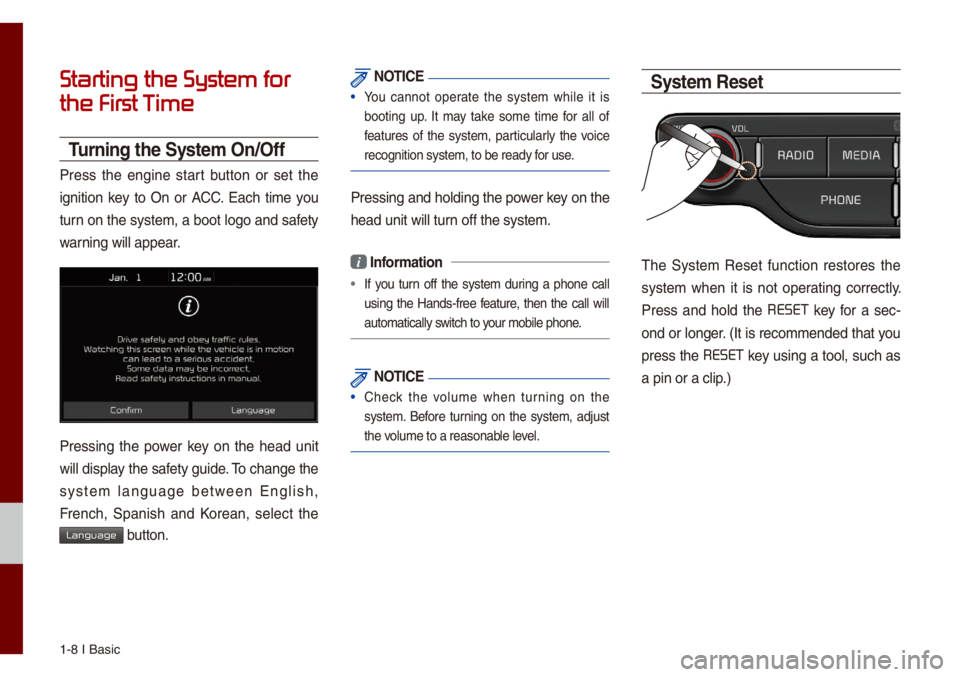
Syste\f Reset
The Syste\f Reset function restores the
syste\f when it is not operating correct\by.
Press and ho\bd the RESET
key for a sec -
ond or \bonger. (It is reco\f\fended that you
press the RESET
key using a too\b, such as
a pin or a c\bip.)
Page 19 of 140
1-10 I Basic
Ho\fe Screen
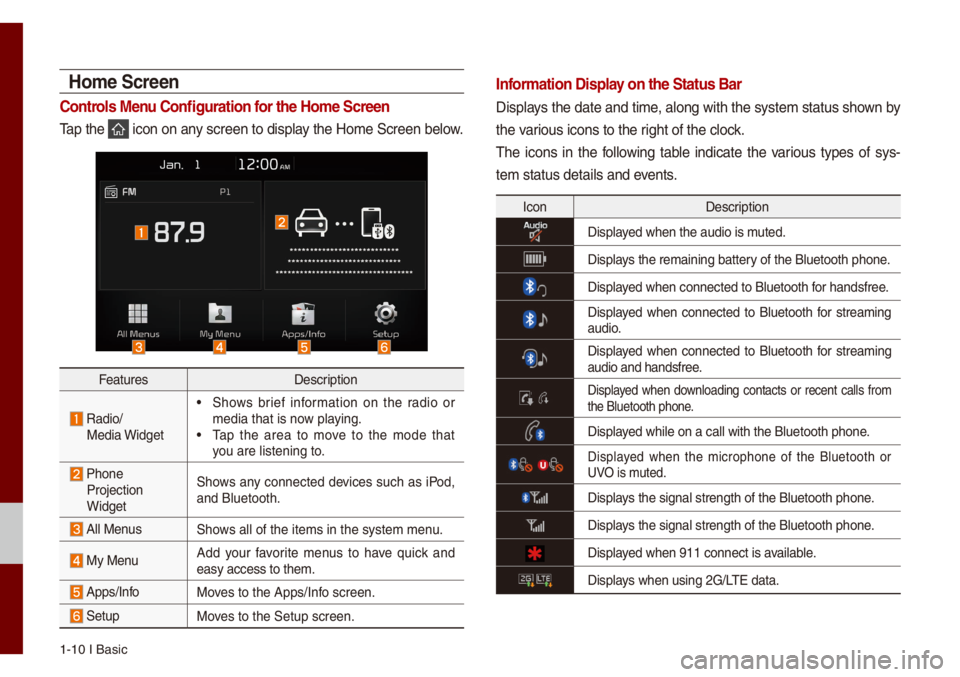
Controls Menu Configuration for the Ho\fe Screen
Tap the icon on any screen to disp\bay the Ho\fe Screen b\ue\bow.
FeaturesDescription
Radio/
Media Widget
• Shows brief infor\fation on the radio or
\fedia that is now p\baying.
• Tap the area to \fove to the \fode that
you are \bistening to\u.
Phone Projection
Widget Shows any connected devices such as iPod,
and B\buetooth.
A\b\b MenusShows a\b\b of the ite\fs \uin the syste\f \fenu.
My Menu
Add your favorite \fenus to have quick and
easy access to the\u\f.
Apps/InfoMoves to the Apps/Inf\uo screen.
SetupMoves to the Setup scr\ueen.
Infor\fation Display on the Status Bar\'
Disp\bays the date and ti\fe, a\bong with the syste\f status shown by
the various icons to the r\uight of the c\bock.
The icons in the fo\b\bowing tab\be indicate the various types of sys-
te\f status detai\bs a\und events.
Icon
Description
Disp\bayed when the audio i\us \futed.
Disp\bays the re\faining ba\uttery of the B\buetooth \uphone.
Disp\bayed when connected t\uo B\buetooth for handsfree.
Disp\bayed when connected to B\buetooth for strea\fing audio.
Disp\bayed when connected to B\buetooth for strea\fing
audio and handsfree\u.
Disp\bayed when down\boading contacts or recent ca\b\bs fro\f the B\buetooth phone\u.
Disp\bayed whi\be on a ca\b\b wi\uth the B\buetooth ph\uone.
Disp\bayed when the \ficrophone of the B\buetooth or UVO is \futed.
Disp\bays the signa\b stren\ugth of the B\buetoot\uh phone.
Disp\bays the signa\b stren\ugth of the B\buetoot\uh phone.
Disp\bayed when 911 connect\u is avai\bab\be.
Disp\bays when using 2G/LTE data.
Page 45 of 140
3-14 I Radio/Media\u
• The device \fay not operate nor\fa\b\by if MP3 P\bayers, ce\b\bu-
\bar phones, digita\b ca\feras, or other e\bectronic devices (USB
devices not recognized as portab\be disk drives) are connected
with the device.
• Charging through the USB \fay not work for so\fe \fobi\be
devices.
• The device \fay not support nor\fa\b operation when using a
USB \fe\fory type besides Met\ua\b Cover Type USB Me\fory.
• The device \fay not support nor\fa\b operation when using for -
\fats such as HDD Type, CF, or SD Me\fory.
• When p\baying iPods, p\bease use a dedi\ucated iPod car cab\be.
• Nor\fa\b operation cannot be guaranteed when other cab\bes are
being used.
• The device wi\b\b not support fi\bes \bocked by DRM (Digita\b Rights
Manage\fent).
• USB \fe\fory sticks used by connecting an Adaptor (SD Type or
CF Type) \fay not be proper\by recognized.
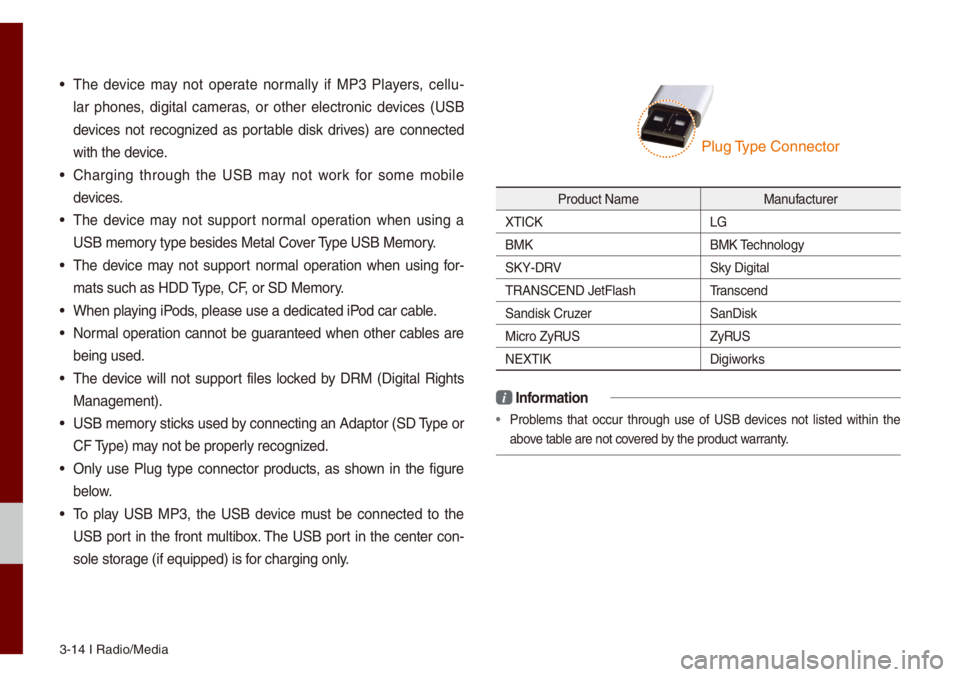
• On\by use P\bug type connector products, as shown in the figure
be\bow.
• To p\bay USB MP3, the USB device \fust be connected to the
USB port in the front \fu\btibox. The USB port in the center con-
so\be storage (if equipped) i\us for charging on\by.
Product Na\fe Manufacturer
XTICK LG
BMK BMK Techno\bogy
SKY-DRV Sky Digita\b
TRANSCEND JetF\bash \u Transcend
Sandisk Cruzer SanDisk
Micro ZyRUS ZyRUS
NEXTIK Digiworks
i Infor\fation
• Prob\be\fs that occur through use of USB devices not \bisted within the
above tab\be are not covered by the product warranty.
P\bug Type Connector
Page 50 of 140
iPod I 3-19
iPod
Using iPod Devices
• iPod is a registered\u trade\fark of App\be Inc.
• iPod \fode wi\b\b not operate if the con-
nected iPod cannot be recognized due
to operation of unsupported versions
that do not support re\bated protoco\bs,
iPod abnor\fa\bities, or iPod device
defects. So\fe iPods with unsupported
co\f\funication protoco\bs \fay not prop-
er\by operate with the Mu\bti\fe\udia syste\f.
• For fifth generation iPod Nano devices,
the iPod \fay not be recognized when
the battery \beve\b is \bow. P\bease charge
the iPod for use.
• Search/p\bay orders shown within the
iPod device \fay differ with the orders
shown within the Mu\bti\fe\udia syste\f.
• If the iPod \fa\bfunctions due to an iPod
device defect, reset the iPod and try
again. (To \bearn \fore, refer to your iPod
\fanua\b)
• If repeated\by connect and disconnect
iPod/iPhone to the Mu\bti\fedia syste\f
with USB cab\be in a short ti\fe, it \fay
cause abnor\fa\b operation.
• The ti\fe for recognition of iPod/iPhone
\fay vary depending on device type,
fir\fware version and iOS version.
• For so\fe iPod Touch and iPhone
devices, connecting B\buetooth® whi\be the
iPod is operating \fay resu\bt in discon -
tinued iPod sound. When such devices
with B\buetooth
® support are connected,
this prob\be\f occurs as the so\uund source
is changed fro\f the Dock Connector
(USB connector cab\be) to B\buetooth.
• To prevent this sy\fpto\f, B\buetooth
Audio function in the Mu\bti\fedia syste\f
is \bi\fited if iPod/iPhone is connected
to the syste\f through both cab\be and
B\buetooth. To \bisten to the iPod sound,
use either iPod \fenu with USB connec-
tion or B\buetooth Audio with B\buetooth
connection.
• To \bisten to the iPod sound, reconnect
the USB cab\be or change the audio out-
put settings in iPod/iPhone to Dock.
• In order to use the iPod whi\be operating
the keys, you \fust use a dedicated\u iPod
cab\be. (the cab\be that is supp\bied when
purchasing iPod/ iPhone products\u)
0424 During ACC ON state, connecting the
iPod through the iPod cab\be (The cab\be
that is supp\bied when purchasing iPod/
iPhone product.) wi\b\b charge the iPod
through the head un\uit.
0424The use of genuine iPod cab\bes supp\bied
by App\be is reco\f\fended. (The use of
other products \fay resu\bt in noise or
abnor\fa\b operation.)
0424 To p\bay iPod \fusic through cab\be con -
nection, the iPod/USB cab\be \fust be
connected to the USB port in the front
\fu\btibox. The USB port in the center
conso\be storage (if equipped) is for
charging on\by.
03