display KIA SOUL 2019 Owner's Manual
[x] Cancel search | Manufacturer: KIA, Model Year: 2019, Model line: SOUL, Model: KIA SOUL 2019Pages: 564, PDF Size: 14.2 MB
Page 162 of 564
Features of your vehicle
76
4
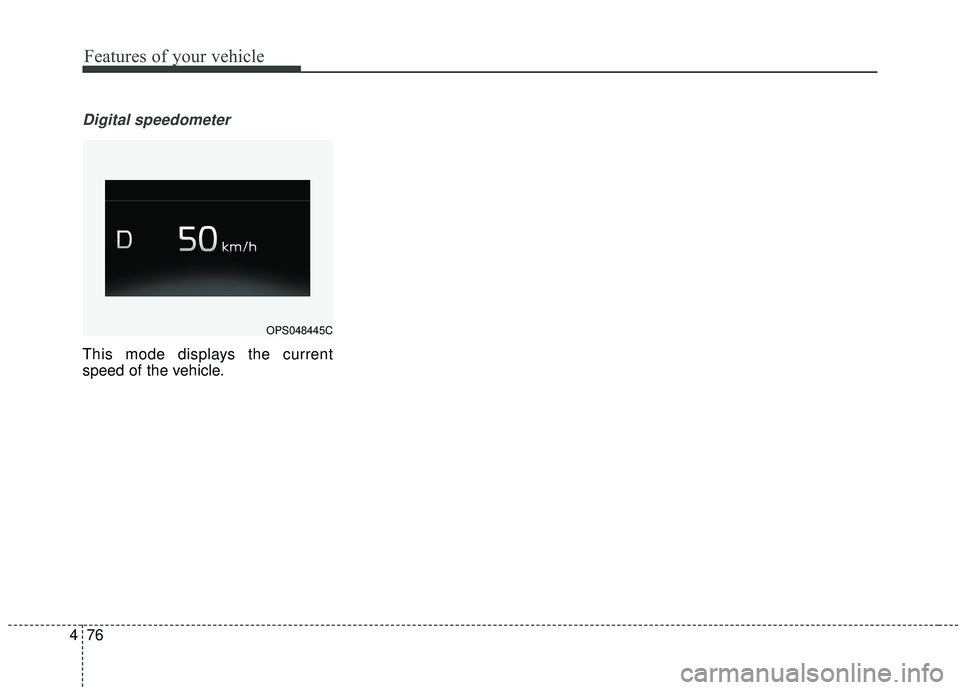
Digital speedometer
This mode displays the current
speed of the vehicle.
OPS048445C
Page 170 of 564
Features of your vehicle
84
4
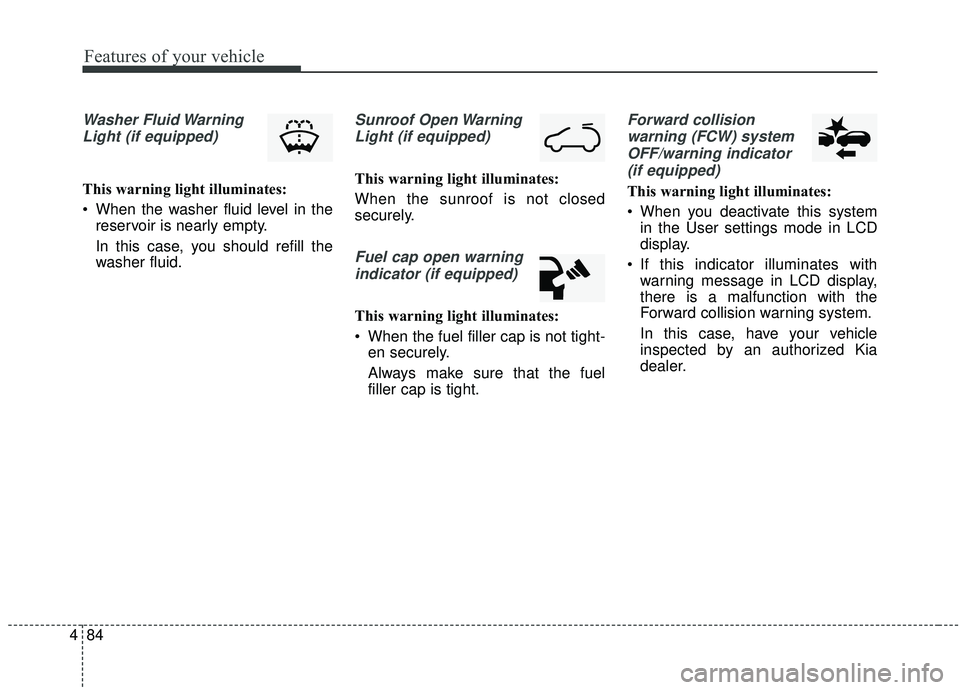
Washer Fluid Warning
Light (if equipped)
This warning light illuminates:
When the washer fluid level in the reservoir is nearly empty.
In this case, you should refill the
washer fluid.
Sunroof Open Warning
Light (if equipped)
This warning light illuminates:
When the sunroof is not closed
securely.
Fuel cap open warningindicator (if equipped)
This warning light illuminates:
When the fuel filler cap is not tight- en securely.
Always make sure that the fuel
filler cap is tight.
Forward collision
warning (FCW) systemOFF/warning indicator (if equipped)
This warning light illuminates:
When you deactivate this system in the User settings mode in LCD
display.
If this indicator illuminates with warning message in LCD display,
there is a malfunction with the
Forward collision warning system.
In this case, have your vehicle
inspected by an authorized Kia
dealer.
Page 176 of 564
Features of your vehicle
90
4
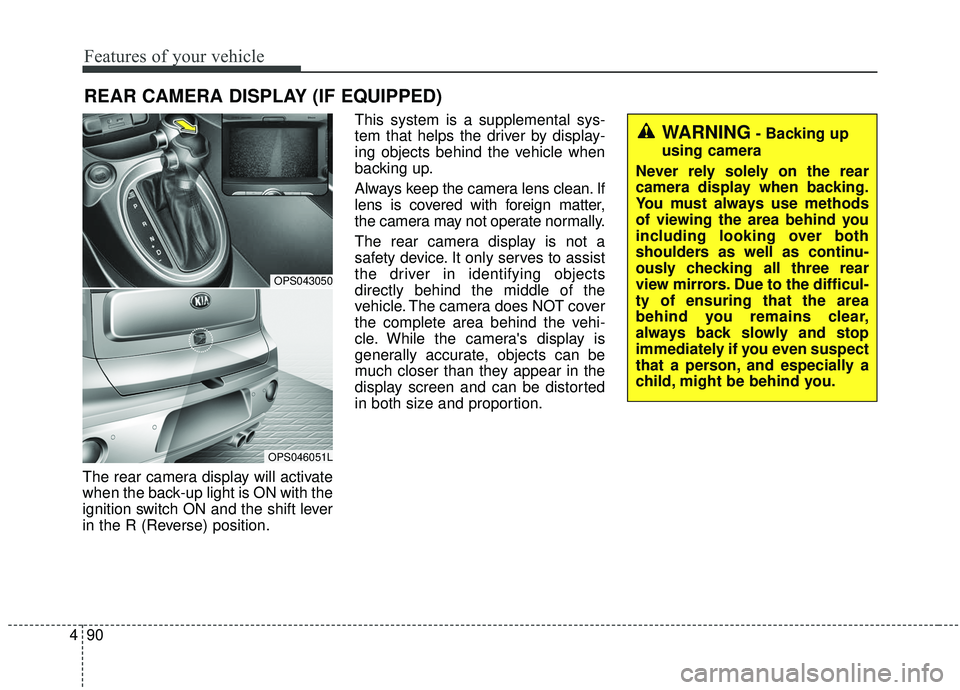
The rear camera display will activate
when the back-up light is ON with the
ignition switch ON and the shift lever
in the R (Reverse) position. This system is a supplemental sys-
tem that helps the driver by display-
ing objects behind the vehicle when
backing up.
Always keep the camera lens clean. If
lens is covered with foreign matter,
the camera may not operate normally.
The rear camera display is not a
safety device. It only serves to assist
the driver in identifying objects
directly behind the middle of the
vehicle. The camera does NOT cover
the complete area behind the vehi-
cle. While the camera's display is
generally accurate, objects can be
much closer than they appear in the
display screen and can be distorted
in both size and proportion.
REAR CAMERA DISPLAY (IF EQUIPPED)
OPS043050
OPS046051L
WARNING- Backing up
using camera
Never rely solely on the rear
camera display when backing.
You must always use methods
of viewing the area behind you
including looking over both
shoulders as well as continu-
ously checking all three rear
view mirrors. Due to the difficul-
ty of ensuring that the area
behind you remains clear,
always back slowly and stop
immediately if you even suspect
that a person, and especially a
child, might be behind you.
Page 203 of 564
4117
Features of your vehicle
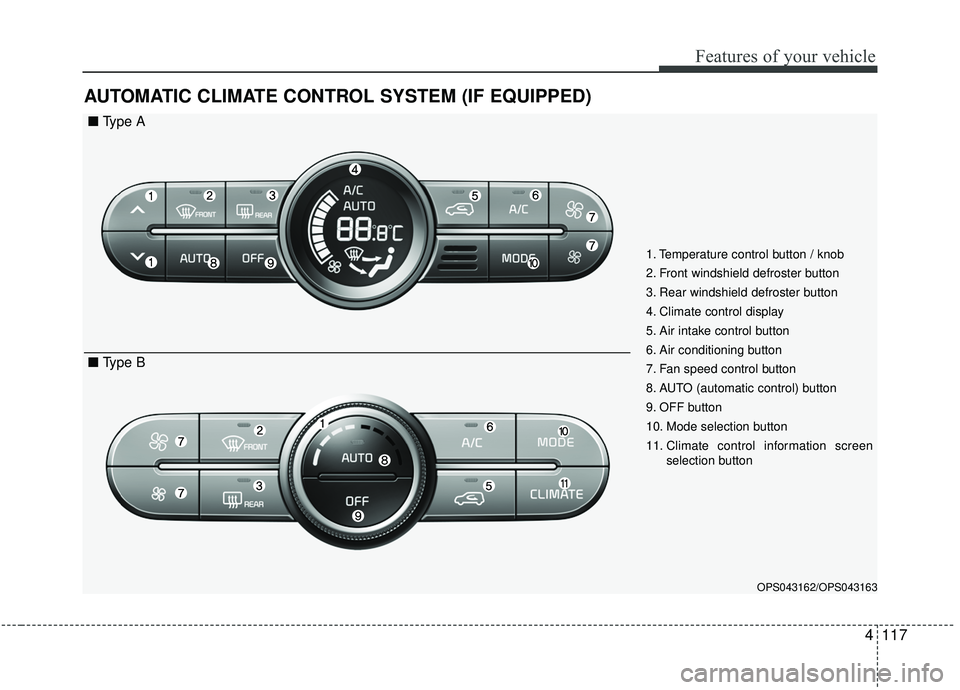
AUTOMATIC CLIMATE CONTROL SYSTEM (IF EQUIPPED)
OPS043162/OPS043163
1. Temperature control button / knob
2. Front windshield defroster button
3. Rear windshield defroster button
4. Climate control display
5. Air intake control button
6. Air conditioning button
7. Fan speed control button
8. AUTO (automatic control) button
9. OFF button
10. Mode selection button
11. Climate control information screenselection button
■ Type A
■ Type B
Page 204 of 564
Features of your vehicle
118
4
Automatic heating and air con-
ditioning
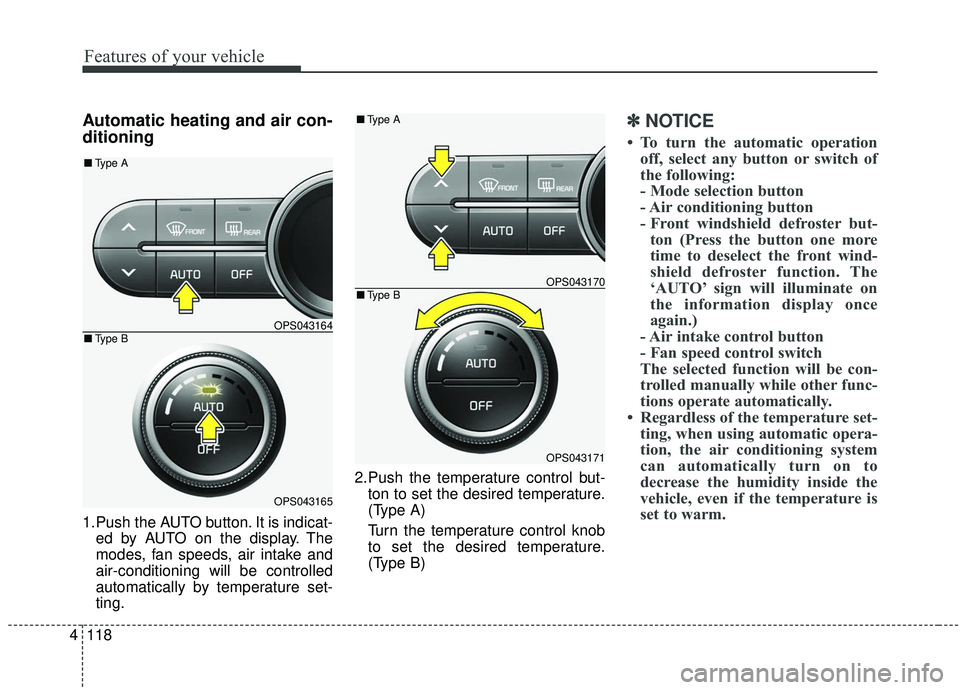
1.Push the AUTO button. It is indicat-
ed by AUTO on the display. The
modes, fan speeds, air intake and
air-conditioning will be controlled
automatically by temperature set-
ting. 2.Push the temperature control but-
ton to set the desired temperature.
(Type A)
Turn the temperature control knob
to set the desired temperature.
(Type B)
✽ ✽ NOTICE
• To turn the automatic operation
off, select any button or switch of
the following:
- Mode selection button
- Air conditioning button
- Front windshield defroster but-ton (Press the button one more
time to deselect the front wind-
shield defroster function. The
‘AUTO’ sign will illuminate on
the information display once
again.)
- Air intake control button
- Fan speed control switch
The selected function will be con-
trolled manually while other func-
tions operate automatically.
• Regardless of the temperature set- ting, when using automatic opera-
tion, the air conditioning system
can automatically turn on to
decrease the humidity inside the
vehicle, even if the temperature is
set to warm.
OPS043164
OPS043165
■ Type B
■Type A
OPS043170
OPS043171
■Type B
■Type A
Page 208 of 564
Features of your vehicle
122
4
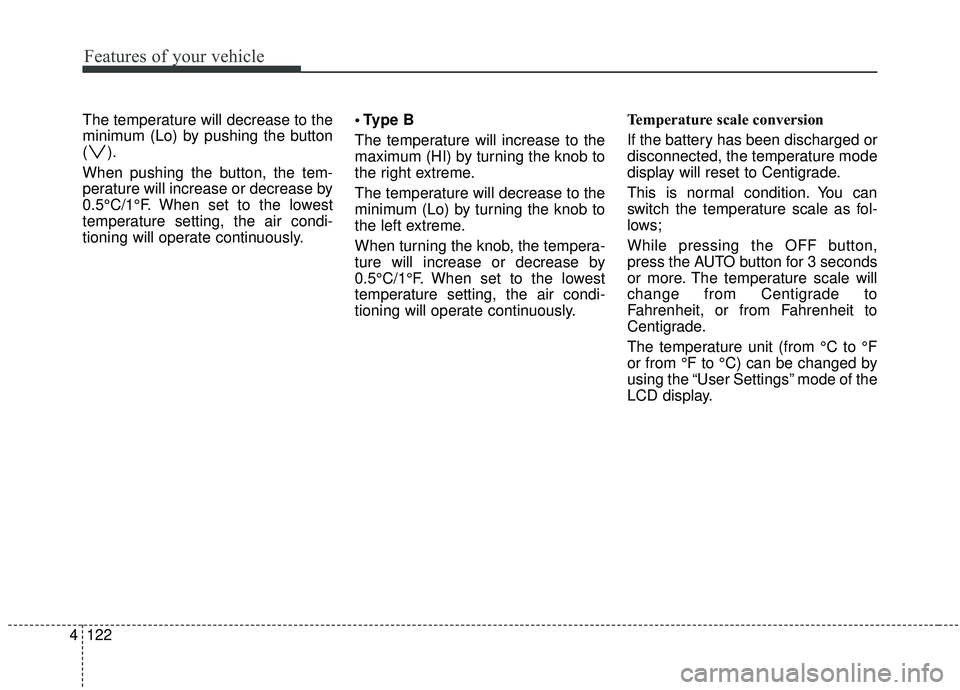
The temperature will decrease to the
minimum (Lo) by pushing the button
().
When pushing the button, the tem-
perature will increase or decrease by
0.5°C/1°F. When set to the lowest
temperature setting, the air condi-
tioning will operate continuously. B
The temperature will increase to the
maximum (HI) by turning the knob to
the right extreme.
The temperature will decrease to the
minimum (Lo) by turning the knob to
the left extreme.
When turning the knob, the tempera-
ture will increase or decrease by
0.5°C/1°F. When set to the lowest
temperature setting, the air condi-
tioning will operate continuously.Temperature scale conversion
If the battery has been discharged or
disconnected, the temperature mode
display will reset to Centigrade.
This is normal condition. You can
switch the temperature scale as fol-
lows;
While pressing the OFF button,
press the AUTO button for 3 seconds
or more. The temperature scale will
change from Centigrade to
Fahrenheit, or from Fahrenheit to
Centigrade.
The temperature unit (from °C to °F
or from °F to °C) can be changed by
using the “User Settings” mode of the
LCD display.
Page 249 of 564
Audio system
11
5
Feature of Your Audio
Head unit
❈ The actual image in the vehicle
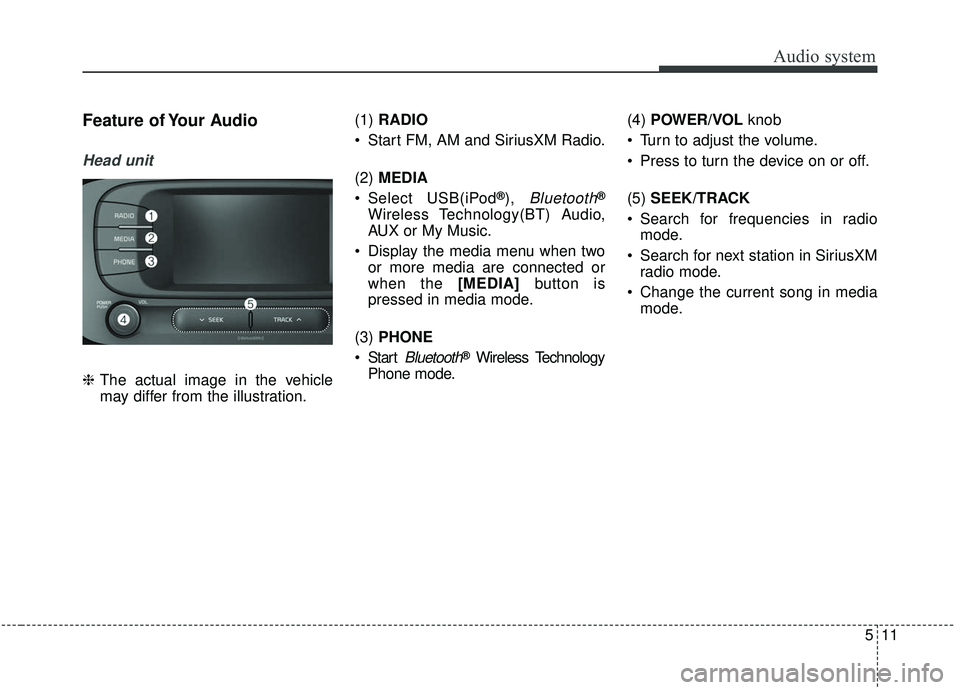
may differ from the illustration. (1)
RADIO
Start FM, AM and SiriusXM Radio.
(2) MEDIA
Select USB(iPod
®), Bluetooth®
Wireless Technology(BT) Audio,
AUX or My Music.
Display the media menu when two or more media are connected or
when the [MEDIA] button is
pressed in media mode.
(3) PHONE
Start
Bluetooth®Wireless Technology
Phone mode. (4)
POWER/VOL knob
Turn to adjust the volume.
Press to turn the device on or off.
(5) SEEK/TRACK
Search for frequencies in radio mode.
Search for next station in SiriusXM radio mode.
Change the current song in media mode.
Page 250 of 564
Audio system
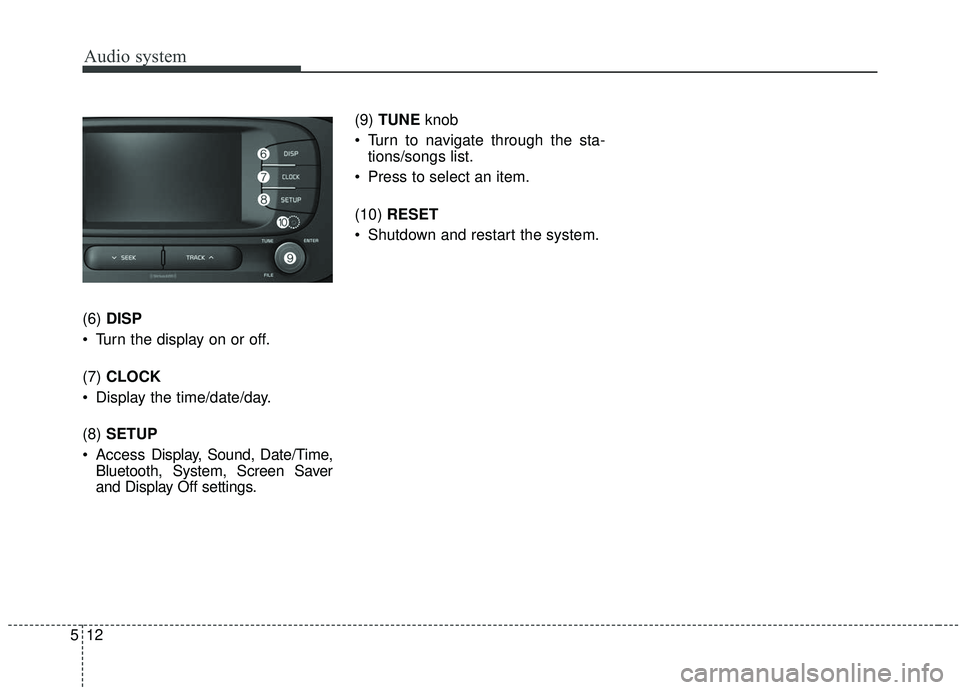
512(6)
DISP
Turn the display on or off.
(7) CLOCK
Display the time/date/day.
(8) SETUP
Access Display, Sound, Date/Time,
Bluetooth, System, Screen Saver
and Display Off settings. (9)
TUNE knob
Turn to navigate through the sta- tions/songs list.
Press to select an item.
(10) RESET
Shutdown and restart the system.
Page 251 of 564
Audio system
13
5
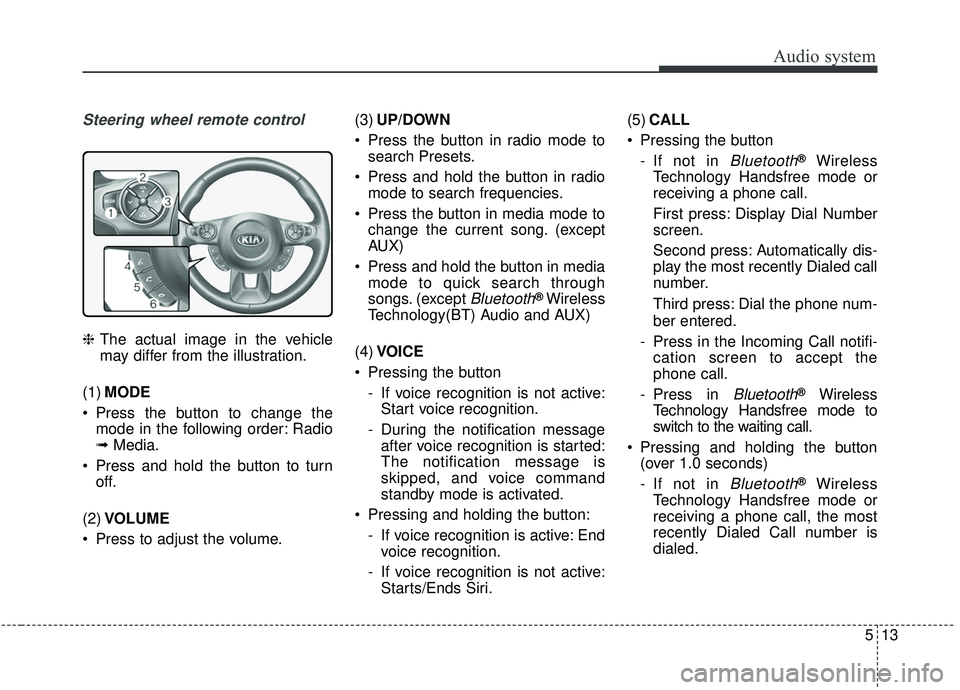
Steering wheel remote control
❈ The actual image in the vehicle
may differ from the illustration.
(1) MODE
Press the button to change the mode in the following order: Radio
➟ Media.
Press and hold the button to turn off.
(2) VOLUME
Press to adjust the volume. (3)
UP/DOWN
Press the button in radio mode to search Presets.
Press and hold the button in radio mode to search frequencies.
Press the button in media mode to change the current song. (except
AUX)
Press and hold the button in media mode to quick search through
songs. (except
Bluetooth®Wireless
Technology(BT) Audio and AUX)
(4) VOICE
Pressing the button - If voice recognition is not active:Start voice recognition.
- During the notification message after voice recognition is started:
The notification message is
skipped, and voice command
standby mode is activated.
Pressing and holding the button: - If voice recognition is active: Endvoice recognition.
- If voice recognition is not active: Starts/Ends Siri. (5)
CALL
Pressing the button - If not in
Bluetooth®Wireless
Technology Handsfree mode or
receiving a phone call.
First press: Display Dial Number
screen.
Second press: Automatically dis-
play the most recently Dialed call
number.
Third press: Dial the phone num-
ber entered.
- Press in the Incoming Call notifi- cation screen to accept the
phone call.
- Press in
Bluetooth®Wireless
Technology Handsfree mode to
switch to the waiting call.
Pressing and holding the button (over 1.0 seconds)
- If not in
Bluetooth®Wireless
Technology Handsfree mode or
receiving a phone call, the most
recently Dialed Call number is
dialed.
Page 254 of 564
Audio system
516
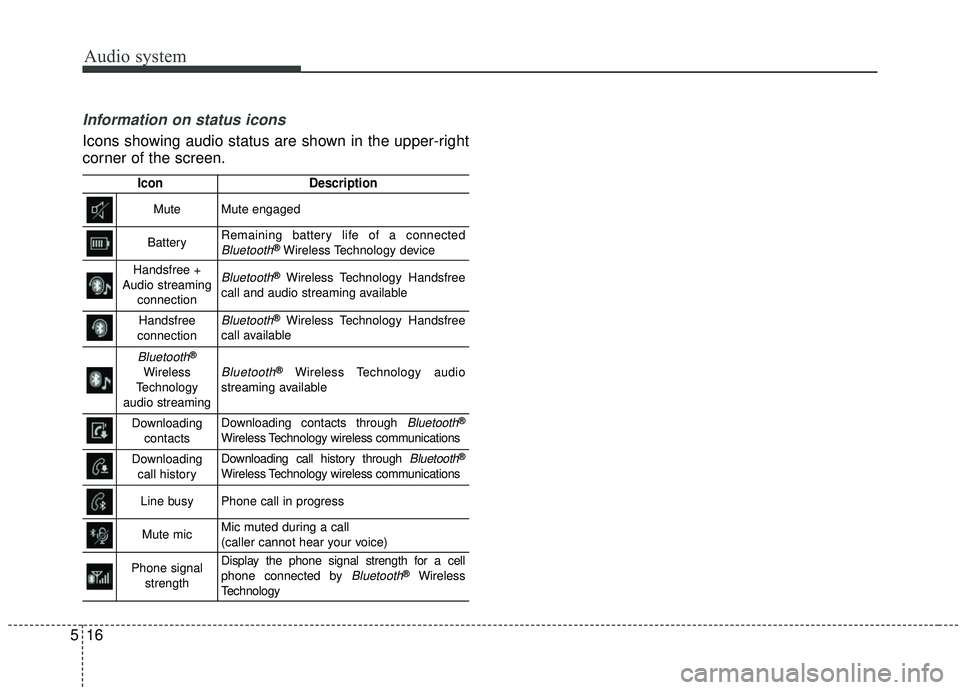
Information on status icons
Icons showing audio status are shown in the upper-right
corner of the screen.
IconDescription
MuteMute engaged
BatteryRemaining battery life of a connectedBluetooth®Wireless Technology device
Handsfree +
Audio streaming connectionBluetooth®Wireless Technology Handsfree
call and audio streaming available
Handsfree
connectionBluetooth®Wireless Technology Handsfree
call available
Bluetooth®
Wireless
Technology
audio streamingBluetooth®Wireless Technology audio
streaming available
Downloading contactsDownloading contacts through Bluetooth®
Wireless Technology wireless communications
Downloading call historyDownloading call history through Bluetooth®
Wireless Technology wireless communications
Line busyPhone call in progress
Mute micMic muted during a call
(caller cannot hear your voice)
Phone signal strengthDisplay the phone signal strength for a cell
phone connected by Bluetooth®Wireless
Technology