check KIA TELLURIDE 2020 Navigation System Quick Reference Guide
[x] Cancel search | Manufacturer: KIA, Model Year: 2020, Model line: TELLURIDE, Model: KIA TELLURIDE 2020Pages: 219, PDF Size: 9.16 MB
Page 115 of 219
6-7
0000
A
The download may not work in some phone models.
0000
A
You can download up to 50 call records for each list.
0000
A
Call durations do not appear on the system screen.
0000
A
You cannot download call records when the download is
prohibited by the phone. Some phone models may require
approval for a download. When a successful download is not
made, check the phone screen or its settings.
0000
A
When call records are newly downloaded, the previous
records are removed.
0000
A
Learn more about receiving calls while using Bluetooth
connection.
> See “ Accepting an incoming call over Bluetooth .”
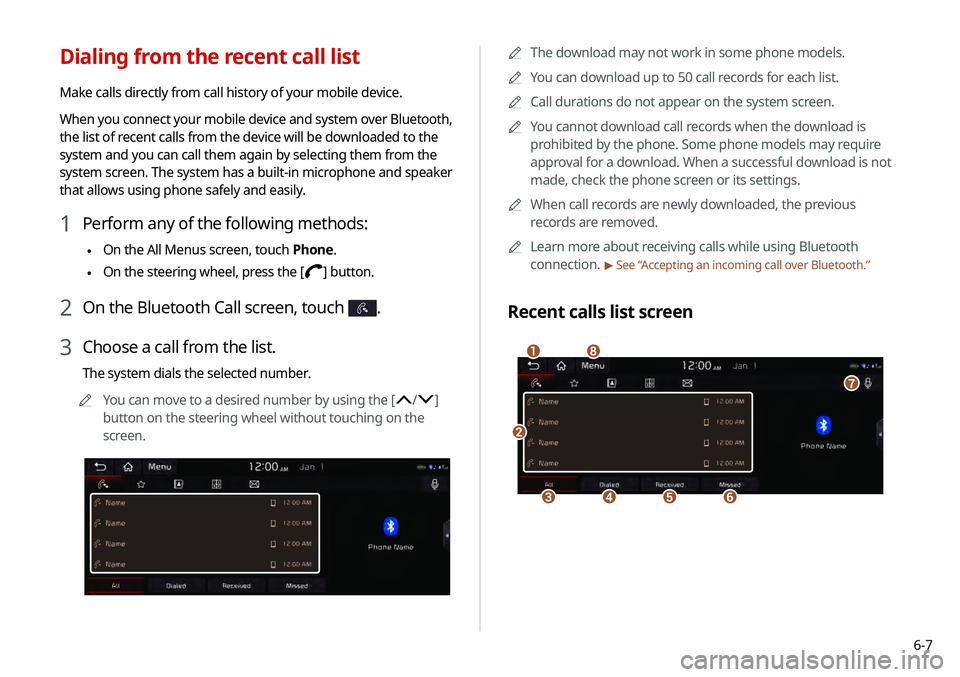
Recent calls list screen
\037
\036\035\034\033
\032
\031
\030
Dialing from the recent call list
Make calls directly from call history of your mobile device.
When you connect your mobile device and system over Bluetooth,
the list of recent calls from the device will be downloaded to the
system and you can call them again by selecting them from the
system screen. The system has a built-in microphone and speaker
that allows using phone safely and easily.
1 Perform any of the following methods:
\225On the All Menus screen, touch Phone.
\225On the steering wheel, press the []
button.
2 On the Bluetooth Call screen, touch .
3 Choose a call from the list.
The system dials the selected number.
0000
A
You can move to a desired number by using the [
/]
button on the steering wheel without touching on the
screen.
Page 118 of 219
6-100000
A
You can download only the contacts that can be displayed on
the connected Bluetooth device. The contacts may not appear
in some applications.
0000
A
You can download up to 5,000 contacts for each device.
0000
A
The download may not work in some phone models.
0000
A
Contacts from both the mobile device and its SIM card are
downloaded at the same time. The system may not be able to
download SIM card contacts from all phone models.
0000
A
When speed dial numbers are set to contacts on the phone,
press and hold a speed dial number on the dial pad to make
a call easily. Some mobile phone models may not support the
speed dial function.
0000
A
You cannot download contacts when the download is
prohibited by the phone. Some phone models may require
approval for a download. When a successful download is not
made, check the phone screen or its settings.
0000
A
Depending on the phone model or operation status,
downloading may take longer than usual.
0000
A
When a new contacts list is downloaded, the previous records
are removed.
0000
A
The downloaded contacts cannot be edited or deleted from
the system.
Dialing from the contacts
You can use contacts from the connected mobile device on the
system.
When you connect your mobile device with the system via
Bluetooth, contacts from the device are downloaded to the
system, and you can choose to call them from the system screen.
The system has a built-in microphone and speaker that allows
using phone safely and easily.
1 Perform any of the following methods:
\225On the All Menus screen, touch Phone.
\225On the steering wheel, press the []
button.
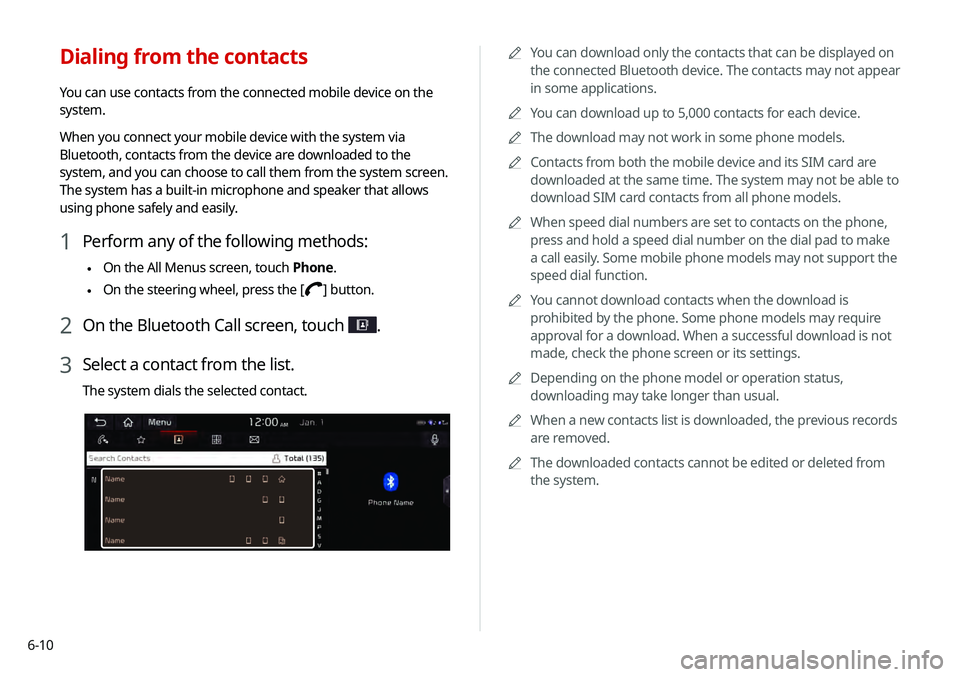
2 On the Bluetooth Call screen, touch .
3 Select a contact from the list.
The system dials the selected contact.
Page 124 of 219
6-16
Checking a new message over
Bluetooth
After connecting a mobile phone via Bluetooth, you can check
the received messages through the system screen and listen to
voice messages converted from the text messages. This option is
available when a mobile phone is connected via Bluetooth. You
can also send the brief reply message registered in the system.
Switching to another call
You can receive another incoming call while in a call. This option
is available only when the connected mobile phone supports the
call hold function. The previous call is put on hold.
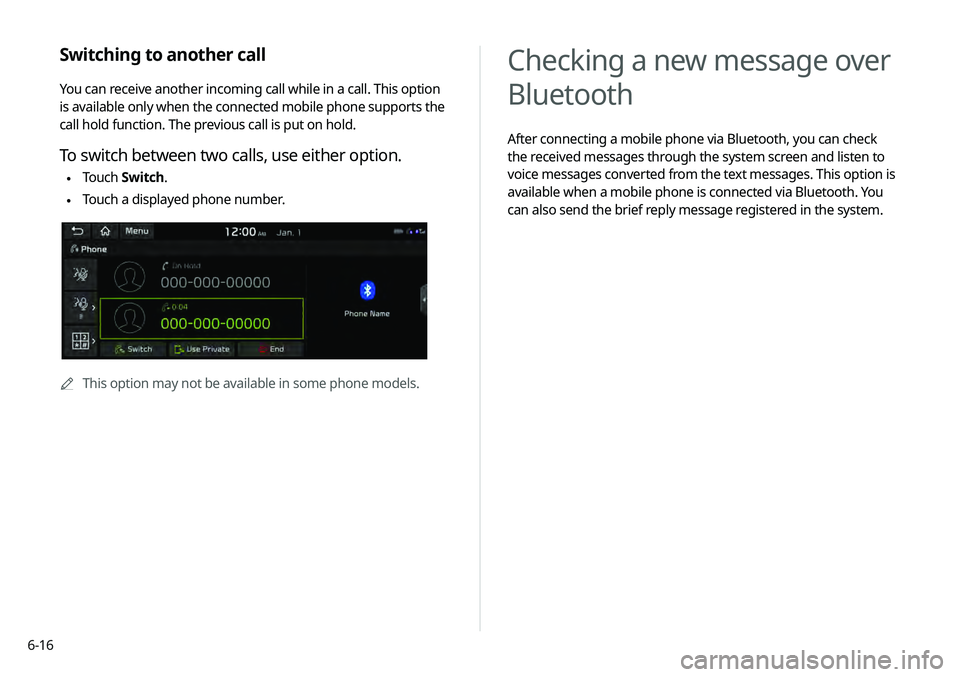
To switch between two calls, use either option.
\225Touch
Switch.
\225Touch a displayed phone number.
0000
A
This option may not be available in some phone models.
Page 125 of 219
6-17
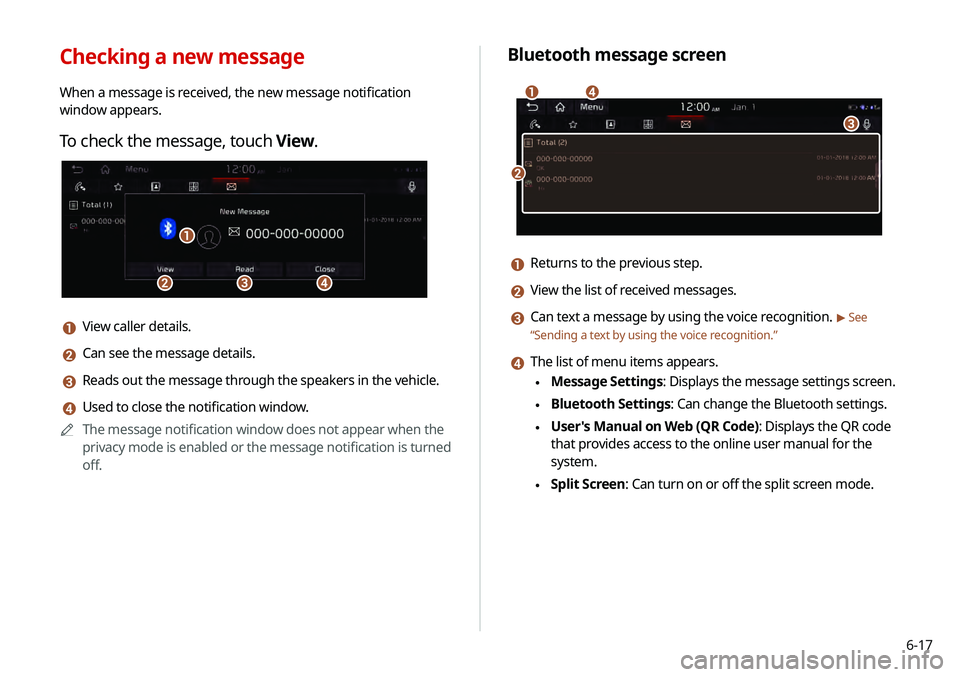
Bluetooth message screen
\037
\036
\035
\034
a Returns to the previous step.
b View the list of received messages.
c Can text a message by using the voice recognition. > See
“ Sending a text by using the voice recognition .”
d The list of menu items appears.
\225Message Settings: Displays the message settings screen.
\225Bluetooth Settings: Can change the Bluetooth settings.
\225User's Manual on Web (QR Code): Displays the QR code
that provides access to the online user manual for the
system.
\225Split Screen: Can turn on or off the split screen mode.
Checking a new message
When a message is received, the new message notification
window appears.
To check the message, touch View.
\037\036
\035
\034
a View caller details.
b Can see the message details.
c Reads out the message through the speakers in the vehicle.
d Used to close the notification window.
0000
A
The message notification window does not appear when the
privacy mode is enabled or the message notification is turned
off.
Page 126 of 219
6-18
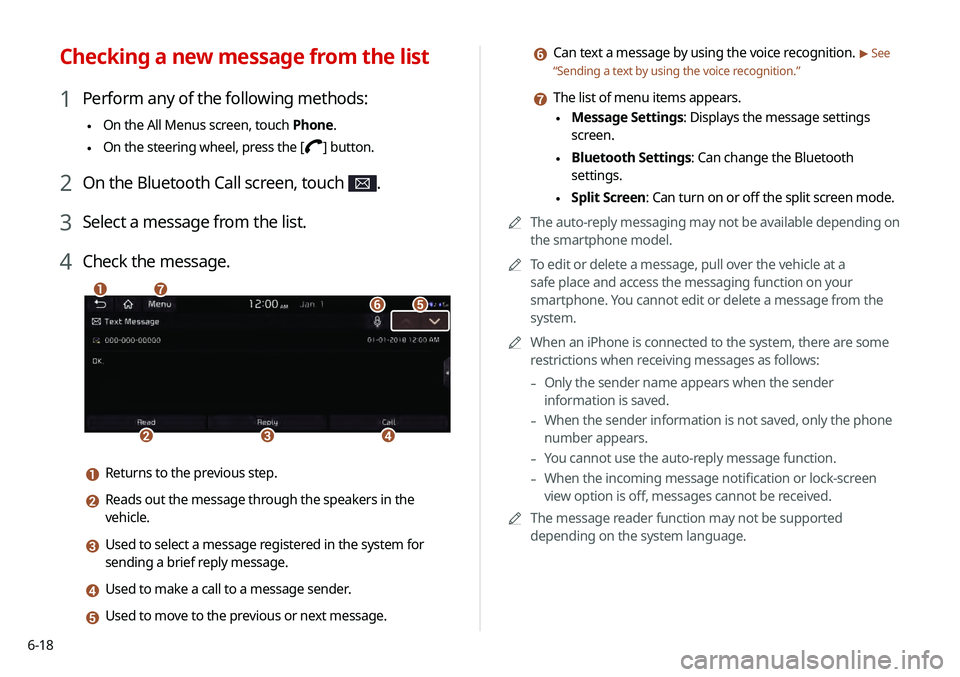
f Can text a message by using the voice recognition. > See
“ Sending a text by using the voice recognition .”
g The list of menu items appears.
\225Message Settings: Displays the message settings
screen.
\225Bluetooth Settings: Can change the Bluetooth
settings.
\225Split Screen: Can turn on or off the split screen mode.
0000
A
The auto-reply messaging may not be available depending on
the smartphone model.
0000
A
To edit or delete a message, pull over the vehicle at a
safe place and access the messaging function on your
smartphone. You cannot edit or delete a message from the
system.
0000
A
When an iPhone is connected to the system, there are some
restrictions when receiving messages as follows:
-Only the sender name appears when the sender
information is saved.
-When the sender information is not saved, only the phone
number appears.
-You cannot use the auto-reply message function.
-When the incoming message notification or lock-screen
view option is off, messages cannot be received.
0000
A
The message reader function may not be supported
depending on the system language.
Checking a new message from the list
1 Perform any of the following methods:
\225On the All Menus screen, touch Phone.
\225On the steering wheel, press the []
button.
2 On the Bluetooth Call screen, touch .
3 Select a message from the list.
4 Check the message.
\037
\036\035\034
\033\032
\031
a Returns to the previous step.
b Reads out the message through the speakers in the
vehicle.
c Used to select a message registered in the system for
sending a brief reply message.
d Used to make a call to a message sender.
e Used to move to the previous or next message.
Page 139 of 219
7-11
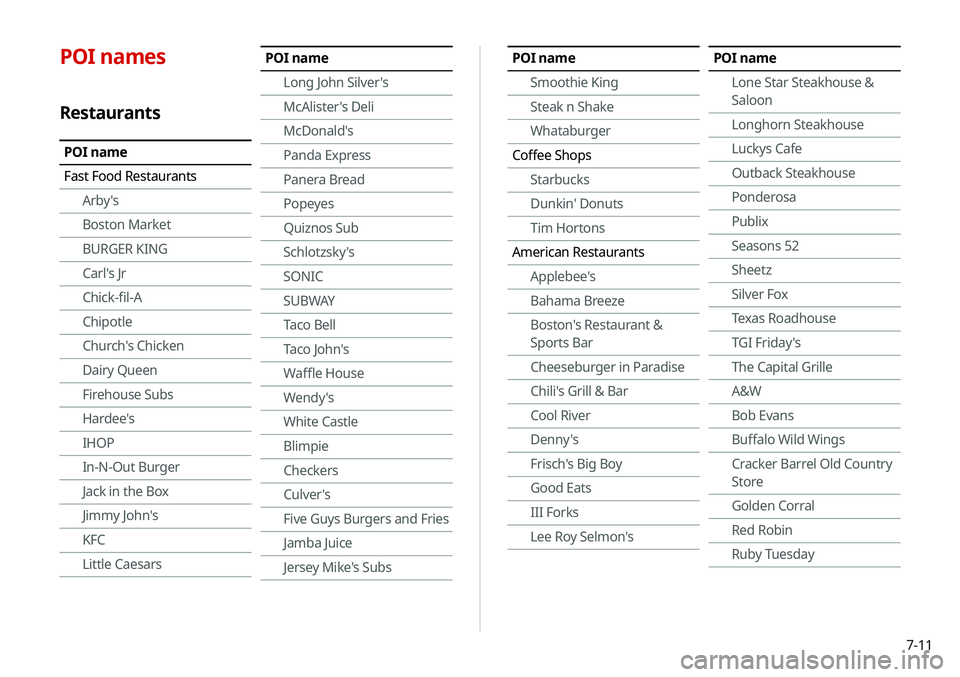
POI names
Restaurants
POI name
Fast Food RestaurantsArby's
Boston Market
BURGER KING
Carl's Jr
Chick-fil-A
Chipotle
Church's Chicken
Dairy Queen
Firehouse Subs
Hardee's
IHOP
In-N-Out Burger
Jack in the Box
Jimmy John's
KFC
Little Caesars
POI name
Long John Silver's
McAlister's Deli
McDonald's
Panda Express
Panera Bread
Popeyes
Quiznos Sub
Schlotzsky's
SONIC
SUBWAY
Taco Bell
Taco John's
Waffle House
Wendy's
White Castle
Blimpie
Checkers
Culver's
Five Guys Burgers and Fries
Jamba Juice
Jersey Mike's SubsPOI nameSmoothie King
Steak n Shake
Whataburger
Coffee Shops Starbucks
Dunkin' Donuts
Tim Hortons
American Restaurants Applebee's
Bahama Breeze
Boston's Restaurant &
Sports Bar
Cheeseburger in Paradise
Chili's Grill & Bar
Cool River
Denny's
Frisch's Big Boy
Good Eats
III Forks
Lee Roy Selmon'sPOI name
Lone Star Steakhouse &
Saloon
Longhorn Steakhouse
Luckys Cafe
Outback Steakhouse
Ponderosa
Publix
Seasons 52
Sheetz
Silver Fox
Texas Roadhouse
TGI Friday's
The Capital Grille
A&W
Bob Evans
Buffalo Wild Wings
Cracker Barrel Old Country
Store
Golden Corral
Red Robin
Ruby Tuesday
Page 146 of 219
7-18
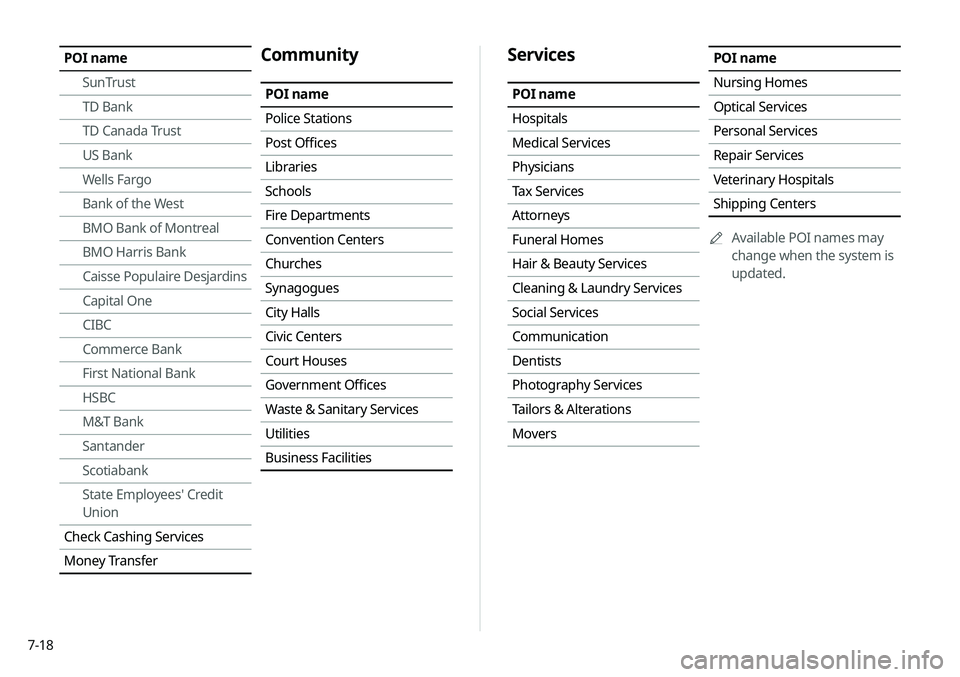
Services
POI name
Hospitals
Medical Services
Physicians
Tax Services
Attorneys
Funeral Homes
Hair & Beauty Services
Cleaning & Laundry Services
Social Services
Communication
Dentists
Photography Services
Tailors & Alterations
Movers
POI name
Nursing Homes
Optical Services
Personal Services
Repair Services
Veterinary Hospitals
Shipping Centers0000
A
Available POI names may
change when the system is
updated.POI name
SunTrust
TD Bank
TD Canada Trust
US Bank
Wells Fargo
Bank of the West
BMO Bank of Montreal
BMO Harris Bank
Caisse Populaire Desjardins
Capital One
CIBC
Commerce Bank
First National Bank
HSBC
M&T Bank
Santander
Scotiabank
State Employees' Credit
Union
Check Cashing Services
Money TransferCommunity
POI name
Police Stations
Post Offices
Libraries
Schools
Fire Departments
Convention Centers
Churches
Synagogues
City Halls
Civic Centers
Court Houses
Government Offices
Waste & Sanitary Services
Utilities
Business Facilities
Page 152 of 219
8-2
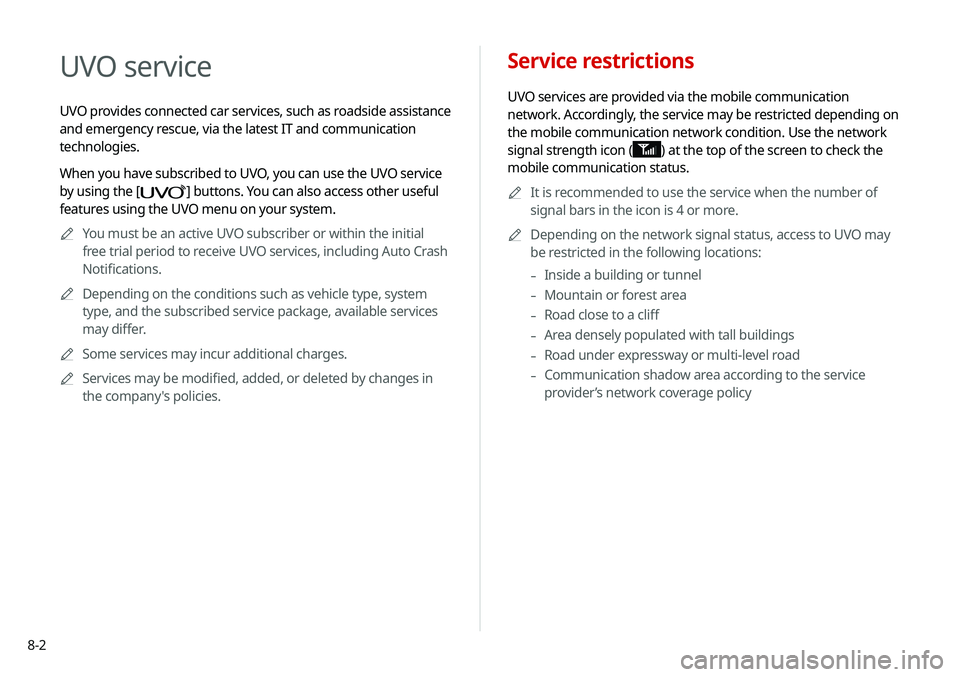
Service restrictions
UVO services are provided via the mobile communication
network. Accordingly, the service may be restricted depending on
the mobile communication network condition. Use the network
signal strength icon (
) at the top of the screen to check the
mobile communication status.
0000
A
It is recommended to use the service when the number of
signal bars in the icon is 4 or more.
0000
A
Depending on the network signal status, access to UVO may
be restricted in the following locations:
-Inside a building or tunnel
-Mountain or forest area
-Road close to a cliff
-Area densely populated with tall buildings
-Road under expressway or multi-level road
-Communication shadow area according to the service
provider’s network coverage policy
UVO service
UVO provides connected car services, such as roadside assistance
and emergency rescue, via the latest IT and communication
technologies.
When you have subscribed to UVO, you can use the UVO service
by using the [
] buttons. You can also access other useful
features using the UVO menu on your system.
0000
A
You must be an active UVO subscriber or within the initial
free trial period to receive UVO services, including Auto Crash
Notifications.
0000
A
Depending on the conditions such as vehicle type, system
type, and the subscribed service package, available services
may differ.
0000
A
Some services may incur additional charges.
0000
A
Services may be modified, added, or deleted by changes in
the company's policies.
Page 154 of 219
8-4
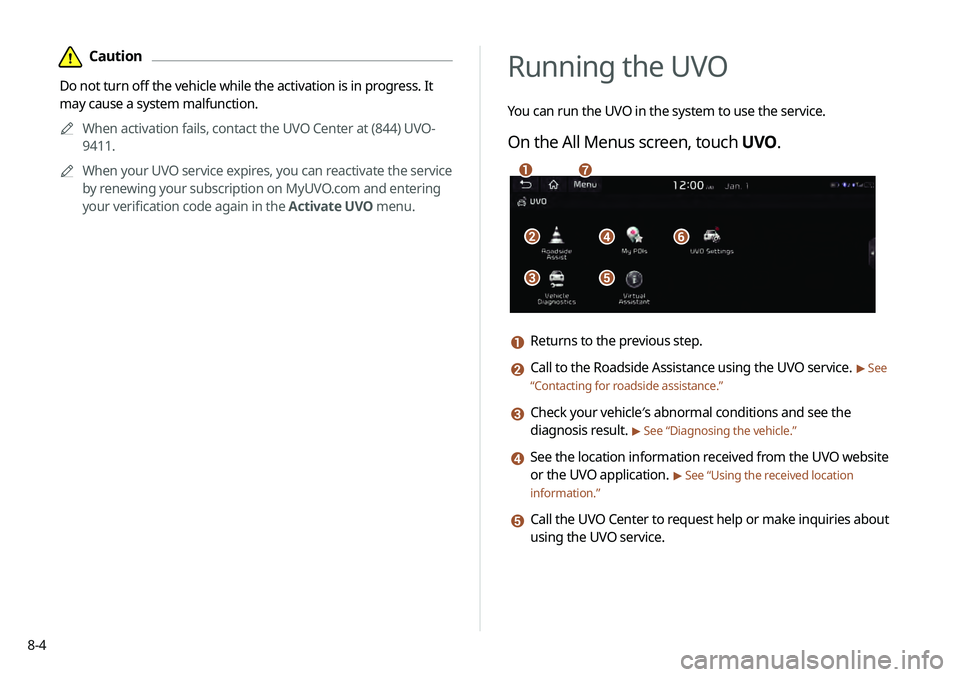
Running the UVO
You can run the UVO in the system to use the service.
On the All Menus screen, touch UVO.
\037\036\035
\034\033
\032\031
a Returns to the previous step.
b Call to the Roadside Assistance using the UVO service. > See
“ Contacting for roadside assistance .”
c Check your vehicle′s abnormal conditions and see the
diagnosis result.
> See “Diagnosing the vehicle.”
d See the location information received from the UVO website
or the UVO application.
> See “Using the received location
information.”
e Call the UVO Center to request help or make inquiries about
using the UVO service.
\334Caution
Do not turn off the vehicle while the activation is in progress. It
may cause a system malfunction.
0000
A
When activation fails, contact the UVO Center at (844) UVO-
9411.
0000
A
When your UVO service expires, you can reactivate the service
by renewing your subscription on MyUVO.com and entering
your verification code again in the Activate UVO menu.
Page 155 of 219
8-5
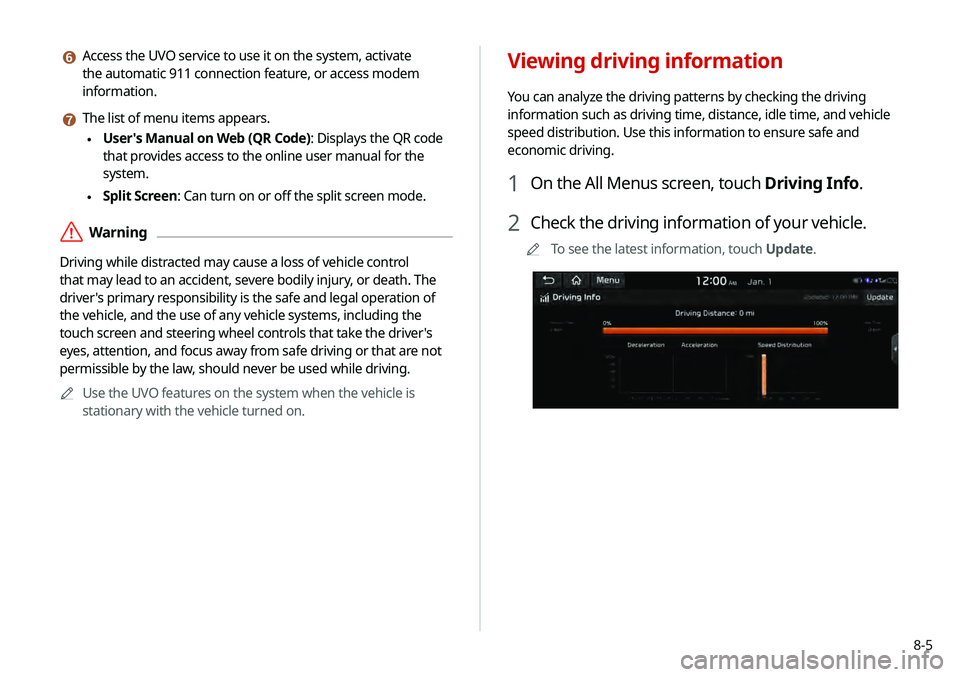
f Access the UVO service to use it on the system, activate
the automatic 911 connection feature, or access modem
information.
g The list of menu items appears.
\225User's Manual on Web (QR Code): Displays the QR code
that provides access to the online user manual for the
system.
\225Split Screen: Can turn on or off the split screen mode.
\335Warning
Driving while distracted may cause a loss of vehicle control
that may lead to an accident, severe bodily injury, or death. The
driver's primary responsibility is the safe and legal operation of
the vehicle, and the use of any vehicle systems, including the
touch screen and steering wheel controls that take the driver's
eyes, attention, and focus away from safe driving or that are not
permissible by the law, should never be used while driving.
0000
A
Use the UVO features on the system when the vehicle is
stationary with the vehicle turned on.
Viewing driving information
You can analyze the driving patterns by checking the driving
information such as driving time, distance, idle time, and vehicle
speed distribution. Use this information to ensure safe and
economic driving.
1 On the All Menus screen, touch Driving Info.
2 Check the driving information of your vehicle.
0000
A
To see the latest information, touch Update.