display KIA TELLURIDE 2020 Navigation System Quick Reference Guide
[x] Cancel search | Manufacturer: KIA, Model Year: 2020, Model line: TELLURIDE, Model: KIA TELLURIDE 2020Pages: 219, PDF Size: 9.16 MB
Page 121 of 219
6-13
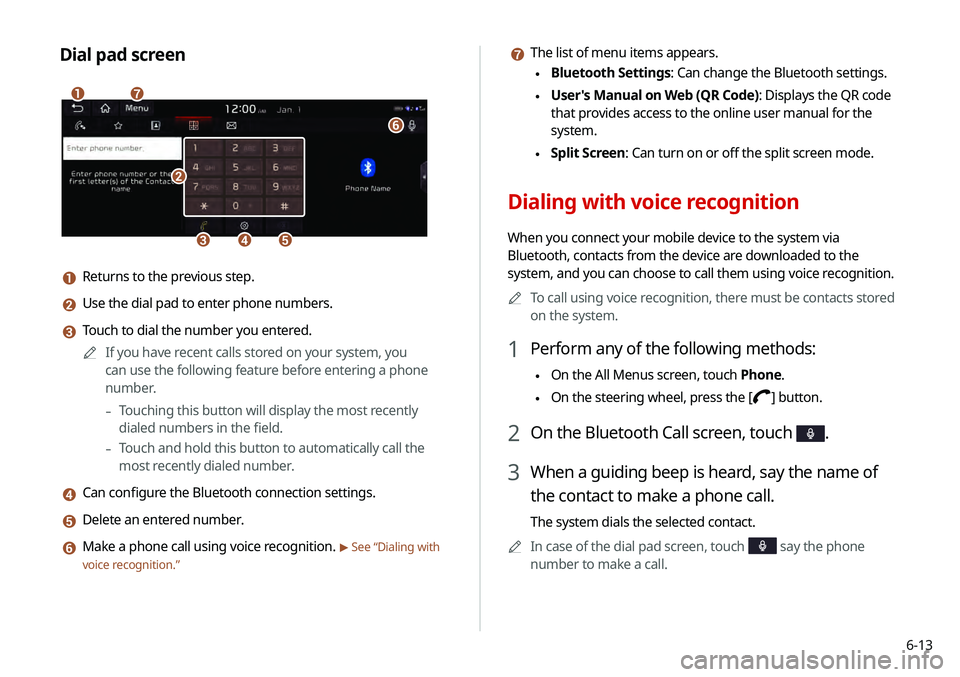
g The list of menu items appears.
\225Bluetooth Settings: Can change the Bluetooth settings.
\225User's Manual on Web (QR Code): Displays the QR code
that provides access to the online user manual for the
system.
\225Split Screen: Can turn on or off the split screen mode.
Dialing with voice recognition
When you connect your mobile device to the system via
Bluetooth, contacts from the device are downloaded to the
system, and you can choose to call them using voice recognition.
0000
A
To call using voice recognition, there must be contacts stored
on the system.
1 Perform any of the following methods:
\225On the All Menus screen, touch Phone.
\225On the steering wheel, press the []
button.
2 On the Bluetooth Call screen, touch .
3 When a guiding beep is heard, say the name of
the contact to make a phone call.
The system dials the selected contact.
0000
A
In case of the dial pad screen, touch
say the phone
number to make a call.
Dial pad screen
\037
\036\035\034
\033
\032
\031
a Returns to the previous step.
b Use the dial pad to enter phone numbers.
c Touch to dial the number you entered.
0000
A
If you have recent calls stored on your system, you
can use the following feature before entering a phone
number.
-Touching this button will display the most recently
dialed numbers in the field.
-Touch and hold this button to automatically call the
most recently dialed number.
d Can configure the Bluetooth connection settings.
e Delete an entered number.
f Make a phone call using voice recognition. > See “Dialing with
voice recognition.”
Page 123 of 219
6-15
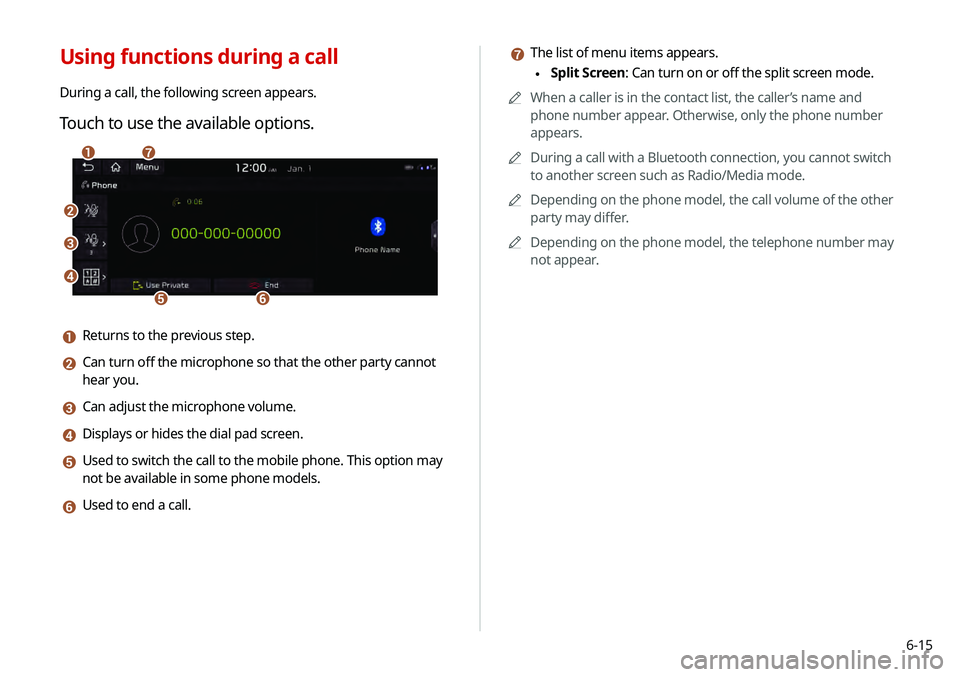
g The list of menu items appears.
\225Split Screen: Can turn on or off the split screen mode.
0000
A
When a caller is in the contact list, the caller’s name and
phone number appear. Otherwise, only the phone number
appears.
0000
A
During a call with a Bluetooth connection, you cannot switch
to another screen such as Radio/Media mode.
0000
A
Depending on the phone model, the call volume of the other
party may differ.
0000
A
Depending on the phone model, the telephone number may
not appear.Using functions during a call
During a call, the following screen appears.
Touch to use the available options.
\037
\036
\035
\034\033
\032\031
a Returns to the previous step.
b Can turn off the microphone so that the other party cannot
hear you.
c Can adjust the microphone volume.
d Displays or hides the dial pad screen.
e Used to switch the call to the mobile phone. This option may
not be available in some phone models.
f Used to end a call.
Page 124 of 219
6-16
Checking a new message over
Bluetooth
After connecting a mobile phone via Bluetooth, you can check
the received messages through the system screen and listen to
voice messages converted from the text messages. This option is
available when a mobile phone is connected via Bluetooth. You
can also send the brief reply message registered in the system.
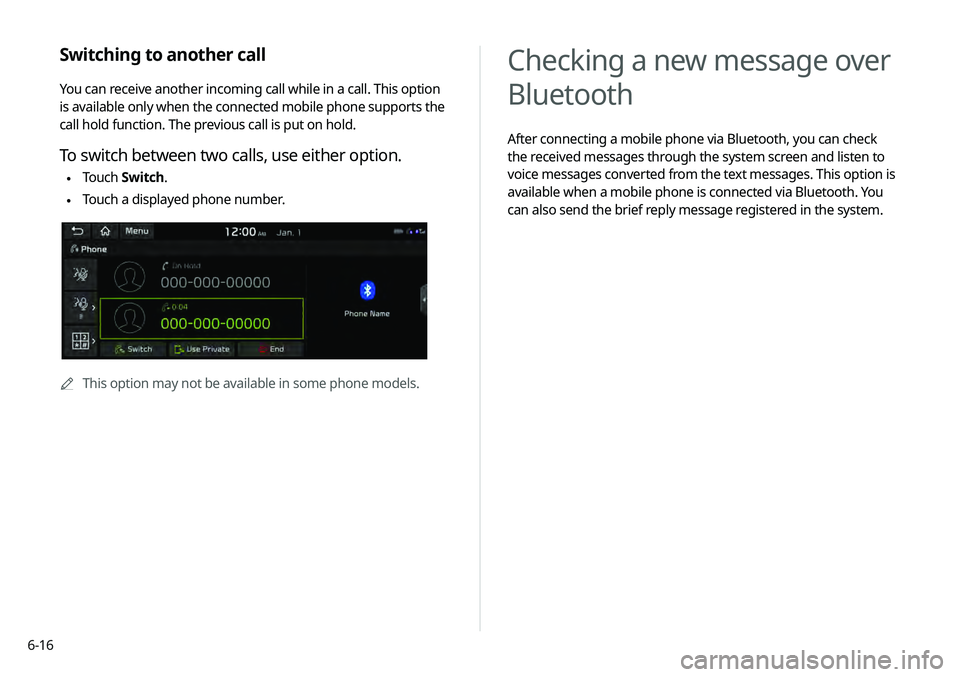
Switching to another call
You can receive another incoming call while in a call. This option
is available only when the connected mobile phone supports the
call hold function. The previous call is put on hold.
To switch between two calls, use either option.
\225Touch
Switch.
\225Touch a displayed phone number.
0000
A
This option may not be available in some phone models.
Page 125 of 219
6-17
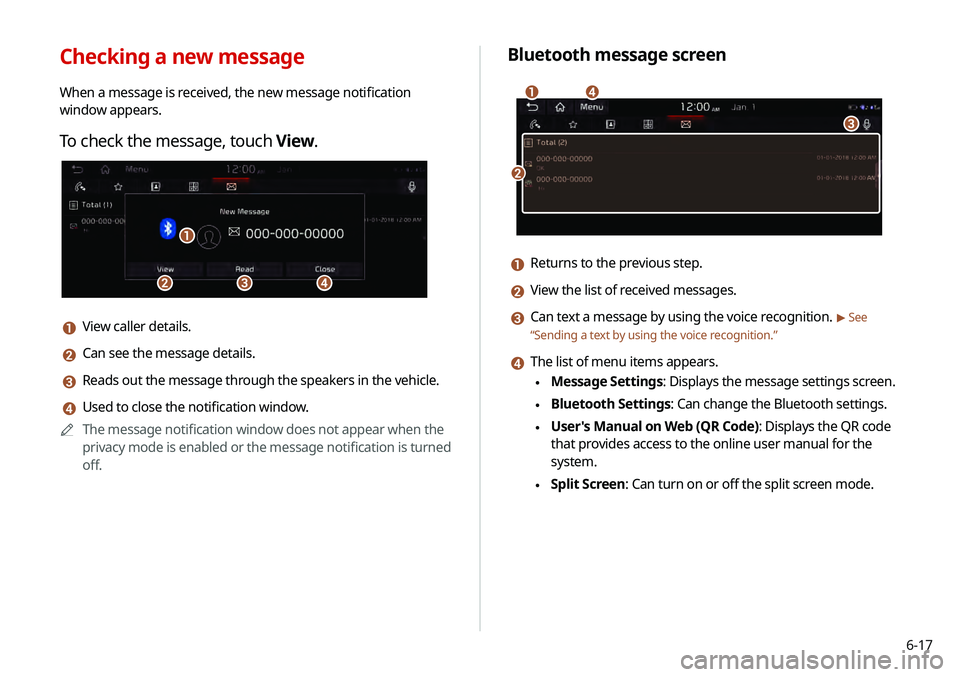
Bluetooth message screen
\037
\036
\035
\034
a Returns to the previous step.
b View the list of received messages.
c Can text a message by using the voice recognition. > See
“ Sending a text by using the voice recognition .”
d The list of menu items appears.
\225Message Settings: Displays the message settings screen.
\225Bluetooth Settings: Can change the Bluetooth settings.
\225User's Manual on Web (QR Code): Displays the QR code
that provides access to the online user manual for the
system.
\225Split Screen: Can turn on or off the split screen mode.
Checking a new message
When a message is received, the new message notification
window appears.
To check the message, touch View.
\037\036
\035
\034
a View caller details.
b Can see the message details.
c Reads out the message through the speakers in the vehicle.
d Used to close the notification window.
0000
A
The message notification window does not appear when the
privacy mode is enabled or the message notification is turned
off.
Page 126 of 219
6-18
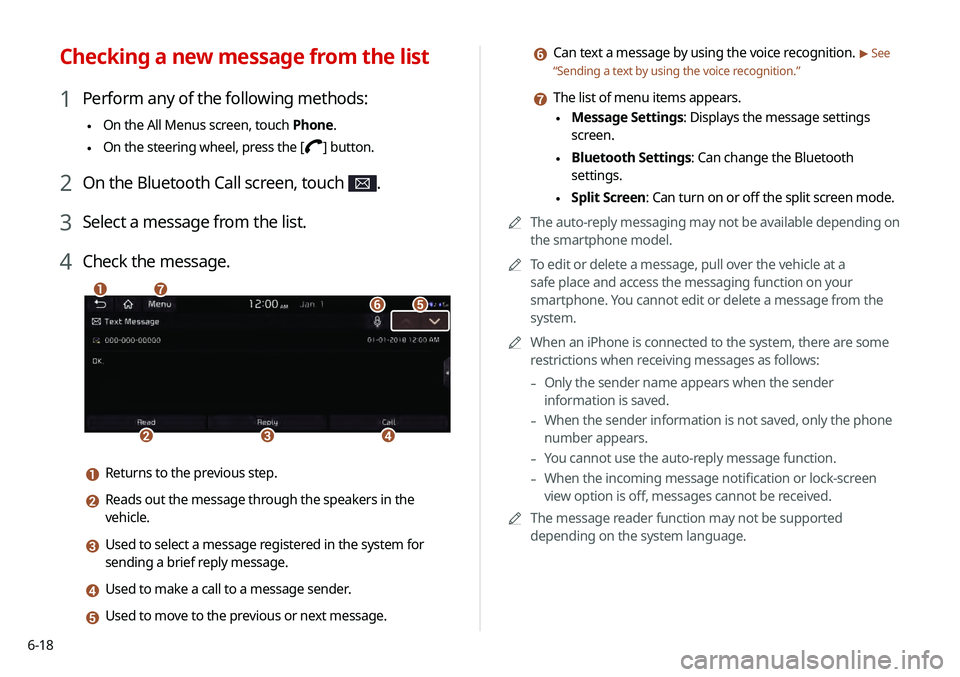
f Can text a message by using the voice recognition. > See
“ Sending a text by using the voice recognition .”
g The list of menu items appears.
\225Message Settings: Displays the message settings
screen.
\225Bluetooth Settings: Can change the Bluetooth
settings.
\225Split Screen: Can turn on or off the split screen mode.
0000
A
The auto-reply messaging may not be available depending on
the smartphone model.
0000
A
To edit or delete a message, pull over the vehicle at a
safe place and access the messaging function on your
smartphone. You cannot edit or delete a message from the
system.
0000
A
When an iPhone is connected to the system, there are some
restrictions when receiving messages as follows:
-Only the sender name appears when the sender
information is saved.
-When the sender information is not saved, only the phone
number appears.
-You cannot use the auto-reply message function.
-When the incoming message notification or lock-screen
view option is off, messages cannot be received.
0000
A
The message reader function may not be supported
depending on the system language.
Checking a new message from the list
1 Perform any of the following methods:
\225On the All Menus screen, touch Phone.
\225On the steering wheel, press the []
button.
2 On the Bluetooth Call screen, touch .
3 Select a message from the list.
4 Check the message.
\037
\036\035\034
\033\032
\031
a Returns to the previous step.
b Reads out the message through the speakers in the
vehicle.
c Used to select a message registered in the system for
sending a brief reply message.
d Used to make a call to a message sender.
e Used to move to the previous or next message.
Page 131 of 219
7-3
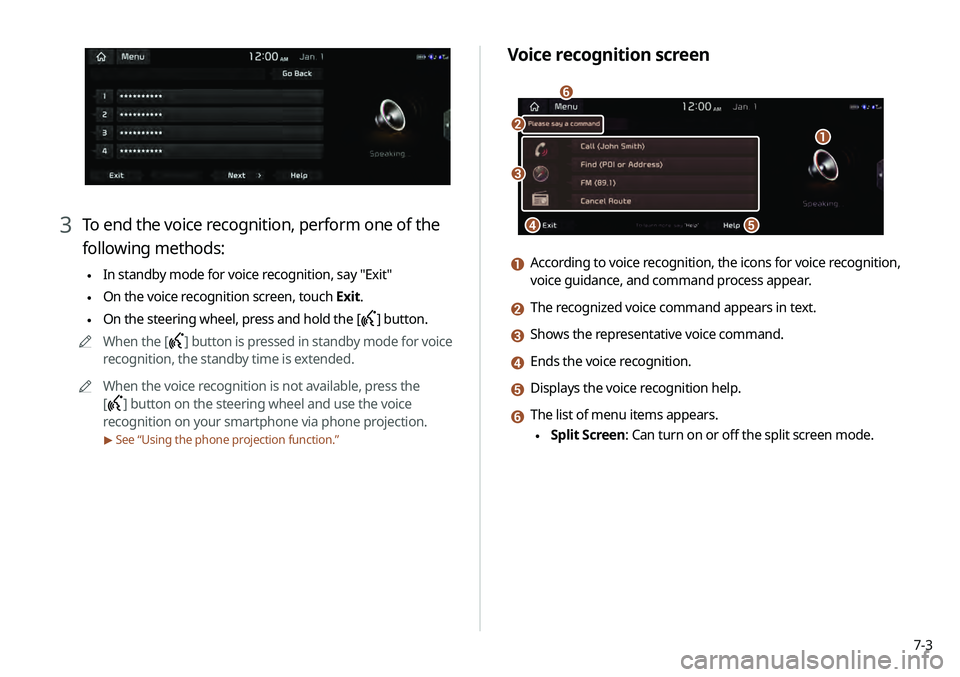
Voice recognition screen
\037\036
\035\034
\033
\032
a According to voice recognition, the icons for voice recognition,
voice guidance, and command process appear.
b The recognized voice command appears in text.
c Shows the representative voice command.
d Ends the voice recognition.
e Displays the voice recognition help.
f The list of menu items appears.
\225Split Screen: Can turn on or off the split screen mode.
3 To end the voice recognition, perform one of the
following methods:
\225In standby mode for voice recognition, say "Exit"
\225On the voice recognition screen, touch
Exit.
\225On the steering wheel, press and hold the
[] button.
0000
A
When the [
] button is pressed in standby mode for voice
recognition, the standby time is extended.
0000
A
When the voice recognition is not available, press the
[
] button on the steering wheel and use the voice
recognition on your smartphone via phone projection.
> See “Using the phone projection function.”
Page 148 of 219
7-20
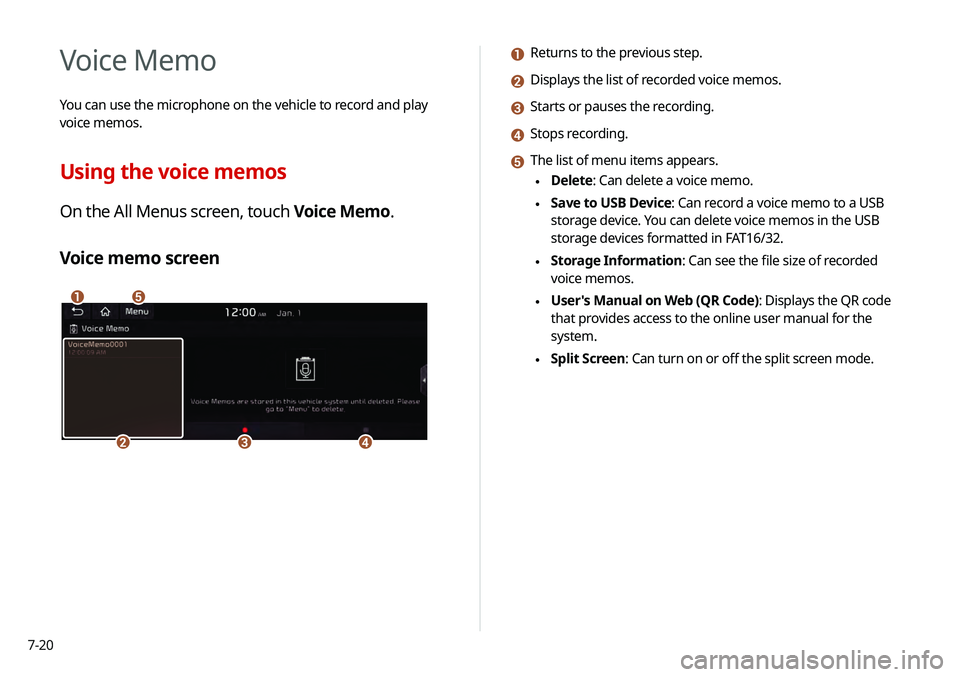
a Returns to the previous step.
b Displays the list of recorded voice memos.
c Starts or pauses the recording.
d Stops recording.
e The list of menu items appears.
\225Delete: Can delete a voice memo.
\225Save to USB Device: Can record a voice memo to a USB
storage device. You can delete voice memos in the USB
storage devices formatted in FAT16/32.
\225Storage Information: Can see the file size of recorded
voice memos.
\225User's Manual on Web (QR Code): Displays the QR code
that provides access to the online user manual for the
system.
\225Split Screen: Can turn on or off the split screen mode.
Voice Memo
You can use the microphone on the vehicle to record and play
voice memos.
Using the voice memos
On the All Menus screen, touch Voice Memo.
Voice memo screen
\037\036
\035\034\033
Page 155 of 219
8-5
f Access the UVO service to use it on the system, activate
the automatic 911 connection feature, or access modem
information.
g The list of menu items appears.
\225User's Manual on Web (QR Code): Displays the QR code
that provides access to the online user manual for the
system.
\225Split Screen: Can turn on or off the split screen mode.
\335Warning
Driving while distracted may cause a loss of vehicle control
that may lead to an accident, severe bodily injury, or death. The
driver's primary responsibility is the safe and legal operation of
the vehicle, and the use of any vehicle systems, including the
touch screen and steering wheel controls that take the driver's
eyes, attention, and focus away from safe driving or that are not
permissible by the law, should never be used while driving.
0000
A
Use the UVO features on the system when the vehicle is
stationary with the vehicle turned on.
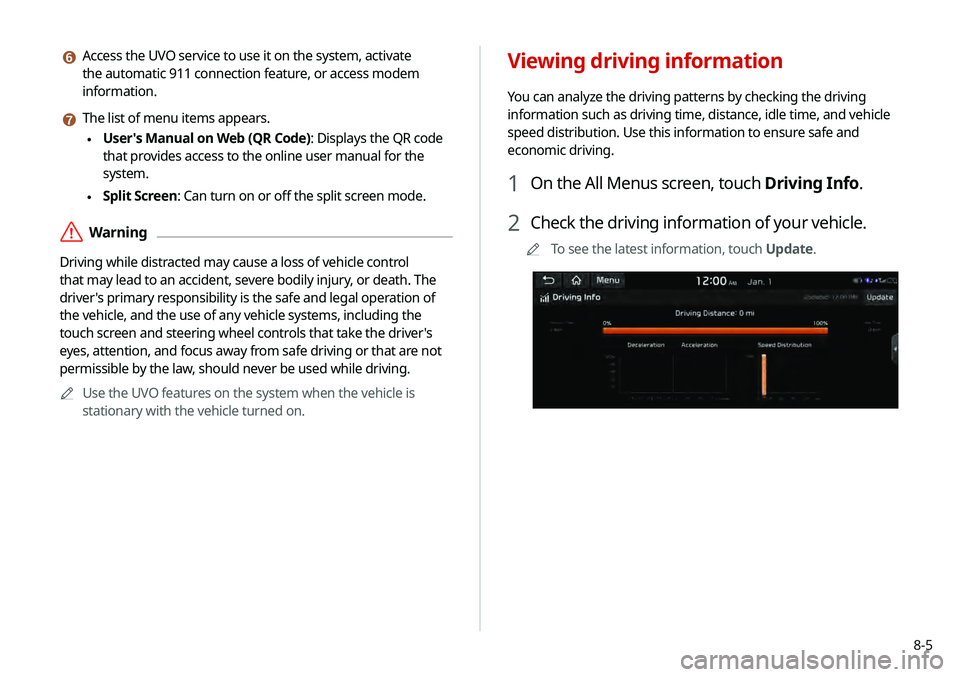
Viewing driving information
You can analyze the driving patterns by checking the driving
information such as driving time, distance, idle time, and vehicle
speed distribution. Use this information to ensure safe and
economic driving.
1 On the All Menus screen, touch Driving Info.
2 Check the driving information of your vehicle.
0000
A
To see the latest information, touch Update.
Page 158 of 219
8-80000
A
When the storage space is not sufficient, data is automatically
deleted from the oldest ones.
0000
A
To make a call to the selected location, make sure that your
mobile phone has been connected to Bluetooth or Phone
Projection.
Contacting the UVO Center
You can contact a UVO Center representative directly to request
help or make inquiries about using the UVO services.
Perform any of the following methods:
\225On the All Menus screen, touch UVO
>
Virtual Assistant.
\225 Press the [] button on the vehicle.
0000
A
To end the call, touch End on the screen or press the [
]
button.
0000
A
This feature is not available during a Bluetooth call.
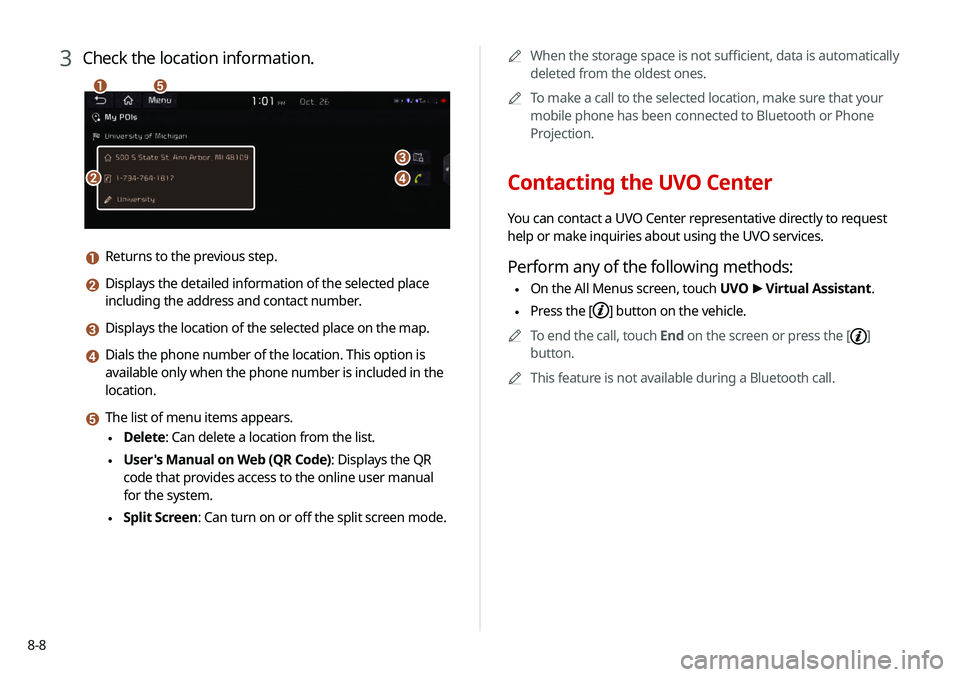
3 Check the location information.
\037
\036
\035
\034
\033
a Returns to the previous step.
b Displays the detailed information of the selected place
including the address and contact number.
c Displays the location of the selected place on the map.
d Dials the phone number of the location. This option is
available only when the phone number is included in the
location.
e The list of menu items appears.
\225Delete: Can delete a location from the list.
\225User's Manual on Web (QR Code): Displays the QR
code that provides access to the online user manual
for the system.
\225Split Screen: Can turn on or off the split screen mode.
Page 161 of 219
Settings
Configuring the vehicle settings
Configuring the device connection settings Configuring the advanced system settings Configuring the sound settings
Configuring the voice recognition settings Configuring the navigation settingsConfiguring the UVO settings
Configuring the general system settings Configuring the display settings
Updating the system software and map
09