display Lexus GS300h 2013 Owner's Manual
[x] Cancel search | Manufacturer: LEXUS, Model Year: 2013, Model line: GS300h, Model: Lexus GS300h 2013Pages: 1014
Page 441 of 1014
4304-5. Using the driving support system
GS450h_300h_OM_OM30D53E_(EE)
Lexus night view
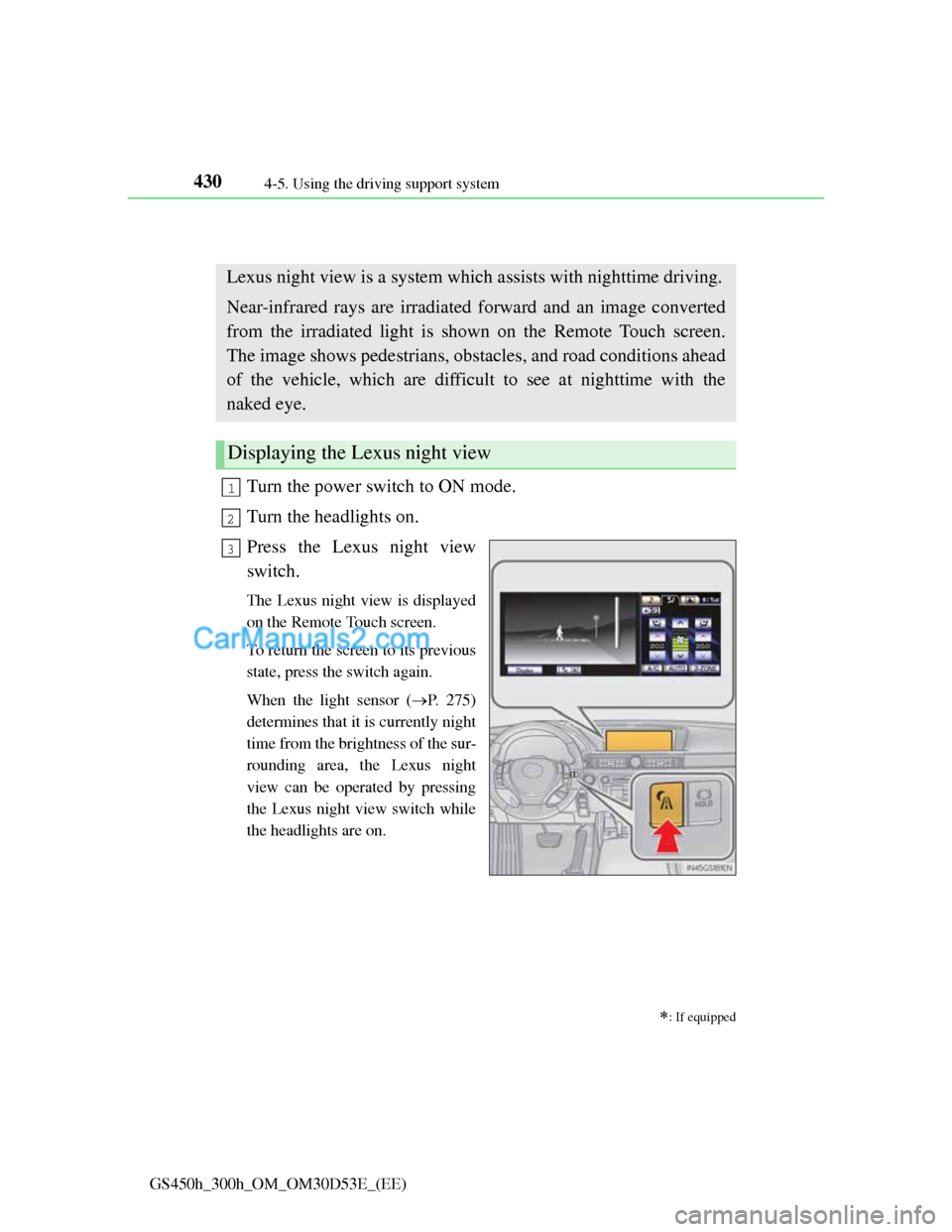
Turn the power switch to ON mode.
Turn the headlights on.
Press the Lexus night view
switch.
The Lexus night view is displayed
on the Remote Touch screen.
To return the screen to its previous
state, press the switch again.
When the light sensor (P. 275)
determines that it is currently night
time from the brightness of the sur-
rounding area, the Lexus night
view can be operated by pressing
the Lexus night view switch while
the headlights are on.
: If equipped
Lexus night view is a system which assists with nighttime driving.
Near-infrared rays are irradiated forward and an image converted
from the irradiated light is shown on the Remote Touch screen.
The image shows pedestrians, obstacles, and road conditions ahead
of the vehicle, which are difficult to see at nighttime with the
naked eye.
Displaying the Lexus night view
1
2
3
Page 442 of 1014
4314-5. Using the driving support system
4
Driving
GS450h_300h_OM_OM30D53E_(EE)
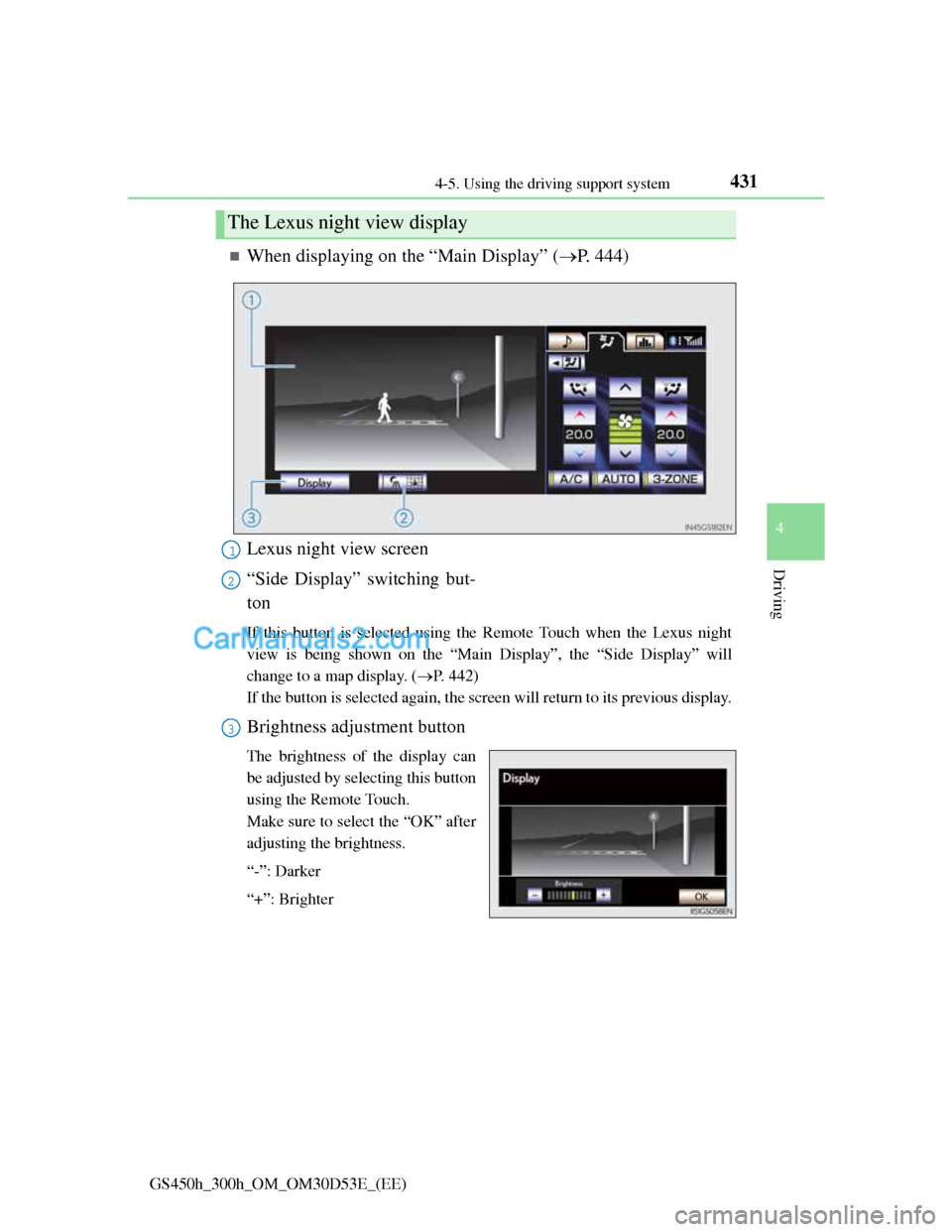
When displaying on the “Main Display” (P. 444)
Lexus night view screen
“Side Display” switching but-
ton
If this button is selected using the Remote Touch when the Lexus night
view is being shown on the “Main Display”, the “Side Display” will
change to a map display. (P. 442)
If the button is selected again, the screen will return to its previous display.
Brightness adjustment button
The brightness of the display can
be adjusted by selecting this button
using the Remote Touch.
Make sure to select the “OK” after
adjusting the brightness.
“-”: Darker
“+”: Brighter
The Lexus night view display
1
2
3
Page 443 of 1014
4324-5. Using the driving support system
GS450h_300h_OM_OM30D53E_(EE)
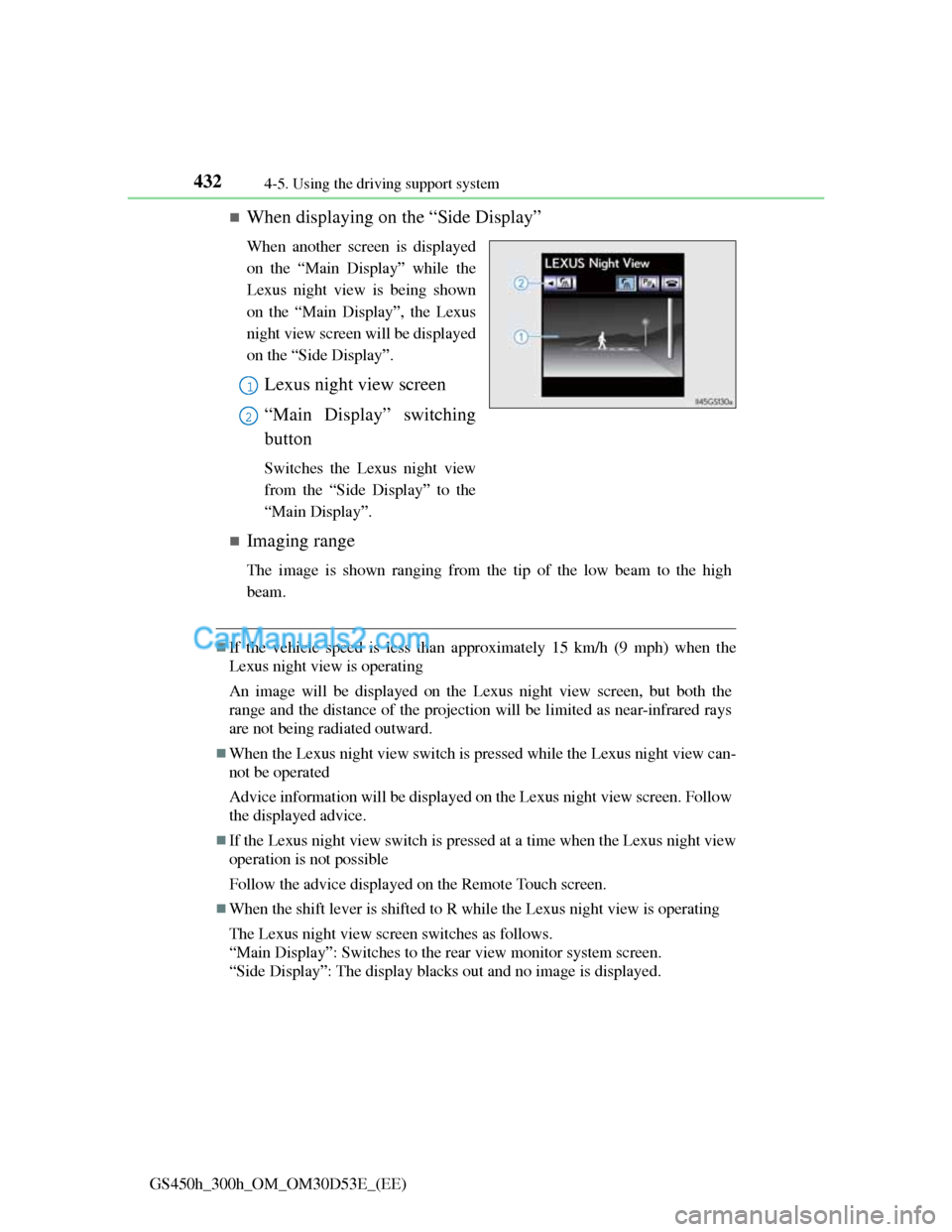
When displaying on the “Side Display”
When another screen is displayed
on the “Main Display” while the
Lexus night view is being shown
on the “Main Display”, the Lexus
night view screen will be displayed
on the “Side Display”.
Lexus night view screen
“Main Display” switching
button
Switches the Lexus night view
from the “Side Display” to the
“Main Display”.
Imaging range
The image is shown ranging from the tip of the low beam to the high
beam.
If the vehicle speed is less than approximately 15 km/h (9 mph) when the
Lexus night view is operating
An image will be displayed on the Lexus night view screen, but both the
range and the distance of the projection will be limited as near-infrared rays
are not being radiated outward.
When the Lexus night view switch is pressed while the Lexus night view can-
not be operated
Advice information will be displayed on the Lexus night view screen. Follow
the displayed advice.
If the Lexus night view switch is pressed at a time when the Lexus night view
operation is not possible
Follow the advice displayed on the Remote Touch screen.
When the shift lever is shifted to R while the Lexus night view is operating
The Lexus night view screen switches as follows.
“Main Display”: Switches to the rear view monitor system screen.
“Side Display”: The display blacks out and no image is displayed.
1
2
Page 446 of 1014
4354-5. Using the driving support system
4
Driving
GS450h_300h_OM_OM30D53E_(EE)
Before using the Lexus night view
Never depend on this system only.
Lexus night view is intended as a supplemental aid to help you see pedestri-
ans and road conditions ahead of the vehicle. As there are limits to the sys-
tem, do not rely solely on the system while in use, and drive safely while
observing the following precautions.
When using the Lexus night view
Observe the following precautions.
Failure to do so may cause an accident resulting in death or serious injury.
Never drive while looking at the Lexus night view screen only.
Do not look continuously at the Lexus night view screen while driving.
Pedestrians, objects etc. ahead of the vehicle may be overlooked by the
system. The system should always be used as a supplemental aid only.
Lexus night view is designed to help you see objects better when driving
in darkness on a road with few curves. Do not use the Lexus night view in
well-lit areas or on roads with many curves or slopes. There may be areas
that cannot be displayed by the system due to the road conditions (curve
size, gradient, etc.)
Lexus night view may be unable to project some features at an appropriate
level of brightness. Some or all parts of certain features may be dark or
difficult to see. Do not rely solely on the Lexus night view, and drive care-
fully while checking the surroundings for safety, as you would with a nor-
mal vehicle. Also, the following features and conditions may not be
displayed clearly.
Features that are difficult to display:
• Clothing of a pedestrian made of a certain kind of material (ex. leather
jackets)
• The characters on signs and billboards
• The information on road signs
Conditions in which display is difficult:
• Unfavorable weather conditions such as rain, fog, snowfall, snow
storms etc.
• There are large puddles of water on the road surface following rainfall
• The area of the front windshield in front of the camera is fogged up,
dirty or icy
• The areas around the headlights are covered with ice, snow, mud etc.
• The 12-volt battery voltage is remarkably low
• There are bright lights ahead of the vehicle
Page 459 of 1014
4425-1. Remote Touch screen
GS450h_300h_OM_OM30D53E_(EE)
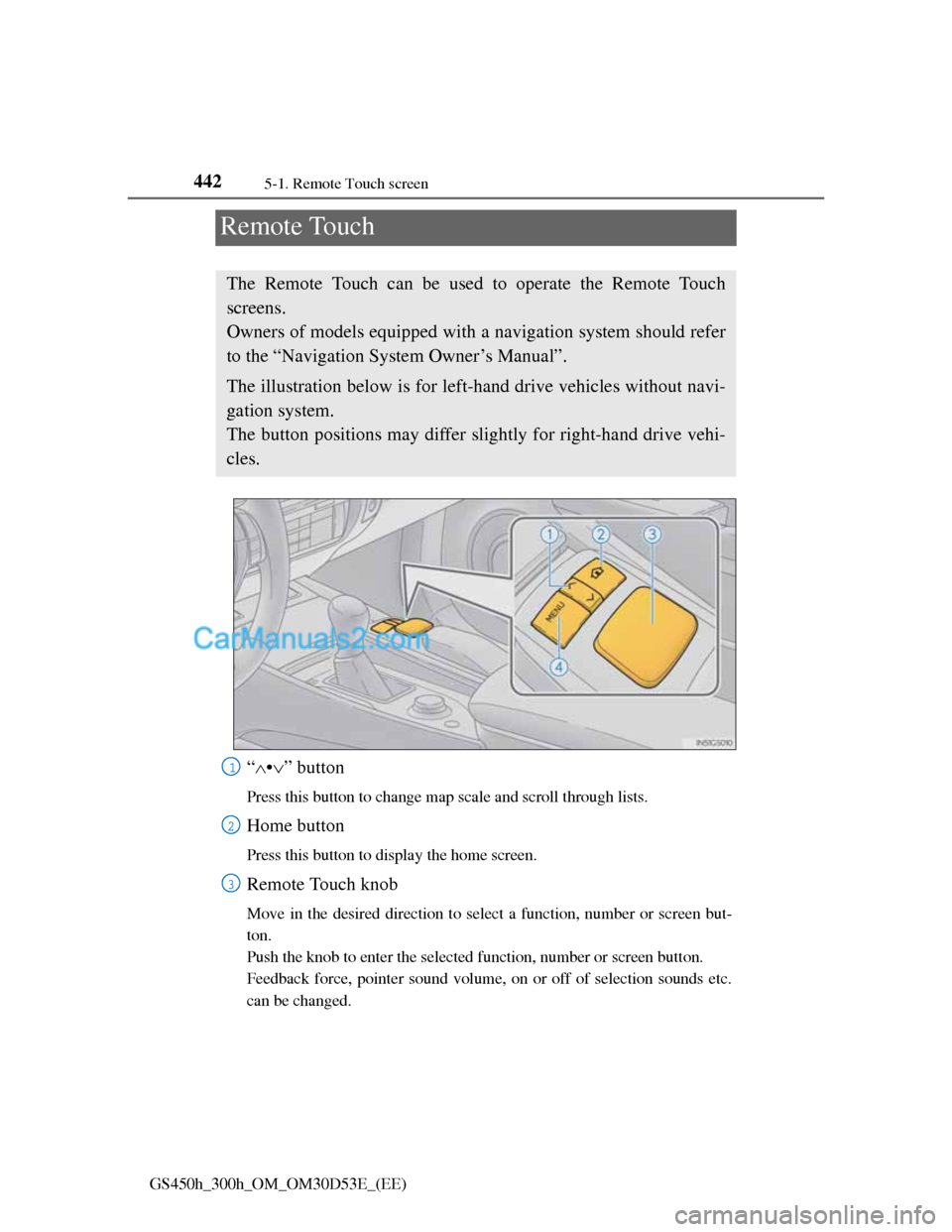
Remote Touch
“•” button
Press this button to change map scale and scroll through lists.
Home button
Press this button to display the home screen.
Remote Touch knob
Move in the desired direction to select a function, number or screen but-
ton.
Push the knob to enter the selected function, number or screen button.
Feedback force, pointer sound volume, on or off of selection sounds etc.
can be changed.
The Remote Touch can be used to operate the Remote Touch
screens.
Owners of models equipped with a navigation system should refer
to the “Navigation System Owner’s Manual”.
The illustration below is for left-hand drive vehicles without navi-
gation system.
The button positions may differ slightly for right-hand drive vehi-
cles.
1
2
3
Page 460 of 1014
4435-1. Remote Touch screen
5
Interior features
GS450h_300h_OM_OM30D53E_(EE)
“MENU” button
Press this button to display the “Menu” screen.
4
Page 462 of 1014
4455-1. Remote Touch screen
5
Interior features
GS450h_300h_OM_OM30D53E_(EE)
Remote Touch screen
By using the Remote Touch, you can control the audio system and
air conditioning system, and adjust the screen display etc.
Owners of models equipped with a navigation system should refer
to the “Navigation System Owner’s Manual”.
Vehicles with a 12.3-inch display: Different information can be
displayed on the left and right of the screen. The 8-inch display
area on the left of the screen is called the “Main Display”, and the
area to the right is called the “Side Display”. For details, refer to
the “Navigation System Owner’s Manual”.
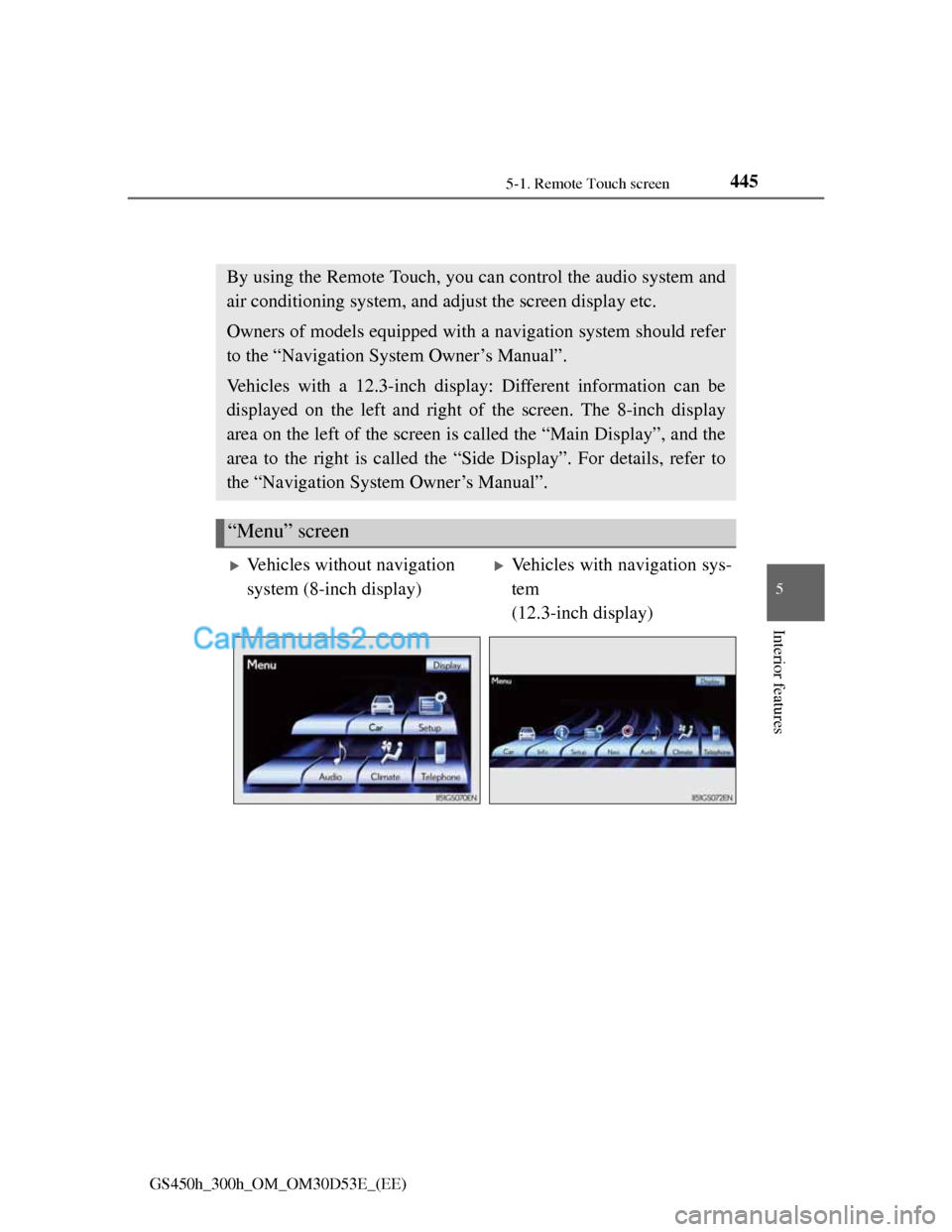
“Menu” screen
Vehicles without navigation
system (8-inch display)Vehicles with navigation sys-
tem
(12.3-inch display)
Page 463 of 1014
4465-1. Remote Touch screen
GS450h_300h_OM_OM30D53E_(EE)
When the power switch is turned
to ACCESSORY or ON mode,
the initial screen will be dis-
played for a few seconds as the
system starts up.
Images shown on the initial screen
can be changed to suit individual
preferences. (P. 458)
SwitchPage
“Car”P. 1 3 0
“Info”Navigation System Owner’s Manual
“Setup”P. 4 5 3
“Navi”Navigation System Owner’s Manual
“Audio”P. 501, 536
“Climate”P. 4 7 8
“Telephone”P. 6 1 1
“Display”P. 4 4 7
Initial screen
Page 464 of 1014
4475-1. Remote Touch screen
5
Interior features
GS450h_300h_OM_OM30D53E_(EE)
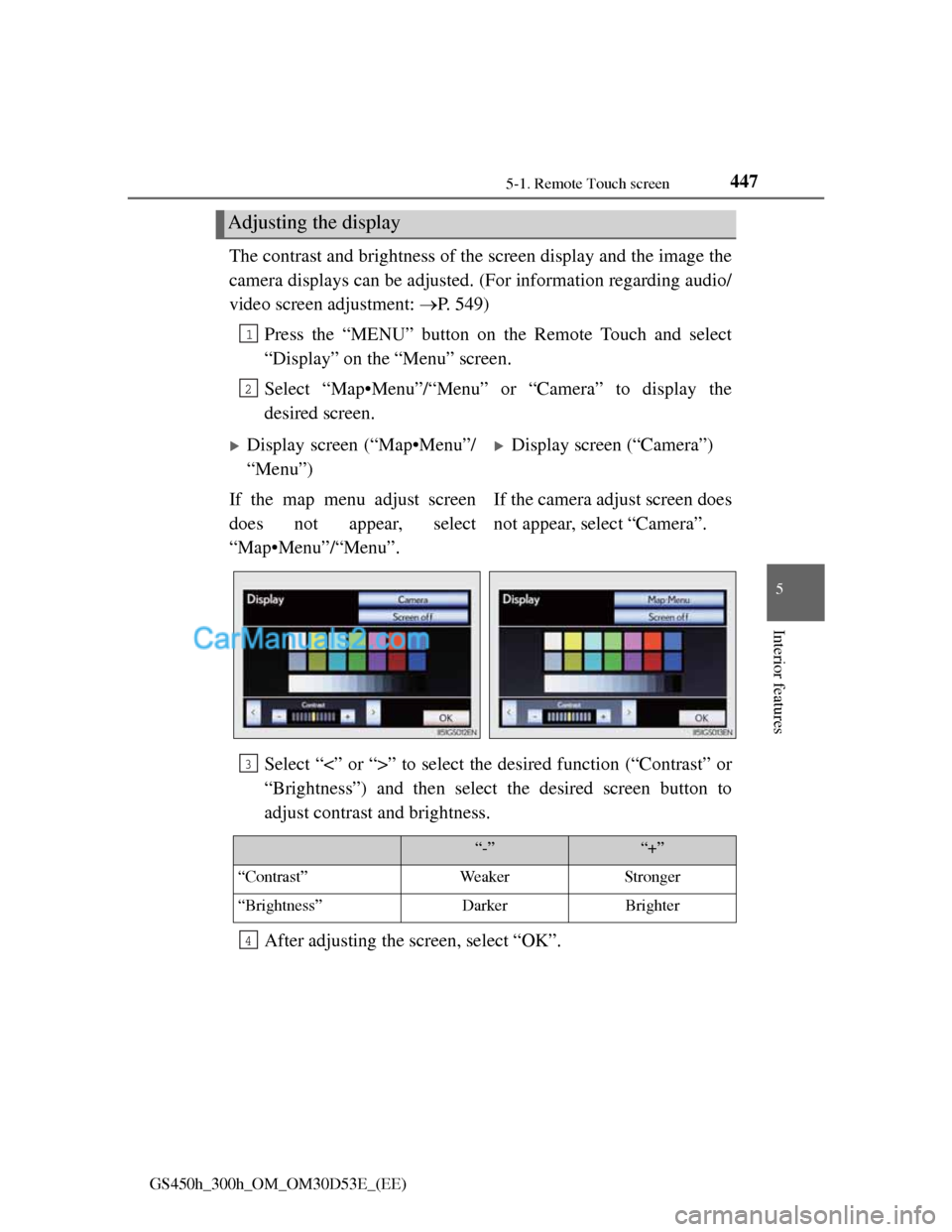
The contrast and brightness of the screen display and the image the
camera displays can be adjusted. (For information regarding audio/
video screen adjustment: P. 549)
Press the “MENU” button on the Remote Touch and select
“Display” on the “Menu” screen.
Select “Map•Menu”/“Menu” or “Camera” to display the
desired screen.
Select “<” or “>” to select the desired function (“Contrast” or
“Brightness”) and then select the desired screen button to
adjust contrast and brightness.
After adjusting the screen, select “OK”.
Adjusting the display
1
2
Display screen (“Map•Menu”/
“Menu”)Display screen (“Camera”)
If the map menu adjust screen
does not appear, select
“Map•Menu”/“Menu”.If the camera adjust screen does
not appear, select “Camera”.
3
“-”“+”
“Contrast”WeakerStronger
“Brightness”DarkerBrighter
4
Page 465 of 1014
4485-1. Remote Touch screen
GS450h_300h_OM_OM30D53E_(EE)
When using the Remote Touch screen
If the screen is cold, the display may be dark, or the system may seem to be
operating slightly slower than normal.
When the screen is viewed through polarized sunglasses, a rainbow pattern
may appear on the screen due to optical characteristics of the screen. If this
is disturbing, please operate the screen without polarized sunglasses.
Dimmed screen buttons cannot be operated.
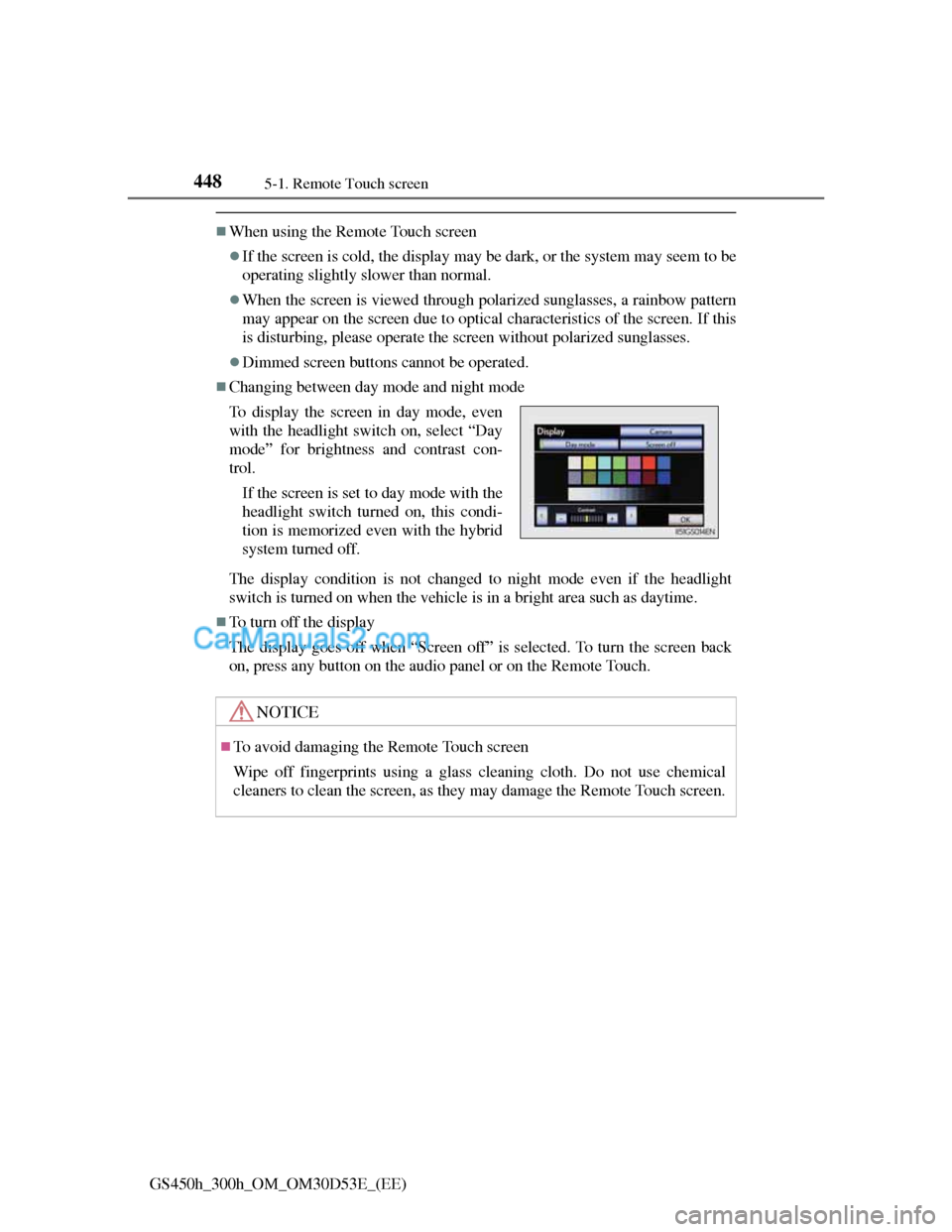
Changing between day mode and night mode
The display condition is not changed to night mode even if the headlight
switch is turned on when the vehicle is in a bright area such as daytime.
To turn off the display
The display goes off when “Screen off” is selected. To turn the screen back
on, press any button on the audio panel or on the Remote Touch. To display the screen in day mode, even
with the headlight switch on, select “Day
mode” for brightness and contrast con-
trol.
If the screen is set to day mode with the
headlight switch turned on, this condi-
tion is memorized even with the hybrid
system turned off.
NOTICE
To avoid damaging the Remote Touch screen
Wipe off fingerprints using a glass cleaning cloth. Do not use chemical
cleaners to clean the screen, as they may damage the Remote Touch screen.