display Lexus GS300h 2013 Owner's Manual
[x] Cancel search | Manufacturer: LEXUS, Model Year: 2013, Model line: GS300h, Model: Lexus GS300h 2013Pages: 1014
Page 466 of 1014
4495-1. Remote Touch screen
5
Interior features
GS450h_300h_OM_OM30D53E_(EE)
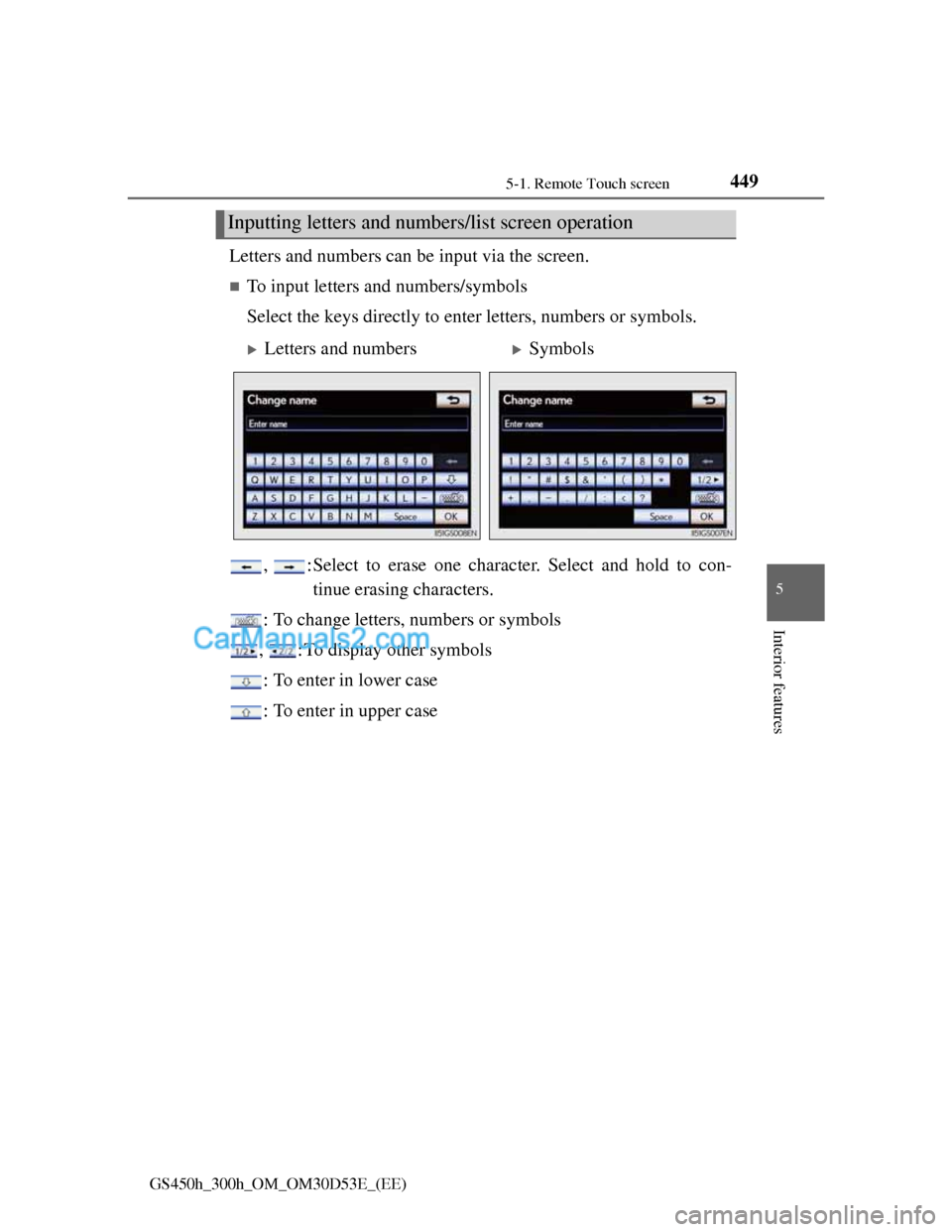
Letters and numbers can be input via the screen.
To input letters and numbers/symbols
Select the keys directly to enter letters, numbers or symbols.
, :Select to erase one character. Select and hold to con-
tinue erasing characters.
: To change letters, numbers or symbols
, : To display other symbols
: To enter in lower case
: To enter in upper case
Inputting letters and numbers/list screen operation
Letters and numbersSymbols
Page 469 of 1014
4525-1. Remote Touch screen
GS450h_300h_OM_OM30D53E_(EE)
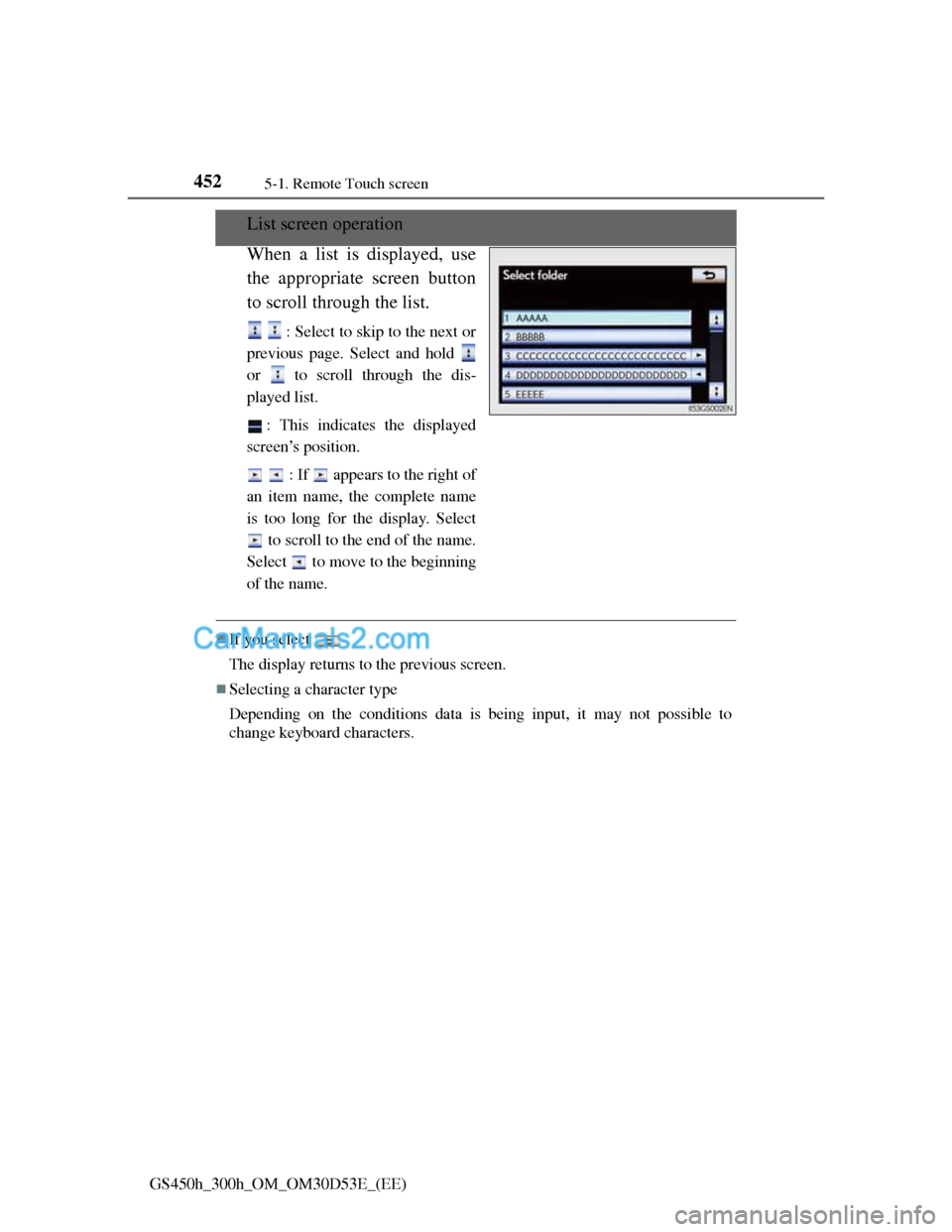
List screen operation
When a list is displayed, use
the appropriate screen button
to scroll through the list.
: Select to skip to the next or
previous page. Select and hold
or to scroll through the dis-
played list.
: This indicates the displayed
screen’s position.
: If appears to the right of
an item name, the complete name
is too long for the display. Select
to scroll to the end of the name.
Select to move to the beginning
of the name.
If you select
The display returns to the previous screen.
Selecting a character type
Depending on the conditions data is being input, it may not possible to
change keyboard characters.
Page 474 of 1014
4575-1. Remote Touch screen
5
Interior features
GS450h_300h_OM_OM30D53E_(EE)
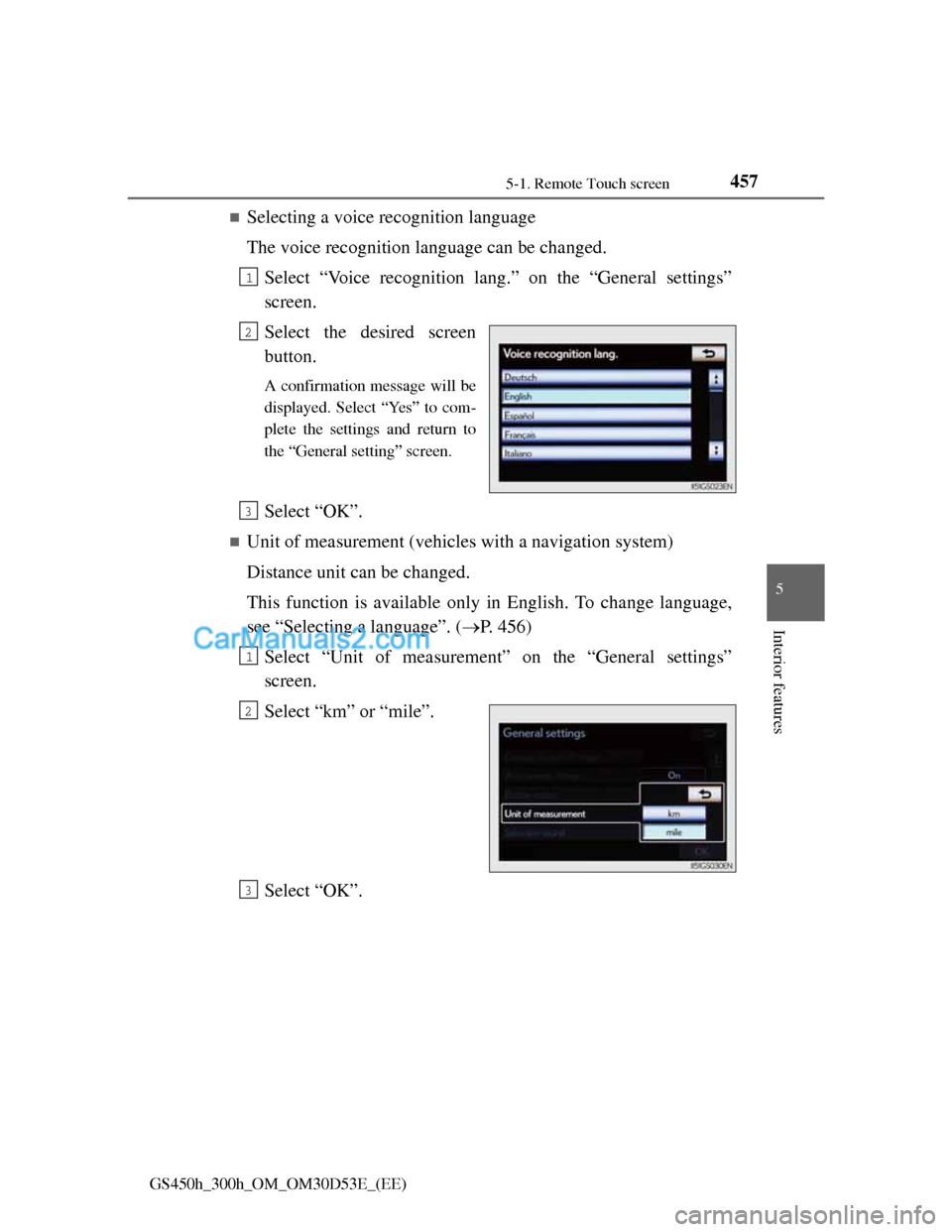
Selecting a voice recognition language
The voice recognition language can be changed.
Select “Voice recognition lang.” on the “General settings”
screen.
Select the desired screen
button.
A confirmation message will be
displayed. Select “Yes” to com-
plete the settings and return to
the “General setting” screen.
Select “OK”.
Unit of measurement (vehicles with a navigation system)
Distance unit can be changed.
This function is available only in English. To change language,
see “Selecting a language”. (P. 456)
Select “Unit of measurement” on the “General settings”
screen.
Select “km” or “mile”.
Select “OK”.
1
2
3
1
2
3
Page 478 of 1014
4615-1. Remote Touch screen
5
Interior features
GS450h_300h_OM_OM30D53E_(EE)
Changing the screen off image
Select “Screen off” on the “Display” screen to turn off the
screen. An image can be copied from a USB memory and can be
set to display when “Screen off” is selected.
When saving the images to a USB memory, name the folder that
the screen off image is saved to “DisplayOffImage”. If these
folder names are not used, the system cannot download the
images. (The folder names are case sensitive.)
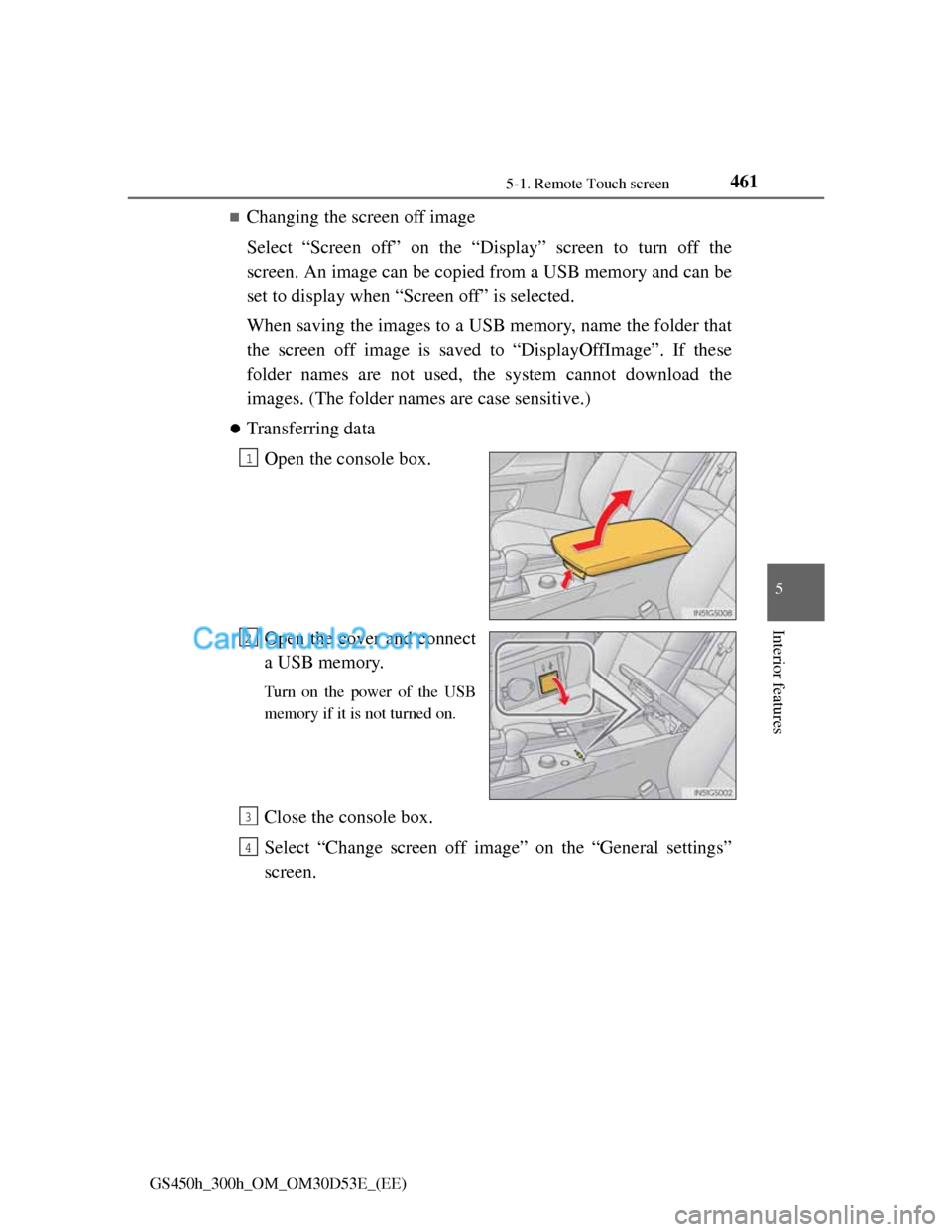
Transferring data
Open the console box.
Open the cover and connect
a USB memory.
Turn on the power of the USB
memory if it is not turned on.
Close the console box.
Select “Change screen off image” on the “General settings”
screen.
1
2
3
4
Page 482 of 1014
4655-1. Remote Touch screen
5
Interior features
GS450h_300h_OM_OM30D53E_(EE)
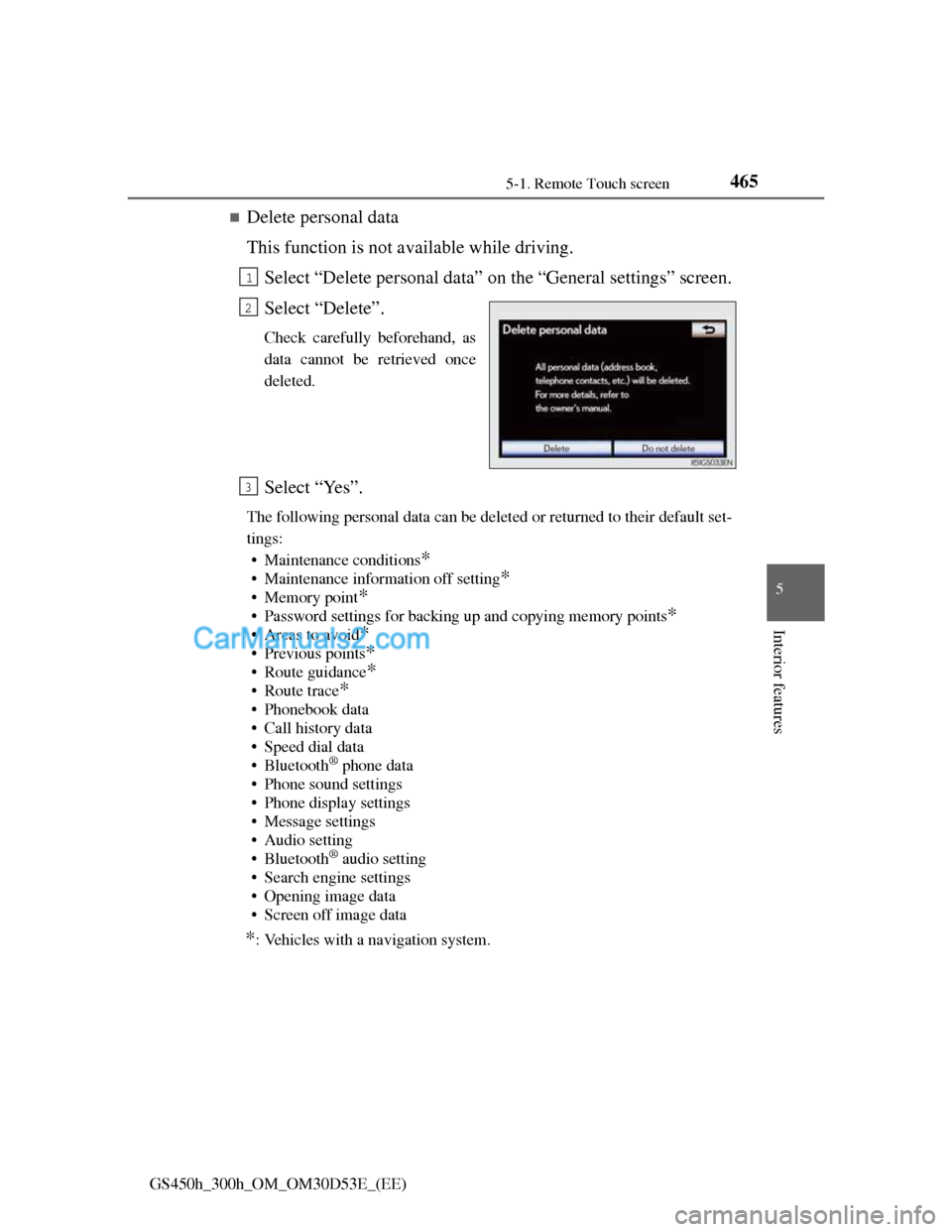
Delete personal data
This function is not available while driving.
Select “Delete personal data” on the “General settings” screen.
Select “Delete”.
Check carefully beforehand, as
data cannot be retrieved once
deleted.
Select “Yes”.
The following personal data can be deleted or returned to their default set-
tings:
• Maintenance conditions
*
• Maintenance information off setting*
• Memory point*
• Password settings for backing up and copying memory points*
•Areas to avoid*
• Previous points*
• Route guidance*
•Route trace*
• Phonebook data
• Call history data
• Speed dial data
•Bluetooth
® phone data
• Phone sound settings
• Phone display settings
• Message settings
• Audio setting
•Bluetooth
® audio setting
• Search engine settings
• Opening image data
• Screen off image data
*: Vehicles with a navigation system.
1
2
3
Page 486 of 1014
4695-1. Remote Touch screen
5
Interior features
GS450h_300h_OM_OM30D53E_(EE)
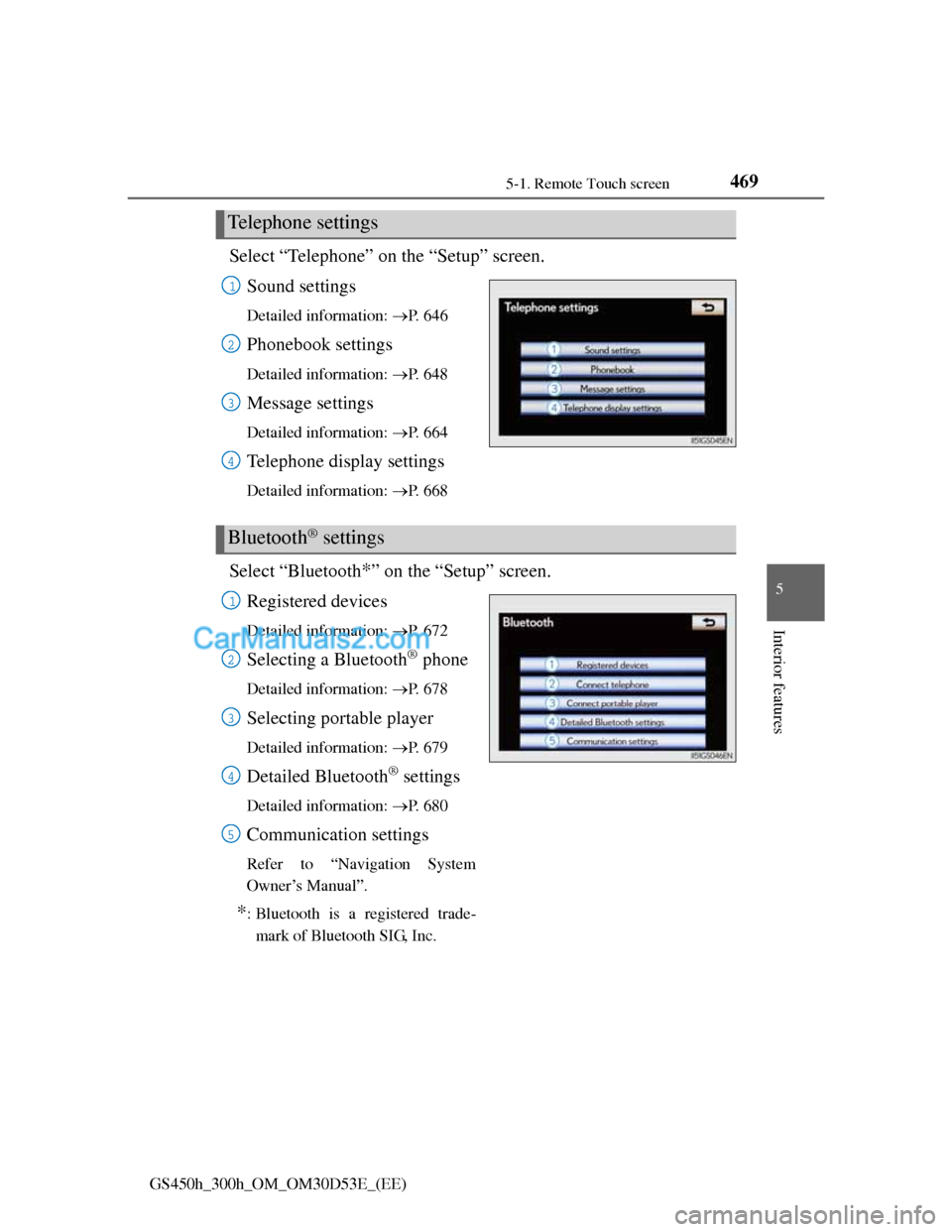
Select “Telephone” on the “Setup” screen.
Sound settings
Detailed information: P. 6 4 6
Phonebook settings
Detailed information: P. 6 4 8
Message settings
Detailed information: P. 6 6 4
Telephone display settings
Detailed information: P. 6 6 8
Select “Bluetooth*” on the “Setup” screen.
Registered devices
Detailed information: P. 6 7 2
Selecting a Bluetooth® phone
Detailed information: P. 6 7 8
Selecting portable player
Detailed information: P. 6 7 9
Detailed Bluetooth® settings
Detailed information: P. 6 8 0
Communication settings
Refer to “Navigation System
Owner’s Manual”.
*: Bluetooth is a registered trade-
mark of Bluetooth SIG, Inc.
Telephone settings
1
2
3
4
Bluetooth® settings
1
2
3
4
5
Page 490 of 1014
4735-1. Remote Touch screen
5
Interior features
GS450h_300h_OM_OM30D53E_(EE)
Speech command system operation
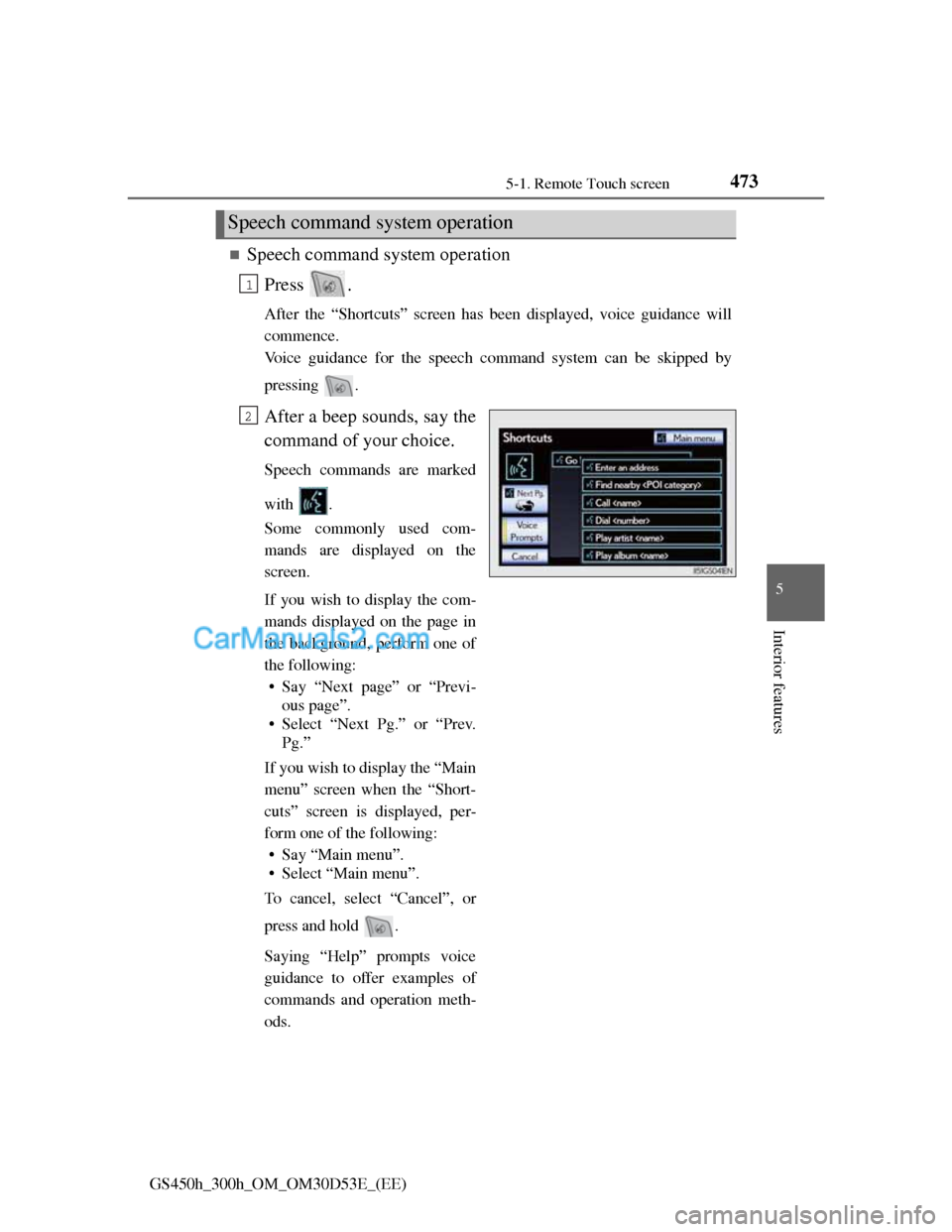
Press .
After the “Shortcuts” screen has been displayed, voice guidance will
commence.
Voice guidance for the speech command system can be skipped by
pressing .
After a beep sounds, say the
command of your choice.
Speech commands are marked
with .
Some commonly used com-
mands are displayed on the
screen.
If you wish to display the com-
mands displayed on the page in
the background, perform one of
the following:
• Say “Next page” or “Previ-
ous page”.
• Select “Next Pg.” or “Prev.
Pg.”
If you wish to display the “Main
menu” screen when the “Short-
cuts” screen is displayed, per-
form one of the following:
• Say “Main menu”.
• Select “Main menu”.
To cancel, select “Cancel”, or
press and hold .
Saying “Help” prompts voice
guidance to offer examples of
commands and operation meth-
ods.
Speech command system operation
1
2
Page 491 of 1014
4745-1. Remote Touch screen
GS450h_300h_OM_OM30D53E_(EE)
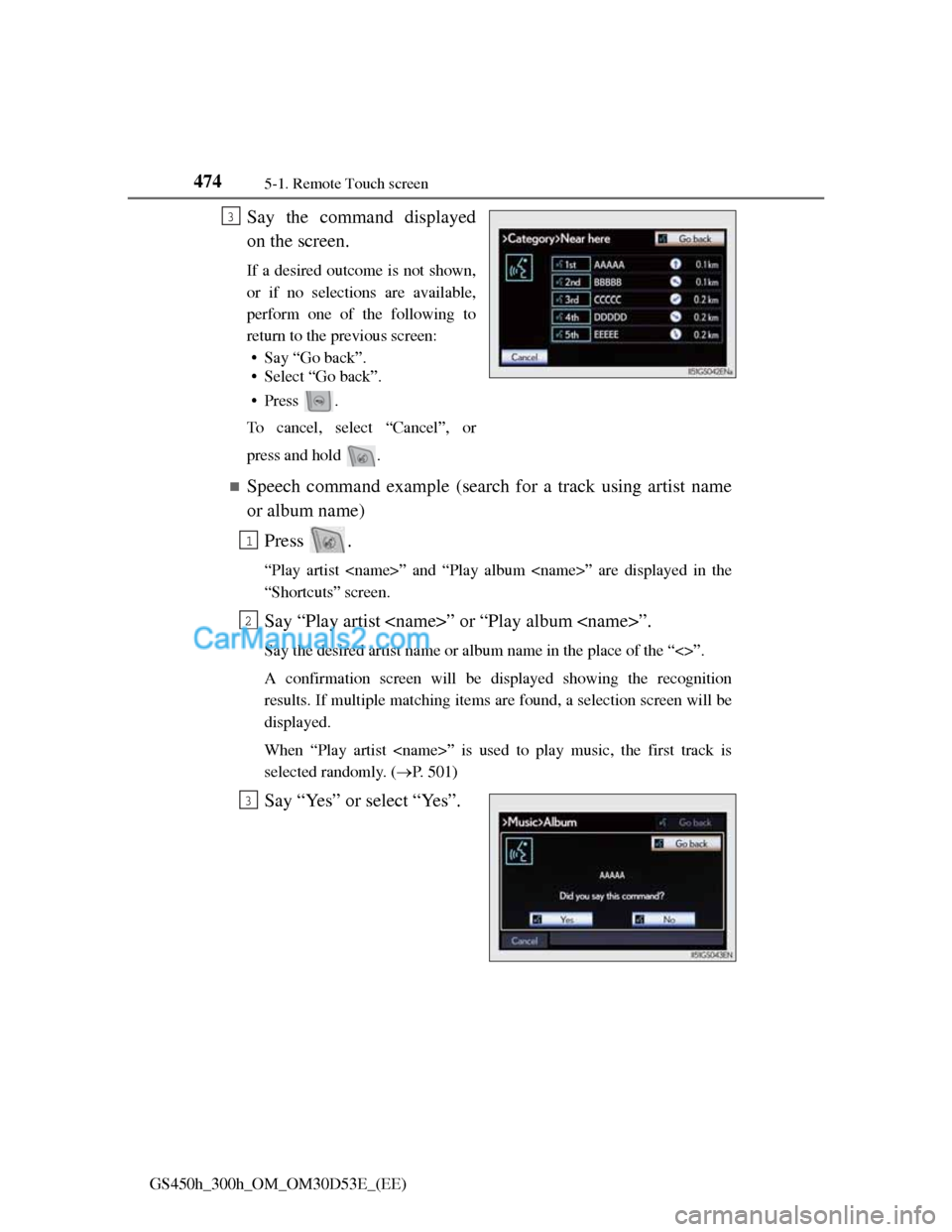
Say the command displayed
on the screen.
If a desired outcome is not shown,
or if no selections are available,
perform one of the following to
return to the previous screen:
• Say “Go back”.
• Select “Go back”.
•Press .
To cancel, select “Cancel”, or
press and hold .
Speech command example (search for a track using artist name
or album name)
Press .
“Play artist
“Shortcuts” screen.
Say “Play artist
Say the desired artist name or album name in the place of the “<>”.
A confirmation screen will be displayed showing the recognition
results. If multiple matching items are found, a selection screen will be
displayed.
When “Play artist
selected randomly. (P. 501)
Say “Yes” or select “Yes”.
3
1
2
3
Page 492 of 1014
4755-1. Remote Touch screen
5
Interior features
GS450h_300h_OM_OM30D53E_(EE)
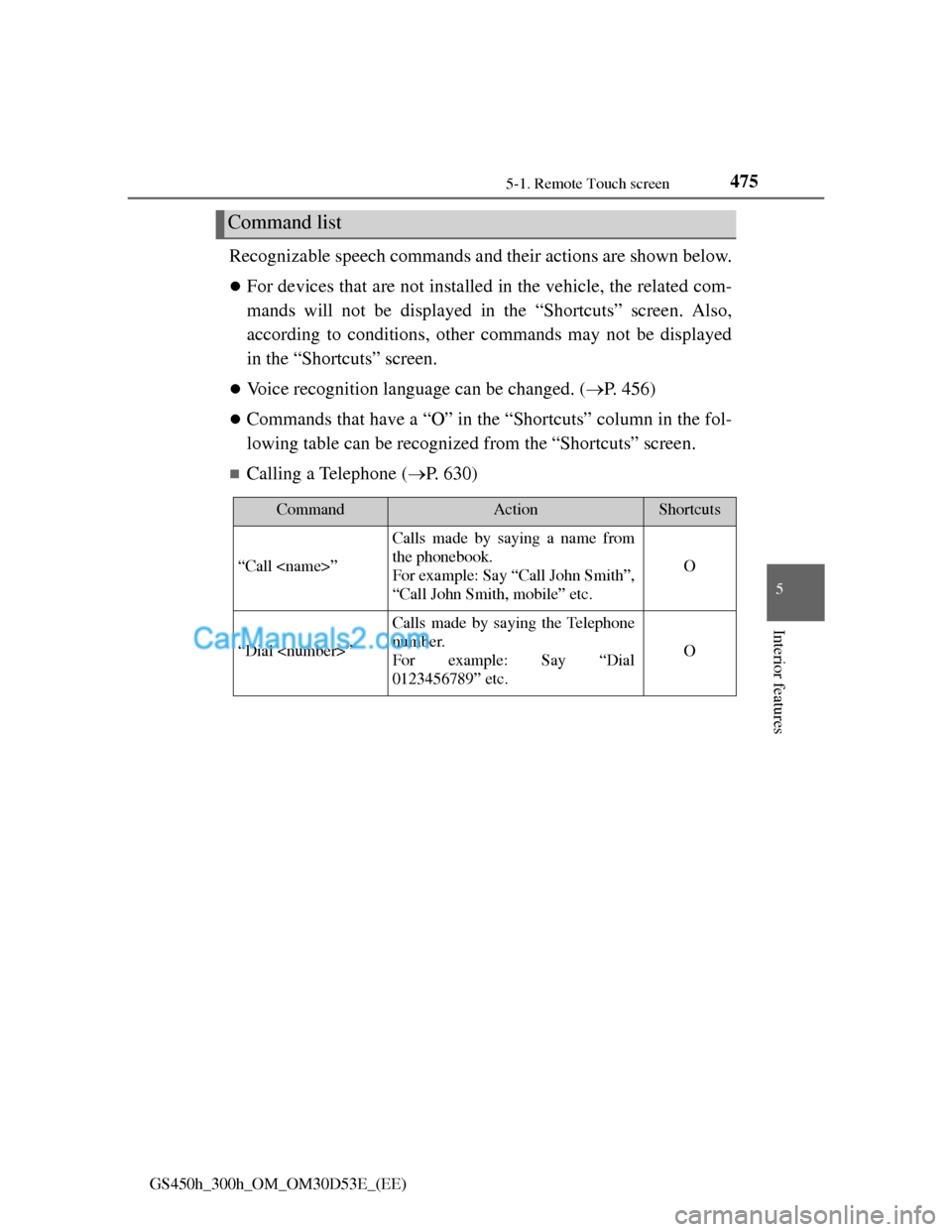
Recognizable speech commands and their actions are shown below.
For devices that are not installed in the vehicle, the related com-
mands will not be displayed in the “Shortcuts” screen. Also,
according to conditions, other commands may not be displayed
in the “Shortcuts” screen.
Voice recognition language can be changed. (P. 456)
Commands that have a “O” in the “Shortcuts” column in the fol-
lowing table can be recognized from the “Shortcuts” screen.
Calling a Telephone (P. 630)
Command list
CommandActionShortcuts
“Call
Calls made by saying a name from
the phonebook.
For example: Say “Call John Smith”,
“Call John Smith, mobile” etc.
O
“Dial
Calls made by saying the Telephone
number.
For example: Say “Dial
0123456789” etc.
O
Page 494 of 1014
4775-1. Remote Touch screen
5
Interior features
GS450h_300h_OM_OM30D53E_(EE)
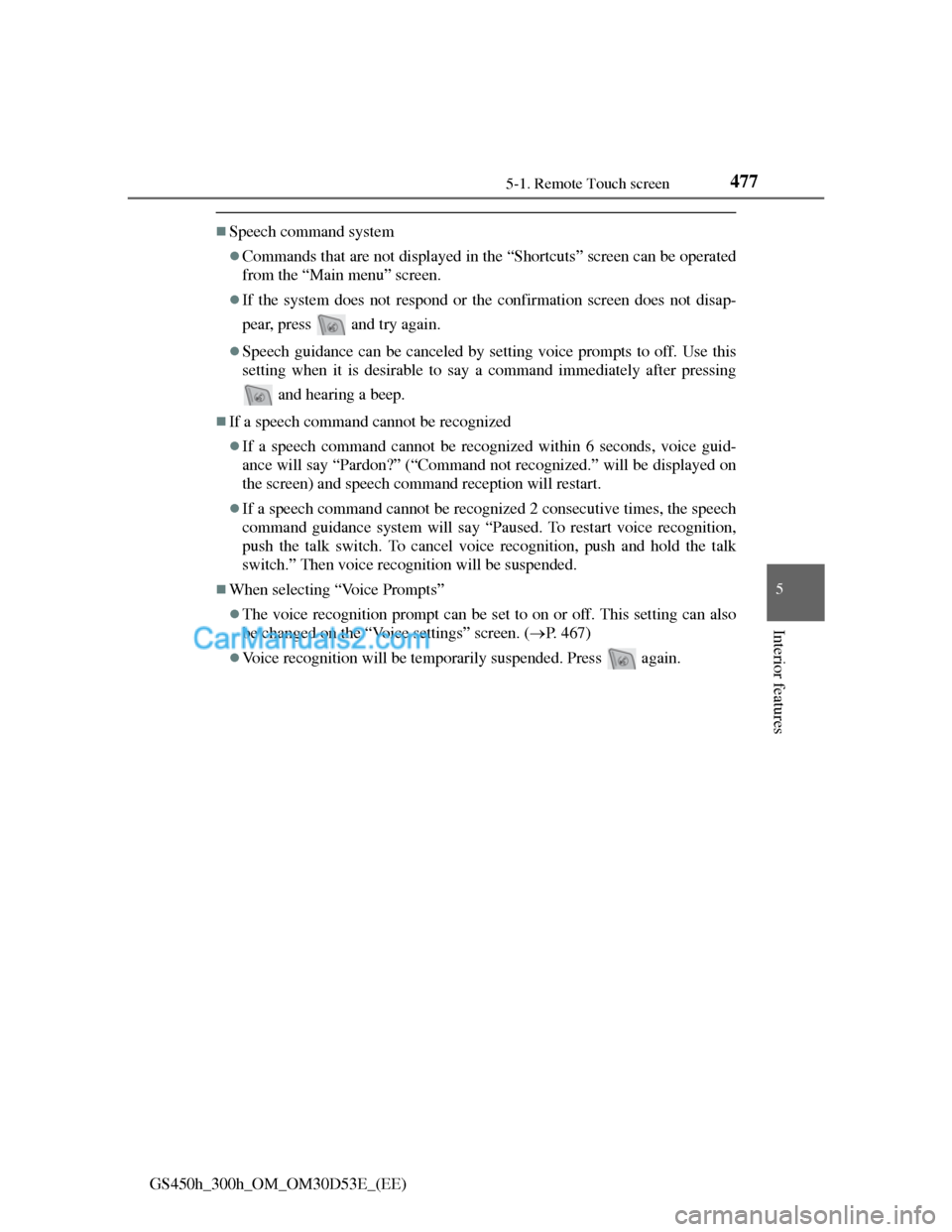
Speech command system
Commands that are not displayed in the “Shortcuts” screen can be operated
from the “Main menu” screen.
If the system does not respond or the confirmation screen does not disap-
pear, press and try again.
Speech guidance can be canceled by setting voice prompts to off. Use this
setting when it is desirable to say a command immediately after pressing
and hearing a beep.
If a speech command cannot be recognized
If a speech command cannot be recognized within 6 seconds, voice guid-
ance will say “Pardon?” (“Command not recognized.” will be displayed on
the screen) and speech command reception will restart.
If a speech command cannot be recognized 2 consecutive times, the speech
command guidance system will say “Paused. To restart voice recognition,
push the talk switch. To cancel voice recognition, push and hold the talk
switch.” Then voice recognition will be suspended.
When selecting “Voice Prompts”
The voice recognition prompt can be set to on or off. This setting can also
be changed on the “Voice settings” screen. (P. 467)
Voice recognition will be temporarily suspended. Press again.