Button Lexus IS300h 2013 Workshop Manual
[x] Cancel search | Manufacturer: LEXUS, Model Year: 2013, Model line: IS300h, Model: Lexus IS300h 2013Pages: 628, PDF Size: 20.23 MB
Page 355 of 628
341
5
Lexus Display Audio system
IS300h_EE(OM53B95E)5-5. Playing an audio CD and MP3/WMA/AAC discs
Pressing the “MEDIA” button displays the audio disc top screen from any
screen of the selected source.
Menu screen
P. 3 3 6
Selecting a track/file
Press the “” or “” button, turn the right side knob (left-hand drive
vehicle) or left side knob (right-hand drive vehicle) on the audio panel
to select the desired track/file number.
To fast-forward or rewind, press and hold the “” or “” button.
Selecting the track by the list (CD)
Move the controller to the right and then select the desired track.
Selecting a folder (MP3/WMA/AAC disc)
Move the controller to the right and then select “Folders”.
Select the desired folder. Then select a file to begin using the
selected folder.
Selecting a file by the selected folder (MP3/WMA/AAC disc)
Move the controller to the right and then select “Files”.
Select the desired file.
CD player operation
Insert a disc, press the “MEDIA” button or select “DISC” on the
“Source” screen with a disc inserted to begin listening to a disc.
Audio disc top screen
1
2
1
2
Page 362 of 628
348
IS300h_EE(OM53B95E)5-6. Using an external device
P. 3 3 6
Pressing the “MEDIA” button displays the iPod top screen from any
screen of the selected source.
Menu screen
P. 3 3 6
Selecting a song
Press the “” or “” button, turn the right side knob (left-hand drive
vehicle) or left side knob (right-hand drive vehicle) on the audio panel
to select the desired song number.
To fast-forward or rewind, press and hold the “” or “” button.
Selecting a play mode
Move the controller to the right and then select “Browse”.
Select the desired play mode, and then select a song to begin using
the selected play mode.
Displaying the now playing list
Move the controller to the right and then select “Now playing list”.
About iPod
Listening to an iPod
Connecting an iPod enables you to enjoy music from the vehicle speak-
ers.
Press the “MEDIA” button or select “iPod” on the “Source” screen.
Connecting an iPod
iPod top screen
1
2
Page 365 of 628
3515-6. Using an external device
5
Lexus Display Audio system
IS300h_EE(OM53B95E)
P. 3 2 3
Pressing the “MEDIA” button displays the USB top screen from any
screen of the selected source.
Moving the controller to the right and selecting “Play music” while the
USB video screen is displayed changes to USB audio mode.
Menu screen
P. 3 3 6
Selecting a file
Press the “” or “” button, turn the right side knob (left-hand drive
vehicle) or left side knob (right-hand drive vehicle) on the audio panel
to select the desired file number.
To fast-forward or rewind, press and hold the “” or “” button.
Selecting a play mode
Move the controller to the right and select “Browse”.
Select the desired play mode, and select a file to begin the selected
play mode.
Displaying the now playing list
Move the controller to the right and select “Now playing list”.
Using USB memory device
Connecting a USB memory device enables you to enjoy music from the
vehicle speakers.
Select “USB1” or “USB2” on the “Source” screen.
Connecting a USB memory device
USB top screen
USB audio
1
2
Page 366 of 628
3525-6. Using an external device
IS300h_EE(OM53B95E)
Moving the controller to the right and selecting “Play video” while the
USB video screen is displayed changes to USB video mode.
This function cannot be used while USB photo or MirrorLink is in use.
Menu screen
P. 3 3 6
Selecting a file
Press the “” or “” button, turn the right side knob (left-hand drive
vehicle) or left side knob (right-hand drive vehicle) on the audio panel
to select the desired file number.
To fast-forward or reverse, press and hold the “” or “” button.
Selecting a folder
Move the controller to the right and select “Browse”.
Select the desired folder, then select a file to begin using the selected
folder.
Displaying the now playing list
Move the controller to the right and select “Now playing list”.
USB memory functions
Depending on the USB memory device that is connected to the system, the
device itself may not be operable and certain functions may not be available. If
the device is inoperable or a function is unavailable due to a malfunction (as
opposed to a system specification), disconnecting the device and reconnecting
it may resolve the problem.
If the USB memory device still does not begin operation after being discon-
nected and reconnected, format the device.
Error messages for USB memory
USB memory
Compatible devices
USB memory devices that can be used for MP3, WMA and AAC (audio mode)
or MP4, WMV and AVI (video mode) playback.
USB video
MessageCause/Correction procedures
“Connection error.”This indicates a problem with the USB mem-
ory device or its connection.
“There are no files available
for playback.”This indicates that no MP3/WMA/AAC files
are included on the USB memory device.
1
2
Page 370 of 628
3565-6. Using an external device
IS300h_EE(OM53B95E)
P. 3 2 3
Pressing the “MEDIA” button displays the top screen from any screen of
the selected source.
Menu screen
P. 3 3 6
Operating portable players connected to the audio system
Volume can be adjusted using the vehicle's audio controls. All other adjustments
must be made on the portable player itself.
When using a portable player connected to the power outlet
Noise may occur during playback. Use the power source of the portable player.
To use the A/V function
To operate the video functions such as A/V, a 4-pole AUX cable is necessary.
However, depending on the cable specifications, the video function may not
work properly. For more information consult any authorized Lexus dealer or
repairer, or another duly qualified and equipped professional.
Using the AUX port
To use the AUX port, connect a portable player, press the “MEDIA” but-
ton or select “AUX” or “A/V” on the “Source” screen.
Connecting a portable player
Top screen
NOTICE
If the console box lid cannot be fully closed
Depending on the size and shape of the portable player that is connected to the
system, the auxiliary box lid may not close fully. In this case, do not forcibly
close the lid as this may damage the portable audio player or the terminals, etc.
Page 380 of 628

3665-8. Bluetooth® Audio
IS300h_EE(OM53B95E)
Pressing the “MEDIA” button displays the Bluetooth® audio top screen
from any screen of the selected source.
Menu screen
P. 3 3 6
Selecting a song
Press the “” or “” button or turn the “TUNE/SCROLL” knob to
select the desired song number.
To fast-forward or rewind, press and hold the “” or “” button.
Selecting a play mode
Move the controller to the right and then select “Browse”.
Select the desired play mode, and then select a song to begin using
the selected play mode.
Displaying the now playing list
Move the controller to the right and then select “Now playing list”.
Bluetooth® audio top screen
1
2
Page 392 of 628
3785-9. Bluetooth® Phone
IS300h_EE(OM53B95E)
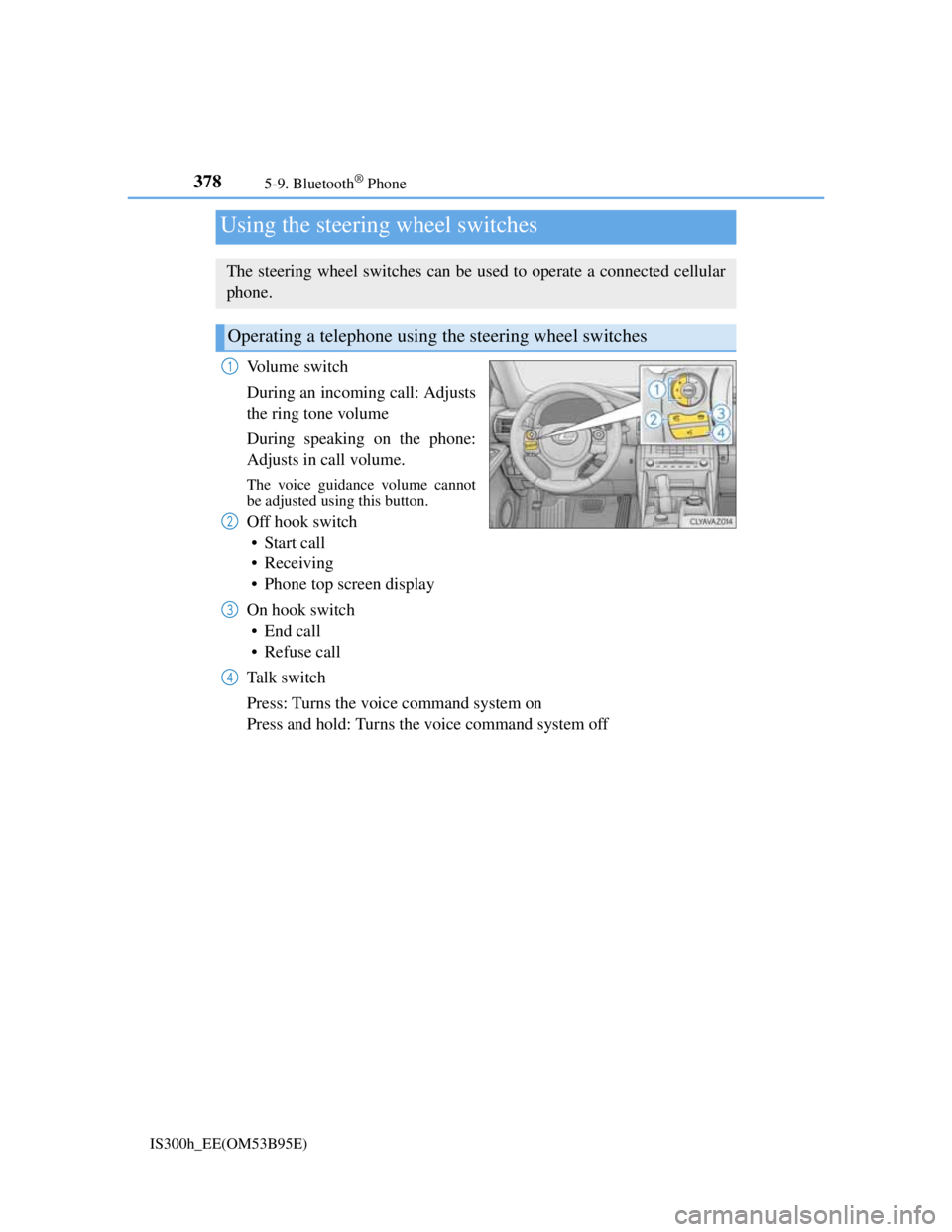
Volume switch
During an incoming call: Adjusts
the ring tone volume
During speaking on the phone:
Adjusts in call volume.
The voice guidance volume cannot
be adjusted using this button.
Off hook switch
• Start call
• Receiving
• Phone top screen display
On hook switch
•End call
• Refuse call
Talk switch
Press: Turns the voice command system on
Press and hold: Turns the voice command system off
Using the steering wheel switches
The steering wheel switches can be used to operate a connected cellular
phone.
Operating a telephone using the steering wheel switches
1
2
3
4
Page 405 of 628
3915-12. Other function
5
Lexus Display Audio system
IS300h_EE(OM53B95E)
P. 3 2 3
Go to “MirrorLink
*”: “Info” “MirrorLink*”
Select the desired application on the application list screen.
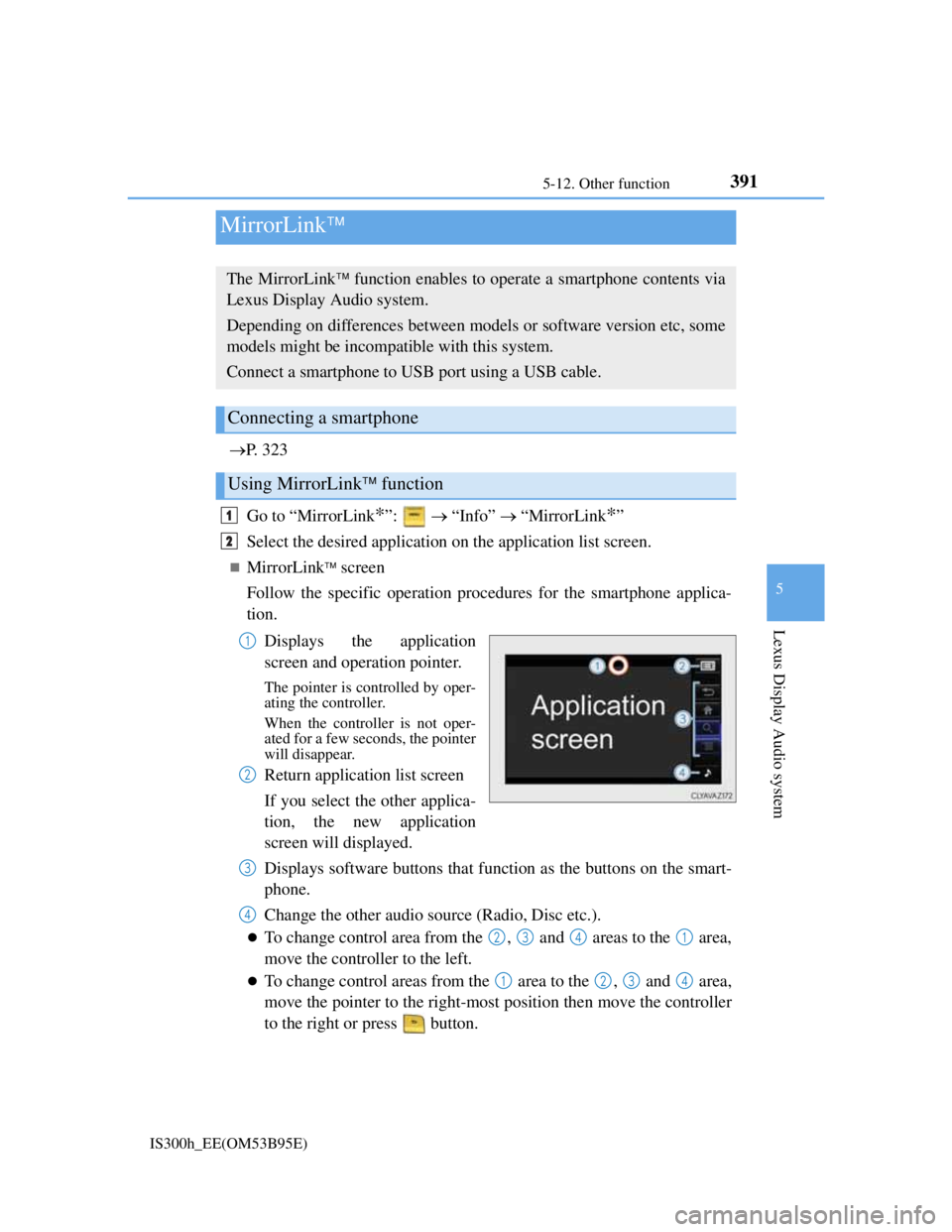
MirrorLink screen
Follow the specific operation procedures for the smartphone applica-
tion.
Displays the application
screen and operation pointer.
The pointer is controlled by oper-
ating the controller.
When the controller is not oper-
ated for a few seconds, the pointer
will disappear.
Return application list screen
If you select the other applica-
tion, the new application
screen will displayed.
Displays software buttons that function as the buttons on the smart-
phone.
Change the other audio source (Radio, Disc etc.).
To change control area from the , and areas to the area,
move the controller to the left.
To change control areas from the area to the , and area,
move the pointer to the right-most position then move the controller
to the right or press button.
MirrorLink
The MirrorLink function enables to operate a smartphone contents via
Lexus Display Audio system.
Depending on differences between models or software version etc, some
models might be incompatible with this system.
Connect a smartphone to USB port using a USB cable.
Connecting a smartphone
Using MirrorLink function
1
2
1
2
3
4
2341
1234
Page 412 of 628
398
IS300h_EE(OM53B95E)6-1. Using the air conditioning system
Automatic air conditioning system
Air outlets and fan speed are automatically adjusted according to the
temperature setting.
Vehicles with a Lexus Display Audio system: Press the “MENU” button
on the Lexus Display Audio controller, then select “Climate” to display
the air conditioning operation screen.
For details on the Lexus Display Audio controller, refer to “Lexus Dis-
play Audio controller” on P. 318.
Vehicles with a navigation system: Press the “MENU” button on the
Remote Touch, then select “Climate” to display the air conditioning con-
trol screen.
For details on the Remote Touch, refer to the “Navigation System
Owner’s Manual”.
The illustrations below are for left-hand drive vehicles.
The button positions and shapes will differ for right-hand drive vehicles.
Also, the display and button positions will differ depending on the type
of the system.
Page 414 of 628
4006-1. Using the air conditioning system
IS300h_EE(OM53B95E)
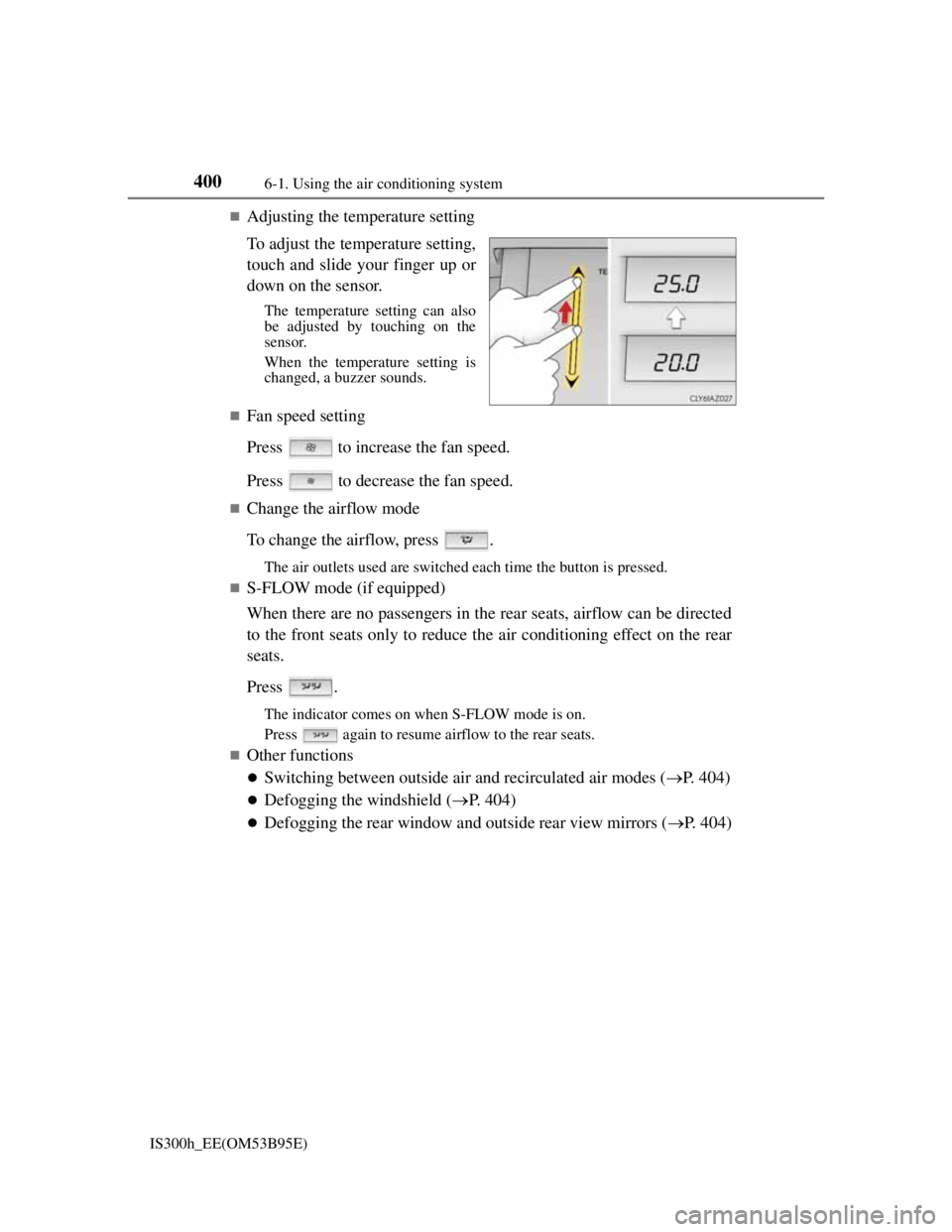
Adjusting the temperature setting
To adjust the temperature setting,
touch and slide your finger up or
down on the sensor.
The temperature setting can also
be adjusted by touching on the
sensor.
When the temperature setting is
changed, a buzzer sounds.
Fan speed setting
Press to increase the fan speed.
Press to decrease the fan speed.
Change the airflow mode
To change the airflow, press .
The air outlets used are switched each time the button is pressed.
S-FLOW mode (if equipped)
When there are no passengers in the rear seats, airflow can be directed
to the front seats only to reduce the air conditioning effect on the rear
seats.
Press .
The indicator comes on when S-FLOW mode is on.
Press again to resume airflow to the rear seats.
Other functions
Switching between outside air and recirculated air modes (P. 404)
Defogging the windshield (P. 404)
Defogging the rear window and outside rear view mirrors (P. 404)