ECO LEXUS RX200T 2017 Owner's Guide
[x] Cancel search | Manufacturer: LEXUS, Model Year: 2017, Model line: RX200T, Model: LEXUS RX200T 2017Pages: 776, PDF Size: 44.51 MB
Page 108 of 776
1082. Instrument cluster
RX350/RX200t_EE_OM48F32E
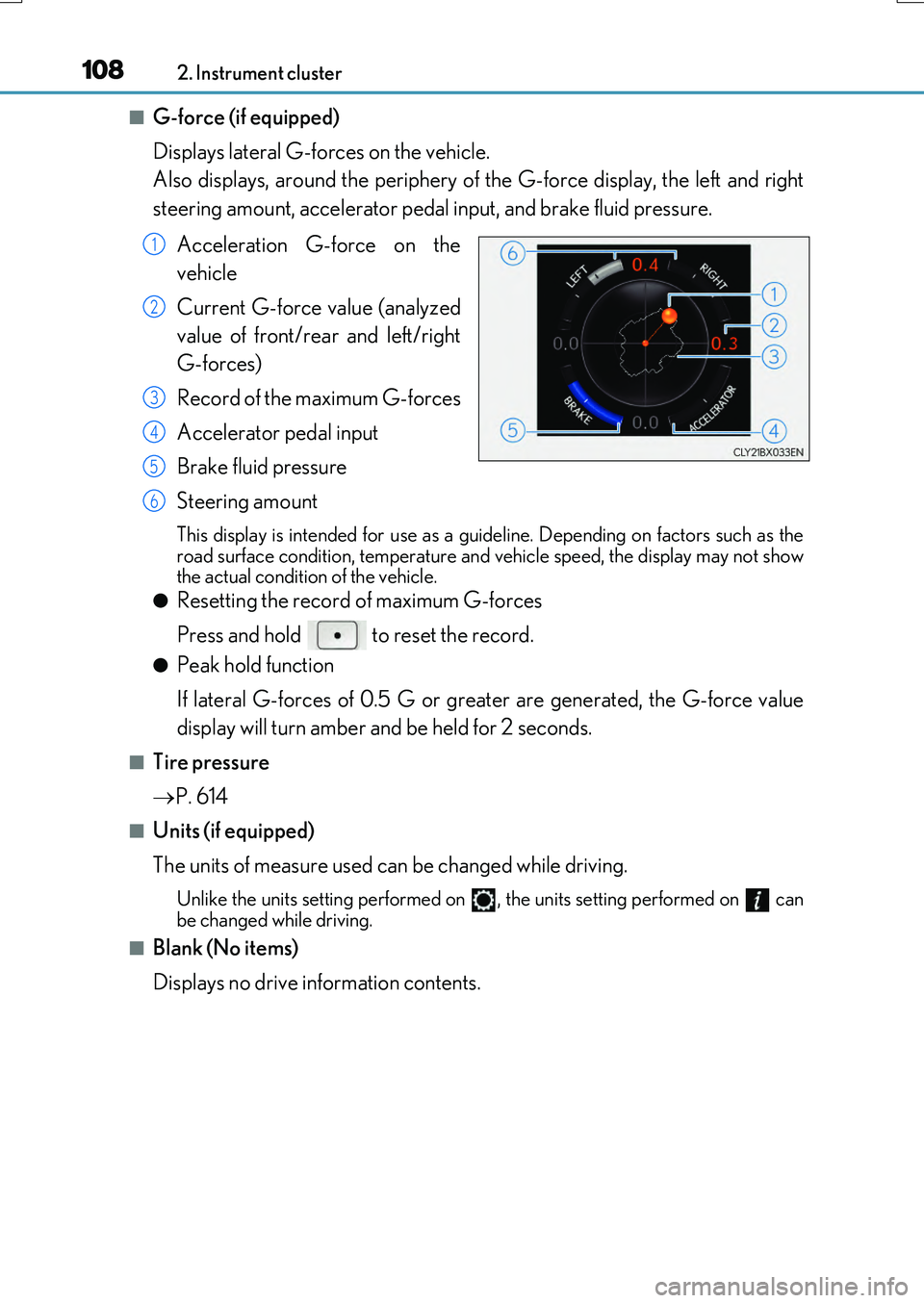
■G-force (if equipped)
Displays lateral G-forces on the vehicle.
Also displays, around the periphery of the G-force display, the left and right
steering amount, accelerator pedal input, and brake fluid pressure.
Acceleration G-force on the
vehicle
Current G-force value (analyzed
value of front/rear and left/right
G-forces)
Record of the maximum G-forces
Accelerator pedal input
Brake fluid pressure
Steering amount
This display is intended for use as a guid eline. Depending on factors such as the road surface condition, temperature and vehicle speed, the display may not showthe actual condition of the vehicle.
●Resetting the record of maximum G-forces
Press and hold to reset the record.
●Peak hold function
If lateral G-forces of 0.5 G or grea ter are generated, the G-force value
display will turn amber and be held for 2 seconds.
■Tire pressure
P. 614
■Units (if equipped)
The units of measure used can be changed while driving.
Unlike the units setting performed on , the units setting performed on can be changed while driving.
■Blank (No items)
Displays no drive information contents.
1
2
3
4
5
6
Page 113 of 776
1132. Instrument cluster
2
Instrument cluster
RX350/RX200t_EE_OM48F32E
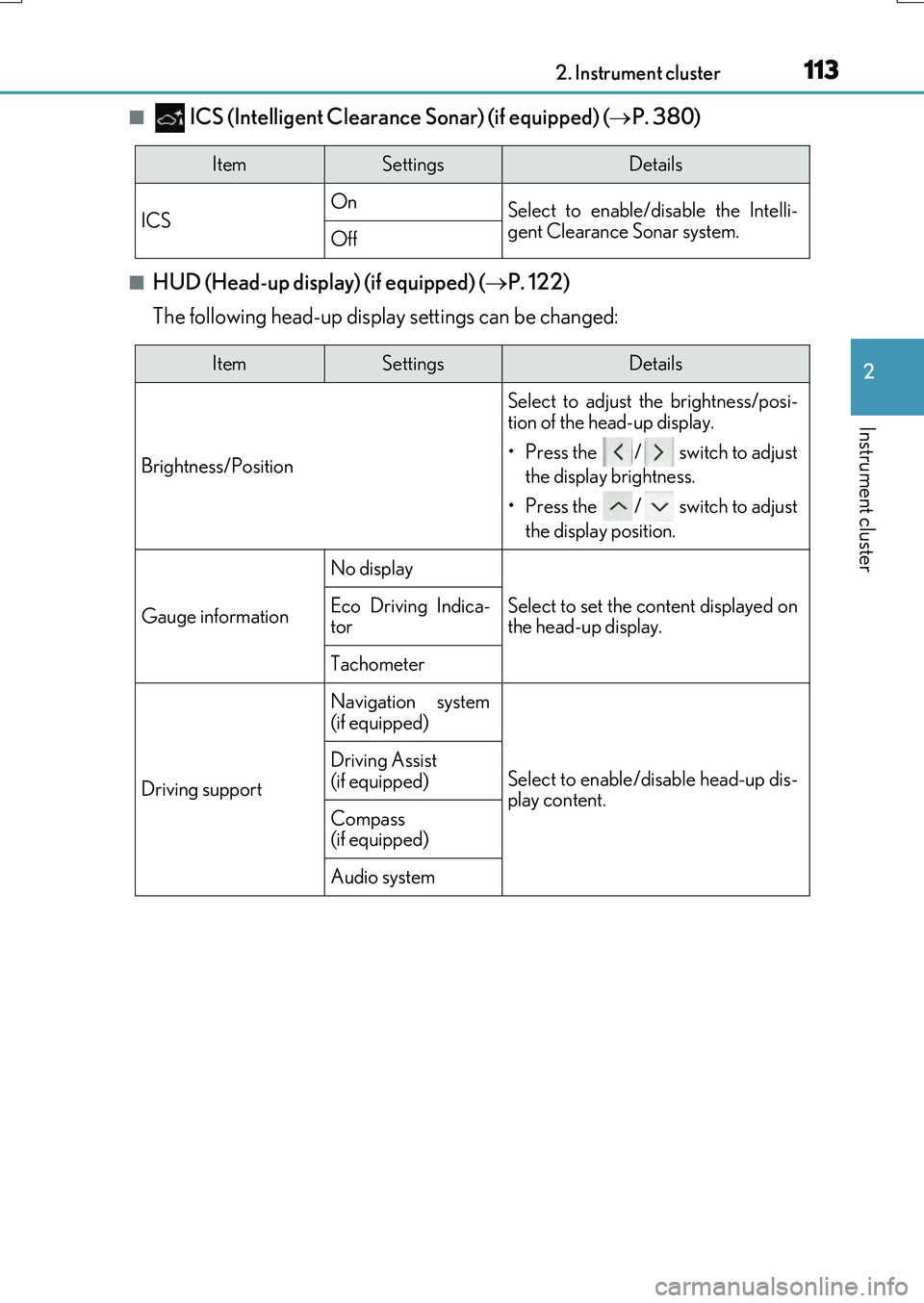
■ ICS (Intelligent Clearance Sonar) (if equipped) (P. 380)
■HUD (Head-up display) (if equipped) (P. 122)
The following head-up display settings can be changed:
ItemSettingsDetails
ICS On Select to enable/disable the Intelli- gent Clearance Sonar system.Off
ItemSettingsDetails
Brightness/Position
Select to adjust the brightness/posi-
tion of the head-up display.
• Press the / switch to adjust
the display brightness.
• Press the / switch to adjust
the display position.
Gauge information
No display
Select to set the content displayed on the head-up display.Eco Driving Indica-tor
Tachometer
Driving support
Navigation system
(if equipped)
Select to enable/disable head-up dis- play content.
Driving Assist (if equipped)
Compass (if equipped)
Audio system
Page 116 of 776
1162. Instrument cluster
RX350/RX200t_EE_OM48F32E
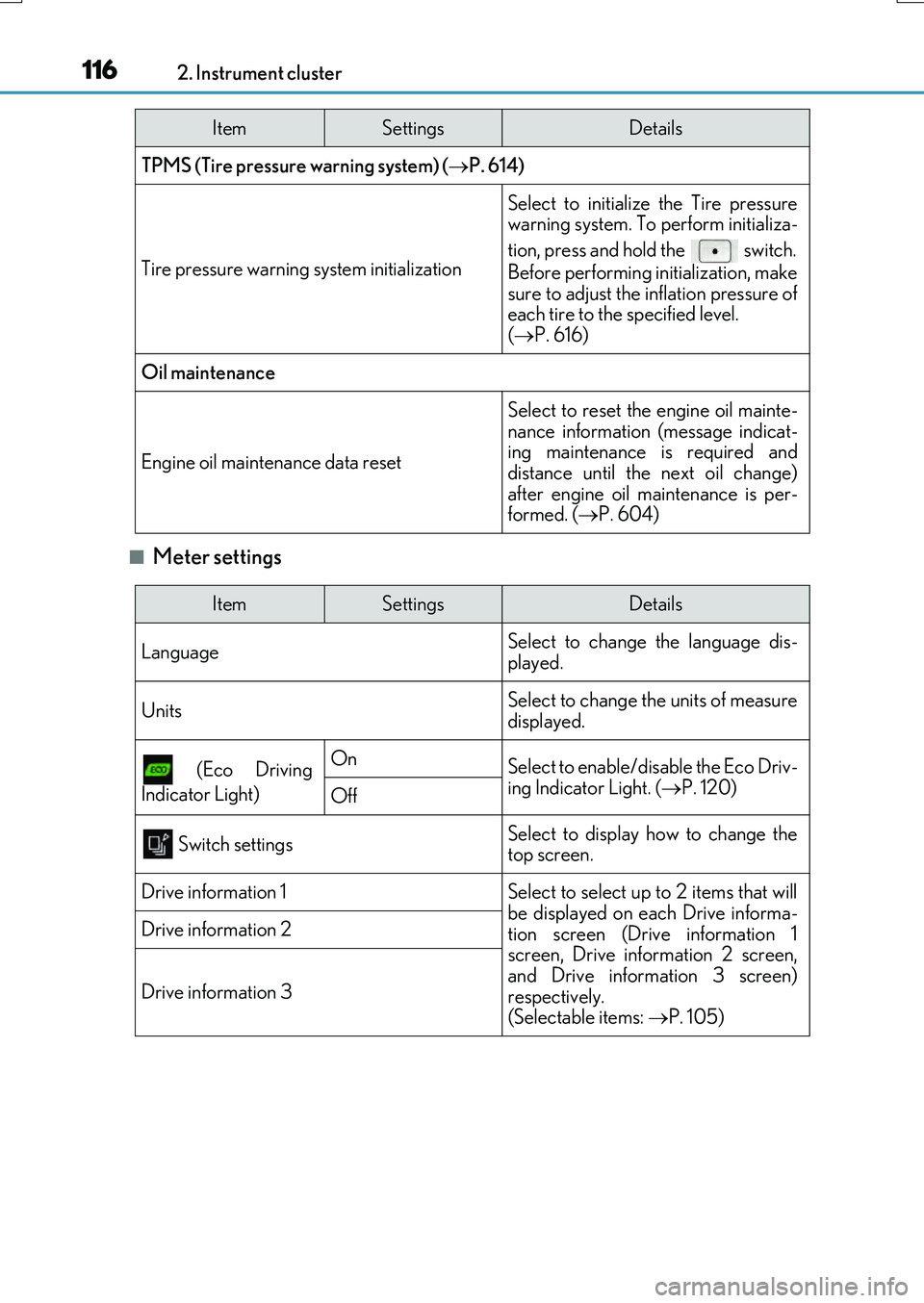
■Meter settings
TPMS (Tire pressure warning system) (P. 614)
Tire pressure warning system initialization
Select to initialize the Tire pressure warning system. To perform initializa-
tion, press and hold the switch.
Before performing initialization, make
sure to adjust the inflation pressure of each tire to the specified level. ( P. 616)
Oil maintenance
Engine oil maintenance data reset
Select to reset the engine oil mainte-
nance information (message indicat- ing maintenance is required anddistance until the next oil change)
after engine oil maintenance is per- formed. ( P. 604)
ItemSettingsDetails
ItemSettingsDetails
Language Select to change the language dis-
played.
UnitsSelect to change the units of measure displayed.
(Eco Driving
Indicator Light)
OnSelect to enable/disable the Eco Driv-
ing Indicator Light. ( P. 120)Off
Switch settingsSelect to display how to change the top screen.
Drive information 1Select to select up to 2 items that will
be displayed on each Drive informa- tion screen (Drive information 1screen, Drive information 2 screen,
and Drive information 3 screen) respectively. (Selectable items: P. 105)
Drive information 2
Drive information 3
Page 118 of 776
1182. Instrument cluster
RX350/RX200t_EE_OM48F32E
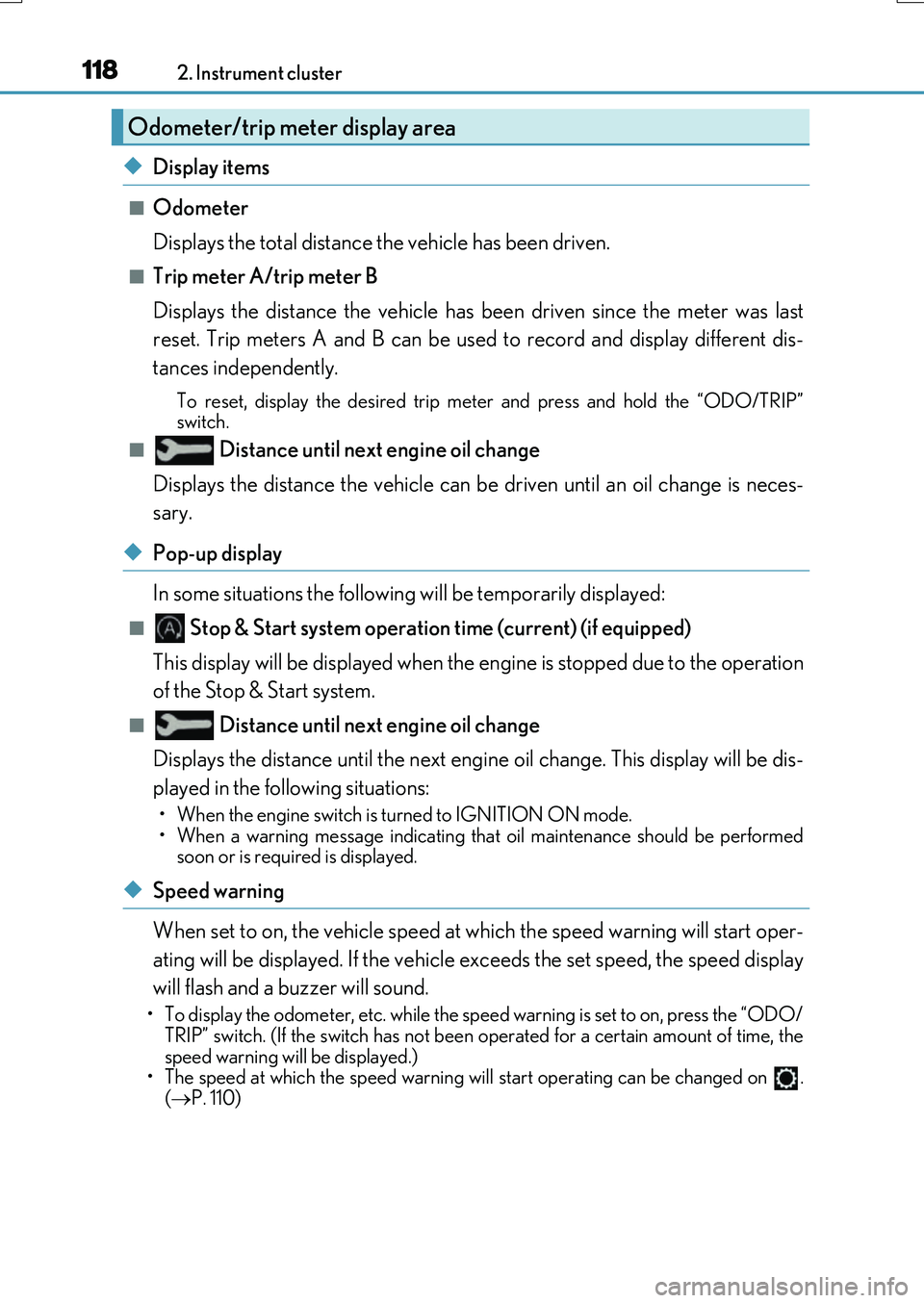
◆Display items
■Odometer
Displays the total distance the vehicle has been driven.
■Trip meter A/trip meter B
Displays the distance the vehicle has been driven since the meter was last
reset. Trip meters A and B can be used to record and display different dis-
tances independently.
To reset, display the desired trip meter and press and hold the “ODO/TRIP”
switch.
■ Distance until next engine oil change
Displays the distance the vehicle can be driven until an oil change is neces-
sary.
◆Pop-up display
In some situations the following will be temporarily displayed:
■ Stop & Start system operation time (current) (if equipped)
This display will be displayed when the engine is stopped due to the operation
of the Stop & Start system.
■ Distance until next engine oil change
Displays the distance until the next engine oil change. This display will be dis-
played in the following situations:
• When the engine switch is turned to IGNITION ON mode.
• When a warning message indicating that oil maintenance should be performed
soon or is required is displayed.
◆Speed warning
When set to on, the vehicle speed at which the speed warning will start oper-
ating will be displayed. If the vehicle exceeds the set speed, the speed display
will flash and a buzzer will sound.
• To display the odometer, etc. while the speed warning is set to on, press the “ODO/ TRIP” switch. (If the switch has not been operated for a certain amount of time, the
speed warning will be displayed.)
• The speed at which the speed warning w ill start operating can be changed on .
( P. 110)
Odometer/trip meter display area
Page 120 of 776
1202. Instrument cluster
RX350/RX200t_EE_OM48F32E
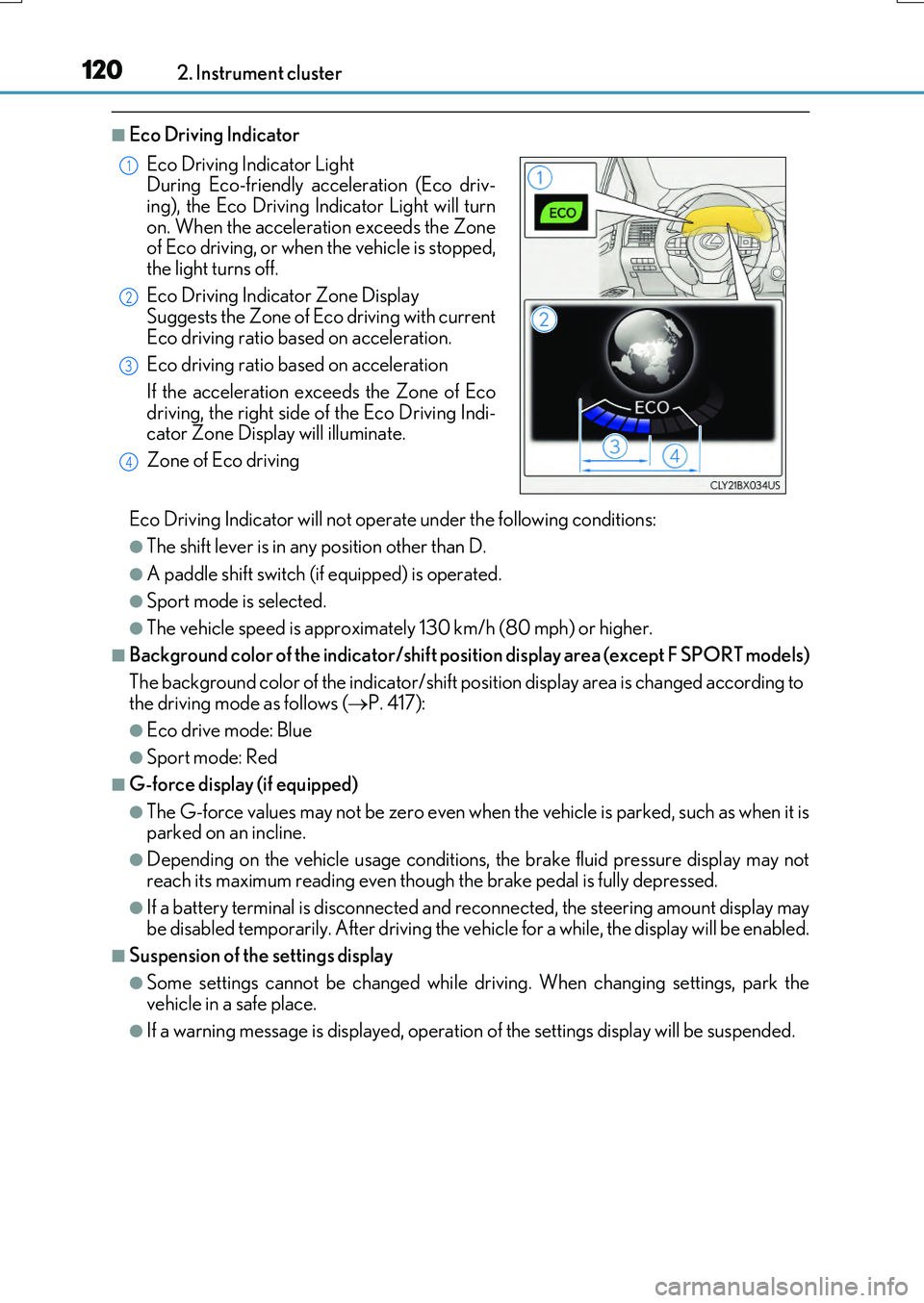
■Eco Driving Indicator
Eco Driving Indicator will not operate under the following conditions:
●The shift lever is in any position other than D.
●A paddle shift switch (if equipped) is operated.
●Sport mode is selected.
●The vehicle speed is approximately 130 km/h (80 mph) or higher.
■Background color of the indicator/shift position display area (except F SPORT models)
The background color of the indicator/shift position display area is changed according to the driving mode as follows ( P. 417):
●Eco drive mode: Blue
●Sport mode: Red
■G-force display (if equipped)
●The G-force values may not be zero even when the vehicle is parked, such as when it is parked on an incline.
●Depending on the vehicle usage conditions, the brake fluid pressure display may not
reach its maximum reading even though the brake pedal is fully depressed.
●If a battery terminal is disconnected and reconnected, the steering amount display may be disabled temporarily. After driving the ve hicle for a while, the display will be enabled.
■Suspension of the settings display
●Some settings cannot be changed while driving. When changing settings, park the vehicle in a safe place.
●If a warning message is displayed, operation of the settings display will be suspended.
Eco Driving Indicator Light During Eco-friendly acceleration (Eco driv-
ing), the Eco Driving In dicator Light will turn on. When the acceleration exceeds the Zoneof Eco driving, or when the vehicle is stopped,
the light turns off.
Eco Driving Indicator Zone Display Suggests the Zone of Eco driving with current
Eco driving ratio based on acceleration.
Eco driving ratio based on acceleration
If the acceleration exceeds the Zone of Eco
driving, the right side of the Eco Driving Indi- cator Zone Display will illuminate.
Zone of Eco driving
1
2
3
4
Page 123 of 776
1232. Instrument cluster
2
Instrument cluster
RX350/RX200t_EE_OM48F32E
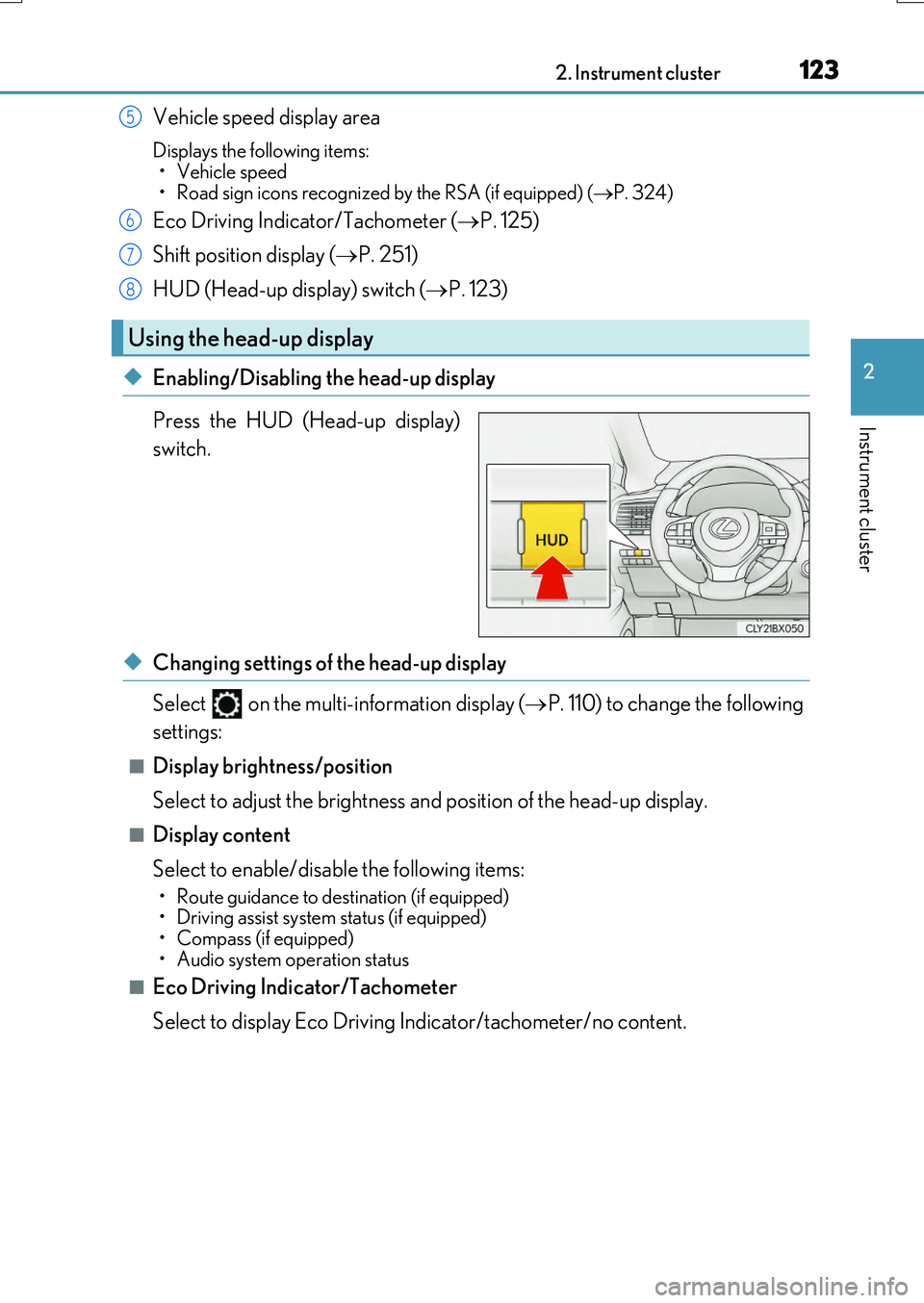
Vehicle speed display area
Displays the following items:
• Vehicle speed • Road sign icons recognized by the RSA (if equipped) ( P. 324)
Eco Driving Indicator/Tachometer (P. 125)
Shift position display ( P. 251)
HUD (Head-up display) switch ( P. 123)
◆Enabling/Disabling the head-up display
Press the HUD (Head-up display)
switch.
◆Changing settings of the head-up display
Select on the multi-information display ( P. 110) to change the following
settings:
■Display brightness/position
Select to adjust the brightness and position of the head-up display.
■Display content
Select to enable/disable the following items:
• Route guidance to destination (if equipped) • Driving assist system status (if equipped)• Compass (if equipped)
• Audio system operation status
■Eco Driving Indicator/Tachometer
Select to display Eco Driving Indicator/tachometer/no content.
Using the head-up display
5
6
7
8
Page 125 of 776
1252. Instrument cluster
2
Instrument cluster
RX350/RX200t_EE_OM48F32E
Displays the following items which are linked to the navigation system:
■Street name
The name of the street that the vehicle is currently driving on is displayed on
the bottom of the display area.
When the navigation system is performing route guidance, the name of the
next street will be displayed on the top of the display area.
■Route guidance to destination
Displayed when the navigation system is performing route guidance. When
approaching an intersection, an arrow will be displayed to indicate the sug-
gested direction of travel.
■Compass
Displays the direction of travel.
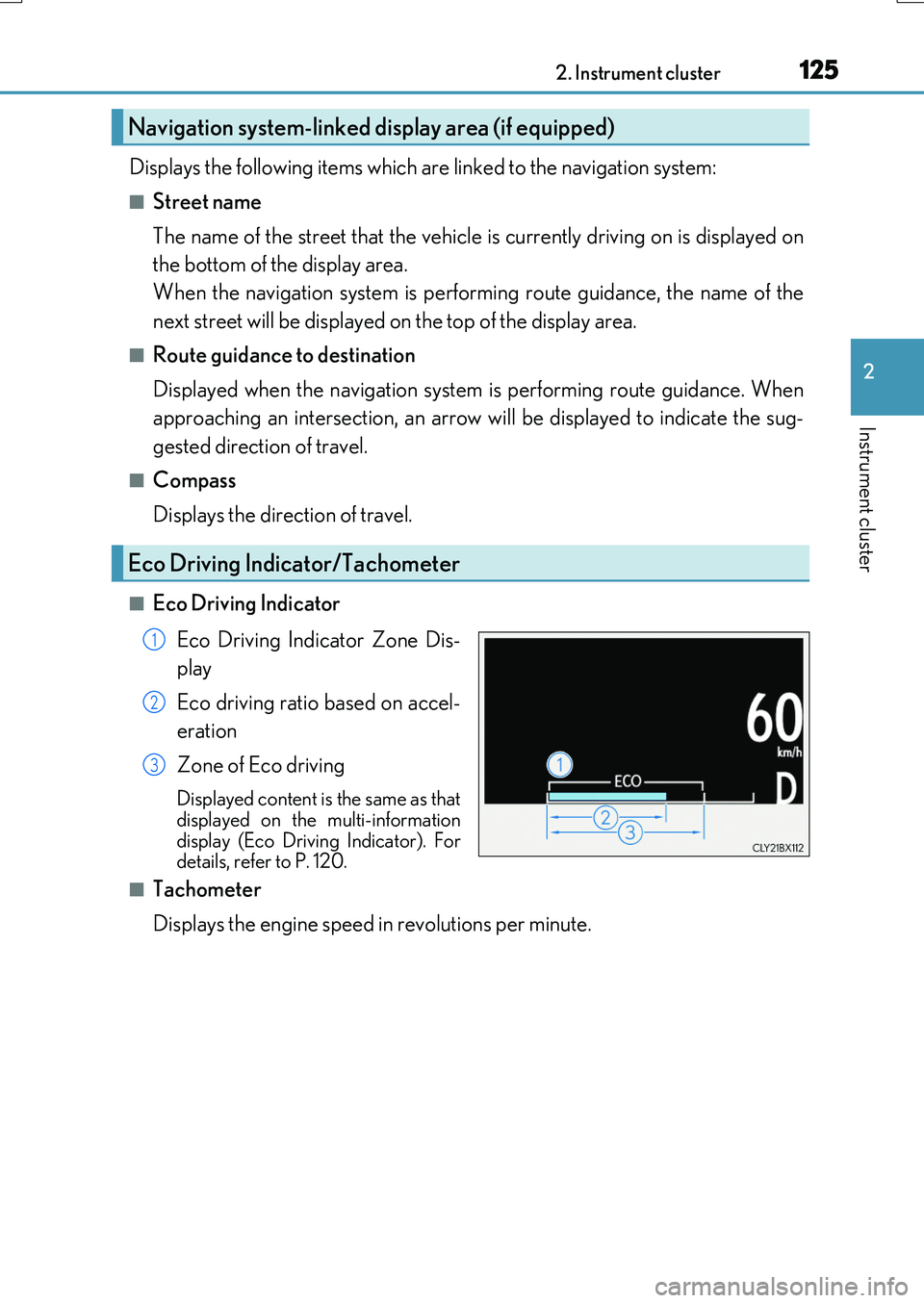
■Eco Driving Indicator
Eco Driving Indicator Zone Dis-
play
Eco driving ratio based on accel-
eration
Zone of Eco driving
Displayed content is the same as that displayed on the multi-information
display (Eco Driving Indicator). For details, refer to P. 120.
■Tachometer
Displays the engine speed in revolutions per minute.
Navigation system-linked display area (if equipped)
Eco Driving Indicator/Tachometer
1
2
3
Page 129 of 776
1292. Instrument cluster
2
Instrument cluster
RX350/RX200t_EE_OM48F32E
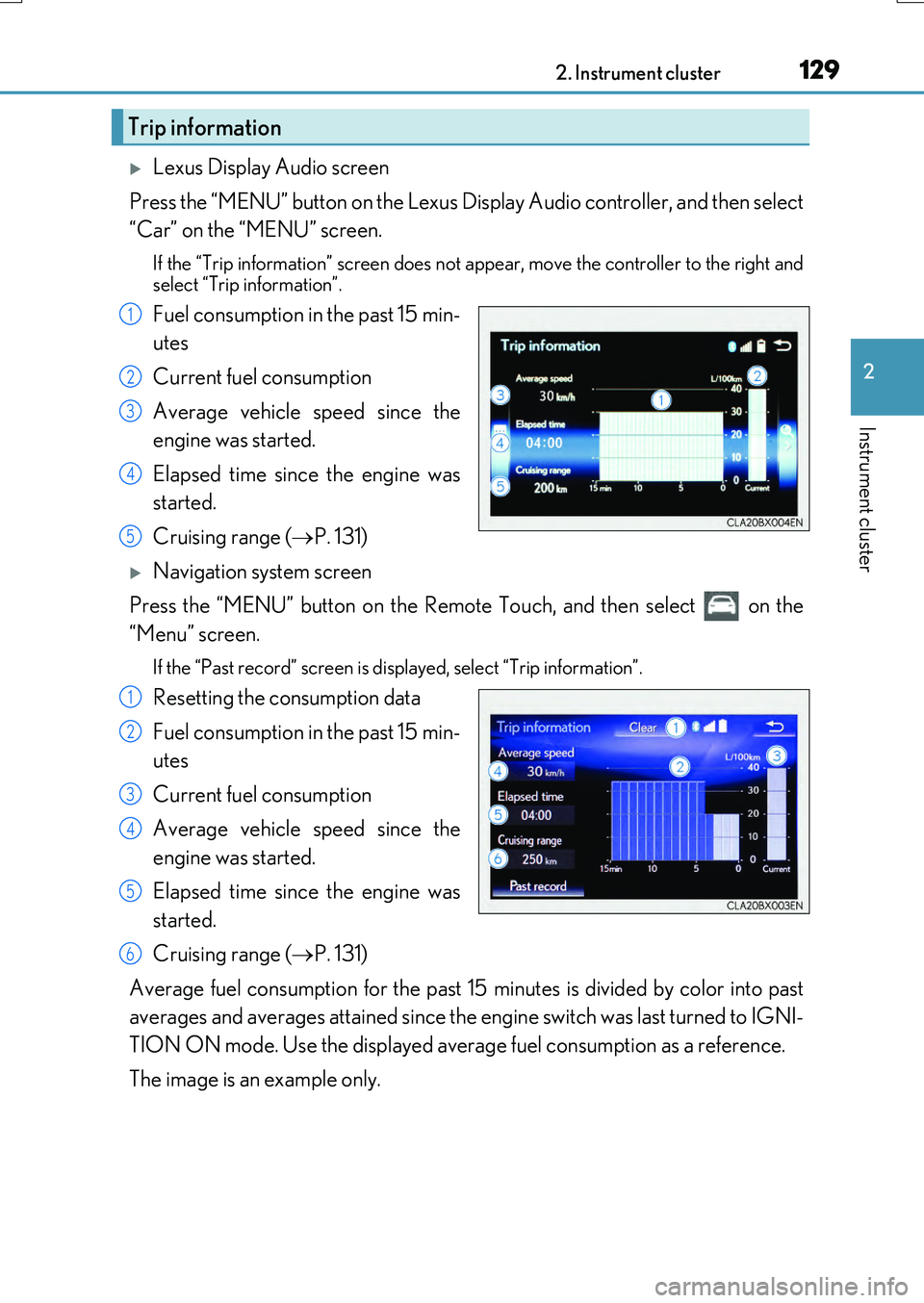
Lexus Display Audio screen
Press the “MENU” button on the Lexus Display Audio controller, and then select
“Car” on the “MENU” screen.
If the “Trip information” screen does not appear, move the controller to the right and
select “Trip information”.
Fuel consumption in the past 15 min-
utes
Current fuel consumption
Average vehicle speed since the
engine was started.
Elapsed time since the engine was
started.
Cruising range ( P. 131)
Navigation system screen
Press the “MENU” button on the Remote Touch, and then select on the
“Menu” screen.
If the “Past record” screen is displayed, select “Trip information”.
Resetting the consumption data
Fuel consumption in the past 15 min-
utes
Current fuel consumption
Average vehicle speed since the
engine was started.
Elapsed time since the engine was
started.
Cruising range ( P. 131)
Average fuel consumption for the past 15 minutes is divided by color into past
averages and averages attained since the engine switch was last turned to IGNI-
TION ON mode. Use the displayed average fuel consumption as a reference.
The image is an example only.
Trip information
1
2
3
4
5
1
2
3
4
5
6
Page 130 of 776
1302. Instrument cluster
RX350/RX200t_EE_OM48F32E
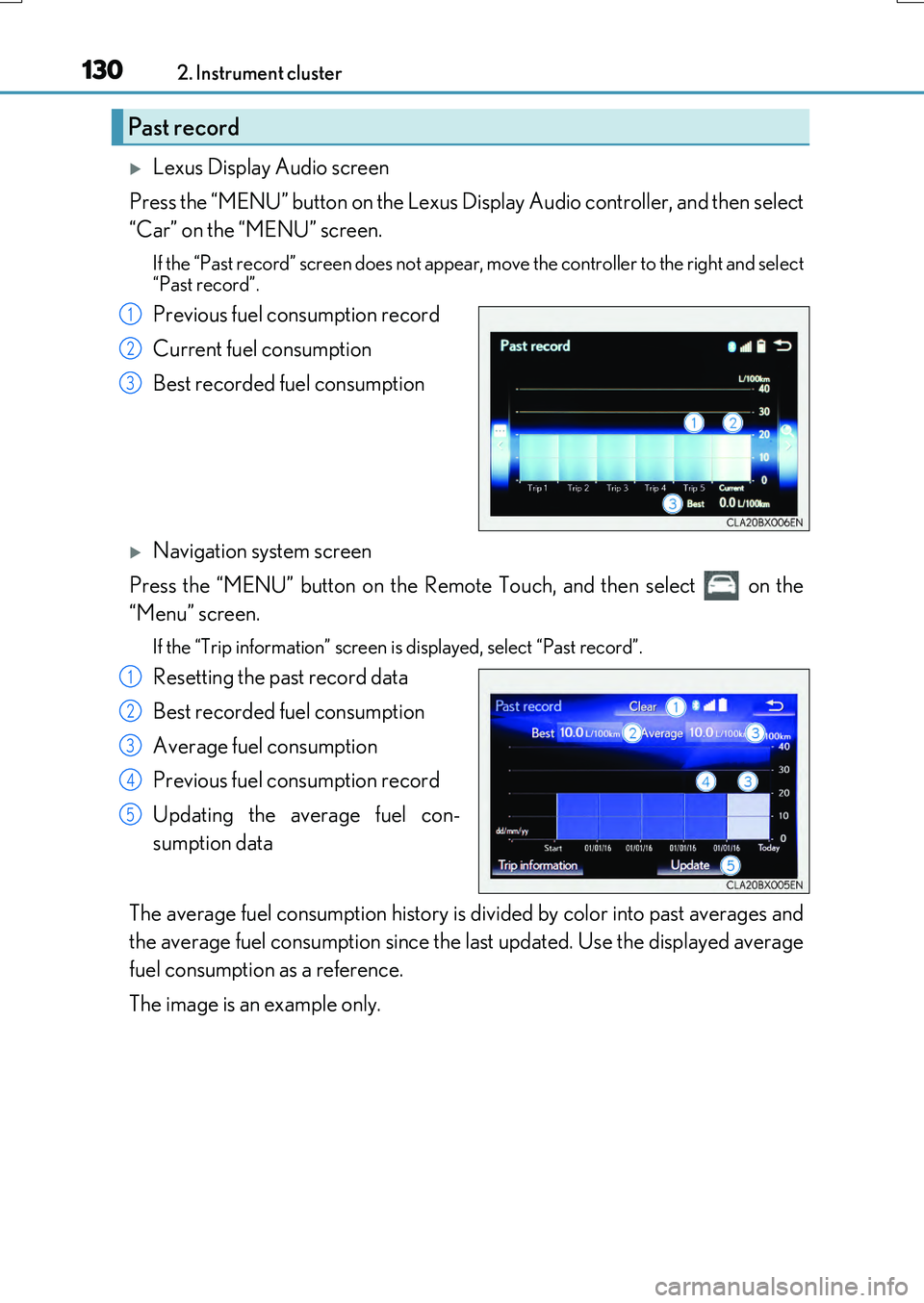
Lexus Display Audio screen
Press the “MENU” button on the Lexus Display Audio controller, and then select
“Car” on the “MENU” screen.
If the “Past record” screen does not appear , move the controller to the right and select
“Past record”.
Previous fuel consumption record
Current fuel consumption
Best recorded fuel consumption
Navigation system screen
Press the “MENU” button on the Remote Touch, and then select on the
“Menu” screen.
If the “Trip information” screen is displayed, select “Past record”.
Resetting the past record data
Best recorded fuel consumption
Average fuel consumption
Previous fuel consumption record
Updating the average fuel con-
sumption data
The average fuel consumption history is di vided by color into past averages and
the average fuel consumption since the last updated. Use the displayed average
fuel consumption as a reference.
The image is an example only.
Past record
1
2
3
1
2
3
4
5
Page 131 of 776
1312. Instrument cluster
2
Instrument cluster
RX350/RX200t_EE_OM48F32E
■Updating the past record data
Vehicles with a Lexus Display Audio system
Update the average fuel consumption by moving the controller to the left and select “Update” to measure the current fuel consumption again.
Vehicles with a navigation system
Update the average fuel consumption by selecting “Update” to measure the current fuel consumption again.
■Resetting the data
Vehicles with a Lexus Display Audio system
The fuel consumption data can be deleted by moving the controller to the left and select
“Clear”.
Vehicles with a navigation system
The fuel consumption data can be deleted by selecting “Clear”.
■Cruising range
Displays the estimated maximum distance that can be driven with the quantity of fuel remaining.
This distance is computed based on your average fuel consumption. As a result, the actual distance that can be driven may differ from that displayed.