phone LEXUS RX350 2011 Owner's Manual
[x] Cancel search | Manufacturer: LEXUS, Model Year: 2011, Model line: RX350, Model: LEXUS RX350 2011Pages: 821, PDF Size: 13.27 MB
Page 356 of 821
286
3-2. Using the audio system
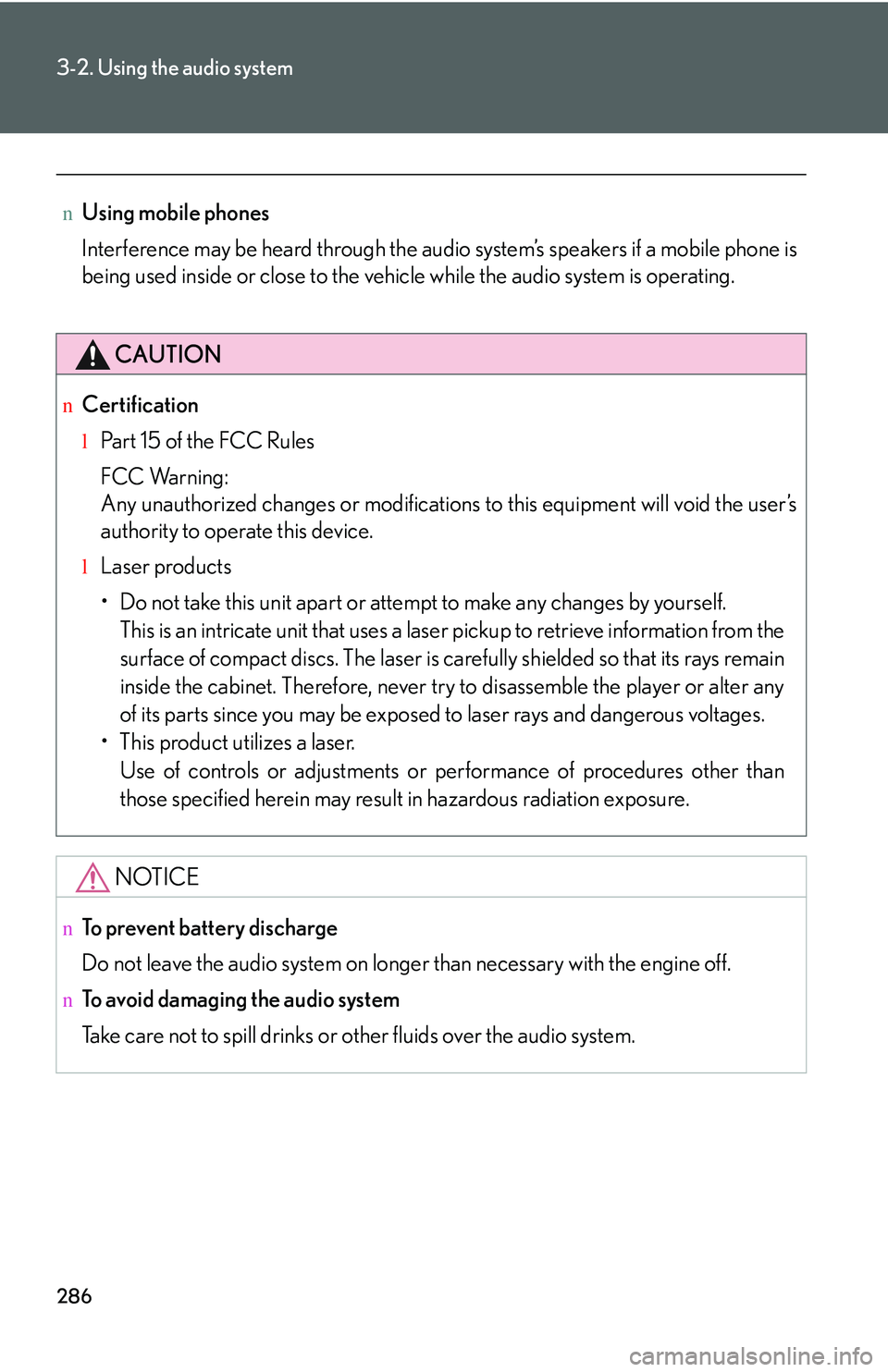
nUsing mobile phones
Interference may be heard through the audio system’s speakers if a mobile phone is
being used inside or close to the vehicle while the audio system is operating.
CAUTION
nCertification
lPa r t 1 5 o f t h e F CC Ru l e s
FCC Warning:
Any unauthorized changes or modifications to this equipment will void the user’s
authority to operate this device.
lLaser products
Page 393 of 821
323
3-2. Using the audio system
3
Interior features
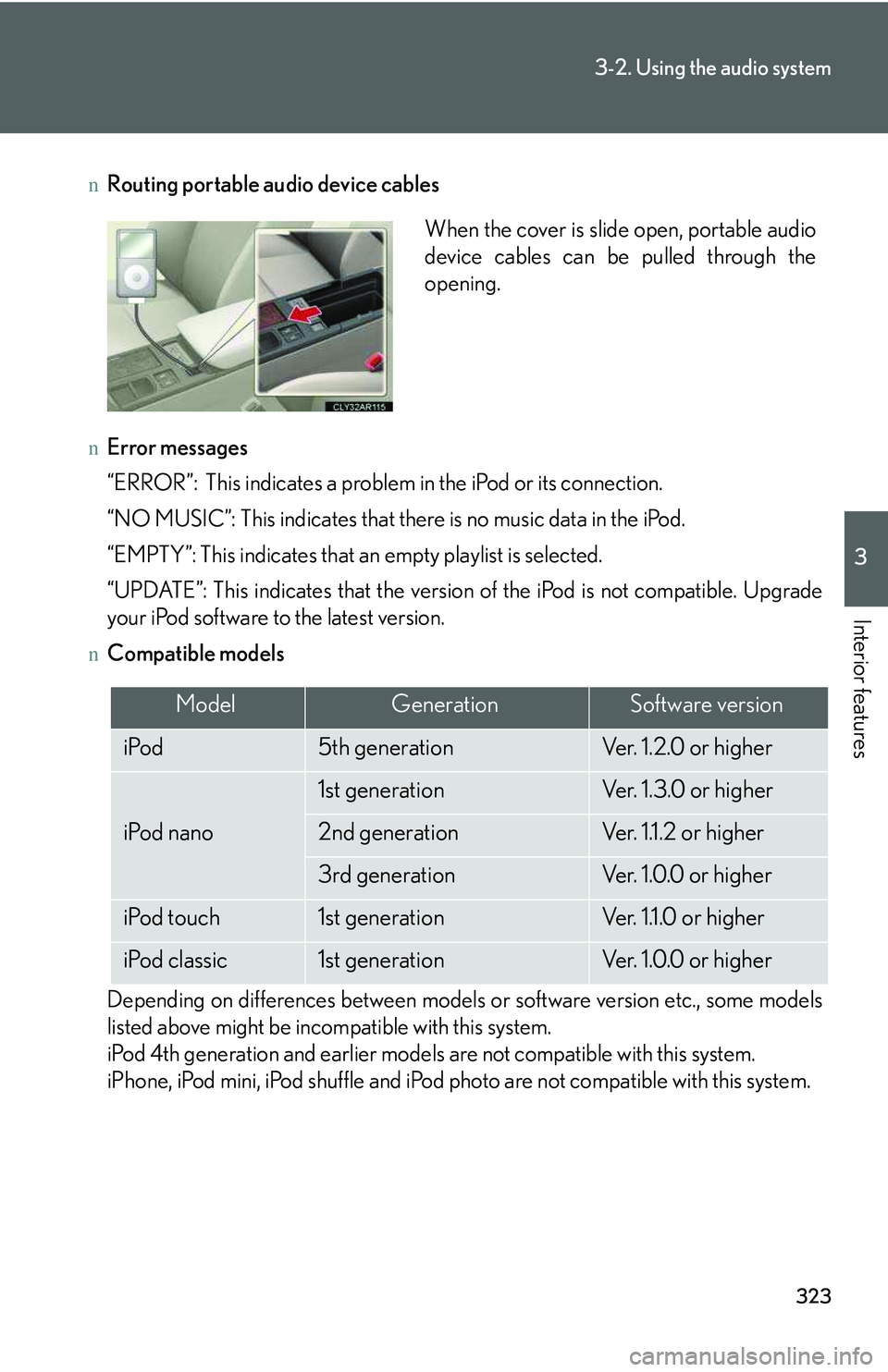
nRouting portable audio device cables
nError messages
“ERROR”: This indicates a problem in the iPod or its connection.
“NO MUSIC”: This indicates that there is no music data in the iPod.
“EMPTY”: This indicates that an empty playlist is selected.
“UPDATE”: This indicates that the version of the iPod is not compatible. Upgrade
your iPod software to the latest version.
nCompatible models
Depending on differences between models or software version etc., some models
listed above might be incompatible with this system.
iPod 4th generation and earlier models are not compatible with this system.
iPhone, iPod mini, iPod shuffle and iPod photo are not compatible with this system.
When the cover is slide open, portable audio
device cables can be pulled through the
opening.
ModelGenerationSoftware version
iPod5th generationVe r. 1 . 2 . 0 o r h i g h e r
iPod nano
1st generationVe r. 1 . 3 . 0 o r h i g h e r
2nd generationVer. 1.1.2 or higher
3rd generationVe r. 1 . 0 . 0 o r h i g h e r
iPod touch1st generationVer. 1.1.0 or higher
iPod classic1st generationVe r. 1 . 0 . 0 o r h i g h e r
Page 418 of 821
348
3-3. Using the Bluetooth® audio system
Guidance for registration completion is heard.
If the portable player has a Bluetooth® phone, the phone can be regis-
tered at the same time. A voice guidance instruction to register a Blue-
tooth® phone is heard.
Select “Yes” or “No” using a voice command or .
(Bluetooth® phone →P. 364)
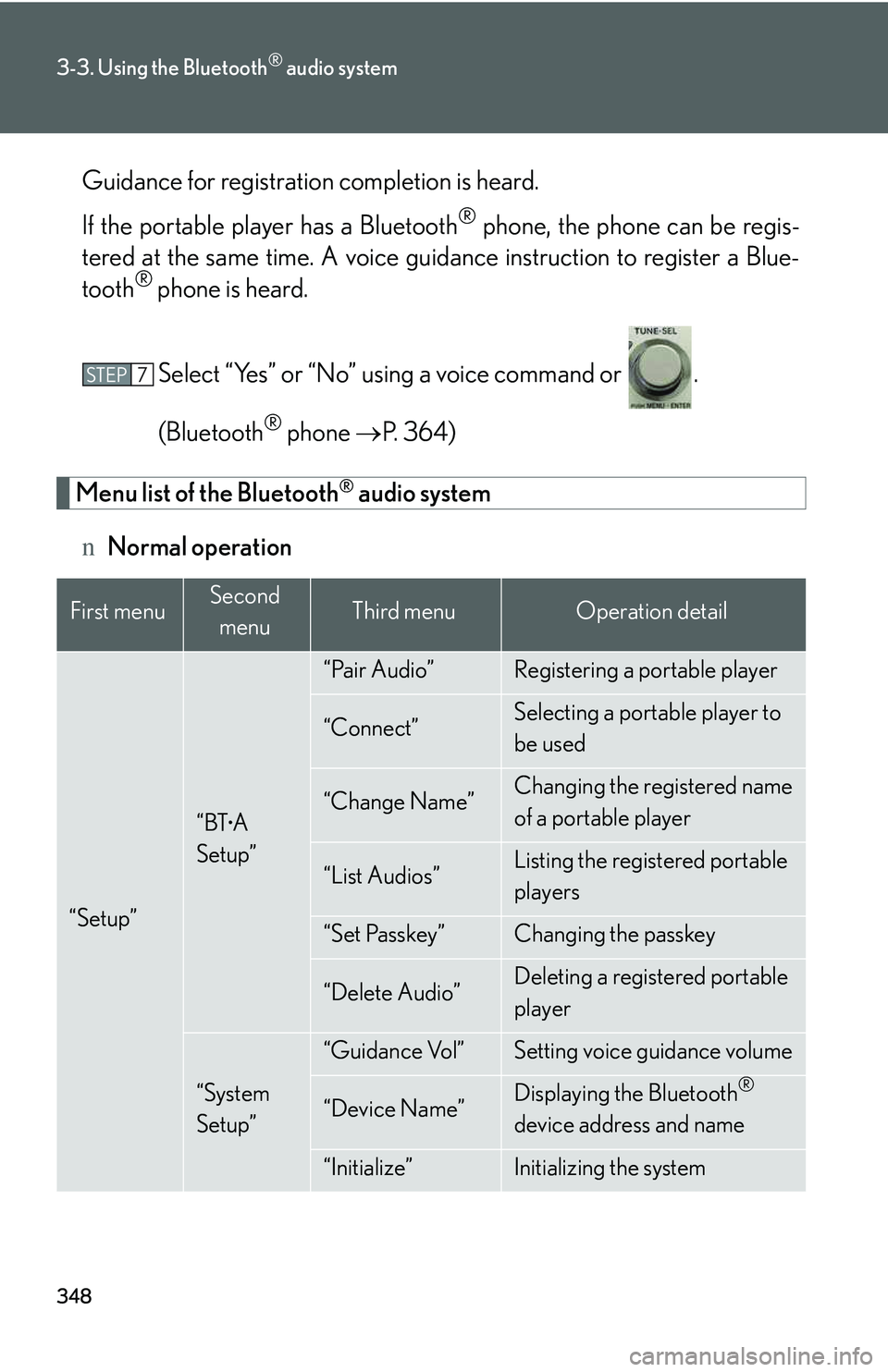
Menu list of the Bluetooth® audio system
nNormal operation
First menuSecond
menuThird menuOperation detail
“Setup”
“BTA
Setup”
“Pair Audio”Registering a portable player
“Connect”Selecting a portable player to
be used
“Change Name”Changing the registered name
of a portable player
“List Audios”Listing the registered portable
players
“Set Passkey”Changing the passkey
“Delete Audio”Deleting a registered portable
player
“System
Setup”
“Guidance Vol”Setting voice guidance volume
“Device Name”Displaying the Bluetooth®
device address and name
“Initialize”Initializing the system
STEP7
Page 419 of 821
349
3-3. Using the Bluetooth® audio system
3
Interior features
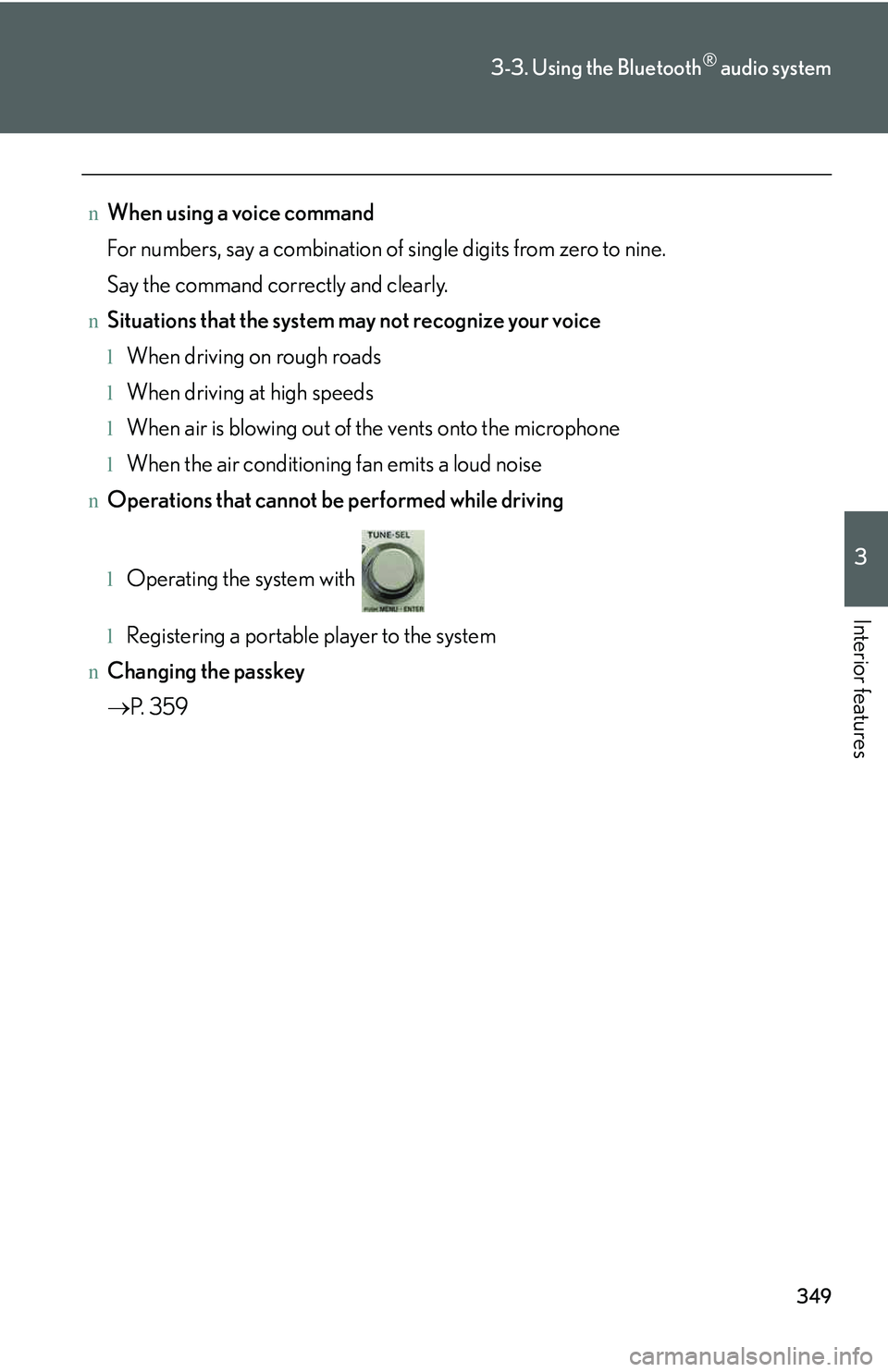
nWhen using a voice command
For numbers, say a combination of single digits from zero to nine.
Say the command correctly and clearly.
nSituations that the system may not recognize your voice
lWhen driving on rough roads
lWhen driving at high speeds
lWhen air is blowing out of the vents onto the microphone
lWhen the air conditioning fan emits a loud noise
nOperations that cannot be performed while driving
lOperating the system with
lRegistering a portable player to the system
nChanging the passkey
→P. 3 5 9
Page 430 of 821
360
3-3. Using the Bluetooth® audio system
Deleting a registered portable player
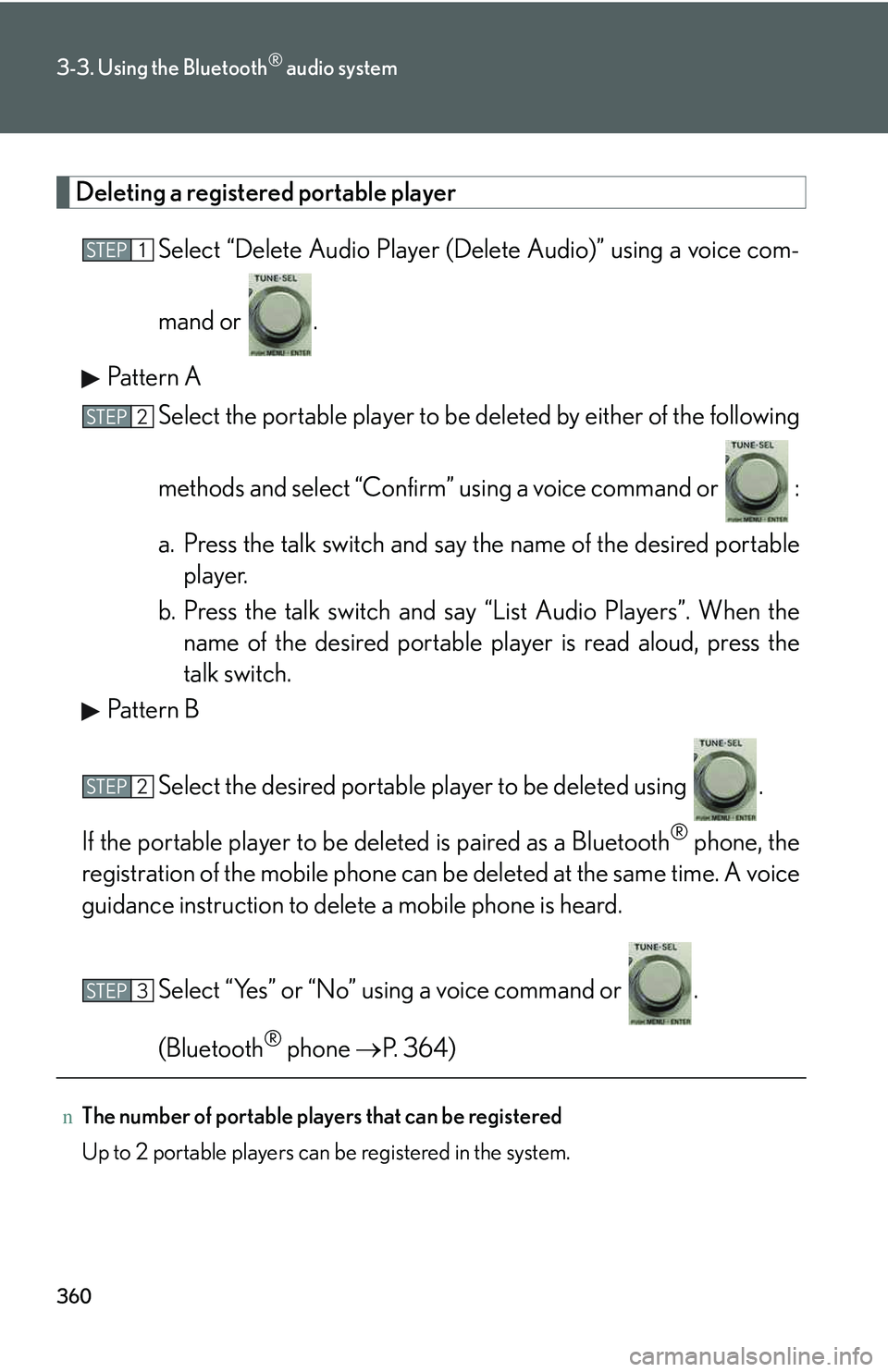
Select “Delete Audio Player (Delete Audio)” using a voice com-
mand or .
Pattern A
Select the portable player to be deleted by either of the following
methods and select “Confirm” using a voice command or :
a. Press the talk switch and say the name of the desired portable
player.
b. Press the talk switch and say “List Audio Players”. When the
name of the desired portable player is read aloud, press the
talk switch.
Pattern B
Select the desired portable player to be deleted using .
If the portable player to be deleted is paired as a Bluetooth® phone, the
registration of the mobile phone can be deleted at the same time. A voice
guidance instruction to delete a mobile phone is heard.
Select “Yes” or “No” using a voice command or .
(Bluetooth® phone →P. 364)
nThe number of portable players that can be registered
Up to 2 portable players can be registered in the system.
STEP1
STEP2
STEP2
STEP3
Page 432 of 821
362
3-4. Using the hands-free phone system (for mobile phones)
Hands-free system for mobile phones∗
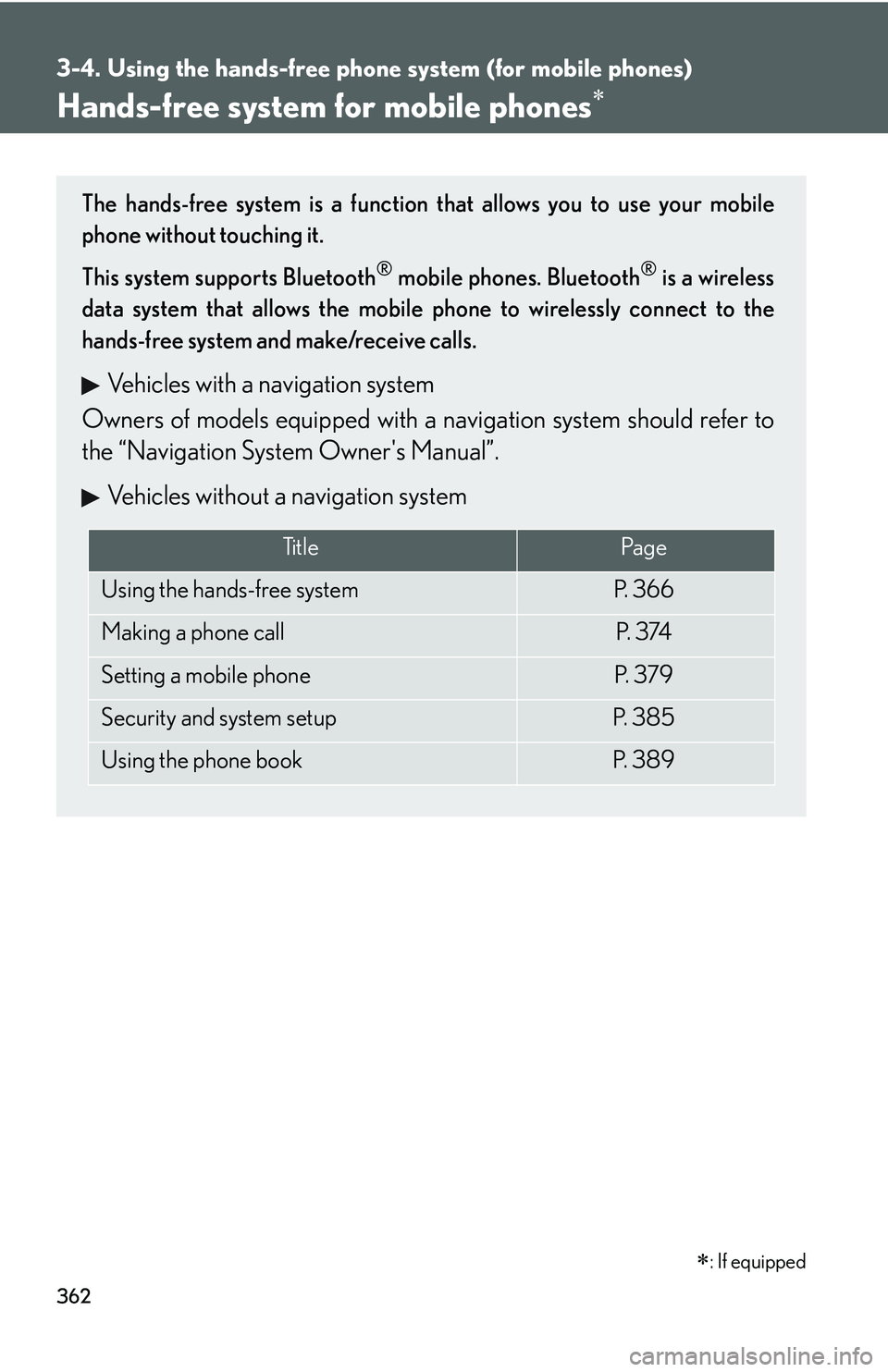
The hands-free system is a function that allows you to use your mobile
phone without touching it.
This system supports Bluetooth® mobile phones. Bluetooth® is a wireless
data system that allows the mobile phone to wirelessly connect to the
hands-free system and make/receive calls.
Vehicles with a navigation system
Owners of models equipped with a navigation system should refer to
the “Navigation System Owner's Manual”.
Vehicles without a navigation system
Ti t l ePa g e
Using the hands-free systemP. 3 6 6
Making a phone callP. 3 74
Setting a mobile phoneP. 3 7 9
Security and system setupP. 3 8 5
Using the phone bookP. 3 8 9
∗: If equipped
Page 433 of 821
363
3-4. Using the hands-free phone system (for mobile phones)
3
Interior features
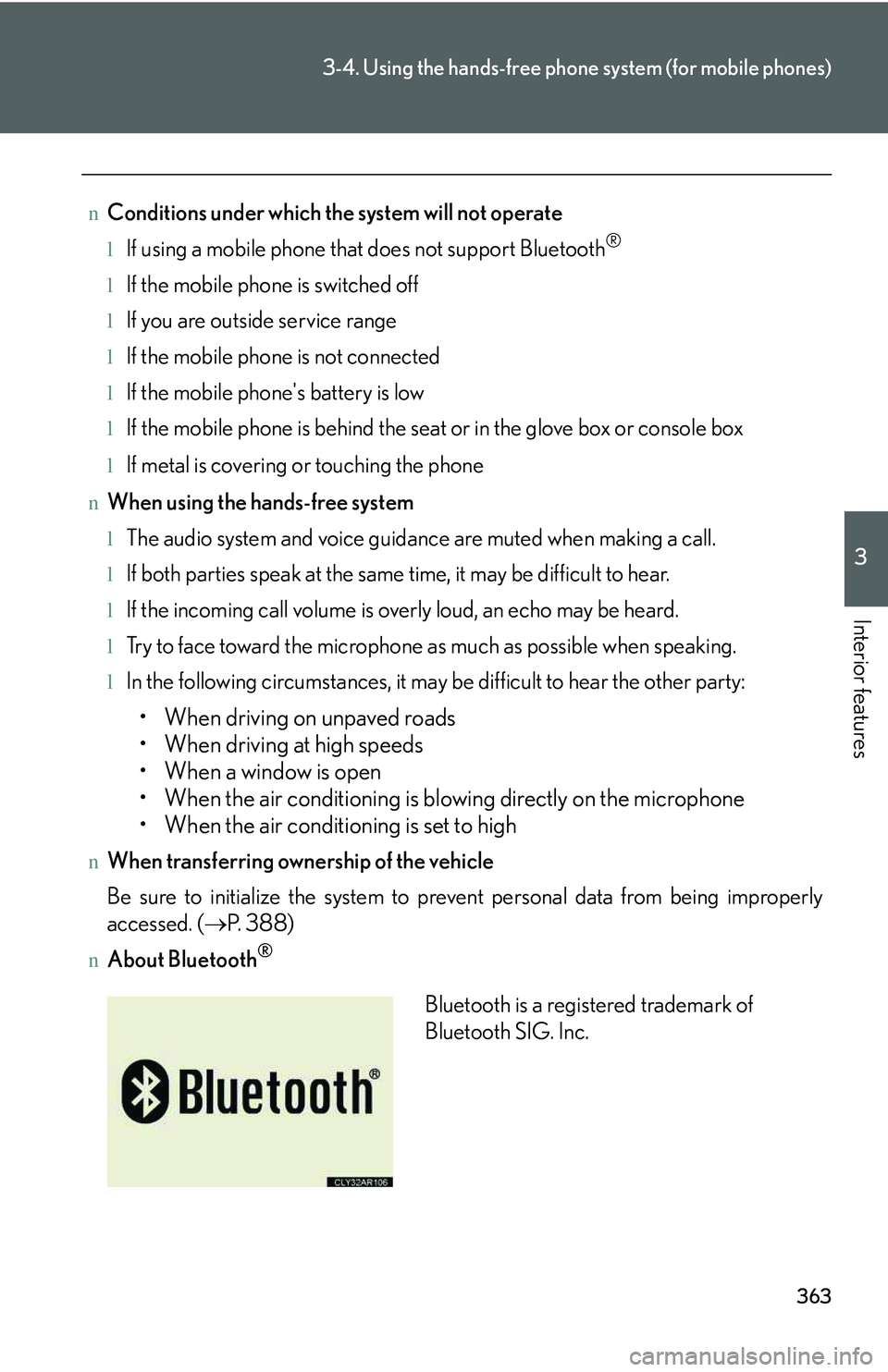
nConditions under which the system will not operate
lIf using a mobile phone that does not support Bluetooth®
lIf the mobile phone is switched off
lIf you are outside service range
lIf the mobile phone is not connected
lIf the mobile phone's battery is low
lIf the mobile phone is behind the seat or in the glove box or console box
lIf metal is covering or touching the phone
nWhen using the hands-free system
lThe audio system and voice guidance are muted when making a call.
lIf both parties speak at the same time, it may be difficult to hear.
lIf the incoming call volume is overly loud, an echo may be heard.
lTry to face toward the microphone as much as possible when speaking.
lIn the following circumstances, it may be difficult to hear the other party:
Page 434 of 821
364
3-4. Using the hands-free phone system (for mobile phones)
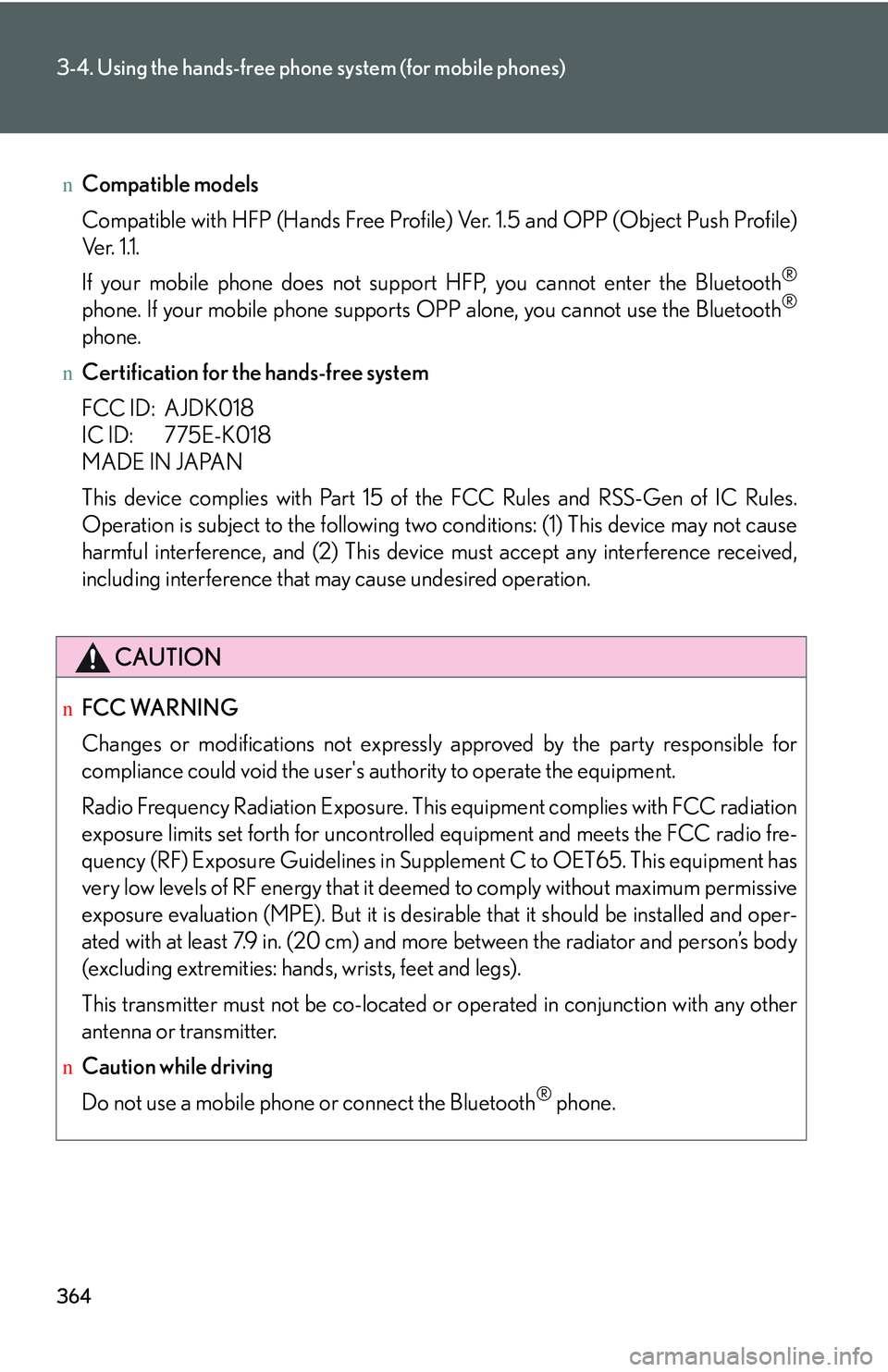
nCompatible models
Compatible with HFP (Hands Free Profile) Ver. 1.5 and OPP (Object Push Profile)
Ve r. 1 .1 .
If your mobile phone does not support HFP, you cannot enter the Bluetooth®
phone. If your mobile phone supports OPP alone, you cannot use the Bluetooth®
phone.
nCertification for the hands-free system
FCC ID: AJDK018
IC ID: 775E-K018
MADE IN JAPAN
This device complies with Part 15 of the FCC Rules and RSS-Gen of IC Rules.
Operation is subject to the following two conditions: (1) This device may not cause
harmful interference, and (2) This device must accept any interference received,
including interference that may cause undesired operation.
CAUTION
nFCC WARNING
Changes or modifications not expressly approved by the party responsible for
compliance could void the user's authority to operate the equipment.
Radio Frequency Radiation Exposure. This equipment complies with FCC radiation
exposure limits set forth for uncontrolled equipment and meets the FCC radio fre-
quency (RF) Exposure Guidelines in Supplement C to OET65. This equipment has
very low levels of RF energy that it deemed to comply without maximum permissive
exposure evaluation (MPE). But it is desirable that it should be installed and oper-
ated with at least 7.9 in. (20 cm) and more between the radiator and person’s body
(excluding extremities: hands, wrists, feet and legs).
This transmitter must not be co-located or operated in conjunction with any other
antenna or transmitter.
nCaution while driving
Do not use a mobile phone or connect the Bluetooth® phone.
Page 435 of 821
365
3-4. Using the hands-free phone system (for mobile phones)
3
Interior features
NOTICE
nTo prevent damage to mobile phones
Do not leave mobile phones in the vehicle. The temperature inside the vehicle may
become high, resulting in damage to the phone.
Page 436 of 821
366
3-4. Using the hands-free phone system (for mobile phones)
Using the hands-free system (for mobile phones)
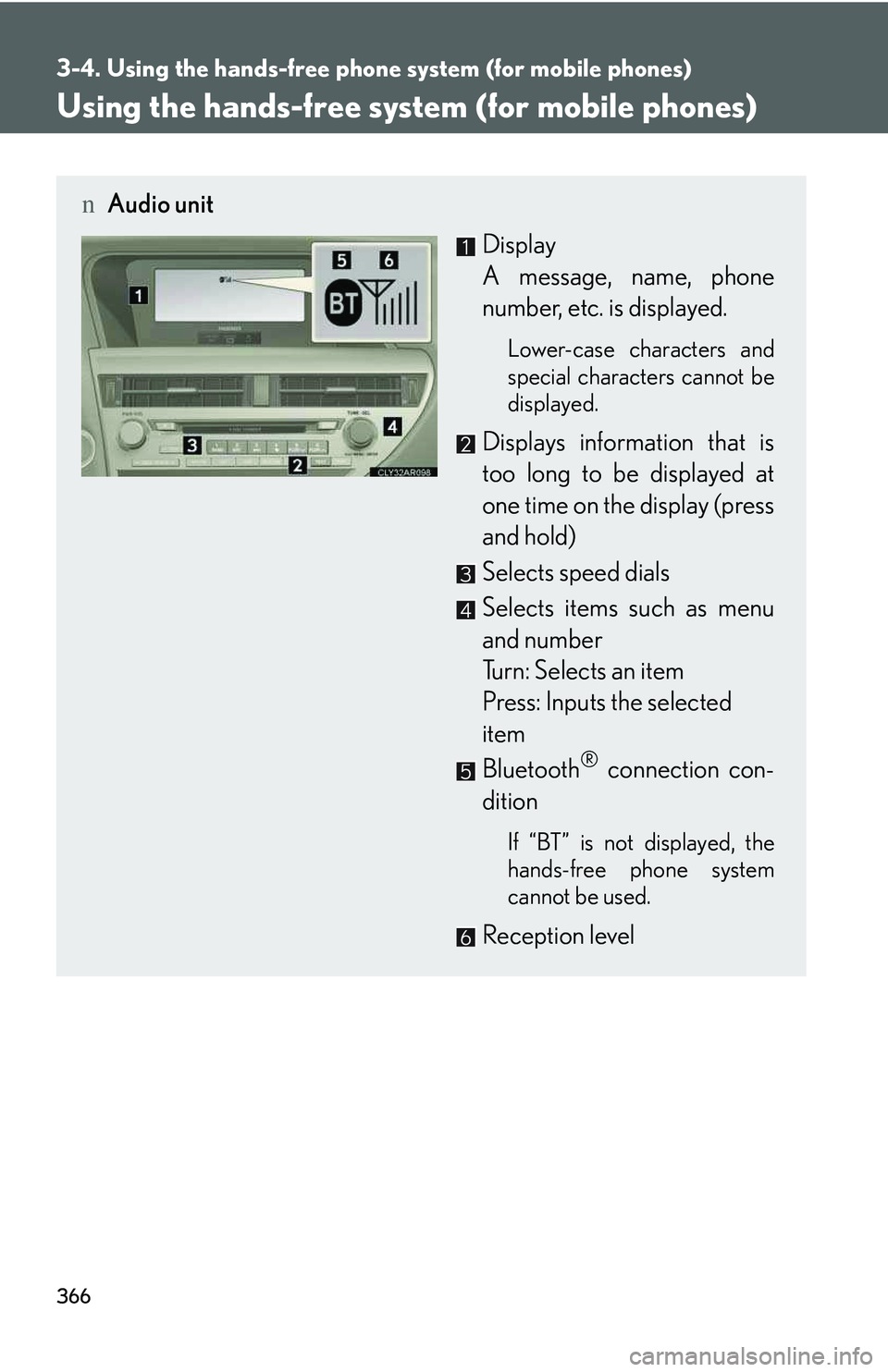
nAudio unit
Display
A message, name, phone
number, etc. is displayed.
Lower-case characters and
special characters cannot be
displayed.
Displays information that is
too long to be displayed at
one time on the display (press
and hold)
Selects speed dials
Selects items such as menu
and number
Turn: Selects an item
Press: Inputs the selected
item
Bluetooth® connection con-
dition
If “BT” is not displayed, the
hands-free phone system
cannot be used.
Reception level