phone LEXUS RX350 2011 User Guide
[x] Cancel search | Manufacturer: LEXUS, Model Year: 2011, Model line: RX350, Model: LEXUS RX350 2011Pages: 821, PDF Size: 13.27 MB
Page 41 of 821
41
Hands-free System For Cellular Phone
(without navigation system)
nBluetooth® phone pairing
Compatible Bluetooth®-equipped phones can be connected to the vehicle, enabling
hands-free operation. Please refer to the cellular phone manufacturer's user guide for pair-
ing procedures, or go to“www.lexus.com/bluetooth” for more phone information.
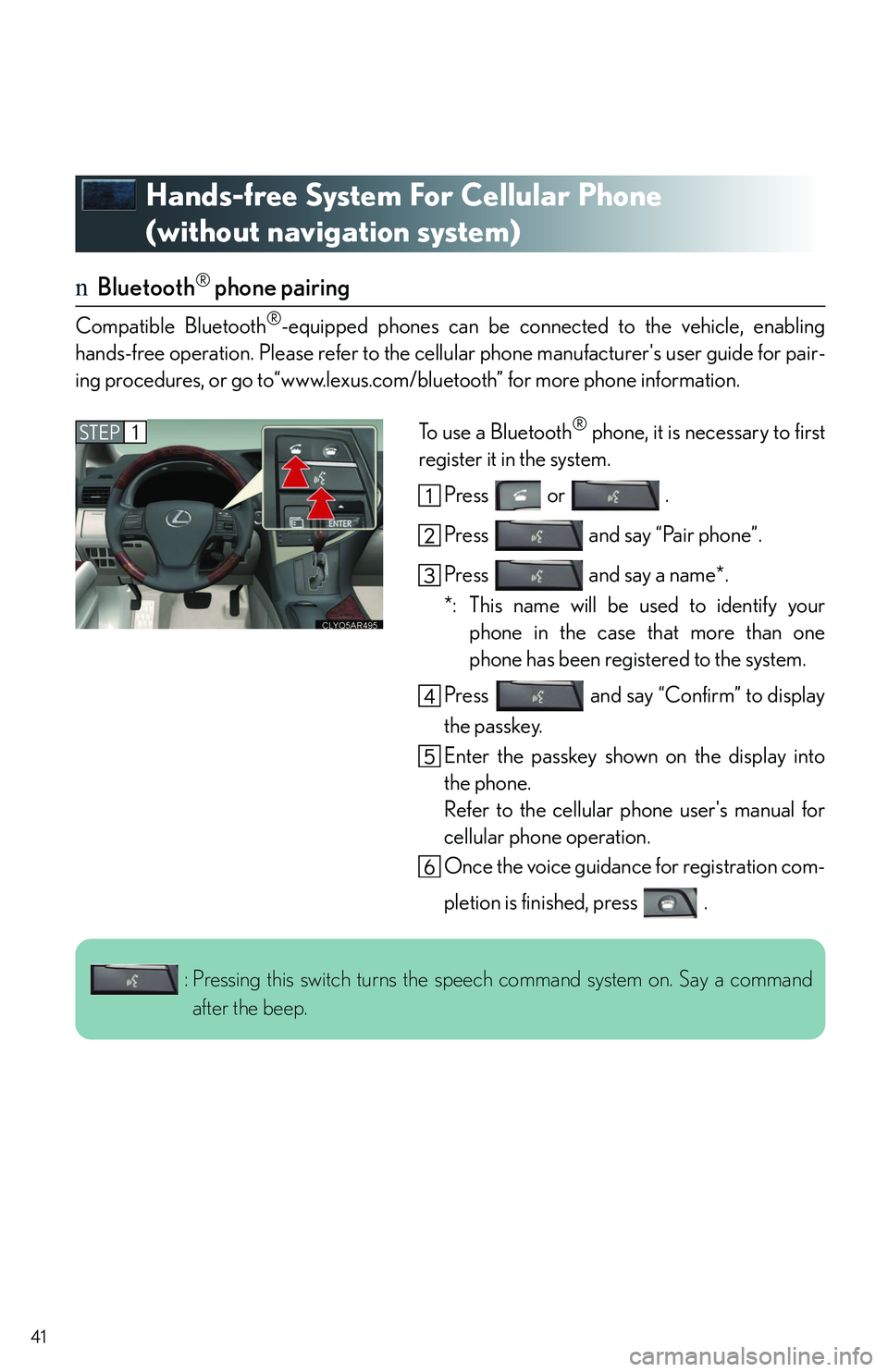
To use a Bluetooth® phone, it is necessary to first
register it in the system.
Press or .
Press and say “Pair phone”.
Press and say a name*.
*: This name will be used to identify your
phone in the case that more than one
phone has been registered to the system.
Press and say “Confirm” to display
the passkey.
Enter the passkey shown on the display into
the phone.
Refer to the cellular phone user's manual for
cellular phone operation.
Once the voice guidance for registration com-
pletion is finished, press .
STEP1
: Pressing this switch turns the speech command system on. Say a command
after the beep.
Page 42 of 821
42
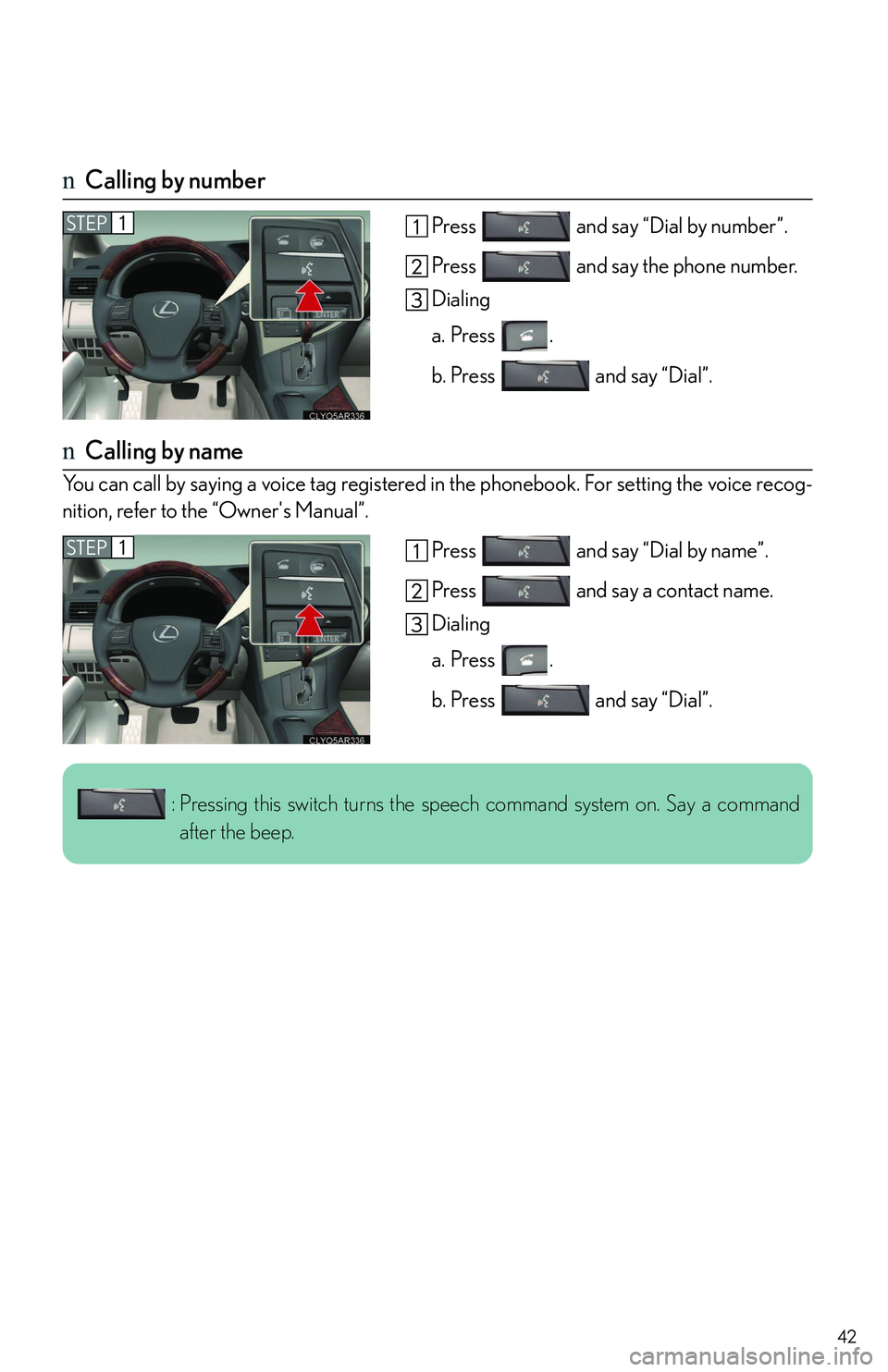
nCalling by number
Press and say “Dial by number”.
Press and say the phone number.
Dialing
a. Press .
b. Press and say “Dial”.
nCalling by name
You can call by saying a voice tag registered in the phonebook. For setting the voice recog-
nition, refer to the “Owner's Manual”.
Press and say “Dial by name”.
Press and say a contact name.
Dialing
a. Press .
b. Press and say “Dial”.
STEP1
STEP1
: Pressing this switch turns the speech command system on. Say a command
after the beep.
Page 43 of 821
43
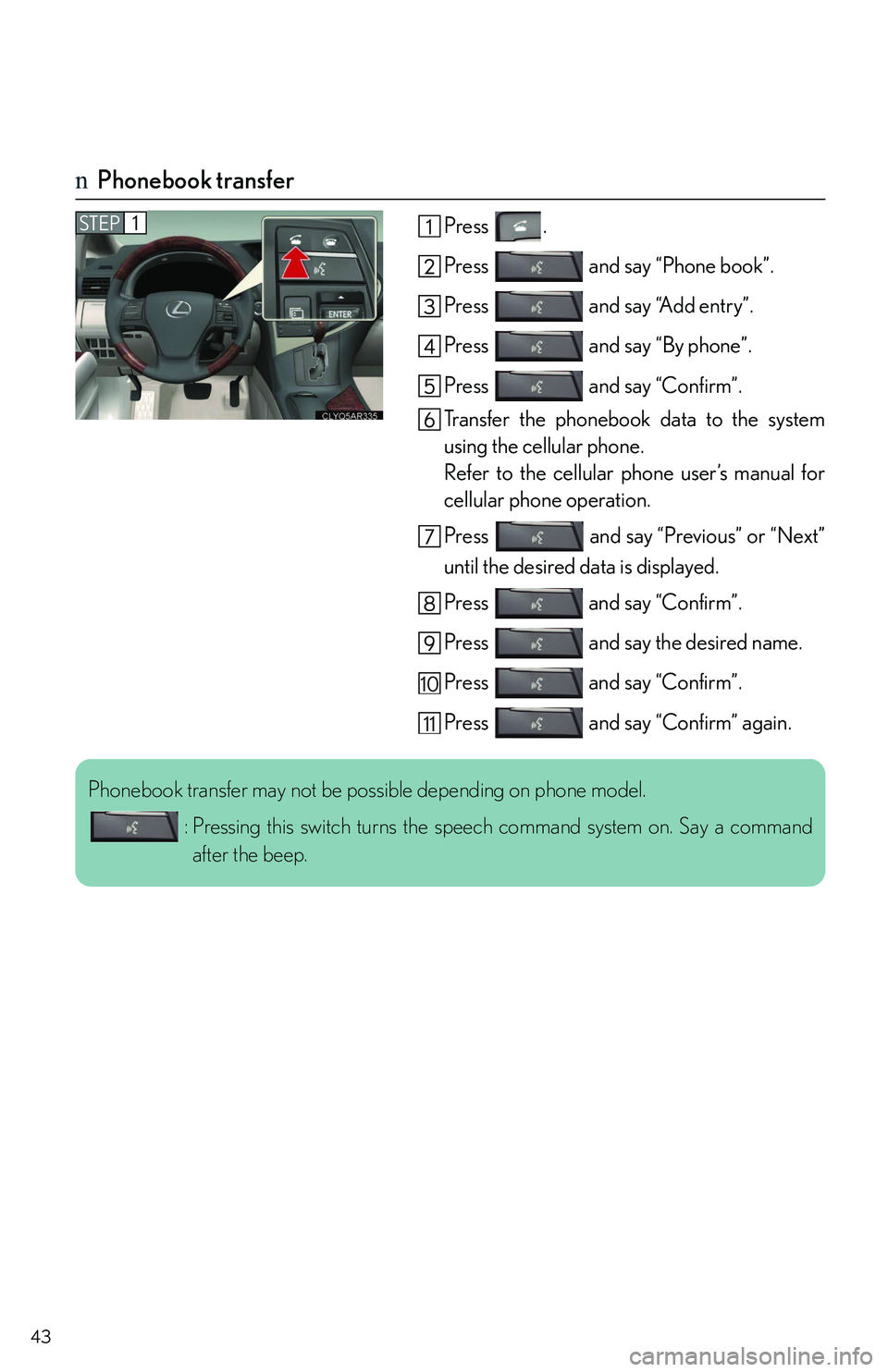
nPhonebook transfer
Press .
Press and say “Phone book”.
Press and say “Add entry”.
Press and say “By phone”.
Press and say “Confirm”.
Transfer the phonebook data to the system
using the cellular phone.
Refer to the cellular phone user’s manual for
cellular phone operation.
Press and say “Previous” or “Next”
until the desired data is displayed.
Press and say “Confirm”.
Press and say the desired name.
Press and say “Confirm”.
Press and say “Confirm” again.
STEP1
10
11
Phonebook transfer may not be possible depending on phone model.
: Pressing this switch turns the speech command system on. Say a command
after the beep.
Page 44 of 821
44
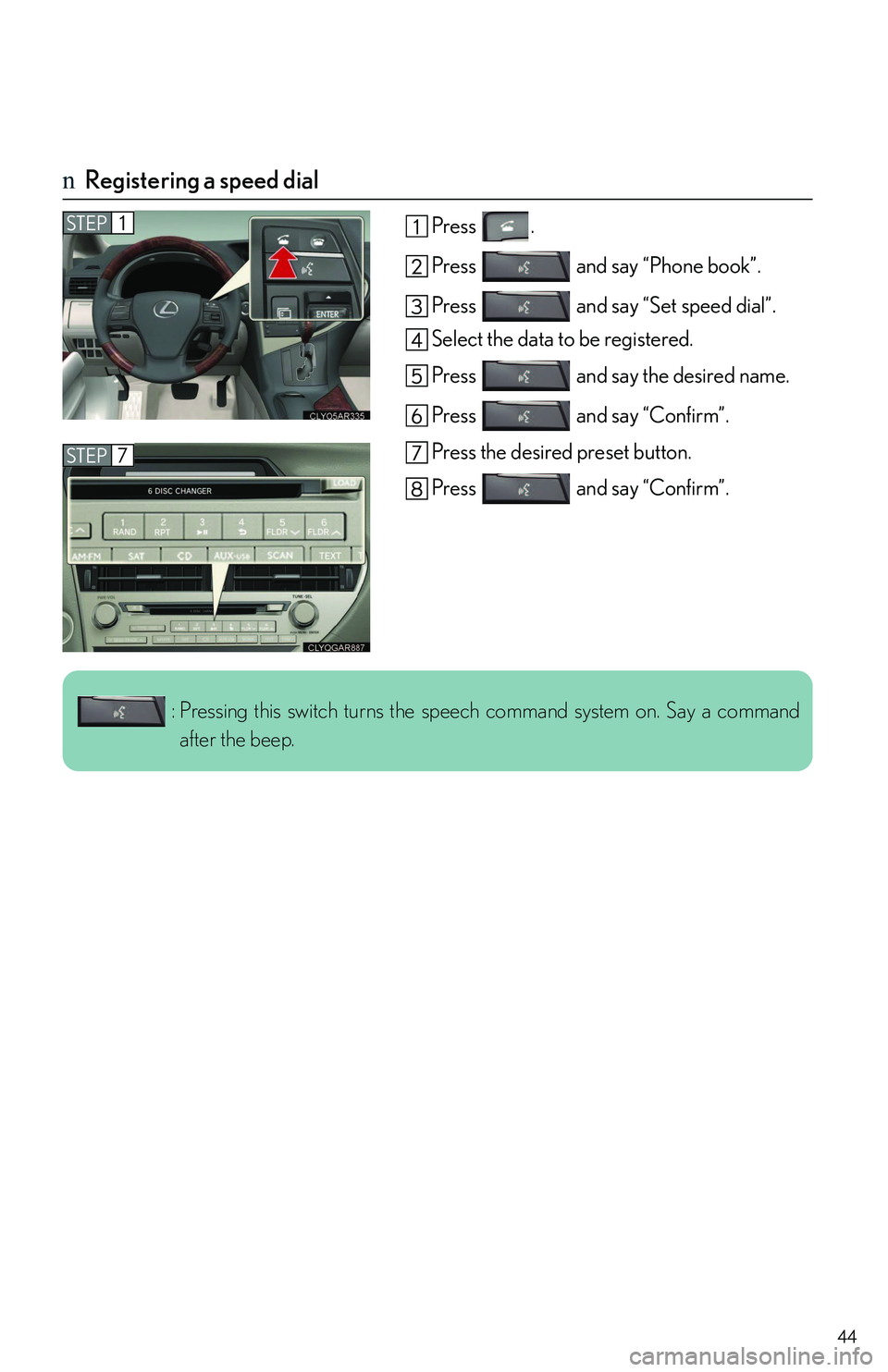
nRegistering a speed dial
Press .
Press and say “Phone book”.
Press and say “Set speed dial”.
Select the data to be registered.
Press and say the desired name.
Press and say “Confirm”.
Press the desired preset button.
Press and say “Confirm”.
STEP1
STEP7
: Pressing this switch turns the speech command system on. Say a command
after the beep.
Page 53 of 821
53
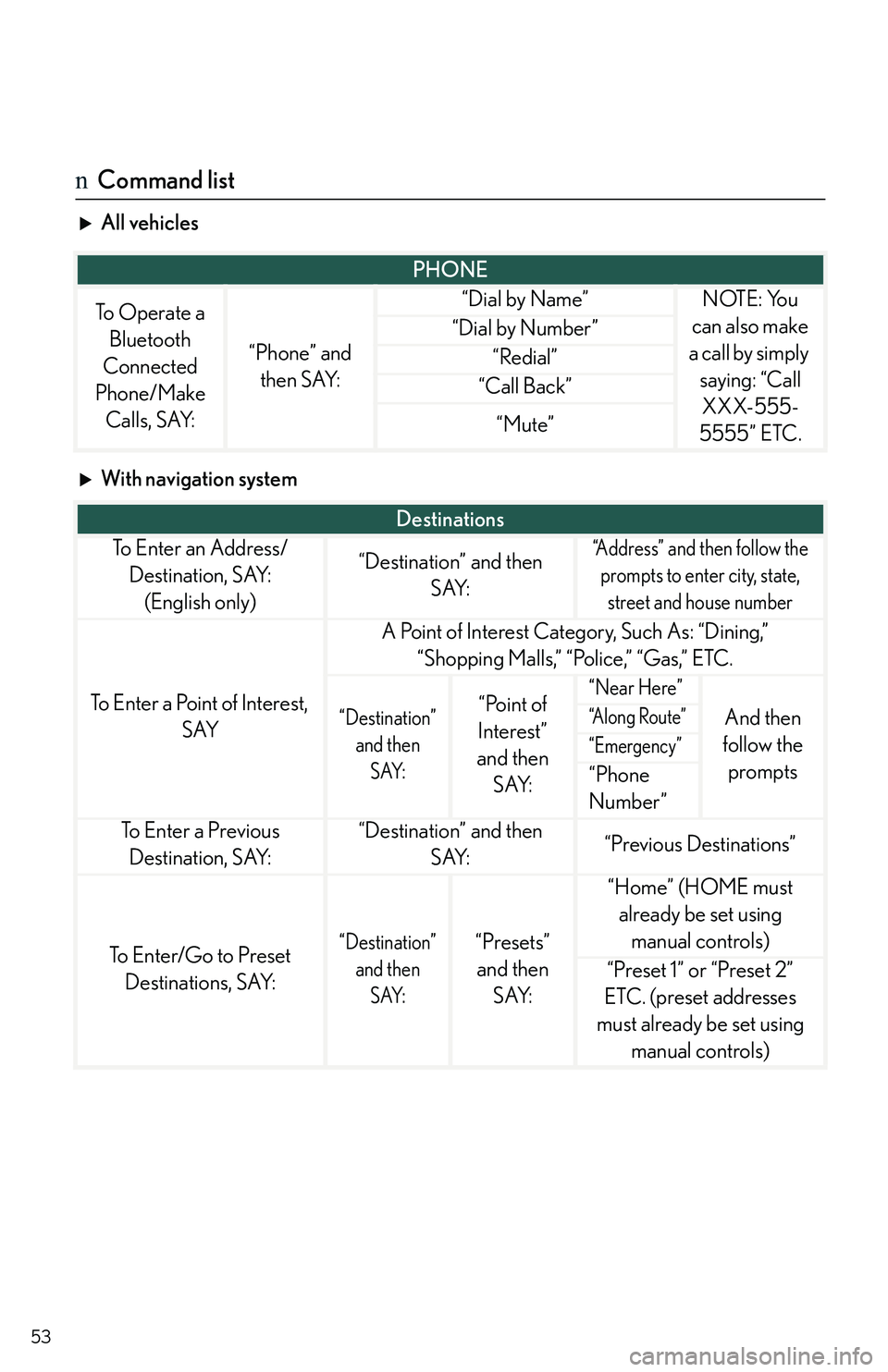
nCommand list
All vehicles
With navigation system
PHONE
To Operate a
Bluetooth
Connected
Phone/Make
Calls, SAY:
“Phone” and
then SAY:
“Dial by Name”NOTE: You
can also make
a call by simply
saying: “Call
XXX-555-
5555” ETC.
“Dial by Number”
“Redial”
“Call Back”
“Mute”
Destinations
To E n t e r a n A d d r e s s /
Destination, SAY:
(English only)
“Destination” and then
SAY:
“Address” and then follow the
prompts to enter city, state,
street and house number
To Enter a Point of Interest,
SAY
A Point of Interest Category, Such As: “Dining,”
“Shopping Malls,” “Police,” “Gas,” ETC.
“Destination”
and then
SAY:
“Point of
Interest”
and then
SAY:
“Near Here”
And then
follow the
prompts
“A l o n g R o u t e ”
“Emergency”
“Phone
Number”
To E n t e r a P r e v i o u s
Destination, SAY:
“Destination” and then
SAY:“Previous Destinations”
To Enter/Go to Preset
Destinations, SAY:
“Destination”
and then
SAY:
“Presets”
and then
SAY:
“Home” (HOME must
already be set using
manual controls)
“Preset 1” or “Preset 2”
ETC. (preset addresses
must already be set using
manual controls)
Page 55 of 821
55
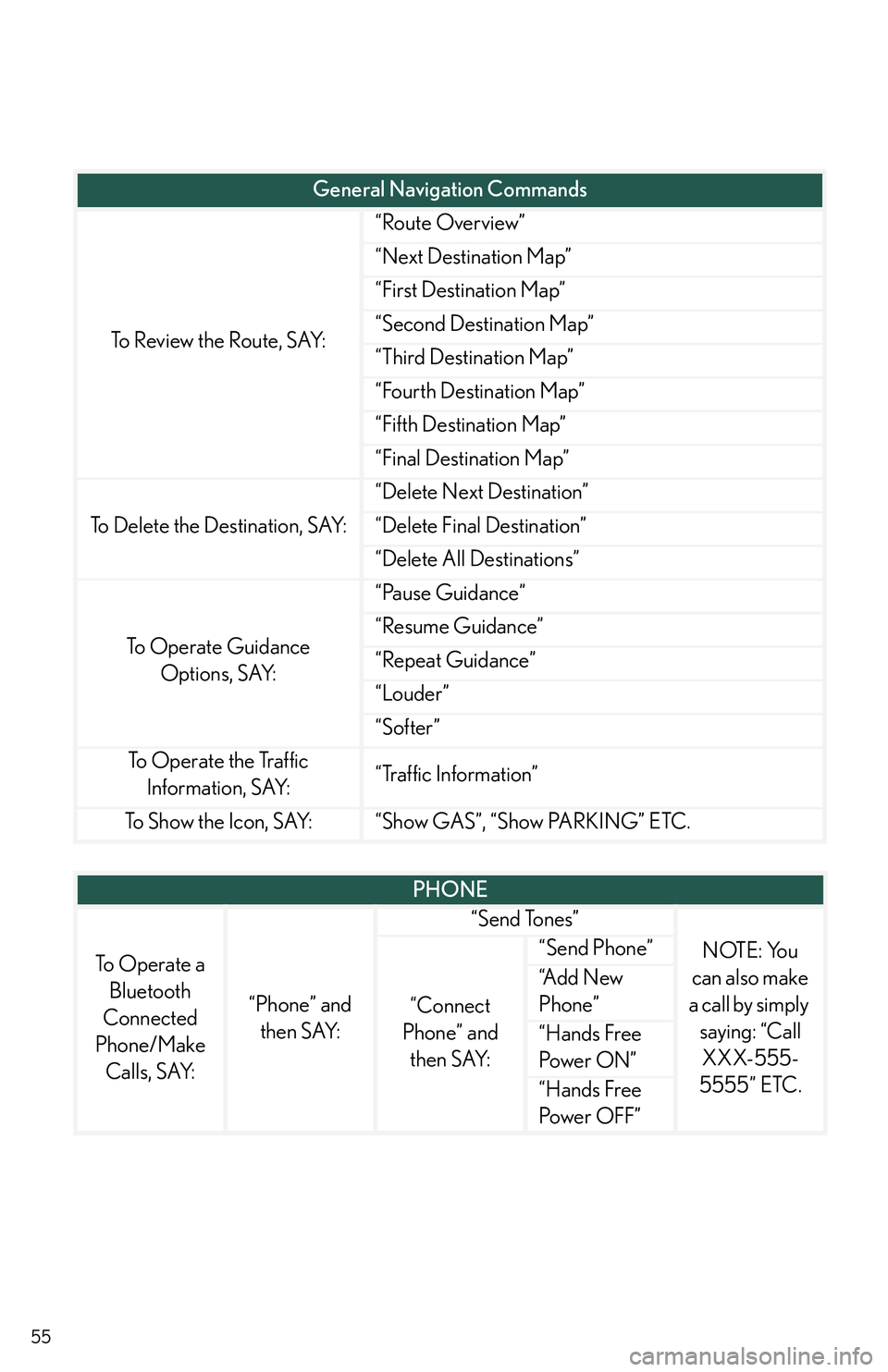
To Review the Route, SAY:
“Route Overview”
“Next Destination Map”
“First Destination Map”
“Second Destination Map”
“Third Destination Map”
“Fourth Destination Map”
“Fifth Destination Map”
“Final Destination Map”
To Delete the Destination, SAY:
“Delete Next Destination”
“Delete Final Destination”
“Delete All Destinations”
To Operate Guidance
Options, SAY:
“Pause Guidance”
“Resume Guidance”
“Repeat Guidance”
“Louder”
“Softer”
To Operate the Traffic
Information, SAY:“Traffic Information”
To Show the Icon, SAY:“Show GAS”, “Show PARKING” ETC.
General Navigation Commands
PHONE
To Operate a
Bluetooth
Connected
Phone/Make
Calls, SAY:
“Phone” and
then SAY:
“Send Tones”
NOTE: You
can also make
a call by simply
saying: “Call
XXX-555-
5555” ETC.
“Connect
Phone” and
then SAY:
“Send Phone”
“A d d N e w
Phone”
“Hands Free
Pow e r O N ”
“Hands Free
Power OFF”
Page 59 of 821
59
Safety Connect (If Equipped)
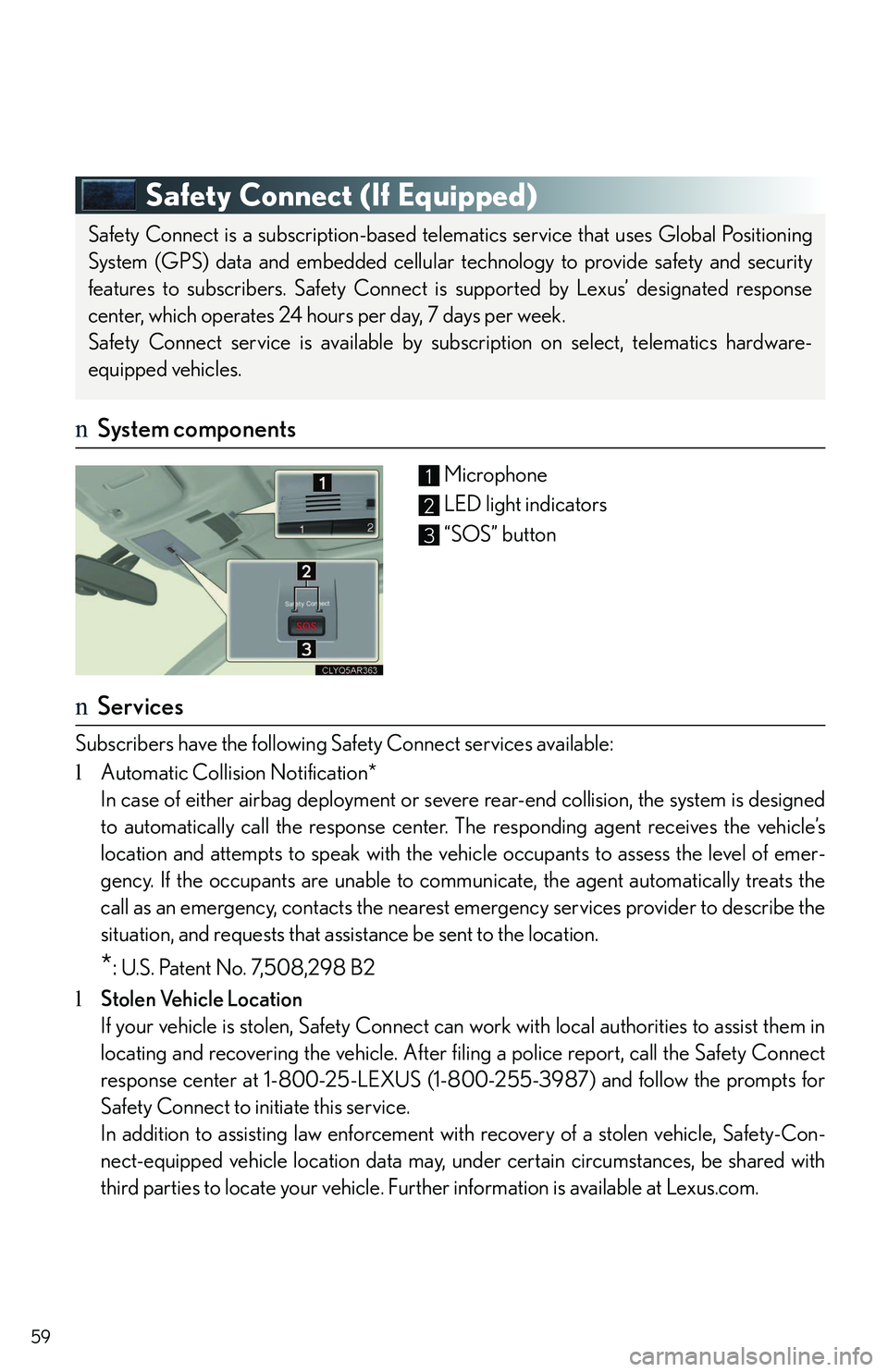
nSystem components
Microphone
LED light indicators
“SOS” button
nServices
Subscribers have the following Safety Connect services available:
lAutomatic Collision Notification*
In case of either airbag deployment or severe rear-end collision, the system is designed
to automatically call the response center. The responding agent receives the vehicle’s
location and attempts to speak with the vehicle occupants to assess the level of emer-
gency. If the occupants are unable to communicate, the agent automatically treats the
call as an emergency, contacts the nearest emergency services provider to describe the
situation, and requests that assistance be sent to the location.
*: U.S. Patent No. 7,508,298 B2
lStolen Vehicle Location
If your vehicle is stolen, Safety Connect can work with local authorities to assist them in
locating and recovering the vehicle. After filing a police report, call the Safety Connect
response center at 1-800-25-LEXUS (1-800-255-3987) and follow the prompts for
Safety Connect to initiate this service.
In addition to assisting law enforcement with recovery of a stolen vehicle, Safety-Con-
nect-equipped vehicle location data may, under certain circumstances, be shared with
third parties to locate your vehicle. Further information is available at Lexus.com.
Safety Connect is a subscription-based telematics service that uses Global Positioning
System (GPS) data and embedded cellular technology to provide safety and security
features to subscribers. Safety Connect is supported by Lexus’ designated response
center, which operates 24 hours per day, 7 days per week.
Safety Connect service is available by subscription on select, telematics hardware-
equipped vehicles.
1
2
3
Page 78 of 821
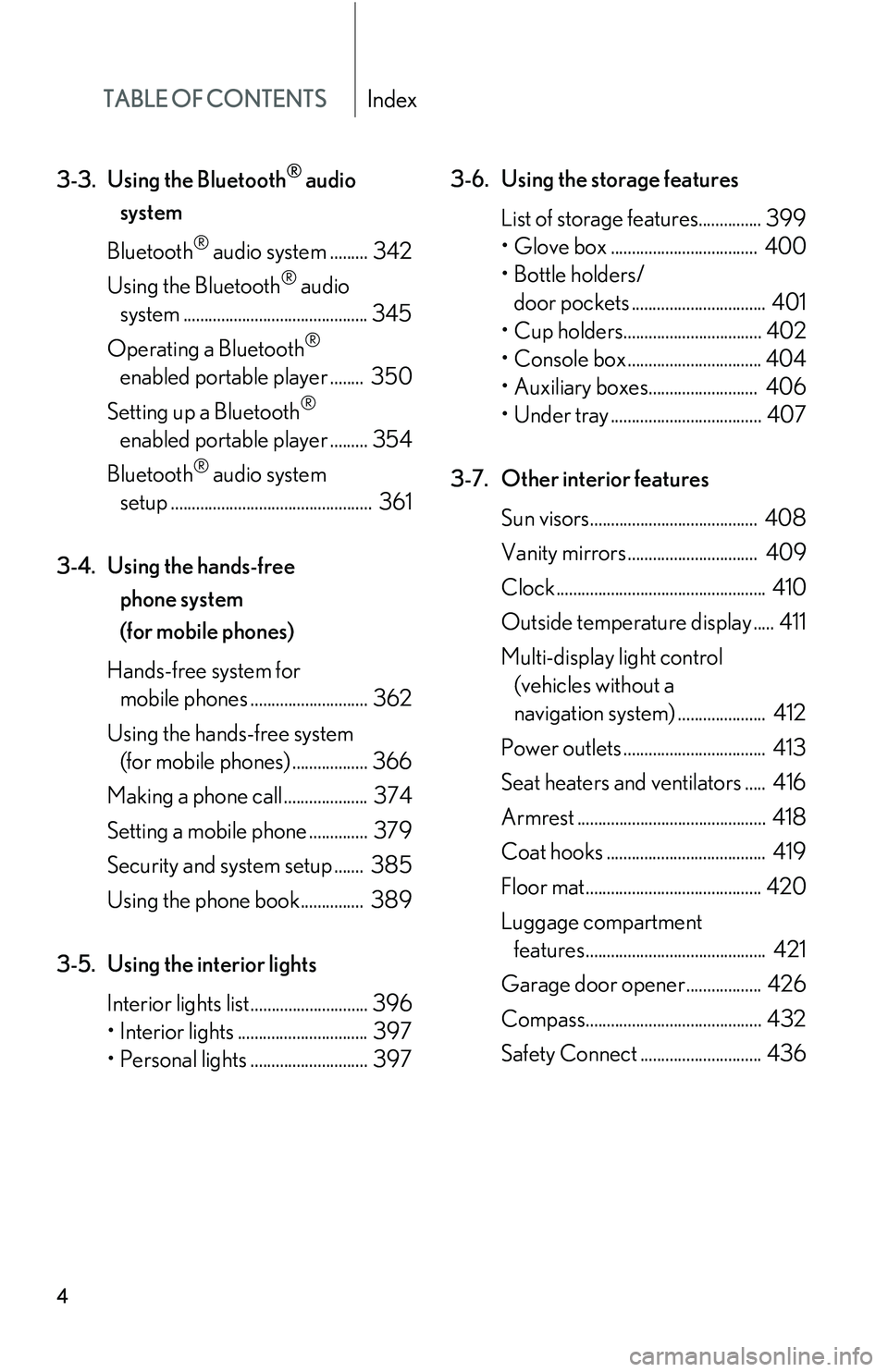
TABLE OF CONTENTSIndex
4
3-3.Using the Bluetooth® audio
system
Bluetooth® audio system ......... 342
Using the Bluetooth® audio
system ............................................ 345
Operating a Bluetooth®
enabled portable player ........ 350
Setting up a Bluetooth®
enabled portable player ......... 354
Bluetooth® audio system
setup ................................................ 361
3-4. Using the hands-free
phone system
(for mobile phones)
Hands-free system for
mobile phones ............................ 362
Using the hands-free system
(for mobile phones) .................. 366
Making a phone call .................... 374
Setting a mobile phone .............. 379
Security and system setup ....... 385
Using the phone book............... 389
3-5. Using the interior lights
Interior lights list............................ 396
Page 92 of 821
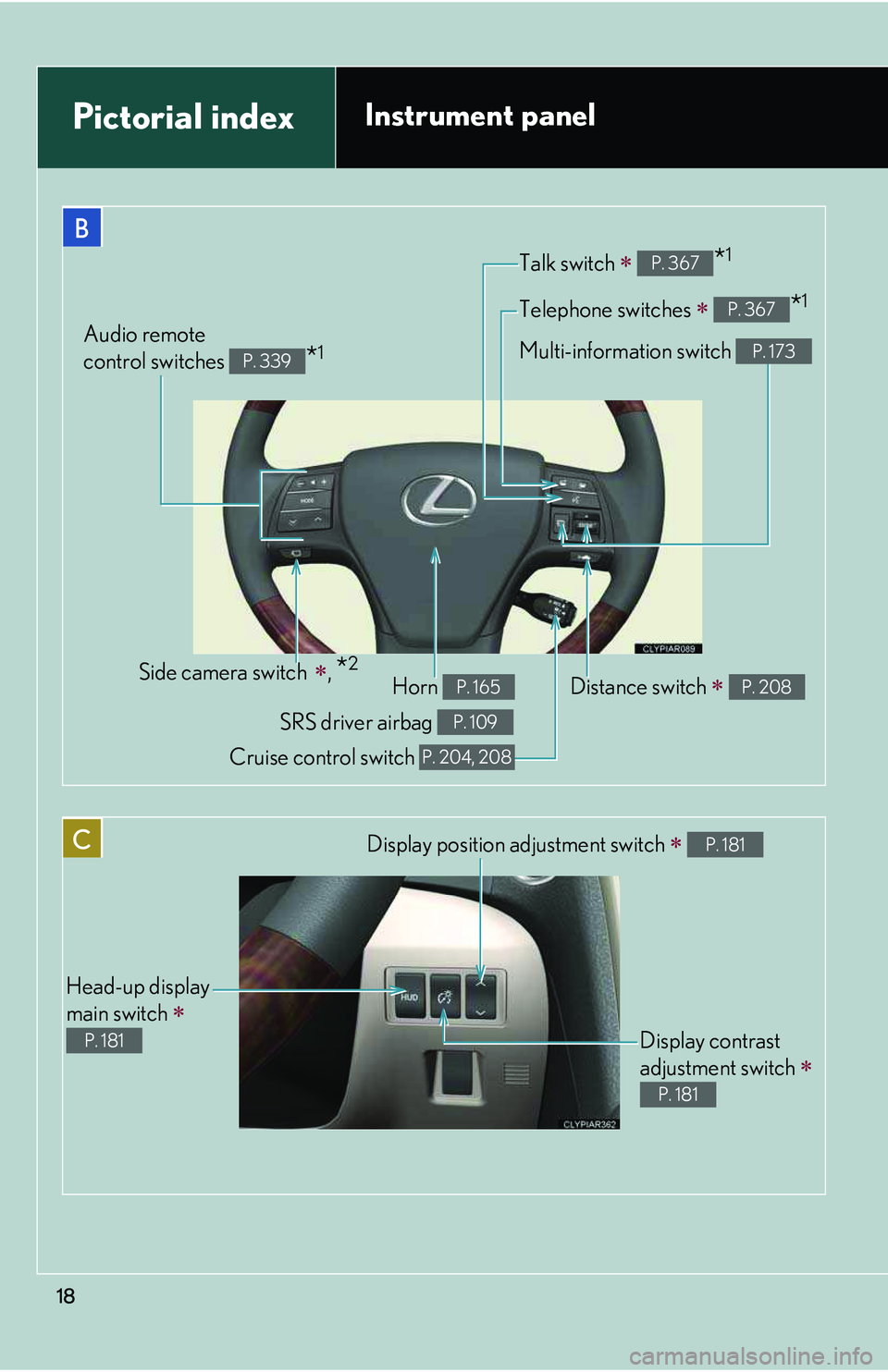
18
B
Telephone switches ∗ *1P. 367
Talk switch ∗ *1P. 367
Multi-information switch P. 173Audio remote
control switches *1P. 339
C
Head-up display
main switch ∗
P. 181
Display position adjustment switch ∗ P. 181
Display contrast
adjustment switch ∗
P. 181
Distance switch ∗ P. 208Side camera switch ∗, *2
Pictorial indexInstrument panel
Horn P. 165
SRS driver airbag P. 109
Cruise control switch P. 204, 208
Page 97 of 821
23
Scrapping of your Lexus
The SRS airbag and seat belt pretensioner devices in your Lexus contain explosive
chemicals. If the vehicle is scrapped with the airbags and seat belt pretensioners left
as they are, this may cause an accident such as fire. Be sure to have the systems of
the SRS airbag and seat belt pretensioner removed and disposed of by a qualified
service shop or by your Lexus dealer before you scrap your vehicle.
Perchlorate Material
Special handling may apply, See www.dtsc.ca.gov/hazardouswaste/perchlorate.
Your vehicle has components that may contain perchlorate. These components may
include airbag, seat belt pretensioners, and wireless remote control batteries.
CAUTION
nGeneral precautions while driving
Driving under the influence: Never drive your vehicle when under the influence of
alcohol or drugs that have impaired your ability to operate your vehicle. Alcohol
and certain drugs delay reaction time, impair judgment and reduce coordination,
which could lead to an accident that could result in death or serious injury.
Defensive driving: Always drive defensively. Anticipate mistakes that other drivers
or pedestrians might make and be ready to avoid accidents.
Driver distraction: Always give your full attention to driving. Anything that distracts
the driver, such as adjusting controls, talking on a cellular phone or reading can
result in a collision with resulting death or serious injury to you, your occupants or
others.
nGeneral precaution regarding children’s safety
Never leave children unattended in the vehicle, and never allow children to have or
use the key.
Children may be able to start the vehicle or shift the vehicle into neutral. There is
also a danger that children may injure themselves by playing with the cigarette
lighter, the windows, the moon roof, or other features of the vehicle. In addition, heat
build-up or extremely cold temperatures inside the vehicle can be fatal to children.