steering LINCOLN MKZ 2013 Workshop Manual
[x] Cancel search | Manufacturer: LINCOLN, Model Year: 2013, Model line: MKZ, Model: LINCOLN MKZ 2013Pages: 474, PDF Size: 3.79 MB
Page 346 of 474
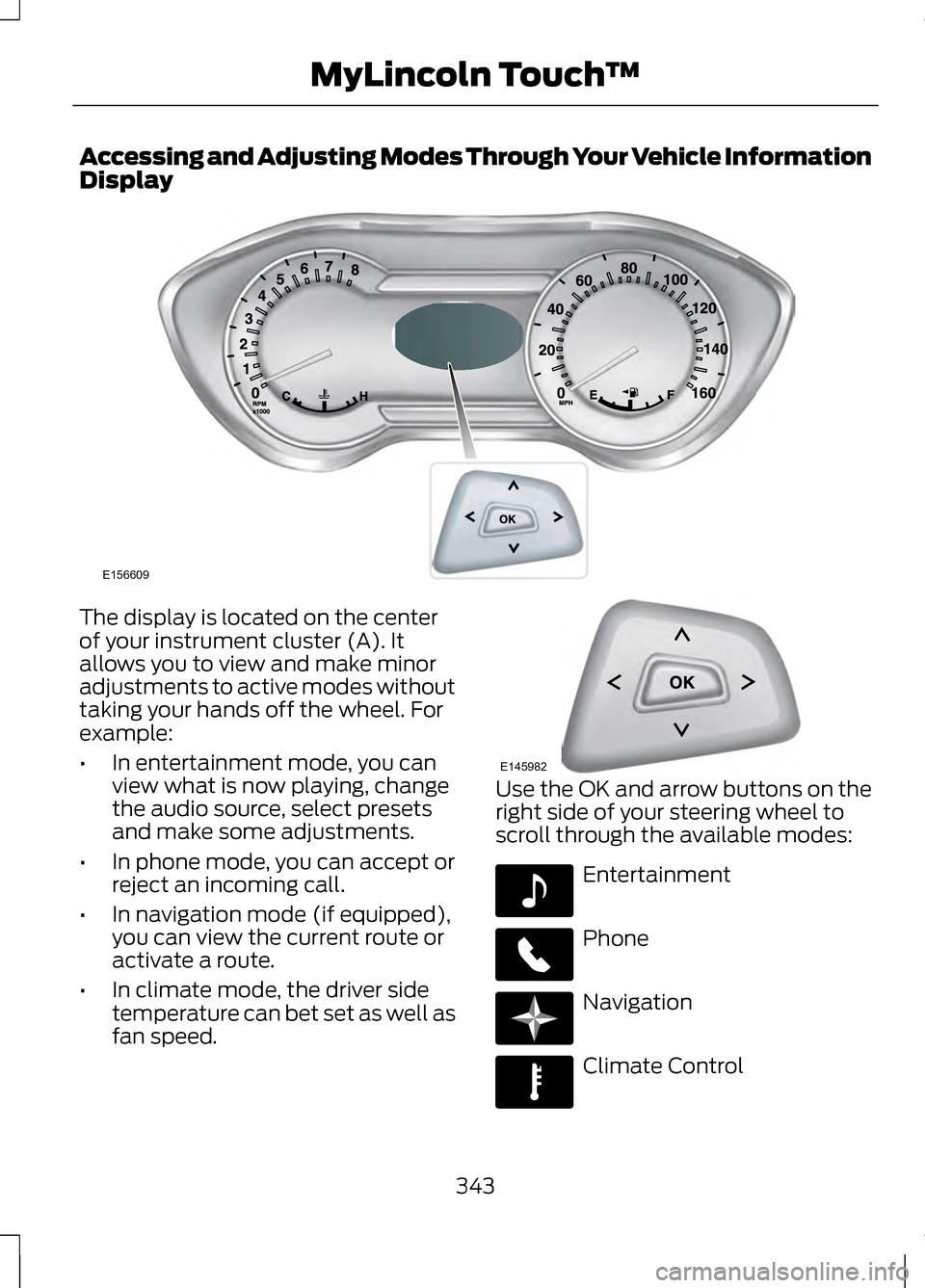
Accessing and Adjusting Modes Through Your Vehicle Information
Display
The display is located on the center
of your instrument cluster (A). It
allows you to view and make minor
adjustments to active modes without
taking your hands off the wheel. For
example:
•
In entertainment mode, you can
view what is now playing, change
the audio source, select presets
and make some adjustments.
• In phone mode, you can accept or
reject an incoming call.
• In navigation mode (if equipped),
you can view the current route or
activate a route.
• In climate mode, the driver side
temperature can bet set as well as
fan speed. Use the OK and arrow buttons on the
right side of your steering wheel to
scroll through the available modes:
Entertainment
Phone
Navigation
Climate Control
343
MyLincoln Touch
™E156609 E145982 E142611 E142609 E142610 E142612
Page 349 of 474
These commands can be said at any time during a voice session
"Main menu"
"List of commands" "What can I say?" "Next page"
"Previous page" "Go back""Cancel" "Exit"
"Help"
Accessing a List of Available
Commands
1. Using the touchscreen, press the Settings icon, Help, then Voice
Command List. 2. Using the steering wheel control,
press the voice icon. After the tone,
speak your command clearly. Available Voice Commands
"Radio list of commands"
"Audio list of commands"
"SD card list of commands"
"Bluetooth audio list of commands"
"Sirius satellite list of commands" *
"Browse list of commands"
"Travel link list of commands" *
"CD list of commands"
"USB list of commands"
"Climate control list of commands"
"Voice instructions list of commands"
"List of commands"
"Voice settings list of commands"
"Navigation list of commands" *
"Help"
"Phone list of commands"
* If equipped
346
MyLincoln Touch
™
Page 354 of 474
The dual mode feature is also
available when the voice system
displays a list of items to pick from
during a voice session, where you
would be able to touch the line item
or say "Line 2". If a command is not
understood or there are multiple
options, the system returns a list for
you to choose from.
SETTINGS
Under the menu setting, you can set
your clock, access and make
adjustments to the display, sound and
vehicle settings as well as access
settings for specific modes or the help
feature.
Clock
Note:
The date is set by your vehicle's
GPS; you cannot manually set the date.
Note: If the battery has been
disconnected, the vehicle needs to
acquire a GPS signal to update the
clock. Once your vehicle acquires the
signal, it may take a few minutes for
the update to display the correct time.
1. Press the Settings icon > Clock.
2. Press + and - to adjust the time.
From this screen, you can also make
other adjustments such as 12-hour or
24-hour mode, activate GPS time
synchronization and have the system
automatically update new time zones. You can also turn the outside air
temperature display on and off. When
the outside air temperature is
displayed, it appears at the top center
of the touchscreen next to the time
and date.
Once you update any settings, they
are automatically saved.
Display
You can make adjustments to the
touchscreen display through the
touchscreen or by pressing the voice
button on your steering wheel controls
and when prompted, say "Display
settings".
To access and make adjustments
using the touchscreen, press the
Settings icon > Display.
•
Brightness allows you to make
the screen display brighter or
dimmer.
• Mode
allows you to set the screen
to a certain brightness or have the
system automatically change
based on the outside light level.
• If you select AUTO or NIGHT,
you have the options of turning
the display's Auto Dim feature
on or off and changing the Auto
Dim Manual Offset feature.
• Edit Wallpaper
•You can have your touchscreen
display the default photo or
upload your own.
351
MyLincoln Touch
™
Page 365 of 474
Browsing Device Content
When listening to any type of audio,
you can browse through other devices
without having to change sources. For
example, if you are currently listening
to the radio, you can browse all the
artists that are stored on your USB
device. Press the voice icon on the
steering wheel. When
prompted, you can say:
"BROWSE" within Devices
"Browse" *
"Browse
"Browse
"Browse CD track list" "Browse SD card"
"Browse Sirius channel guide" **
"Browse USB" "Help"
* If you only say "Browse", you can then say any commands in the following
chart.
** If equipped with SIRIUS® satellite radio. "BROWSE"
"
"
"CD Track List" "SD card" *
362
MyLincoln Touch
™E142599
Page 371 of 474
HD Radio Technology manufactured
under license from iBiquity Digital
Corp. U.S. and foreign patents. HD
Radio and the HD and HD Radio logos
are proprietary trademarks of iBiquity
Digital Corp. Ford Motor Company and
iBiquity Digital Corp. are not
responsible for the content sent using
HD Radio technology. Content may
be changed, added or deleted at any
time at the station owner's discretion.
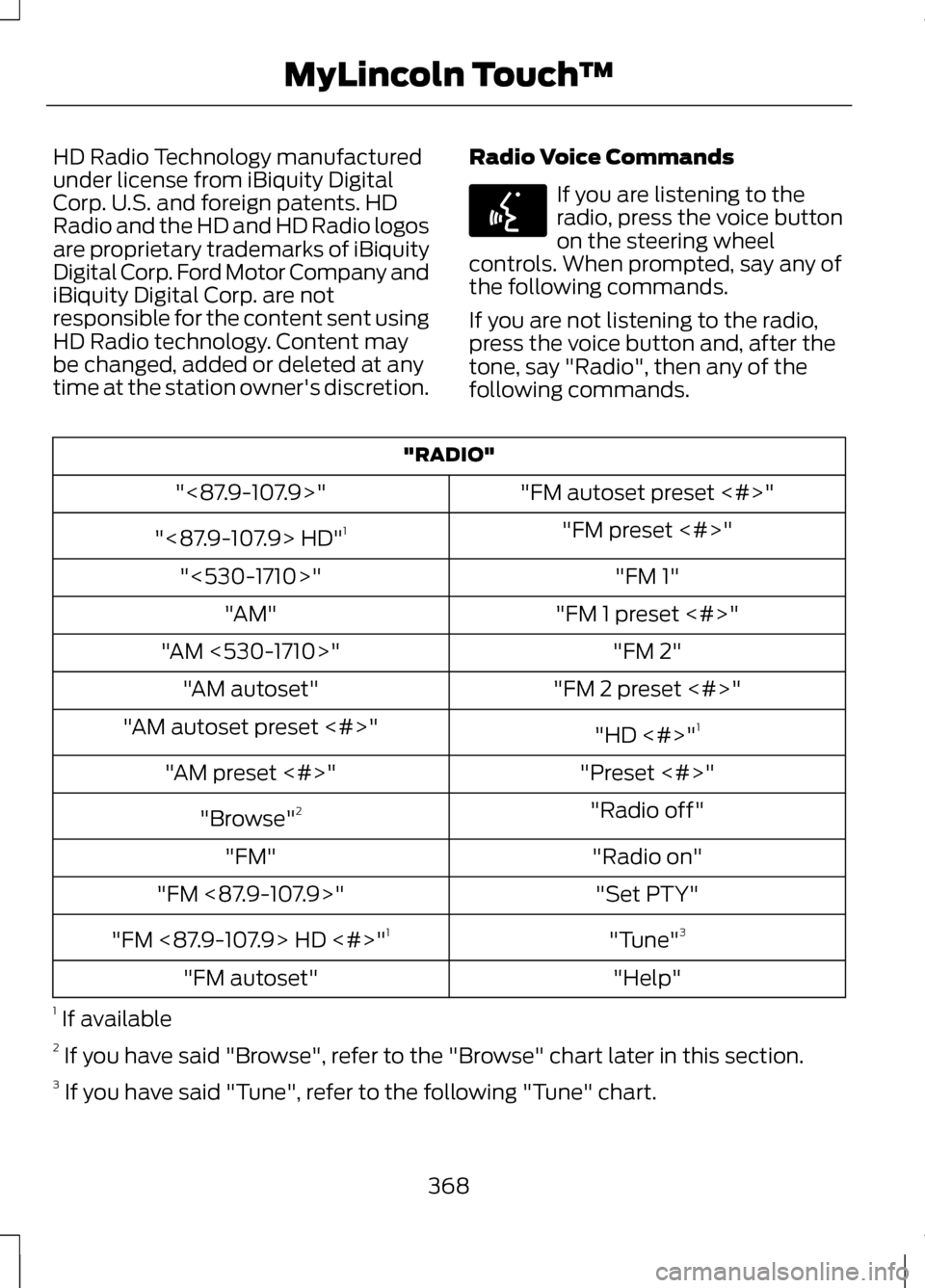
Radio Voice Commands If you are listening to the
radio, press the voice button
on the steering wheel
controls. When prompted, say any of
the following commands.
If you are not listening to the radio,
press the voice button and, after the
tone, say "Radio", then any of the
following commands. "RADIO"
"FM autoset preset <#>"
"<87.9-107.9>"
"FM preset <#>"
"<87.9-107.9> HD" 1
"FM 1"
"<530-1710>"
"FM 1 preset <#>"
"AM"
"FM 2"
"AM <530-1710>"
"FM 2 preset <#>"
"AM autoset"
"HD <#>"1
"AM autoset preset <#>"
"Preset <#>"
"AM preset <#>"
"Radio off"
"Browse" 2
"Radio on"
"FM"
"Set PTY"
"FM <87.9-107.9>"
"Tune"3
"FM <87.9-107.9> HD <#>" 1
"Help"
"FM autoset"
1 If available
2 If you have said "Browse", refer to the "Browse" chart later in this section.
3 If you have said "Tune", refer to the following "Tune" chart.
368
MyLincoln Touch
™E142599
Page 377 of 474
SIRIUS Satellite Radio Voice
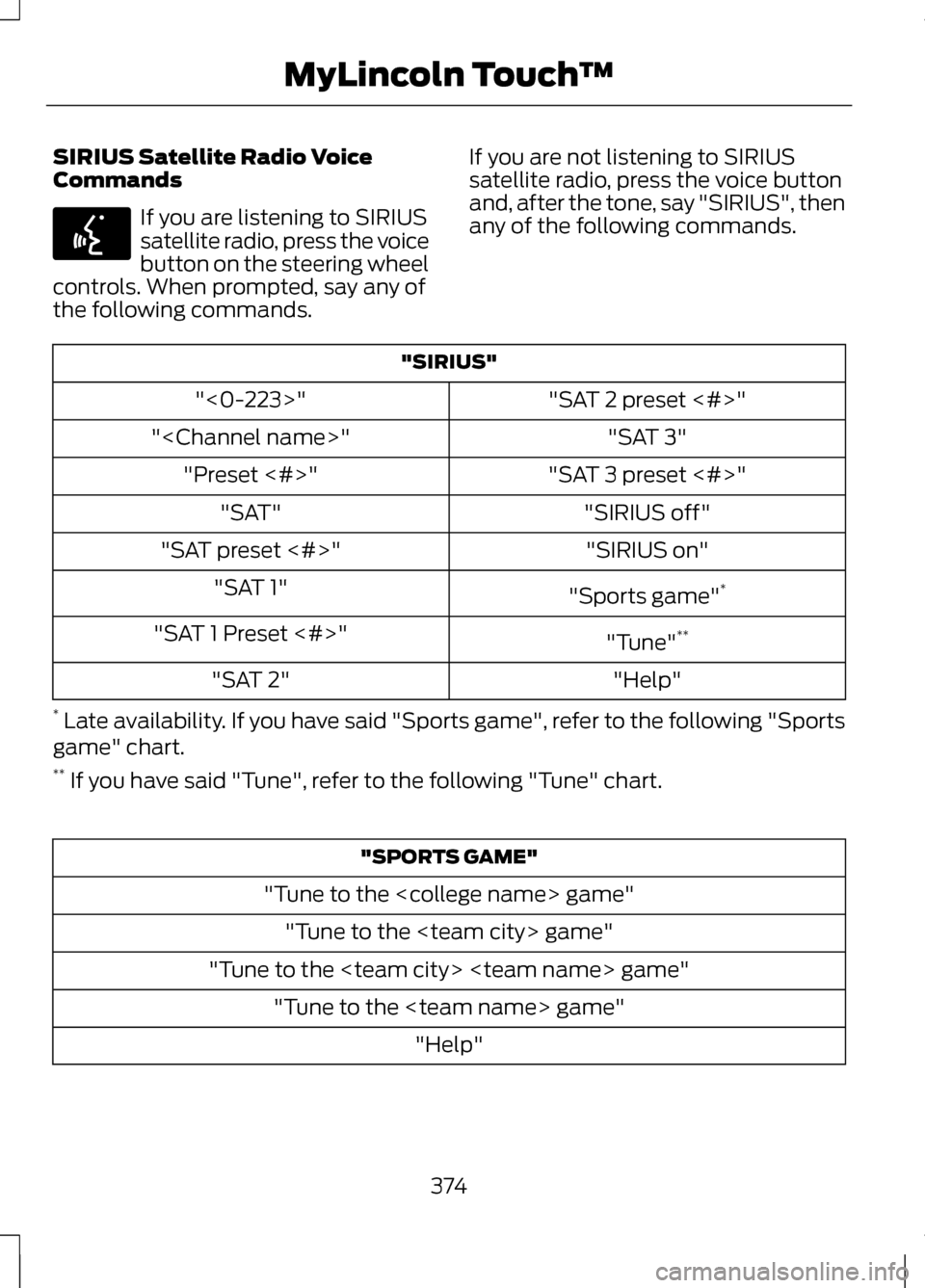
Commands
If you are listening to SIRIUS
satellite radio, press the voice
button on the steering wheel
controls. When prompted, say any of
the following commands. If you are not listening to SIRIUS
satellite radio, press the voice button
and, after the tone, say "SIRIUS", then
any of the following commands."SIRIUS"
"SAT 2 preset <#>"
"<0-223>"
"SAT 3"
"
"SAT 3 preset <#>"
"Preset <#>"
"SIRIUS off"
"SAT"
"SIRIUS on"
"SAT preset <#>"
"Sports game"*
"SAT 1"
"Tune"**
"SAT 1 Preset <#>"
"Help"
"SAT 2"
* Late availability. If you have said "Sports game", refer to the following "Sports
game" chart.
** If you have said "Tune", refer to the following "Tune" chart. "SPORTS GAME"
"Tune to the
"Tune to the
374
MyLincoln Touch
™E142599
Page 379 of 474
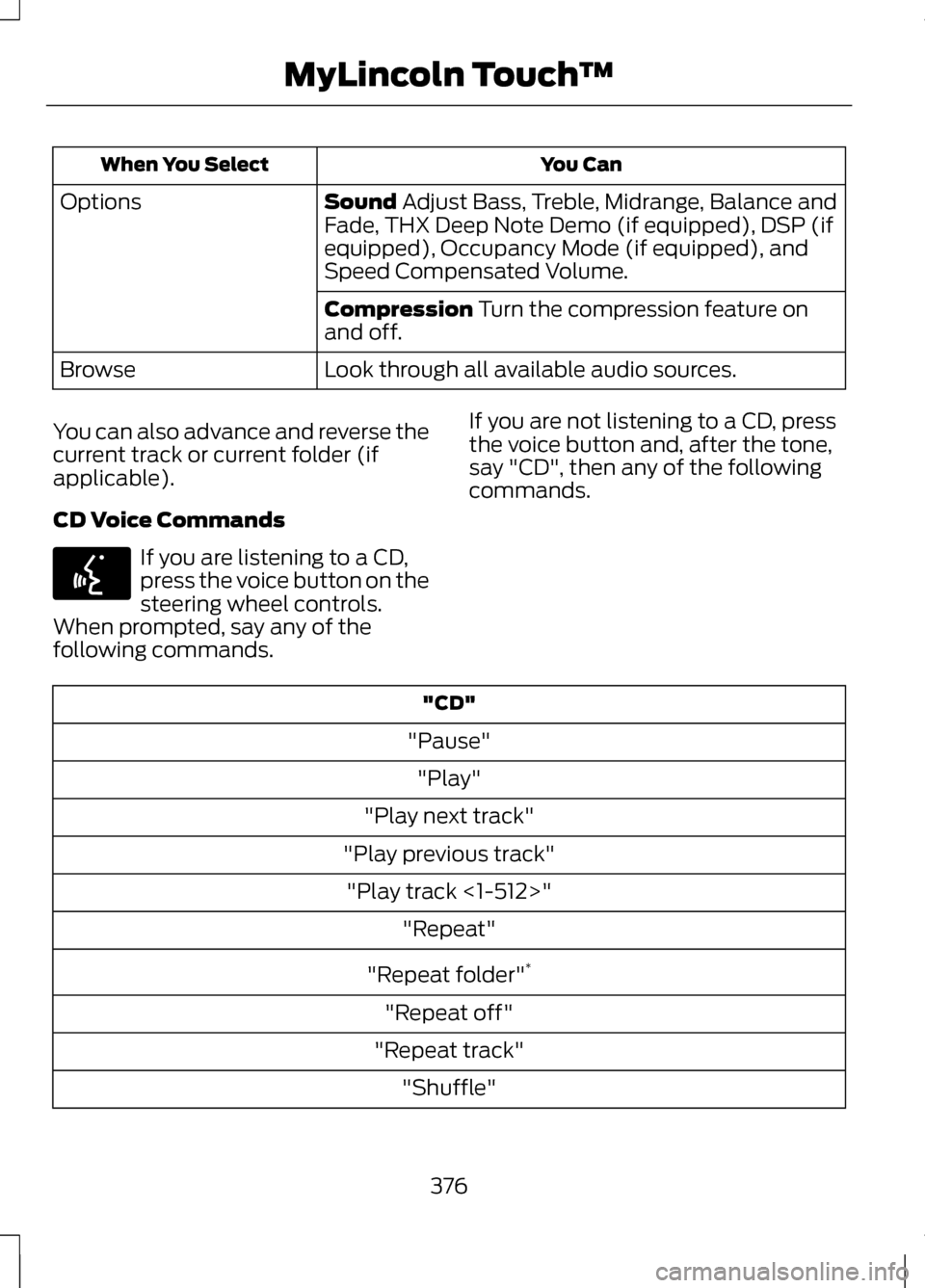
You Can
When You Select
Sound Adjust Bass, Treble, Midrange, Balance and
Fade, THX Deep Note Demo (if equipped), DSP (if
equipped), Occupancy Mode (if equipped), and
Speed Compensated Volume.
Options
Compression
Turn the compression feature on
and off.
Look through all available audio sources.
Browse
You can also advance and reverse the
current track or current folder (if
applicable).
CD Voice Commands If you are listening to a CD,
press the voice button on the
steering wheel controls.
When prompted, say any of the
following commands. If you are not listening to a CD, press
the voice button and, after the tone,
say "CD", then any of the following
commands."CD"
"Pause" "Play"
"Play next track"
"Play previous track" "Play track <1-512>" "Repeat"
"Repeat folder" *
"Repeat off"
"Repeat track" "Shuffle"
376
MyLincoln Touch
™E142599
Page 382 of 474
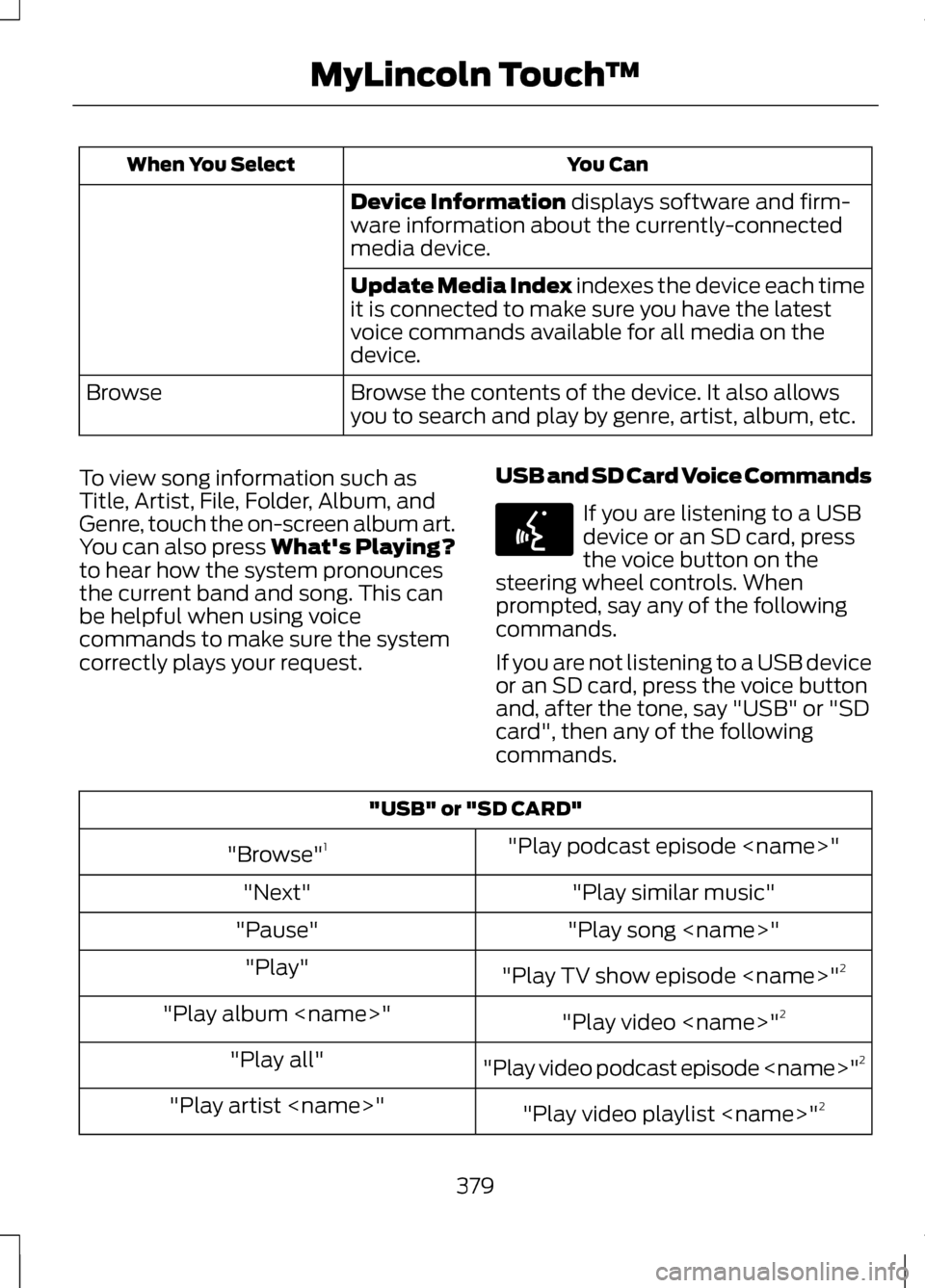
You Can
When You Select
Device Information displays software and firm-
ware information about the currently-connected
media device.
Update Media Index indexes the device each time
it is connected to make sure you have the latest
voice commands available for all media on the
device.
Browse the contents of the device. It also allows
you to search and play by genre, artist, album, etc.
Browse
To view song information such as
Title, Artist, File, Folder, Album, and
Genre, touch the on-screen album art.
You can also press
What's Playing?
to hear how the system pronounces
the current band and song. This can
be helpful when using voice
commands to make sure the system
correctly plays your request. USB and SD Card Voice Commands If you are listening to a USB
device or an SD card, press
the voice button on the
steering wheel controls. When
prompted, say any of the following
commands.
If you are not listening to a USB device
or an SD card, press the voice button
and, after the tone, say "USB" or "SD
card", then any of the following
commands. "USB" or "SD CARD"
"Play podcast episode
"Browse" 1
"Play similar music"
"Next"
"Play song
"Pause"
"Play TV show episode
"Play"
"Play video
"Play album
"Play video podcast episode
"Play all"
"Play video playlist
"Play artist
379
MyLincoln Touch
™E142599
Page 385 of 474
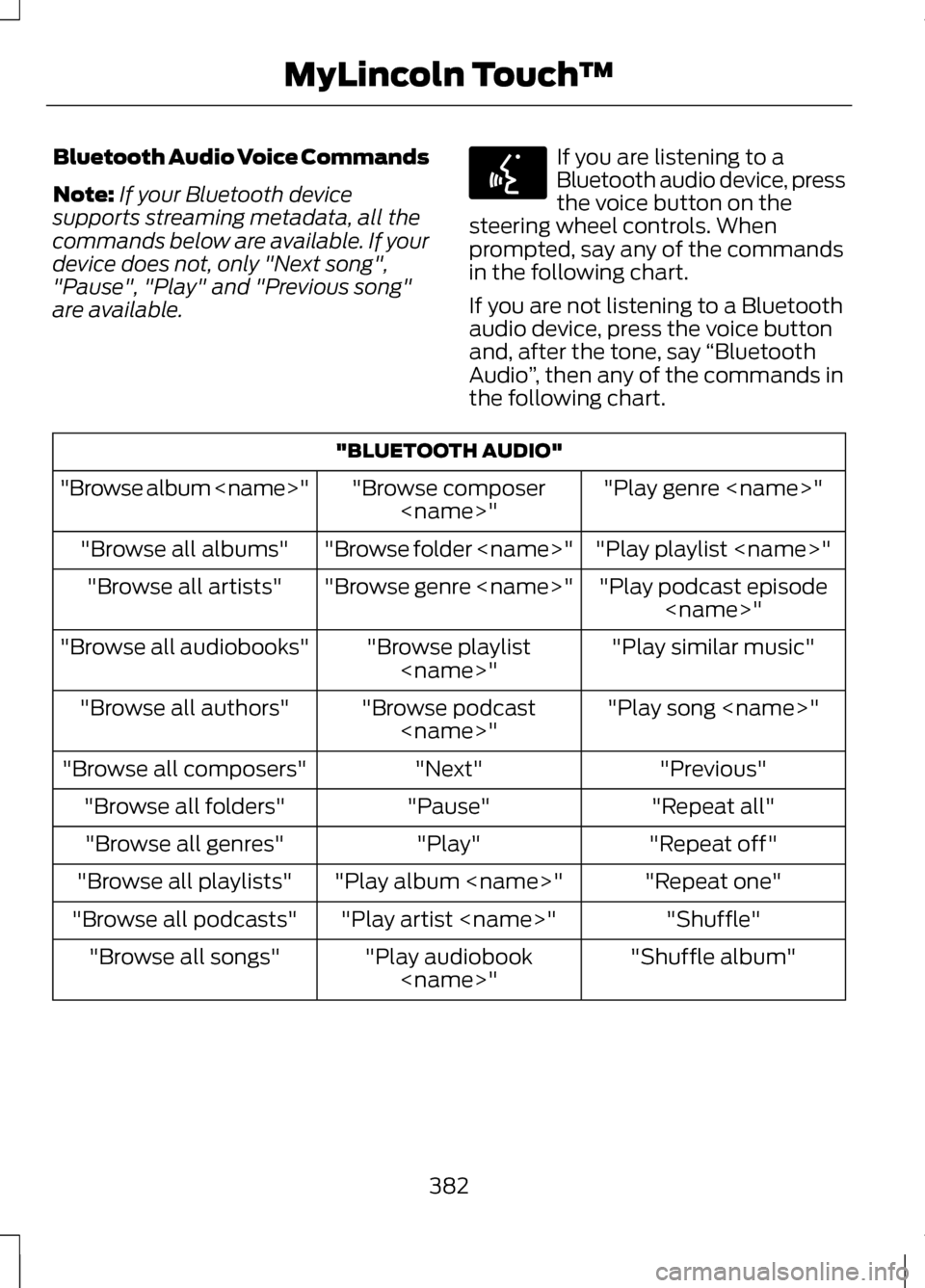
Bluetooth Audio Voice Commands
Note:
If your Bluetooth device
supports streaming metadata, all the
commands below are available. If your
device does not, only "Next song",
"Pause", "Play" and "Previous song"
are available. If you are listening to a
Bluetooth audio device, press
the voice button on the
steering wheel controls. When
prompted, say any of the commands
in the following chart.
If you are not listening to a Bluetooth
audio device, press the voice button
and, after the tone, say “Bluetooth
Audio ”, then any of the commands in
the following chart. "BLUETOOTH AUDIO"
"Play genre
"Browse composer
"Browse album
"Play playlist
"Browse folder
"Browse all albums"
"Play podcast episode
"Browse genre
"Browse all artists"
"Play similar music"
"Browse playlist
"Browse all audiobooks"
"Play song
"Browse podcast
"Browse all authors"
"Previous"
"Next"
"Browse all composers"
"Repeat all"
"Pause"
"Browse all folders"
"Repeat off"
"Play"
"Browse all genres"
"Repeat one"
"Play album
"Browse all playlists"
"Shuffle"
"Play artist
"Browse all podcasts"
"Shuffle album"
"Play audiobook
"Browse all songs"
382
MyLincoln Touch
™E142599
Page 389 of 474
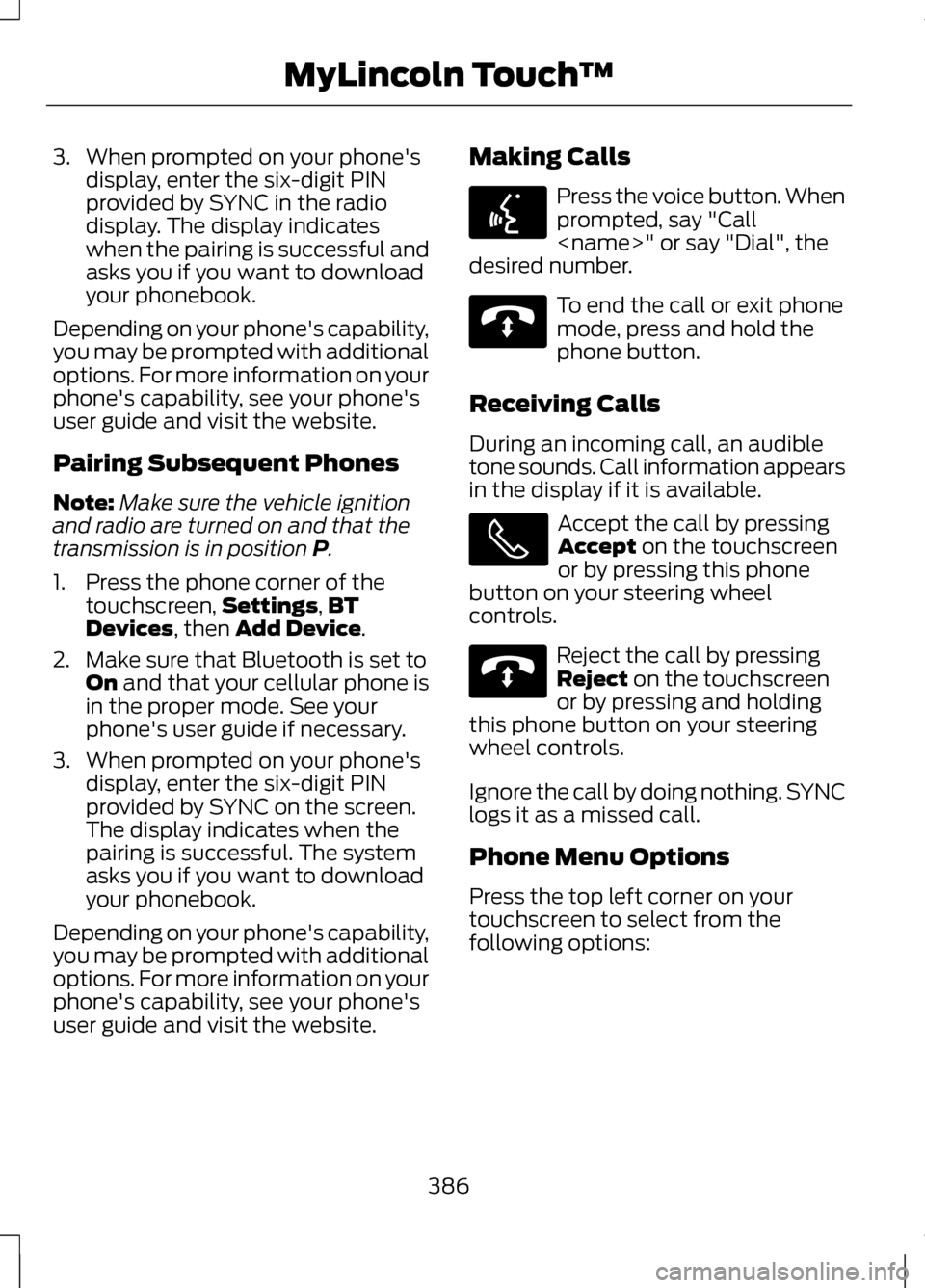
3. When prompted on your phone's
display, enter the six-digit PIN
provided by SYNC in the radio
display. The display indicates
when the pairing is successful and
asks you if you want to download
your phonebook.
Depending on your phone's capability,
you may be prompted with additional
options. For more information on your
phone's capability, see your phone's
user guide and visit the website.
Pairing Subsequent Phones
Note: Make sure the vehicle ignition
and radio are turned on and that the
transmission is in position P.
1. Press the phone corner of the touchscreen, Settings
,BT
Devices, then Add Device.
2. Make sure that Bluetooth is set to On
and that your cellular phone is
in the proper mode. See your
phone's user guide if necessary.
3. When prompted on your phone's display, enter the six-digit PIN
provided by SYNC on the screen.
The display indicates when the
pairing is successful. The system
asks you if you want to download
your phonebook.
Depending on your phone's capability,
you may be prompted with additional
options. For more information on your
phone's capability, see your phone's
user guide and visit the website. Making Calls Press the voice button. When
prompted, say "Call
desired number. To end the call or exit phone
mode, press and hold the
phone button.
Receiving Calls
During an incoming call, an audible
tone sounds. Call information appears
in the display if it is available. Accept the call by pressing
Accept
on the touchscreen
or by pressing this phone
button on your steering wheel
controls. Reject the call by pressing
Reject
on the touchscreen
or by pressing and holding
this phone button on your steering
wheel controls.
Ignore the call by doing nothing. SYNC
logs it as a missed call.
Phone Menu Options
Press the top left corner on your
touchscreen to select from the
following options:
386
MyLincoln Touch
™E142599 E142632 E142632