ignition MAZDA MODEL 3 5-DOOR 2017 Manual Online
[x] Cancel search | Manufacturer: MAZDA, Model Year: 2017, Model line: MODEL 3 5-DOOR, Model: MAZDA MODEL 3 5-DOOR 2017Pages: 612
Page 284 of 612
4–154
When Driving
Tire Pressure Monitoring System
Tire Pressure Monitoring System
Initialization
In the following cases, system
initialization must be performed so that the
system operates normally.
A tire pressure is adjusted. Tire rotation is performed. A tire or wheel is replaced. The battery is replaced or completely
drained. The tire pressure monitoring system
warning light is illuminated.
Initialization method
1. Park the car in a safe place and firmly
apply the parking brake.
2. Let the tires cool, then adjust the tire
pressure of all four (4) tires to the
specified pressure indicated on the tire
pressure label located on the driver's
door frame (door open).
Refer to Tires on page 9-10.
3. Switch the ignition ON.
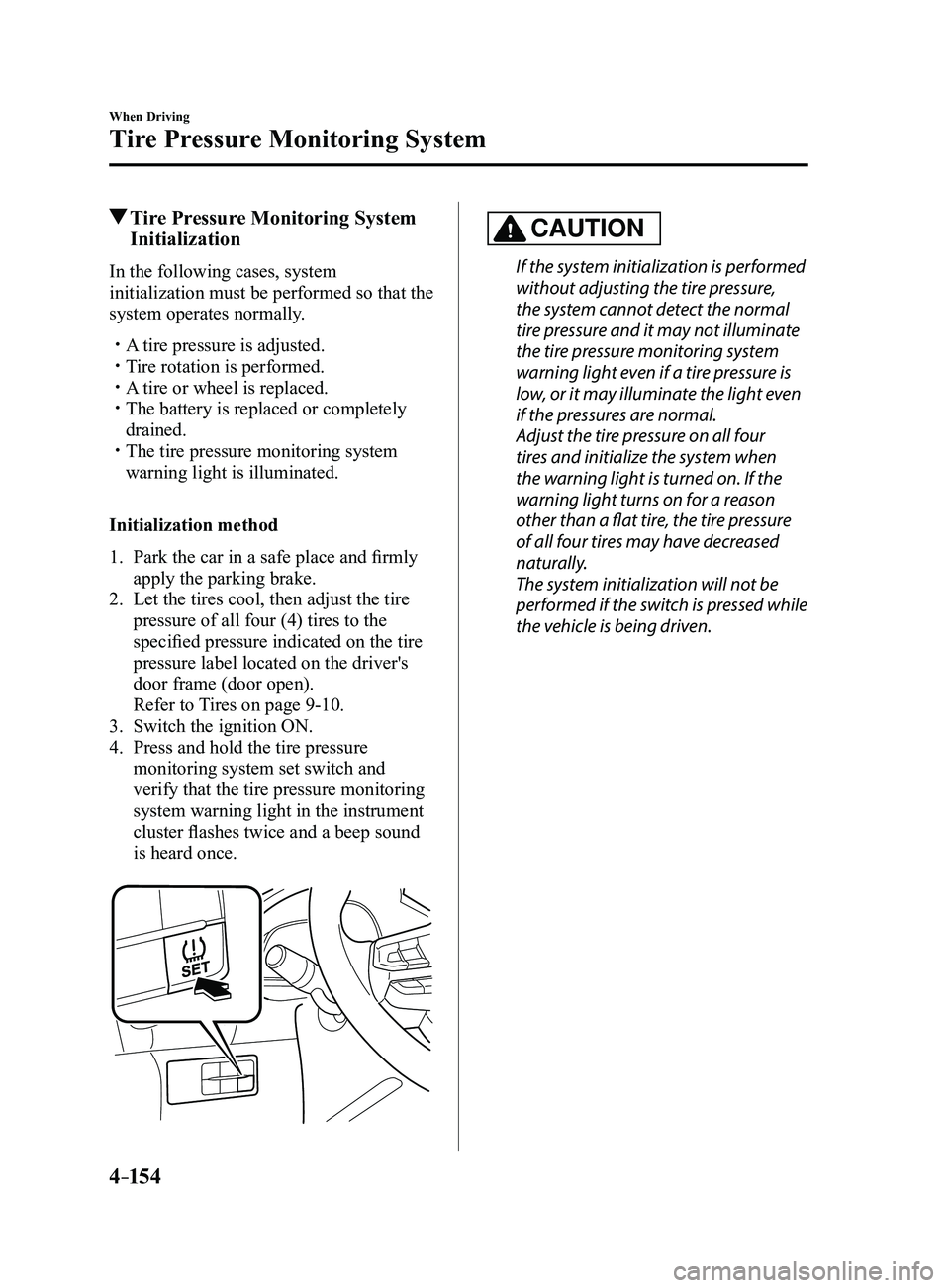
4. Press and hold the tire pressure
monitoring system set switch and
verify that the tire pressure monitoring
system warning light in the instrument
cluster flashes twice and a beep sound
is heard once.
CAUTION
If the system initialization is performed
without adjusting the tire pressure,
the system cannot detect the normal
tire pressure and it may not illuminate
the tire pressure monitoring system
warning light even if a tire pressure is
low, or it may illuminate the light even
if the pressures are normal.
Adjust the tire pressure on all four
tires and initialize the system when
the warning light is turned on. If the
warning light turns on for a reason
other than a flat tire, the tire pressure
of all four tires may have decreased
naturally.
The system initialization will not be
performed if the switch is pressed while
the vehicle is being driven.
Mazda3_8FL6-EA-16F_Edition2.indb 1542016/08/10 17:37:04
Page 286 of 612

4–156
When Driving
Rear View Monitor
NOTE
If water, snow, or mud is stuck on the camera lens, wipe it off using a soft cloth. If\
it
cannot be wiped off, use a mild detergent. If the camera temperature changes rapidly (Hot to cold, cold to hot), the rear view
monitor may not operate correctly. When replacing the tires, consult an Authorized Mazda Dealer. Replacing the tires could
result in deviation of the guide lines which appear on the display. If the vehicle's front, side, or rear has been involved in a collision, the alignment of
the rear view parking camera (location, installation angle) may have deviat\
ed. Always
consult an Authorized Mazda Dealer to have the vehicle inspected.
If “No Video Signal Available” is indicated in the display, there could be a problem with
the camera. Have your vehicle inspected at an Authorized Mazda Dealer.
Rear View Parking Camera Location
Rear View Parking CameraSedan Hatchback
Switching to the Rear View Monitor Display
Shift the shift lever to R with the ignition switched ON to switch the display to the rear view
monitor display.
NOTE
When the shift lever is shifted from R to another shift lever position, the screen returns to the
previous display.
Mazda3_8FL6-EA-16F_Edition2.indb 1562016/08/10 17:37:05
Page 294 of 612
5–2
Interior Features
Climate Control System
Operating Tips
Operate the climate control system with
the engine running. To prevent the battery from being
discharged, do not leave the fan control
dial/switch on for a long period of time
with the ignition switched ON when the
engine is not running.
Clear all obstructions such as leaves,
snow and ice from the hood and the air
inlet in the cowl grille to improve the
system efficiency.
Use the climate control system to defog
the windows and dehumidify the air. The recirculate mode should be used
when driving through tunnels or while in
a traffic jam, or when you would like to
shut off outside air for quick cooling of
the interior.
Use the outside air position for
ventilation or windshield defrosting. If the vehicle has been parked in direct
sunlight during hot weather, open the
windows to let warm air escape, then
run the climate control system.
(With A/C switch)
Run the air conditioner about 10 minutes
at least once a month to keep internal
parts lubricated.
Have the air conditioner checked before
the weather gets hot. Lack of refrigerant
may make the air conditioner less
efficient.
The refrigerant specifications are
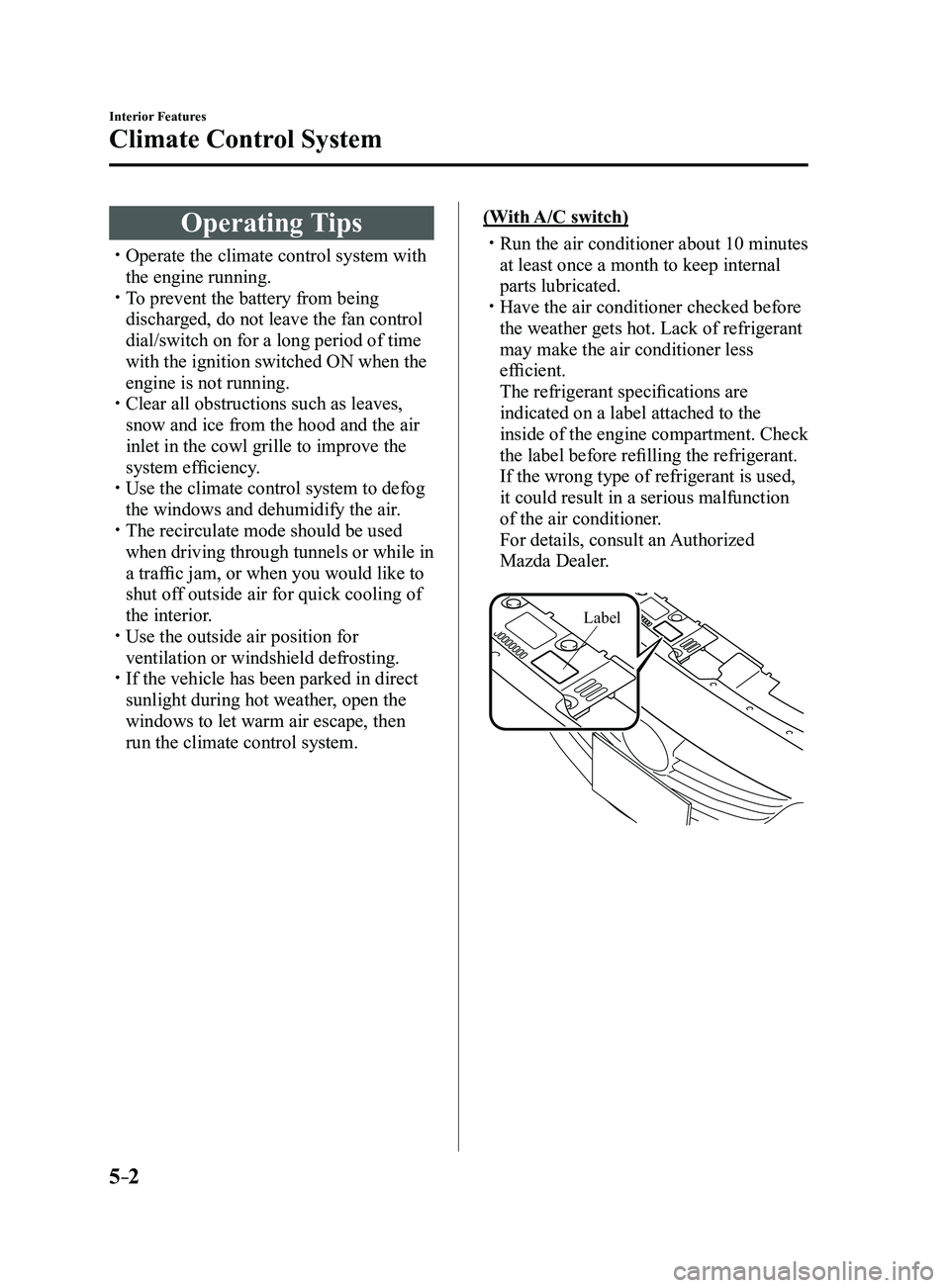
indicated on a label attached to the
inside of the engine compartment. Check
the label before refilling the refrigerant.
If the wrong type of refrigerant is used,
it could result in a serious malfunction
of the air conditioner.
For details, consult an Authorized
Mazda Dealer.
Label
Mazda3_8FL6-EA-16F_Edition2.indb 22016/08/10 17:37:10
Page 320 of 612
5–28
Interior Features
Audio System
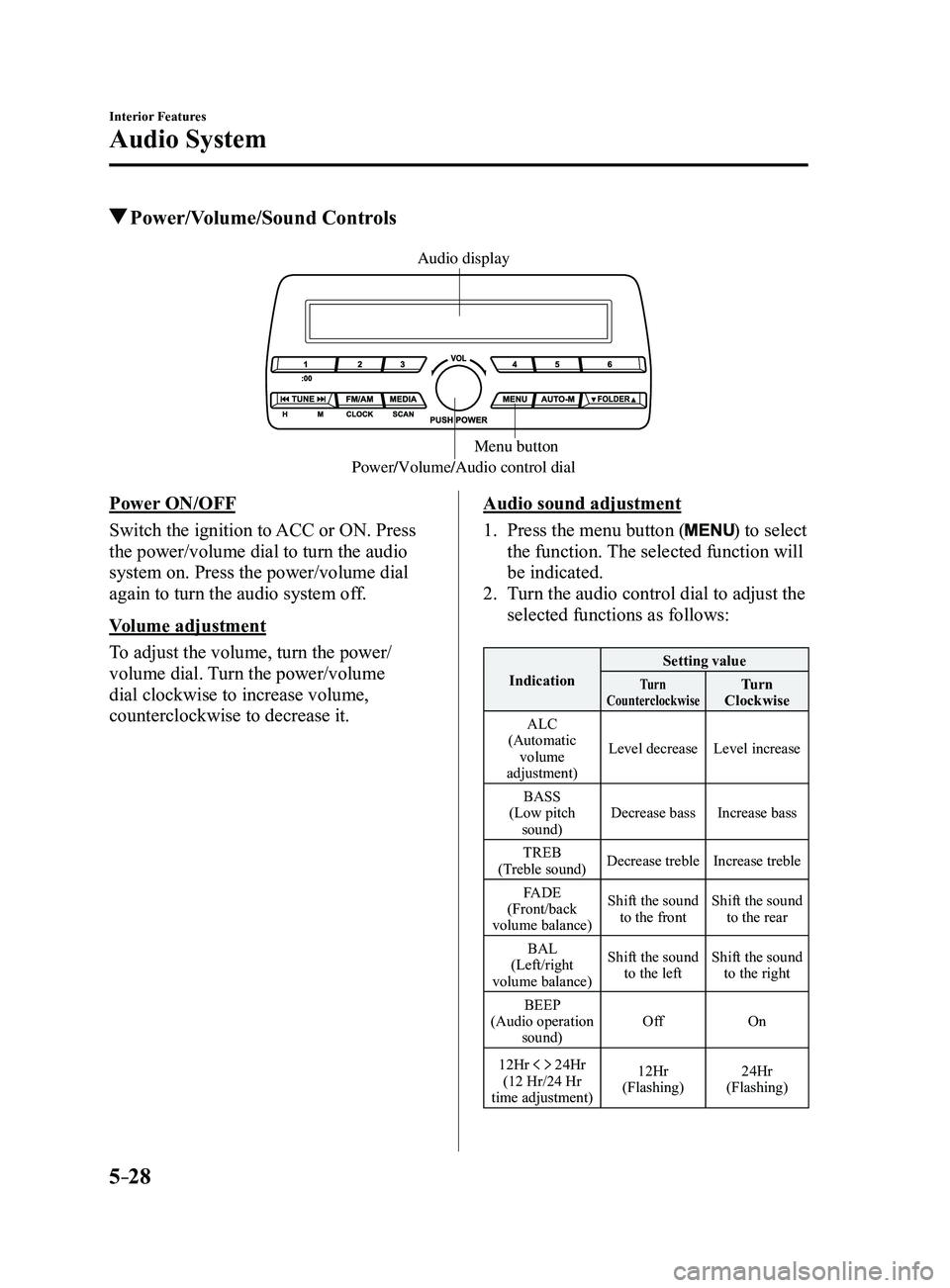
Power/Volume/Sound Controls
Power/Volume/Audio control dialMenu button
Audio display
Power ON/OFF
Switch the ignition to ACC or ON. Press
the power/volume dial to turn the audio
system on. Press the power/volume dial
again to turn the audio system off.
Volume adjustment
To adjust the volume, turn the power/
volume dial. Turn the power/volume
dial clockwise to increase volume,
counterclockwise to decrease it.Audio sound adjustment
1. Press the menu button () to select
the function. The selected function will
be indicated.
2. Turn the audio control dial to adjust the
selected functions as follows:
Indication Setting valueTurn
CounterclockwiseTurn
Clockwise
ALC
(Automatic volume
adjustment) Level decrease
Level increase
BASS
(Low pitch sound) Decrease bass
Increase bass
TREB
(Treble sound) Decrease treble
Increase treble
FADE
(Front/back
volume balance) Shift the sound
to the front Shift the sound
to the rear
BAL
(Left/right
volume balance) Shift the sound
to the left Shift the sound
to the right
BEEP
(Audio operation sound) Off
On
12Hr
24Hr
(12 Hr/24 Hr
time adjustment) 12Hr
(Flashing) 24Hr
(Flashing)
Mazda3_8FL6-EA-16F_Edition2.indb 282016/08/10 17:37:26
Page 322 of 612
5–30
Interior Features
Audio System
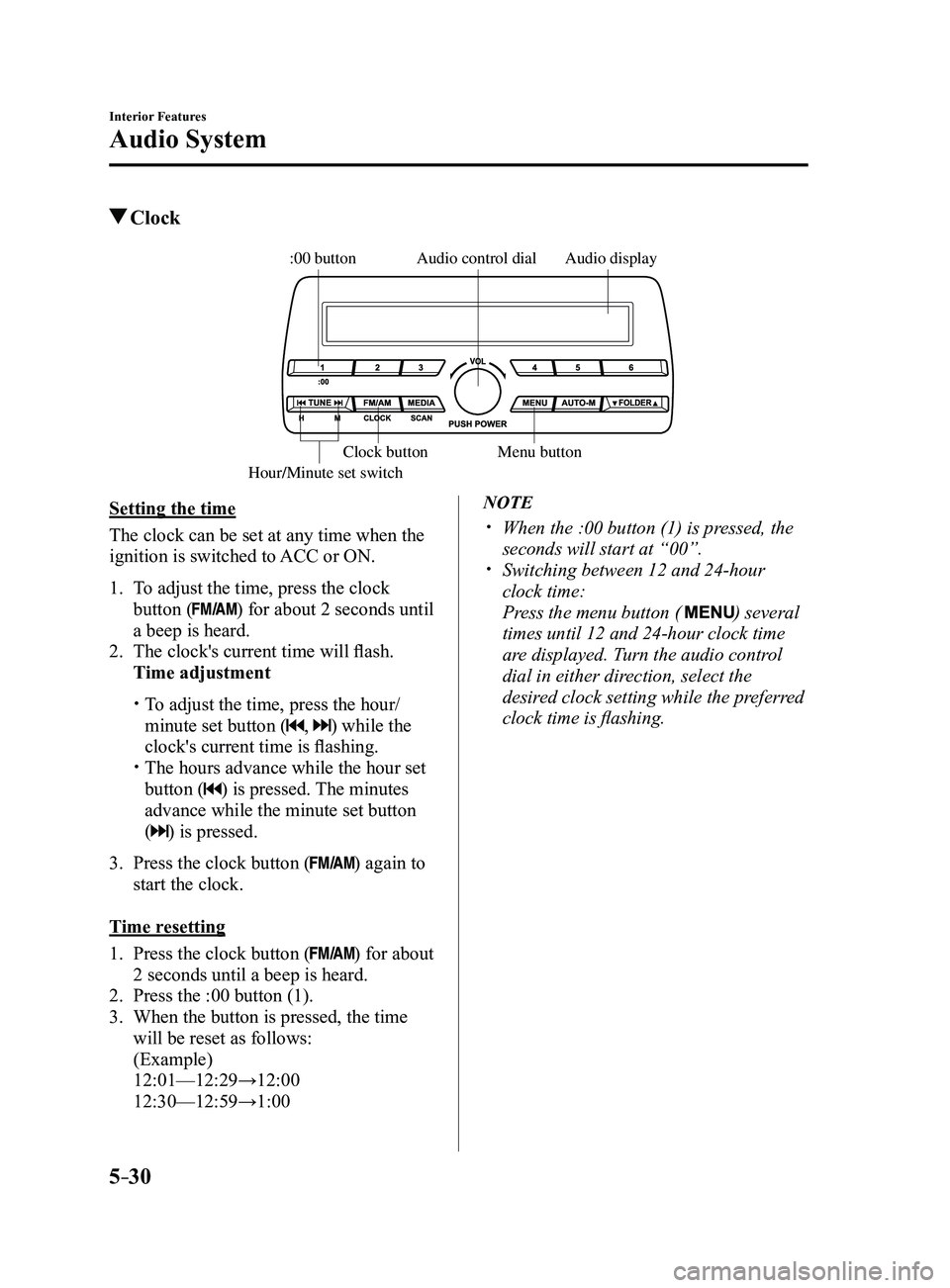
Clock
Audio display
Audio control dial
Hour/Minute set switch:00 button
Menu button
Clock button
Setting the time
The clock can be set at any time when the
ignition is switched to ACC or ON.
1. To adjust the time, press the clock
button () for about 2 seconds until
a beep is heard.
2. The clock's current time will flash.
Time adjustment
To adjust the time, press the hour/
minute set button (, ) while the
clock's current time is flashing.
The hours advance while the hour set
button () is pressed. The minutes
advance while the minute set button
(
) is pressed.
3. Press the clock button () again to
start the clock.
Time resetting
1. Press the clock button () for about
2 seconds until a beep is heard.
2. Press the :00 button (1).
3. When the button is pressed, the time
will be reset as follows:
(Example)
12:01—12:29→12:00
12:30—12:59→1:00
NOTE
When the :00 button (1) is pr essed, the
seconds will start at “00”. Switching between 12 and 24-hour
clock time:
Press the menu button ( ) several
times until 12 and 24-hour clock time
are displayed. Turn the audio control
dial in either direction, select the
desired clock setting while the preferred
clock time is flashing.
Mazda3_8FL6-EA-16F_Edition2.indb 302016/08/10 17:37:27
Page 340 of 612
5–48
Interior Features
Audio System
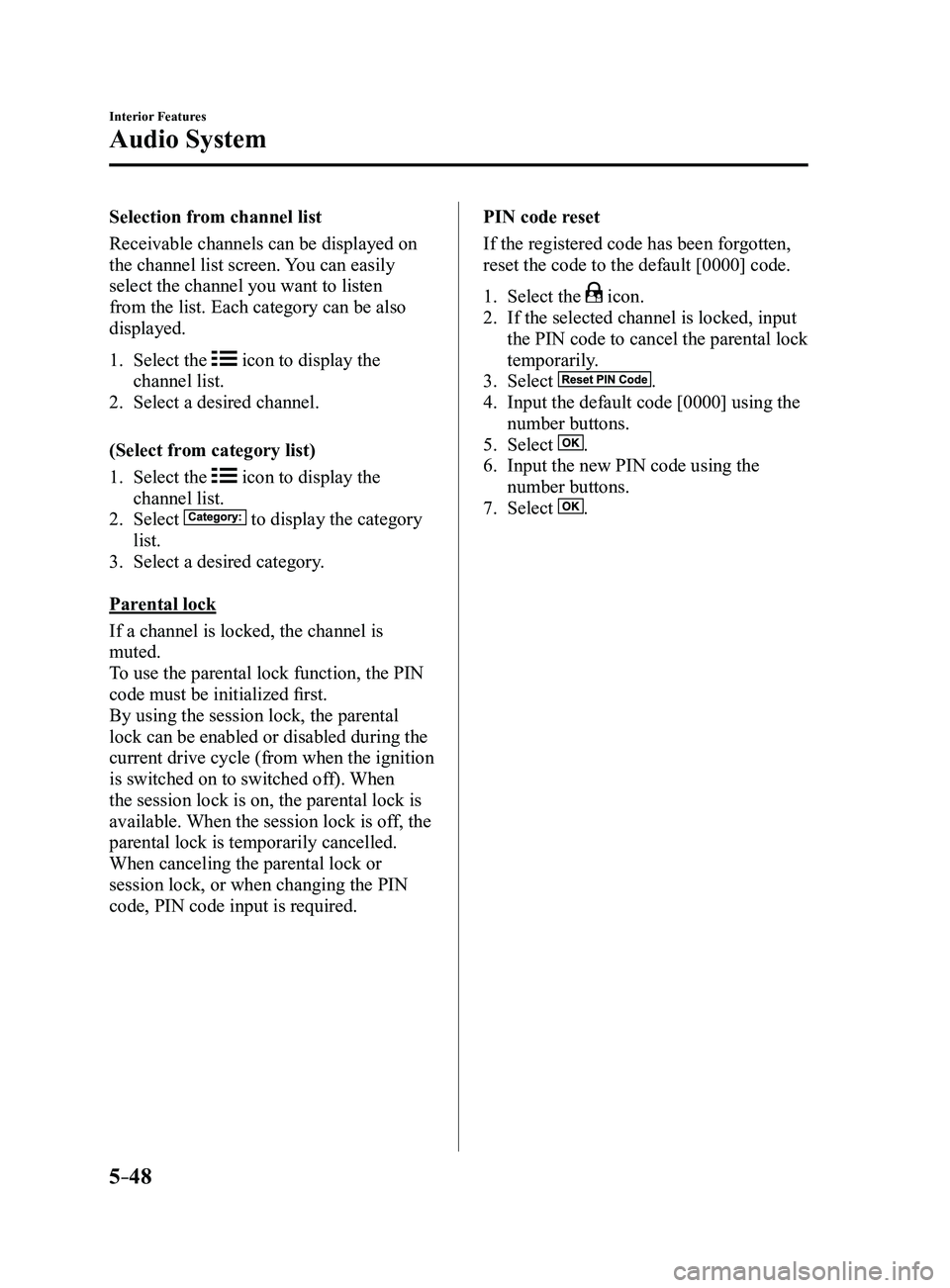
Selection from channel list
Receivable channels can be displayed on
the channel list screen. You can easily
select the channel you want to listen
from the list. Each category can be also
displayed.
1. Select the icon to display the
channel list.
2. Select a desired channel.
(Select from category list)
1. Select the icon to display the
channel list.
2. Select to display the category
list.
3. Select a desired category .
Parental lock
If a channel is locked, the channel is
muted.
To use the parental lock function, the PIN
code must be initialized first.
By using the session lock, the parental
lock can be enabled or disabled during the
current drive cycle (from when the ignition
is switched on to switched off). When
the session lock is on, the parental lock is
available. When the session lock is off, the
parental lock is temporarily cancelled.
When canceling the parental lock or
session lock, or when changing the PIN
code, PIN code input is required. PIN code reset
If the registered code has been forgotten,
reset the code to the default [0000] code.
1. Select the icon.
2. If the selected channel is locked, input
the PIN code to cancel the parental lock
temporarily.
3. Select .
4. Input the default code [0000] using the
number buttons.
5. Select .
6. Input the new PIN code using the
number buttons.
7. Select .
Mazda3_8FL6-EA-16F_Edition2.indb 482016/08/10 17:37:43
Page 353 of 612
5–61
Interior Features
Audio System
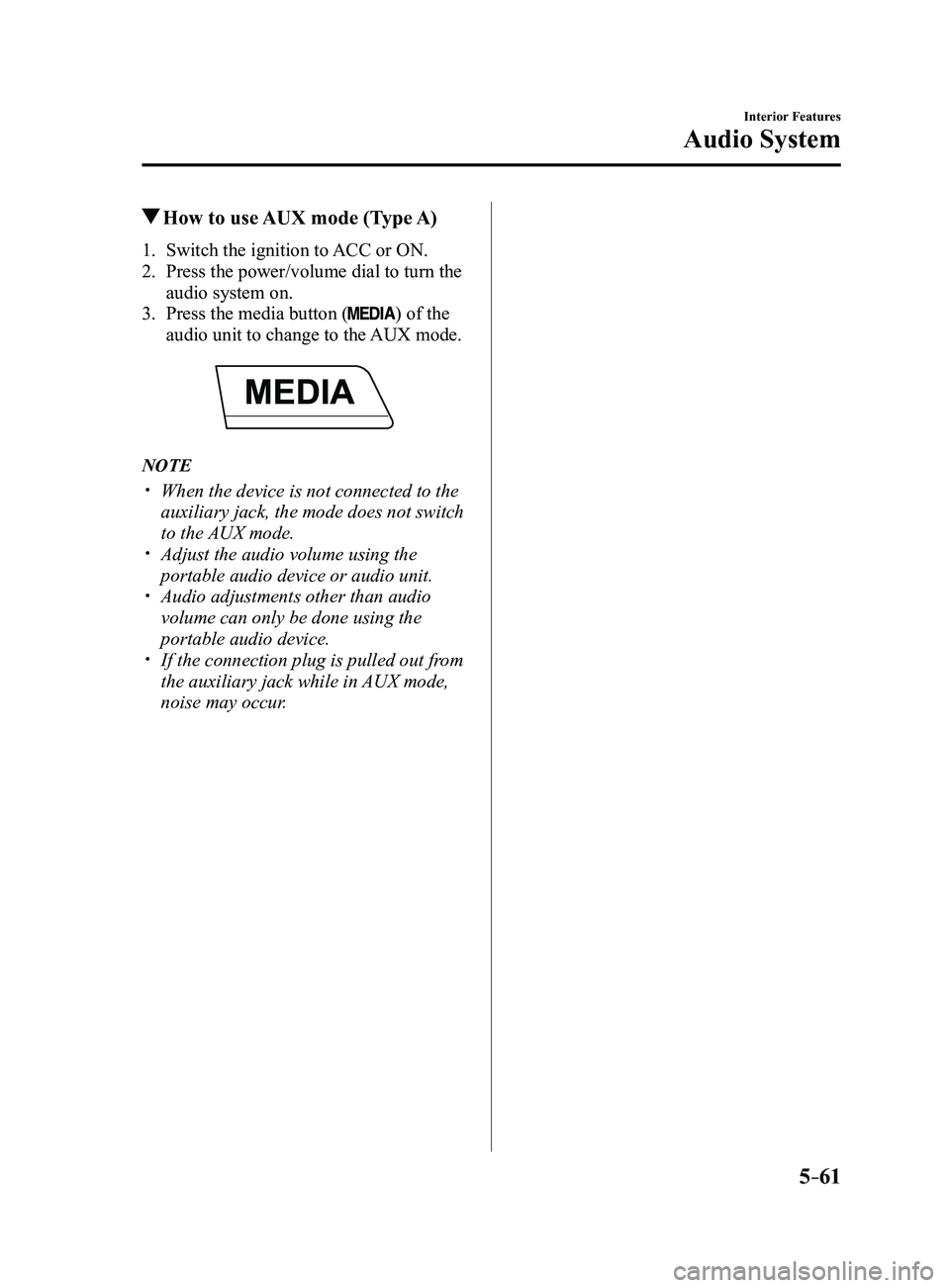
How to use AUX mode (Type A)
1. Switch the ignition to ACC or ON.
2. Press the power/volume dial to turn the
audio system on.
3. Press the media button () of the
audio unit to change to the AUX mode.
NOTE
When the device is not connected to the
auxiliary jack, the mode does not switch
to the AUX mode.
Adjust the audio volume using the
portable audio device or audio unit. Audio adjustments other than audio
volume can only be done using the
portable audio device.
If the connection plug is pulled out fr om
the auxiliary jack while in AUX mode,
noise may occur.
Mazda3_8FL6-EA-16F_Edition2.indb 612016/08/10 17:37:51
Page 354 of 612
5–62
Interior Features
Audio System
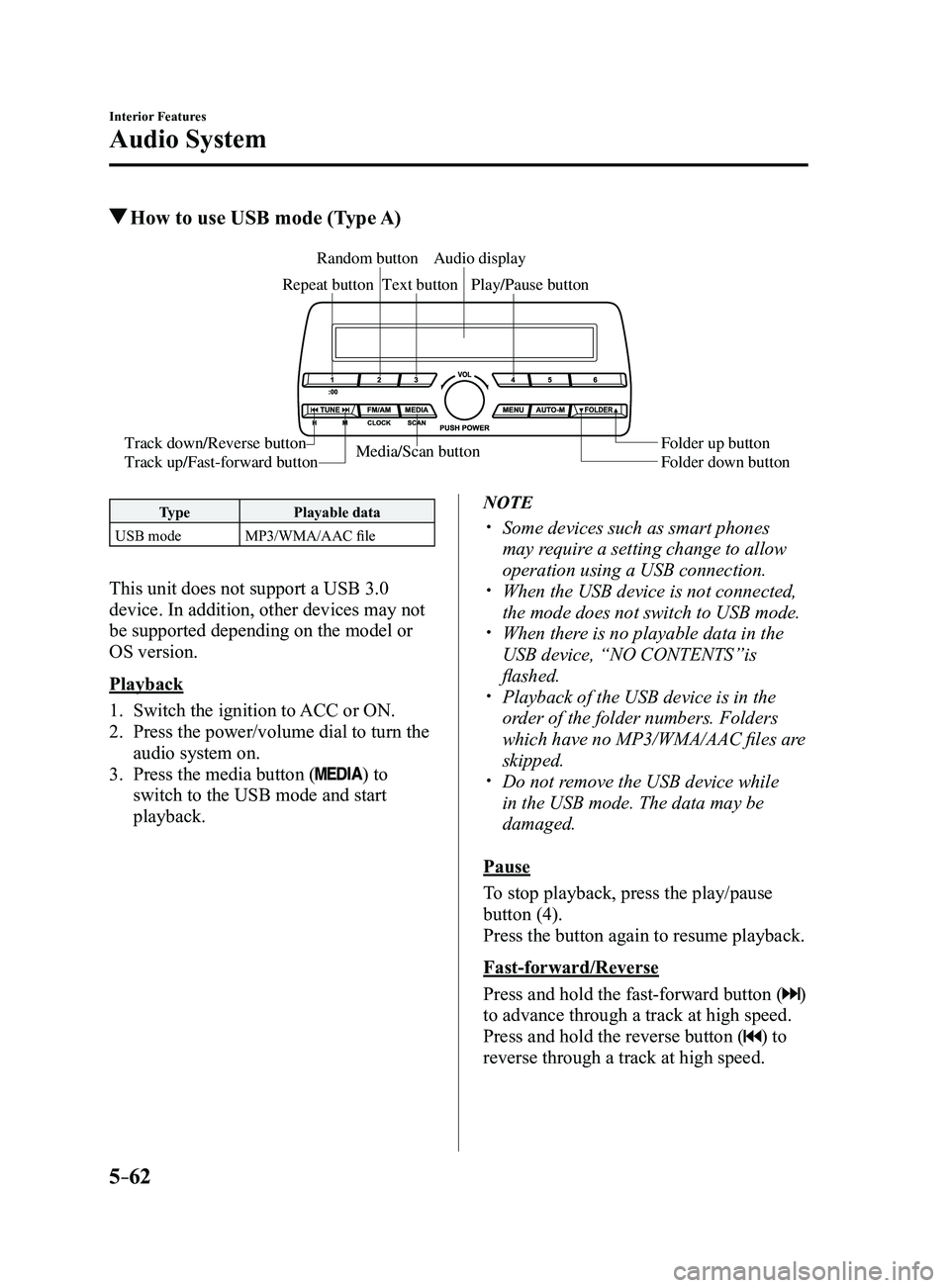
How to use USB mode (Type A)
Media/Scan button
Folder down button Folder up button
Play/Pause button
Random button
Repeat button
Audio display
Text button
Track down/Reverse button
Track up/Fast-forward button
Type
Playable data
USB mode MP3/WMA/AAC file
This unit does not support a USB 3.0
device. In addition, other devices may not
be supported depending on the model or
OS version.
Playback
1. Switch the ignition to ACC or ON.
2. Press the power/volume dial to turn the
audio system on.
3. Press the media button () to
switch to the USB mode and start
playback.
NOTE
Some devices such as smart phones
may require a setting change to allow
operation using a USB connection.
When the USB device is not connected,
the mode does not switch to USB mode. When there is no playable data in the
USB device, “NO CONTENTS”is
flashed.
Playback of the USB device is in the
order of the folder numbers. Folders
which have no MP3/WMA/AAC files are
skipped.
Do not remove the USB device while
in the USB mode. The data may be
damaged.
Pause
To stop playback, press the play/pause
button (4).
Press the button again to resume playback.
Fast-forward/Reverse
Press and hold the fast-forward button (
)
to advance through a track at high speed.
Press and hold the reverse button (
) to
reverse through a track at high speed.
Mazda3_8FL6-EA-16F_Edition2.indb 622016/08/10 17:37:51
Page 358 of 612
5–66
Interior Features
Audio System
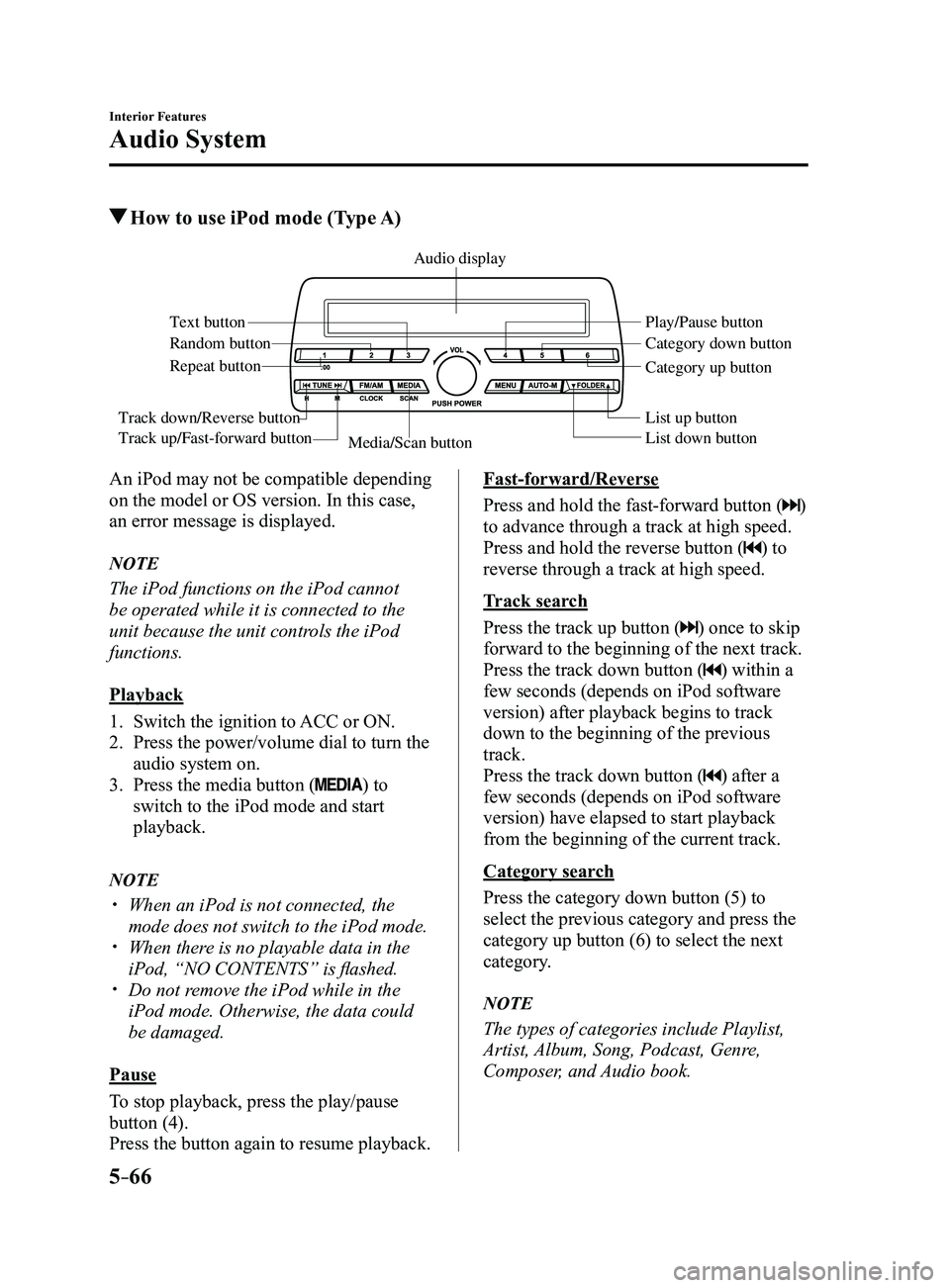
How to use iPod mode (Type A)
Media/Scan button List down button List up button Play/Pause button
Random button
Repeat button
Audio display
Text button
Track down/Reverse button
Track up/Fast-forward button
Category down button
Category up button
An iPod may not be compatible depending
on the model or OS version. In this case,
an error message is displayed.
NOTE
The iPod functions on the iPod cannot
be operated while it is connected to the
unit because the unit controls the iPod
functions.
Playback
1. Switch the ignition to ACC or ON.
2. Press the power/volume dial to turn the
audio system on.
3. Press the media button () to
switch to the iPod mode and start
playback.
NOTE
When an iPod is not connected, the
mode does not switch to the iPod mode. When there is no playable data in the
iPod, “NO CONTENTS” is flashed. Do not remove the iPod while in the
iPod mode. Otherwise, the data could
be damaged.
Pause
To stop playback, press the play/pause
button (4).
Press the button again to resume playback.
Fast-forward/Reverse
Press and hold the fast-forward button (
)
to advance through a track at high speed.
Press and hold the reverse button (
) to
reverse through a track at high speed.
Track search
Press the track up button (
) once to skip
forward to the beginning of the next track.
Press the track down button (
) within a
few seconds (depends on iPod software
version) after playback begins to track
down to the beginning of the previous
track.
Press the track down button (
) after a
few seconds (depends on iPod software
version) have elapsed to start playback
from the beginning of the current track.
Category search
Press the category down button (5) to
select the previous category and press the
category up button (6) to select the next
category.
NOTE
The types of categories include Playlist,
Artist, Album, Song, Podcast, Genre,
Composer, and Audio book.
Mazda3_8FL6-EA-16F_Edition2.indb 662016/08/10 17:37:53
Page 369 of 612

5–77
Interior Features
Bluetooth®
Conversation volume and the volume of the voice guidance and ringtone ca\
n each be set in
advance.
1. Select the icon on the home screen to display the Communication screen.
2. Select .
3. Adjust the and the using the slider.
Bluetooth® Preparation
Device pairing
To use Bluetooth
® audio and Hands-Free,
the device equipped with Bluetooth® has
to be paired to the unit using the following
procedure. A maximum of seven devices
including Bluetooth
® audio devices and
hands-free mobile phones can be paired.
NOTE
The Bluetooth® system may not operate
for 1 or 2 minutes after the ignition
is switched to ACC or ON. However,
this does not indicate a problem. If the
Bluetooth
® system does not connect
automatically after 1 or 2 minutes have
elapsed, make sure that the Bluetooth
®
setting on the device is normal and
attempt to reconnect the Bluetooth
®-
enabled device from the vehicle side.
If Bluetooth®-enabled devices are used
in the following locations or conditions,
connection via Bluetooth
® may not be
possible.
The device is in a location hidden
from the center display such as
behind or under a seat, or inside the
glove compartment.
The device contacts or is cover ed by
a metal object or body. The device is set to power-saving
mode. Pairing Procedure
1. Select the icon on the home screen
to display the Settings screen.
2. Select the tab.
3. Select .
4. Turn the Bluetooth® setting on.
5. Select to display the
message and switch to the device
operation.
6. Using your device, perform a search
for the Bluetooth® device (Peripheral
device).
7. Select “Mazda” from the device list
searched by the device.
8. (Device with Bluetooth® version 2.0)
Input the displayed 4-digit pairing code
into the device.
(Device with Bluetooth® version 2.1
or higher)
Make sure the displayed 6-digit code
on the audio is also displayed on the
device, and touch the
.
Connection permission and phonebook
access permission for your mobile
device may be required depending on
the mobile device.
9. If pairing is successful, the functions of
the device connected to Bluetooth® are
displayed.
10. (Devices compatible with Mazda
Email / SMS function)
SMS (Short Message Service)
messages, and E-mail for the device are
downloaded automatically. A download
permission operation for your device
may be required depending on the
device.
Mazda3_8FL6-EA-16F_Edition2.indb 772016/08/10 17:37:59