change MAZDA MODEL 6 2015 (in English) Manual PDF
[x] Cancel search | Manufacturer: MAZDA, Model Year: 2015, Model line: MODEL 6, Model: MAZDA MODEL 6 2015Pages: 576
Page 314 of 576
Black plate (314,1)
Genre Seek
Some FM stations transmit Genre codes
(Program type like a Rock, News, and so
on). This code enables alternative stations
transmitting the same Genre code to be
found quickly. To select from the genre
list, touch the
on-screen button
while in the FM mode and the desired
Genre Seek.
(To scan for Genre Seek:)
1. Touch the genre type which you want
to select.
2. Touch the
,on-screen
button.
Ex.)
89.3 is currently being received. With
Rock selected as the Genre, the radio
stations broadcasting Rock are at the
following frequencies.
98.3
*1, 98.7, 104.3*1, 107.1
*1 Radio stations with good reception
The frequency changes as follows each
time the Genre Seek on-screen button is
pressed.
89.3→98.3→104.3→98.3NOTE
lOnly one Genre can be selected.lTouch theon-screen button to
return to the FM1 or FM2 main screen.
lIt may not be possible to receive any station
even if the Genre Seek function is used.
lIf a program in the selected genre is not
broadcast to a region, reception is not
possible even if the Genre Seek function is
used.
lThe Genre Seek function searches for genre
code (program type) which FM analog
broadcasts transmit.
specialty
programs (HD2-HD8) cannot be searched
because they are not FM analog
broadcasts.
lIf radio stations which are selected by
scanning using the Genre Seek function are
broadcasting stations, they are
changed from analog broadcasts to
broadcasts after a few seconds
if the reception conditions are good. The
genre is displayed after the switch,
however, the genre for FM analog
broadcasts may differ.
HD Radio
What is HD Radio™Technology and
how does it work?
HD Radio™Technology is the digital
evolution of analog AM/FM radio. Your
radio product has a special receiver which
allows it to receive digital broadcasts
(where available) in addition to the analog
broadcasts it already receives. Digital
broadcasts have better sound quality than
analog broadcasts as digital broadcasts
provide free, crystal clear audio. For more
information, and a guide to available radio
stations and programming, please visit
www.hdradio.com.
5-42
Interior Features
Audio System
Mazda6_8DQ8-EA-13L_Edition3 Page314
Friday, June 13 2014 6:22 PM
Form No.8DQ8-EA-13L
Page 315 of 576

Black plate (315,1)
Benefits of HD Radio™Technology
(Information)
The song title, artist name and genre will
appear on the screen when available by
the radio station.
(Multicast)
On the FM radio frequency most digital
stations have“multiple”or supplemental
programs on each FM station.
Listening to HD Radio™Technology
If
turns on by selecting a radio
station which is an
broadcasting station, the analog broadcast
is switched to an
broadcast
automatically after a few seconds and then
received. For FM,
, and for AM,
is displayed, and theilluminates
in orange.
If the HD Radio broadcast is stopped and
changed to an analog broadcast, press
down
to turn off.
Multicast channel selection (FM)
Press
on-screen button to
switch to the multi-cast channel for the
displayed number.
The number of multi-cast channels which
can be received differs depending on the
radio station.NOTE
lIf an analog broadcast is received once and
is received while HD1 is
selected, the audio unit switches to the
station automatically.lWhen thebutton is
illuminated, there could be a noticeable
difference in sound quality and volume
when a change from digital to analog
signals occurs. If the sound quality and
volume become noticeably diminished or
cut off, touch the HD button to turn off
(button is not
illuminated).
lOnce an analog broadcast is received when
HD1 is selected from the preset channels, it
is switched to
automatically. If
the radio reception conditions are poor, or
is off, switching to
broadcasts is not possible.lWhen an HD specialty channel (HD2 to
HD8) is selected from the preset channels,
“No HD signal”is displayed and no audio
is output until
is received. If
the radio reception conditions are poor,
“No HD signal”continues to be displayed.
lIf theis not illuminated or does not
illuminate in orange, information such as
song titles of the
station are
received, however, the audio output is
analog. If information can no longer be
received and the non-reception condition
continues,
andon-
screen buttons disappear.
Interior Features
Audio System
5-43
Mazda6_8DQ8-EA-13L_Edition3 Page315
Friday, June 13 2014 6:22 PM
Form No.8DQ8-EA-13L
Page 317 of 576
Black plate (317,1)
Be sure you are parked outside with a
clear view of open sky, you will be
instructed to turn on your radio (in
SIRIUS mode and tuned to channel 184).
Activation typically takes only 2―5
minutes.
Displaying the SIRIUS ID (ESN)
Turn the manual tuning dial and select
channel 0 to display the twelve-digit
Electronic Serial Number (ESN) for the
SIRIUS tuner.
SIRIUS operation
All operations of the satellite radio are
conducted by means of the audio unit.
SIRIUS radio mode selection
Touch the
on-screen tab on the
audio screen to receive the previously
received SIRIUS channel.
Every time the
on-screen tab is
touched, the bank changes in the order
shown below.
SIRIUS1 SIRIUS2 SIRIUS3
NOTElSIRIUS1, SIRIUS2 and SIRIUS3: six
stations can be stored in each bank for
convenient access to your favorite stations.
lis displayed when SIRIUS1 is
selected,
is displayed when
SIRIUS2 is selected, and
is
displayed when SIRIUS3 is selected.
Operation in the initial state
It may take some time to start up the
equipment when it is in the initial state,
when there is a change in the user's
subscription condition, when the firmware
is updated or when the SIRIUS channel
map is changed.
“Updating Channels XXX %”is
displayed when the SIRIUS channel map
is changed.
If the user contract content is changed,
“Subscription Updated”is displayed.
When the firmware is updated, the
“Updating Receiver”is displayed.
Updating could take as long as a few
minutes depending on the geographical
area. When the unit is in an initialized
state, channel 184 is displayed after the
display indicates“Updating Receiver”.
NOTE
Do not perform the following operation while
“Updating Channels XXX %”,“Updating
Receiver”is displayed. Otherwise, the
updating procedure will be canceled.
lTurning off the audio powerlSwitching to other modeslSwitching the ignition off
When the SIRIUS mode is switched to
another mode, or when the power is
turned off, the present channel which is
being received is stored as the last
channel.
Channel up
Turn the manual tuning dial to the right or
press the seek up button (
).
Channel down
Turn the manual tuning dial to the left or
press the seek down button (
).
Interior Features
Audio System
5-45
Mazda6_8DQ8-EA-13L_Edition3 Page317
Friday, June 13 2014 6:22 PM
Form No.8DQ8-EA-13L
Page 319 of 576
Black plate (319,1)
Display scroll
If a whole title cannot be displayed at one
time, touch the
on-screen button on
the right side of the title. When the last
character is displayed, touch the
on-
screen button to display the first character
of the title.
NOTE
Theon-screen button is displayed only if a
whole title cannot be displayed at one time.
Instant replay
This function allows you to rewind and
replay the program that you were
previously or are currently listening to.
When the
on-screen button is
touched, playback starts from the
beginning of the current program.
When the
on-screen button is
touched twice, playback starts from the
beginning of the previous program.
Touch and hold the
on-screen
button to reverse the program while the
button is being pressed.
When the
on-screen button is
touched, playback starts from the
beginning of the next program.
When the
on-screen button is
touched while the last program is being
played, the instant replay mode is
canceled.
Touch and hold the
on-screen
button to fast-forward the program while
the button is being pressed.
When touching and holding the button
until the end of the program, the instant
replay mode is canceled.
Instant replay (PAUSE)
If the
on-screen button is touched,
instant replay mode is turned on in a
paused condition (PAUSE).Touch the
on-screen button again
to resume playback from the point at
which it was paused.
Parental lock
Parental lock, parental unlock, parental
lock code change, and parental lock code
reset can be set.
NOTE
lTouch theon-screen button during
all the settings to return to the previous
display.
lTouch theon-screen button during the
code and master code input to delete an
input number.
lIf only a four-digit code or master code is
input,“Done”can be selected.
lIf the registered code has been forgotten,
reset the code in“Initialize Parental Code”
to [0000].
Parental lock
If a channel is locked, the channel is
muted.
1. Turn the manual tuning dial to select
the desired channel.
2. Touch the
on-screen button to
display the settings screen.
3. Touch the
on-screen
button to display the parental lock
settings screen.
4.“Input Parental Code”is displayed, and
input of the registered code is possible.
To enter a number, use the numerical
keypad.
5. After inputting the four digits, touch
the
on-screen button to confirm
the four digits.
Interior Features
Audio System
5-47
Mazda6_8DQ8-EA-13L_Edition3 Page319
Friday, June 13 2014 6:22 PM
Form No.8DQ8-EA-13L
Page 320 of 576

Black plate (320,1)
6. If the four digits match the registered
code,“Channel XXX locked”appears
and mute is turned on. If they do not
match the registered code,“Wrong
code”appears and then the display
returns to“Input Parental Code”.
Parental unlock
Channels locked using the parental lock
function can be unlocked.
1. Select a channel to be unlocked by
turning the manual tuning dial.
2. Touch the
on-screen button to
display the settings screen.
3. Touch the
on-screen
button to display the parental unlock
settings screen.
4.“Input Parental Code”is displayed, and
input of the registered code is possible.
To enter a number, use the numerical
keypad.
5. After inputting the four digits, touch
the
on-screen button to confirm
the four digits.
6. If the four digits match the registered
code,“Channel XXX unlocked”
appears and mute is canceled. If they
do not match the registered code,
“Wrong code”appears and then the
display returns to“Input Parental
Code”.
Parental-lock code change
When changing the code, the new code is
input after the previous one is input first.
1. Touch the
on-screen button to
display the settings screen.
2. Touch the
on-
screen button to display the code
change screen.3.“Enter Current Code”is displayed, and
input of the registered code is possible.
To enter a number, use the numerical
keypad.
4. After inputting the four digits, touch
the
on-screen button to confirm
the four digits.
5. If the four digits match the registered
code,“Enter New Code”is displayed.
If they do not match the registered
code,“Wrong code”appears and then
the display returns to“Enter Current
Code”. To enter a number, use the
numerical keypad.
6. After inputting the four digits, touch
the
on-screen button to confirm
the four digits.
7.“Code changed”appears to indicate
that the new code input has been
completed.
8. The display returns to its normal
display.
NOTE
Channels locked before changing the code
remain after changing the code. To unlock a
channel, input the changed code.
Parental-lock code reset
If the registered code has been forgotten,
reset the code to the default [0000] code.
1. Touch the
on-screen button to
display the settings screen.
2. Touch the
on-
screen button to display the code initial
screen.
3.“Enter Master Code”is displayed, and
input of the registered code is possible.
To enter a number, use the numerical
keypad.
5-48
Interior Features
Audio System
Mazda6_8DQ8-EA-13L_Edition3 Page320
Friday, June 13 2014 6:22 PM
Form No.8DQ8-EA-13L
Page 322 of 576

Black plate (322,1)
Seek alert setting
On or off switching to song seek, artist
seek, or game alert function, and deletion
of stored information can be performed.
Touch the
on-screen button and the
on-screen button. Touch the button
you want to change from
,,or
.
(On or off switching)
Touch the
,, and
on-screen button.
(Deletion)
1. Select song title, artist name, or sports
team name that you want to delete from
the list.
2. Touch the
on-screen button to
display“XXXXX (song, artist, sports
team name) deleted”.
5-50
Interior Features
Audio System
Mazda6_8DQ8-EA-13L_Edition3 Page322
Friday, June 13 2014 6:22 PM
Form No.8DQ8-EA-13L
Page 331 of 576
Black plate (331,1)
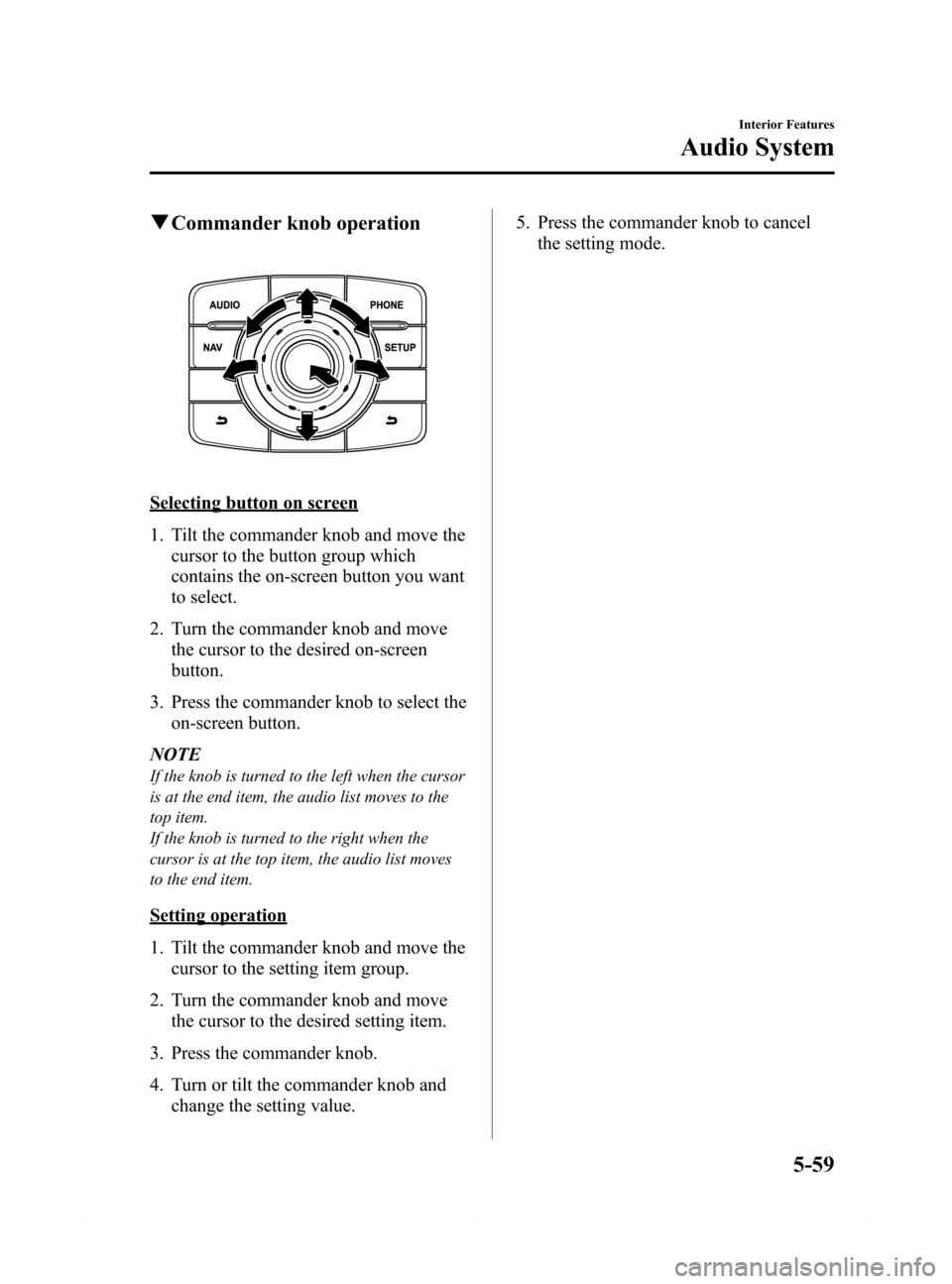
qCommander knob operation
Selecting button on screen
1. Tilt the commander knob and move the
cursor to the button group which
contains the on-screen button you want
to select.
2. Turn the commander knob and move
the cursor to the desired on-screen
button.
3. Press the commander knob to select the
on-screen button.
NOTE
If the knob is turned to the left when the cursor
is at the end item, the audio list moves to the
top item.
If the knob is turned to the right when the
cursor is at the top item, the audio list moves
to the end item.
Setting operation
1. Tilt the commander knob and move the
cursor to the setting item group.
2. Turn the commander knob and move
the cursor to the desired setting item.
3. Press the commander knob.
4. Turn or tilt the commander knob and
change the setting value.5. Press the commander knob to cancel
the setting mode.
Interior Features
Audio System
5-59
Mazda6_8DQ8-EA-13L_Edition3 Page331
Friday, June 13 2014 6:22 PM
Form No.8DQ8-EA-13L
Page 334 of 576
Black plate (334,1)
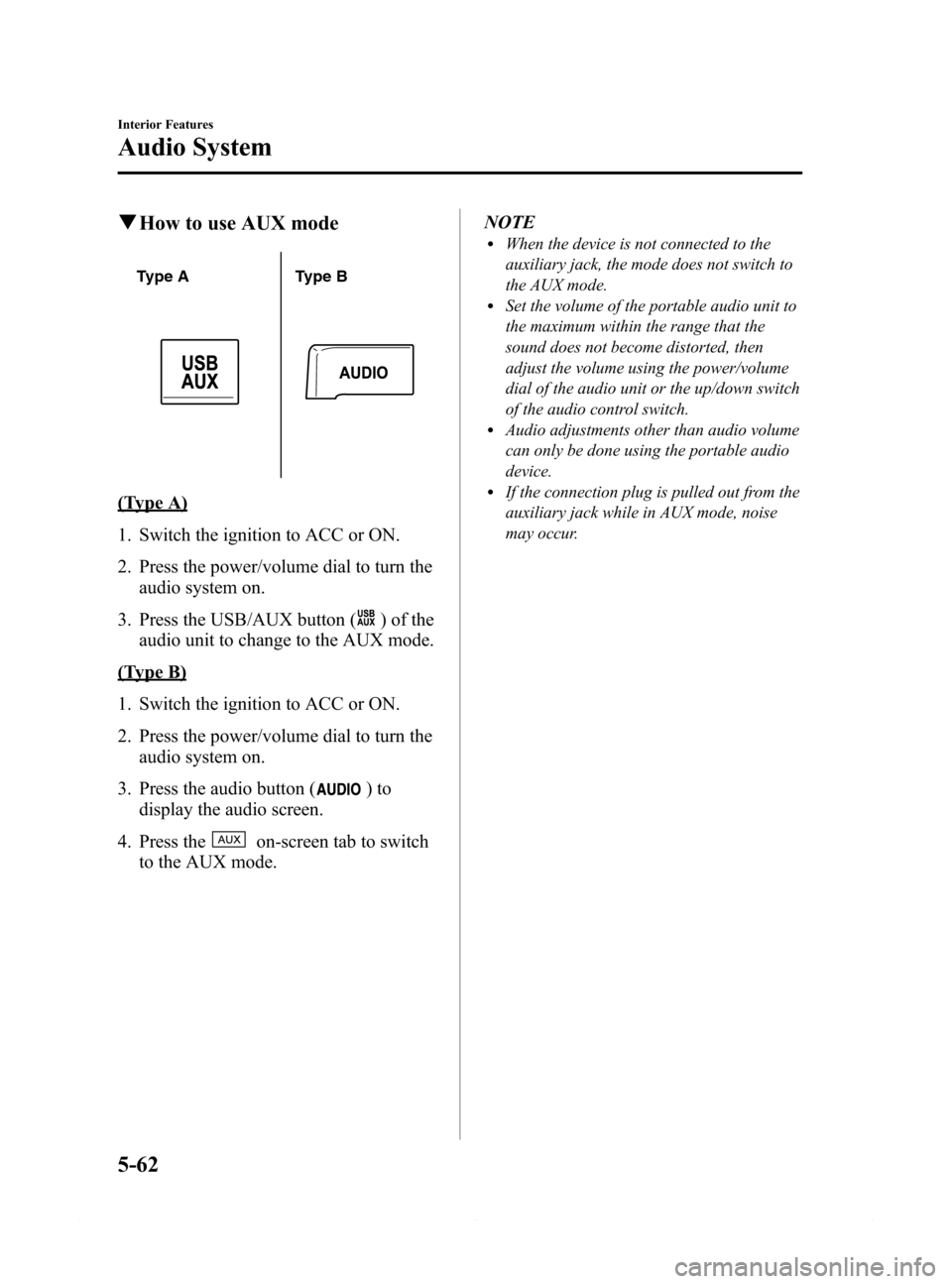
qHow to use AUX mode
Type A Type B
(Type A)
1. Switch the ignition to ACC or ON.
2. Press the power/volume dial to turn the
audio system on.
3. Press the USB/AUX button (
) of the
audio unit to change to the AUX mode.
(Type B)
1. Switch the ignition to ACC or ON.
2. Press the power/volume dial to turn the
audio system on.
3. Press the audio button (
)to
display the audio screen.
4. Press the
on-screen tab to switch
to the AUX mode.NOTE
lWhen the device is not connected to the
auxiliary jack, the mode does not switch to
the AUX mode.
lSet the volume of the portable audio unit to
the maximum within the range that the
sound does not become distorted, then
adjust the volume using the power/volume
dial of the audio unit or the up/down switch
of the audio control switch.
lAudio adjustments other than audio volume
can only be done using the portable audio
device.
lIf the connection plug is pulled out from the
auxiliary jack while in AUX mode, noise
may occur.
5-62
Interior Features
Audio System
Mazda6_8DQ8-EA-13L_Edition3 Page334
Friday, June 13 2014 6:22 PM
Form No.8DQ8-EA-13L
Page 336 of 576
Black plate (336,1)
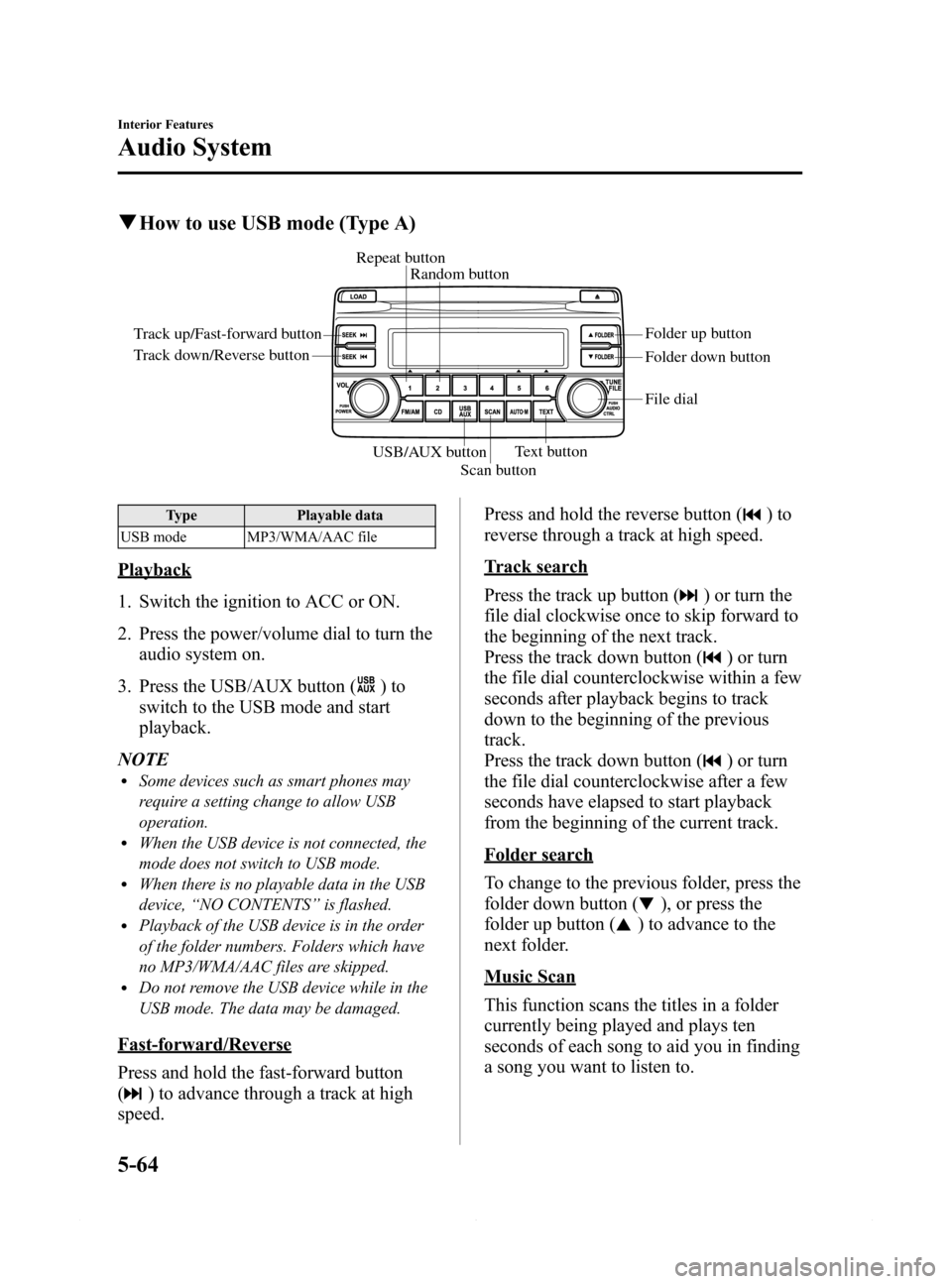
qHow to use USB mode (Type A)
Track up/Fast-forward button
Track down/Reverse buttonRepeat button
Random button
Folder down button Folder up button
Text button
Scan button USB/AUX button
File dial
Type Playable data
USB mode MP3/WMA/AAC file
Playback
1. Switch the ignition to ACC or ON.
2. Press the power/volume dial to turn the
audio system on.
3. Press the USB/AUX button (
)to
switch to the USB mode and start
playback.
NOTE
lSome devices such as smart phones may
require a setting change to allow USB
operation.
lWhen the USB device is not connected, the
mode does not switch to USB mode.
lWhen there is no playable data in the USB
device,“NO CONTENTS”is flashed.
lPlayback of the USB device is in the order
of the folder numbers. Folders which have
no MP3/WMA/AAC files are skipped.
lDo not remove the USB device while in the
USB mode. The data may be damaged.
Fast-forward/Reverse
Press and hold the fast-forward button
(
) to advance through a track at high
speed.Press and hold the reverse button (
)to
reverse through a track at high speed.
Track search
Press the track up button (
) or turn the
file dial clockwise once to skip forward to
the beginning of the next track.
Press the track down button (
) or turn
the file dial counterclockwise within a few
seconds after playback begins to track
down to the beginning of the previous
track.
Press the track down button (
) or turn
the file dial counterclockwise after a few
seconds have elapsed to start playback
from the beginning of the current track.
Folder search
To change to the previous folder, press the
folder down button (
), or press the
folder up button (
) to advance to the
next folder.
Music Scan
This function scans the titles in a folder
currently being played and plays ten
seconds of each song to aid you in finding
a song you want to listen to.
5-64
Interior Features
Audio System
Mazda6_8DQ8-EA-13L_Edition3 Page336
Friday, June 13 2014 6:22 PM
Form No.8DQ8-EA-13L
Page 340 of 576
Black plate (340,1)
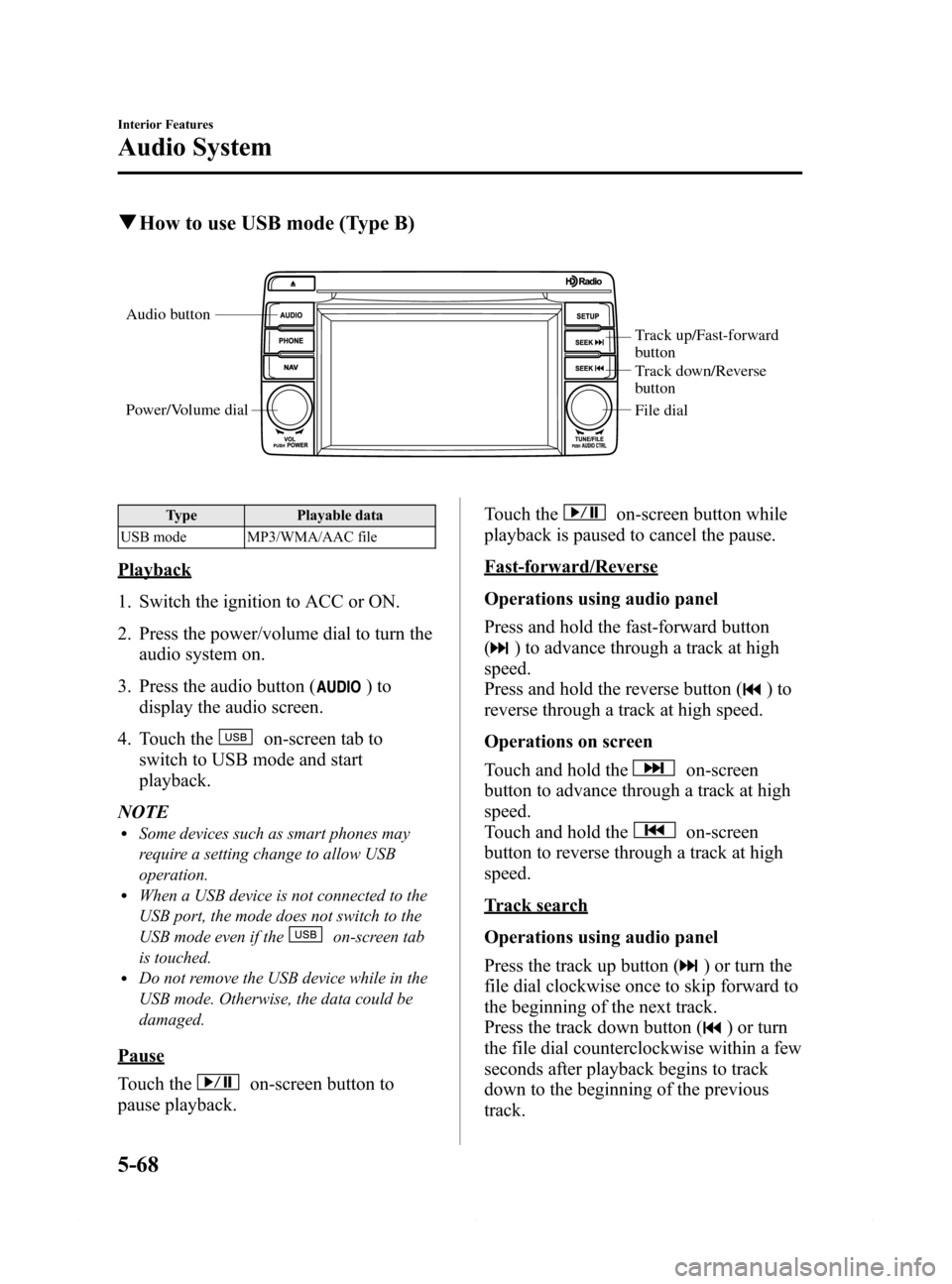
qHow to use USB mode (Type B)
Audio button
Power/Volume dial
Track up/Fast-forward
button
Track down/Reverse
button
File dial
Type Playable data
USB mode MP3/WMA/AAC file
Playback
1. Switch the ignition to ACC or ON.
2. Press the power/volume dial to turn the
audio system on.
3. Press the audio button (
)to
display the audio screen.
4. Touch the
on-screen tab to
switch to USB mode and start
playback.
NOTE
lSome devices such as smart phones may
require a setting change to allow USB
operation.
lWhen a USB device is not connected to the
USB port, the mode does not switch to the
USB mode even if the
on-screen tab
is touched.
lDo not remove the USB device while in the
USB mode. Otherwise, the data could be
damaged.
Pause
Touch the
on-screen button to
pause playback.Touch the
on-screen button while
playback is paused to cancel the pause.
Fast-forward/Reverse
Operations using audio panel
Press and hold the fast-forward button
(
) to advance through a track at high
speed.
Press and hold the reverse button (
)to
reverse through a track at high speed.
Operations on screen
Touch and hold the
on-screen
button to advance through a track at high
speed.
Touch and hold the
on-screen
button to reverse through a track at high
speed.
Track search
Operations using audio panel
Press the track up button (
) or turn the
file dial clockwise once to skip forward to
the beginning of the next track.
Press the track down button (
) or turn
the file dial counterclockwise within a few
seconds after playback begins to track
down to the beginning of the previous
track.
5-68
Interior Features
Audio System
Mazda6_8DQ8-EA-13L_Edition3 Page340
Friday, June 13 2014 6:22 PM
Form No.8DQ8-EA-13L