change MAZDA MODEL 6 2015 (in English) Manual Online
[x] Cancel search | Manufacturer: MAZDA, Model Year: 2015, Model line: MODEL 6, Model: MAZDA MODEL 6 2015Pages: 576
Page 348 of 576

Black plate (348,1)
qHow to use iPod mode (Type B)
Audio button
Power/Volume dial
Track up/Fast-forward
button
Track down/Reverse
button
File dial
The connectable iPods are as follows:liPod classicliPod nano: 4/5/6GliPod touch*1: 2/3/4GliPhone*1: 3GS/4/4S
*1 Only iPod function
NOTE
The iPod functions on the iPod cannot be
operated while it is connected to the unit
because the unit controls the iPod functions.
Playback
1. Switch the ignition to ACC or ON.
2. Press the power/volume dial to turn the
audio system on.
3. Press the audio button (
)to
display the audio screen.
4. Touch the
on-screen tab to
switch to the iPod mode and start
playback.
NOTE
lWhen the iPod is connected to the USB
port, the
on-screen tab changes to
the
on-screen tab.lDo not remove the iPod while in the iPod
mode. Otherwise, the data could be
damaged.
Pause
Touch the
on-screen button to
pause playback. Touch the
on-
screen button while playback is paused to
cancel the pause.
Fast-forward/Reverse
Operations using audio panel
Press and hold the fast-forward button
(
) to advance through a track at high
speed.
Press and hold the reverse button (
)to
reverse through a track at high speed.
Operations on screen
Touch and hold the
on-screen
button to advance through a track at high
speed.
Touch and hold the
on-screen
button to reverse through a track at high
speed.
Track search
Operations using audio panel
Press the track up button (
) or turn the
file dial clockwise once to skip forward to
the beginning of the next track.
5-76
Interior Features
Audio System
Mazda6_8DQ8-EA-13L_Edition3 Page348
Friday, June 13 2014 6:22 PM
Form No.8DQ8-EA-13L
Page 354 of 576

Black plate (354,1)
4. Touch theon-screen button to
display the message and switch to the
device operation.
5. Using your device, perform a search
for the Bluetooth
®device (Peripheral
device).
6. Select“Mazda”from the device list
searched by the device.
7.(Device with Bluetooth
®version 2.0)
Input the displayed 4-digit pairing code
into the device.
(Device with Bluetooth
®version 2.1
or higher)
lJust Works is detected
The pairing is performed
automatically.
lNumeric Comparison is detected
Make sure the displayed 6-digit
code on the audio is also displayed
on the device, and touch the
on-screen button. A connection
license agreement may be required
depending on the device.
After a device is registered, the system
automatically identifies the device. By
activating Bluetooth
®Hands-Free again,
or by activating Bluetooth®Hands-Free
first after switching the ignition from OFF
to ACC, the device connection condition
is indicated in the display.
Device selection
If several devices have been programmed,
the Bluetooth
®unit links the device last
programmed. If you would like to link a
different programmed device, it is
necessary to change the link. The order of
device priority after the link has been
changed is maintained even when the
ignition is switched off.NOTE
If the device name cannot be displayed,“...”is
added at the end of the title which is displayed.
Connecting other devices
1. Touch the
on-screen tab.
2. Touch the
on-screen
button.
3. Touch the device name which you
want to connect to display the device
information screen.
4. Touch the
on-screen button to
connect as a Hands-Free device. Touch
the
on-screen button to connect
as a Bluetooth®audio device.
5. Touch the
on-screen button.
If the connection is completed, the device
name is displayed. Touch the
on-
screen button to display the device list
screen and display the
oricon in the
new device name which is connected.
Disconnecting a device
1. Touch the
on-screen tab.
2. Touch the
on-screen
button.
3. Touch the device name which is
currently connected to display the
device information screen.
4. Touch the
on-screen button to
disconnect the Hands-Free device.
Touch the
on-screen button to
disconnect the audio device.
5. Touch the
on-screen button.
Deleting a device
1. Touch the
on-screen tab.
5-82
Interior Features
Bluetooth®
Mazda6_8DQ8-EA-13L_Edition3 Page354
Friday, June 13 2014 6:22 PM
Form No.8DQ8-EA-13L
Page 355 of 576
Black plate (355,1)
2. Touch theon-screen
button.
3. Touch the device name which you
want to delete.
4. Touch the
on-screen button.
5. Touch the
on-screen button.
NOTE
If you want to delete all of the pairing devices,
restore the default settings.
Changing PIN code
PIN code (4 digits) can be changed.
1. Touch the
on-screen tab.
2. Touch the
on-screen
button.
3. Touch the
on-screen button.
4. Delete the PIN code which is currently
set.
5. Input the new PIN code to be set.
6. Touch the
on-screen button.
Restoring default settings
All the pairing device information and
phonebook data can be deleted.
1. Touch the
on-screen tab.
2. Touch the
on-screen
button.
3. Touch the
on-screen button.
4. Touch the
on-screen button.
qAvailable Language
The Bluetooth®Hands-Free System
applies to the following languages:
lEnglishlSpanishlFrenchRefer to Setup on page 5-55.
qVoice Recognition
The Mazda Bluetooth®Hands-free system
can be used to make calls or operate the
audio unit using voice recognition which
includes numerous convenient commands.
In this section, the basic operation of the
voice recognition is explained.
Activating Voice Recognition
To Activate the Main Menu: Press the talk
button.
To Activate the Phone Menu: After
activating the main menu, say“Phone”.
To Activate the Navi Menu: After
activating the main menu, say
“Navigation”.
NOTE
lWhen activating the Phone Menu from the
Main Menu, the user is informed of the
available options (Call, Dial, Redial, Call
back ,Setup or Emergency) via voice
navigation.
lFor voice recognition details with the
navigation system, refer to the separate
“NAVIGATION SYSTEM Owner's
Manual”.
Ending Voice Recognition
Use one of the following methods:
lPress and hold the talk button.lPress the hang-up button.
Skipping Voice Guidance (for faster
operation)
Press and release the talk button.
Interior Features
Bluetooth®
5-83
Mazda6_8DQ8-EA-13L_Edition3 Page355
Friday, June 13 2014 6:22 PM
Form No.8DQ8-EA-13L
Page 363 of 576

Black plate (363,1)
NOTE
To not display the message received
notification, turn on the Don't Disturb Me
function.
Displaying messages
1. Touch the
on-screen tab.
2. Touch the message you want to
display.
NOTE
lTouch theon-screen button to display
the next message, and press the
on-screen button to display the previous
message.
lWhen theon-screen button is
pressed, the message content is played
(read by the system).
Message playback
1. Touch the
on-screen tab.
2. Touch the message you want to have
played (read) back.
3. Touch the
on-screen button.
NOTE
To stop the message playback, touch the
on-screen button.
Calling a person who sent a message
Calls can be made to persons sending
SMS and MMS messages.
1. Touch the
on-screen tab.
2. Touch the message to which you want
to make a call.
3. Touch the
on-screen button.
NOTE
Calls cannot be made to persons who have
sent e-mail.
Replying to messages
Replies to received messages can be sent
by selecting from the stored preset
messages.
1. Touch the
on-screen tab.
2. Touch the message to which you want
to reply.
3. Touch the
on-screen button.
4. Select the sentence to be sent from the
preset messages.
5. Press the
on-screen button.
NOTE
The preset messages cannot be changed.
Erasing messages
Downloaded messages can be erased.
1. Touch the
on-screen tab.
2. Touch the message you want to erase.
3. Touch the
on-screen button.
4. Touch the
on-screen button.
NOTE
The messages stored in a device cannot be
erased.
qDon't Disturb Me function
A setting can be made to not notify you of
incoming phone calls and messages.
1. Touch the
on-screen tab.
2. Touch the
on-screen
button.
3. To set, touch the
on-screen button
or the
on-screen button.
4. Touch the
on screen button.
Interior Features
Bluetooth®
5-91
Mazda6_8DQ8-EA-13L_Edition3 Page363
Friday, June 13 2014 6:22 PM
Form No.8DQ8-EA-13L
Page 364 of 576
Black plate (364,1)
NOTE
The following operations are possible even
when the Don't Disturb Me function is on.
lDownloading messageslDownloading phone bookslDownloading the incoming/outgoing call
record
lSending messages
qAudio Operation Using Voice
Recognition
Audio on/off, audio mode switching, and
audio operations can be done using voice
recognition.
NOTE
(When playing a USB or iPod)
When a track is selected using voice
recognition, the track list is set to VR Playlist.
Starting the audio
The audio can be started using voice
recognition.
1. Press the talk button.
2.Prompt:“Ready”
3.Say:[Beep]“Turn on audio”
4. Power to the audio is turned on.
Turning off the audio
1. Press the talk button.
2.Prompt:“Ready”
3.Say:[Beep]“Change mode”
4.Prompt:“Available audio modes are:
AM, FM, FM1, FM2, Sirius, Sirius1,
Sirius2, Sirius3, USB, iPod,
Bluetooth
®audio, Pandora®, CD,
AUX, Turn off audio”
5.Say:[Beep]“Turn off audio”
6. Power to the audio is turned off.
Switching modes
1. Press the talk button.
2.Prompt:“Ready”
3.Say:[Beep]“Change mode”
4.Prompt:“Available audio modes are:
AM, FM, FM1, FM2, Sirius, Sirius1,
Sirius2, Sirius3, USB, iPod,
Bluetooth
®audio, Pandora®, CD,
AUX, Turn off audio”
5.Say:[Beep]“XXX (Ex.“AM”) (audio
source)”
6. The audio source is switched.
NOTE
CD, SIRIUS digital satellite radio, USB, iPod,
BT audio, and Pandora®modes cannot be
selected in the following cases:
lSIRIUS digital satellite radio unit, USB
device, iPod, BT audio, or Pandora®unit is
not equipped on the audio system.
lCD has not been inserted.
The AUX mode is locked out unless you
connect a commercially available portable
audio unit (such as an MP3 player) to the
auxiliary jack. Connect a portable audio unit
or similar product on the market to the
auxiliary jack to listen to music or audio over
the vehicle's speakers.
Playing selected track numbers
(When playing a CD)
A desired track number on a CD can be
played using voice recognition.
Refer to Operating the Compact Disc
(CD) Player on page 5-52.
1. Press the talk button.
2.Prompt:“Ready”
3.Say:[Beep]“Play track”
5-92
Interior Features
Bluetooth®
Mazda6_8DQ8-EA-13L_Edition3 Page364
Friday, June 13 2014 6:22 PM
Form No.8DQ8-EA-13L
Page 374 of 576
Black plate (374,1)
Gracenote®End User License Agreement
This application or device contains software from Gracenote, Inc. of Emeryville, California
(“Gracenote”). The software from Gracenote (the“Gracenote Software”) enables this
application to perform disc and/or file identification and obtain music-related information,
including name, artist, track, and title information (“Gracenote Data”) from online servers
or embedded databases (collectively,“Gracenote Servers”) and to perform other functions.
You may use Gracenote Data only by means of the intended End-User functions of this
application or device.
You agree that you will use Gracenote Data, the Gracenote Software, and Gracenote
Servers for your own personal non-commercial use only. You agree not to assign, copy,
transfer or transmit the Gracenote Software or any Gracenote Data to any third party. YOU
AGREE NOT TO USE OR EXPLOIT GRACENOTE DATA, THE GRACENOTE
SOFTWARE, OR GRACENOTE SERVERS, EXCEPT AS EXPRESSLY PERMITTED
HEREIN.
You agree that your non-exclusive license to use the Gracenote Data, the Gracenote
Software, and Gracenote Servers will terminate if you violate these restrictions. If your
license terminates, you agree to cease any and all use of the Gracenote Data, the Gracenote
Software, and Gracenote Servers. Gracenote reserves all rights in Gracenote Data, the
Gracenote Software, and the Gracenote Servers, including all ownership rights. Under no
circumstances will Gracenote become liable for any payment to you for any information
that you provide. You agree that Gracenote, Inc. may enforce its rights under this
Agreement against you directly in its own name.
The Gracenote service uses a unique identifier to track queries for statistical purposes. The
purpose of a randomly assigned numeric identifier is to allow the Gracenote service to
count queries without knowing anything about who you are. For more information, see the
web page for the Gracenote Privacy Policy for the Gracenote service.
The Gracenote Software and each item of Gracenote Data are licensed to you“AS IS.”
Gracenote makes no representations or warranties, express or implied, regarding the
accuracy of any Gracenote Data from in the Gracenote Servers. Gracenote reserves the
right to delete data from the Gracenote Servers or to change data categories for any cause
that Gracenote deems sufficient. No warranty is made that the Gracenote Software or
Gracenote Servers are error-free or that functioning of Gracenote Software or Gracenote
Servers will be uninterrupted. Gracenote is not obligated to provide you with new
enhanced or additional data types or categories that Gracenote may provide in the future
and is free to discontinue its services at any time.
GRACENOTE DISCLAIMS ALL WARRANTIES EXPRESS OR IMPLIED,
INCLUDING, BUT NOT LIMITED TO, IMPLIED WARRANTIES OF
MERCHANTABILITY, FITNESS FOR A PARTICULAR PURPOSE, TITLE, AND
NON-INFRINGEMENT. GRACENOTE DOES NOT WARRANT THE RESULTS THAT
WILL BE OBTAINED BY YOUR USE OF THE GRACENOTE SOFTWARE OR ANY
GRACENOTE SERVER. IN NO CASE WILL GRACENOTE BE LIABLE FOR ANY
CONSEQUENTIAL OR INCIDENTAL DAMAGES OR FOR ANY LOST PROFITS OR
LOST REVENUES.
© 2000 to present. Gracenote, Inc.
5-102
Interior Features
Bluetooth®
Mazda6_8DQ8-EA-13L_Edition3 Page374
Friday, June 13 2014 6:22 PM
Form No.8DQ8-EA-13L
Page 377 of 576
Black plate (377,1)
3. Press the audio button () and
then touch the
on-screen tab to
switch to the Bluetooth®audio mode
and start playback.
NOTE
lIf the Bluetooth®audio device does not
begin playback, press the
on-screen
button.
lIf the mode is switched from Bluetooth®
audio mode to another mode (radio mode),
audio playback from the Bluetooth®audio
device stops.
Playback
1. To listen to a Bluetooth
®audio device
over the vehicle's speaker system,
switch the mode to Bluetooth
®audio
mode. (Refer to“Switching to
Bluetooth
®audio mode”)
2. To stop playback, press the
on-
screen button.
3. Press the button again to resume
playback.
Selecting a file (track)
Selects the next file (track)
Short-press the track up button (
)or
touch the
on-screen button.
Selects the beginning of the current file
(track)
Short-press the track down button (
)or
touch the
on-screen button.
Fast-forward/Reverse (AVRCP Ver. 1.3
or higher)
Fast-forward
Press and hold the fast-forward button
(
) or touch and hold theon-
screen button.Reverse
Press and hold the reverse down button
(
) or touch and hold theon-
screen button.
Folder search (only AVRCP Ver. 1.4)
To change to the previous folder, touch
the
on-screen button, or touch the
on-screen button to advance to the
next folder.
Music scan (only AVRCP Ver. 1.4)
This function scans the titles in a folder
currently being played and plays 10
seconds of each song to aid you in finding
a song you want to listen to.
1. Touch the
on-screen button
during playback to play 10 seconds of
each subsequent track starting from the
next song.
2. Touch the
on-screen button again
during playback of the song which you
want to listen to continue the playback
from that point.
Repeat playback (only AVRCP Ver. 1.4)
Track repeat
Touch the
on-screen button to play
the song during playback repeatedly.“
”
is displayed during playback.
Touch the
on-screen button two
times while“
”is displayed to cancel.
Folder repeat
Touch the
on-screen button two
times to play the songs in the folder
repeatedly.“
”is displayed during
playback.
Touch the
on-screen button while
“
”is displayed to cancel.
Interior Features
Bluetooth®
5-105
Mazda6_8DQ8-EA-13L_Edition3 Page377
Friday, June 13 2014 6:22 PM
Form No.8DQ8-EA-13L
Page 386 of 576

Black plate (386,1)
Courtesy Lights
Turns on when any door is open or the
illuminated entry system is on.
Courtesy light
qIlluminated Entry System
When the illuminated entry system
operates, the overhead light (switch is in
the DOOR position) and the courtesy
lights turn on for:
lAbout 30 seconds after the driver's
door is unlocked and the ignition is
switched off.
lAbout 15 seconds after all doors are
closed and the ignition is switched off.
lAbout 5 seconds after all doors are
closed and the ignition is switched off
when the key is out of the vehicle.
lIlluminates for about 15 seconds when
the ignition is returned from ACC to
OFF.
The light also turns off when:
lThe ignition is switched on and all
doors are closed.
lThe driver's door is locked.NOTE
lBattery saver
If any door is left open with the overhead
light switch in the DOOR position, or the
trunk lid is left open, the overhead light or
trunk light turns off after about 30 minutes
to prevent battery depletion.
lThe operation of the illuminated entry
system can be changed.
Refer to Personalization Features on page
9-9.
5-114
Interior Features
Interior Equipment
Mazda6_8DQ8-EA-13L_Edition3 Page386
Friday, June 13 2014 6:22 PM
Form No.8DQ8-EA-13L
Page 410 of 576

Black plate (410,1)
Owner Maintenance Precautions
The owner or a qualified service technician should make these vehicle inspections at the
indicated intervals to ensure safe and dependable operation.
Bring any problem to the attention of an Authorized Mazda Dealer or qualified service
technician as soon as possible.
When Refueling
lBrake and clutch fluid level (page 6-25)lEngine coolant level (page 6-23)lEngine oil level (page 6-22)lWasher fluid level (page 6-25)
At Least Monthly
Tire inflation pressures (page 6-35)
At Least Twice a Year (For Example, Every Spring and Fall)
You can do the following scheduled maintenance items if you have some mechanical
ability and a few basic tools and if you closely follow the directions in this manual.
lEngine coolant (page 6-23)lEngine oil (page 6-21)
Improper or incomplete service may result in problems. This section gives instructions only
for items that are easy to perform.
As explained in the Introduction (page 6-2), several procedures can be done only by a
qualified service technician with special tools.
Improper owner maintenance during the warranty period may affect warranty coverage.
Refer to Introduction (page 6-2) for owner's responsibility in protecting your investment.
For details, read the separate Mazda Warranty statement provided with the vehicle. If you
are unsure about any servicing or maintenance procedure, have it done by an Authorized
Mazda Dealer.
There are strict environmental laws regarding the disposal of waste oil and fluids. Please
dispose of your waste properly and with due regard to the environment.
We recommend that you entrust the oil and fluid changes of your vehicle to an Authorized
Mazda Dealer.
6-16
Maintenance and Care
Owner Maintenance
Mazda6_8DQ8-EA-13L_Edition3 Page410
Friday, June 13 2014 6:23 PM
Form No.8DQ8-EA-13L
Page 420 of 576
Black plate (420,1)
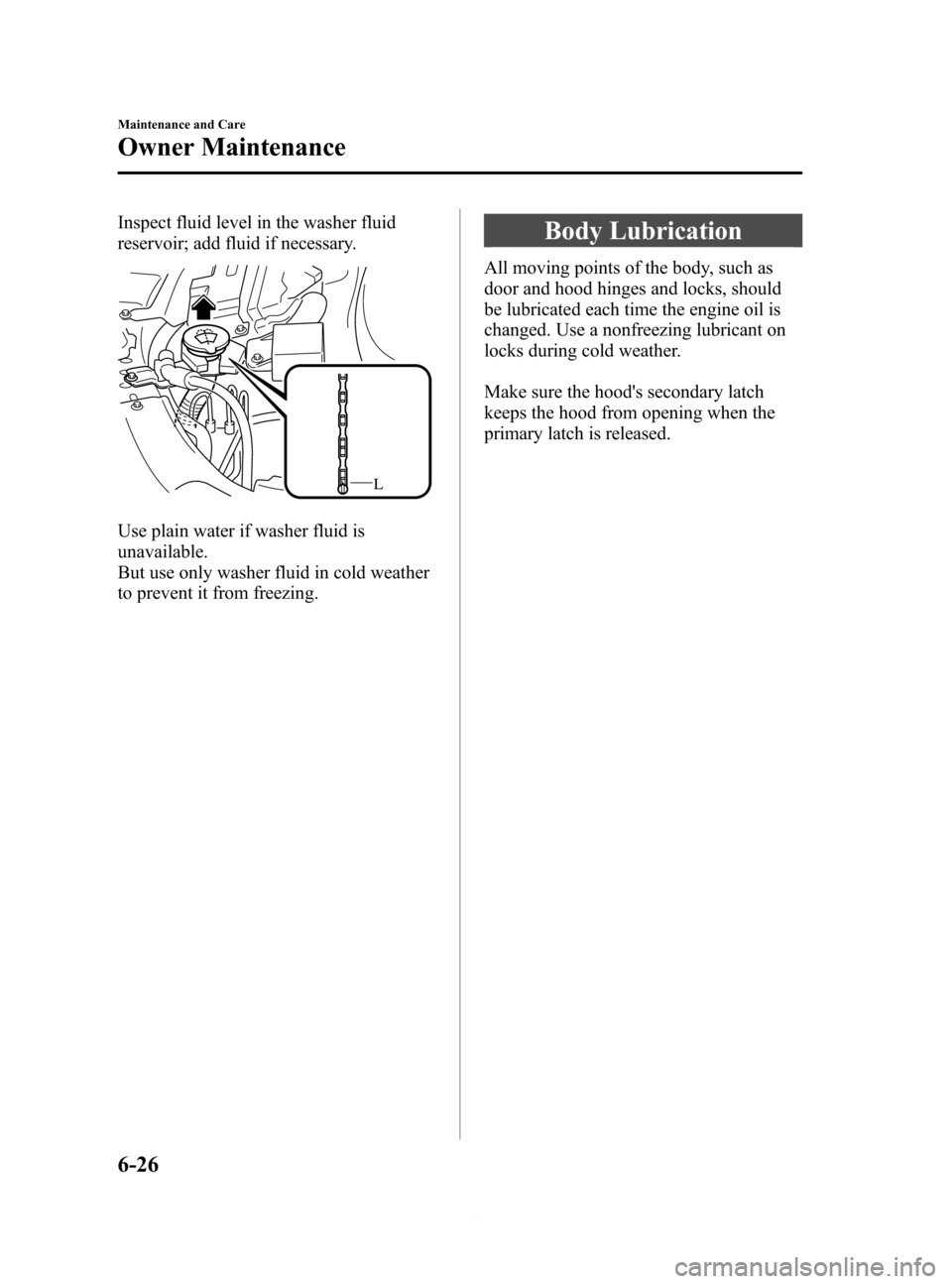
Inspect fluid level in the washer fluid
reservoir; add fluid if necessary.
L
Use plain water if washer fluid is
unavailable.
But use only washer fluid in cold weather
to prevent it from freezing.
Body Lubrication
All moving points of the body, such as
door and hood hinges and locks, should
be lubricated each time the engine oil is
changed. Use a nonfreezing lubricant on
locks during cold weather.
Make sure the hood's secondary latch
keeps the hood from opening when the
primary latch is released.
6-26
Maintenance and Care
Owner Maintenance
Mazda6_8DQ8-EA-13L_Edition3 Page420
Friday, June 13 2014 6:23 PM
Form No.8DQ8-EA-13L