wheel MERCEDES-BENZ B-CLASS HATCHBACK 2015 Workshop Manual
[x] Cancel search | Manufacturer: MERCEDES-BENZ, Model Year: 2015, Model line: B-CLASS HATCHBACK, Model: MERCEDES-BENZ B-CLASS HATCHBACK 2015Pages: 293, PDF Size: 10.83 MB
Page 166 of 293
:
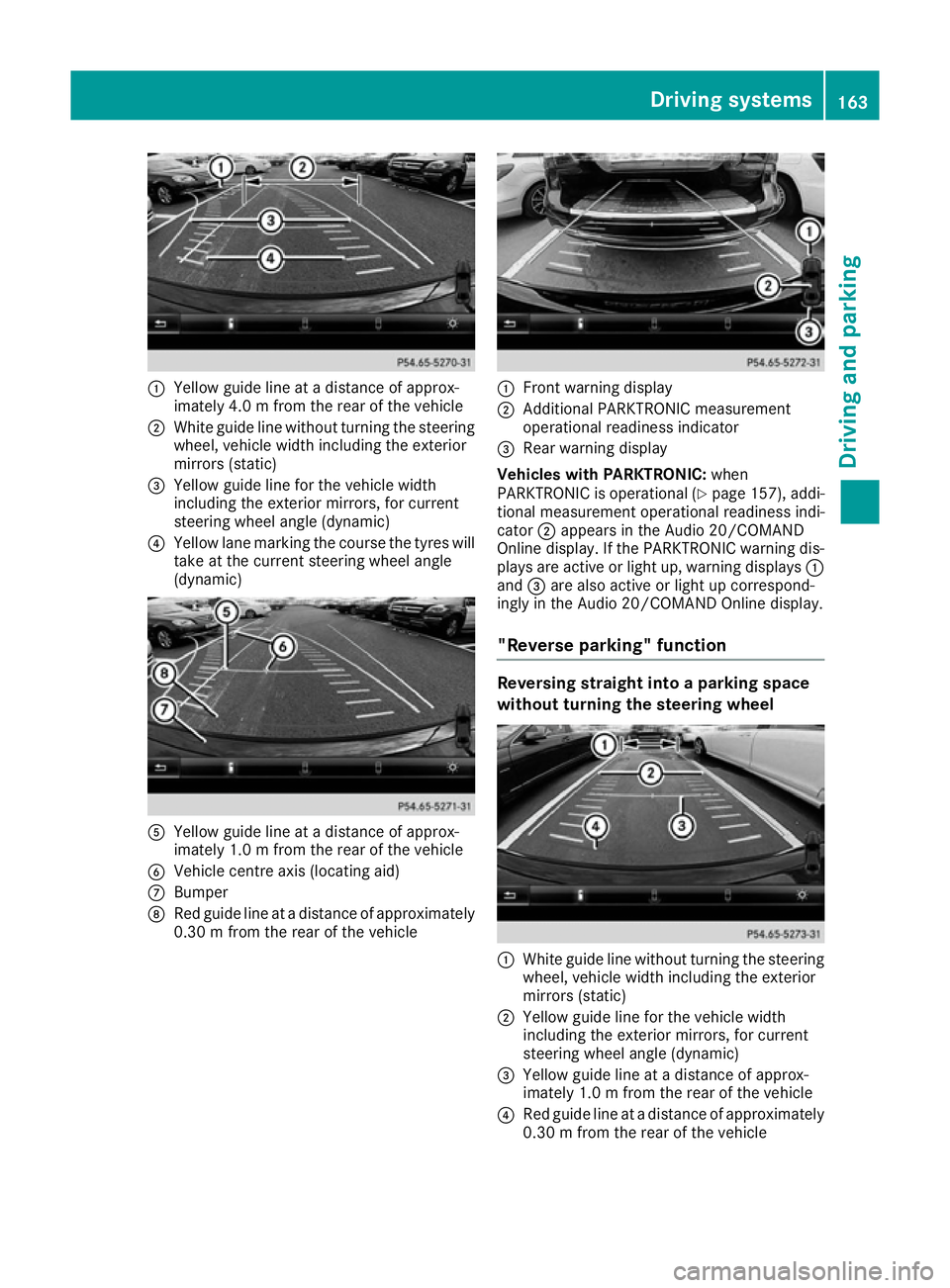
Yellow guide line at a distance of approx-
imately 4.0 m from the rear of the vehicle
; White guide line without turning the steering
wheel, vehicle width including the exterior
mirrors (static)
= Yellow guide line for the vehicle width
including the exterior mirrors, for current
steering wheel angle (dynamic)
? Yellow lane marking the course the tyres will
take at the current steering wheel angle
(dynamic) A
Yellow guide line at a distance of approx-
imately 1.0 m from the rear of the vehicle
B Vehicle centre axis (locating aid)
C Bumper
D Red guide line at a distance of approximately
0.30 m from the rear of the vehicle :
Front warning display
; Additional PARKTRONIC measurement
operational readiness indicator
= Rear warning display
Vehicles with PARKTRONIC: when
PARKTRONIC is operational (Y page 157), addi-
tional measurement operational readiness indi-
cator ;appears in the Audio 20/COMAND
Online display. If the PARKTRONIC warning dis-
plays are active or light up, warning displays :
and =are also active or light up correspond-
ingly in the Audio 20/COMAND Online display.
"Reverse parking" function Reversing straight into a parking space
without turning the steering wheel
:
White guide line without turning the steering
wheel, vehicle width including the exterior
mirrors (static)
; Yellow guide line for the vehicle width
including the exterior mirrors, for current
steering wheel angle (dynamic)
= Yellow guide line at a distance of approx-
imately 1.0 m from the rear of the vehicle
? Red guide line at a distance of approximately
0.30 m from the rear of the vehicle Driving systems
163Driving and parking Z
Page 167 of 293
X
Make sure that the reversing camera is
switched on (Y page 162).
The lane and the guide lines are shown.
X With the help of white guide line :, check
whether the vehicle will fit into the parking
space.
X Using white guide line :as a guide, carefully
reverse until you reach the end position.
Red guide line ?is then at the end of the
parking space. The vehicle is almost parallel
in the parking space.
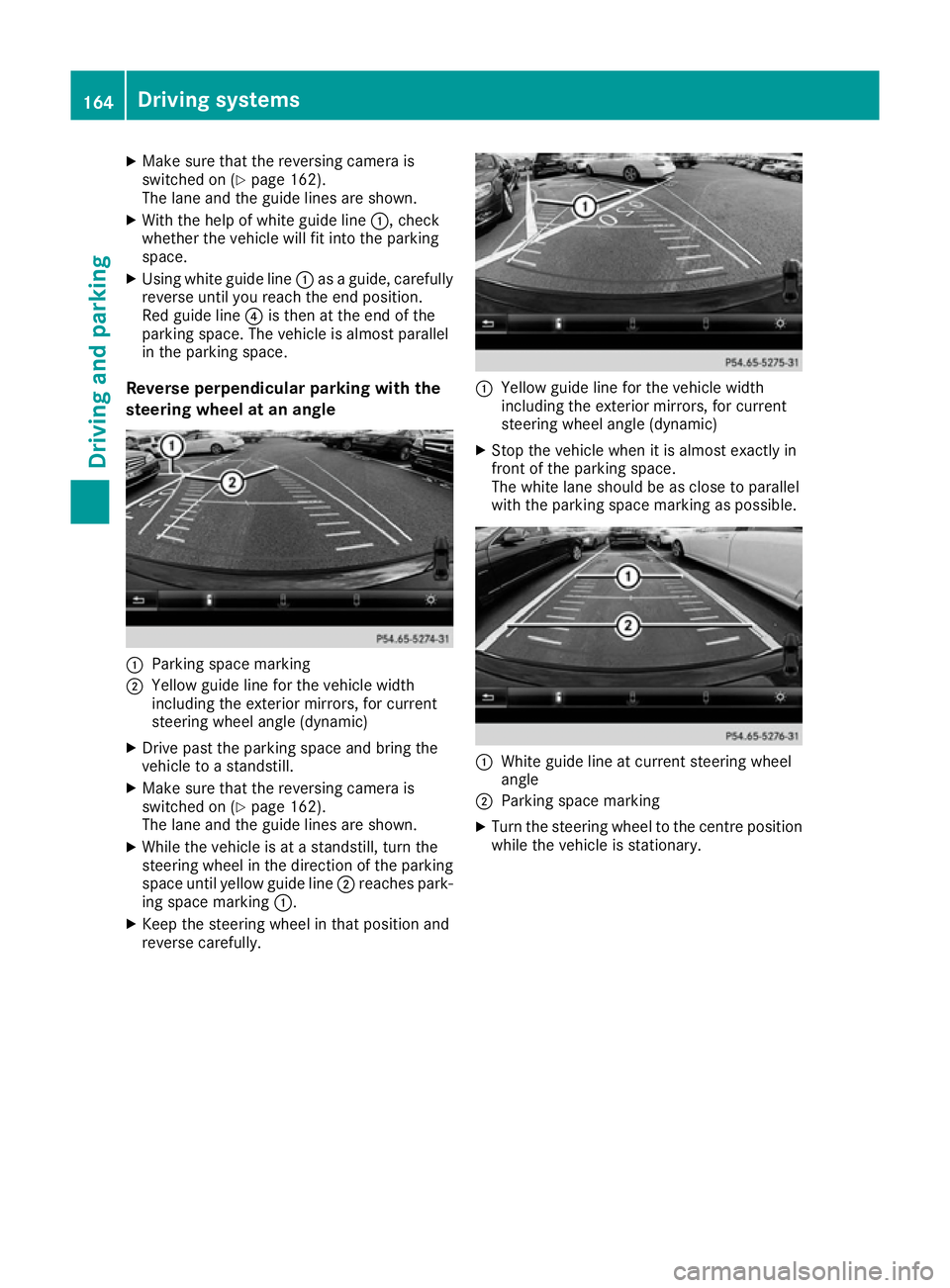
Reverse perpendicular parking with the
steering wheel at an angle :
Parking space marking
; Yellow guide line for the vehicle width
including the exterior mirrors, for current
steering wheel angle (dynamic)
X Drive past the parking space and bring the
vehicle to a standstill.
X Make sure that the reversing camera is
switched on (Y page 162).
The lane and the guide lines are shown.
X While the vehicle is at a standstill, turn the
steering wheel in the direction of the parking
space until yellow guide line ;reaches park-
ing space marking :.
X Keep the steering wheel in that position and
reverse carefully. :
Yellow guide line for the vehicle width
including the exterior mirrors, for current
steering wheel angle (dynamic)
X Stop the vehicle when it is almost exactly in
front of the parking space.
The white lane should be as close to parallel
with the parking space marking as possible. :
White guide line at current steering wheel
angle
; Parking space marking
X Turn the steering wheel to the centre position
while the vehicle is stationary. 164
Driving systemsDriving and parking
Page 168 of 293
:
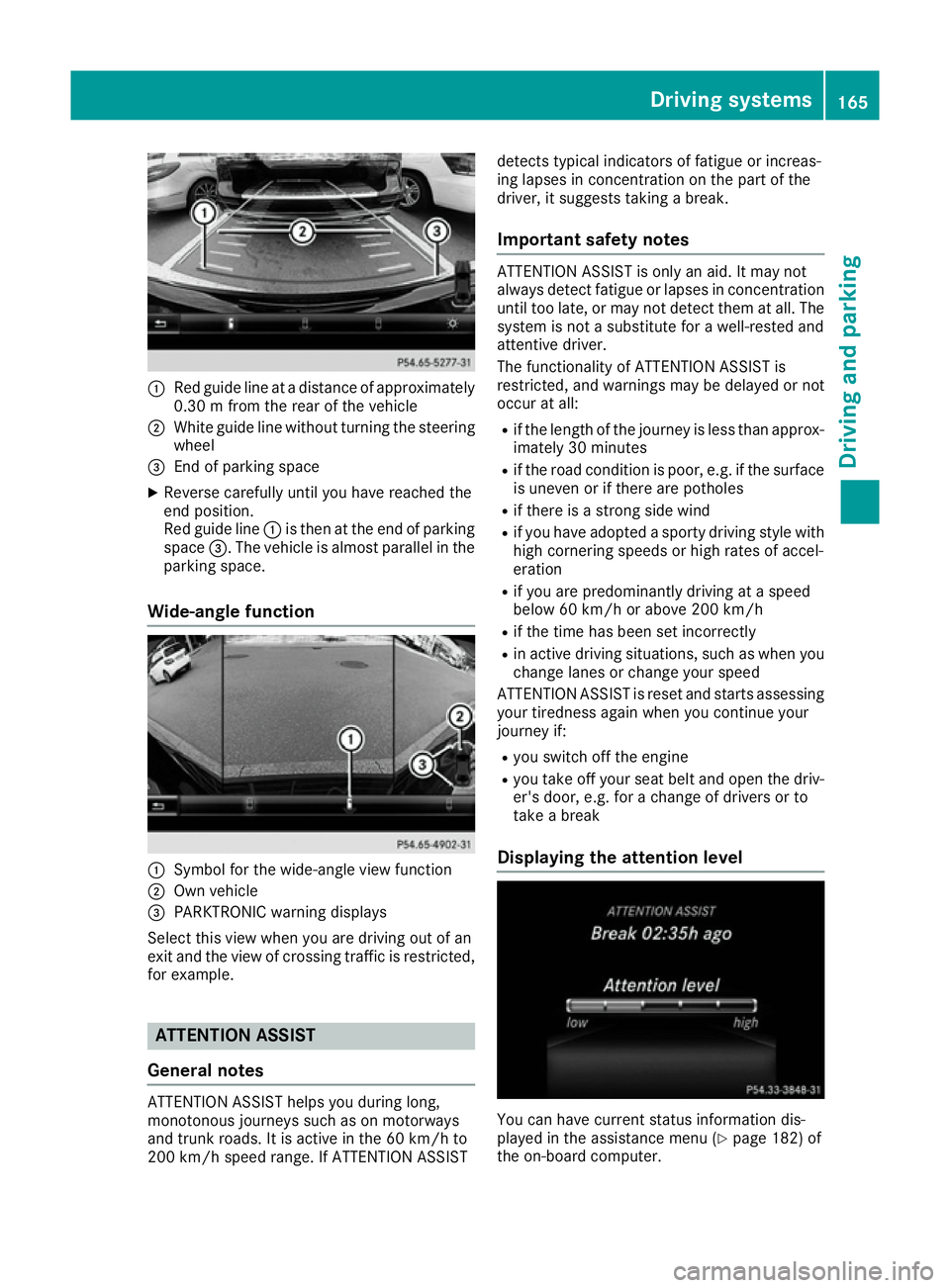
Red guide line at a distance of approximately
0.30 m from the rear of the vehicle
; White guide line without turning the steering
wheel
= End of parking space
X Reverse carefully until you have reached the
end position.
Red guide line :is then at the end of parking
space =. The vehicle is almost parallel in the
parking space.
Wide-angle function :
Symbol for the wide-angle view function
; Own vehicle
= PARKTRONIC warning displays
Select this view when you are driving out of an
exit and the view of crossing traffic is restricted, for example. ATTENTION ASSIST
General notes ATTENTION ASSIST helps you during long,
monotonous journeys such as on motorways
and trunk roads. It is active in the 60 km/h to
200 km/h speed range. If ATTENTION ASSIST detects typical indicators of fatigue or increas-
ing lapses in concentration on the part of the
driver, it suggests taking a break.
Important safety notes ATTENTION ASSIST is only an aid. It may not
always detect fatigue or lapses in concentration
until too late, or may not detect them at all. The system is not a substitute for a well-rested and
attentive driver.
The functionality of ATTENTION ASSIST is
restricted, and warnings may be delayed or not
occur at all:
R if the length of the journey is less than approx-
imately 30 minutes
R if the road condition is poor, e.g. if the surface
is uneven or if there are potholes
R if there is a strong side wind
R if you have adopted a sporty driving style with
high cornering speeds or high rates of accel-
eration
R if you are predominantly driving at a speed
below 60 km/h or above 200 km/h
R if the time has been set incorrectly
R in active driving situations, such as when you
change lanes or change your speed
ATTENTION ASSIST is reset and starts assessing
your tiredness again when you continue your
journey if:
R you switch off the engine
R you take off your seat belt and open the driv-
er's door, e.g. for a change of drivers or to
take a break
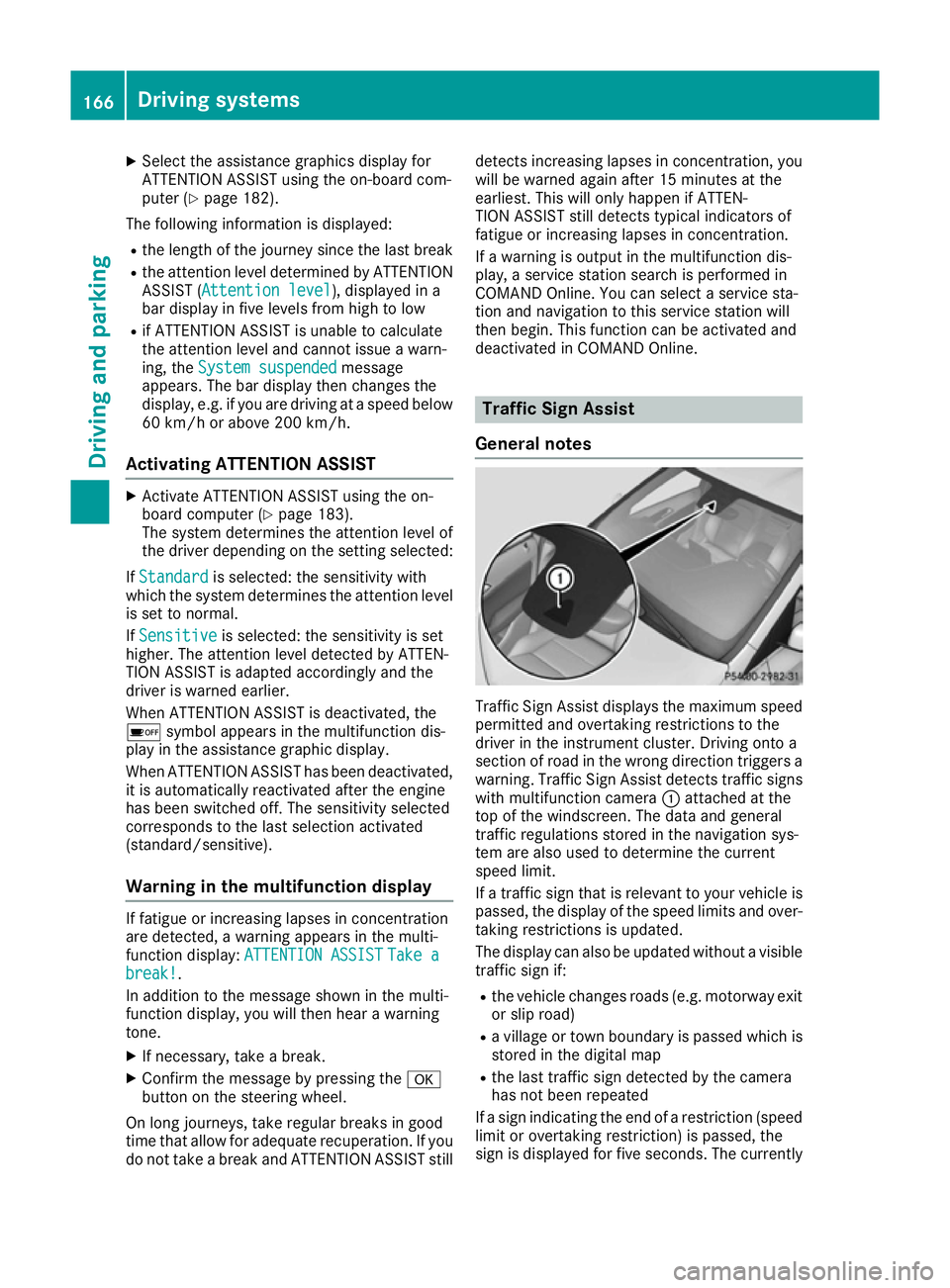
Displaying the attention level You can have current status information dis-
played in the assistance menu (Y
page 182) of
the on-board computer. Driving systems
165Driving and parking Z
Page 169 of 293
X
Select the assistance graphics display for
ATTENTION ASSIST using the on-board com-
puter (Y page 182).
The following information is displayed:
R the length of the journey since the last break
R the attention level determined by ATTENTION
ASSIST ( Attention level
Attention level), displayed in a
bar display in five levels from high to low
R if ATTENTION ASSIST is unable to calculate
the attention level and cannot issue a warn-
ing, the System suspended
System suspended message
appears. The bar display then changes the
display, e.g. if you are driving at a speed below 60 km/h or above 200 km/h.
Activating ATTENTION ASSIST X
Activate ATTENTION ASSIST using the on-
board computer (Y page 183).
The system determines the attention level of
the driver depending on the setting selected:
If Standard
Standard is selected: the sensitivity with
which the system determines the attention level
is set to normal.
If Sensitive Sensitive is selected: the sensitivity is set
higher. The attention level detected by ATTEN-
TION ASSIST is adapted accordingly and the
driver is warned earlier.
When ATTENTION ASSIST is deactivated, the
é symbol appears in the multifunction dis-
play in the assistance graphic display.
When ATTENTION ASSIST has been deactivated, it is automatically reactivated after the engine
has been switched off. The sensitivity selected
corresponds to the last selection activated
(standard/sensitive).
Warning in the multifunction display If fatigue or increasing lapses in concentration
are detected, a warning appears in the multi-
function display:
ATTENTION ASSIST ATTENTION ASSIST Take a
Take a
break!
break!.
In addition to the message shown in the multi-
function display, you will then hear a warning
tone.
X If necessary, take a break.
X Confirm the message by pressing the a
button on the steering wheel.
On long journeys, take regular breaks in good
time that allow for adequate recuperation. If you do not take a break and ATTENTION ASSIST still detects increasing lapses in concentration, you
will be warned again after 15 minutes at the
earliest. This will only happen if ATTEN-
TION ASSIST still detects typical indicators of
fatigue or increasing lapses in concentration.
If a warning is output in the multifunction dis-
play, a service station search is performed in
COMAND Online. You can select a service sta-
tion and navigation to this service station will
then begin. This function can be activated and
deactivated in COMAND Online. Traffic Sign Assist
General notes Traffic Sign Assist displays the maximum speed
permitted and overtaking restrictions to the
driver in the instrument cluster. Driving onto a
section of road in the wrong direction triggers a
warning. Traffic Sign Assist detects traffic signs with multifunction camera :attached at the
top of the windscreen. The data and general
traffic regulations stored in the navigation sys-
tem are also used to determine the current
speed limit.
If a traffic sign that is relevant to your vehicle is passed, the display of the speed limits and over-
taking restrictions is updated.
The display can also be updated without a visible traffic sign if:
R the vehicle changes roads (e.g. motorway exit
or slip road)
R a village or town boundary is passed which is
stored in the digital map
R the last traffic sign detected by the camera
has not been repeated
If a sign indicating the end of a restriction (speed limit or overtaking restriction) is passed, the
sign is displayed for five seconds. The currently 166
Driving systemsDriving and parking
Page 173 of 293
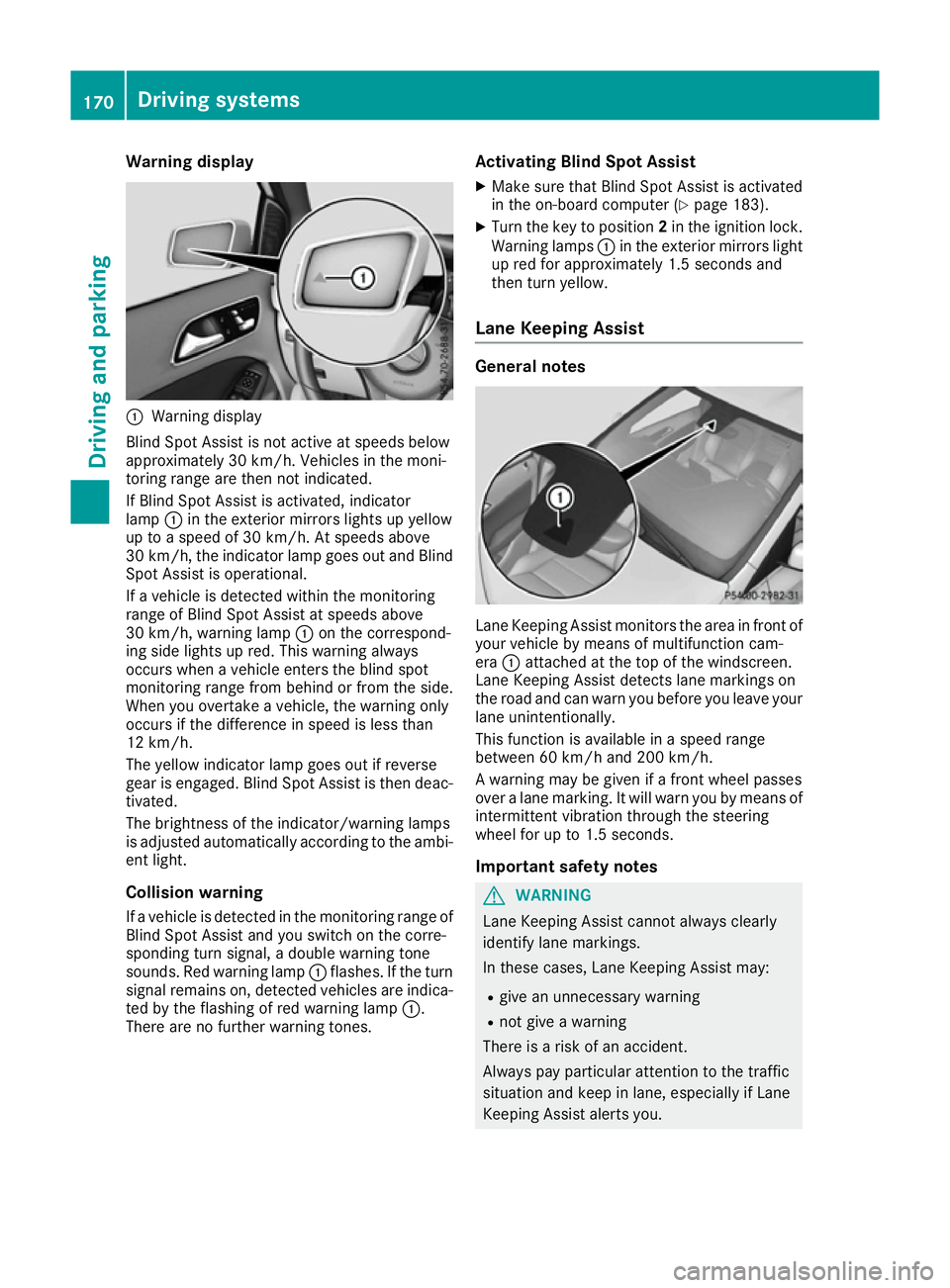
Warning display
:
Warning display
Blind Spot Assist is not active at speeds below
approximately 30 km/h. Vehicles in the moni-
toring range are then not indicated.
If Blind Spot Assist is activated, indicator
lamp :in the exterior mirrors lights up yellow
up to a speed of 30 km/h. At speeds above
30 km/h, the indicator lamp goes out and Blind
Spot Assist is operational.
If a vehicle is detected within the monitoring
range of Blind Spot Assist at speeds above
30 km/h, warning lamp :on the correspond-
ing side lights up red. This warning always
occurs when a vehicle enters the blind spot
monitoring range from behind or from the side.
When you overtake a vehicle, the warning only
occurs if the difference in speed is less than
12 km/h.
The yellow indicator lamp goes out if reverse
gear is engaged. Blind Spot Assist is then deac- tivated.
The brightness of the indicator/warning lamps
is adjusted automatically according to the ambi-
ent light.
Collision warning
If a vehicle is detected in the monitoring range of
Blind Spot Assist and you switch on the corre-
sponding turn signal, a double warning tone
sounds. Red warning lamp :flashes. If the turn
signal remains on, detected vehicles are indica-
ted by the flashing of red warning lamp :.
There are no further warning tones. Activating Blind Spot Assist
X Make sure that Blind Spot Assist is activated
in the on-board computer (Y page 183).
X Turn the key to position 2in the ignition lock.
Warning lamps :in the exterior mirrors light
up red for approximately 1.5 seconds and
then turn yellow.
Lane Keeping Assist General notes
Lane Keeping Assist monitors the area in front of
your vehicle by means of multifunction cam-
era :attached at the top of the windscreen.
Lane Keeping Assist detects lane markings on
the road and can warn you before you leave your lane unintentionally.
This function is available in a speed range
between 60 km/h and 200 km/h.
A warning may be given if a front wheel passes
over a lane marking. It will warn you by means of intermittent vibration through the steering
wheel for up to 1.5 seconds.
Important safety notes G
WARNING
Lane Keeping Assist cannot always clearly
identify lane markings.
In these cases, Lane Keeping Assist may:
R give an unnecessary warning
R not give a warning
There is a risk of an accident.
Always pay particular attention to the traffic
situation and keep in lane, especially if Lane
Keeping Assist alerts you. 170
Driving systemsDriving and parking
Page 176 of 293
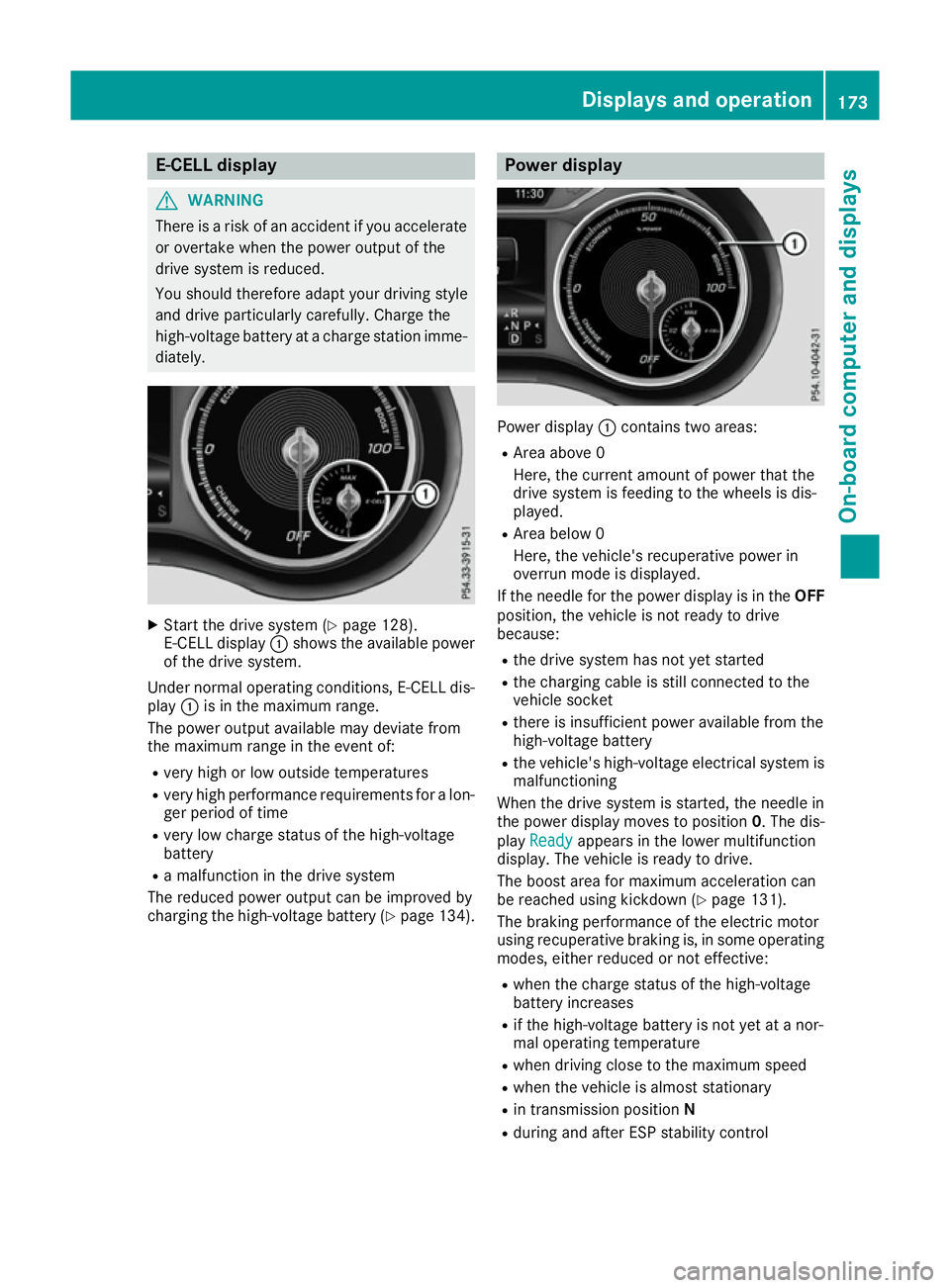
E-CELL display
G
WARNING
There is a risk of an accident if you accelerate or overtake when the power output of the
drive system is reduced.
You should therefore adapt your driving style
and drive particularly carefully. Charge the
high-voltage battery at a charge station imme- diately. X
Start the drive system (Y page 128).
E-CELL display :shows the available power
of the drive system.
Under normal operating conditions, E-CELL dis-
play :is in the maximum range.
The power output available may deviate from
the maximum range in the event of:
R very high or low outside temperatures
R very high performance requirements for a lon-
ger period of time
R very low charge status of the high-voltage
battery
R a malfunction in the drive system
The reduced power output can be improved by
charging the high-voltage battery (Y page 134). Power display
Power display
:contains two areas:
R Area above 0
Here, the current amount of power that the
drive system is feeding to the wheels is dis-
played.
R Area below 0
Here, the vehicle's recuperative power in
overrun mode is displayed.
If the needle for the power display is in the OFF
position, the vehicle is not ready to drive
because:
R the drive system has not yet started
R the charging cable is still connected to the
vehicle socket
R there is insufficient power available from the
high-voltage battery
R the vehicle's high-voltage electrical system is
malfunctioning
When the drive system is started, the needle in
the power display moves to position 0. The dis-
play Ready
Ready appears in the lower multifunction
display. The vehicle is ready to drive.
The boost area for maximum acceleration can
be reached using kickdown (Y page 131).
The braking performance of the electric motor
using recuperative braking is, in some operating
modes, either reduced or not effective:
R when the charge status of the high-voltage
battery increases
R if the high-voltage battery is not yet at a nor-
mal operating temperature
R when driving close to the maximum speed
R when the vehicle is almost stationary
R in transmission position N
R during and after ESP stability control Displays and operation
173On-board computer and displays Z
Page 177 of 293
If necessary, counteract the reduced regenera-
tive braking effect by applying the brake your-
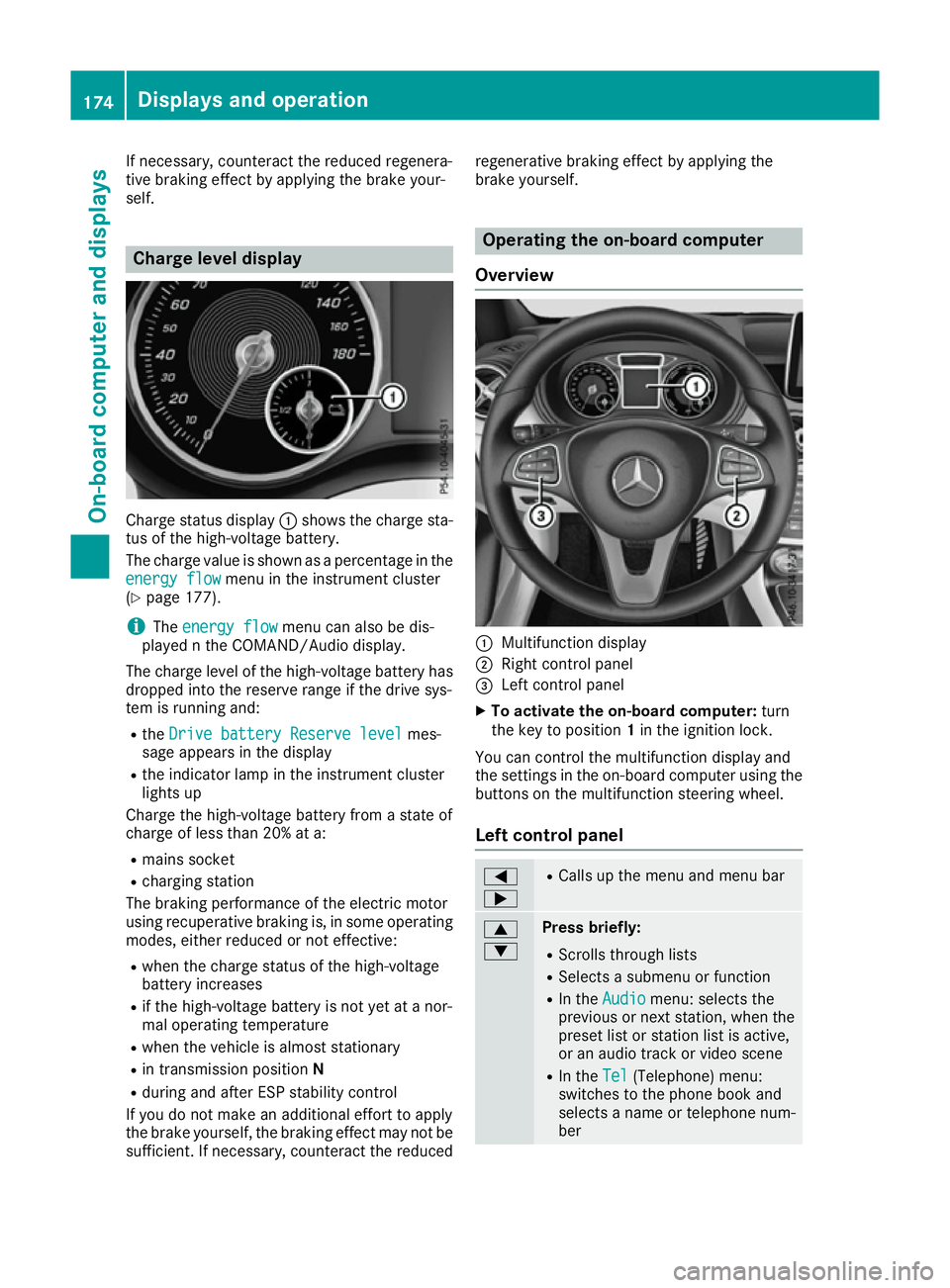
self. Charge level display
Charge status display
:shows the charge sta-
tus of the high-voltage battery.
The charge value is shown as a percentage in the
energy flow
energy flow menu in the instrument cluster
(Y page 177).
i The
energy flow
energy flow menu can also be dis-
played n the COMAND/Audio display.
The charge level of the high-voltage battery has dropped into the reserve range if the drive sys-
tem is running and:
R the Drive battery Reserve level Drive battery Reserve level mes-
sage appears in the display
R the indicator lamp in the instrument cluster
lights up
Charge the high-voltage battery from a state of
charge of less than 20% at a:
R mains socket
R charging station
The braking performance of the electric motor
using recuperative braking is, in some operating
modes, either reduced or not effective:
R when the charge status of the high-voltage
battery increases
R if the high-voltage battery is not yet at a nor-
mal operating temperature
R when the vehicle is almost stationary
R in transmission position N
R during and after ESP stability control
If you do not make an additional effort to apply
the brake yourself, the braking effect may not be sufficient. If necessary, counteract the reduced regenerative braking effect by applying the
brake yourself. Operating the on-board computer
Overview :
Multifunction display
; Right control panel
= Left control panel
X To activate the on-board computer: turn
the key to position 1in the ignition lock.
You can control the multifunction display and
the settings in the on-board computer using the buttons on the multifunction steering wheel.
Left control panel =
; R
Calls up the menu and menu bar 9
: Press briefly:
R Scrolls through lists
R Selects a submenu or function
R In the Audio Audio menu: selects the
previous or next station, when the preset list or station list is active,
or an audio track or video scene
R In the Tel Tel(Telephone) menu:
switches to the phone book and
selects a name or telephone num-
ber 174
Displays and operationOn-board computer and displays
Page 178 of 293
9
: Press and hold:
R
In the Audio Audio menu: selects a pre-
set list or a station list in the
desired frequency range or an
audio track or video scene using
rapid scrolling
R In the Tel Tel(Telephone) menu:
starts rapid scrolling if the phone
book is open a R
Confirms the selection or display
message
R In the Tel Tel(Telephone) menu:
switches to the telephone book
and starts dialling the selected
number % Press briefly:
R Back
R Vehicles with Audio 20: switches
off voice-operated control of the
navigation (see manufacturer's
operating instructions)
R Vehicles with COMAND Online:
switches off LINGUATRONIC (see
the separate operating instruc-
tions)
R Hides display messages or calls up
the last Trip Tripmenu function used
R Exits the telephone book/redial
memory % Press and hold:
R
Calls up the standard display in the
Trip
Trip menu Right control panel
ó R
Vehicles with Audio 20:
Switches on voice-operated con-
trol for navigation (see manufac-
turer's operating instructions)
R Vehicles with COMAND Online:
Switches off LINGUATRONIC (see
the separate operating instruc-
tions) 8 R
Mute W
X R
Adjusts the volume ~ R
Rejects or ends a call
R Exits the telephone book/redial
memory 6 R
Makes or accepts a call
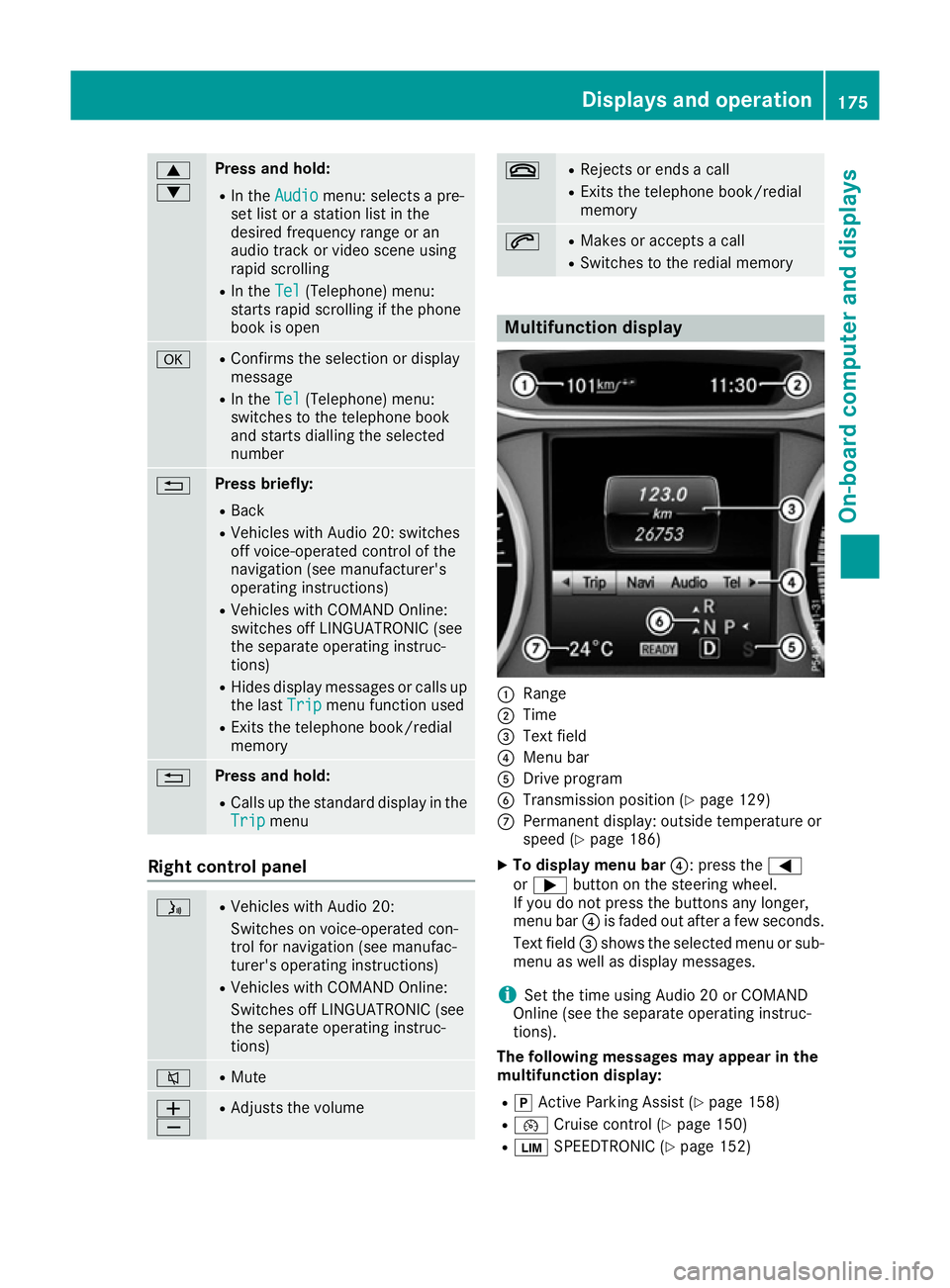
R Switches to the redial memory Multifunction display
:
Range
; Time
= Text field
? Menu bar
A Drive program
B Transmission position (Y page 129)
C Permanent display: outside temperature or
speed (Y page 186)
X To display menu bar ?: press the=
or ; button on the steering wheel.
If you do not press the buttons any longer,
menu bar ?is faded out after a few seconds.
Text field =shows the selected menu or sub-
menu as well as display messages.
i Set the time using Audio 20 or COMAND
Online (see the separate operating instruc-
tions).
The following messages may appear in the
multifunction display:
R j Active Parking Assist (Y page 158)
R ¯ Cruise control (Y page 150)
R È SPEEDTRONIC (Y page 152) Displays and operation
175On-board computer and displays Z
Page 179 of 293
R
_ Adaptive Highbeam Assist
(Y page 101)
R ë HOLD function (Y page 154)
R 120 km/h!
120 km/h! Maximum permissible speed
exceeded (only for certain countries) Menus and submenus
Menu overview
Using the =or; button on the steering
wheel, open the menu bar.
Operating the on-board computer (Y page 174).
Depending on the equipment fitted in the vehi-
cle, you can call up the following menus:
R Trip
Trip menu (Y page 176)
R Navi Navi menu (navigation instructions)
(Y page 178)
R Audio
Audio menu (Y page 180)
R Tel
Tel menu (telephone) (Y page 181)
R Assist.
Assist. menu (assistance) (Y page 182)
R Serv.
Serv. menu (Y page 184)
R Settings
Settings menu (settings) (Y page 184)
The displays for the Audio
Audio, Navi
NaviandTel
Tel menus
may differ slightly to those in your vehicle.
The examples given in this Owner's Manual
apply to vehicles equipped with COMAND
Online. Trip menu
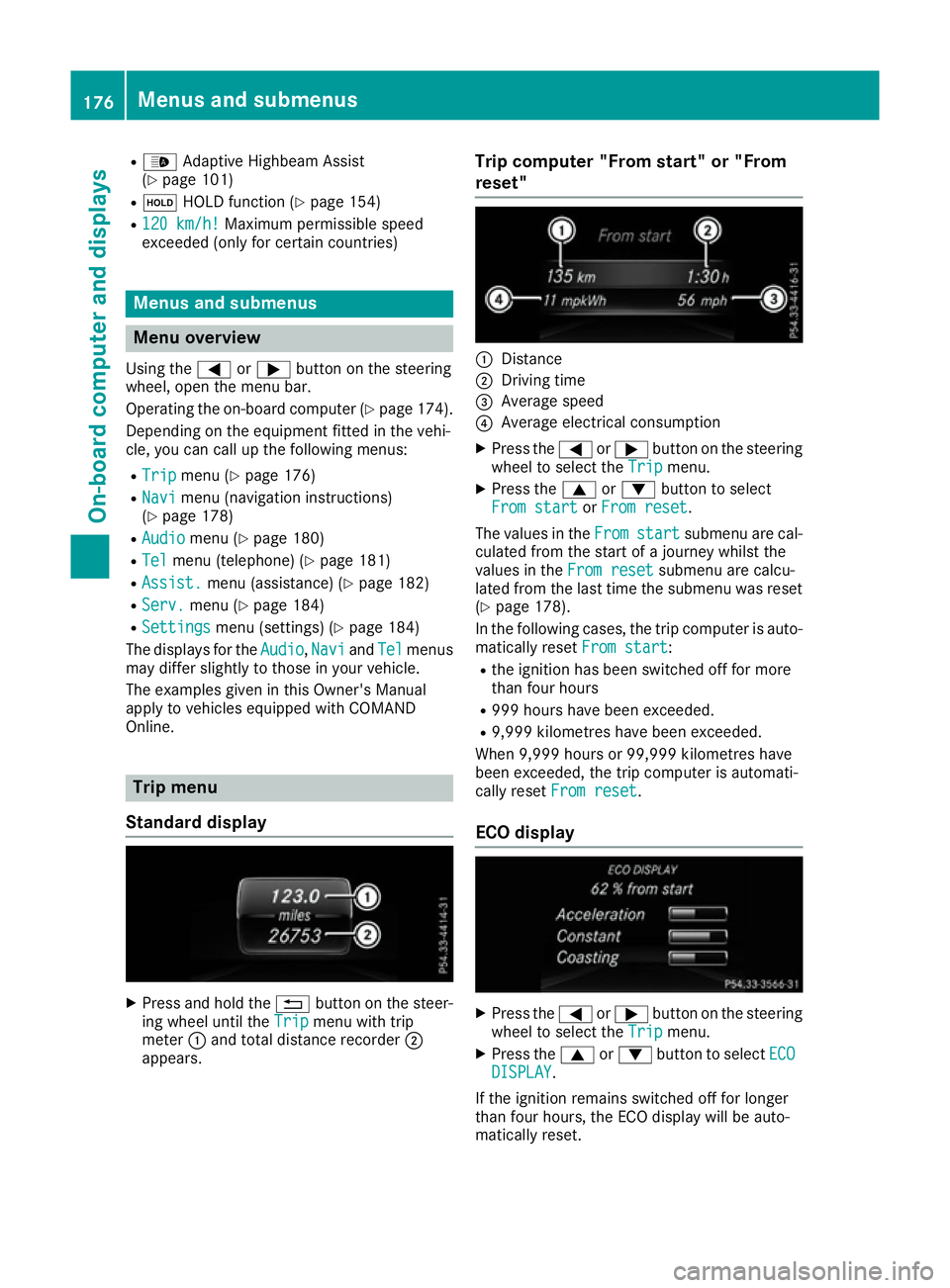
Standard display X
Press and hold the %button on the steer-
ing wheel until the Trip Tripmenu with trip
meter :and total distance recorder ;
appears. Trip computer "From start" or "From
reset" :
Distance
; Driving time
= Average speed
? Average electrical consumption
X Press the =or; button on the steering
wheel to select the Trip
Tripmenu.
X Press the 9or: button to select
From start
From start orFrom reset
From reset.
The values in the From
Fromstart
start submenu are cal-
culated from the start of a journey whilst the
values in the From reset From resetsubmenu are calcu-
lated from the last time the submenu was reset
(Y page 178).
In the following cases, the trip computer is auto-
matically reset From start From start:
R the ignition has been switched off for more
than four hours
R 999 hours have been exceeded.
R 9,999 kilometres have been exceeded.
When 9,999 hours or 99,999 kilometres have
been exceeded, the trip computer is automati-
cally reset From reset From reset.
ECO display X
Press the =or; button on the steering
wheel to select the Trip
Tripmenu.
X Press the 9or: button to select ECO
ECO
DISPLAY
DISPLAY.
If the ignition remains switched off for longer
than four hours, the ECO display will be auto-
matically reset. 176
Menus and submenusOn-board computer and displays
Page 180 of 293
Further information on the ECO display
(Y page 148).
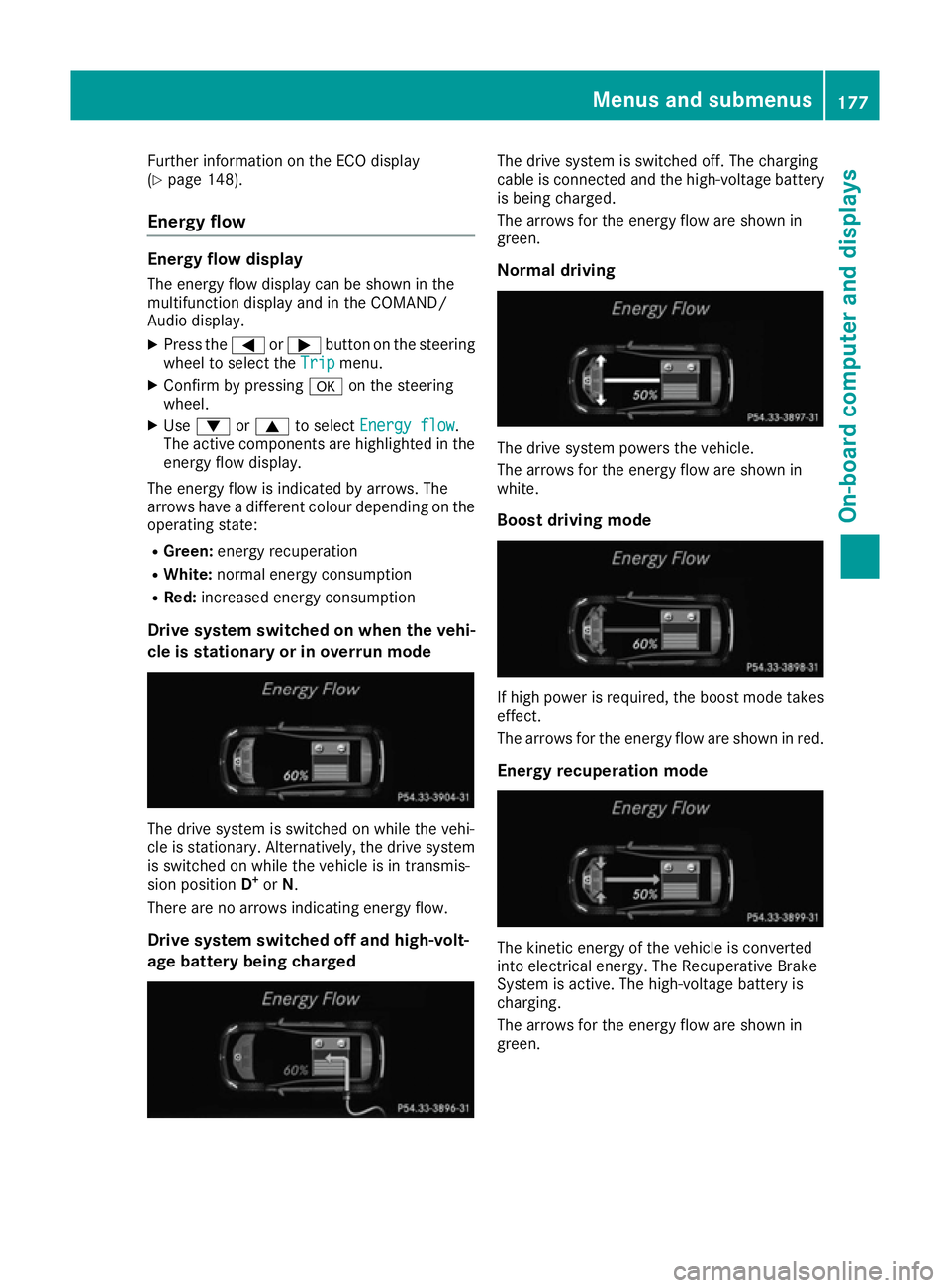
Energy flow Energy flow display
The energy flow display can be shown in the
multifunction display and in the COMAND/
Audio display. X Press the =or; button on the steering
wheel to select the Trip Tripmenu.
X Confirm by pressing aon the steering
wheel.
X Use : or9 to select Energy flow
Energy flow .
The active components are highlighted in the
energy flow display.
The energy flow is indicated by arrows. The
arrows have a different colour depending on the
operating state:
R Green: energy recuperation
R White: normal energy consumption
R Red: increased energy consumption
Drive system switched on when the vehi-
cle is stationary or in overrun mode The drive system is switched on while the vehi-
cle is stationary. Alternatively, the drive system is switched on while the vehicle is in transmis-
sion position D+
or N.
There are no arrows indicating energy flow.
Drive system switched off and high-volt-
age battery being charged The drive system is switched off. The charging
cable is connected and the high-voltage battery
is being charged.
The arrows for the energy flow are shown in
green.
Normal driving The drive system powers the vehicle.
The arrows for the energy flow are shown in
white.
Boost driving mode If high power is required, the boost mode takes
effect.
The arrows for the energy flow are shown in red.
Energy recuperation mode The kinetic energy of the vehicle is converted
into electrical energy. The Recuperative Brake
System is active. The high-voltage battery is
charging.
The arrows for the energy flow are shown in
green. Menus and submenus
177On-board computer and displays Z