tow MERCEDES-BENZ CL COUPE 2009 Owner's Manual
[x] Cancel search | Manufacturer: MERCEDES-BENZ, Model Year: 2009, Model line: CL COUPE, Model: MERCEDES-BENZ CL COUPE 2009Pages: 421, PDF Size: 10.78 MB
Page 142 of 421
X
To delete an entire entry: selectFon
the lower bar and press and hold Wuntil
the entire entry has been deleted.
X To accept the first list entry: press and
hold Wuntil the address input menu
appears again.
COMAND has automatically accepted the
first list entry and entered it in the address
input menu.
X To cancel an entry: selectBackon the
lower bar and press W.
or
X Press the %button.
Input speller Bdisappears if COMAND is
able to unambiguously assign the characters
entered to one street. The list of streets is
shown without the input speller. Here you can
make another selection.
i It is also possible to change manually to
the list of streets without the input speller
at any time during character input.
X To change manually to the list of towns
without the input speller: slideZV.
or
X Select !on the second lowest bar and
press W.
Entering a centre i
You can only enter centres that are stored
on the digital map.
X Select Centre in the address input menu.
The centre list appears either with or with-
out the input speller. Whether or not the
input speller is displayed depends on how
many centres are available in the town
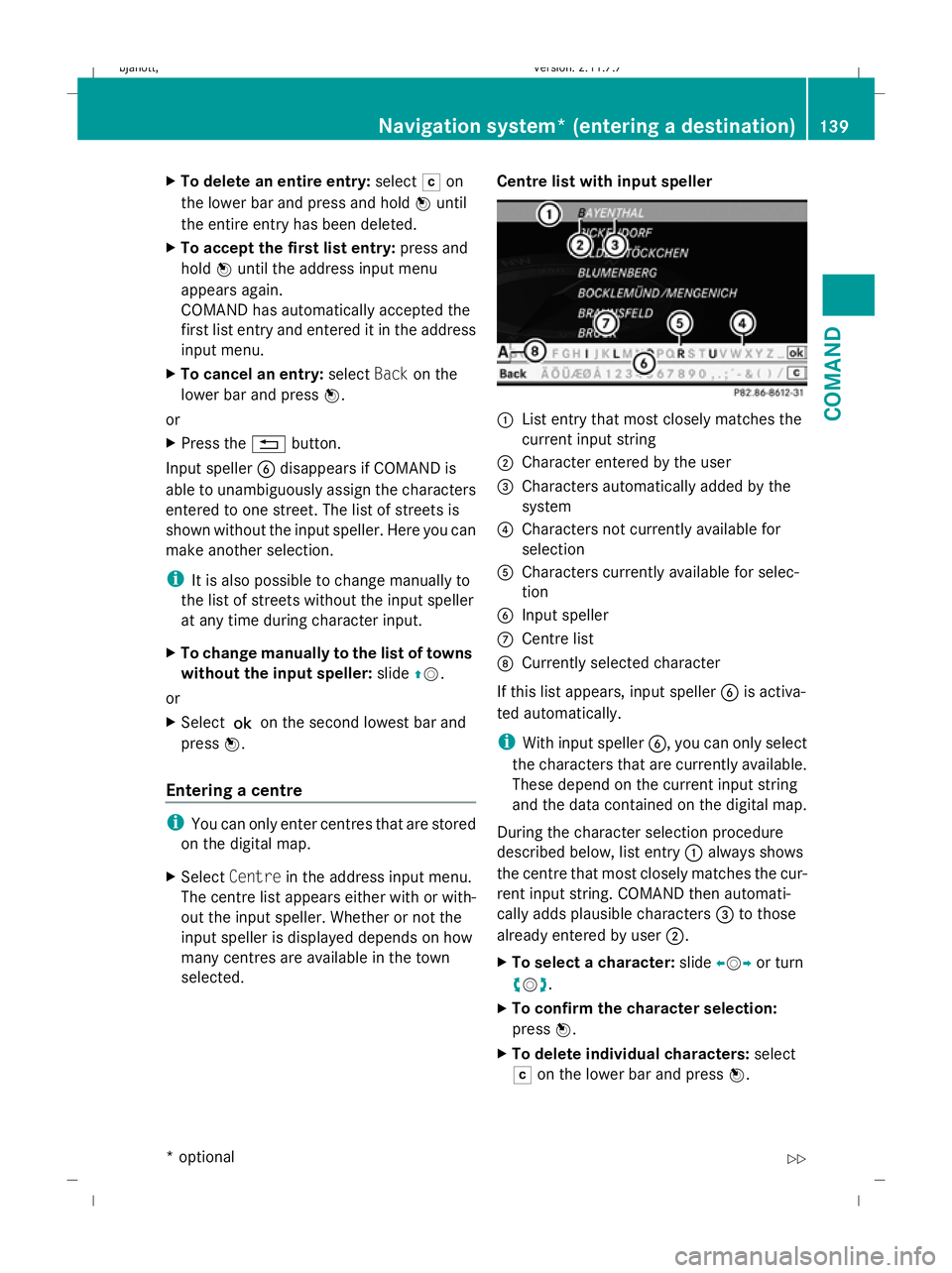
selected. Centre list with input speller :
List entry that most closely matches the
current input string
; Character entered by the user
= Characters automatically added by the
system
? Characters not currently available for
selection
A Characters currently available for selec-
tion
B Input speller
C Centre list
D Currently selected character
If this list appears, input speller Bis activa-
ted automatically.
i With input speller B, you can only select
the characters that are currently available.
These depend on the current input string
and the data contained on the digital map.
During the character selection procedure
described below, list entry :always shows
the centre that most closely matches the cur-
rent input string. COMAND then automati-
cally adds plausible characters =to those
already entered by user ;.
X To select a character: slideXVY or turn
cVd .
X To confirm the character selection:
press W.
X To delete individual characters: select
F on the lower bar and press W. Navigation system* (entering a destination)
139COMAND
* optional
216_AKB; 2; 3, en-GB
bjanott,
Version: 2.11.7.7 2009-02-27T14:54:17+01:00 - Seite 139 Z
Dateiname: 6515230602_buchblock.pdf; erzeugt am 04. Mar 2009 11:15:15; WK
Page 145 of 421
X
To delete an entire entry: selectFon
the lower bar and press and hold Wuntil
the entire entry has been deleted.
X To accept the first list entry: press and
hold Wuntil the address input menu
appears again.
COMAND has automatically accepted the
first list entry and entered it in the address
input menu.
X To cancel an entry: selectBackon the
lower bar and press W.
or
X Press the %button.
Input speller ?disappears if COMAND is
able to unambiguously assign the characters
entered to one junction. The list of junctions
is shown without the input speller. Here you
can make another selection.
i It is also possible to change to the junc-
tion list without the input speller manually
at any time during character input.
X To change manually to the junction list
without the input speller: slideZV.
or
X Select !on the second lowest bar and
press W.
Ambiguity of town names If several towns share the same name, you
can also directly input or select a street name.
COMAND then selects the town where the
respective street is found. X
Enter a town as described above
(Y page 136).
X Select ALL.
X Input or select the street name.
X Select the appropriate town.
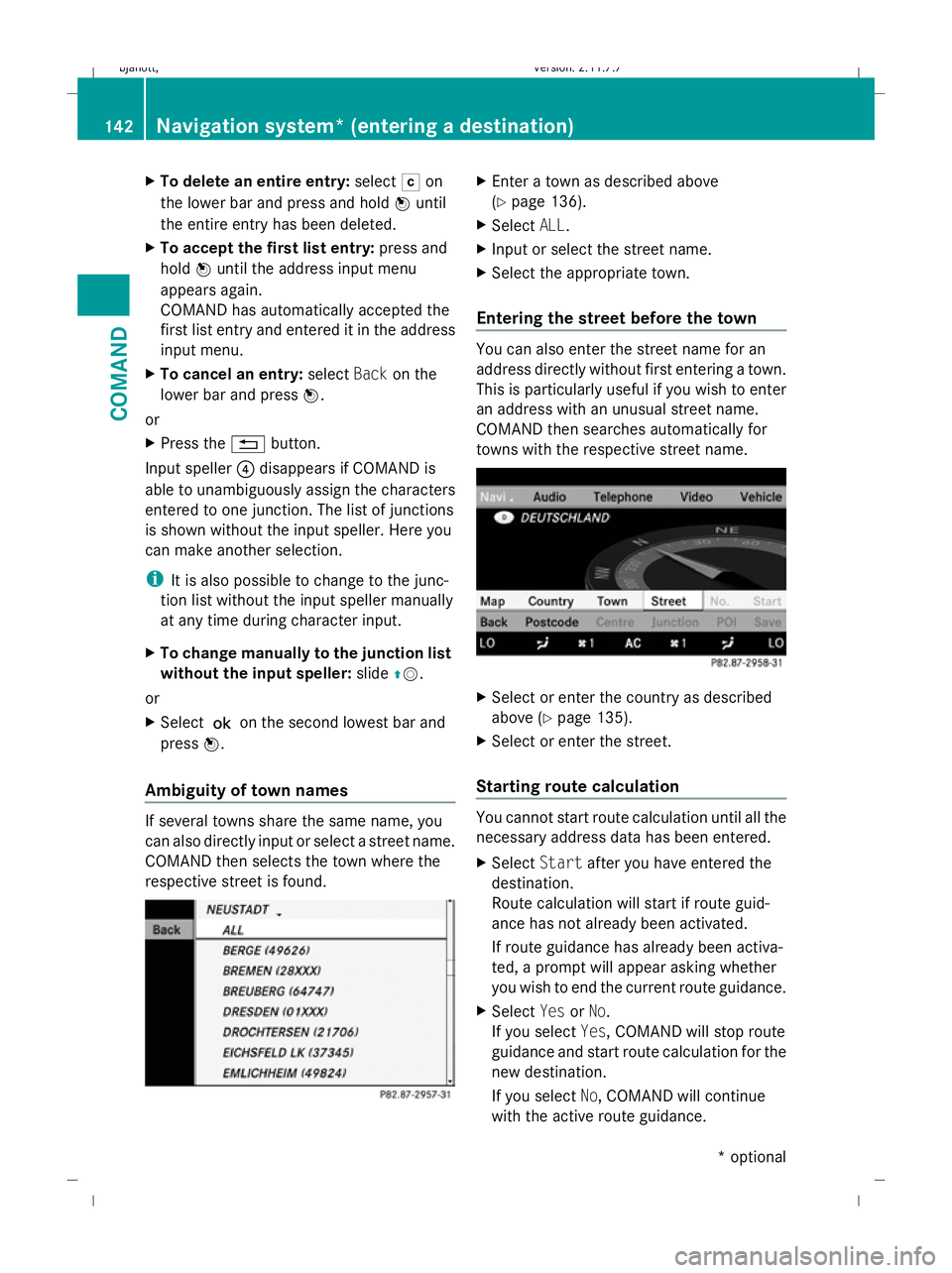
Entering the street before the town You can also enter the street name for an
address directly without first entering a town.
This is particularly useful if you wish to enter
an address with an unusual street name.
COMAND then searches automatically for
towns with the respective street name. X
Select or enter the country as described
above (Y page 135).
X Select or enter the street.
Starting route calculation You cannot start route calculation until all the
necessary address data has been entered.
X
Select Startafter you have entered the
destination.
Route calculation will start if route guid-
ance has not already been activated.
If route guidance has already been activa-
ted, a prompt will appear asking whether
you wish to end the current route guidance.
X Select YesorNo.
If you select Yes, COMAND will stop route
guidance and start route calculation for the
new destination.
If you select No, COMAND will continue
with the active route guidance. 142
Navigation system* (entering a destination)COMAND
* optional
216_AKB; 2; 3, en-GB
bjanott,
Version: 2.11.7.7 2009-02-27T14:54:17+01:00 - Seite 142
Dateiname: 6515230602_buchblock.pdf; erzeugt am 04. Mar 2009 11:15:16; WK
Page 150 of 421
X
Select NaviQDestination QStop‐
over QDelete stopover.
COMAND deletes the intermediate stop
and calculates the route to the main desti-
nation.
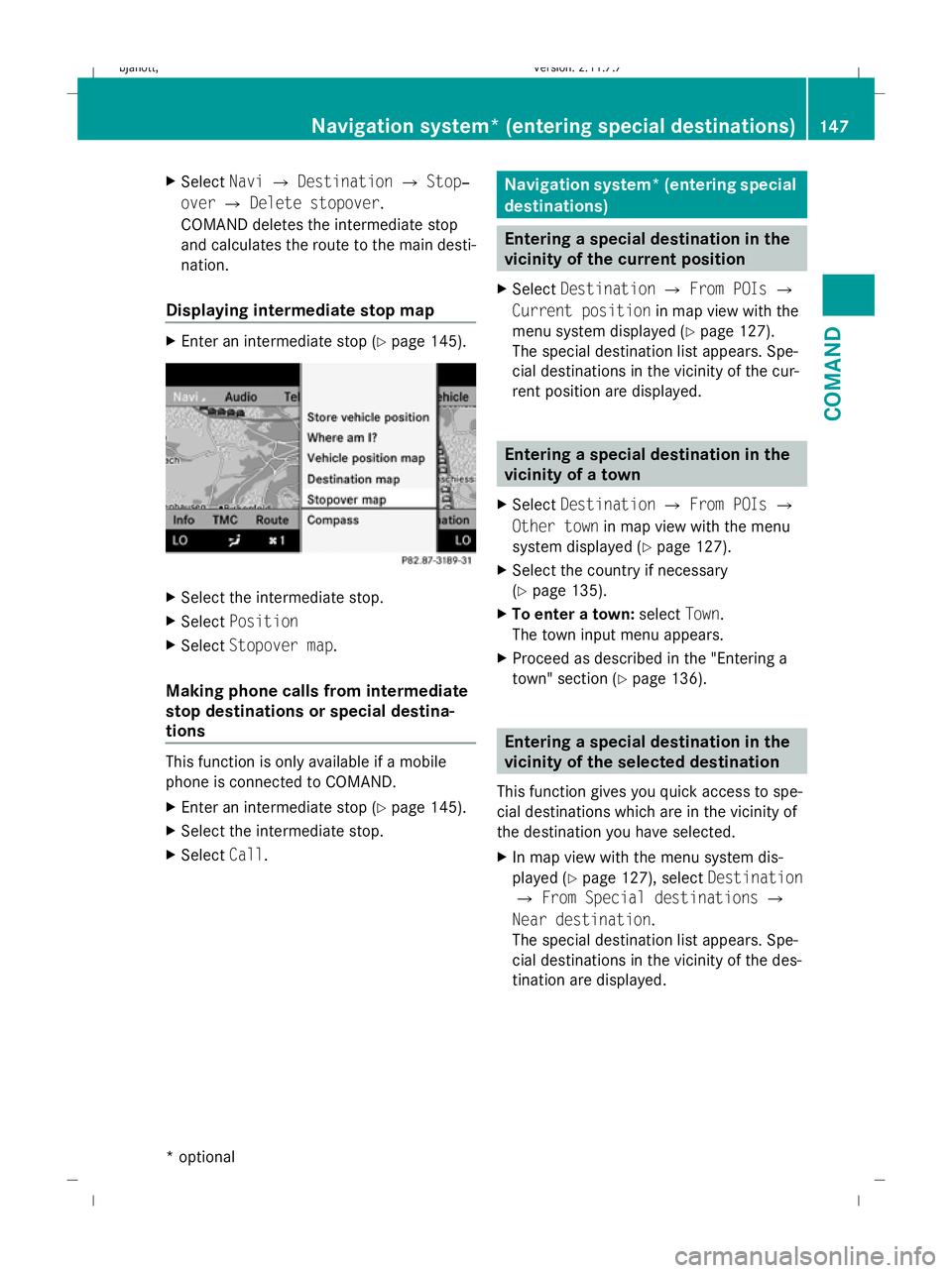
Displaying intermediate stop map X
Enter an intermediate stop (Y page 145).X
Select the intermediate stop.
X Select Position
X Select Stopover map .
Making phone calls from intermediate
stop destinations or special destina-
tions This function is only available if a mobile
phone is connected to COMAND.
X
Enter an intermediate stop (Y page 145).
X Select the intermediate stop.
X Select Call. Navigation system* (entering special
destinations)
Entering a special destination in the
vicinity of the current position
X Select Destination QFrom POIs Q
Current position in map view with the
menu system displayed (Y page 127).
The special destination list appears. Spe-
cial destinations in the vicinity of the cur-
rent position are displayed. Entering a special destination in the
vicinity of a town
X Select Destination QFrom POIs Q
Other town in map view with the menu
system displayed (Y page 127).
X Select the country if necessary
(Y page 135).
X To enter a town: selectTown.
The town input menu appears.
X Proceed as described in the "Entering a
town" section (Y page 136). Entering a special destination in the
vicinity of the selected destination
This function gives you quick access to spe-
cial destinations which are in the vicinity of
the destination you have selected.
X In map view with the menu system dis-
played (Y page 127), select Destination
Q From Special destinations Q
Near destination.
The special destination list appears. Spe-
cial destinations in the vicinity of the des-
tination are displayed. Navigation system* (entering special destinations)
147COMAND
* optional
216_AKB; 2; 3, en-GB
bjanott,
Version: 2.11.7.7 2009-02-27T14:54:17+01:00 - Seite 147 Z
Dateiname: 6515230602_buchblock.pdf; erzeugt am 04. Mar 2009 11:15:18; WK
Page 151 of 421
Entering a special destination using a
name
This function can be used to enter special
destinations by either entering or selecting
the name of the destination in COMAND.
X In map view with the map system displayed
(Y page 127), select DestinationQ
From Special destinations Q
Search by name QAll Special des‐
tinations.
You can also search for special destinations
by name in a specific location or in the vicinity
of your current destination.
X In map view with the map system displayed
(Y page 127) , select DestinationQ
From Special destinations Q
Search by name QCurrent position
or Other town . Entering a special destination using a
telephone number
This function can be used to enter special
destinations by either entering or selecting a
phone number for the special destination in
COMAND.
X In map view with the menu system dis-
played ( Ypage 127), select Destination
Q From POIs QBy phone number.
Telephone numbers of special destinations
in the navigation database appear. The tele-
phone numbers are displayed with the
country code but without the zero prefixes. Navigation system* (route guidance)
Change of direction
Changes of direction have three phases:
R Preparation phase
R Announcement phase
R Change of direction phase Preparation phase COMAND prepares you for the upcoming
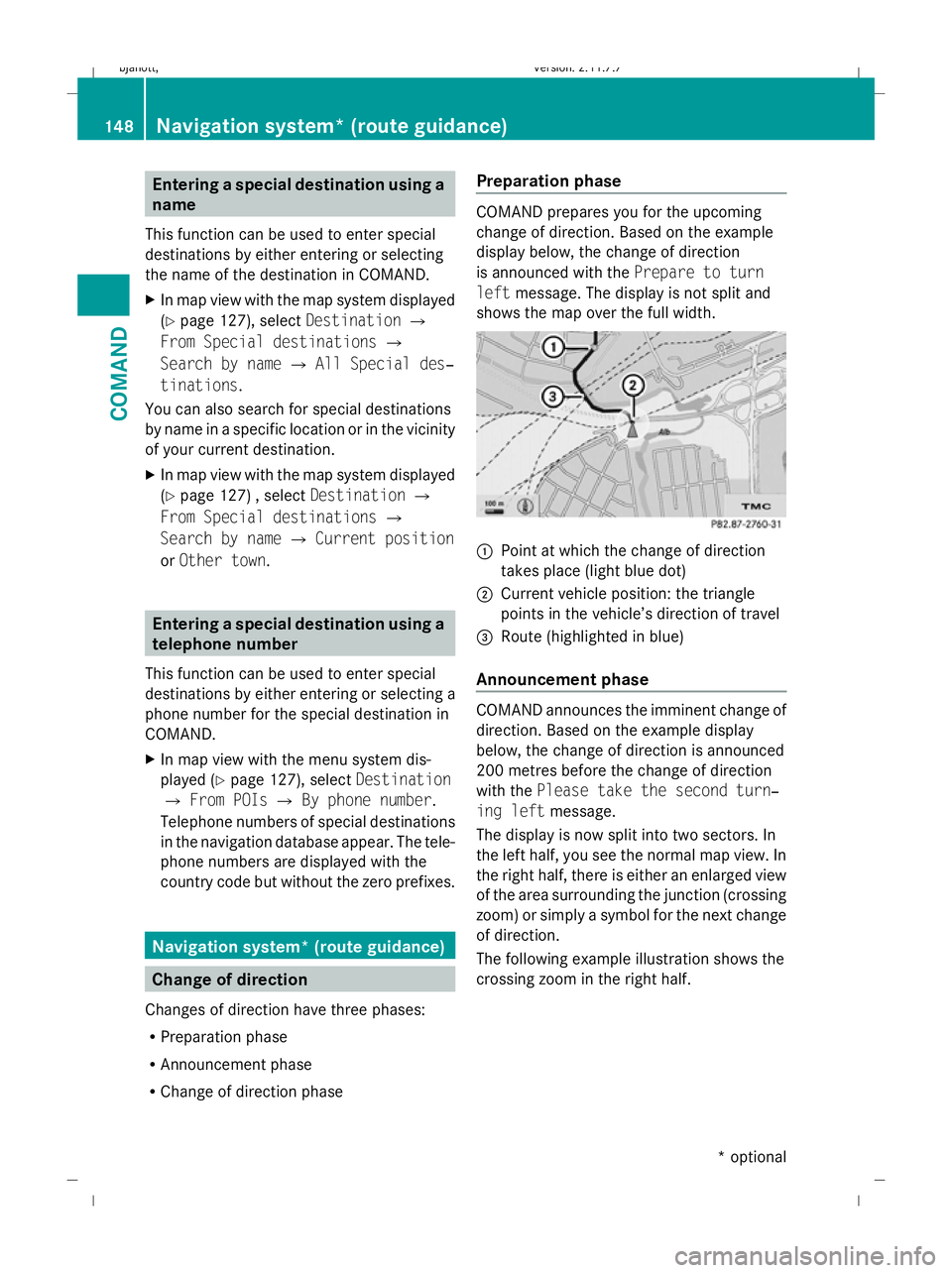
change of direction. Based on the example
display below, the change of direction
is announced with the
Prepare to turn
left message. The display is not split and
shows the map over the full width. :
Point at which the change of direction
takes place (light blue dot)
; Current vehicle position: the triangle
points in the vehicle’s direction of travel
= Route (highlighted in blue)
Announcement phase COMAND announces the imminent change of
direction. Based on the example display
below, the change of direction is announced
200 metres before the change of direction
with the
Please take the second turn‐
ing left message.
The display is now split into two sectors. In
the left half, you see the normal map view. In
the right half, there is either an enlarged view
of the area surrounding the junction (crossing
zoom) or simply a symbol for the next change
of direction.
The following example illustration shows the
crossing zoom in the right half. 148
Navigation system* (route guidance)COMAND
* optional
216_AKB; 2; 3, en-GB
bjanott
,V ersion: 2.11.7.7
2009-02-27T14:54:17+01:00 - Seite 148
Dateiname: 6515230602_buchblock.pdf; erzeugt am 04. Mar 2009 11:15:18; WK
Page 161 of 421
Entering an address manually
X
To assign data to My address for the
first time: selectSave with name.
or
X To edit My address: selectEditQ
Save with name.
In both cases, the address input menu
appears.
X Enter the address. Proceed in the same way
as you would enter a destination as descri-
bed in the "Entering a destination by
address" section (Y page 135).
X Select Saveafter you have entered the
address.
Your address is stored.
Using an address book entry for My
address
X To assign data to My address for the
first time: selectAssign address book
entry.
or
X To edit My address: selectChange Q
Assign to address book entry.
In both cases, the menu for searching for
an address book entry appears.
X Select the desired address book entry. Pro-
ceed as described in the "Calling up con-
tacts/details" section (Y page 120).
i The name of the town and of the street in
the address book entry must be spelled in
the same way as in the destination entry so
that the information matches the data on
the digital map. The country in the address
book can be written as follows so that it
matches the data on the digital map:
R Country name spelled in the language of
that country
R Country name spelled in the language set
as the system language
R Country name as an international coun-
try abbreviation for vehicles (e.g. D for Germany, E for Spain, F for France, I for
Italy, etc.)
X COMAND stores the entry as My address
in the destination memory if the address
data is complete and matches the digital
map data.
If address data is missing or if it does not
match the data on the digital map, a mes-
sage will be displayed informing you that
the address is incomplete.
X To close the message: selectOK.
Depending on which data is missing or does
not correspond with the digital map data, you
must now:
R select a country (Y page 136)
R enter a town (Y page 136)
R enter a street (Y page 138)
R enter a house number (Y page 140)
If the data is complete and it matches the
digital map data, COMAND stores the entry. Storing a destination in the destina-
tion memory
This function also stores the destination in
the address book. COMAND creates an
address book entry that contains the com-
plete, navigable address data. You can then
select this entry in the address book and start
route guidance to the address from there.
After the address has been entered X
Select Saveafter you have entered the
address ( Ypage 135).
During route guidance X
Select Destination QSave destina‐
tion during route guidance.
You can now select storage options. 158
Navigation system* (destination memory)COMAND
* optional
216_AKB; 2; 3, en-GB
bjanott,
Version: 2.11.7.7 2009-02-27T14:54:17+01:00 - Seite 158
Dateiname: 6515230602_buchblock.pdf; erzeugt am 04. Mar 2009 11:15:24; WK
Page 166 of 421
Deleting existing individualisation data
X
Select Vehicle QSystem QLingua‐
tronic QDelete individualisation .
A prompt appears asking whether you
really wish to delete.
X Select YesorNo.
The individualisation data will either be
deleted or not, depending on your selec-
tion. Language settings
X Select Vehicle QSystem QLan‐
guage.
The language list appears. The #dot indi-
cates the current setting.
X To change the setting: select the desired
language. Assigning the programmable button
(favourites)
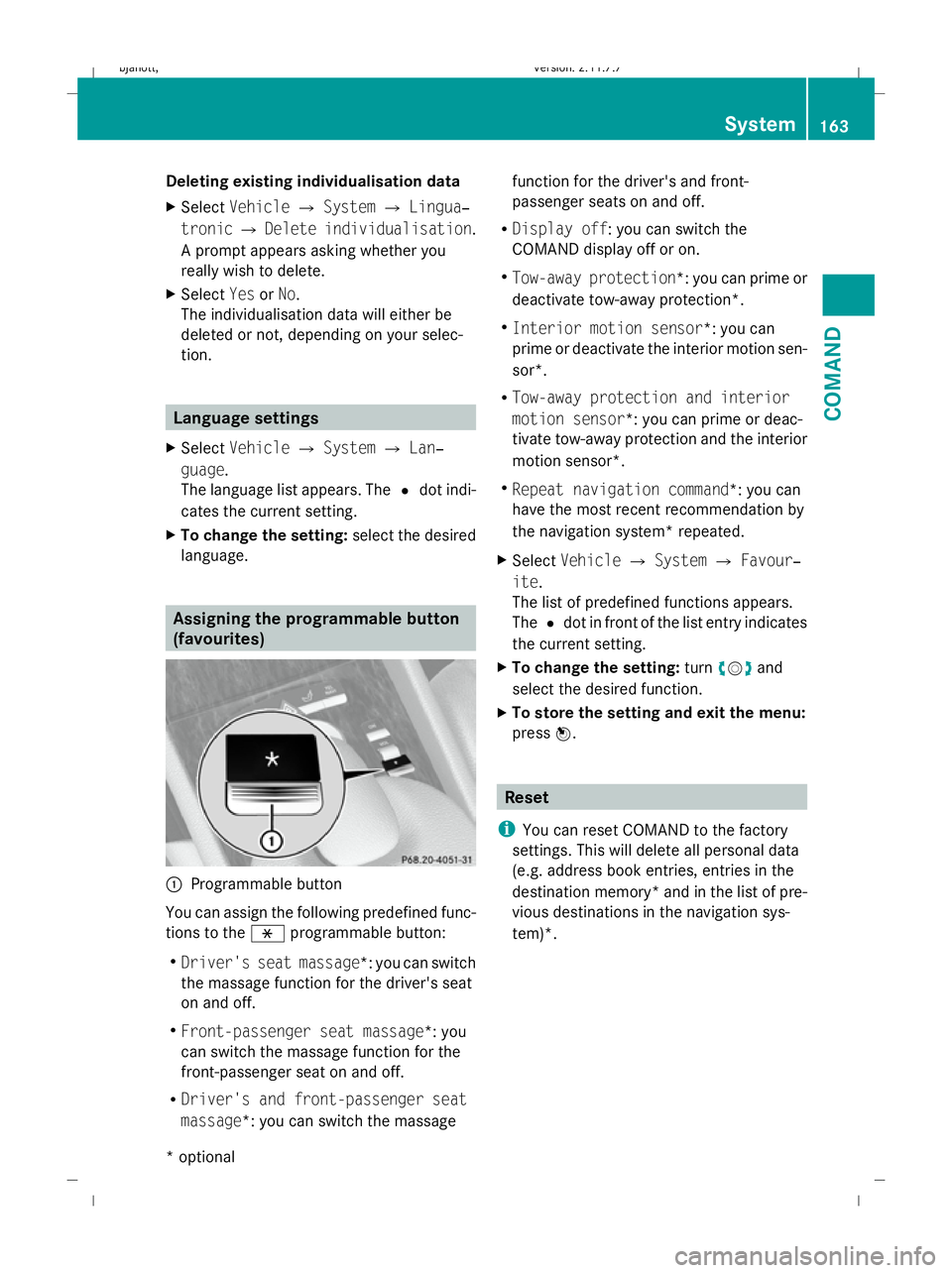
:
Programmable button
You can assign the following predefined func-
tions to the hprogrammable button:
R Driver's seat massage*: you can switch
the massage function for the driver's seat
on and off.
R Front-passenger seat massage*: you
can switch the massage function for the
front-passenger seat on and off.
R Driver's and front-passenger seat
massage*: you can switch the massage function for the driver's and front-
passenger seats on and off.
R Display off : you can switch the
COMAND display off or on.
R Tow-away protection *: you can prime or
deactivate tow-away protection*.
R Interior motion sensor *: you can
prime or deactivate the interior motion sen-
sor*.
R Tow-away protection and interior
motion sensor *: you can prime or deac-
tivate tow-away protection and the interior
motion sensor*.
R Repeat navigation command*: you can
have the most recent recommendation by
the navigation system* repeated.
X Select Vehicle QSystem QFavour‐
ite .
The list of predefined functions appears.
The #dot in front of the list entry indicates
the current setting.
X To change the setting: turncVd and
select the desired function.
X To store the setting and exit the menu:
press W. Reset
i You can reset COMAND to the factory
settings. This will delete all personal data
(e.g. address book entries, entries in the
destination memory* and in the list of pre-
vious destinations in the navigation sys-
tem)*. System
163COMAND
* optional
216_AKB; 2; 3, en-GB
bjanott
,V ersion: 2.11.7.7
2009-02-27T14:54:17+01:00 - Seite 163 Z
Dateiname: 6515230602_buchblock.pdf; erzeugt am 04. Mar 2009 11:15:26; WK
Page 167 of 421
X
Select Vehicle QSystem QReset.
A prompt appears asking whether you
really wish to reset.
X Select YesorNo.
If you select Yes, a prompt will appear again
asking whether you really wish to reset.
X Select YesorNo.
If you select Yes, COMAND will be reset
and restarted. Vehicle
Introduction to the vehicle menu
i Information about the components and
operating principles of COMAND can be
found on (Y page 58).
In this menu, you can set the following vehicle
functions:
R Multicontour seat settings*
R Rear window blind*
R EASY-ENTRY/EXIT feature
R Exterior lighting delayed switch-off time
R Interior lighting delayed switch-off time
R Ambient lighting*
R Automatic folding mirror
R Locator lighting
R Automatic locking feature
R Interior motion sensor*
R Tow-away protection*
R Boot lid opening limiter
You can open the "Vehicle" menu in one of
two ways. Opening the "Vehicle" menu from the
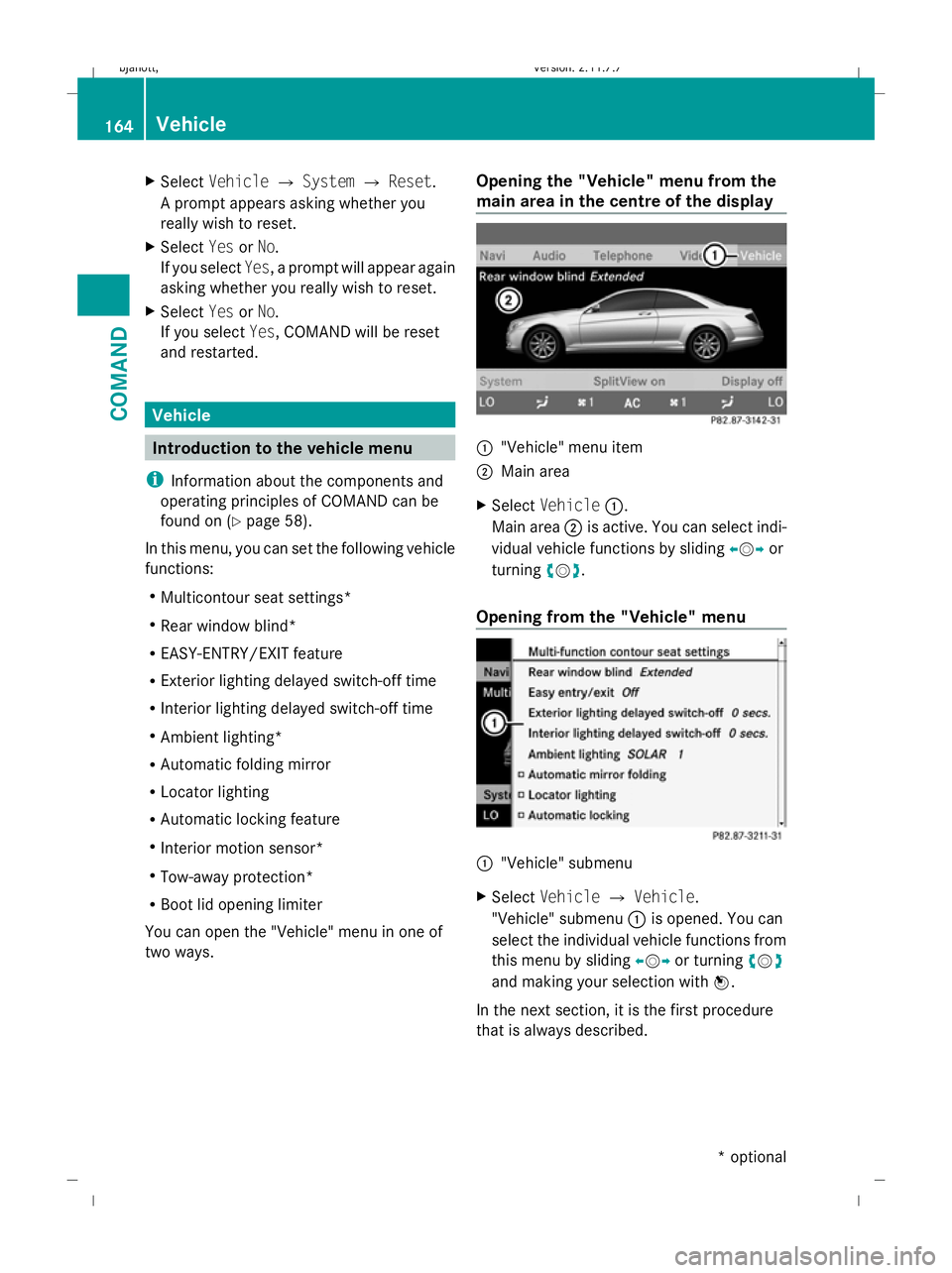
main area in the centre of the display :
"Vehicle" menu item
; Main area
X Select Vehicle :.
Main area ;is active. You can select indi-
vidual vehicle functions by sliding XVYor
turning cVd.
Opening from the "Vehicle" menu :
"Vehicle" submenu
X Select Vehicle QVehicle.
"Vehicle" submenu :is opened. You can
select the individual vehicle functions from
this menu by sliding XVYor turning cVd
and making your selection with W.
In the next section, it is the first procedure
that is always described. 164
VehicleCOMAND
* optional
216_AKB; 2; 3, en-GB
bjanott,
Version: 2.11.7.7 2009-02-27T14:54:17+01:00 - Seite 164
Dateiname: 6515230602_buchblock.pdf; erzeugt am 04. Mar 2009 11:15:27; WK
Page 171 of 421
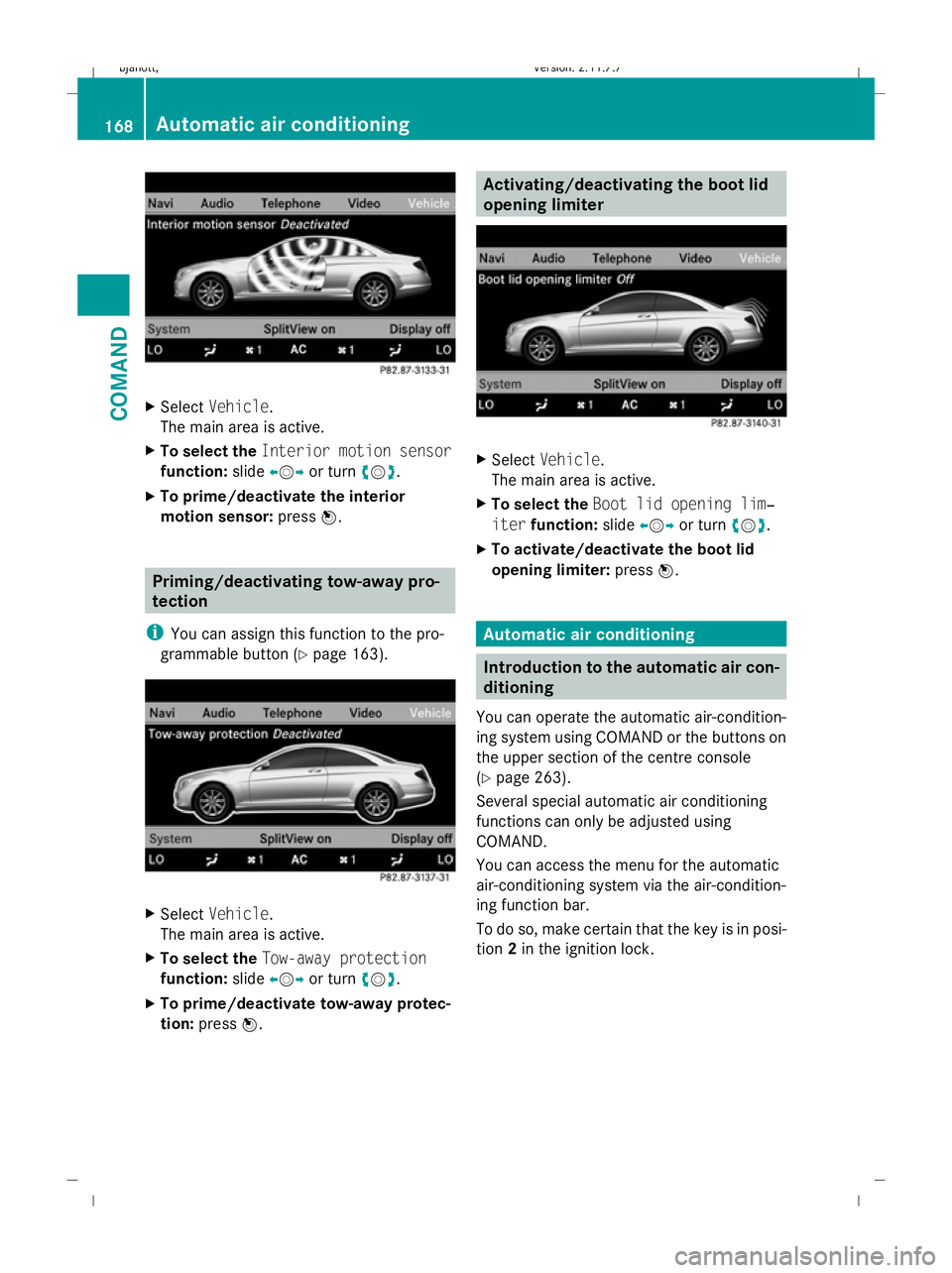
X
Select Vehicle.
The main area is active.
X To select the Interior motion sensor
function: slideXVY or turn cVd.
X To prime/deactivate the interior
motion sensor: pressW. Priming/deactivating tow-away pro-
tection
i You can assign this function to the pro-
grammable button (Y page 163).X
Select Vehicle.
The main area is active.
X To select the Tow-away protection
function: slideXVY or turn cVd.
X To prime/deactivate tow-away protec-
tion: press W. Activating/deactivating the boot lid
opening limiter
X
Select Vehicle.
The main area is active.
X To select the Boot lid opening lim‐
iter function: slideXVY or turn cVd.
X To activate/deactivate the boot lid
opening limiter: pressW. Automatic air conditioning
Introduction to the automatic air con-
ditioning
You can operate the automatic air-condition-
ing system using COMAND or the buttons on
the upper section of the centre console
(Y page 263).
Several special automatic air conditioning
functions can only be adjusted using
COMAND.
You can access the menu for the automatic
air-conditioning system via the air-condition-
ing function bar.
To do so, make certain that the key is in posi-
tion 2in the ignition lock. 168
Automatic air conditioningCOMAND
216_AKB; 2; 3, en-GB
bjanott,
Version: 2.11.7.7 2009-02-27T14:54:17+01:00 - Seite 168
Dateiname: 6515230602_buchblock.pdf; erzeugt am 04. Mar 2009 11:15:30; WK
Page 180 of 421
Opening and closing
.........................178
Boot .................................................... 180
Key positions .................................... 182
Seats .................................................. 183
Steering wheel .................................. 187
Mirrors ............................................... 189
Memory function .............................. 190
Seat belts ........................................... 191
Lights ................................................. 194
Windscreen wipers ...........................199
Side windows .................................... 200
Driving and parking ..........................202
Automatic transmission ...................206
Instrument cluster ............................212
On-board computer ..........................213
Driving systems ................................ 227
Air conditioning ................................. 262
Sliding sunroof .................................. 274
Loading and stowing ........................275
Features ............................................. 280 177Controls
216_AKB; 2; 3, en-GB
bjanott,
Version: 2.11.7.7 2009-02-27T14:54:17+01:00 - Seite 177
Dateiname: 6515230602_buchblock.pdf; erzeugt am 04. Mar 2009 11:15:35; WK
Page 196 of 421
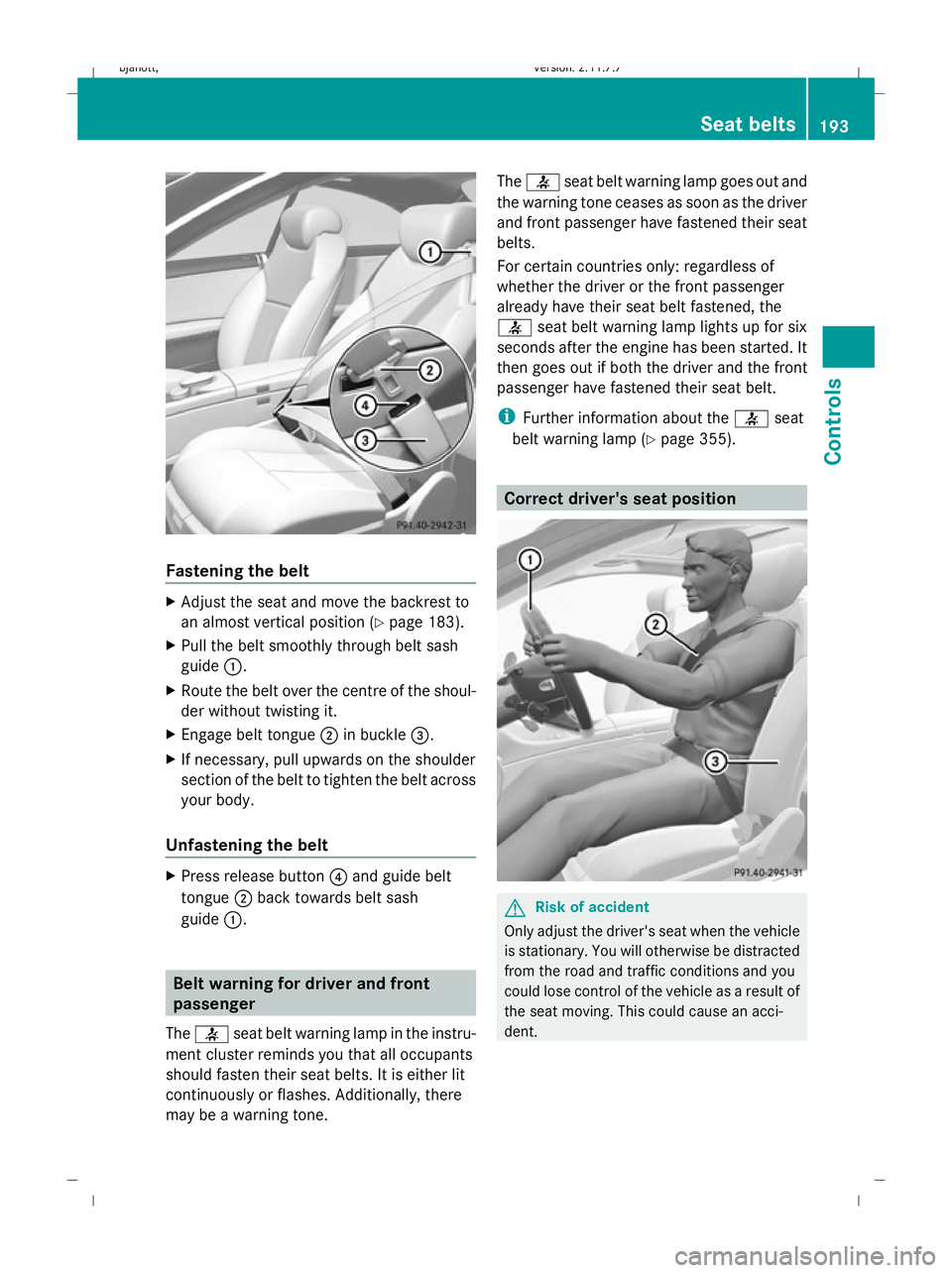
Fastening the belt
X
Adjust the seat and move the backrest to
an almost vertical position (Y page 183).
X Pull the belt smoothly through belt sash
guide :.
X Route the belt over the centre of the shoul-
der without twisting it.
X Engage belt tongue ;in buckle =.
X If necessary, pull upwards on the shoulder
section of the belt to tighten the belt across
your body.
Unfastening the belt X
Press release button ?and guide belt
tongue ;back towards belt sash
guide :. Belt warning for driver and front
passenger
The 7 seat belt warning lamp in the instru-
ment cluster reminds you that all occupants
should fasten their seat belts. It is either lit
continuously or flashes. Additionally, there
may be a warning tone. The
7 seat belt warning lamp goes out and
the warning tone ceases as soon as the driver
and front passenger have fastened their seat
belts.
For certain countries only: regardless of
whether the driver or the front passenger
already have their seat belt fastened, the
7 seat belt warning lamp lights up for six
seconds after the engine has been started. It
then goes out if both the driver and the front
passenger have fastened their seat belt.
i Further information about the 7seat
belt warning lamp (Y page 355). Correct driver's seat position
G
Risk of accident
Only adjust the driver's seat when the vehicle
is stationary. You will otherwise be distracted
from the road and traffic conditions and you
could lose control of the vehicle as a result of
the seat moving. This could cause an acci-
dent. Seat belts
193Controls
216_AKB; 2; 3, en-GB
bjanott, Version: 2.11.7.7 2009-02-27T14:54:17+01:00 - Seite 193 Z
Dateiname: 6515230602_buchblock.pdf; erzeugt am 04. Mar 2009 11:15:43; WK