display MERCEDES-BENZ E-CLASS ESTATE 2017 Workshop Manual
[x] Cancel search | Manufacturer: MERCEDES-BENZ, Model Year: 2017, Model line: E-CLASS ESTATE, Model: MERCEDES-BENZ E-CLASS ESTATE 2017Pages: 585, PDF Size: 11.8 MB
Page 333 of 585
Multimedia sy
stem:
, Navigation #
Tozoo min:swipe down on theT ouc hCon‐
trol.
or #
Turn thec ontroller anti-clockwise.
or #
Movetwof inger saparton thet ouchpad. #
Tozoo mo ut:swipe up on theT ouc hControl.
or #
Turn thec ontroller clockwise.
or #
Movetwof inger stogether on thet ouchpad.
% Youc an se tthe unit of measurement of the
map scale (→ page301). Moving
them ap
Multimedia sy stem:
, Navigation .
Z Options .
Map
menu #
Alternatively: if them ap is displa yedinf ull
screen mode, press theT ouc hControl, the
controller or thet ouchpad.
The map menu appears. #
Select "mo vemap" in map menu 2
(→ pag e329). #
Swipe in an ydirection on theT ouc hControl
or touchpad.
or #
Slid ethe controller in an ydirection.
The map mo vesint he cor responding direc‐
tion under thec rosshair .The fur ther you
mo veyour finger away from thes tarti ngposi‐
tio nont hetouchpad, thef astert he map
mo ves. Selecting
them aporientation
Multimedia sy stem:
, Navigation .
Z Options .
Map
menu #
Alternatively: if them ap is displa yedinf ull
screen mode, press theT ouc hControl or the
to uchpad.
The map men uappears. #
In map menu 3,select N,2D or
3D( →pag e329).
R N:t he 2D map vie wisdisplayedsot hat
nor this alw aysatt hetop.
R 2D:t he 2D map vie wisaligned tothe
direction of tra vel.
R 3D:t he 3D map vie wisaligned tothe
direction of tra vel.
Selecting POI symbols
Multimedia sy stem:
, Navigation .
Z Options .
Map con-
tent
POIs include filling stations and ho tels whic hcan
be displa yedass ymbols on them ap,fore xam‐
ple. Notall POI sareavailable everywhere. 330
Multimedia sy stem
Page 334 of 585
#
Select POI symbols.
The #do tindica test he cur rent setting.
Standard displayss ymbols of predefined cat‐
egories on them ap.
User defined allowsyoutop ersonall yselect
th es ymbols fort he available categories.
None switches thed ispla yoff. #
Select asetting. #
User defined:s elect categories.
The POI symbols of thes elected categories
ar ed ispla yedOor no tdispla yedª.
Selecting text information
Multimedia sy stem:
, Navigation .
Z Options .
Text
information #
Select text information.
Current street showsthes tree tyou ar ecur‐
re ntly driving on at theb otto moft he displa y.
When them ap is mo ved, thef ollowing infor‐
mation appear sunder thec rosshair:
R stre et name
R POI name R
area name
Geo-coordinates displayst he following infor‐
mation:
R longitude and latitude
R elevation
The el evatio nshown ma ydeviat ef rom
th ea ctual ele vation.
R numbe rofsatellitesf romw hichas ignal
can be recei ved
When them ap is mo ved, this information
does no tappear.
Climate control displays thecurrent clima te
control settings.
None switches thed ispla yoff.
Switching mo torw ay information on/off
Multimedia sy stem:
, Navigation .
Z Options #
Switch Motorway information onO or off
ª.
The function is switched on O:during a
journe y,additional information on upcoming fa
cilities appea rson ther ight side of the
screen. These include car par ks,s ervice sta‐
tions and mo torw ay ex its,fore xamp le.
Displ aying then extintersectin gstreet
Re quirements:
R Routeg uidance is no tactive.
Multimedia sy stem:
, Navigation .
Z Options #
Activate ONextintersecting street .
Th en am eoft he next intersecting stre et will
be displa yedatt he upper edg eofthe displa y.
Displaying them apversion
Multimedia sy stem:
, Navigation .
Z Options #
Select Map version . #
Select Details.
% Information about ne wversions of thed igital
map can be obtained from aMercedes-Benz
Service Centre. Multimedia sy
stem 331
Page 337 of 585
Displaying
thec ompass
Multimedia sy stem:
, Navigation .
À Route and position #
Select Compass.
The compass displa yshows thef ollowing
information:
R thec urrent di rection of tr avelwithb ear‐
ing (360 deg reef ormat) and compass
direction
R longitude and latitudec oordinates in
degrees, minutes and seconds
R height (rounded)
R number of GPS satellites from whic ha
signal can be recei ved
Displaying Qibla
Requ irements:
R theQ ibla displa yisavailable in your count ry.Multimedia sy
stem:
, Navigation .
À Route and position #
Select Qibla.
The ar rowonthec ompass sho wsthed irec‐
tion of pr ayer toMecca in relation tothec ur‐
re nt di rection of tr avel.
The number of satellites recei vediss hown.
Setting them apscale automatically
Multimedia sy stem:
, Navigation .
Z Options
The map scale is se tautomaticall ydepending on
yo ur drivin gspeed.
Fo rjourne ysin cities wit hdetailed cit ymodels ,a
map vie wfromt he driver's perspectiv eisused. #
Switch Auto zoom onO or off ª.
% The automaticall yselected map scale can be
ch anged manuall yfor as hor ttime. The set‐
ting is rese ta utomatically af teraf ewsec‐
onds. Displaying
thes atellit emap
Multimedia sy stem:
, Navigation .
Z Options .
Map con-
tent #
Switch Satellitemapon O or off ª.
or #
If satellit emap display 6isavailable in the
map menu, switc hitonOor off ª
(→ pag e329).
Switched on O:satellit emaps ar edispla yed
in map scales of 2km.
Swit ched off ª:satellit emaps ar enotdis‐
pla yedinm ap scales from 2kmto10k m.
% Satelli temaps fort hese map scales ar enot
av ailable in all countries.
Displ aying weather information
Multimedi asystem:
, Navigation .
Z Options .
Map con-
tent #
Activate OWeather information.
or 334
Multimedia sy stem
Page 338 of 585
#
Ifwe ather information display 6isavailable
in them ap menu, activate O(→page329)
it.
Cur rent we ather information is displa yedon
th en avigation map, e.g. temp eratur eor
cloud co ver.
% Requirements:
R Youh ave aMercedes me account.
R The servic ehas been activated at a
Mercedes-Ben zServic eCentre.
Fu rther information can be found at :http://
www.mercedes.me
% Weather information is no tavailable in all
countries. Calling up
theD igital Owner' sManual (navi‐
ga tion) Calling up in
form ation on navigation
Multimedi asystem:
, Navigation .
Z Options .
Informa-
tion on navigation #
Select thet opic. Te
lephone Te
lephony Te
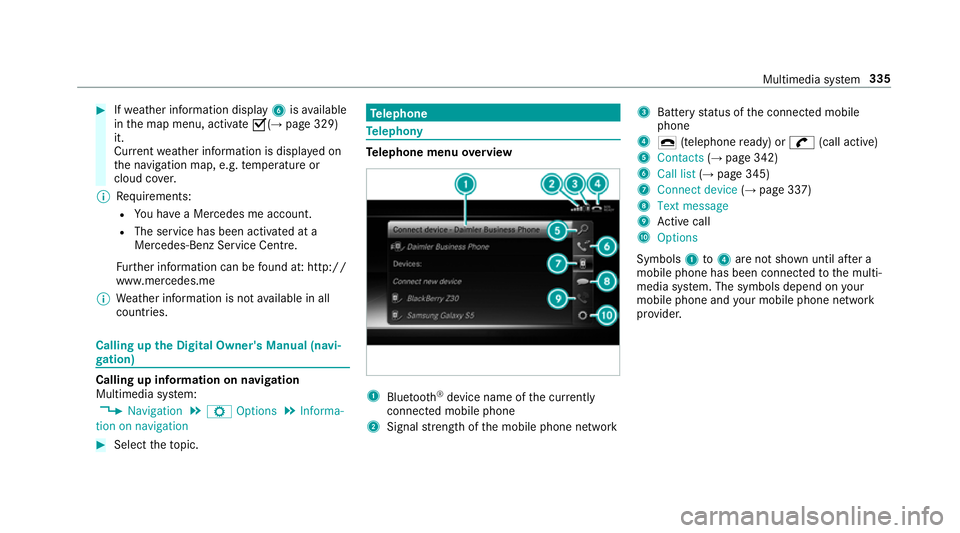
lephone menu overview 1
Blue tooth ®
device name of thec urrently
connected mobil ephone
2 Signal stre ngt hoft he mobile phone network 3
Batter ystatus of thec onnected mobile
phone
4 ¢ (telephone ready) or w(call active)
5 Contacts (→pag e342)
6 Call list (→pag e345)
7 Connec tdevice (→pag e337)
8 Textmessage
9 Activec all
A Options
Symbols 1to4 aren otshown until af tera
mobil ephone has been connected tothem ulti‐
media sy stem. The symbols depend on your
mobile phon eand your mobile phon enetwo rk
pr ov ider. Multimedia sy
stem 335
Page 345 of 585
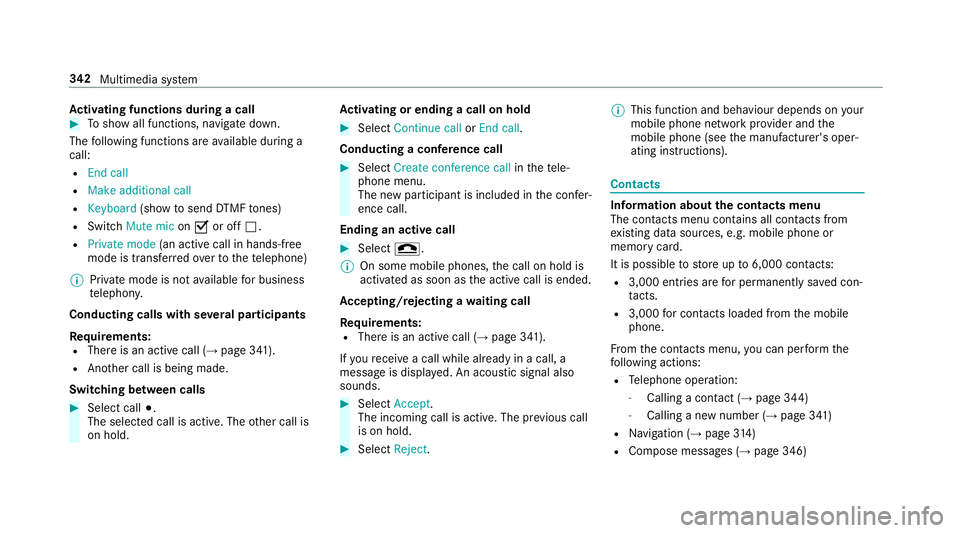
Ac
tivatin gfunction sdurin gac all #
Tosho wall functions, navigat edown.
The following function sareavailable during a
call:
R Endc all
R Mak eadditional call
R Keyboard (showtos endDTMF tones)
R Switch Mute mic onO or off ª.
R Private mode (ana ctive cal linh ands-free
mod eist ransfer redo vertot hetelephone)
% Privat emode is no tavailable forb usiness
te lephon y.
Conductin gcalls wit hseve ralp articipants
Re quirements:
R Ther eisana ctivecall (→ page341).
R Another call is being made.
Switching between calls #
Select call #.
The selected call is active. The other call is
on hold. Ac
tivatin gorendingac allonh old #
Select Continu ecallorEnd call.
Conductin gaconfere nc ec all #
Select Create conference call inthet ele‐
phone menu.
The ne wparticipant is included in thec onfer‐
ence call.
Endin gana ctivecall #
Select =.
% On some mobil ephones, thec all on hold is
activated as soon as thea ctiv ecall is ended.
Ac cepting/rejecting awaiting call
Re quirements:
R Ther eisana ctivecall (→ page341).
If yo ur eceiv eacall while already in acall, a
messag eisdisplayed. An acoustic signal also
sounds. #
Select Accept.
The incoming call is active. The pr evious call
is on hold. #
Select Reject. %
This function and behaviour depends on your
mobile phon enetwo rkprov ider and the
mobil ephone (see them anufacturer's oper‐
ating instructions). Contacts
Information about
thec ontact smenu
The con tacts menu contains al lcontacts from
ex istin gdatas ources, e.g. mobile phon eor
memo rycard.
It is possible tostor eupto6 ,000 contacts:
R 3,000 entries ar efor permanently sa vedc on‐
ta cts.
R 3,000 forc ontacts loaded from them obile
phone.
Fr om thec ontac ts menu ,you can per form the
fo llowing actions:
R Telephon eoperation:
- Calling acontact (→ page 344)
- Calling anew numbe r(→ pag e341 )
R Navigation (→ page314 )
R Compose messa ges( → pag e346) 342
Multimedia sy stem
Page 348 of 585
Call list
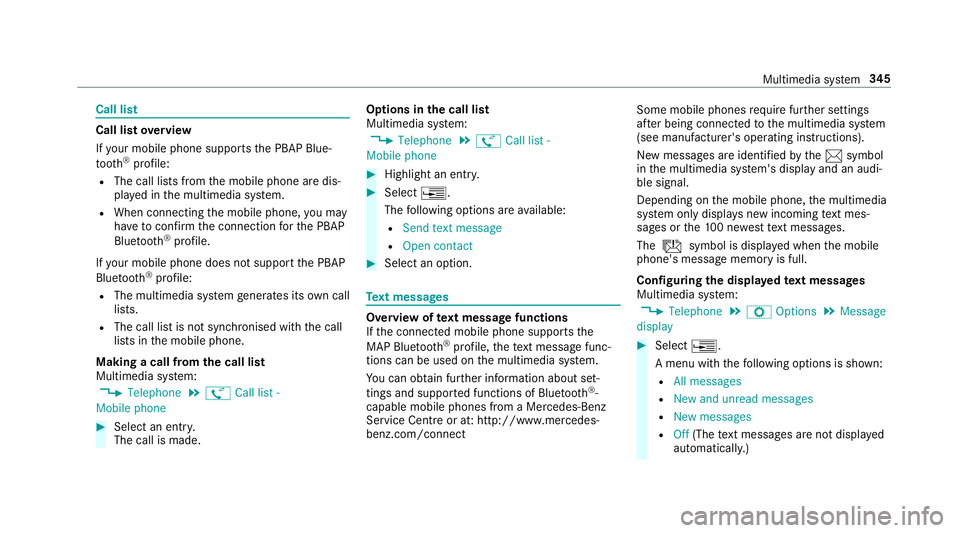
Call lis
toverview
If yo ur mobile phon esuppo rtst he PBAP Blue‐
tooth ®
profile:
R The call lists from them obile phone ar edis‐
pla yedint he multimedia sy stem.
R When connecting them obile phone, youm ay
ha ve toconfir mthe connection fort he PBAP
Blue tooth ®
profile.
If yo ur mobile phon edoes no tsuppo rttheP BAP
Blue tooth ®
profile:
R The multimedia sy stem generates its ownc all
li st s.
R The call lis tisnotsynchronised wit hthe call
lists in them obile phone.
Making acall from the call list
Multimedia sy stem:
, Telephone .
ø Call list -
Mobile phone #
Select an entry.
The call is made. Options in
thec all list
Multimedia sy stem:
, Telephone .
ø Call list -
Mobile phone #
Highlight an entry. #
Select ¥.
The following option sareavailable:
R Sen dtextm essage
R Open contact #
Select an option. Te
xt messages Overvie
woftextm essag efunctions
If th ec onnected mobile phone supports the
MAP Blue tooth®
profile, thet extm essa gefunc‐
tions can be use donthe multimedia sy stem.
Yo uc an obtain fur ther information about set‐
ting sand suppor tedf unction sofBluetooth ®
-
capable mobil ephones from aMercedes-Benz
Service Centr eorat:http://www.mercedes-
benz.com/connect Some mobil
ephones requiref urther settings
af te rb eing connected tothem ultimedia sy stem
(see manufacturer's operating instructions).
Ne wm essages ar eidentified bythe 1 symbol
in them ultimedia sy stem's displa yand an audi‐
ble signal.
Depending on them obile phone, them ultimedia
sy stem onl ydispla ysnewi ncoming text mes‐
sa ge sort he100n ewesttex tm essa ges.
The ú symbol is displa yedw hen them obile
phone's messag ememor yisfull.
Configuring thed ispla yedt extm essages
Multimedia sy stem:
, Telephone .
Z Options .
Message
display #
Select ¥.
Am enu wit hthe following option sisshown:
R All messages
R New and unread messages
R New messages
R Off (The text messa gesa renotd ispla yed
automaticall y.) Multimedia sy
stem 345
Page 351 of 585
R
Display participants
R Set up call/Connect now #
Select afunction.
Markin ganentry in the to-do lis tascomple‐
ted
Multimedia sy stem
, In Car Office #
Select an entry inthet o-do list O.
Ac cepting/rejecting an incoming call fora
te lephone conference #
Toaccep t:select Accept. #
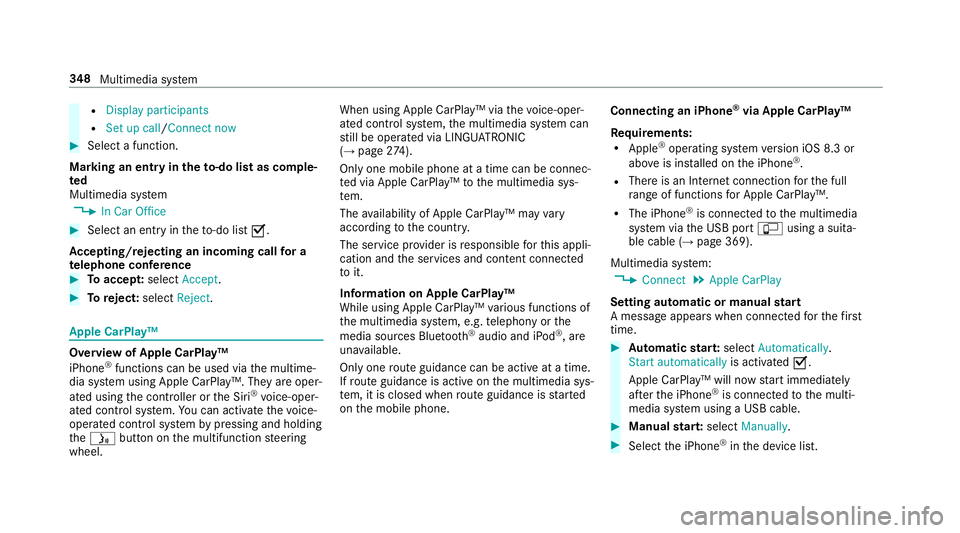
Toreject: select Reject. Apple CarPl
ay™ Overvie
wofApple CarPlay™
iPhone ®
functions can be used via them ultime‐
dia sy stem using Apple CarPlay™. The yareoper‐
ated using thec ontroller or theS iri®
vo ice-oper‐
ated control sy stem. Youc an activat ethe voice-
operated control sy stem bypressing and holding
the ó button on them ultifunction steering
wheel. When using Apple CarPlay™ via
thev oice-oper‐
ated control sy stem, them ultimedia sy stem can
st ill be operated via LINGU ATRO NIC
(→ pag e274).
On ly one mobile phone atat imec an be connec‐
te dv ia Apple CarPlay™ tothem ultimedia sys‐
te m.
The availabilit yofApple CarPlay™ ma yvary
accordin gtothe countr y.
The service pr ovider is responsible fort his appli‐
cation and thes ervices and conte nt connected
to it.
Information on Apple CarPlay™
While using Apple CarPlay™ various functions of
th em ultimedia sy stem, e.g. telephon yorthe
media sources Blue tooth®
audio and iPod ®
,a re
una vailable.
Onl yone routeg uidance can be activ eatatime.
If ro uteg uidance is activ eonthe multimedia sys‐
te m, it is closed when routeg uidance is star ted
on them obile phone. Connecting an iPhone
®
via Apple CarPlay™
Re quirements:
R Apple ®
operatin gsystemv ersion iOS 8.3 or
abo veis ins talled on thei Phone ®
.
R Ther eisanI nternetconnection fort he full
ra ng eoff unctions forA pple CarPlay™.
R The iPhone ®
is connected tothem ultimedia
sy stem via theU SB port çusing asuita‐
ble cable (→ page369).
Multimedia sy stem:
, Connect .
Apple CarPlay
Setting automatic or manual start
Am essa geappear swhen connec tedf or thef irst
time. #
Automatic star t:select Automatically.
Start automatically is activatedO.
Apple CarPlay™ will no wstart immediately
af te rt he iPhone ®
is connected tothem ulti‐
media sy stem using aUSB cable. #
Manua lstar t:select Manually . #
Select thei Phone ®
in thed evice list. 348
Multimedia sy stem
Page 363 of 585
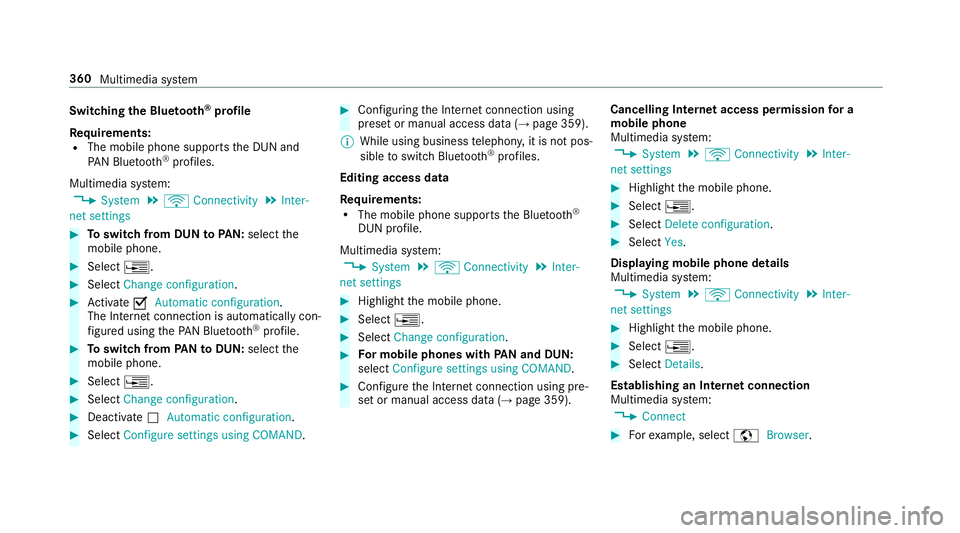
Switching
theB luet oo th®
pr ofile
Re quirements:
R The mobile phon esupports theD UN and
PA NB luetooth ®
profiles.
Multimedia sy stem:
, System .
ö Connectivity .
Inter-
net settings #
Toswitc hfromD UNtoPAN: select the
mobil ephone. #
Select ¥. #
Select Change configuration. #
Activate OAutomatic configuration.
The Interne tconnectio nisa utomatically con‐
fi gured using theP AN Blue tooth®
profile. #
Toswitc hfromP ANtoDUN: select the
mobil ephone. #
Select ¥. #
Select Change configuration. #
Deactivate ªAutomatic configuration. #
Select Configure settings using COMAND . #
Configuri ngtheI nterne tconnection using
prese torm anual access dat a(→pag e359).
% While using business telephon y,it is no tpos‐
sible toswitc hBluetooth ®
profiles.
Editing access data
Requ irements:
R The mobile phon esupports theB luetooth ®
DUN profile.
Multimedia sy stem:
, System .
ö Connectivity .
Inter-
net settings #
Highlight them obile phone. #
Select ¥. #
Select Change configuration . #
Form obil ephone swithP AN an dDUN:
select Configur esettings using COMAND. #
Configur ethe Interne tconnection using pre‐
se torm anual access dat a(→pag e359). Cancelling Interne
taccess permission fora
mobil ephone
Multimedia sy stem:
, System .
ö Connectivity .
Inter-
net settings #
Highlight them obile phone. #
Select ¥. #
Select Deleteconfiguration. #
Select Yes.
Displaying mobile phone details
Multimedia sy stem:
, System .
ö Connectivity .
Inter-
net settings #
Highlight them obile phone. #
Select ¥. #
Select Details.
Establishing an Interne tconnection
Multimedia sy stem:
, Connect #
Fore xamp le, select zBrowser . 360
Multimedia sy stem
Page 364 of 585
%
The multimedia sy stem usually es tablishes
th eI nterne tconnection automaticall y.Ifthe
multimedia sy stem is no tconnected tothe
Internet, theI nterne tconnection is es tab‐
lished when an Interne tapplication is used. Connection
status Connectio
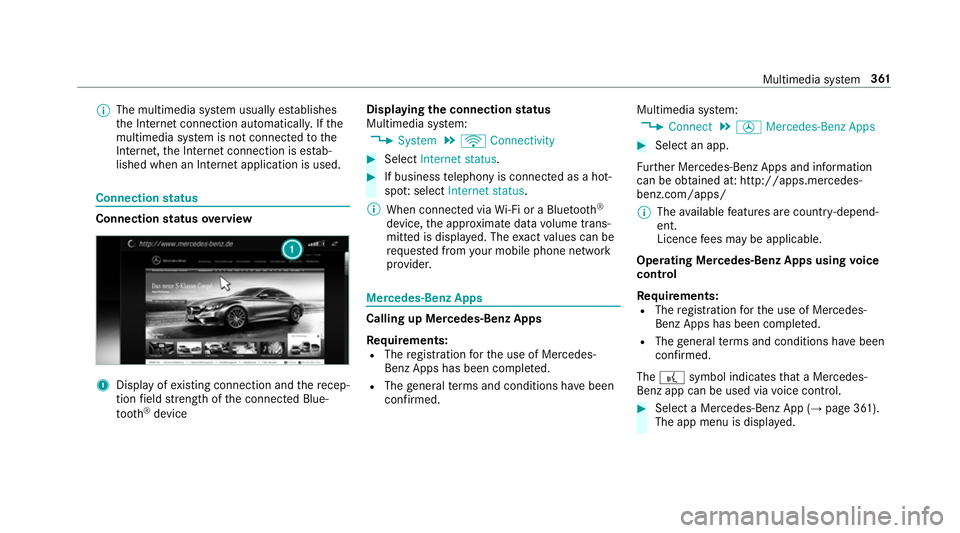
nstatus overview 1
Displa yofexisting connection an dthe recep‐
tion field stre ngt hoft he connected Blue‐
tooth ®
device Displaying
thec onnection status
Multimedi asystem:
, System .
ö Connectivity #
Select Internet status . #
If business telephon yisconnec tedasah ot‐
spo t:select Internet status.
% When connected via Wi-Fi or aBluet oo th®
device, thea ppr oximat edatav olume trans‐
mitted is displa yed. The exact values can be
re qu estedf romy our mobile phone network
pr ov ider. Mercedes-Benz Apps
Calling up Mercedes-Benz Apps
Re
quirements:
R The registration fort he use of Mercedes-
Benz Apps has been comple ted.
R The general term sa nd conditions ha vebeen
con firm ed. Multimedia sy
stem:
, Connect .
Ú Mercedes-Benz Apps #
Select an app.
Fu rther Mercedes-BenzA pps and information
can be obtained at :http://apps.mercedes-
benz.com/apps/
% The available features ar ecountr y-depend‐
ent.
Licence fees ma ybea pplicable.
Operating Mercedes-Benz Apps using voice
control
Re quirements:
R The registration fort he use of Mercedes-
Benz Apps has been comple ted.
R The general term sa nd conditions ha vebeen
con firm ed.
The ? symbol indicates that aM ercedes-
Ben zapp can be used via voice control. #
Selec taMercedes-Benz App (→ page361).
The app men uisdisplayed. Multimedia sy
stem 361
Page 383 of 585
Slide show
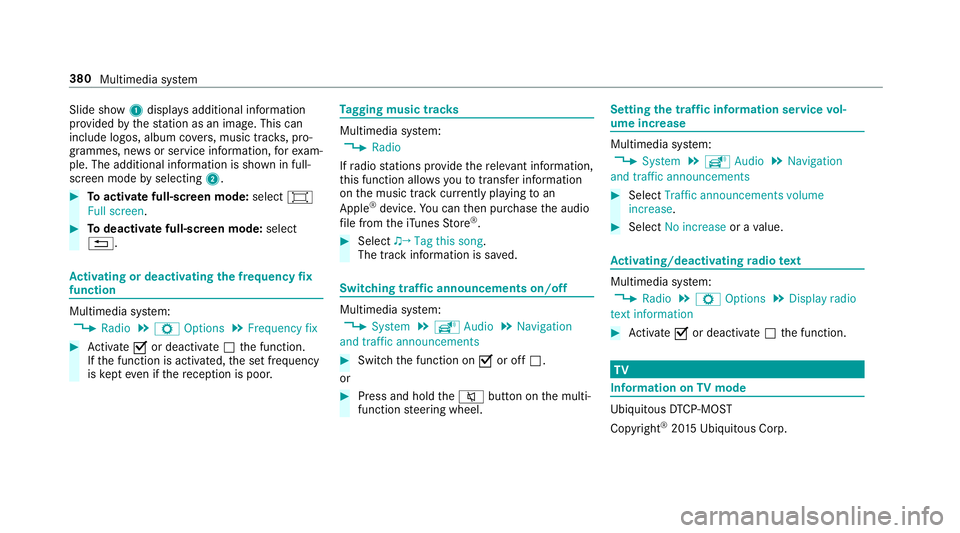
1displ aysa dditional information
pr ov ided bythes tatio nasani mage. This can
include logos ,album co vers,m usic trac ks,p ro‐
grammes, ne wsor service information, fore xam‐
ple. The additional information is shown in full-
sc reen mode byselecting 2. #
Toactivat efull-screenm ode:select #
Full screen. #
Todeactivat efull-sc reen mode: select
%. Ac
tivatin gordeactivatin gthe frequency fix
function Multimedia sy
stem:
, Radio .
Z Options .
Frequenc yfix #
Activate Oor deacti vate ª thef unction.
If th ef unction is activated, thes etfrequency
is ke pt eve nifthereception is poo r. Ta
gging music trac ks Multimedia sy
stem:
, Radio
If ra dio stations pr ovide ther ele vant information,
th is function allo wsyoutot rans feri nformation
on them usic trac kcurrently pl aying toan
Apple ®
device. Youc an then pur chase thea udio
fi le from thei Tune sS tore ®
. #
Select ♫→ Tag this song.
The trac kinformation is sa ved. Switching traf
fica nnouncement son/off Multimedia sy
stem:
, System .
õ Audio .
Navigation
and traffic announcements #
Switc hthe function on Oor off ª.
or #
Press and hold the8 button on them ulti‐
function steering wheel. Setting
thet raffic information service vol‐
um eincrease Multimedia sy
stem:
, System .
õ Audio .
Navigation
and traffic announcements #
Select Traffic announcements volume
increase. #
Select No increase orav alue. Ac
tivating/deactivatin gradio text Multimedia sy
stem:
, Radio .
Z Options .
Display radio
texti nformation #
Activate Oor deacti vate ª thef unction. TV
Information on
TVmode Ubiquitou
sDTCP-MO ST
Copyright ®
20 15 Ubiquitous Corp. 380
Multimedias ystem