display MERCEDES-BENZ GLK-Class 2012 X204 Comand Manual
[x] Cancel search | Manufacturer: MERCEDES-BENZ, Model Year: 2012, Model line: GLK-Class, Model: MERCEDES-BENZ GLK-Class 2012 X204Pages: 182, PDF Size: 4.89 MB
Page 110 of 182
X
To return tothe phonebook with
ch arac terbar: select Back in
the list and
pre ssW toconfi rm.
or
X Pre ssthe k button. Di
spl aying detai lsfora ne ntry
X Select anent ryinthe select ionlistby
turn ingcVd theCOMAND controller.
X Select Options by
sliding VYandpress
W tocon firm.
X Select Details and
press Wtocon firm.
The detailed displayappears.
X To close thedeta iledview: slideXVY
repeatedly untiltheentryishighlighted
again orpress thek button . Deleting
anentry fromthephone
book
If the entrycon tains onlyphone numbers, it
is deleted fromthephone bookandaddress
book.
If there isadditional dataincluded alongwith
the phone number, e.g.anavigable
destin ation, theentryisdeleted fromthe
phone bookbutretain edinthe address book.
X Select anent ryinthe select ionlistby
turn ingcVd theCOMAND controller.
X Select Options by
sliding VYandpress
W tocon firm.
X Select Delete and
press Wtocon firm.
Ap rompt appears asking whethe rthe entr y
should bedeleted.
X Select Yes or
No and
press Wtoconfirm .
If you select Yes ,
the entr yis deleted in
accordance withtherules described above.
If you select No ,
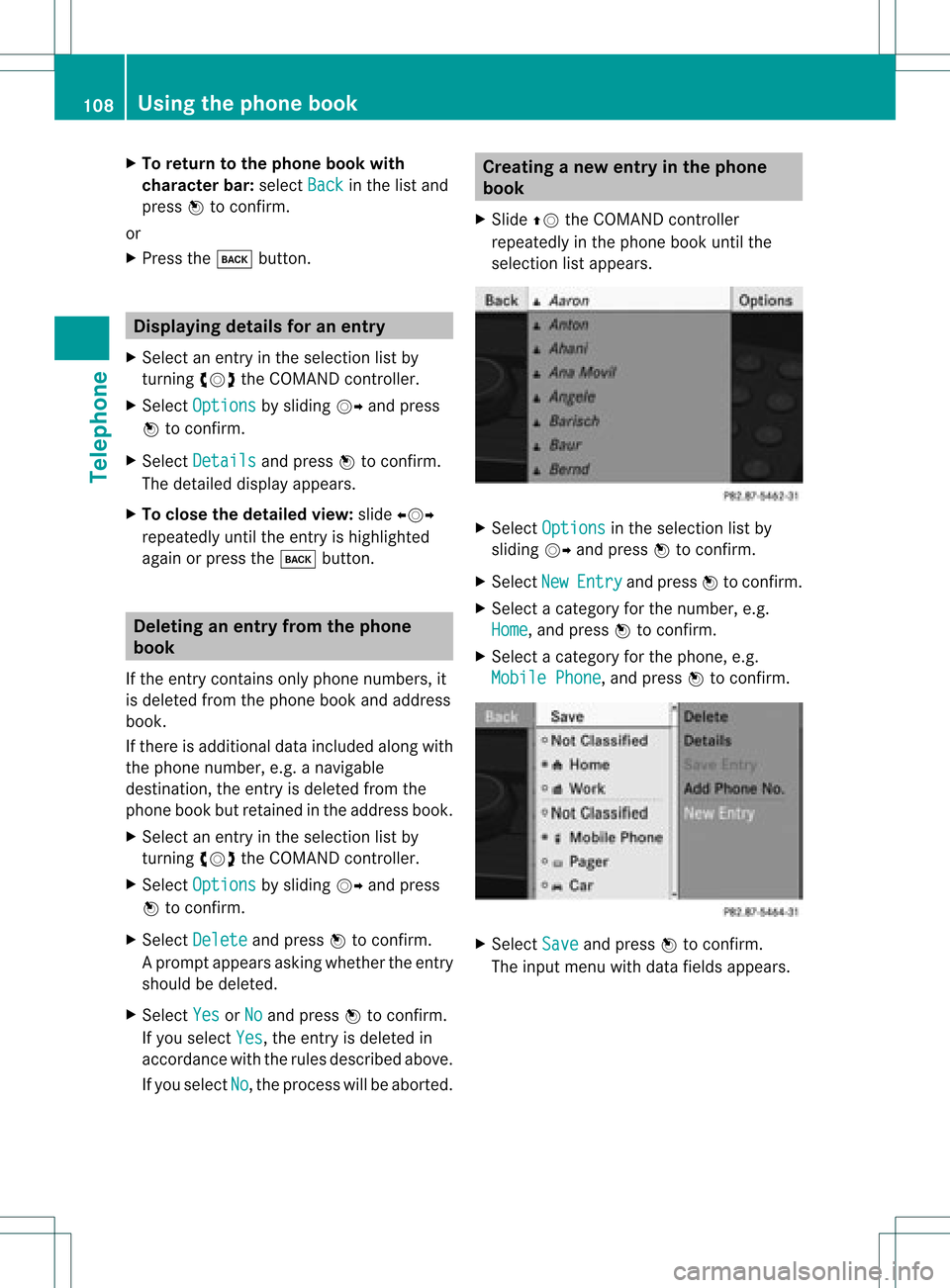
the process willbeaborted. Creating
anew entry inthe phone
book
X Slide ZVtheCOMAND controller
repeatedly inthe phone bookuntilthe
selection listappea rs. X
Select Options in
the selection listby
sliding VYandpress Wtoconfirm .
X Select New Entry and
press Wtoconfirm .
X Select acategory forthe number, e.g.
Home ,
and press Wtoconfirm .
X Select acategory forthe phone, e.g.
Mobile Phone ,
and press Wtoconfirm . X
Select Save and
press Wtoconfirm .
The input menu withdata fields appea rs. 108
Using
thephone bookTelephone
Page 111 of 182
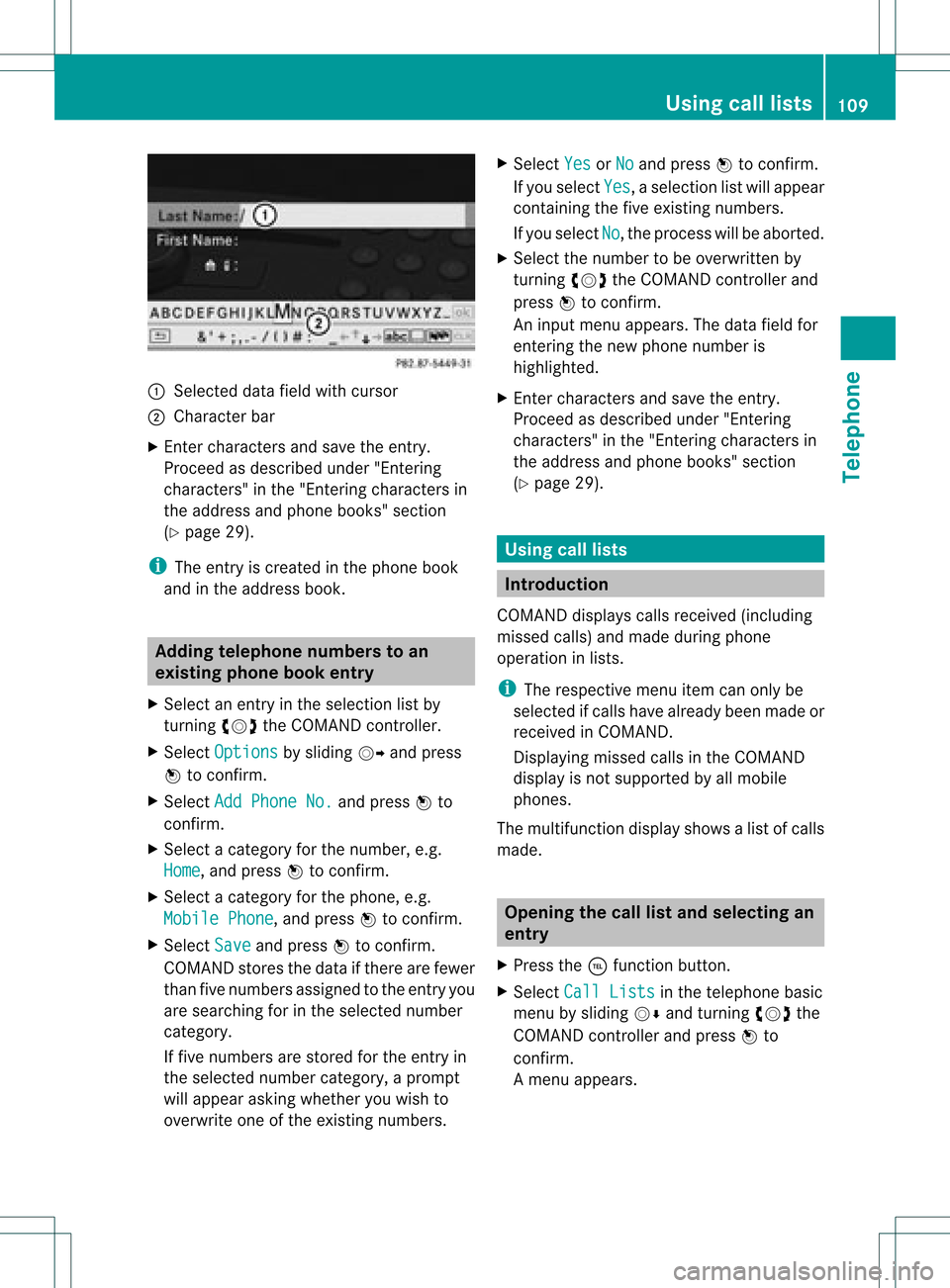
:
Selected data fieldwith curs or
; Chara cter bar
X Enter characte rsand save the entry .
Pro cee das descri bedund er"Ente ring
cha racte rs"inthe "Ente ringcharacte rsin
the addre ssand phoneboo ks" secti on
(Y page 29).
i The entry iscrea tedinthe phoneboo k
and inthe addre ssboo k. Addi
ngtelepho nenumb erstoan
ex istin gphon ebo ok entry
X Sel ect anentry inthe selecti onlist by
turni ngcVd theCOMAND controller.
X Sel ect Option s by
sliding VY andpress
W toconfi rm.
X Sel ect Add PhoneNo. and
pressW to
confi rm.
X Sel ect acate goryfor the numb er,e.g.
Hom e ,
and pressW toconfi rm.
X Sel ect acate goryfor the phone,e.g.
Mob ile Phone ,
and pressW toconfi rm.
X Sel ect Save and
pressW toconfi rm.
CO MAND storesthe data ifthere arefewer
tha nfive numb ersassign edtothe entryyou
are searc hingforinthe selec tednumb er
cat egory.
If five numb ersare stored forthe entryin
the selec tednumb ercat egory, aprom pt
will appear askingwhet heryou wish to
over writeone ofthe exis tingnumb ers. X
Selec tYes or
No and
press Wtocon firm .
If you selec tYes ,
a selec tionlistwill appear
con tain ingthe five existingnumb ers.
If you selec tNo ,
the proc esswillbeabort ed.
X Selec tthe numb erto be over written by
tur nin gcVd theCOMA NDcontroller and
press Wtocon firm .
An input menuappears. Thedata fieldfor
ent erin gthe new phon enumb eris
highligh ted.
X En ter char acters and save theentry.
Proc eedasdesc ribed under "Entering
char acters" inthe "Entering char acters in
the address andphon ebook s"sect ion
(Y page 29). Using
calllists Intr
odu ction
COMA NDdisplays callsreceived (including
misse dcalls) andmade duringphone
operation inlists.
i The respective menuitemcanonly be
selected ifcalls have already beenmade or
received inCOMAND.
Displayi ngmissed callsinthe COMAND
displa yis not supported byallmobile
phones.
The multifunction displayshows alist ofcalls
made. Opening
thecall listand selec tingan
entry
X Press the÷funct ionbutton.
X Select CallLists in
the telephone basic
menu bysliding VÆandturning cVdthe
COMAND controller andpress Wto
confirm .
Am enu appears. Using
calllists
109Telephone Z
Page 112 of 182
X
Sel ect CallsReceived or
Cal ls Dia
led us
ing cVd andpressW to
confi rm.
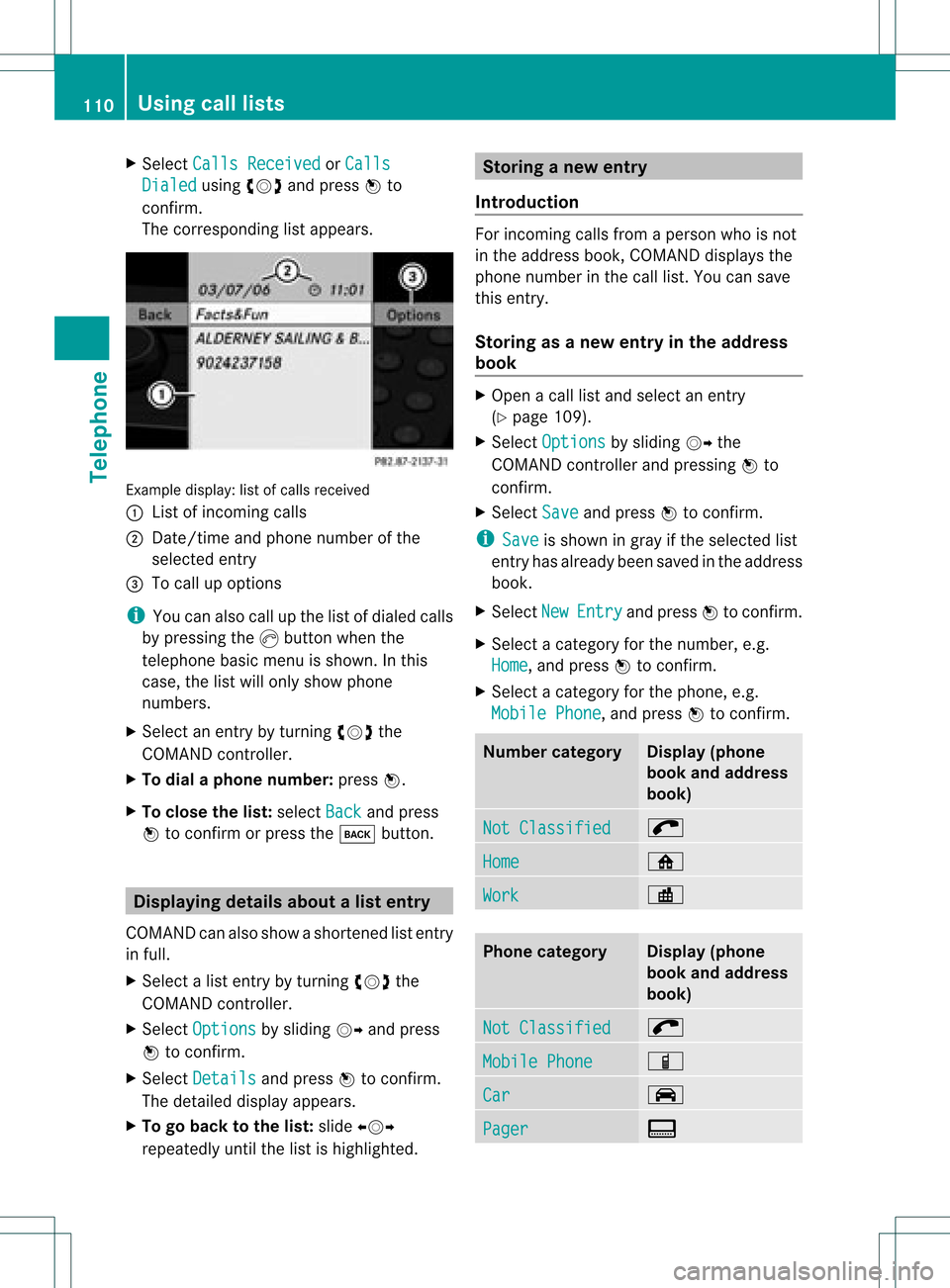
The corre sponding list appe ars . Examp
ledispl ay:list ofcalls received
: List ofinc omin gcalls
; Date/time and phon enumbe rof the
select edent ry
= Tocall upoptio ns
i You canalso callupthe listofdialed calls
by press ingthe Kbutt onwhen the
teleph onebasic menuis shown .Int his
case, thelistwill only show phone
numbers.
X Select anentr yby turning cVdthe
COMAND controller.
X To dial aphone number: pressW.
X To close thelist: select Back and
press
W toconfirm orpress thek button. Displaying
detailsaboutalist entr y
COMAN Dcanalso showasho rten ed list entry
in full.
X Sel ect alist entry by turnin gcVd the
COMA NDcontroll er.
X Sel ect Options by
slidin gVY andpres s
W toconfirm .
X Sel ect Details and
pres sW toconfirm .
The detailed displayappear s.
X To go back tothelist :slide XVY
repe atedly untilth elist ishigh light ed. St
ori ng anew entr y
Intr odu ction For
incomin gcalls from apers onwho isno t
in theaddre ssbook ,COMA NDdisplays the
phon enum berinthecall list.You can save
this entry.
Storing asanew entry inthe address
book X
Open acall listand select anentr y
(Y page 109).
X Select Options by
sliding VYthe
COMAND controller andpressing Wto
conf irm.
X Select Save and
press Wtoconf irm.
i Save is
shown ingray ifthe selected list
entr yhas already beensaved inthe address
book.
X Select New Entry and
press Wtoconf irm.
X Select acategory forthe number, e.g.
Home ,
and press Wtoconf irm.
X Select acategory forthe phone, e.g.
Mobile Phone ,
and press Wtoconf irm. Num
bercategory Display
(phone
book andaddress
book) Not
Classified ;
Home ¸
Work ·
Phone
category Display
(phone
book andaddress
book) Not
Classified ;
Mobile
Phone Ï
Car ´
Pager ¨110
Using
calllistsTelephone
Page 113 of 182
X
Sel ect Save and
pressW toconfi rm.
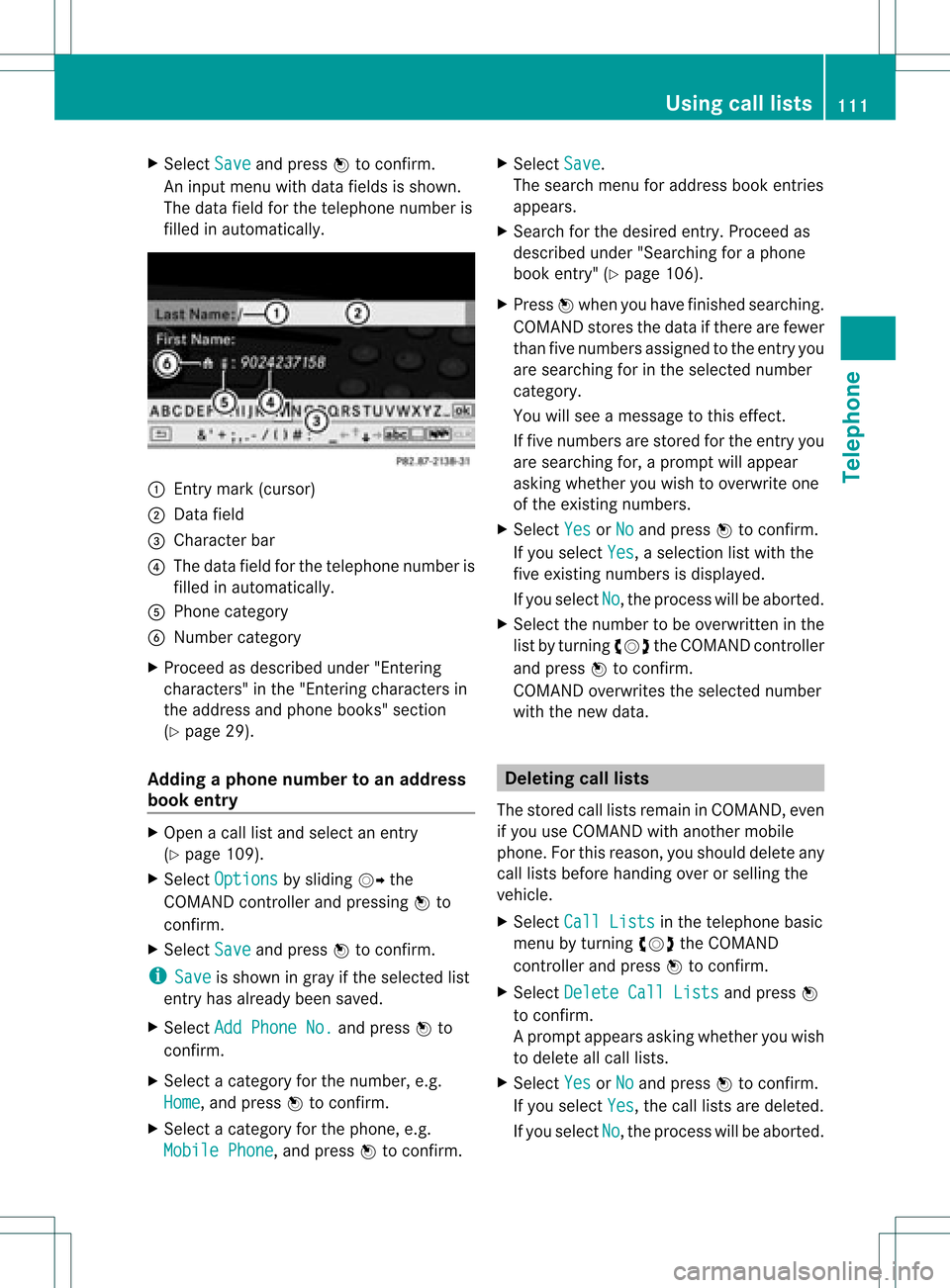
An inputmenu with data fieldsis sho wn.
The data fieldfor the telephone numb eris
fil led in automa tically. :
Entry mark(cu rsor )
; Data field
= Chara cter bar
? The datafie ldfor the telephone numb eris
fil led in automa tically.
A Pho necate gory
B Numbe rcate gor y
X Pro cee das desc ribedunde r"Enteri ng
cha racter s"inthe "Ente ring cha racter sin
the addre ssand phone books "se ctio n
(Y page 29) .
Add ingapho nenumb erto an addre ss
bo ok entry X
Op en acal llist and select an entry
(Y page 109) .
X Sel ect Option s by
slid ing VY the
CO MAND controller and pressing W to
confi rm.
X Sel ect Save and
pressW toconfi rm.
i Sav e is
sho wningra yif the selected list
entry hasal rea dybeen saved .
X Sel ect Add PhoneNo. and
pressW to
confi rm.
X Sel ect acate gory for the num ber,e.g .
Hom e ,
and pressW toconfi rm.
X Sel ect acate gory for the phone ,e.g .
Mob ile Phone ,
and pressW toconfi rm. X
Sel ect Save .
Th ese arch menu foraddre ssbook entri es
ap pe ars.
X Sea rch forthe desired entry .Proceed as
descri bedunder "Searching foraphone
book entry" (Ypag e106).
X Press Wwhen youhave finishe dsearchi ng.
COMAND storesthedata ifthere arefewe r
than fivenumbers assigned tothe entry you
are searchi ngfor inthe sele cted number
category .
You willsee amessa getothis effect.
If five numbers arestored forthe entry you
are searchi ngfor, aprompt willapp ear
asking whethe ryou wish tooverwrite one
of the existin gnumbers.
X Select Yes or
No and
press Wtoconf irm.
If you select Yes ,
a selection listwith the
five existin gnumbers isdisplay ed.
If you select No ,
the process willbeaborted.
X Select thenumber tobe overwritt eninthe
list byturnin gcVd theCOMAND controller
and press Wtoconf irm.
COMAND overwrites theselected number
with thenew data. Dele
ting calllists
The stored calllists remain inCOMAND, even
if you useCOMAND withanother mobile
phone. Forthis reason, youshould deleteany
call lists before handing overorselling the
vehicle.
X Select CallLists in
the telephone basic
menu byturnin gcVd theCOMAND
cont roller andpress Wtoconf irm.
X Select Delete CallLists and
press W
to conf irm.
Ap rompt appears asking whethe ryou wish
to delete allcall lists.
X Select Yes or
No and
press Wtoconf irm.
If you select Yes ,
the call lists aredeleted.
If you select No ,
the process willbeaborted. Using
calllists
111Telephone Z
Page 115 of 182
X
Proceed asdescribed under"Searching for
a phone bookentry" (Ypage 106). Creating
anew entry inthe address
book
You canenteraddress datadirectly intothe
address book.Ifyou store telephone
numbers inthe COMAND phonebook,these
are also saved inthe address book.Ifyou
store anavigation destination,COMAND
creates anaddress bookentrywhich includes
the complet enavigable addressdata.
X Call upthe address book(Ypage 112).
X Select New in
the address bookbysliding
VÆ andturningcVd theCOMAND
cont roller andpress Wtoconf irm.
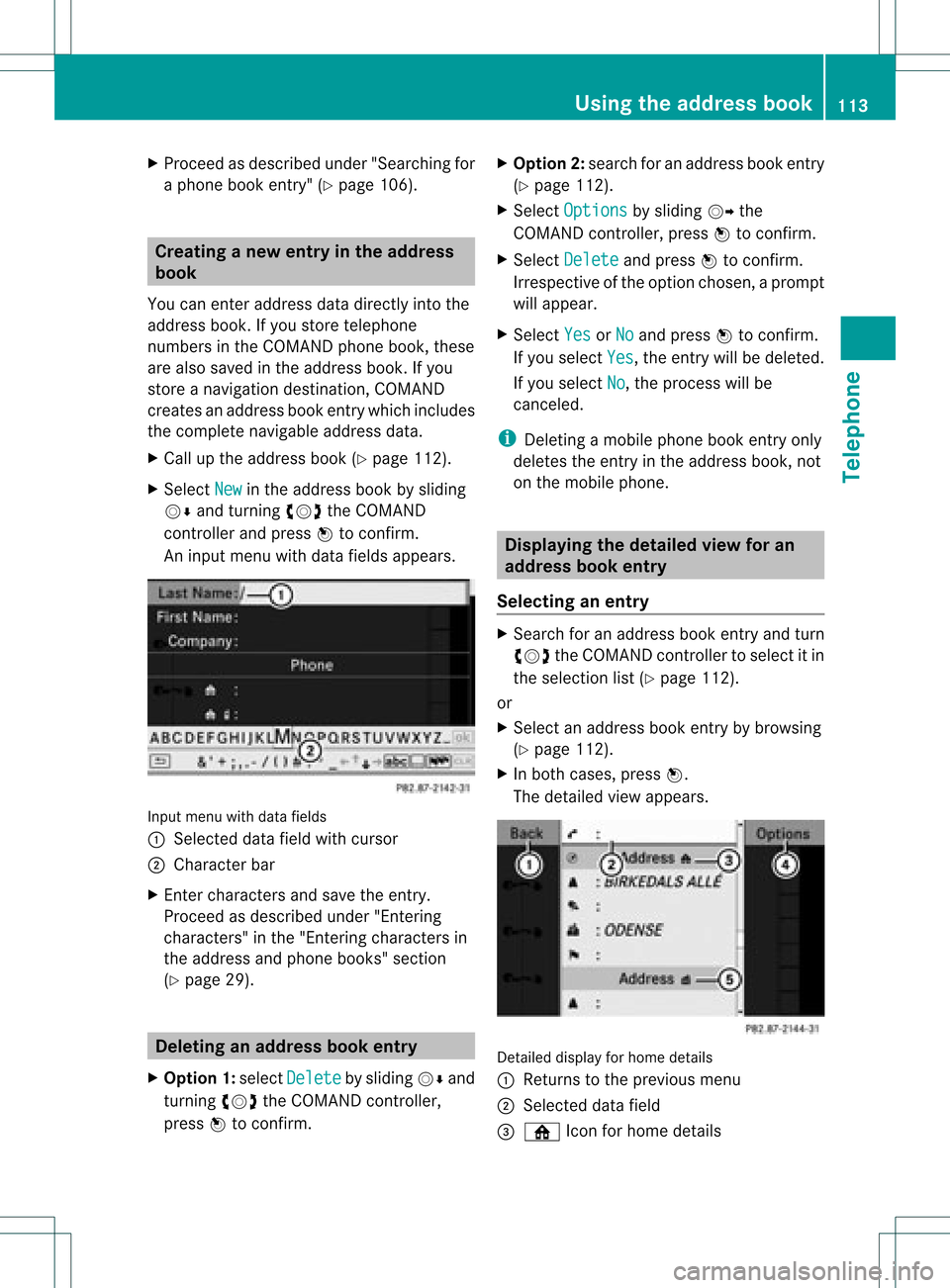
An input menu withdata fields appears. Input
menu withdata fields
: Select eddata fieldwithcursor
; Character bar
X En ter charact ersand save theentry.
Proceed asdescribed under"Entering
charact ers"inthe "Ent ering charact ersin
the address andphone books" section
(Y page 29). Deleting
anadd ress book entry
X Option 1:select Delete by
sliding VÆand
turn ingcVd theCOMAND controller,
press Wtoconf irm. X
Option 2:search foranaddress bookentry
(Y page 112).
X Select Options by
sliding VYthe
COMAND controller, pressWtoconf irm.
X Select Delete and
press Wtoconf irm.
Irrespec tiveofthe option chosen ,a prompt
will appear.
X Select Yes or
No and
press Wtoconf irm.
If you select Yes ,
the entrywill bedeleted.
If you select No ,
the process willbe
canc eled.
i Deletin gamobile phonebookentryonly
deletes theentryinthe address book,not
on the mobile phone. Displaying
thedeta iledview foran
add ress book entry
Selecting anentry X
Search foranaddress bookentryand turn
cVd theCOMAND controller toselect itin
the selection list(Ypage 112).
or
X Select anaddress bookentryby browsing
(Y page 112).
X In both cases, pressW.
The detailed viewappears. Det
ailed display forhome details
: Returns tothe previous menu
; Select eddata field
= ¸ Iconforhome details Using
theaddress book
113Telephone Z
Page 116 of 182
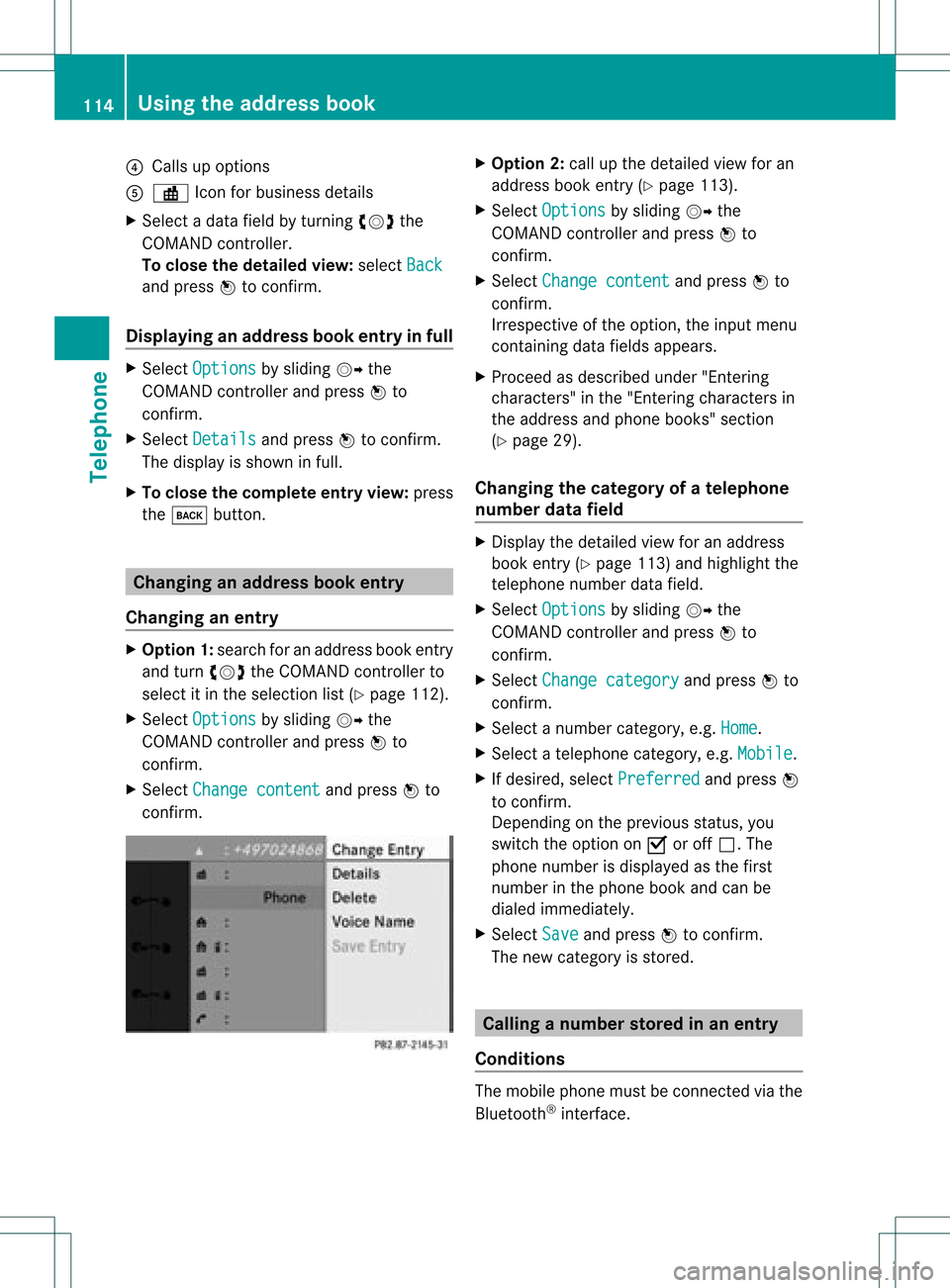
?
Calls upopt ions
A · Icon for busin essdetails
X Se lec tada tafield byturn ingcVd the
COMAND controller.
To close thedeta iledview: select Back and
press Wtocon firm.
Displaying anadd ress book entryinfull X
Select Options by
sliding VYthe
COMAND controller andpress Wto
con firm.
X Select Details and
press Wtocon firm.
The display isshown infull.
X To close thecomplete entryview:press
the k button . Changing
anadd ress book entry
Changing anentry X
Opt ion1:search foranaddress bookentry
and turn cVd theCOMAND controller to
select itin the select ionlist(Ypage 112).
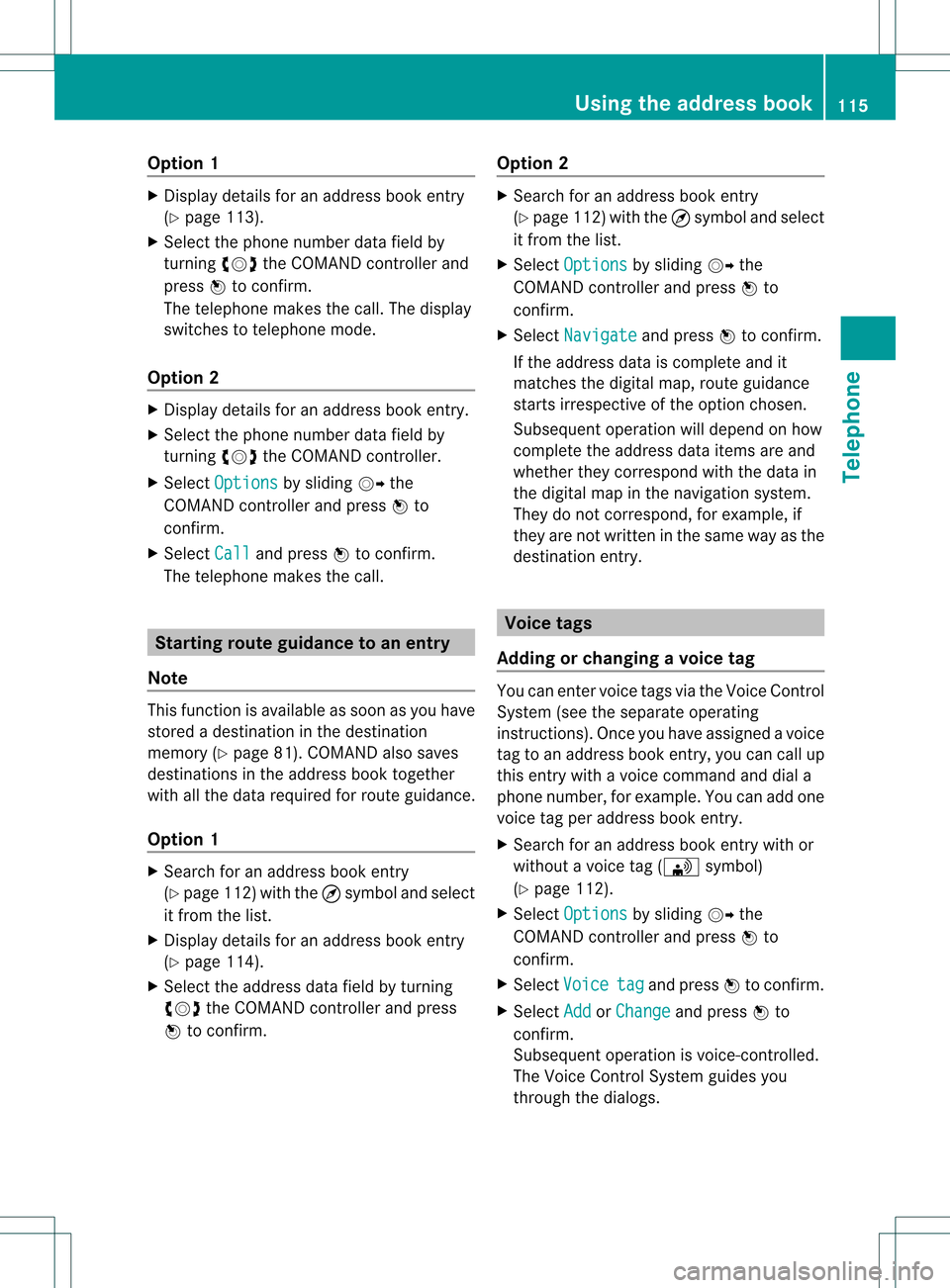
X Select Options by
sliding VYthe
COMAND controller andpress Wto
con firm.
X Select Change content and
press Wto
con firm. X
Opt ion 2:call upthe detailed viewforan
address bookentry(Y page 113).
X Select Options by
sliding VYthe
COMAND controller andpress Wto
con firm.
X Select Change content and
press Wto
con firm.
Irrespec tiveofthe option ,the input menu
con tainin gdata fields appears.
X Proceed asdescribed under"Entering
charact ers"inthe "Ent ering charact ersin
the address andphone books" section
(Y page 29).
Changing thecategory ofatelephone
number datafield X
Display thedetailed viewforanaddress
book entry(Y page 113)and highlight the
telephon enumber datafield.
X Select Options by
sliding VYthe
COMAND controller andpress Wto
con firm.
X Select Change category and
press Wto
con firm.
X Select anumber category,e.g. Home .
X Select atelephon ecategor y,e.g. Mobile .
X Ifdesired, selectPreferr ed and
press W
to con firm.
Depen dingonthe previous status,you
switch theoption onO oroff ª.T he
phone number isdispla yedasthe first
number inthe phone bookandcanbe
diale dimmediately.
X Select Save and
press Wtoconfirm .
The new category isstored. Calling
anumber storedinan entry
Co nditio ns The
mobi lephone mustbeconnected viathe
Blue tooth ®
interface . 114
Usi
ngthe address bookTele phone
Page 117 of 182
Opt
ion 1 X
Display detailsforanaddress bookentry
(Y page 113).
X Select thephone number datafieldby
turn ingcVd theCOMAND controller and
press Wtocon firm.
The telephon emakes thecall. Thedisplay
switches totelephon emode.
Opt ion 2 X
Display detailsforanaddress bookentry.
X Select thephone number datafieldby
turn ingcVd theCOMAND controller.
X Select Options by
sliding VYthe
COMAND controller andpress Wto
con firm.
X Select Call and
press Wtocon firm.
The telephon emakes thecall. Sta
rting rout eguidance toan entry
Note This
function isavailable assoon asyou have
stor edadestin ationinthe destin ation
memory (Ypage 81).COMAND alsosaves
destin ations inthe address booktogether
with allthe data required forroute guidance.
Opt ion 1 X
Search foranaddress bookentry
(Y page 112)with the ¤symbol andselec t
it fro mthe list.
X Disp laydetails foranaddress bookentry
(Y page 114).
X Selec tthe address datafieldbyturning
cVd theCOMAND controller andpress
W toconfirm . Option
2 X
Search foranaddress bookentry
(Y page 112)withthe¤symbol andselect
it from thelist.
X Select Options by
sliding VYthe
COMAND controller andpress Wto
confirm .
X Select Navigate and
press Wtoconfirm .
If the address dataiscomplete andit
matches thedigital map,route guidance
starts irrespective ofthe option chosen.
Subsequent operationwilldepend onhow
complete theaddress dataitems areand
whether theycorrespond withthedata in
the digital mapinthe navigation system.
They donot correspond, forexample, if
they arenot written inthe same wayasthe
destination entry. Voice
tags
Adding orchanging avoice tag You
canentervoic etag svia theVoic eCont rol
Syst em(see thesepar ateoper ating
ins truct ions).Onceyou have assign edavoic e
tag toan addre ssbook entry,you can callup
th is ent rywith avoic ecom man dand diala
phon enum ber,forexam ple.You canadd one
voic etag per addre ssbook entry.
X Sear chfor anaddre ssbook entrywith or
with outavoic etag (\ symbo l)
(Y page 112).
X Sele ctOpt ions by
slidin gVY the
COMA NDcontroller andpres sW to
con firm.
X Sele ctVoi ce tag and
pres sW tocon firm.
X Sele ctAdd or
Cha nge and
pres sW to
con firm.
Subs equen toperation isvoice- controlled.
The Voice ControlSyst emguides you
thr ough thedialogs. Using
thead dress book
115Telephone Z
Page 120 of 182
COMAN
Dfea tures
Thes eOper atingIn st ruc tions desc ribeall
st andar dand optionalequipm enta vail able
for you rCOMAND systematthe time of
purcha se.Cou ntry-specifi cdeviation sare
possible. Pleasenotethat your COMAND
system maynotbeequipped withallthe
features described. Rad
iomode General
information
i Portable electronicdevices inthe vehicle
may seriously impairradiorecept ion. Switching
torad iomode
Opt ion 1 X
Press theófunc tion button .
The radio display appears. Youwillhear the
last stationplayed onthe last waveband
select ed.
i Repeatedly pressingthisfunc tion button
switch esbetween theFM, AMand WB
wavebands inthat order andthen calls up
SatRadio mode.Pressin gthe button again
takes youback toFM radio mode.
Opt ion 2 X
Select Audio in
the main function barby
sliding ZVandturningcVd theCOMAND
con troller andpress Wtocon firm.
If radio mode wasthelast mode selected,
it will now beactive.
If anoth eraudio mode isswitch edon, you
can now switch toradio mode inthe audio
menu.
X Select Audio by
sliding ZVtheCOMAND
con troller andpress Wtocon firm.
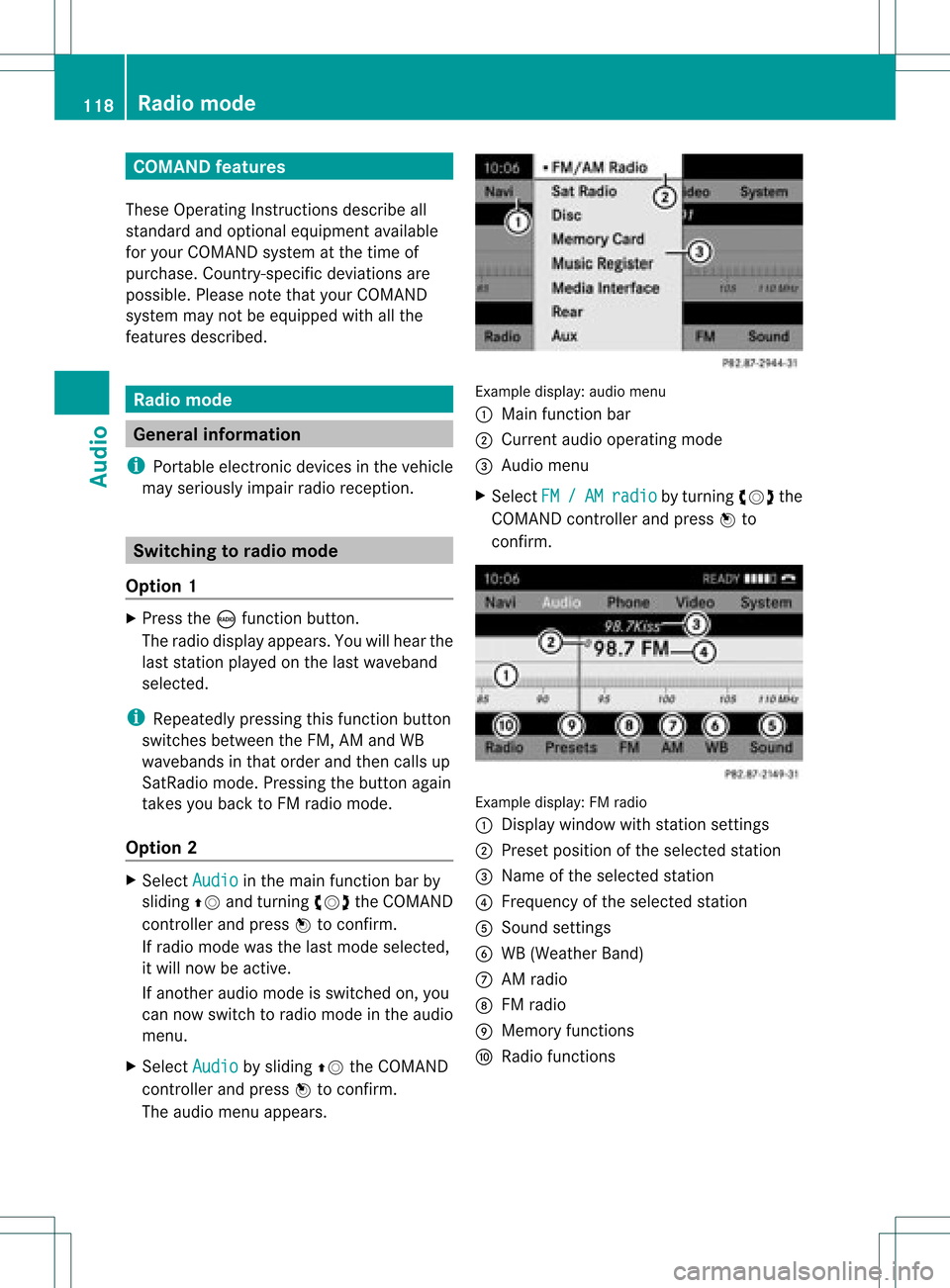
The audio menu appears. Ex
ample display: audiomenu
: Main function bar
; Current audiooperatin gmode
= Audio menu
X Select FM / AM radio by
turn ingcVd the
COMAND controller andpress Wto
con firm. Ex
ample display: FMradio
: Display window withstationsett ings
; Preset position ofthe select edstat ion
= Name ofthe select edstat ion
? Frequenc yof the select edstat ion
A Sound settings
B WB (Weather Band)
C AM radio
D FM radio
E Memory functions
F Radio functions 118
Rad
iomod eAudio
Page 121 of 182
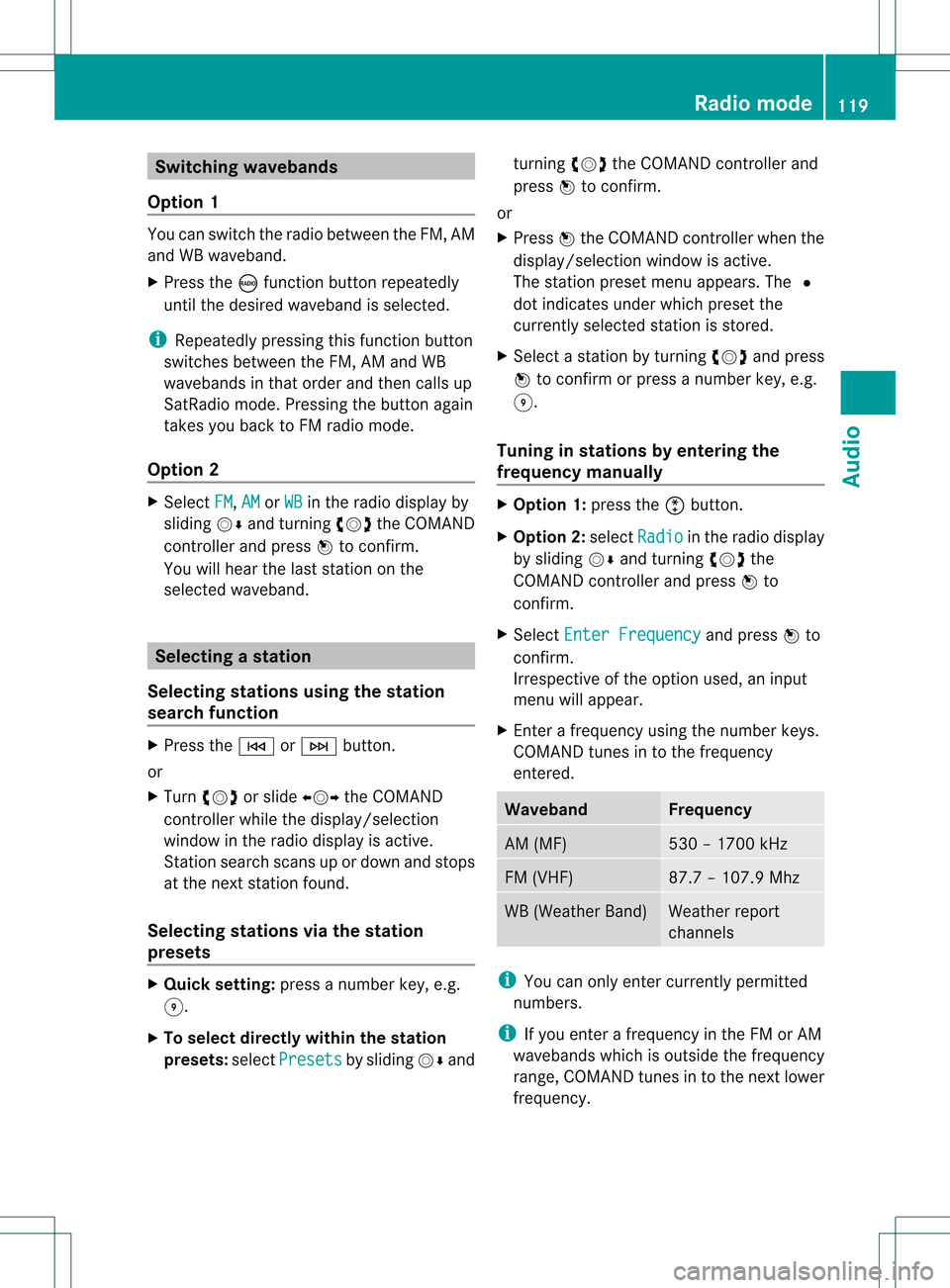
Switching
wavebands
Option 1 You
canswitch theradio between theFM, AM
and WBwaveband.
X Press theófunct ionbutton repeatedly
until thedesired waveband isselected.
i Repea tedlypressing thisfunct ionbutton
switches betweentheFM, AMand WB
wavebands inthat order andthen calls up
SatRadio mode.Pressing thebutton again
takes youback toFM radio mode.
Option 2 X
Select FM ,
AM or
WB in
the radio display by
sliding VÆandturnin gcVd theCOMAND
cont roller andpress Wtoconf irm.
You willhear thelast station onthe
selected waveband. Selec
tingastatio n
Se lecti ng stati onsusi ng the stati on
se arc hfuncti on X
Press theE orF button.
or
X Turn cVd orslide XVY theCOMAND
controlle rwhile thedispla y/selection
window inthe radio displa yis active.
Stat ionsearch scansupordown andstops
at the next station found.
Selec tingstations viathe stat ion
presets X
Quick setting: pressanumber key,e.g.
H.
X To selec tdirect lywithin thesta tion
pr esets: selectPresets by
sliding VÆand turn
ingcVd theCOMAN Dcon troller and
press Wtocon firm .
or
X Press Wthe COMAN Dcont roller when the
display /select ionwindow isactive.
The station presetmenuappears. The#
dot indicates underwhich preset the
current lyselected stationisstored.
X Select astation byturnin gcVd andpress
W toconf irmorpress anumber key,e.g.
H.
Tuning instat ions byentering the
frequ encymanu ally X
Option 1:press theõbutton .
X Option 2:select Radio in
the radio display
by sliding VÆandturnin gcVd the
COMAND controller andpress Wto
conf irm.
X Select Enter Frequency and
press Wto
conf irm.
Irrespect iveofthe option used,aninput
menu willappear.
X En ter afrequency usingthenumber keys.
COMAND tunesinto the frequency
enter ed. Waveband Frequency
AM
(MF) 530
–1700 kHz FM
(VHF) 87.
7–107. 9Mhz WB
(Weather Band) Weather
report
chann els i
You canonly enter current lypermitt ed
numbers.
i Ifyou enter afrequency inthe FMorAM
wavebands whichisoutside thefrequency
range, COMAND tunesinto the next lower
frequency. Rad
iomode
119Audio
Page 122 of 182
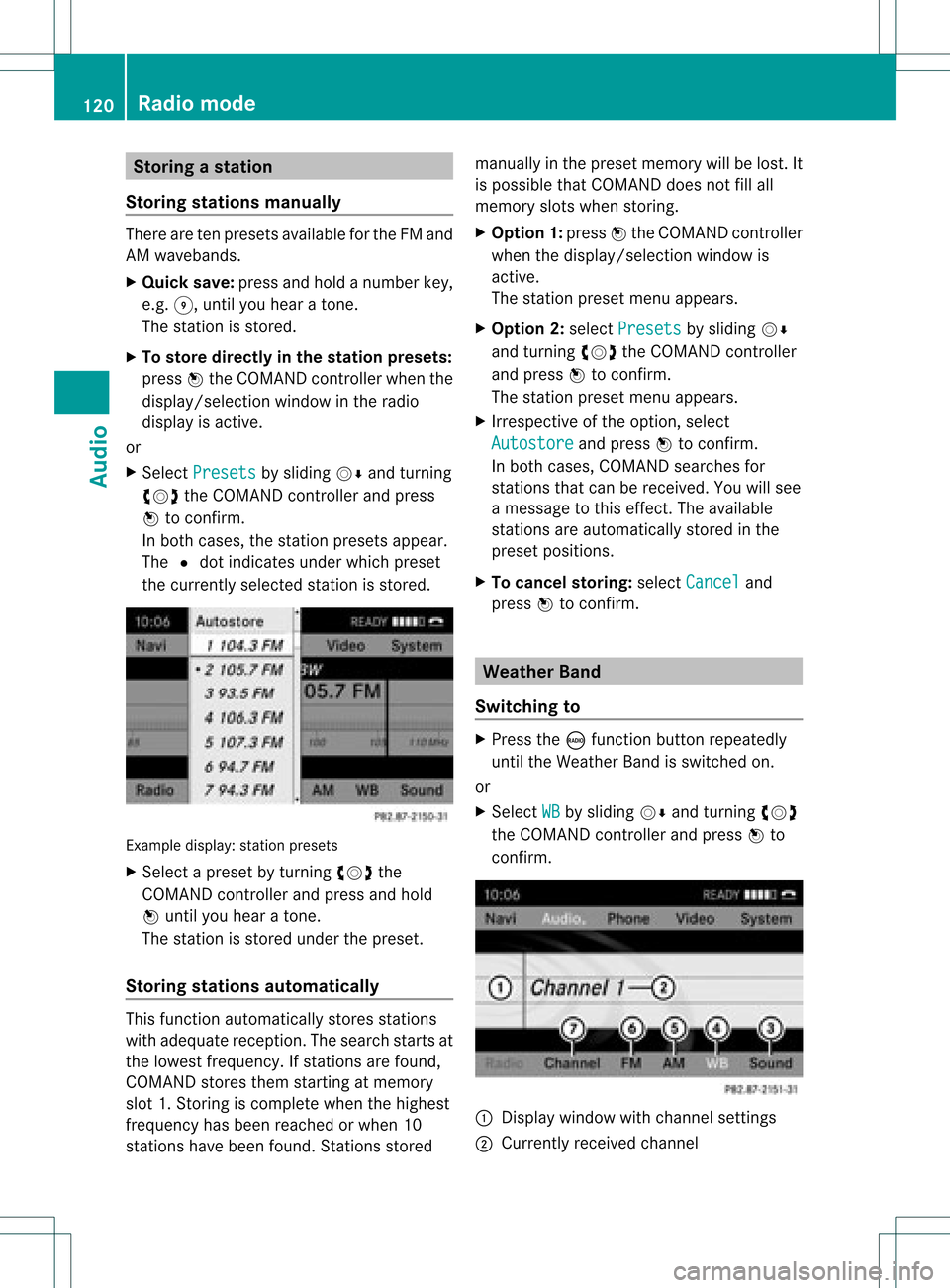
Storing
astatio n
Sto ringstati onsmanua lly The
reareten presetsavaila bl efor the FMand
AM waveb and s.
X Qui cksav e:pre ssand holdanum berk ey,
e.g. H,until youhear aton e.
The stationisstor ed.
X To store direct lyin the stat ionpresets:
press Wthe COMAND controller whenthe
<0004000900130010000C0001001A002200130005000C0005000300140009000F
000EV windowinthe radio
display isactive.
or
X Select Presets by
sliding VÆandturning
cVd theCOMAND controller andpress
W tocon firm.
In both cases, thestationpreset sappear.
The #dot indicat esunder which preset
the curren tlyselect edstat ionisstor ed. Ex
ample display: stationpreset s
X Select apreset byturn ingcVd the
COMAND controller andpress andhold
W until youhear aton e.
The stationisstor edunder thepreset .
Stor ingstat ions automat ically This
function automatic allystoresstat ions
with adequate reception.Thesearch startsat
the lowest frequenc y.Ifstat ions arefound,
COMAND storesthem startingatmemory
slot 1.Storing iscomplet ewhen thehighest
frequenc yhas been reached orwhen 10
stat ions have been found. Stations stored manually
inthe preset memory willbelost. It
is possible thatCOMAND doesnotfillall
memory slotswhen storing.
X Opt ion1:press Wthe COMAND controller
when the<0004000900130010000C0001001A002200130005000C0005000300140009000F
000EV windowis
active .
The stationpreset menuappears.
X Opt ion 2:select Presets by
sliding VÆ
and turningcVd theCOMAND controller
and press Wtocon firm.
The stationpreset menuappears.
X Irrespec tiveofthe option ,select
Autosto re and
press Wtocon firm.
In both cases, COMAND searchesfor
stat ions thatcanbereceived. Youwillsee
a message tothis effec t.The available
stat ions areautomatic allystoredinthe
preset position s.
X To cancel storing: selectCancel and
press Wtocon firm. Weat
herBand
Switching to X
Press theófunc tion button repeatedly
until theWeather Bandisswitch edon.
or
X Select WB by
sliding VÆandturningcVd
the COMAND controller andpress Wto
con firm. :
Display window withchann elsett ings
; Current lyreceived channel 120
Rad
iomod eAudio