navigation system MERCEDES-BENZ S-Class 2013 W221 Owner's Guide
[x] Cancel search | Manufacturer: MERCEDES-BENZ, Model Year: 2013, Model line: S-Class, Model: MERCEDES-BENZ S-Class 2013 W221Pages: 542, PDF Size: 7.97 MB
Page 150 of 542
Time settings
General information If COMAND is equipped with a navigation
system and has GP
Sreception, COMAND
automatically sets the time and date. You can
also adjust the time yourself in 30-minute
increments, but the date cannot be changed.
i If you set the time in 30-minute
increments, any time zone settings and
settings for changing between summer and
standard time are lost (Y page 148).
i The following navigation system functions
require the time, time zone and summer/
standard time to be set correctly in order
to work properly:
R route guidance on routes with time-
dependen ttraffic guidance
R calculation of expected time of arrival
Setting the time X
Select Vehicle in the main function bar by
turning 0031001C0032the COMAND controller and
press 0021to confirm.
X Select System by turning
0031001C0032the
COMAND controller and press 0021to
confirm.
X Select Time by turning
0031001C0032the COMAND
controller and press 0021to confirm.
X Select Time and press
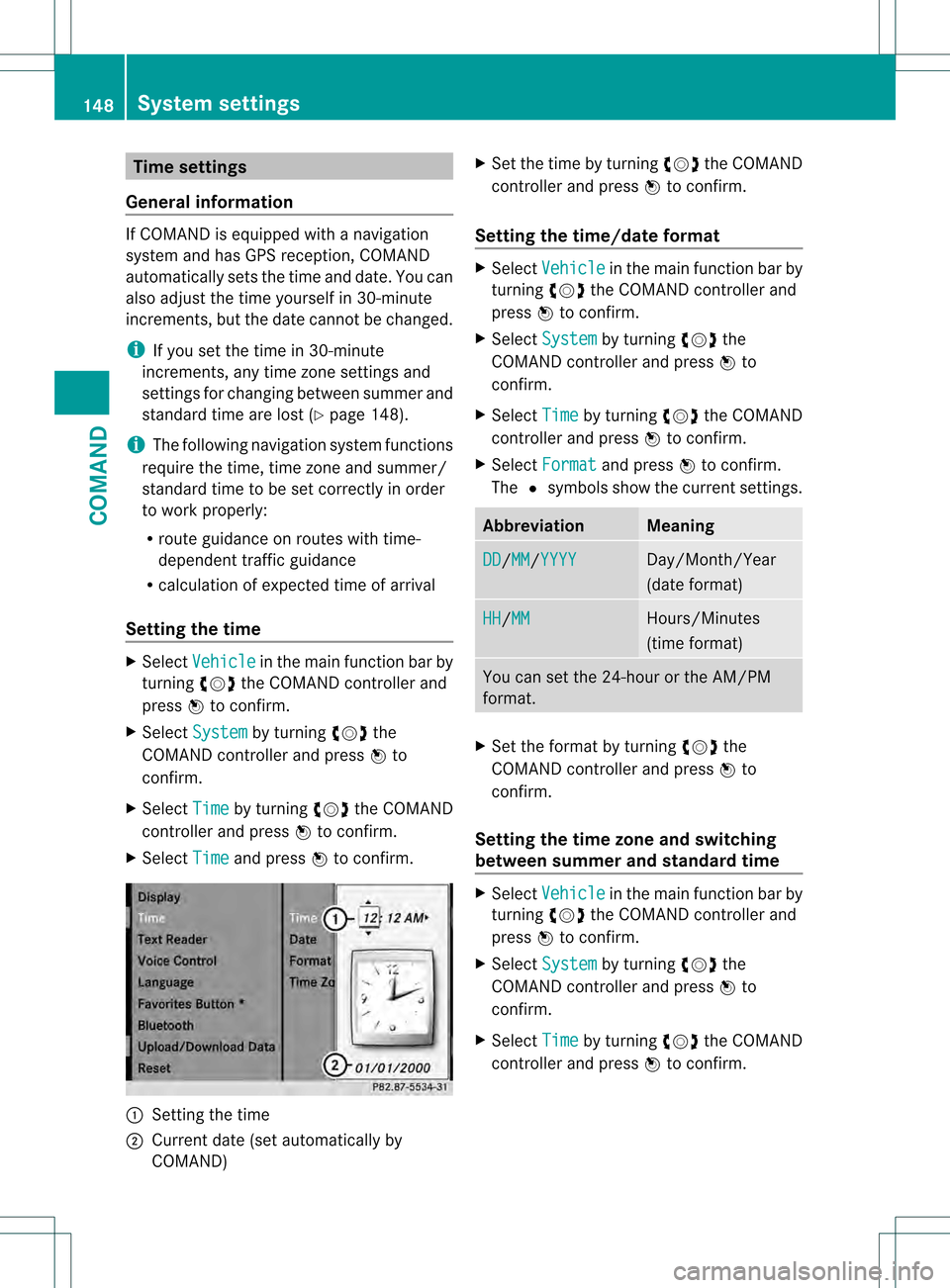
0021to confirm. 0002
Setting the time
0003 Current date (set automatically by
COMAND) X
Set the time by turning 0031001C0032the COMAND
controller and press 0021to confirm.
Setting the time/date format X
Select Vehicle in the main function bar by
turning 0031001C0032the COMAND controller and
press 0021to confirm.
X Select System by turning
0031001C0032the
COMAND controller and press 0021to
confirm.
X Select Time by turning
0031001C0032the COMAND
controller and press 0021to confirm.
X Select Format and press
0021to confirm.
The 002Csymbols show the current settings. Abbreviation Meaning
DD /MM /YYYY Day/Month/Year
(date format)
HH /MM Hours/Minutes
(time format)
You can set the 24-hour or the AM/PM
format.
X
Set the format by turning 0031001C0032the
COMAND controller and press 0021to
confirm.
Setting the time zone and switching
between summer and standard time X
Select Vehicle in the main function bar by
turning 0031001C0032the COMAND controller and
press 0021to confirm.
X Select System by turning
0031001C0032the
COMAND controller and press 0021to
confirm.
X Select Time by turning
0031001C0032the COMAND
controller and press 0021to confirm. 148
System settingsCOMAND
Page 151 of 542
X
Select Time Zone and press
0021to confirm.
You will see a list of time zones .The 002C dot
indicates the current setting.
X Select the time zone and press 0021to
confirm.
X To switch automatic changeover on/
off: select Automatic Daylight Savings Time or
Automatic Daylight Savings Time by turning
0031001C0032the
COMAND controller and press 0021to
confirm.
The 002Cdot indicates the current setting. Text reader settings
Setting the text reader speed X
Select Vehicle by turning
0031001C0032the
COMAND controller and press 0021to
confirm.
X Select System and press
0021to confirm.
X Select Text Reader and press
0021to
confirm.
X Select Set text reader speed and press
0021 to confirm.
Al ist appears. The 002Cdot indicates the
current setting.
X Select a setting by turning 0031001C0032the
COMAND controller and press 0021to
confirm. Voice Control System settings
Opening/closing the help window In additio
nto the audible instructions, the
help window will show you other information
during voice control operation and the
individualization process. X
Select Vehicle in the main function bar by
turning 0031001C0032the COMAND controller and
press 0021to confirm.
X Select System by turning
0031001C0032the
COMAND controller and press 0021to
confirm.
X Select Voice Control by turning
0031001C0032the
COMAND controller and press 0021to
confirm.
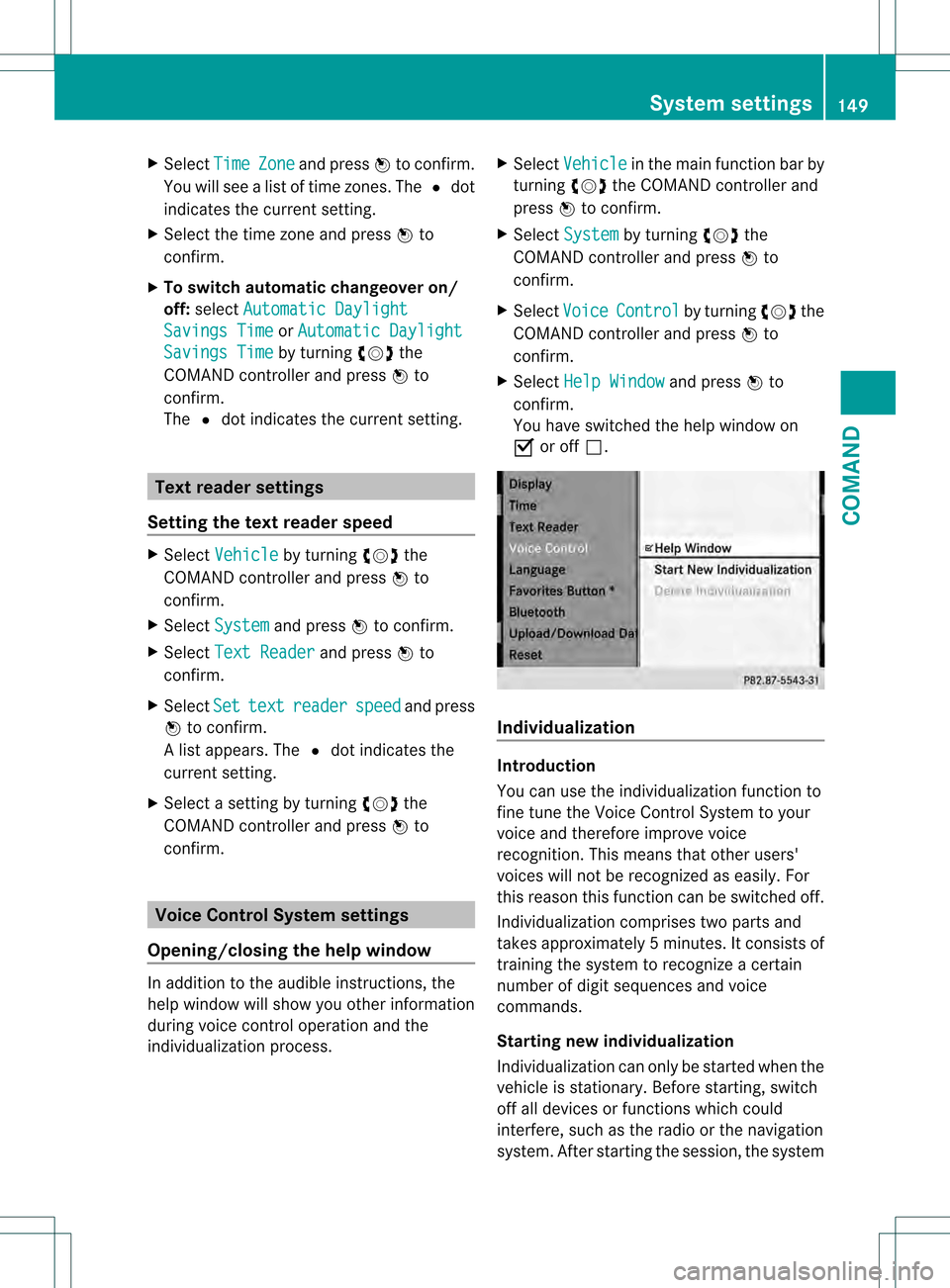
X Select Help Window and press
0021to
confirm.
You have switched the help window on
000A or off 0002. Individualization
Introduction
You can use the individualization function to
fine tune the Voice Control System to your
voice and therefore improve voice
recognition. This means that other users'
voices will not be recognized as easily
.For
this reason this function can be switched off.
Individualization comprises two parts and
takes approximately 5minutes. It consists of
training the system to recognize a certain
number of digit sequences and voice
commands.
Starting new individualization
Individualization can only be started when the
vehicle is stationary. Before starting, switch
off all devices or functions which could
interfere, such as the radio or the navigation
system. After starting the session, the system System settings
149COMAND Z
Page 155 of 542
X
To confirm an entry in COMAND: select
0003 using the COMAND controller and
press 0021to confirm.
or
X Select SENDon the telephone keypad.
X Enter the same passcode into the
Bluetooth ®
device (see the operating
instructions for the respective device).
The device is authorized.
External authorization If COMAND does not detect your
Bluetooth
®
device, this may be du eto
particular security settings on your
Bluetooth ®
device. In this case, you can test
if your Bluetooth ®
device can find COMAND.
The Bluetooth ®
device name of COMAND is
"MB Bluetooth".
X Select Update .
X Select Options by sliding
001C003Dthe
COMAND controller and press 0021to
confirm.
X Select External Authorization and
press 0021to confirm.
X Start the Bluetooth ®
scan process on the
Bluetooth ®
device (see separate operating
instructions of the respective device).
X Select COMAND ("MB Bluetooth").
i The order in which the passkey is entered
depends on the mobile phone.
X Enter the passkey on the Bluetooth ®
device
when prompted.
X Confirm the Do you want to authorize
XX? question in COMAND with
Yes .
X Enter the passkey in COMAND.
Displaying the details of a Bluetooth ®
device X
In the Bluetooth ®
device list, select the
desired device by turning 0031001C0032the
COMAND controller. X
Select Options by sliding
001C003Dthe
COMAND controller and press 0021to
confirm.
X Select Details and press
0021to confirm.
The detailed display for this device
appears.
X To close the detailed view: turn0031001C0032 or
slide 003C001C003D the COMAND controller.
De-authorizing (de-registering) a
Bluetooth ®
device Mercedes-Benz USA, LLC recommends de-
authorization in both COMAND and the
Bluetooth
®
device, e.g. the mobile phone.
Subsequent authorization may otherwise fail.
X In the Bluetooth ®
device list, select the
authorized device by turning 0031001C0032the
COMAND controller.
X Select Options by sliding
001C003Dthe
COMAND controller and press 0021to
confirm.
X Select De-authorize and press
0021to
confirm.
Ap rompt appears asking whethe ryou
really wish to de-authorize this device.
X Select Yes or
No and press
0021to confirm.
If you select Yes , the authorization for the
device will be revoked.
If you select No , the process will be aborted.
i If a Bluetooth ®
device has been de-
authorized and is out of range, when a new
search is carried out it will not appear in the
Bluetooth ®
device list. System language settings
This function allows you to determine the
language for the menu display sand the
navigation messages. The selected language
affects the characters available for entry.
Whe nyou set the system language, the
language of the Voice Control System will System settings
153COMAND Z
Page 156 of 542
change accordingly
.Ifthe selected language
is not supported by the Voice Control System,
"English" will be selected.
X Select Vehicle by turning
0031001C0032the
COMAND controller and press 0021to
confirm.
X Select System and press
0021to confirm.
X Select Language and press
0021to confirm.
The list of languages appears. The 002Cdot
indicates the current setting.
X Select the language by turning 0031001C0032the
COMAND controller and press 0021to
confirm.
COMAND loads the selected language and
sets it. Reset function
You can reset COMAND to the factory
settings. Amongst other things, this will
delete all personal data (e.g. station presets,
address book entries, entries in the
destination memory and in the list of previous
destinations in the navigation system).
Resetting is recommended before selling or
transferring ownership of your vehicle, for
example.
X Select Vehicle in the main function bar by
turning 0031001C0032the COMAND controller and
press 0021to confirm.
X Select System by turning
0031001C0032the
COMAND controller and press 0021to
confirm.
X Select Reset and press
0021to confirm.
Ap rompt appears asking whethe ryou wish
to reset.
X Select Yes or
No and press
0021to confirm.
If you select No , the process will be aborted.
If you select Yes , another prompt appears
asking whether you really wish to reset.
X Select Yes or
No and press
0021to confirm.
If you select Yes , a message will be shown.
COMAND is reset and restarted. If you select
No , the process will be aborted.
Navigation
Introduction
Safety notes G
WARNING
For safety reasons, only enter a destination
when the vehicle is stationary. When the
vehicle is in motion, apassenger should enter
the destination .Study manual and select
route before driving.
Bear in mind that at a speed of just 30 mph
(approximately 50 km/h), your vehicle is
covering a distance of 44 fee t(approximately
14 m) every second.
COMAND calculates the rout eto the
destination without taking account of the
following:
R Traffic lights
R Stop and right-of-way-signs
R Lane merging
R Parking or stopping prohibited areas
R Other road and traffic rules and regulations
R Narrow bridges G
WARNING
COMAND may give incorrect navigation
commands if the data in the digital map does
not correspond with the actual road/traffic
situation. Digital maps do not cover all areas
nor all routes within an area. For example, if
the traffic routing has been changed or the
direction of a one-way road has been
reversed.
For this reason, you must always observe
applicable road and traffic rules and
regulations during your journey. Road and
traffic rules and regulations always have
priority over the navigation commands
generated by the system. 154
NavigationCOMAND
Page 157 of 542
G
WARNING
Navigation announcements are intended to
direct you while driving without diverting your
attention from the road and driving.
Please always use this feature instead of
consulting the map display for directions.
Looking at the icons or map display can
distract you from traffic conditions and
driving, and increase the risk of an accident.
General information Operational readiness of the navigation
system
The navigation system must determine the
position of the vehicle before first use or
whenever operational status is restored.
Therefore, you may have to drive for a while
before precise route guidance is possible.
GPS reception
Correct functioning of the navigation system
depends, amongst other things, on GPS
reception. In certain situations, GPS
receptio nmay be impaired, there may be
interference or there may be no reception at
all, e.g .intunnels or parking garages.
Entry restriction
On vehicles for certai ncountries, there is a
restriction on entering data.
The restriction is active from a vehicle speed
of over approximately 3 mph (5 km/h). As
soon as speed falls below approximately
2 mph (3 km/h), the restriction becomes
inactive.
When the restriction is active, certain entries
cannot be made. This will be indicated by the
fact that certain menu items are grayed out
and cannot be selected.
The following functions, for example, may
therefore not be available while the vehicle is
in motion:
R entering the destination city and street
R entering a destination via the map R
entering points of interes tinthe vicinity of
a city or via a name search
R editing entries
R using the number keypad for direct entry
Switching to navigation mode X
Press the 0011function button once or
twice.
or
X Select Navi in the main function bar by
sliding 002A001Cand turning 0031001C0032the COMAND
controller and press 0021to confirm.
In both cases, you will see the map either
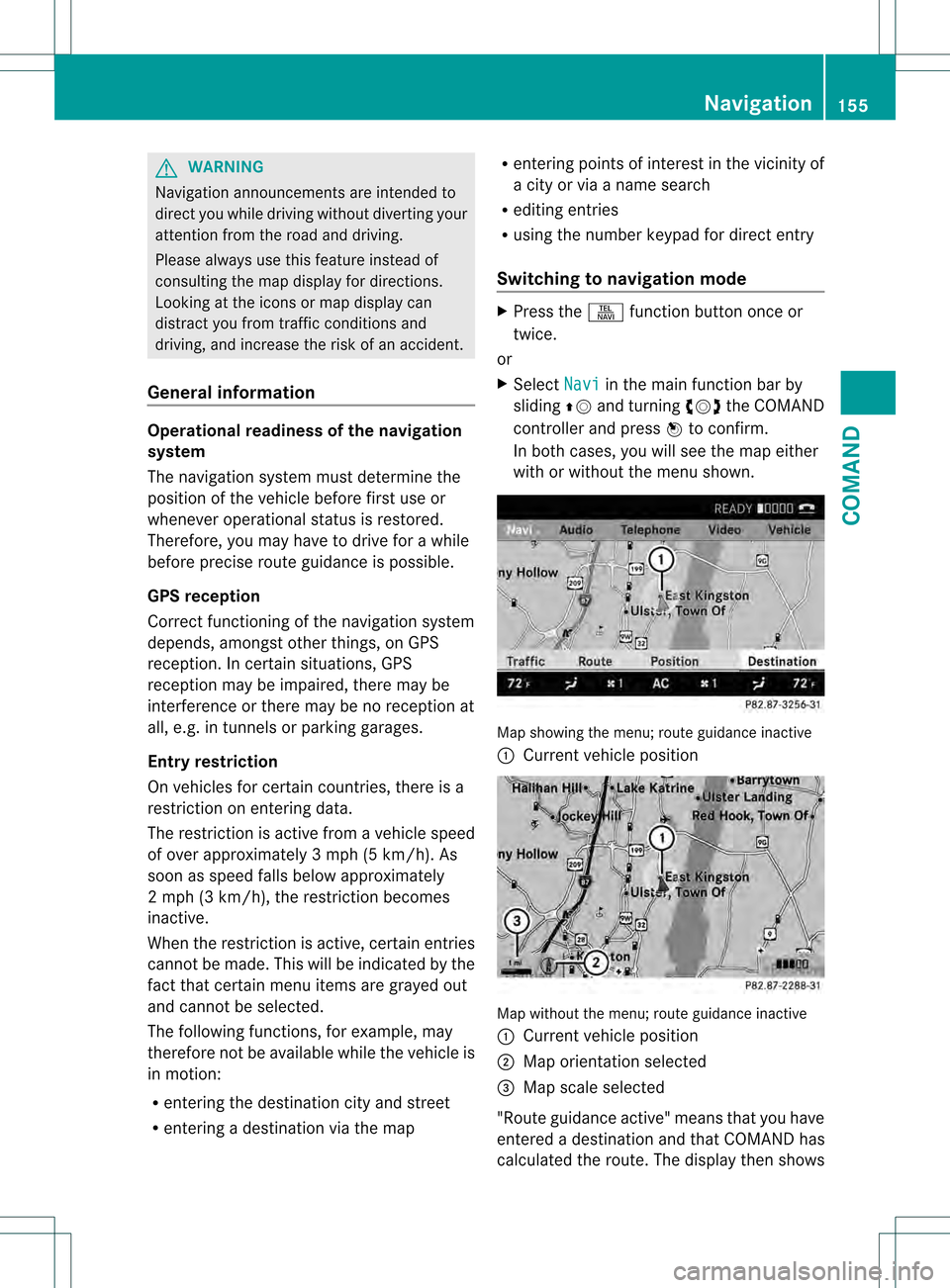
with or without the menu shown. Map showing the menu; route guidance inactive
0002
Current vehicle position Map without the menu; route guidance inactive
0002
Current vehicle position
0003 Map orientation selected
0026 Map scale selected
"Route guidance active" means that you have
entered a destination and that COMAND has
calculated the route. The display then shows Navigation
155COMAND Z
Page 158 of 542

the route, changes of directio
nand lane
recommendations. Navigation
announcements guide you to your
destination.
"Route guidance inactive" means tha tno
destination has been entered and that no
route has been calculated.
Showing/hiding the menu X
To hide the menu: slide002A001Cthe COMAND
controller over the map.
The Full Screen menu item is shown.
X Confirm the Full Screen menu item
shown by pressing 0021.
The map can be seen in the full-screen
display.
X To show the menu: press0021the COMAND
controller when the map is shown in full-
screen. Basic settings
Route mode Setting route type and route options
You can select the following route types:
R Fast Route :C
OMAND calculates the
route with the shortest (minimized) journey
time.
R Dynamic Route :s
ame route type as Fast Route . In addition, COMAND takes traffic
reports into account during route
guidance 6
.T hus, the navigation system is
able to guide you around ablocked section,
for example. If a faster route is determined
due to a received RDS-TM Ctraffic
announcement, the navigation system
changes the route. If possible, it will bypass
blocked roads. R
Eco Route :t
he ECO route is an economical
route that takes traffic announcements
into account (see dynamic route).
R Short Route :C
OMAND calculates the
route with the shortest possible
(minimized) route distance.
In addition to route types, route options can
also be set.
You can select the following route options:
R Use Carpool Lanes R
Minimize highways R
Minimize Toll Roads R
Minimize Tunnels R
Minimize Ferries R
Minimize Motorail Trains If you select route options with a tick, the
corresponding types of roads will be avoided
in the route guidance where possible.
X To activate navigation mode: press the
0011 function button once or twice.
X To show the menu: press0021the COMAND
controller.
X Select Navi in the main function bar by
sliding 002A001Cand turning 0031001C0032the COMAND
controller and press 0021to confirm.
X Select Mode and press
0021to confirm. 0002
To select the route type
0003 To set route options
X Select a route type and press 0021to confirm.
The äicon indicates the current setting.
6 Traffic reports are not available in all countries. 156
NavigationCOMAND
Page 162 of 542
X
Enter a city as described above
(Y page 157).
X Select ALL .
X Enter or select the street name.
X Select the appropriate city.
If you know the city well, you can continue
directly after selecting the city from the list.
Starting route calculation
You can now have COMAND calculate the
route to the address entered or save the
address first, e.g .as your home address (My
address) (Y page 160).
COMAND checks whether the destination is
unambiguous. If the destination is
ambiguous, further information is requested
to define the destination unambiguously, e.g.
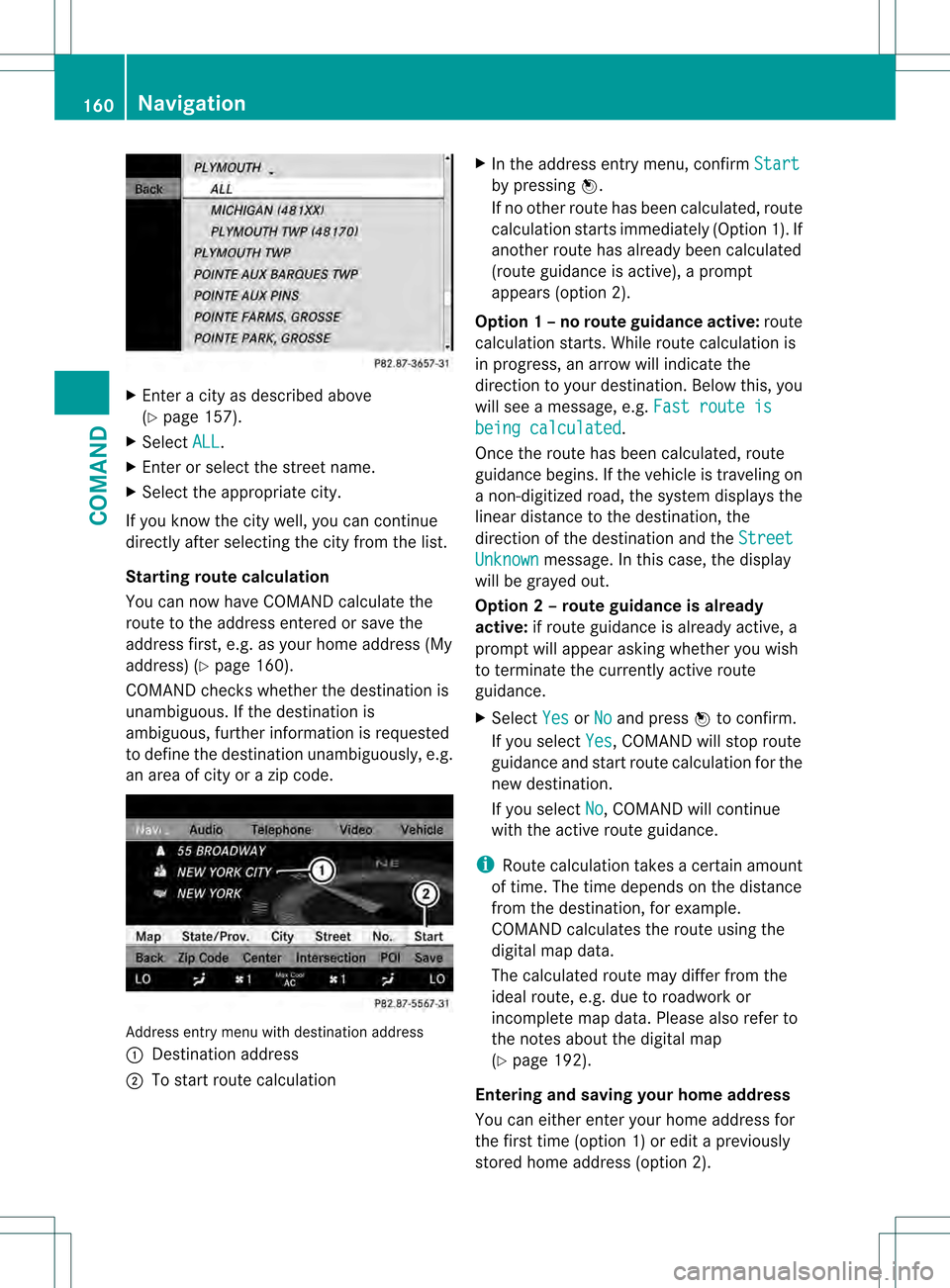
an area of city or a zip code. Address entry menu with destination address
0002
Destination address
0003 To start route calculation X
In the address entry menu, confirm Start by pressing
0021.
If no other route has been calculated, route
calculation starts immediately (Option 1). If
another route has already been calculated
(route guidance is active), a prompt
appears (option 2).
Option 1 –no route guidance active: route
calculatio nstarts. While route calculatio nis
in progress, an arrow will indicate the
direction to your destination. Below this, you
will see a message, e.g. Fast route is being calculated .
Once the route has been calculated, route
guidance begins. If the vehicle is traveling on
a non-digitized road, the system displays the
linear distance to the destination, the
direction of the destination and the Street Unknown message. In this case, the display
will be grayed out.
Option 2 – route guidance is already
active: if route guidance is already active, a
prompt will appear asking whether you wish
to terminate the currently active route
guidance.
X Select Yes or
No and press
0021to confirm.
If you select Yes , COMAND will stop route
guidance and start route calculation for the
new destination.
If you select No , COMAND will continue
with the active route guidance.
i Route calculation takes a certain amount
of time. The time depends on the distance
fro mt he destination, for example.
COMAND calculates the route using the
digital map data.
The calculated route may differ from the
ideal route, e.g. due to roadwork or
incomplete map data. Please also refer to
the notes about the digital map
(Y page 192).
Entering and saving your home address
You can either enter your home address for
the first time (option 1) or edit a previously
stored home address (option 2). 160
NavigationCOMAND
Page 163 of 542
X
Option 1: enter the address, e.g. a city,
street and house number (Y page 157).
X Once you have entered the address, select
Save in the address entry menu by turning
0031001C0032 and sliding 002A001C0006the COMAND
controller and press 0021to confirm.
X Select Save as "My Address" and press
0021 to confirm.
COMAND stores your home address as MyAddress in the destination memory.
X Option 2: proceed as described under
"Option 1".
Ap rompt appears asking whethe rthe
current home address should be
overwritten.
X Select Yes and press
0021to confirm.
After selecting Yes , the
Save successful message appears.
Entering aZIP code
Entering a ZIP code will delete a previously
entered city.
X Select Zip Code in the address entry menu
by turning 0031001C0032and sliding 002A001C0006the
COMAND controller and press 0021to
confirm.
You see the list of zip codes with the
character bar.
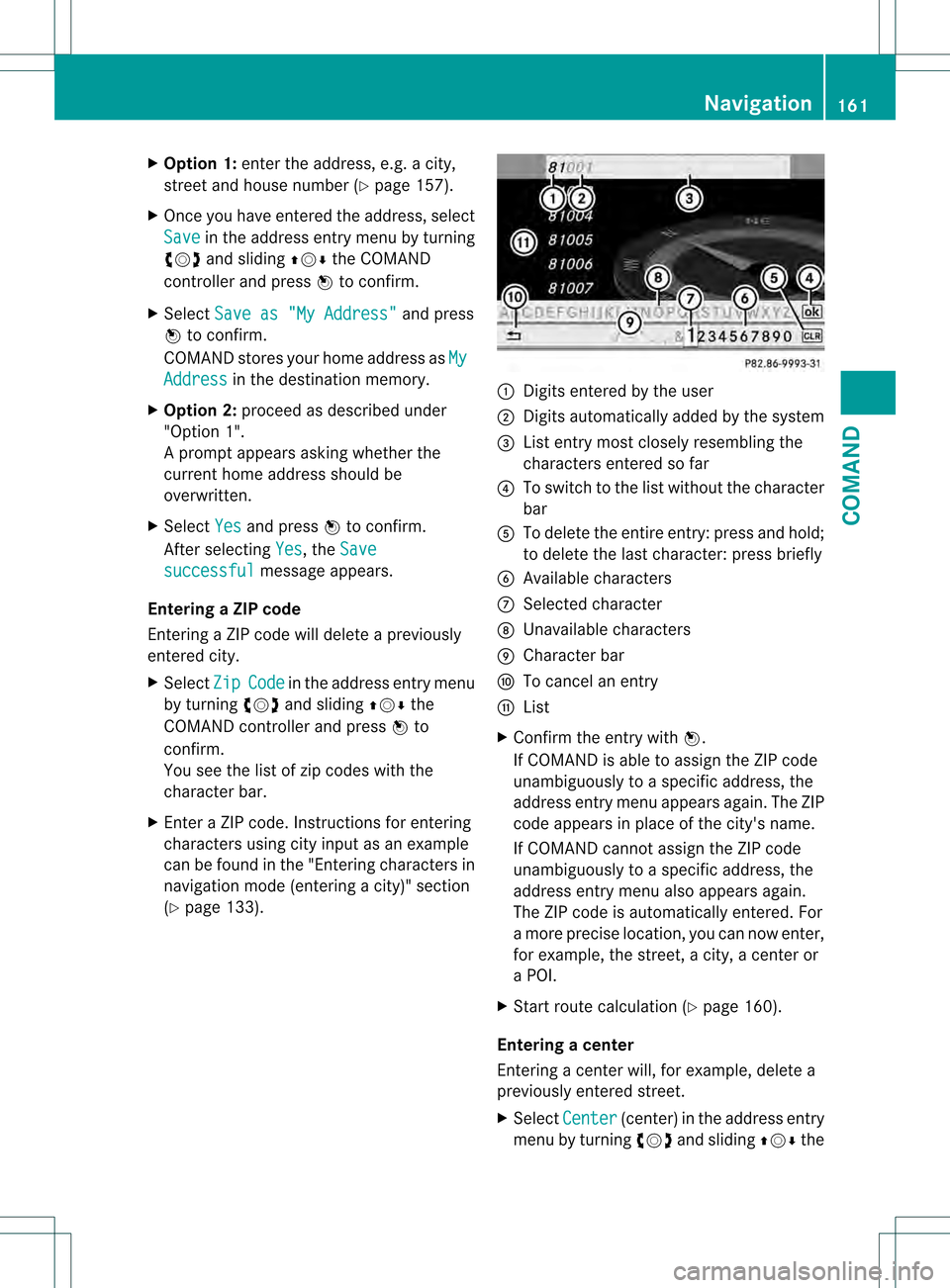
X Enter a ZIP code. Instructions for entering
characters using city input as an example
can be found in the "Entering characters in
navigation mode (entering acity)" section
(Y page 133). 0002
Digits entered by the user
0003 Digits automatically added by the system
0026 List entry most closely resembling the
characters entered so far
0025 To switch to the list without the character
bar
0023 To delete the entire entry: press and hold;
to delete the last character: press briefly
0024 Available characters
0014 Selected character
0015 Unavailable characters
0016 Character bar
0017 To cancel an entry
0018 List
X Confirm the entry with 0021.
If COMAND is able to assign the ZIP code
unambiguously to a specific address, the
address entry menu appears again. The ZIP
code appears in place of the city's name.
If COMAND cannot assign the ZIP code
unambiguously to a specific address, the
address entry menu also appears again.
The ZIP code is automatically entered. For
a more precise location, you can now enter,
for example, the street, a city, a center or
a POI.
X Start route calculation (Y page 160).
Entering acenter
Entering a center will, for example, delete a
previously entered street.
X Select Center (center) in the address entry
menu by turning 0031001C0032and sliding 002A001C0006the Navigation
161COMAND Z
Page 165 of 542
X
Select an intersection by turning 0031001C0032the
COMAND controller.
X Irrespective of the option, press 0021to
confirm your selection.
The address entry menu appears again. The
intersection selected has been entered.
X Start route calculation (Y page 160).
Selecting adestination from the
destination memory (e.g. My address) Introduction
The destination memory always contains an
entry named "My address". You may wish to
assign your home address to this entry, for
example (Y page 160), and selec titfor route
guidance. This entry is always located at the
top of the list in the destination memory.
X To activate navigation mode: press the
0011 function button once or twice.
X To show the menu: press0021the COMAND
controller.
X Select Destination in the navigation
system menu bar by turning 0031001C0032the
COMAND controller and pressing 0021to
confirm.
X Select From Memory and press
0021to
confirm.
X Select My Address by turning
0031001C0032the
COMAND controller.
X Irrespective of the option, press 0021to
confirm your selection.
"My address" has been entered.
X To start route calculation: selectStart and press
0021to confirm.
Entering adestination from the list of
last destinations X
To activate navigation mode: press the
0011 function button once or twice. X
To show the menu: press0021the COMAND
controller.
X Select Destination in the navigation
system menu bar by turning 0031001C0032the
COMAND controller and pressing 0021to
confirm.
X Select From Last Destinations and
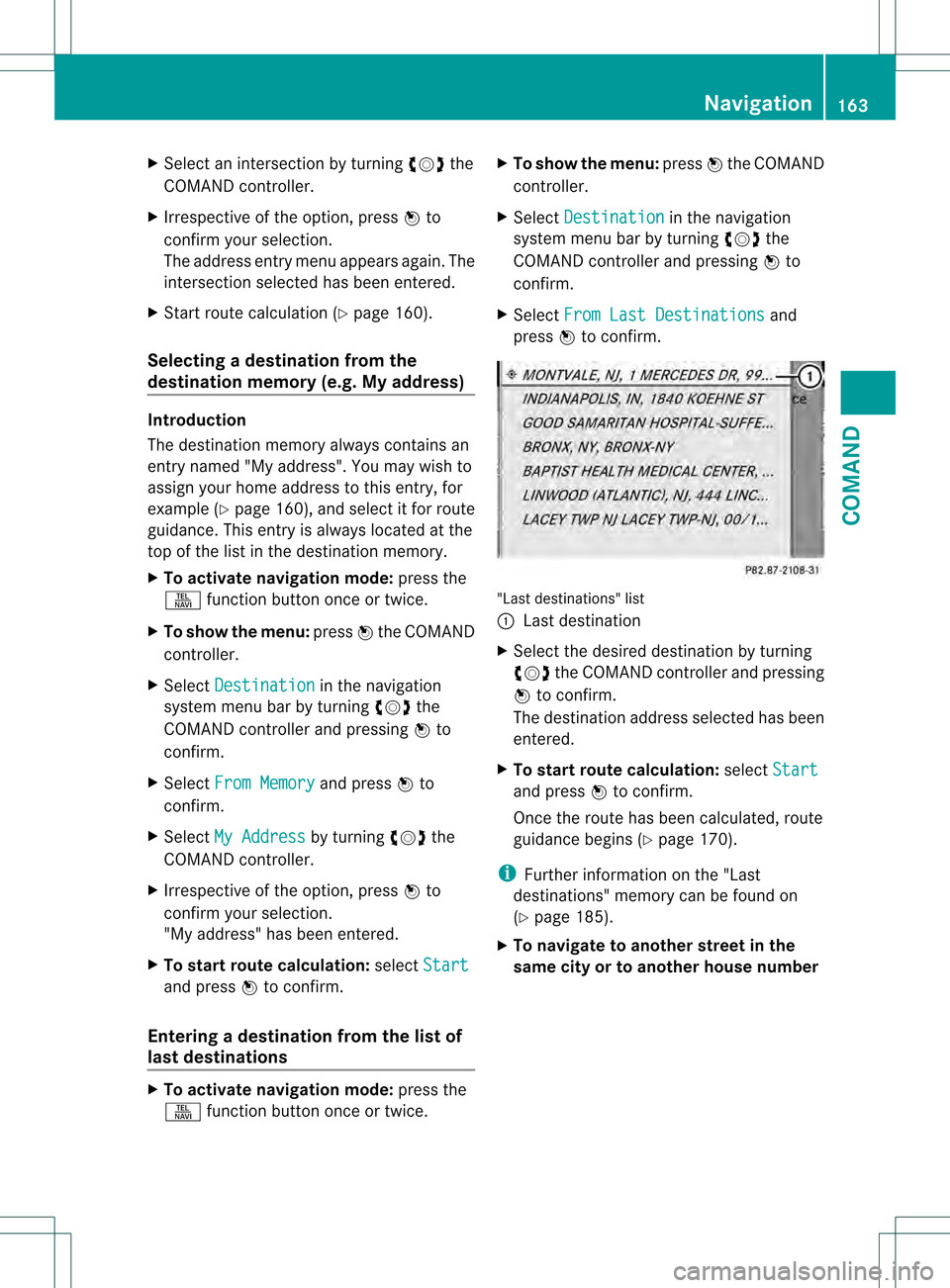
press 0021to confirm. "Last destinations" list
0002
Last destination
X Select the desired destination by turning
0031001C0032 the COMAND controller and pressing
0021 to confirm.
The destination address selecte dhas been
entered.
X To start route calculation: selectStart and press
0021to confirm.
Once the route has been calculated, route
guidance begins (Y page 170).
i Further information on the "Last
destinations" memory can be found on
(Y page 185).
X To navigate to another street in the
same city or to another house number Navigation
163COMAND Z
Page 166 of 542
on the same street:
call up an address
destination fro mthe last destinations.
X Select Change by turning
0031001C0032and sliding
002A001C0006 the COMAND controller and press
0021 to confirm.
All destination entry functions are
available.
X Edit/enter the destination as described for
destination entry (Y page 157).
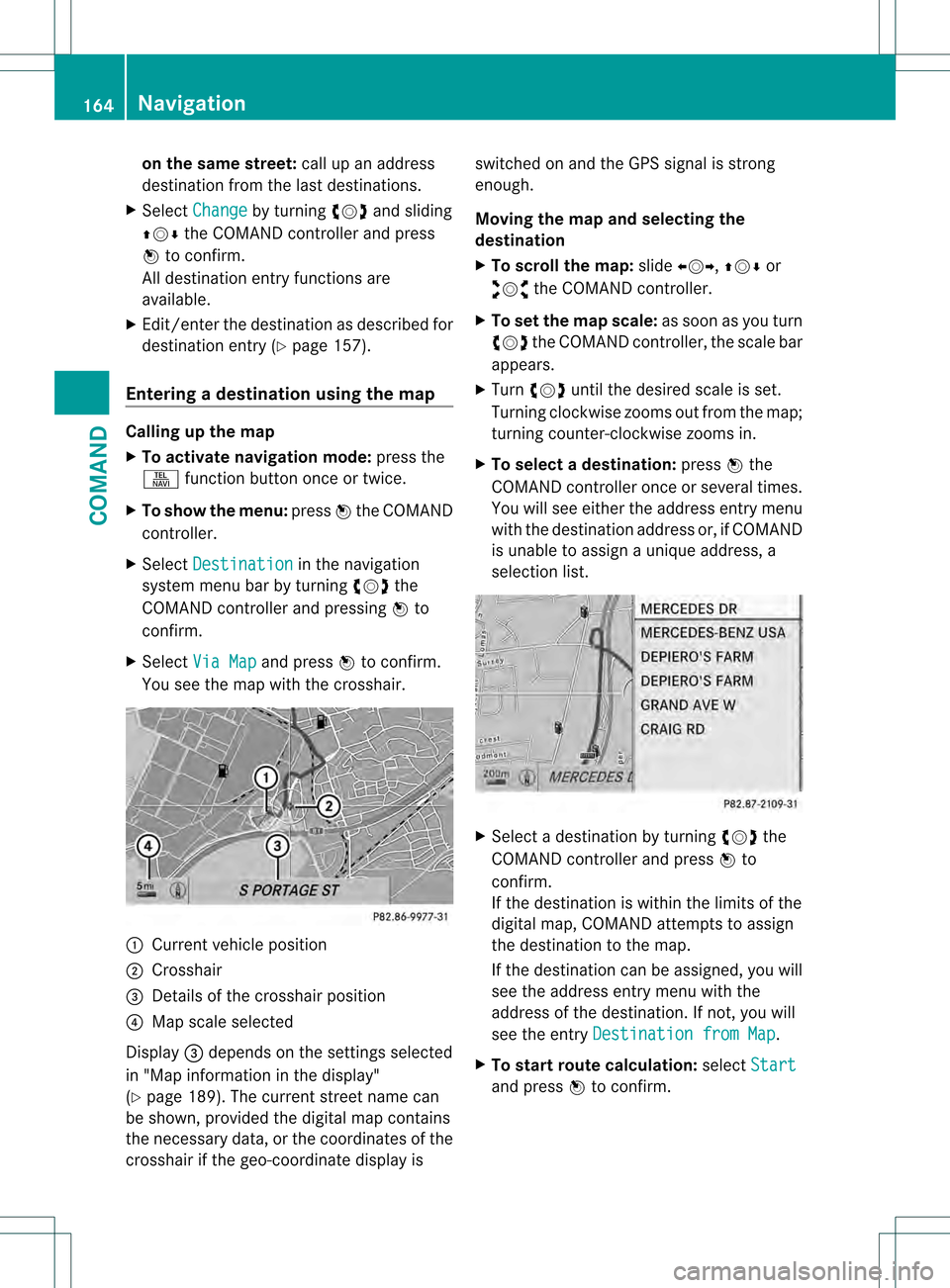
Entering adestination usin gthe map Calling up the map
X
To activate navigation mode: press the
0011 function button once or twice.
X To show the menu: press0021the COMAND
controller.
X Select Destination in the navigation
system menu bar by turning 0031001C0032the
COMAND controlle rand pressing 0021to
confirm.
X Select Via Map and press
0021to confirm.
You see the map with the crosshair. 0002
Current vehicle position
0003 Crosshair
0026 Details of the crosshair position
0025 Map scale selected
Display 0026depends on the settings selected
in "Map informatio ninthe display"
(Y page 189). The current street name can
be shown, provided the digital map contains
the necessary data, or the coordinates of the
crosshair if the geo-coordinate display is switched on and the GPS signal is strong
enough.
Moving the map and selecting the
destination
X
To scroll the map: slide003C001C003D, 002A001C0006or
003A001C0030 the COMAND controller.
X To set the map scale: as soon as you turn
0031001C0032 the COMAND controller, the scale bar
appears.
X Turn 0031001C0032 until the desired scale is set.
Turning clockwise zooms out from the map;
turning counter-clockwise zooms in.
X To selectad estination:press0021the
COMAND controller once or several times.
You will see either the address entry menu
with the destination address or, if COMAND
is unable to assign a unique address, a
selectio nlist. X
Selec tadestination by turning 0031001C0032the
COMAND controller and press 0021to
confirm.
If the destination is within the limits of the
digital map, COMAND attempts to assign
the destination to the map.
If the destination can be assigned, you will
see the address entry menu with the
address of the destination. If not, you will
see the entry Destination from Map .
X To start route calculation: selectStart and press
0021to confirm. 164
NavigationCOMAND