steering MERCEDES-BENZ SPRINTER 2017 MY17 Operator’s Manual
[x] Cancel search | Manufacturer: MERCEDES-BENZ, Model Year: 2017, Model line: SPRINTER, Model: MERCEDES-BENZ SPRINTER 2017Pages: 286, PDF Size: 4.36 MB
Page 157 of 286
Most federal states and all Canadian provinces
require by law:
Rsafety chains between the towing vehicle andthe trailer. The chains should be cross-wound
under the trailer drawbar. They must be fas-
tened to the vehicle's trailer coupling, not to
the bumper or the axle.
Leave enough slack in the chains. This allows you to drive round tight corners.
Ra separate brake system for certain types of
trailer.
Ra safety shut-off for braked trailers. Find out
the specific requirements according to the
applicable laws.
If the trailer becomes detached from the tow-
ing vehicle, the safety feature applies the
trailer brakes.
Towing a trailer
There are numerous legal requirements con-
cerning the towing of a trailer, e.g. speed restric-tions.
Many states require a separate functional brak-
ing system for your trailer once a certain weight limit is exceeded. For your safety, it is recom-
mended to use a separate functional braking
system on any towed vehicle.
Make sure your vehicle/trailer combination
complies with local laws. This not only means
where you live, but also anywhere you are driv-
ing to. Information is available from the police
and local authorities.
Observe the following when towing a trailer:
RPractice driving around bends, stopping and
backing up at a place where there is no traffic.This enables you to gain experience and get
used to the new handling characteristics.
RBefore driving, check:
-that the trailer tow hitch and ball coupling
are secure
-that the safety switch for a braked trailer is
functioning properly
-that the safety chains are secure and not
damaged
-that the electrical connections are secure
-that the lights are working
-that the wheels are in good order and the
tire pressure is correct
RAdjust the exterior mirrors to provide an
unobstructed view of the rear section of the
trailer.
RIf the trailer is equipped with an individual
braking system, check before each journey
whether the brakes are functioning correctly.
RIf the trailer has electronically controlled
brakes, pull the vehicle/trailer combination
away carefully. Brake manually using the
brake controller and check that the brakes
are working.
RSecure the load on the trailer according to the
applicable specifications and current stand-
ards on securing loads (
Ypage 210).
RWhen driving with a trailer, check at regular
intervals that the load is secured and that the
brakes and lights are working.
RBear in mind that the handling will be less
stable when towing a trailer than when driving
without one. Avoid sudden steering move-
ments.
RThe vehicle/trailer combination is heavier,
accelerates more slowly and has a decreased
gradient climbing capability and a longer
braking distance.
It is more susceptible to crosswinds and
requires cautious steering.
RIf possible, do not brake suddenly, but rather
moderately at first so that the trailer can acti-
vate its brakes. Then increase the force on the
brake pedal.
RIf the automatic transmission repeatedly
shifts between gears when driving on inclines,
restrict the shift range. Select shift range 4,3,
2 or 1.
Driving in a low gear and at a low speed
reduces the risk of damaging the engine.
RWhen driving on a downhill gradient, shift to a
low gear and take advantage of the engine's
braking effect.
Avoid continuous brake application as this
may overheat the vehicle brakes and, if instal-
led, the trailer brakes.
RIf the coolant temperature increases dramat-
ically while the air-conditioning system is
switched on, switch off the air-conditioning
system.
Coolant heat can also be dissipated by
switching the airflow and the temperature of
Towing a trailer155
Driving and parking
Z
Page 160 of 286
Useful information
This Operator's Manual describes all models as
well as standard and optional equipment of your
vehicle that were available at the time of going
to print. Country-specific variations are possi-
ble. Note that your vehicle may not be equipped
with all of the described functions. This also
applies to systems and functions relevant to
safety.
Read the information on qualified specialist
workshops (
Ypage 27).
Important safety notes
GWARNING
If you are driving and reach through the steer- ing wheel to operate the adjustment knob,
you could lose control of the vehicle. There is
a risk of an accident and injury.
Only operate the adjustment knobs when thevehicle is stationary. Do not reach through the
steering wheel when driving.
GWARNING
If you operate information systems and com-
munication equipment integrated in the vehi-
cle while driving, you will be distracted from
traffic conditions. You could also lose control
of the vehicle. There is a risk of an accident.
Only operate the equipment when the traffic
situation permits. If you are not sure that this
is possible, park the vehicle paying attention
to traffic conditions and operate the equip-
ment when the vehicle is stationary.
GWARNING
If the instrument cluster has failed or mal-
functioned, you may not recognize function
restrictions in systems relevant to safety. The
operating safety of your vehicle may be
impaired. There is a risk of an accident.
Drive on carefully. Have the vehicle checked
at a qualified specialist workshop immedi-
ately. You must observe the legal requirements for the
country in which you are currently driving when
operating the on-board computer.
The on-board computer display only shows mes-
sages and warnings from certain systems. You
should therefore make sure your vehicle is oper-
ating safely at all times. If the operating safety of
your vehicle is impaired, stop the vehicle as
soon as possible, paying attention to road and
traffic conditions. Then consult a qualified spe-
cialist workshop.
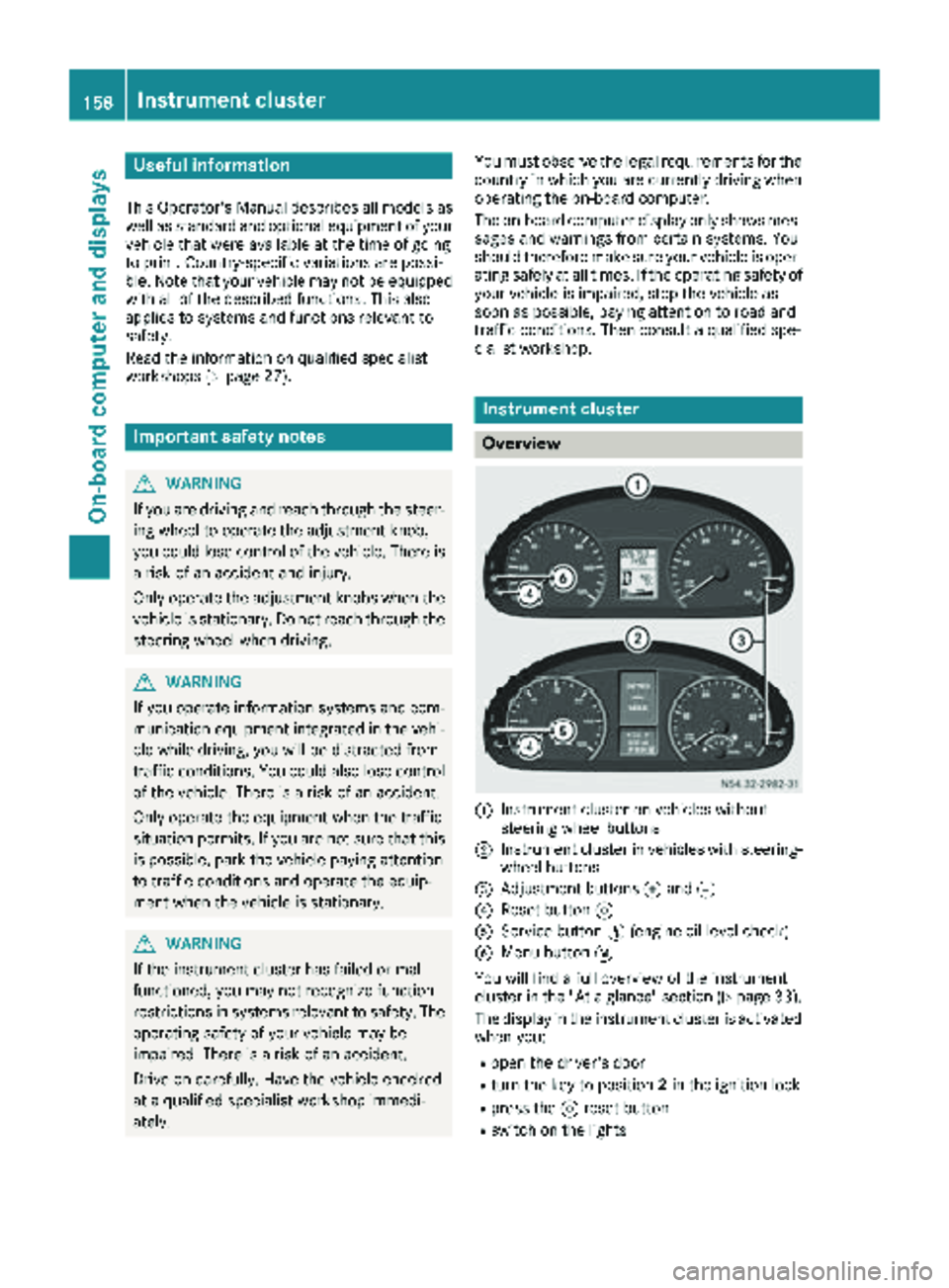
Instrument cluster
Overview
:Instrument cluster on vehicles without
steering wheel buttons
;Instrument cluster in vehicles with steering-
wheel buttons
=Adjustment buttons fand g
?Reset button 9
AService button Ë(engine oil level check)
BMenu button 4
You will find a full overview of the instrument
cluster in the "At a glance" section (
Ypage 33).
The display in the instrument cluster is activated when you:
Ropen the driver's door
Rturn the key to position 2in the ignition lock
Rpress the 9reset button
Rswitch on the lights
158Instrument cluster
On-board computer and displays
Page 161 of 286
The display switches off automatically after
approximately 30 seconds if:
Rthe key is in position0in the ignition lock.
Rthe vehicle lighting is not switched on.
Instrument lighting
When the lights are switched on, you can adjust
the brightness of the instrument cluster lighting
using the fand gbuttons.
XTo brighten: press thefbutton.
XTo dim: press the gbutton.
iVehicles with automatic headlamp mode:
the instrument lighting also adapts to auto-
matic headlamp mode.
Tachometer
!
Do not drive in the overrevving range, as this
could damage the engine.
HEnvironmental note
Avoid driving at high engine speeds. This
unnecessarily increases the fuel consumption
of your vehicle and harms the environment as
a result of increased emissions.
The red band in the tachometer indicates the
engine's overrevving range.
To protect the engine, the fuel supply is inter-
rupted when the red band is reached.
Outside temperature
You should pay special attention to road condi-
tions when temperatures are around the freez-
ing point.
On vehicles without steering wheel buttons
(
Ypage 160) and on vehicles with steering
wheel buttons (Ypage 164), the outside tem-
perature display is in the display.
Changes in the outside temperature are dis-
played after a short delay.
Speedometer
The speed can also be shown in the display. You
can find information on the digital speedometer for vehicles without steering wheel buttons
under (
Ypage 160) and for vehicles with steer-
ing wheel buttons under (Ypage 164).
iIn some countries, a warning sounds when
the vehicle reaches the maximum speed limit,
e.g. at 75 mph (120 km/h).
Trip odometer
XTo reset: make sure that the display is show-
ing the trip odometer if you have a vehicle with
steering wheel buttons (
Ypage 164).
XPress and hold the 9reset button until the
trip odometer is reset to 0.0.
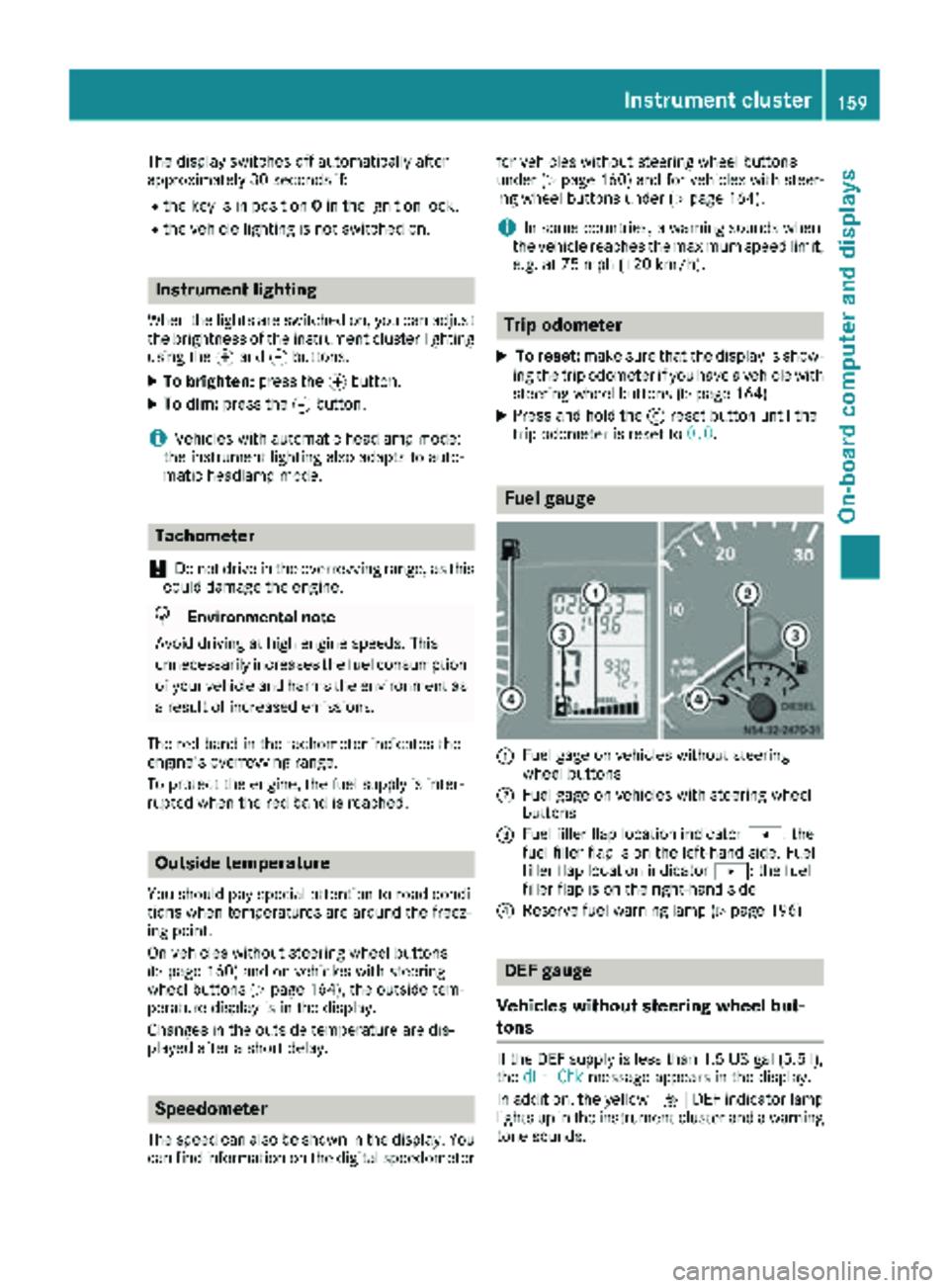
Fuel gauge
:Fuel gage on vehicles without steering
wheel buttons
;Fuel gage on vehicles with steering wheel
buttons
=Fuel filler flap location indicator t: the
fuel filler flap is on the left-hand side. Fuel
filler flap location indicator u: the fuel
filler flap is on the right-hand side
?Reserve fuel warning lamp (Ypage 196)
DEF gauge
Vehicles without steering wheel but-
tons
If the DEF supply is less than 1.5 US gal (5.5 l),
the dEF Chkmessage appears in the display.
In addition, the yellow åDEF indicator lamp
lights up in the instrument cluster and a warning
tone sounds.
Instrument cluster159
On-board computer and displays
Z
Page 162 of 286
If the supply of DEF falls below the reserve range
of 0.8 US gal (3.0l)the StArtS RExxmessage
appears in the display. Also, the yellow å
DEF indicator lamp lights up in the instrument
cluster and three warning tones sound.
In the display, xx
corresponds to the number of
possible remaining engine starts ( 16to0).
When the display shows that the number of
remaining starts is 0
, theStArtSIdLEmessage
appears in the display and three warning tones
sound.
In addition, the yellow åDEF indicator lamp
and the ;Check Engine indicator lamp light
up in the instrument cluster and three warning
tones sound.
The engine management only allows speeds of
up to 5 mph (8 km/h).
Add at least 1.5 US gal (5.5 l) of DEF
(
Ypage 126).
The display message only disappears when the
vehicle is stationary, at the latest after
20 second s, as soon as yo uswit ch on the igni-
tion or start the engine after refueling.
Vehicles with steering wheel buttons
If the supply of DEF is less than 1.5 US gal
(5.5 l),the Check Diesel Exhaust Fluid
See Operator's Manualmessage appears in
the display.
If the supply of DEF falls below the reserve range
of 0.8 US ga l(3.0 l),the XX
startsremainingmessage is displayed.
Three short warning tones also sound.
In the display, xx
corresponds to the number of
possible remaining engine starts ( 16to0).
When the display shows that the number of
remaining starts is 0
, theStArtSIdLEmessage
appears in the display.
The yellow ;Check Engine indicator lamp
also lights up and three short warning tones
sound.
The engine management only allows speeds of
up to 5 mph (8 km/h).
Add at least 1.5 US gal (5.5 l) of DEF
(
Ypage 126).
The display message only disappears when the
vehicle is stationary, at the latest after
20 seconds, as soon as you switch on the igni-
tion or start the engine after refueling.
On-board computer (vehicles without
steering wheel buttons)
Operating the on-board computer
General notes
The on-board computer is activated as soon as
you turn the key to position 1in the ignition lock.
The on-board computer shows vehicle informa-
tion and settings in the display.
You can control the display and the settings in
the on-board computer using the adjustment
buttons on the instrument cluster.
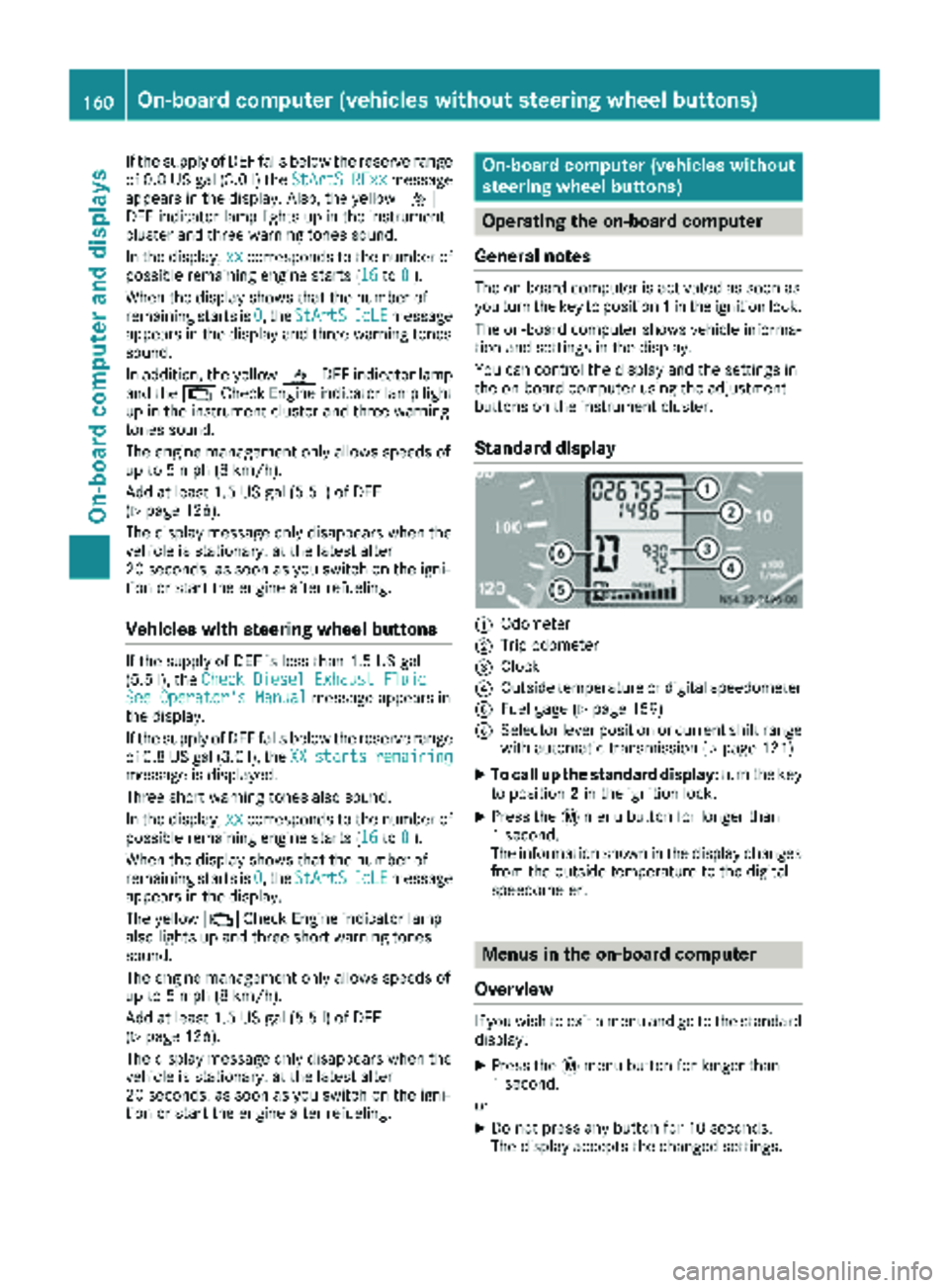
Standard display
:Odometer
;Trip odometer
=Clock
?Outside temperature or digital speedometer
AFuel gage (Ypage 159)
BSelector lever position or current shift range
with automatic transmission (Ypage 121)
XTo call up the standard display: turn the key
to position 2in the ignition lock.
XPress the 4menu button for longer than
1 second.
The information shown in the display changes
from the outside temperature to the digital
speedometer.
Menus in the on-board computer
Overview
If you wish to exit a menu and go to the standard display:
XPress the 4menu button for longer than
1 second.
or
XDo not press any button for 10 seconds.
The display accepts the changed settings.
160On-board computer (vehicles without steering wheel buttons)
On-board computer and displays
Page 163 of 286
Using thef,g,4or9 adjustment buttons,
you can select the following functions:
RCalling up the service due date
(Ypage 222)
RChecking the oil level (Ypage 216)
RChecking the DEF supply (Ypage 159)
RPreselecting/setting the auxiliary heating
switch-on time (Ypage 107)
RTire pressure monitor(Ypage 249)
RSetting the time (Ypage 161)
RActivating/deactivating Highbeam Assist
(Ypage 168)
RSetting the daytime running lamps
(Ypage 80)
Setting the time
XTurn the SmartKey to position 2in the ignition
lock.
XPress the 4menu button repeatedly until the
hours figure flashes.
XPress the forg button to set the hour.
XPress the 9reset button.
The minute display flashes.
XPress the forg button to set the minute.
iIf you keep the forg button pressed, the
value will change continuously.
Activating/deactivating Highbeam
Assist
XTurn the SmartKey to position 2in the ignition
lock.
XPress the 4menu button repeatedly until the
_ indicator lamp flashes and the onorOFFmessage appears in the display.
XUse the forg button to switch Highbeam
Assist on/off.
Switching the daytime running lamps
on/off
If you switch the daytime running lamps on, the
daytime running lamps will automatically light
up when the engine is running.
For safety reasons, it is only possible to change
this setting when the vehicle is stationary. The
factory setting is on
in countries where daytime
running lamp mode or daytime running lamps
are mandatory.
XTurn the SmartKey to position 2in the ignition
lock.
XPress the 4menu button repeatedly until the
L indicator lamp flashes and the onorOFFmessage appears in the display.
XPress the forg button to activate or deac-
tivate the daytime running lamps.
iUSA only:
If you turn the light switch to TorL,
the corresponding light switches on. If you
turn the light switch to Ã, the daytime
running lamps remain switched on.
Canada only:
If you turn the light switch to L, the low-
beam headlamps switch on. If you turn the
light switch to TorÃ, the daytime run-
ning lamps remain switched on.
On-board computer (vehicles with
steering wheel buttons)
Operating the on-board computer
Overview
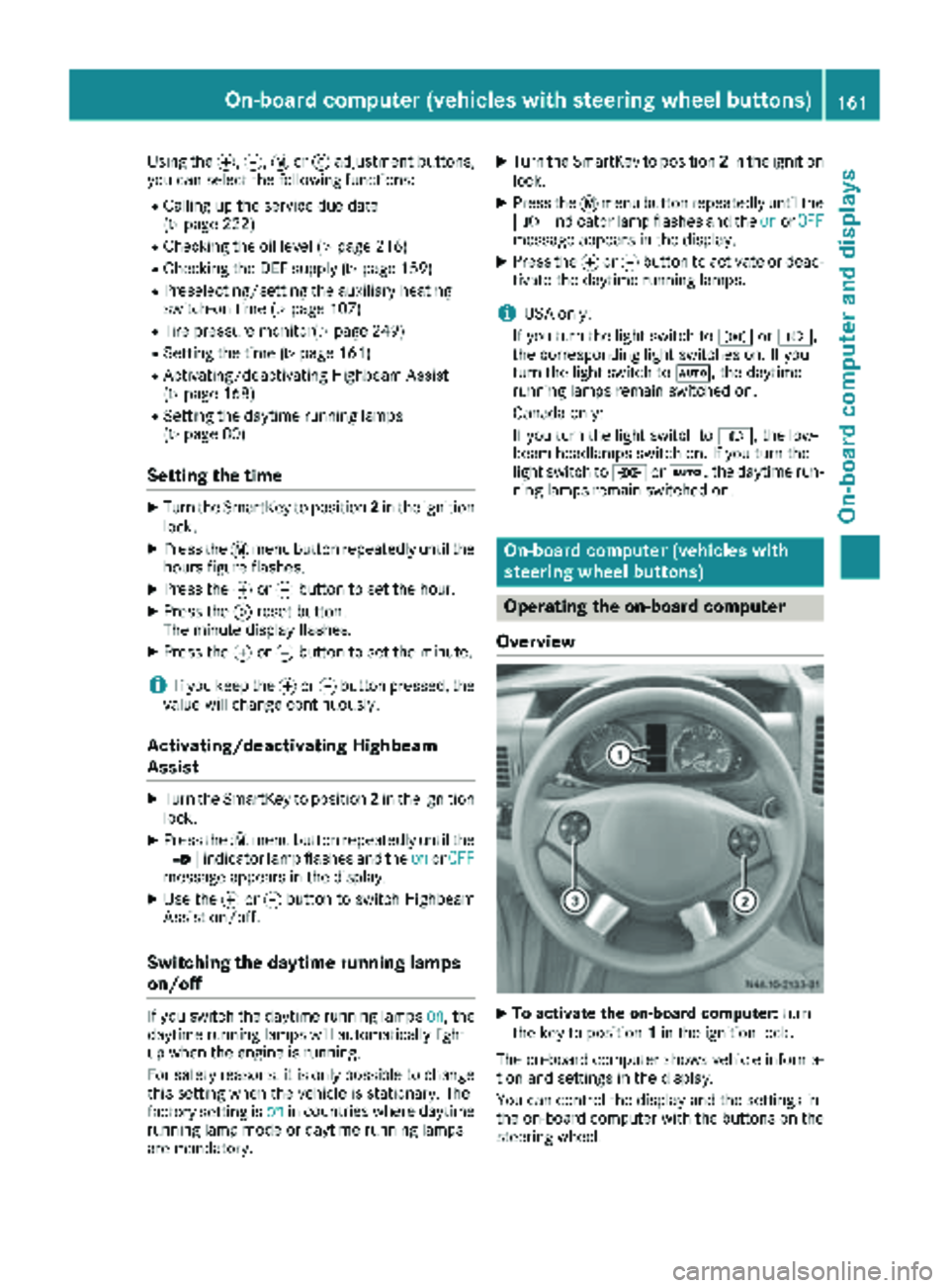
XTo activate the on-board computer: turn
the key to position 1in the ignition lock.
The on-board computer shows vehicle informa-
tion and settings in the display.
You can control the display and the settings in
the on-board computer with the buttons on the
steering wheel.
On-board computer (vehicles with steering wheel buttons)161
On-board computer and displays
Z
Page 164 of 286
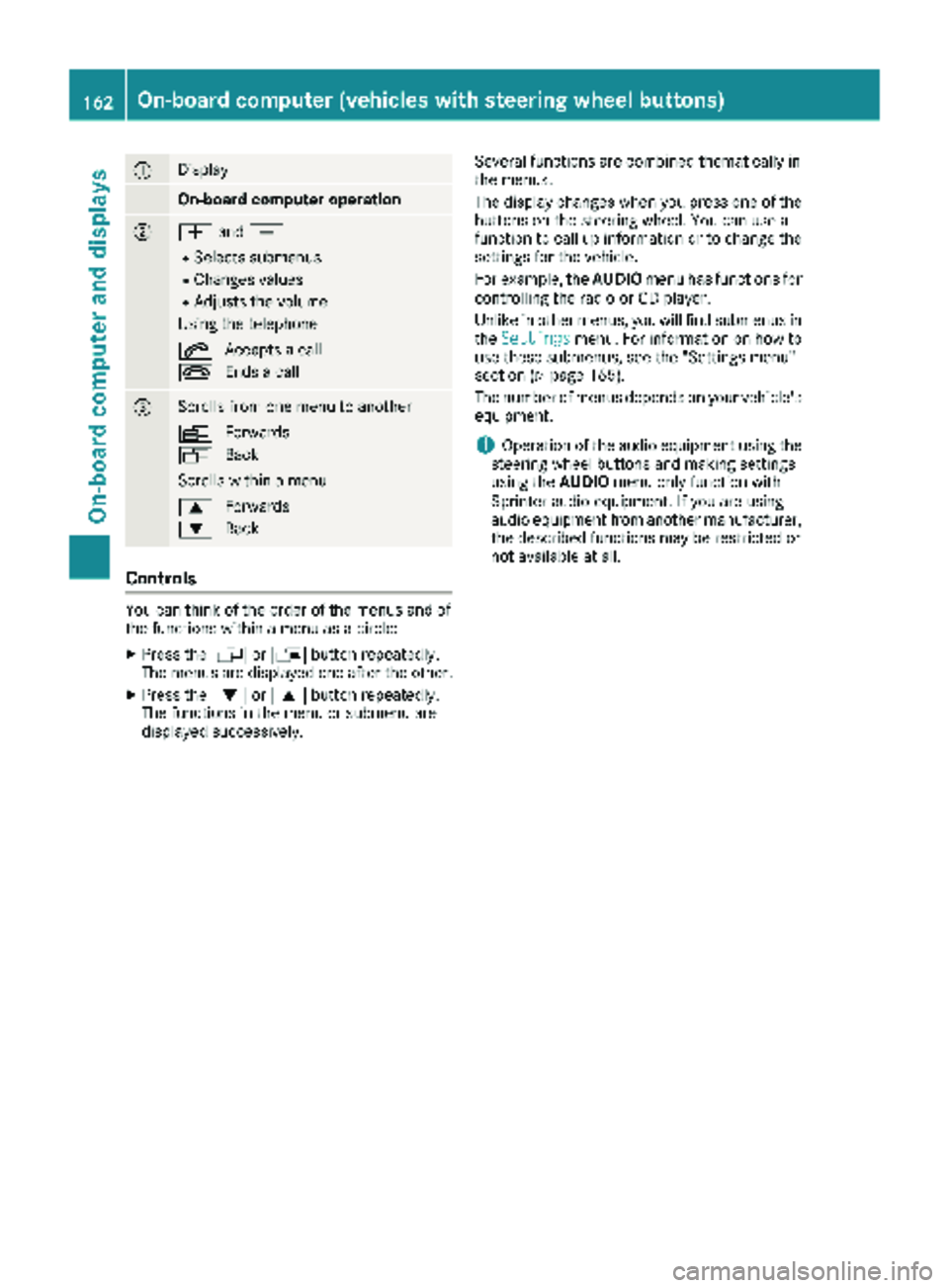
:Display
On-board computer operation
;WandX
RSelects submenus
RChanges values
RAdjusts the volume
Using the telephone
6 Accepts a call
~ Ends a call
=Scrolls from one menu to another
V Forwards
U Back
Scrolls within a menu
9 Forwards
: Back
Controls
You can think of the order of the menus and of
the functions within a menu as a circle:
XPress the VorU button repeatedly.
The menus are displayed one after the other.
XPress the :or9 button repeatedly.
The functions in the menu or submenu are
displayed successively. Several functions are combined thematically in
the menus.
The display changes when you press one of the
buttons on the steering wheel. You can use a
function to call up information or to change the
settings for the vehicle.
For example, the
AUDIOmenu has functions for
controlling the radio or CD player.
Unlike in other menus, you will find submenus in
the Settings
menu. For information on how to
use these submenus, see the "Settings menu"
section (
Ypage 165).
The number of menus depends on your vehicle's
equipment.
iOperation of the audio equipment using the
steering wheel buttons and making settings
using the AUDIOmenu only function with
Sprinter audio equipment. If you are using
audio equipment from another manufacturer,
the described functions may be restricted or
not available at all.
162On-board computer (vehicles withsteering whee lbu ttons)
On-board computer and displays
Page 165 of 286
Menu overview
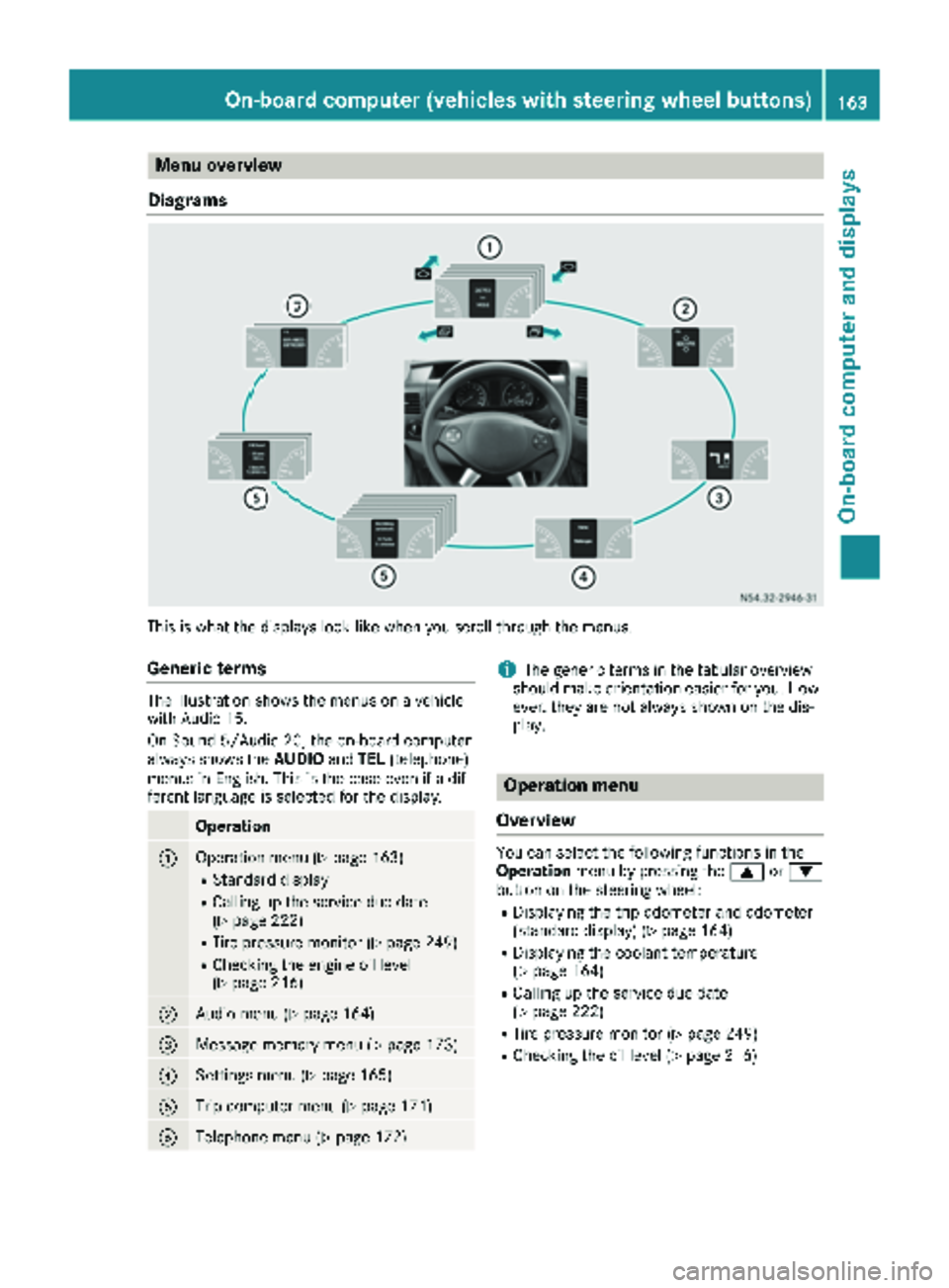
Diagrams
This is what the displays look like when you scroll through the menus.
Generic terms
The illustration shows the menus on a vehicle
with Audio 15.
On Sound 5/Audio 20, the on-board computer
always shows the AUDIOandTEL (telephone)
menus in English. This is the case even if a dif-
ferent language is selected for the display.
Operation
:Operation menu (Ypage 163)
RStandard display
RCalling up the service due date
(Ypage 222)
RTire pressure monitor (Ypage 249)
RChecking the engine oil level
(Ypage 216)
;Audio menu (Ypage 164)
=Message memory menu (Ypage 173)
?Settings menu (Ypage 165)
ATrip computer menu (Ypage 171)
BTelephone menu (Ypage 172)
iThe generic terms in the tabular overview
should make orientation easier for you. How-
ever, they are not always shown on the dis-
play.
Operation menu
Overview
You can select the following functions in the
Operation menu by pressing the 9or:
button on the steering wheel:
RDisplaying the trip odometer and odometer
(standard display) (Ypage 164)
RDisplaying the coolant temperature
(Ypage 164)
RCalling up the service due date
(Ypage 222)
RTire pressure monitor (Ypage 249)
RChecking the oil level (Ypage 216)
On-board computer (vehicles with steering wheel buttons)163
On-board computer and displays
Z
Page 166 of 286
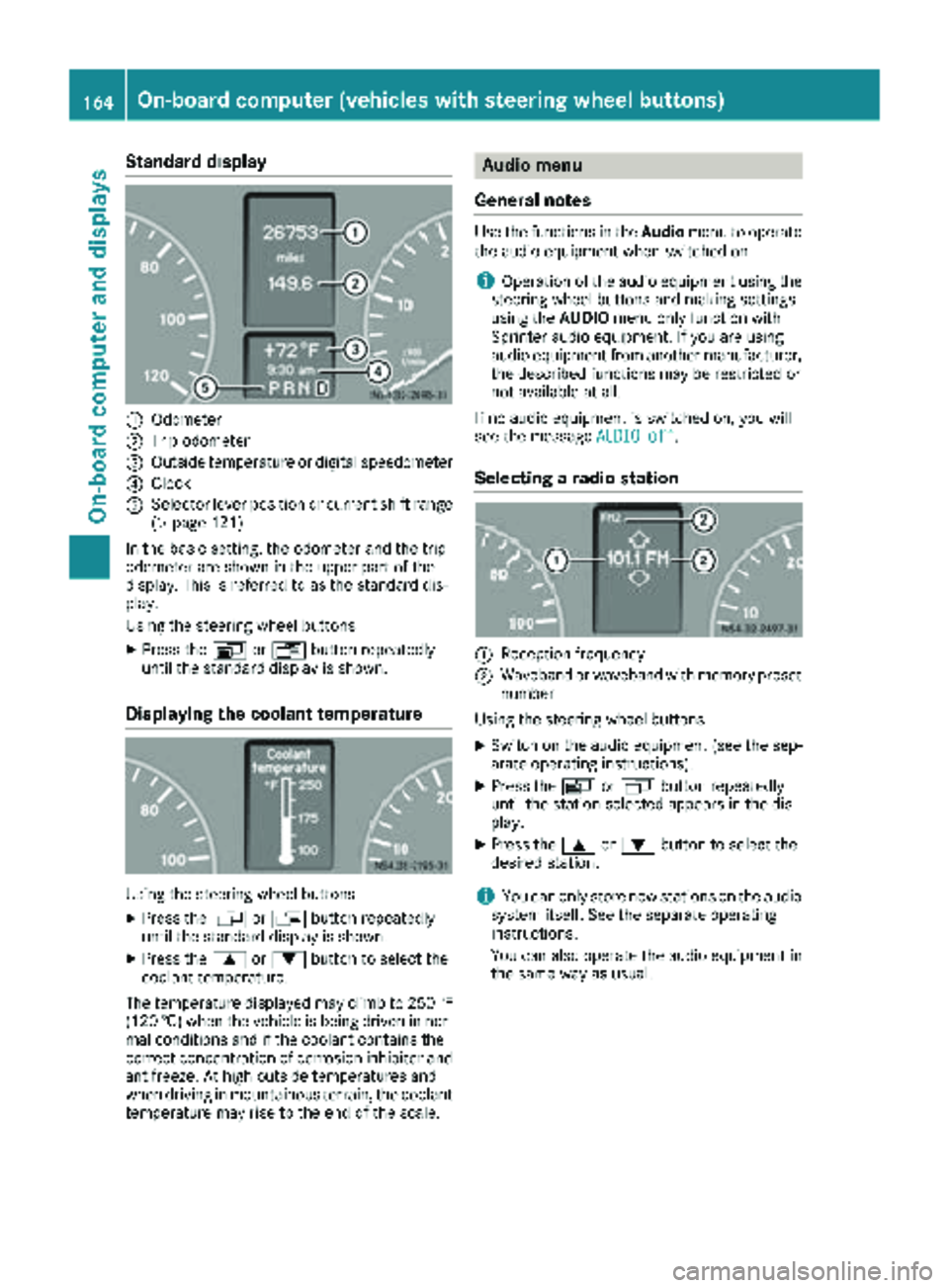
Standard display
:Odometer
;Trip odometer
=Outside temperature or digital speedometer
?Clock
ASelector lever position or current shift range
(Ypage 121)
In the basic setting, the odometer and the trip
odometer are shown in the upper part of the
display. This is referred to as the standard dis-
play.
Using the steering wheel buttons
XPress the VorU button repeatedly
until the standard display is shown.
Displaying the coolant temperature
Using the steering wheel buttons
XPress the VorU button repeatedly
until the standard display is shown.
XPress the 9or: button to select the
coolant temperature.
The temperature displayed may climb to 250 ‡
(120 †) when the vehicle is being driven in nor-
mal conditions and if the coolant contains the
correct concentration of corrosion inhibitor and
antifreeze. At high outside temperatures and
when driving in mountainous terrain, the coolant
temperature may rise to the end of the scale.
Audio menu
General notes
Use the functions in the Audiomenu to operate
the audio equipment when switched on.
iOperation of the audio equipment using the
steering wheel buttons and making settings
using the AUDIOmenu only function with
Sprinter audio equipment. If you are using
audio equipment from another manufacturer,
the described functions may be restricted or
not available at all.
If no audio equipment is switched on, you will
see the message AUDIO off
.
Selecting a radio station
:Reception frequency
;Waveband or waveband with memory preset
number
Using the steering wheel buttons
XSwitch on the audio equipment (see the sep-
arate operating instructions).
XPress the VorU button repeatedly
until the station selected appears in the dis-
play.
XPress the 9or: button to select the
desired station.
iYou can only store new stations on the audio
system itself. See the separate operating
instructions.
You can also operate the audio equipment in
the same way as usual.
164On-board computer (vehicles with steering wheel buttons)
On-board computer and displays
Page 167 of 286
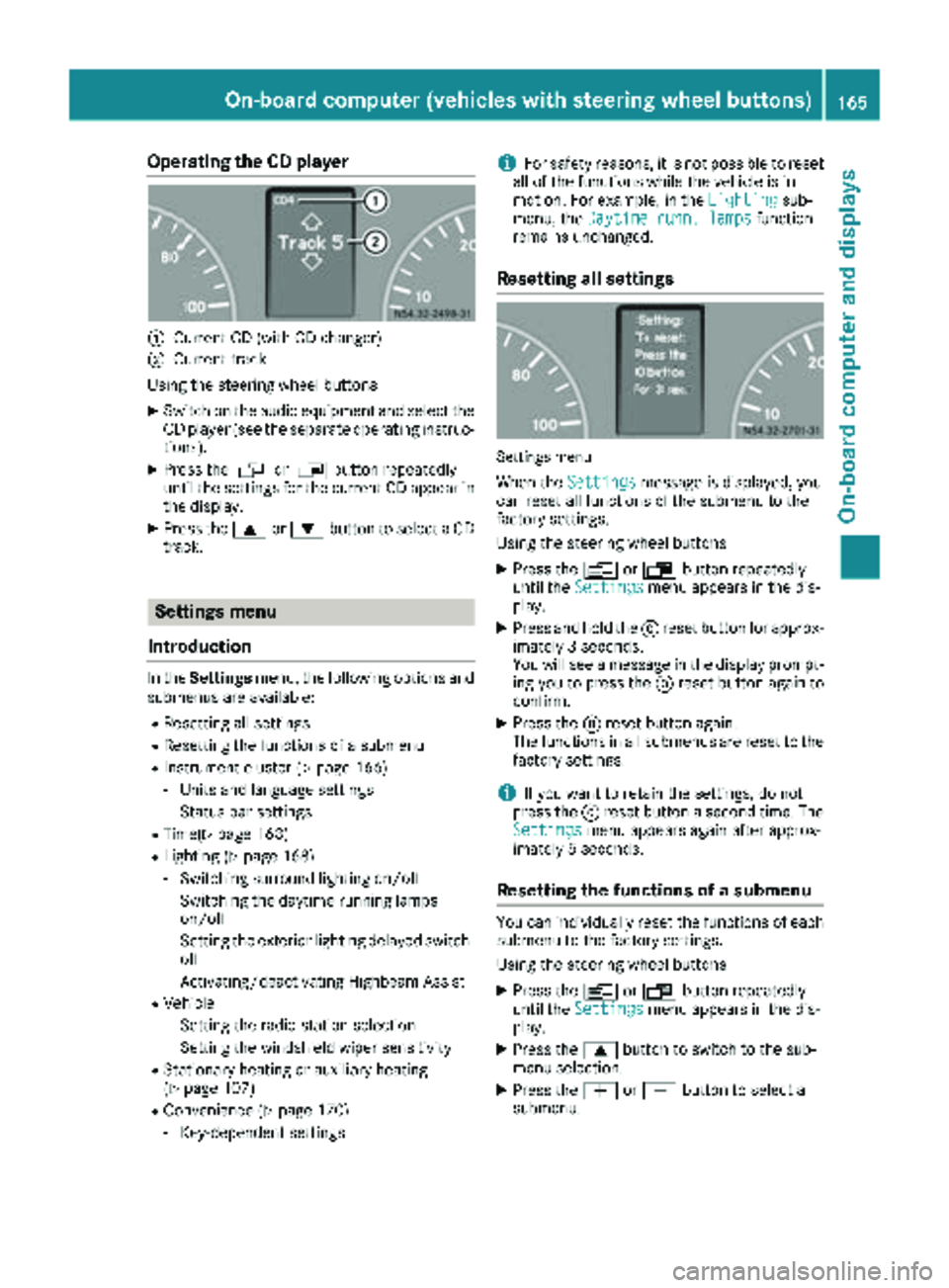
Operating the CD player
:Current CD (with CD changer)
;Current track
Using the steering wheel buttons
XSwitch on the audio equipment and select the
CD player (see the separate operating instruc-
tions).
XPress the VorU button repeatedly
until the settings for the current CD appear in
the display.
XPress the 9or: button to select a CD
track.
Settings menu
Introduction
In the Settings menu, the following options and
submenus are available:
RResetting all settings
RResetting the functions of a submenu
RInstrument cluster (Ypage 166)
-Units and language settings
-Status bar settings
RTime(Ypage 168)
RLighting (Ypage 168)
-Switching surround lighting on/off
-Switching the daytime running lamps
on/off
-Setting the exterior lighting delayed switch-
off
-Activating/deactivating Highbeam Assist
RVehicle
-Setting the radio station selection
-Setting the windshield wiper sensitivity
RStationary heating or auxiliary heating
(Ypage 107)
RConvenience (Ypage 170)
-Key-dependent settings
iFor safety reasons, it is not possible to reset
all of the functions while the vehicle is in
motion. For example, in the Lighting
sub-
menu, the Daytime runn. lampsfunction
remains unchanged.
Resetting all settings
Settings menu
When the Settingsmessage is displayed, you
can reset all functions of the submenu to the
factory settings.
Using the steering wheel buttons
XPress the VorU button repeatedly
until the Settingsmenu appears in the dis-
play.
XPress and hold the 9reset button for approx-
imately 3 seconds.
You will see a message in the display prompt-
ing you to press the 9reset button again to
confirm.
XPress the 9reset button again.
The functions in all submenus are reset to the
factory settings.
iIf you want to retain the settings, do not
press the 9reset button a second time. The
Settings
menu appears again after approx-
imately 5 seconds.
Resetting the functions of a submenu
You can individually reset the functions of each
submenu to the factory settings.
Using the steering wheel buttons
XPress the VorU button repeatedly
until the Settingsmenu appears in the dis-
play.
XPress the 9button to switch to the sub-
menu selection.
XPress the WorX button to select a
submenu.
On-board computer (vehicles with steering wheel buttons)165
On-board computer and displays
Z
Page 168 of 286
XPress and hold the9reset button for approx-
imately 3 seconds.
You will see a message in the display prompt-
ing you to press the 9reset button again to
confirm.
XPress the 9reset button again.
All functions in the submenu are reset to the
factory settings.
iIf you want to retain the settings, do not
press the 9reset button a second time. The
Settings
menu appears again after approx-
imately 5 seconds.
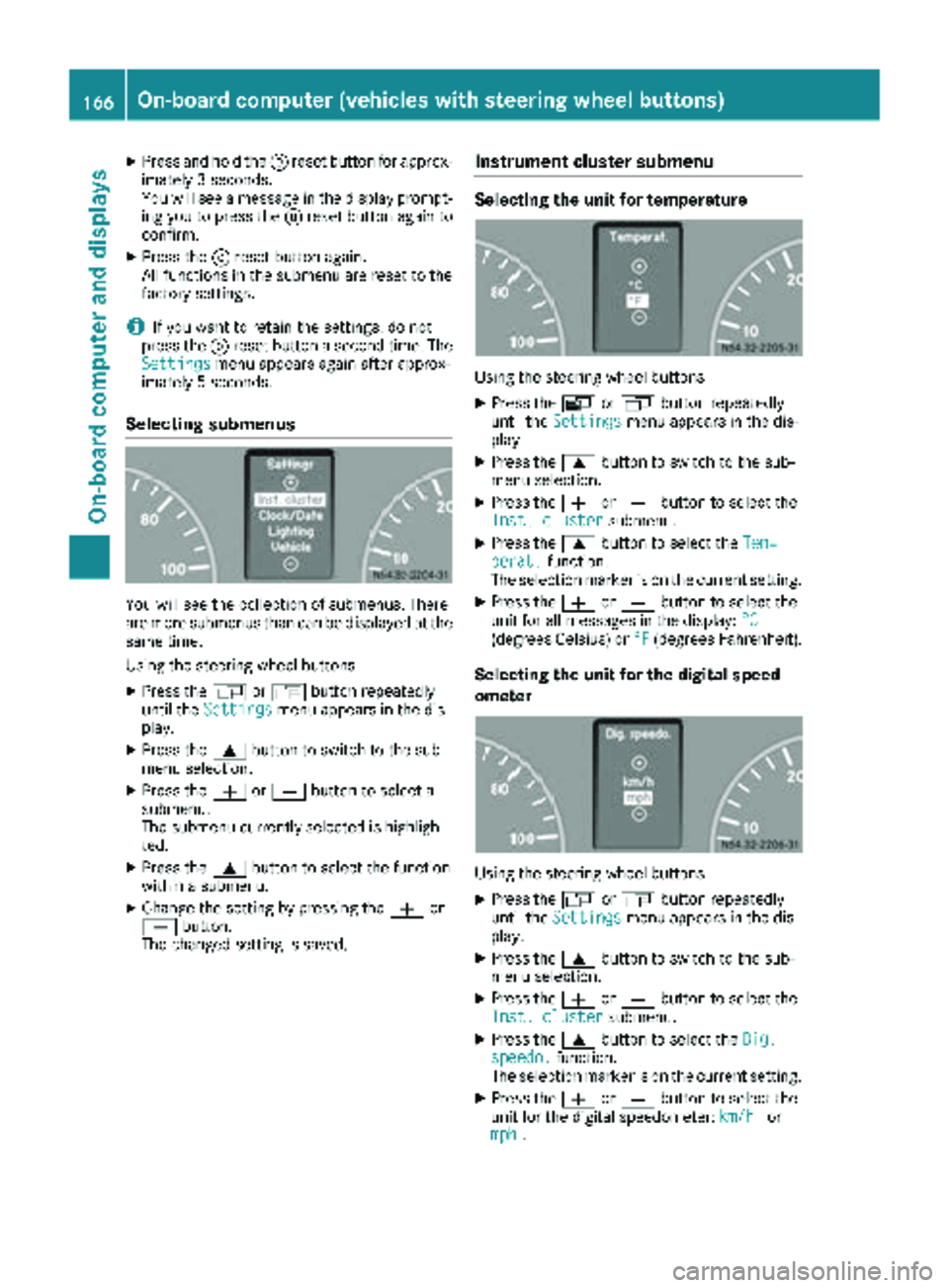
Selecting submenus
You will see the collection of submenus. There
are more submenus than can be displayed at the
same time.
Using the steering wheel buttons
XPress the VorU button repeatedly
until the Settingsmenu appears in the dis-
play.
XPress the 9button to switch to the sub-
menu selection.
XPress the WorX button to select a
submenu.
The submenu currently selected is highligh-
ted.
XPress the 9button to select the function
within a submenu.
XChange the setting by pressing the Wor
X button.
The changed setting is saved.
Instrument cluster submenu
Selecting the unit for temperature
Using the steering wheel buttons
XPress the VorU button repeatedly
until the Settingsmenu appears in the dis-
play.
XPress the 9button to switch to the sub-
menu selection.
XPress the WorX button to select the
Inst. clustersubmenu.
XPress the 9button to select the Tem‐perat.function.
The selection marker is on the current setting.
XPress the WorX button to select the
unit for all messages in the display: °C
(degrees Celsius) or°F(degrees Fahrenheit).
Selecting the unit for the digital speed-
ometer
Using the steering wheel buttons
XPress theVorU button repeatedly
until the Settingsmenu appears in the dis-
play.
XPress the 9button to switch to the sub-
menu selection.
XPress the WorX button to select the
Inst. clustersubmenu.
XPress the 9button to select the Dig.speedo.function.
The selection marker is on the current setting.
XPress the WorX button to select the
unit for the digital speedometer: km/hor
mph.
166On-board computer (vehicles with steering wheel buttons)
On-board computer and displays