steering MERCEDES-BENZ SPRINTER 2019 MY19 with 7” screen
[x] Cancel search | Manufacturer: MERCEDES-BENZ, Model Year: 2019, Model line: SPRINTER, Model: MERCEDES-BENZ SPRINTER 2019Pages: 354, PDF Size: 6.15 MB
Page 179 of 354
Lane
Keeping Assist and Active Lane Keeping
Assist Fu
nctions of Lane Keeping Assist Lane
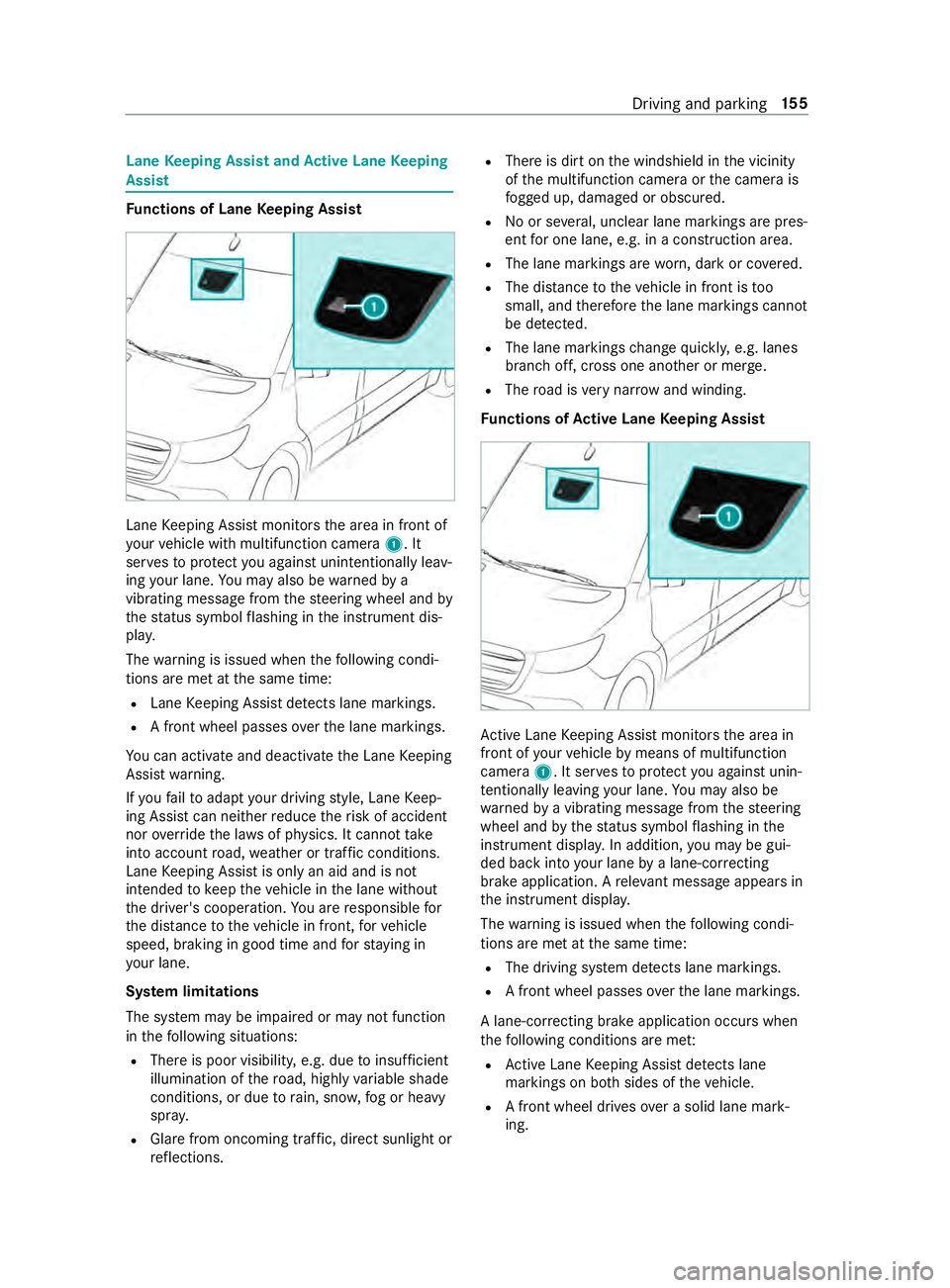
Keeping Assist monitors the area in front of
yo ur vehicle with multifunction camera 1. It
ser vesto protect you against unin tentionally le av‐
ing your lane. You may also be warned by a
vibrating messa gefrom thesteering wheel and by
th est atus symbol flashing in the instrument dis‐
pla y.
The warning is issued when thefo llowing condi‐
tions are met at the same time:
R Lane Keeping Assist de tects lane markings.
R A front wheel passes overth e lane markings.
Yo u can activate and deactivate the Lane Keeping
Assist warning.
If yo ufa ilto adapt your driving style, Lane Keep‐
ing Assist can neither reduce therisk of accident
nor override the la wsof ph ysics. It cannot take
into account road, weather or traf fic conditions.
Lane Keeping Assist is only an aid and is not
intended tokeep theve hicle in the lane without
th e driver's cooperation. You are responsible for
th e dis tance totheve hicle in front, forve hicle
speed, braking in good time and forst ay ing in
yo ur lane.
Sy stem limitations
The sy stem may be impaired or may not function
in thefo llowing situations:
R There is poor visibilit y,e.g. due toinsuf ficient
illumination of thero ad, highly variable shade
conditions, or due torain, sno w,fog or heavy
spr ay.
R Glare from oncoming traf fic, direct sunlight or
re flections. R
There is dirt on the windshield in the vicinity
of the multifunction camera or the camera is
fo gged up, damaged or obscured.
R No or se veral, unclear lane markings are pres‐
ent for one lane, e.g. in a construction area.
R The lane markings are worn, dark or co vered.
R The dis tance totheve hicle in front is too
small, and therefore the lane markings cann ot
be de tected.
R The lane markings change quickl y,e.g. lanes
branch off, cross one ano ther or mer ge.
R The road is very nar row and winding.
Fu nctions of Active Lane Keeping Assist Ac
tive Lane Keeping Assist monitors the area in
front of your vehicle bymeans of multifunction
camera 1. It ser vesto protect you against unin‐
te ntionally le aving your lane. You may also be
wa rned bya vibrating message from thesteering
wheel and bythest atus symbol flashing in the
instrument displa y.In addition, you may be gui‐
ded back into your lane bya lane-cor recting
brake application. A releva nt messa geappears in
th e instrument displa y.
The warning is issued when thefo llowing condi‐
tions are met at the same time:
R The driving sy stem de tects lane markings.
R A front wheel passes overth e lane markings.
A lane-cor recting brake application occu rswhen
th efo llowing conditions are me t:
R Active Lane Keeping Assist de tects lane
markings on bo thsides of theve hicle.
R A front wheel drives over a solid lane mark‐
ing. Driving and parking
15 5
Page 183 of 354
R
The vehicle/trailer combination will ha vean
inc reased braking dis tance.
R The vehicle/trailer combination will be more
susceptible tocrosswind gu sts.
R The vehicle/trailer combination will requ ire
more sensitive steering.
R The vehicle/trailer combination will ha ve a
lar ger turning radius.
This may impair theve hicle's driving characteris‐
tics.
When driving with a vehicle/trailer combination,
alw ays adapt your speed tothe cur rent road and
we ather conditions. Drive carefull y.Ke ep a suf fi‐
cient safe dis tance.
Co mply withthe maximum speed of 49 mph
(80 km/h) or 62 mph (100 km/h), even in coun‐
tries in which higher speeds are permitted for
ve hicle/trailer combinations.
Comply with the legally prescribed maximum
speed forve hicle/trailer combinations in forc e in
th e count ry,st ate or Canadian pr ovince in ques‐
tion. Before driving, consult the trailer's vehicle
documents tosee the maximum permissible
speed foryo ur trailer.
At tach only an appr oved trailer hitch to yourvehi‐
cle. Use only a ball neck that has been appr oved
fo ryo ur vehicle. Further information about availa‐
bility and ins tallation of the trailer electrical sys‐
te m is available from any qualified specialist
wo rkshop.
The trailer hitch is one of the most impor tant
ve hicle parts forro ad saf ety. Comply with the
instructions on operating, maintaining and servic‐
ing in the manufacturer's operating instructions.
% Yo
ur vehicle's bumpers are not suitable for
ins talling de tach able trailer tow hit ches.
Do not attach any rented trailer tow hit ches or
any other de tach able trailer tow hit ches tothe
bumpers.
% When using a trailer,
remember that
PA RKTRONIC is available only toa limited
ex tent, if at all.
% The ball head height will
change depending
on theve hicle's load. In this case, use a
trailer with a height-adjus table dr awbar.
Driving no tes
The maximum permissible speed forve hicle/
trailer combinations depends on the type of
trailer. Before driving, consult the trailer's vehicle documents
tosee the maximum permissible
speed foryo ur trailer.
Yo ur vehicle will act dif fere ntly wi tha trailer rela‐
tive towithout a trailer, and will consume more
fuel. In the case of a long and steep descent, you
must select shift range 3,2or 1in good time.
% This also applies if
the cruise cont rol is
switched on.
Yo u will thereby make use of the engine's braking
ef fect and will not ha vetobrake as of tento con‐
trol the speed. This will take some of thest ra in
off the brake sy stem and pr event the brakes from
ove rheating and wearing tooqu ickl y.Ifyo u need
additional braking, depress the brake pedal inter‐
mittently rath er than continuousl y.
Driving tips
If th e trailer sw ays, remember thefo llowing
points:
R Do not accelerate under any circums tances.
R Do not counter steer.
R If necessar y,apply the brakes.
% Yo
u can pr eventthe trailer from sw aying and
rock ingbyretrofitting stabilizer bars or trailer
st ability programs. You can obtain fur ther
information from an authorized Mercedes-
Benz Center.
R Maintain a lar ger dis tance than when driving
without a trailer.
R Avoid braking abruptl y.If possible, brake gen‐
tly firs t of all so that the trailer closes up
behind your vehicle. Then, increase the brak‐
ing forc era pidl y.
R The values given forst art-off gradeability
re ferto sea le vel. When driving in moun tain‐
ous areas, no tethat engine output, and there‐
fo re start-off gradeability, will dec rease with
inc reasing altitude. Coupling/uncoupling a trailer
Coupling a trailer
* NO
TEDama getotheve hicle battery due
to full discharge Charging
the trailer battery using the po wer
supply of the trailer can damage theve hicle
batter y. #
Do not use theve hicle's po wer supply
to charge the trailer batter y. Driving and pa
rking 15 9
Page 185 of 354
R
Ifth e trailer has electronically cont rolled
brakes, pull away carefully wi th theve hicle/
trailer combination. Brake manually using the
brake controller and check whe ther the
brakes are functioning cor rectly.
R Secu rethe load on the trailer in line with the
re qu irements and rules for load-securing
me thods.
R When driving with a trailer, check at regular
inter vals that the load is secure and that the
lights and brakes are functioning cor rectl y.
R Bear in mind that the handling characteristics
are more uns table when towing a trailer than
when driving without a trailer. Avoid sudden
st eering mo vements.
R The vehicle/trailer combination is heavier,
accelerates more slowl y,has a reduced
climbing ability and an increased braking dis‐
ta nce. It is more susceptible toside winds
and requ ires careful steering.
R If possible, do not brake suddenl y,but rath er
moderately at firs t so that the trailer can acti‐
va te its brakes. Then inc rease the pressure on
th e brake pedal.
R Ifth e automatic transmission shifts between
ge ars on uphill or downhill gradients, restrict
th e shift range. Select shi ftrange 4, 3, 2 or 1.
A lo werge ar and reduced speed decrease the
ri sk of engine damage.
R When driving on a downhill gradient, shift to a
lo we rge ar to use the engine's braking ef fect.
Av oid cons tant braking, as this could cause
th eve hicle brakes and possibly also the
trailer brakes toove rheat.
R Ifth e coolant temp erature increases signifi‐
cantly when the air-conditioning sy stem is
switched on, switch the air-conditioning sys‐
te m off.
Coolant heat can also be dissipated by
switching the air flow and thete mp erature of
th e heater or air conditioning tothe maximum
le ve l. Open the windo wsif necessar y.
R When overtaking, pay particular attention to
th e increased overtaking di stance of your
ve hicle/trailer combination.
Due tothe length of your vehicle/trailer com‐
bination you will requ ire a longer stre tch of
ro ad before swit ching back tothe original
lane. Pe
rm issible trailer loads and trailer dr awbar
nose weights We
ight information &
WARNING Risk of accident due to
unbraked trailer with excessively high
gross weight
If yo uto w a trailer without a separate func‐
tional braking sy stem and a gross trailer
we ight (G TW) of more than 1635 lbs (750 kg),
th en theve hicle brake sy stem may overheat.
This increases the braking dis tance and the
brake sy stem may evenfa il. #
Always use a trailer with a separate
functional braking sy stem when towing
a trailer with a gross trailerweight
(G TW ) of more than 1635 lbs (750 kg). *
NO
TEDama getothe drive train, trans‐
mission or trailer tow hit chdue toexc ess
gross combination weight The permissible
gross combinationweight is
exc eeded.
The drive train, the transmission or the trailer
to w hit chmay be dama ged. #
Comply with the permissible gross com‐
bination weight. Fo
rve hicles with a permissible gross vehicle
we ight of 11030 lbs (5003 kg),th e permissible
gross combination weight is less than the sum of
th e permissible gross vehicle weight plus the per‐
missible trailer load. If either theve hicle or the
trailer is fully laden, the permitted gross vehicle
we ight or the permitted trailer load values are
re duced accordingly. In this case, you may on ly
partially load the trailer or theve hicle.
The gross trailer weight (G TW) is calculated by
adding thewe ight of the trailer tothewe ight of
th e load and equipment. If the trailer is equipped
with a separate braking sy stem, then the maxi‐
mum gross trailer weight is 5000 lbs (2268 kg) or
75 00 lbs (3402 kg).
The maximum permissible trailer dr awbar nose‐
we ight on the ball head is 500 lbs (227 kg) or
75 0 lbs (340 kg). Ho wever,th e actual trailer
dr aw bar nose weight must not exceed theva lue
given on the trailer tow hit chor trailer identifica‐
tion plates. Where theva lues dif fer, th e lo west
va lue alw ays applies. Driving and parking
161
Page 188 of 354
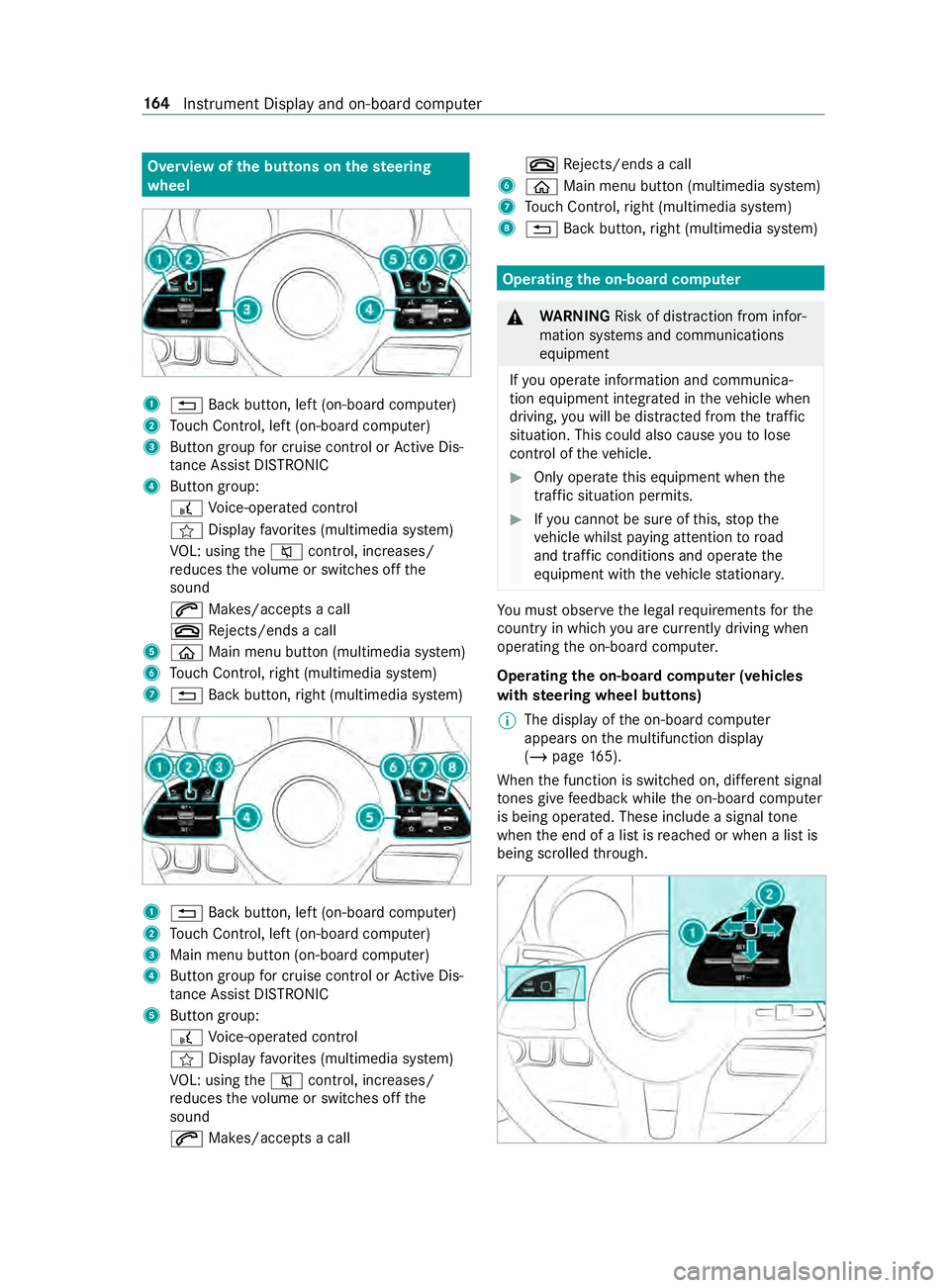
Overview of
the but tons on thest eering
wheel 1
0038 Back button, left (on-board computer)
2 Touch Control, left (on-board computer)
3 Button group for cruise control or Active Dis‐
ta nce Assi stDISTRONIC
4 Button group:
£ Voice-opera ted control
004B Display favo rite s (multimedia sy stem)
VO L: using the0063 control, inc reases/
re duces thevo lume or switches off the
sound
0061 Makes/accepts a call
0076 Rejects/ends a call
5 00E2 Main menu button (multimedia sy stem)
6 Touch Control, right (multimedia sy stem)
7 0038 Back button, right (multimedia sy stem) 1
0038 Back button, left (on-board computer)
2 Touch Control, left (on-board computer)
3 Main menu button (on-board computer)
4 Button group for cruise control or Active Dis‐
ta nce Assi stDISTRONIC
5 Button group:
£ Voice-opera ted control
004B Display favo rite s (multimedia sy stem)
VO L: using the0063 control, inc reases/
re duces thevo lume or switches off the
sound
0061 Makes/accepts a call 0076
Rejects/ends a call
6 00E2 Main menu button (multimedia sy stem)
7 Touch Control, right (multimedia sy stem)
8 0038 Back button, right (multimedia sy stem) Operating
the on-boa rdcompu ter &
WARNING Risk of distraction from infor‐
mation sy stems and communications
equipment
If yo u operate information and communica‐
tion equipment integ rated in theve hicle when
driving, you will be distracted from the tra ffic
situation. This could also cause youto lose
control of theve hicle. #
Only operate this equipment when the
traf fic situation permits. #
Ifyo u cannot be sure of this, stop the
ve hicle whilst paying attention toroad
and traf fic conditions and ope rate the
equipment with theve hicle stationar y. Yo
u must obse rveth e legal requirements forthe
country in whi chyou are cur rently driving when
ope rating the on-board computer.
Operating the on-boa rdcompu ter (vehicles
with steering wheel but tons)
% The display of
the on-board computer
appears on the multifunction display
(/ page 165).
When the function is switched on, dif fere nt signal
to nes gi vefeedback while the on-board computer
is being operated. These include a signal tone
when the end of a list is reached or when a list is
being scrolled thro ugh. 16 4
Instrument Display and on-board computer
Page 193 of 354
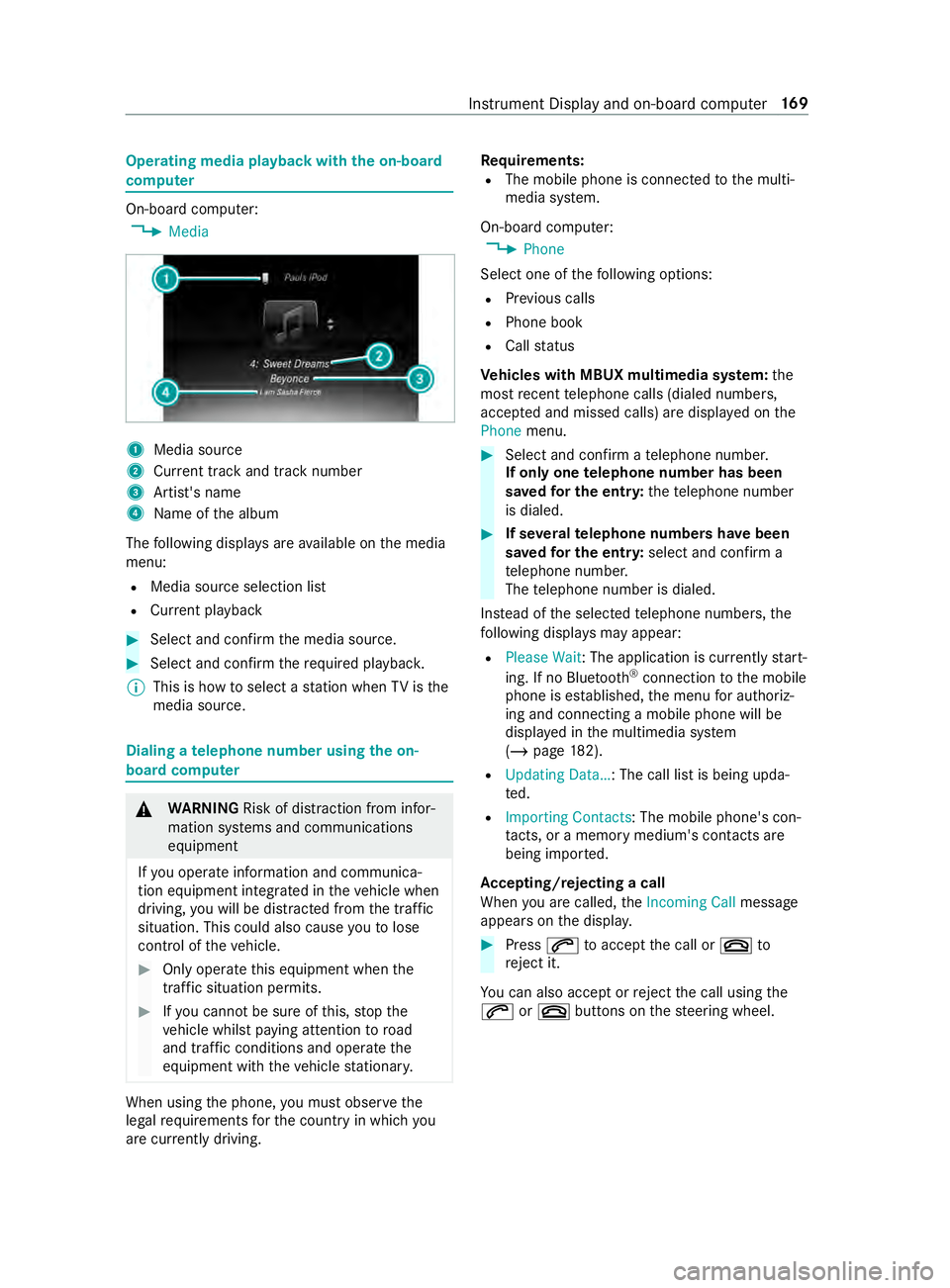
Operating media playback with
the on-boa rd
compu ter On-board computer:
4 Media 1
Media source
2 Current track and track number
3 Artist's name
4 Name of the album
The following displa ysare available on the media
menu:
R Media source selection list
R Current pl ayback #
Select and con firm the media source. #
Select and confirm there qu ired playbac k.
% This is how
toselect a station when TVisthe
media source. Dialing a
telephone number using the on-
board compu ter &
WARNING Risk of distraction from infor‐
mation sy stems and communications
equipment
If yo u operate information and communica‐
tion equipment integ rated in theve hicle when
driving, you will be distracted from the tra ffic
situation. This could also cause youto lose
control of theve hicle. #
Only operate this equipment when the
traf fic situation permits. #
Ifyo u cannot be sure of this, stop the
ve hicle whilst paying attention toroad
and traf fic conditions and ope rate the
equipment with theve hicle stationar y. When using
the phone, you must obse rvethe
legal requirements forth e count ryin which you
are cur rently driving. Re
quirements:
R The mobile phone is connec tedto the multi‐
media sy stem.
On-board computer: 4 Phone
Select one of thefo llowing options:
R Prev ious calls
R Phone book
R Call status
Ve hicles with MBUX multimedia sy stem: the
most recent telephone calls (dialed numbe rs,
accep ted and missed calls) are displa yed on the
Phone menu. #
Select and confirm a telephone numbe r.
If only one telephone number has been
sa ve dfo r the entr y:thete lephone number
is dialed. #
If se veralte lephone numbers ha vebeen
sa ve dfo r the entr y:select and confirm a
te lephone numbe r.
The telephone number is dialed.
Ins tead of the selected telephone numbe rs,the
fo llowing displa ysmay appear:
R Please Wait : The application is cur rently start‐
ing. If no Blue tooth®
connection tothe mobile
phone is es tablished, the menu for authoriz‐
ing and connecting a mobile phone will be
displa yed in the multimedia sy stem
(/ page 182).
R Updating Data…: The call list is being upda‐
ted.
R Importing Contacts: The mobile phone's con‐
ta cts, or a memo rymedium's contacts are
being impor ted.
Ac cepting/rejecting a call
When you are called, theIncoming Call message
appears on the displa y. #
Press 0061toaccept the call or 0076to
re ject it.
Yo u can also accept or reject the call using the
0061 or0076 buttons on thesteering wheel. Instrument Display and on-board computer
16 9
Page 197 of 354
Overview and operation
Overview of
the MBUX multimedia sy stem &
WARNING Risk of distraction from infor‐
mation sy stems and communications
equipment
If yo u operate information and communica‐
tion equipment integ rated in theve hicle when
driving, you will be distracted from the tra ffic
situation. This could also cause youto lose
control of theve hicle. #
Only operate this equipment when the
traf fic situation permits. #
Ifyo u cannot be sure of this, stop the
ve hicle whilst paying attention toroad
and traf fic conditions and ope rate the
equipment with theve hicle stationar y. Yo
u must obse rveth e legal requirements forthe
country in whi chyou are cur rently driving when
ope rating the multimedia sy stem.
MBUX stands for Mercedes-Benz User Experi‐
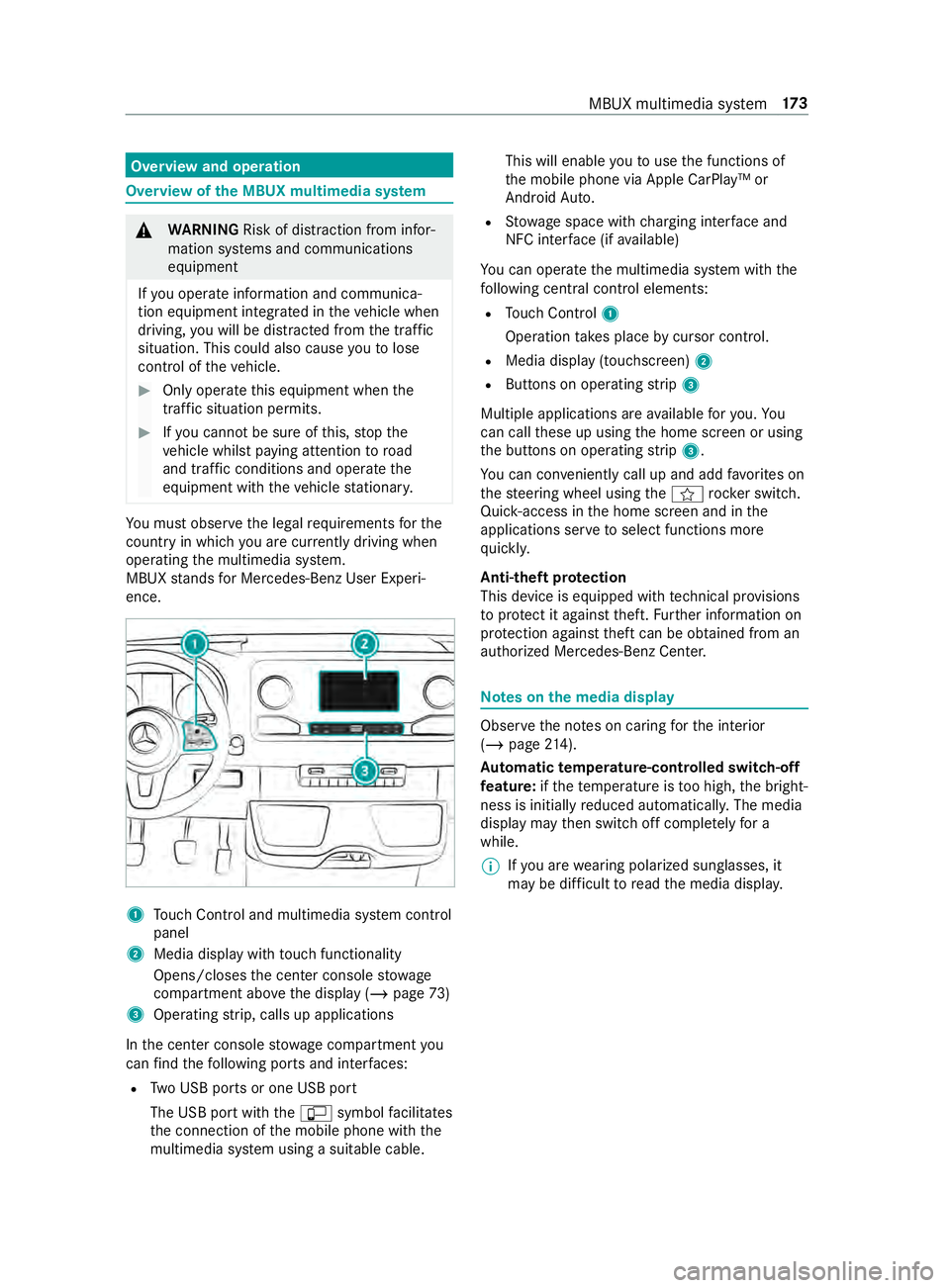
ence. 1
Touch Control and multimedia sy stem cont rol
panel
2 Media display with touch functionality
Opens/closes the center console stowage
compartment abo vethe display (/ page73)
3 Operating strip, calls up applications
In the center console stowage compartment you
can find thefo llowing ports and inter faces:
R Two USB ports or one USB port
The USB port with the00C2 symbol facilitates
th e connection of the mobile phone with the
multimedia sy stem using a suitable cable. This will enable
youto use the functions of
th e mobile phone via Apple CarPlay™ or
Android Auto.
R Stow age space with charging inter face and
NFC inter face (if available)
Yo u can operate the multimedia sy stem with the
fo llowing central control elements:
R Touch Control 1
Operation takes place bycursor control.
R Media display (tou chscreen) 2
R Buttons on operating strip 3
Multiple applications are available foryo u. Yo u
can call these up using the home screen or using
th e buttons on operating strip 3.
Yo u can con veniently call up and add favo rite s on
th esteering wheel using the004B rock er switch.
Quic k-access in the home screen and in the
applications ser vetoselect functions more
qu ickl y.
Anti-theft pr otection
This device is equipped with tech nical pr ovisions
to protect it against theft. Further information on
pr otection against theft can be obtained from an
authorized Mercedes-Benz Center. Note
s onthe media display Obser
vethe no tes on caring forth e interior
(/ page 214).
Au tomatic temperature-cont rolled switch-off
fe ature: ifth ete mp erature is too high, the bright‐
ness is initially reduced automaticall y.The media
display may then switch off comple tely for a
while.
% If
yo u are wearing polarized sun glasses, it
may be dif ficult toread the media displa y. MBUX multimedia sy
stem 17 3
Page 200 of 354
Calls up navigation
Re
quiremen t:the mobile phone is connected
to the multimedia sy stem via the USB port
00C2 using a suitable cable. Via Apple Car‐
Play™ or Android Autothe navigation applica‐
tion of the mobile phone can be used. #
Toaccess stations and music trac ks
qu ickl y:press button 5.
The control menu appears forth e audio
source that wa s last selected. #
Swipe tothe left or right.
Ra dio: the pr evious or next station is set.
Media source: the pr evious or the next music
tra ck is selec ted. #
Tohide the control menu: press button5.
Using the home screen
The home screen is shown in the media display
when youstart theve hicle. #
Select the application byswiping and tapping.
or #
In any displa y:press the© button on the
To uch Control.
or #
Tap on the© symbol on theto uchsc reen.
The applications are displa yed. #
Select the application byswiping and tapping.
Changing the ar rangement of applications on
th e home screen #
Call up the home screen #
Touch and hold an application on the
to uchsc reen until symbols appear. #
Tap on 0059 or0065 and mo vethe applica‐
tion in the menu. #
Tap on 00FB. Switching
the sound on/off On
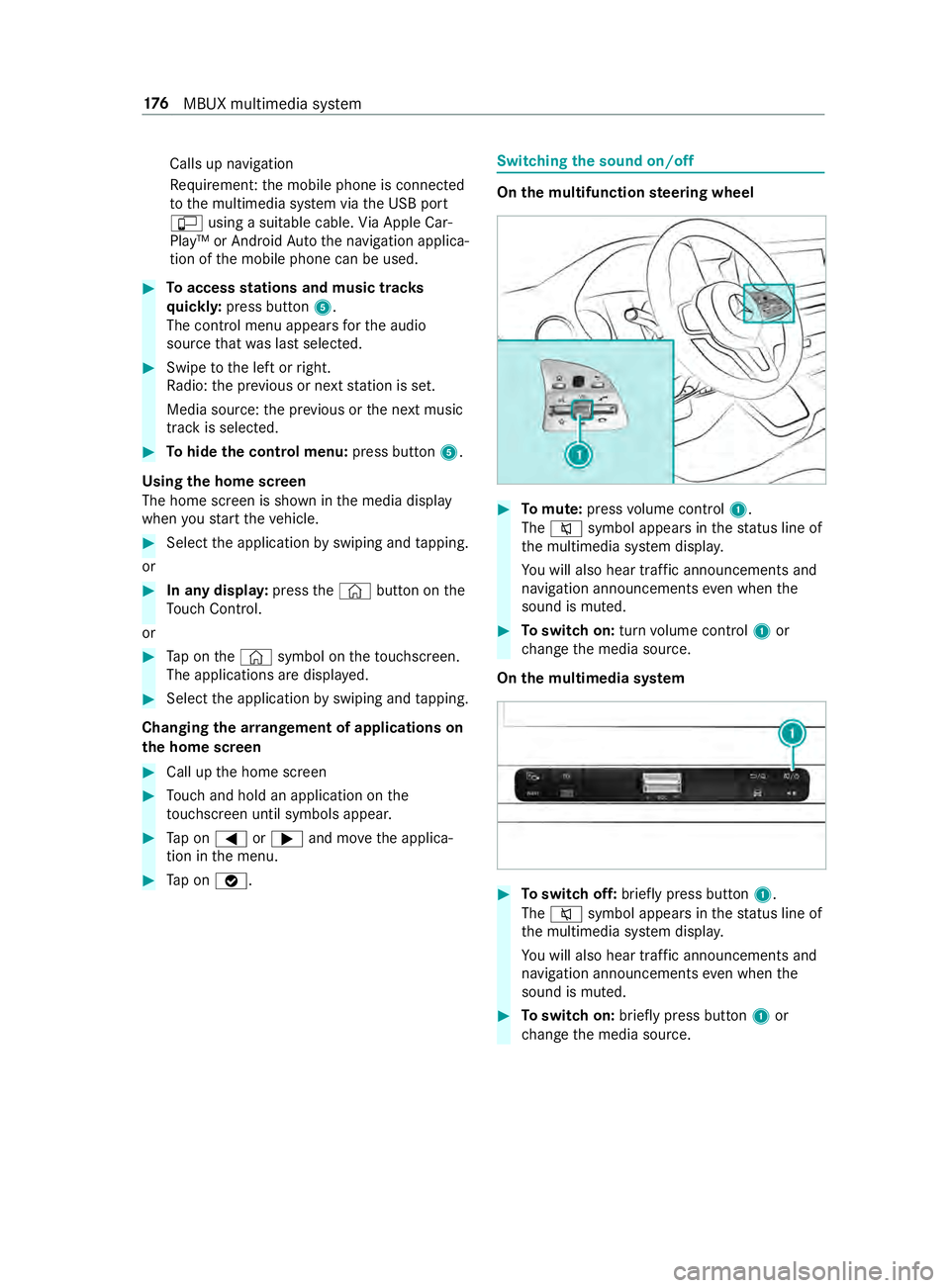
the multifunction steering wheel #
Tomute: pressvolume control 1.
The 0063 symbol appears in thest atus line of
th e multimedia sy stem displa y.
Yo u will also hear traf fic announcements and
navigation announcements even when the
sound is muted. #
Toswitch on: turnvolume control 1or
ch ange the media source.
On the multimedia sy stem #
Toswitch off: briefly press button 1.
The 0063 symbol appears in thest atus line of
th e multimedia sy stem displa y.
Yo u will also hear traf fic announcements and
navigation announcements even when the
sound is muted. #
Toswitch on: brieflypress button 1or
ch ange the media source. 176
MBUX multimedia sy stem
Page 201 of 354
Ad
justing the volume On
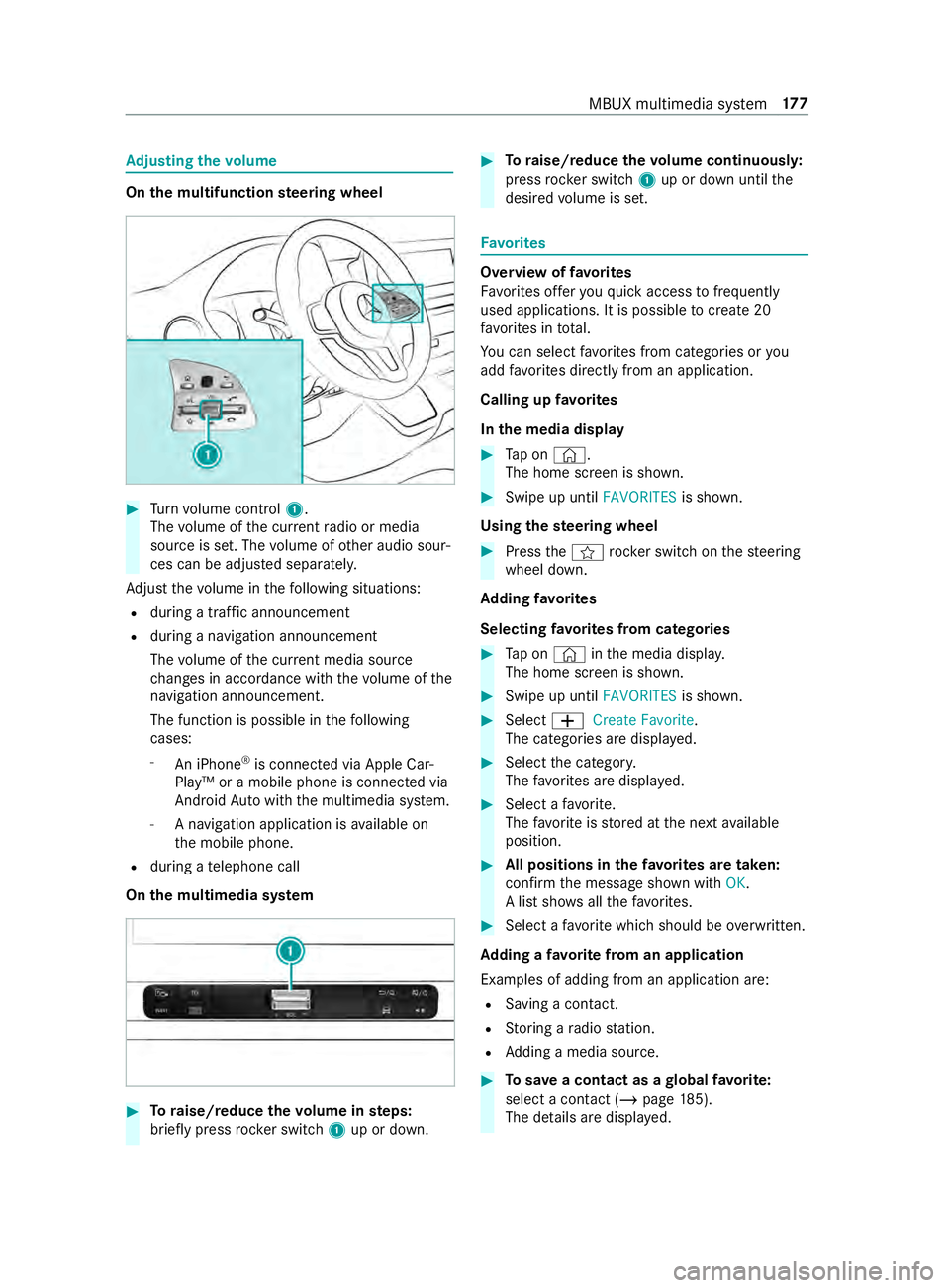
the multifunction steering wheel #
Turn volume control 1.
The volume of the cur rent radio or media
source is set. The volume of other audio sour‐
ces can be adjus ted separately.
Ad just thevo lume in thefo llowing situations:
R during a traf fic announcement
R during a navigation announcement
The volume of the cur rent media sou rce
ch anges in accordance with thevo lume of the
navigation announcement.
The function is possible in thefo llowing
cases:
- An iPhone ®
is connec ted via Apple Car‐
Play™ or a mobile phone is connected via
Android Autowith the multimedia sy stem.
- A navigation application is available on
th e mobile phone.
R during a telephone call
On the multimedia sy stem #
Toraise/reduce thevo lume in steps:
brief lypress rocker switch 1up or down. #
Toraise/reduce thevo lume continuousl y:
press rocker switch 1up or down until the
desired volume is set. Favo
rites Overview of
favo rites
Favo rite s of feryo uqu ick access tofrequently
used applications. It is possible tocrea te20
fa vo rite s in tota l.
Yo u can select favo rite s from categories or you
add favo rite s directly from an application.
Calling up favo rites
In the media display #
Tap on ©.
The home screen is shown. #
Swipe up until FAVORITESis shown.
Using thest eering wheel #
Press the004B rocker switch on thesteering
wheel down.
Ad ding favo rites
Selecting favo rite s from categories #
Tap on © inthe media displa y.
The home screen is shown. #
Swipe up until FAVORITESis shown. #
Select 0081Create Favorite .
The categories are displa yed. #
Select the categor y.
The favo rite s are displa yed. #
Select a favo rite.
The favo rite isstored at the next available
position. #
All positions in thefa vo rite s are taken:
confirm the message shown with OK.
A list sho wsallthefa vo rite s. #
Select a favo rite which should be overwritten.
Ad ding a favo rite from an application
Examples of adding from an application are: R Saving a contact.
R Storing a radio station.
R Adding a media source. #
Tosave a contact as a global favo rite :
select a contact (/ page 185).
The de tails are displa yed. MBUX multimedia sy
stem 17 7
Page 208 of 354
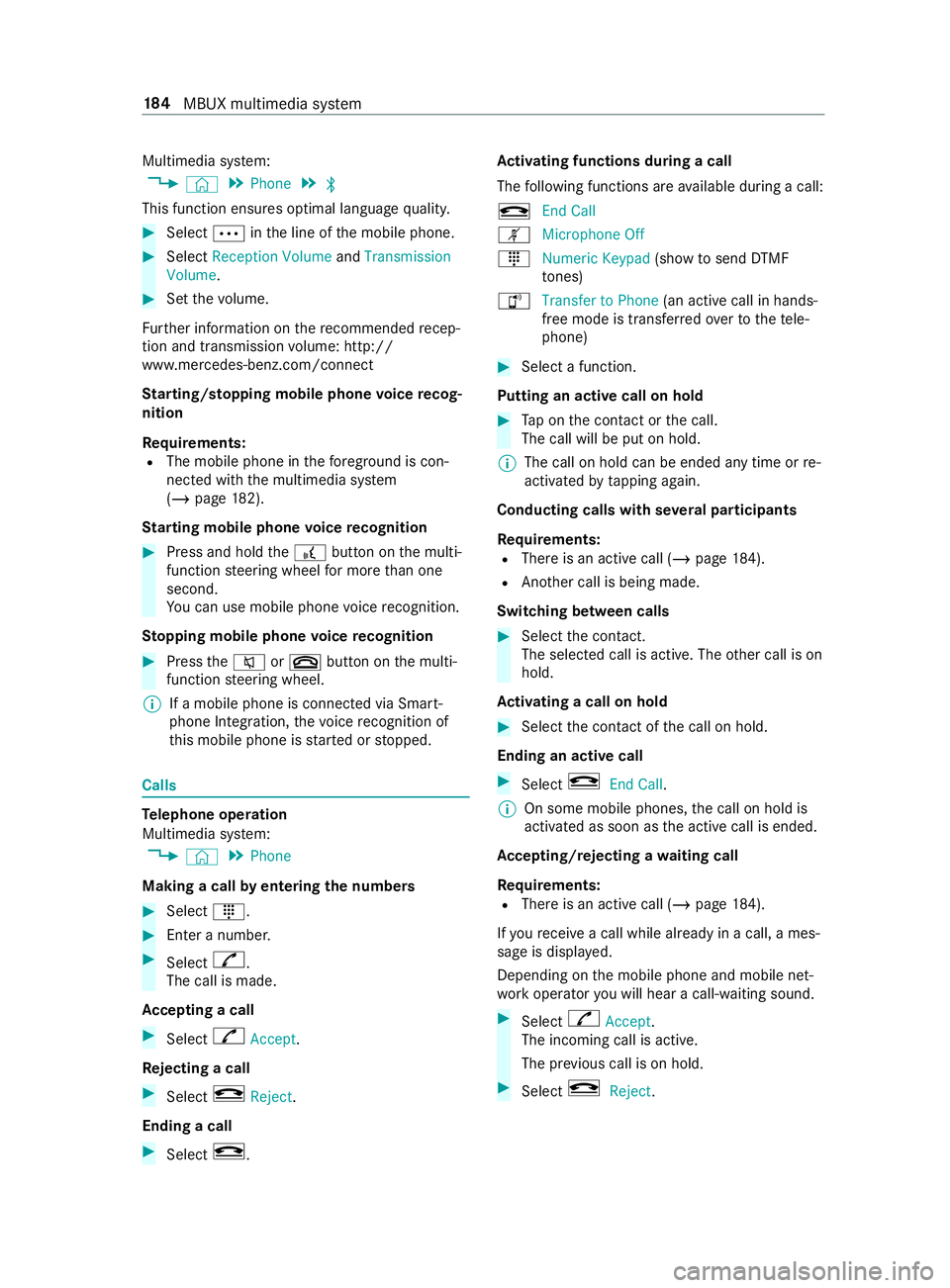
Multimedia sy
stem:
4 © 5
Phone 5
00A5
This function ensures optimal language quality. #
Select 0062inthe line of the mobile phone. #
Select Reception Volume andTransmission
Volume. #
Set thevo lume.
Fu rther information on there commended recep‐
tion and transmission volume: http://
www.me rcedes-benz.com/connect
St arting/ stopping mobile phone voice recog‐
nition
Re quirements:
R The mobile phone in thefo re ground is con‐
nected with the multimedia sy stem
(/ page 182).
St arting mobile phone voice recognition #
Press and hold the£ button on the multi‐
function steering wheel for more than one
second.
Yo u can use mobile phone voice recognition.
St opping mobile phone voice recognition #
Press the0063 or0076 button on the multi‐
function steering wheel.
% If a mobile phone is connected via Smart‐
phone Integration, thevo ice recognition of
th is mobile phone is star ted or stopped. Calls
Te
lephone operation
Multimedia sy stem:
4 © 5
Phone
Making a call byentering the numbers #
Select _. #
Enter a number. #
Select R.
The call is made.
Ac cepting a call #
Select RAccept.
Re jecting a call #
Select kReject.
Ending a call #
Select k. Ac
tivating functions during a call
The following functions are available during a call:
k End Call
m Microphone Off
_ Numeric Keypad (showtosend DTMF
to nes)
h Transfer to Phone
(an activecall in hands-
free mode is transfer redove rto thete le‐
phone) #
Select a function.
Putting an active call on hold #
Tap on the contact or the call.
The call will be put on hold.
% The call on hold can be ended any time or
re-
activated bytapping again.
Conducting calls with se veral participants
Re quirements:
R There is an active call (/ page184).
R Ano ther call is being made.
Switching between calls #
Select the contact.
The selected call is active. The other call is on
hold.
Ac tivating a call on hold #
Select the contact of the call on hold.
Ending an active call #
Select kEnd Call.
% On some mobile phones,
the call on hold is
activated as soon as the active call is ended.
Ac cepting/rejecting a waiting call
Re quirements:
R There is an active call (/ page184).
If yo ure ceive a call while al ready in a call, a mes‐
sage is displa yed.
Depending on the mobile phone and mobile net‐
wo rkoperator you will hear a call- waiting sound. #
Select RAccept.
The incoming call is active.
The pr evious call is on hold. #
Select kReject. 184
MBUX multimedia sy stem
Page 210 of 354
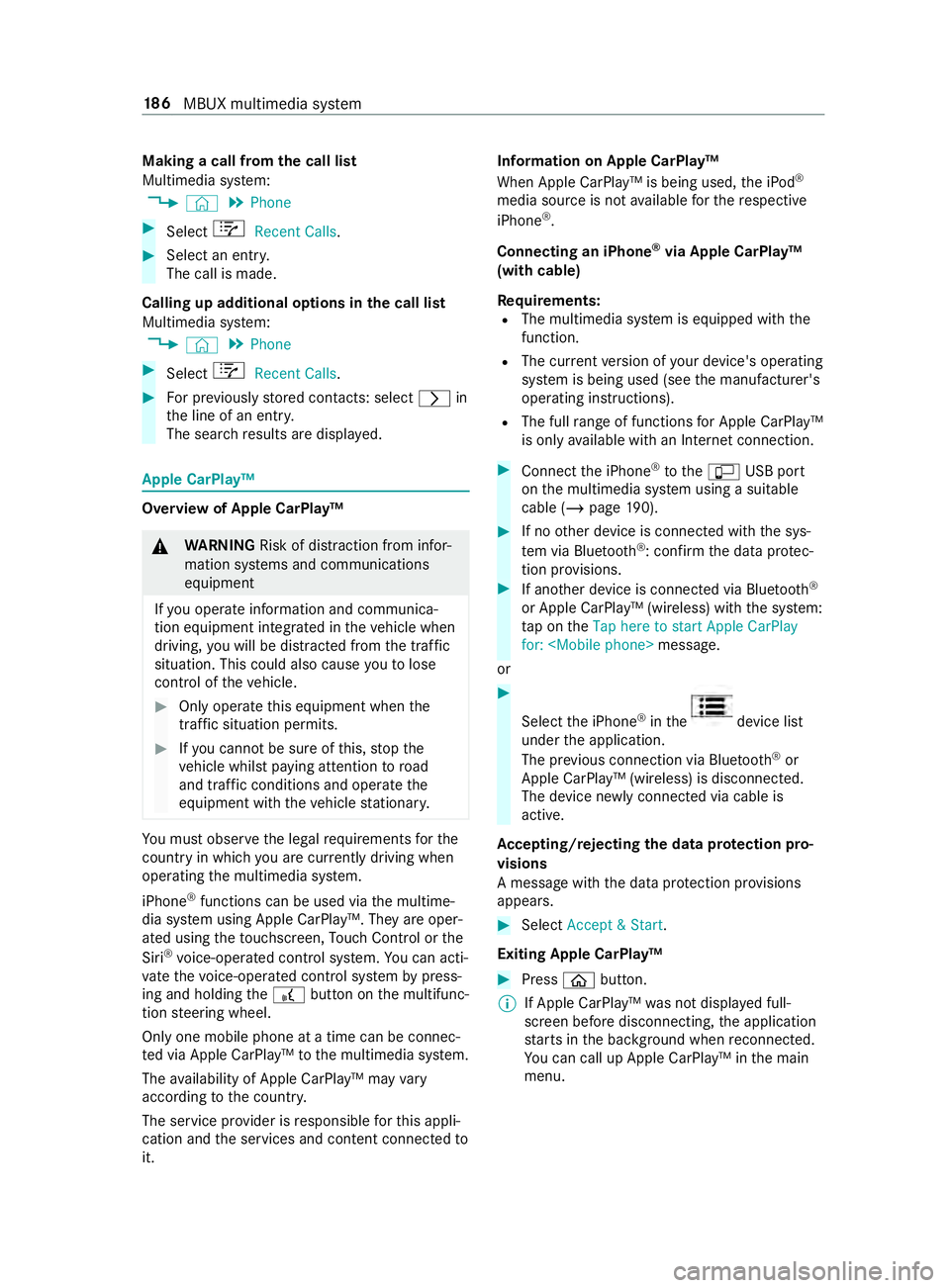
Making a call from
the call list
Multimedia sy stem:
4 © 5
Phone #
Select +Recent Calls. #
Select an entry.
The call is made.
Calling up additional options in the call list
Multimedia sy stem:
4 © 5
Phone #
Select +Recent Calls. #
For pr eviously stored contacts: select 0048in
th e line of an entry.
The sear chresults are displa yed. Apple CarPlay™
Overview of Apple CarPlay™
&
WARNING Risk of distraction from infor‐
mation sy stems and communications
equipment
If yo u operate information and communica‐
tion equipment integ rated in theve hicle when
driving, you will be distracted from the tra ffic
situation. This could also cause youto lose
control of theve hicle. #
Only operate this equipment when the
traf fic situation permits. #
Ifyo u cannot be sure of this, stop the
ve hicle whilst paying attention toroad
and traf fic conditions and ope rate the
equipment with theve hicle stationar y. Yo
u must obse rveth e legal requirements forthe
country in whi chyou are cur rently driving when
ope rating the multimedia sy stem.
iPhone ®
functions can be used via the multime‐
dia sy stem using Apple CarPlay™. They are oper‐
ated using theto uchsc reen, Touch Control or the
Siri ®
vo ice-operated control sy stem. You can acti‐
va te thevo ice-opera ted control sy stem bypress‐
ing and holding the£ button on the multifunc‐
tion steering wheel.
Only one mobile phone at a time can be connec‐
te d via Apple CarPlay™ tothe multimedia sy stem.
The availability of Apple CarPlay™ may vary
according tothe count ry.
The service pr ovider is responsible forth is appli‐
cation and the services and content connected to
it. Information on Apple CarPlay™
When Apple CarPlay™ is being used,
the iPod ®
media source is not available forth ere spective
iPhone ®
.
Connecting an iPhone ®
via Apple CarPlay™
(with cable)
Re quirements:
R The multimedia sy stem is equipped with the
function.
R The cur rent version of your device's operating
sy stem is being used (see the manufacturer's
operating instructions).
R The full range of functions for Apple CarPlay™
is only available with an In tern et connection. #
Connect the iPhone ®
to the00C2 USB port
on the multimedia sy stem using a suitable
cable (/ page190). #
Ifno other device is connected with the sys‐
te m via Blue tooth®
: confirm the data pr otec‐
tion pr ovisions. #
If ano ther device is connected via Blue tooth®
or Apple CarPlay™ (wireless) with the sy stem:
ta p on theTap here to start Apple CarPlay
for:
or #
Select the iPhone ®
in the device list
under the application.
The pr evious connection via Blue tooth®
or
Apple CarPlay™ (wireless) is disconnected.
The device newly connected via cable is
active.
Ac cepting/rejecting the data pr otection pro‐
visions
A message with the data pr otection pr ovisions
appears. #
Select Accept & Start.
Exiting Apple CarPlay™ #
Press 00E2button.
% If Apple CarPlay™
was not displa yed full-
screen before disconnecting, the application
st arts in the bac kground when reconnected.
Yo u can call up Apple CarPlay™ in the main
menu. 18 6
MBUX multimedia sy stem