display MERCEDES-BENZ SPRINTER 2019 MY19 with 7” screen
[x] Cancel search | Manufacturer: MERCEDES-BENZ, Model Year: 2019, Model line: SPRINTER, Model: MERCEDES-BENZ SPRINTER 2019Pages: 354, PDF Size: 6.15 MB
Page 192 of 354
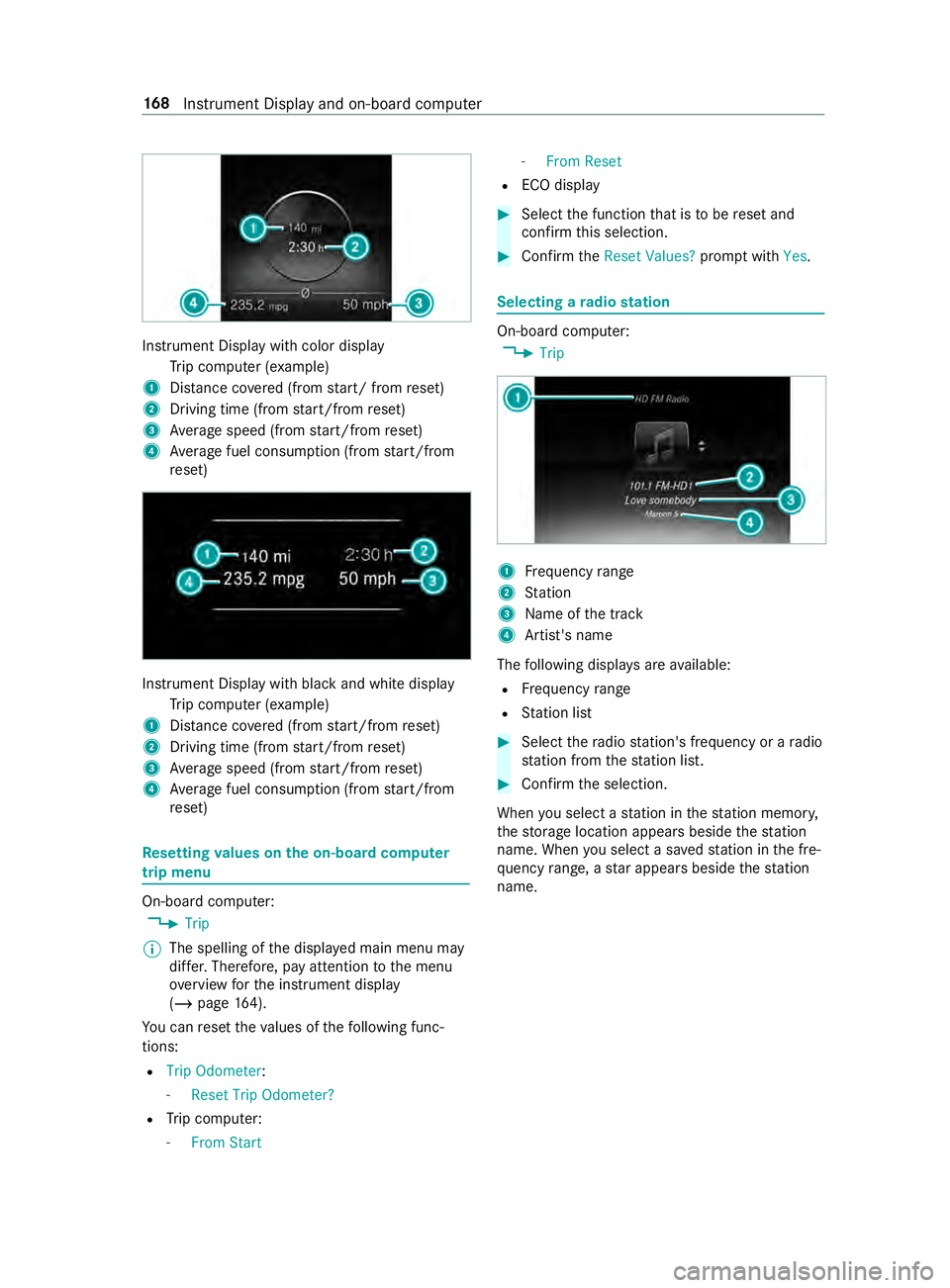
Instrument Display with color display
Trip computer (e xamp le)
1 Distance co vered (from start/ from reset)
2 Driving time (from start/from reset)
3 Average speed (from start/from reset)
4 Average fuel consum ption (from start/from
re set) Instrument Display with black and white display
Trip computer (e xamp le)
1 Distance co vered (from start/from reset)
2 Driving time (from start/from reset)
3 Average speed (from start/from reset)
4 Average fuel consum ption (from start/from
re set) Re
setting values on the on-boa rdcompu ter
trip menu On-board computer:
4 Trip
% The spelling of
the displa yed main menu may
dif fer. Therefore, pay attention tothe menu
ove rview forth e instrument display
(/ page 164).
Yo u can reset theva lues of thefo llowing func‐
tions:
R Trip Odometer :
- Reset Trip Odometer?
R Trip computer:
- From Start -
From Reset
R ECO display #
Select the function that is tobe reset and
confirm this selection. #
Confirm theReset Values? promptwith Yes. Selecting a
radio station On-board computer:
4 Trip 1
Frequency range
2 Station
3 Name of the track
4 Artist's name
The following displa ysare available:
R Frequency range
R Station list #
Select thera dio station's frequency or a radio
st ation from thest ation list. #
Confirm the selection.
When you select a station in thest ation memor y,
th estorage location appears beside thest ation
name. When you select a sa vedstation in the fre‐
qu ency range, a star appears beside thest ation
name. 16 8
Instrument Display and on-board computer
Page 193 of 354
Operating media playback with
the on-boa rd
compu ter On-board computer:
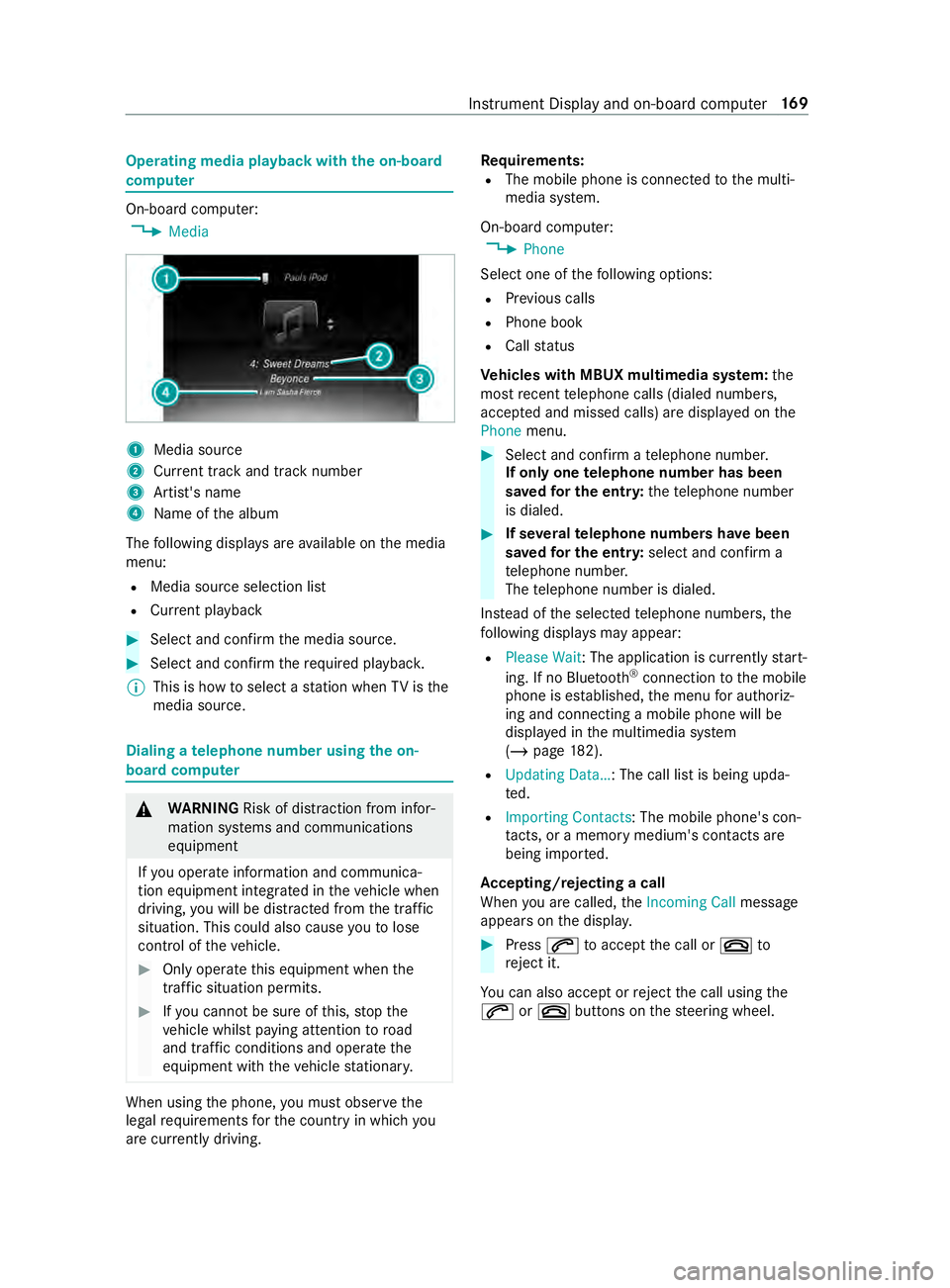
4 Media 1
Media source
2 Current track and track number
3 Artist's name
4 Name of the album
The following displa ysare available on the media
menu:
R Media source selection list
R Current pl ayback #
Select and con firm the media source. #
Select and confirm there qu ired playbac k.
% This is how
toselect a station when TVisthe
media source. Dialing a
telephone number using the on-
board compu ter &
WARNING Risk of distraction from infor‐
mation sy stems and communications
equipment
If yo u operate information and communica‐
tion equipment integ rated in theve hicle when
driving, you will be distracted from the tra ffic
situation. This could also cause youto lose
control of theve hicle. #
Only operate this equipment when the
traf fic situation permits. #
Ifyo u cannot be sure of this, stop the
ve hicle whilst paying attention toroad
and traf fic conditions and ope rate the
equipment with theve hicle stationar y. When using
the phone, you must obse rvethe
legal requirements forth e count ryin which you
are cur rently driving. Re
quirements:
R The mobile phone is connec tedto the multi‐
media sy stem.
On-board computer: 4 Phone
Select one of thefo llowing options:
R Prev ious calls
R Phone book
R Call status
Ve hicles with MBUX multimedia sy stem: the
most recent telephone calls (dialed numbe rs,
accep ted and missed calls) are displa yed on the
Phone menu. #
Select and confirm a telephone numbe r.
If only one telephone number has been
sa ve dfo r the entr y:thete lephone number
is dialed. #
If se veralte lephone numbers ha vebeen
sa ve dfo r the entr y:select and confirm a
te lephone numbe r.
The telephone number is dialed.
Ins tead of the selected telephone numbe rs,the
fo llowing displa ysmay appear:
R Please Wait : The application is cur rently start‐
ing. If no Blue tooth®
connection tothe mobile
phone is es tablished, the menu for authoriz‐
ing and connecting a mobile phone will be
displa yed in the multimedia sy stem
(/ page 182).
R Updating Data…: The call list is being upda‐
ted.
R Importing Contacts: The mobile phone's con‐
ta cts, or a memo rymedium's contacts are
being impor ted.
Ac cepting/rejecting a call
When you are called, theIncoming Call message
appears on the displa y. #
Press 0061toaccept the call or 0076to
re ject it.
Yo u can also accept or reject the call using the
0061 or0076 buttons on thesteering wheel. Instrument Display and on-board computer
16 9
Page 194 of 354
Calling up settings on
the on-boa rdcompu ter On-board computer:
4 Settings
The following ent ries can be set on the Settings
menu:
R Light
- Setting Instrument lighting
R Vehicle
- Switching Regensensor (Rain sensor) on
and off
R Setting Heating
R Display and Operation
- Switching permanent Display DEV Level
on and off #
Select an entry and confirm the selection. #
Make the necessary changes. 17 0
Instrument Display and on-board computer
Page 197 of 354
Overview and operation
Overview of
the MBUX multimedia sy stem &
WARNING Risk of distraction from infor‐
mation sy stems and communications
equipment
If yo u operate information and communica‐
tion equipment integ rated in theve hicle when
driving, you will be distracted from the tra ffic
situation. This could also cause youto lose
control of theve hicle. #
Only operate this equipment when the
traf fic situation permits. #
Ifyo u cannot be sure of this, stop the
ve hicle whilst paying attention toroad
and traf fic conditions and ope rate the
equipment with theve hicle stationar y. Yo
u must obse rveth e legal requirements forthe
country in whi chyou are cur rently driving when
ope rating the multimedia sy stem.
MBUX stands for Mercedes-Benz User Experi‐
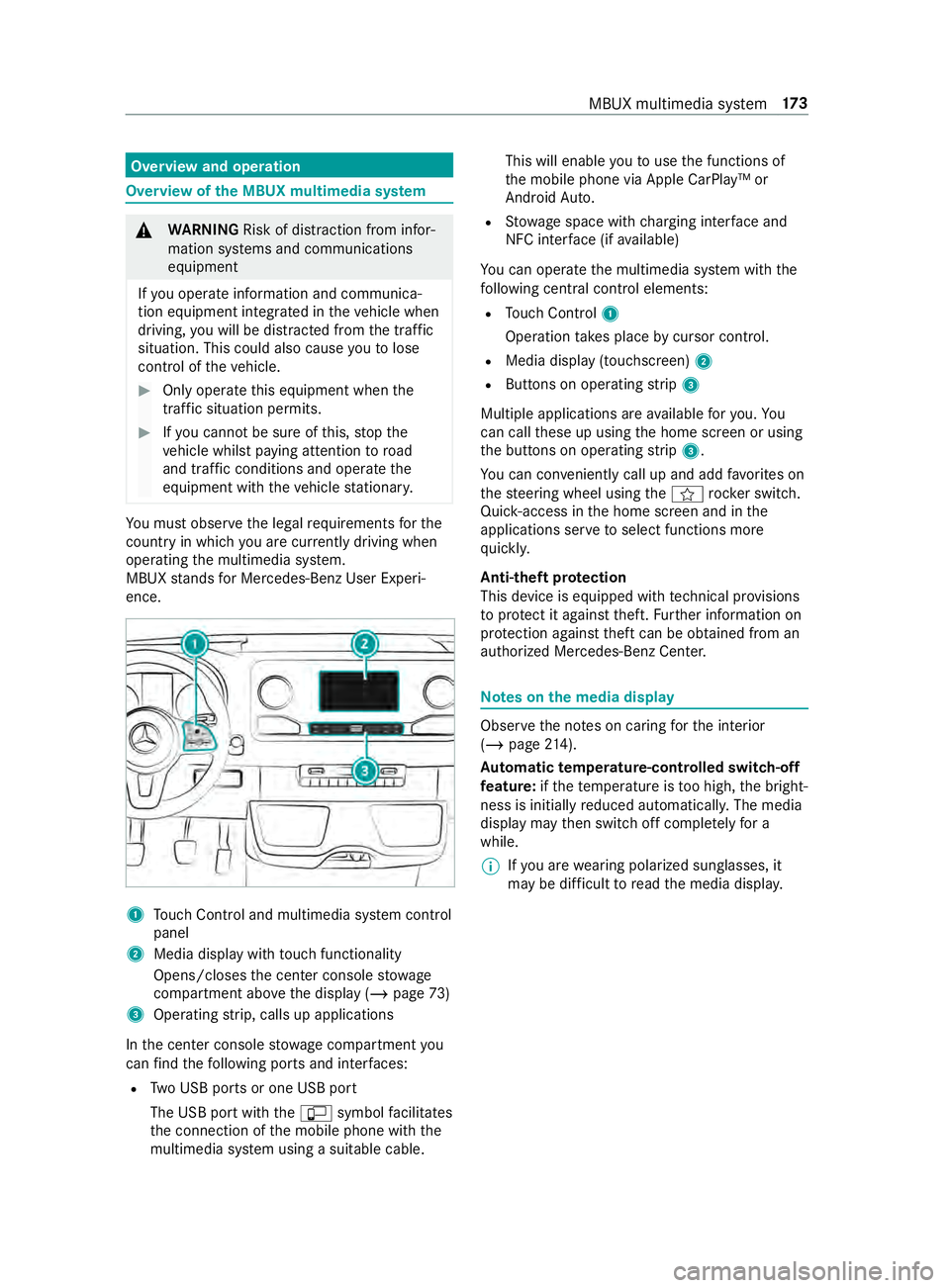
ence. 1
Touch Control and multimedia sy stem cont rol
panel
2 Media display with touch functionality
Opens/closes the center console stowage
compartment abo vethe display (/ page73)
3 Operating strip, calls up applications
In the center console stowage compartment you
can find thefo llowing ports and inter faces:
R Two USB ports or one USB port
The USB port with the00C2 symbol facilitates
th e connection of the mobile phone with the
multimedia sy stem using a suitable cable. This will enable
youto use the functions of
th e mobile phone via Apple CarPlay™ or
Android Auto.
R Stow age space with charging inter face and
NFC inter face (if available)
Yo u can operate the multimedia sy stem with the
fo llowing central control elements:
R Touch Control 1
Operation takes place bycursor control.
R Media display (tou chscreen) 2
R Buttons on operating strip 3
Multiple applications are available foryo u. Yo u
can call these up using the home screen or using
th e buttons on operating strip 3.
Yo u can con veniently call up and add favo rite s on
th esteering wheel using the004B rock er switch.
Quic k-access in the home screen and in the
applications ser vetoselect functions more
qu ickl y.
Anti-theft pr otection
This device is equipped with tech nical pr ovisions
to protect it against theft. Further information on
pr otection against theft can be obtained from an
authorized Mercedes-Benz Center. Note
s onthe media display Obser
vethe no tes on caring forth e interior
(/ page 214).
Au tomatic temperature-cont rolled switch-off
fe ature: ifth ete mp erature is too high, the bright‐
ness is initially reduced automaticall y.The media
display may then switch off comple tely for a
while.
% If
yo u are wearing polarized sun glasses, it
may be dif ficult toread the media displa y. MBUX multimedia sy
stem 17 3
Page 198 of 354
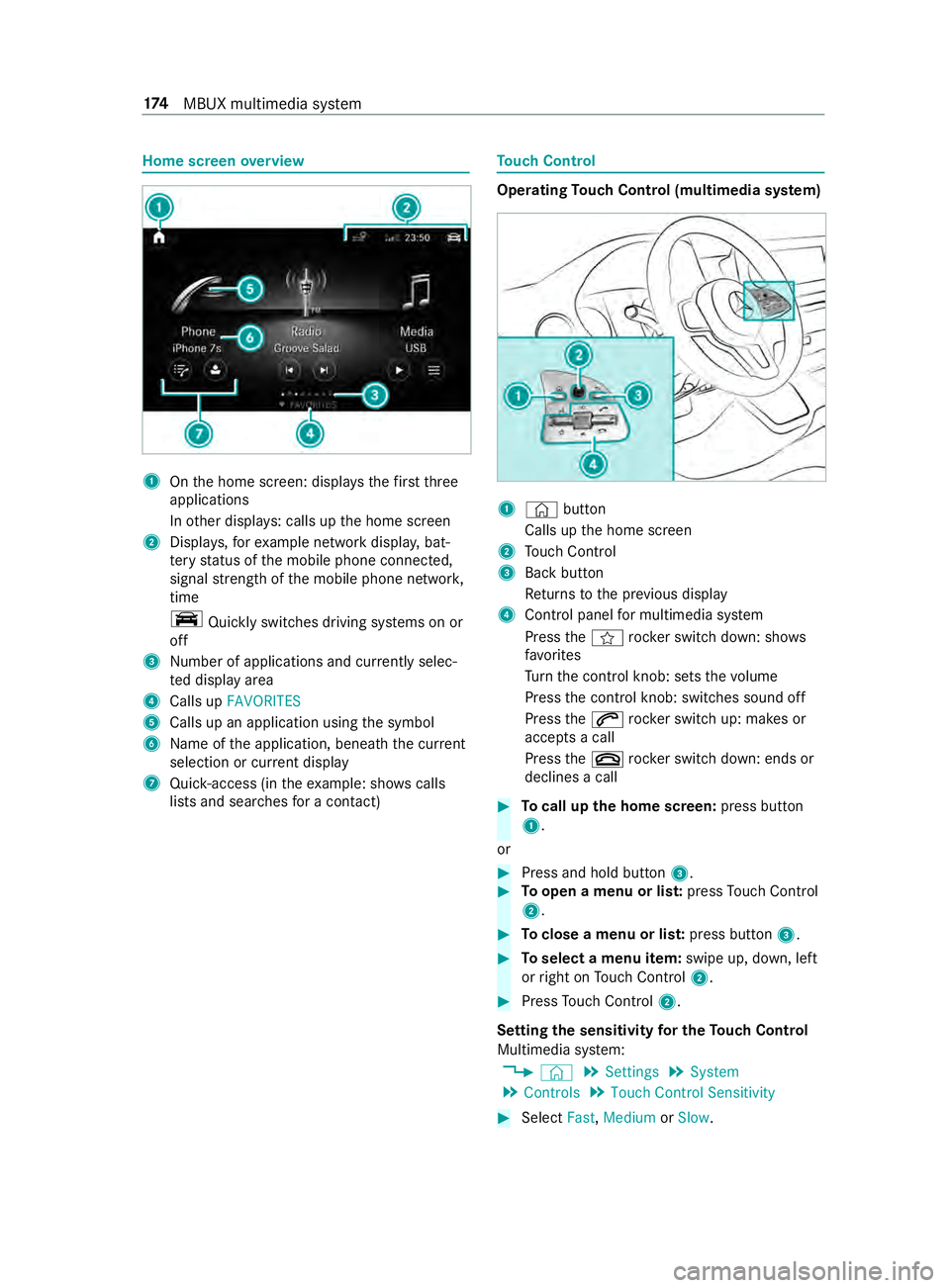
Home screen
overview 1
Onthe home screen: displa ys thefirs tth ree
applications
In other displa ys: calls up the home screen
2 Displa ys,fo rex ample network displa y,bat‐
te ry status of the mobile phone connected,
signal stre ngth of the mobile phone networ k,
time
y Quicklyswitches driving sy stems on or
off
3 Numb er of applications and cur rently selec‐
te d display area
4 Calls up FAVORITES
5 Calls up an application using the symbol
6 Name of the application, beneath the cur rent
selection or cur rent displ ay
7 Quick-access (in theex ample: sho wscalls
li st s and sear ches for a contact) To
uch Control Operating
Touch Control (multimedia sy stem) 1
© button
Calls up the home screen
2 Touch Control
3 Back button
Returns tothe pr evious display
4 Cont rol panel for multimedia sy stem
Press the004B rocker switch down: sho ws
fa vo rites
Tu rn the cont rol knob: sets thevo lume
Press the cont rol knob: switches sound off
Press the0061 rocker switch up: makes or
accepts a call
Press the0076 rocker switch down: ends or
declines a call #
Tocall up the home screen: press button
1.
or #
Press and hold button 3. #
Toopen a menu or lis t:press Touch Control
2. #
Toclose a menu or lis t:press button 3. #
Toselect a menu item: swipe up, down, left
or right on Touch Control 2. #
Press Touch Control 2.
Setting the sensitivity for the Touch Control
Multimedia sy stem:
4 © 5
Settings 5
System
5 Controls 5
Touch Control Sensitivity #
Select Fast,Medium orSlow . 174
MBUX multimedia sy stem
Page 199 of 354
Switching acoustic operating
feedba ckfor
th eTo uch Control on/off
Multimedia sy stem:
4 © 5
Settings 5
System
5 Controls
The function is suppor tedby the selection in a
list. #
Select Acoustic Operating Feedback .#
Set Normal, LoudorOff.
If th e function is activated you will hear a
clicking sound when sc rolling in a list. When
th e beginning or end of the list is reached you
will hear ano ther clicking sound. To
uchscreen Operating
theto uchscreen
Re quirements:
R For the map functions: an iPhone®
is con‐
nected via Apple CarPl ay™ or a mobile phone
is connected via Android Autowith the multi‐
media sy stem.
R A navigation application is available on the
mobile phone.
Ta pping #
Toselect a menu item or entr y:tap on a
symbol or an ent ry. #
Toincrease the map scale: tap twice
qu ickly with one finger. #
Toreduce the map scale: tap with two fin‐
ge rs. #
Toenter characters with theke yboard: tap
on a button.
Single-finger swipe #
Tonavigate in menus: swipe up, down, left
or right.
To uching, holding and moving #
Toset thevo lume on a scale: touch the
to uchsc reen and mo vethefinger tothe left or
ri ght.
To uching and holding #
Tocall up a global menu in the applica‐
tions: touch theto uchsc reen and hold until
th eOPTIONS menu appears. Setting acoustic operation
feedba ckfor the
to uchscreen
Multimedia sy stem:
4 © 5
Settings 5
System
5 Controls 5
Touch Control Sensitivity
The function is suppor tedby the selection in a
list. #
Select Acoustic Operating Feedback . #
Set Normal, LoudorOff.
If th e function is activated you will hear a
clicking sound when sc rolling in a list. When
th e beginning or end of the list is reached you
will hear ano ther clicking sound. Applications
Calling up applications
Using buttons on
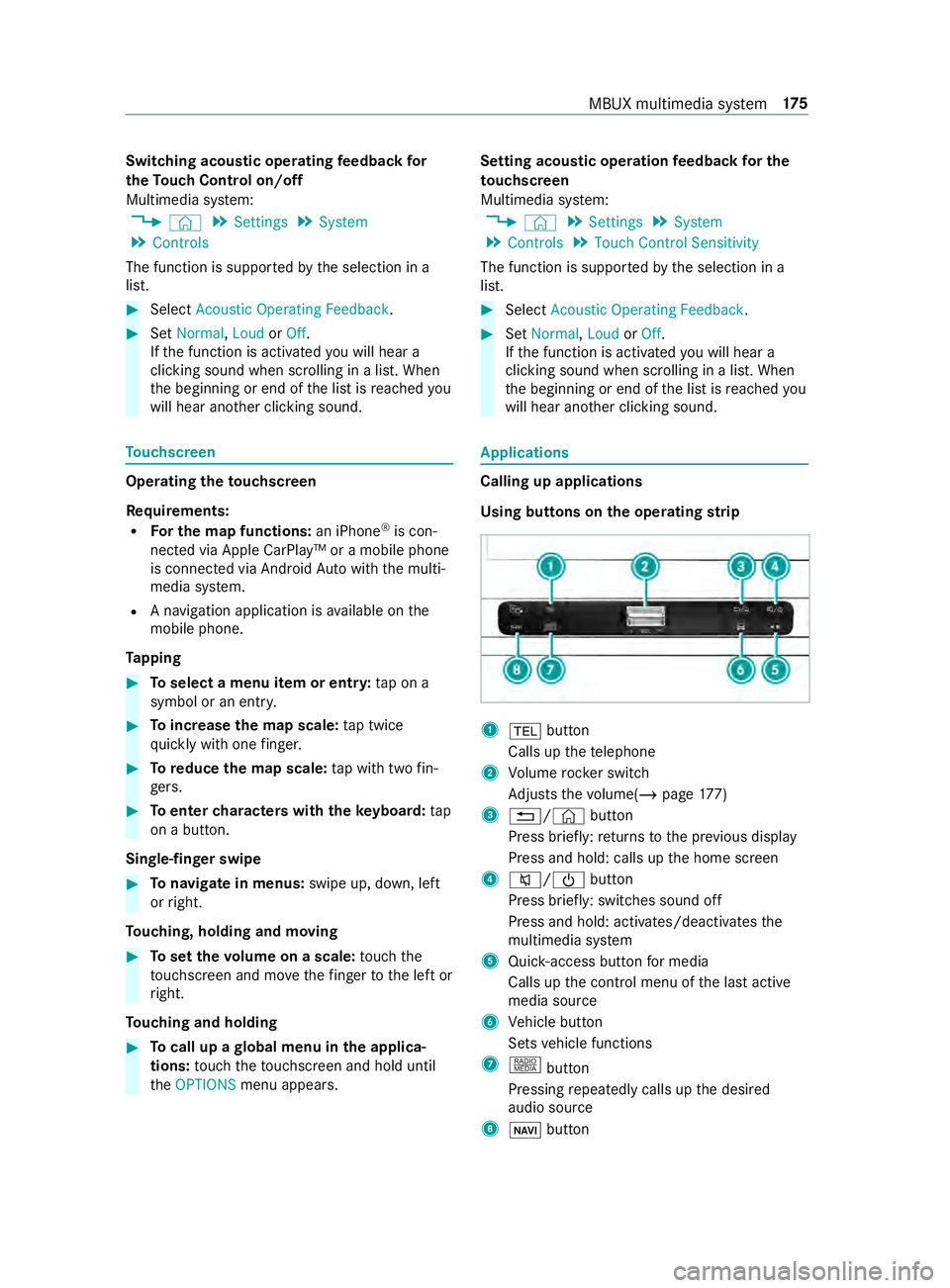
the operating strip 1
002B button
Calls up thete lephone
2 Volume rocker switch
Ad justs thevo lume(/ page177)
3 0038/ ©button
Press brief ly:re turns tothe pr evious display
Press and hold: calls up the home screen
4 0063/00D0 button
Press brief ly: switches sound off
Press and hold: acti vates/deactivates the
multimedia sy stem
5 Quic k-access button for media
Calls up the cont rol menu of the last active
media source
6 Vehicle button
Sets vehicle functions
7 | button
Pressing repeatedly calls up the desired
audio source
8 00CB button MBUX multimedia sy
stem 175
Page 200 of 354
Calls up navigation
Re
quiremen t:the mobile phone is connected
to the multimedia sy stem via the USB port
00C2 using a suitable cable. Via Apple Car‐
Play™ or Android Autothe navigation applica‐
tion of the mobile phone can be used. #
Toaccess stations and music trac ks
qu ickl y:press button 5.
The control menu appears forth e audio
source that wa s last selected. #
Swipe tothe left or right.
Ra dio: the pr evious or next station is set.
Media source: the pr evious or the next music
tra ck is selec ted. #
Tohide the control menu: press button5.
Using the home screen
The home screen is shown in the media display
when youstart theve hicle. #
Select the application byswiping and tapping.
or #
In any displa y:press the© button on the
To uch Control.
or #
Tap on the© symbol on theto uchsc reen.
The applications are displa yed. #
Select the application byswiping and tapping.
Changing the ar rangement of applications on
th e home screen #
Call up the home screen #
Touch and hold an application on the
to uchsc reen until symbols appear. #
Tap on 0059 or0065 and mo vethe applica‐
tion in the menu. #
Tap on 00FB. Switching
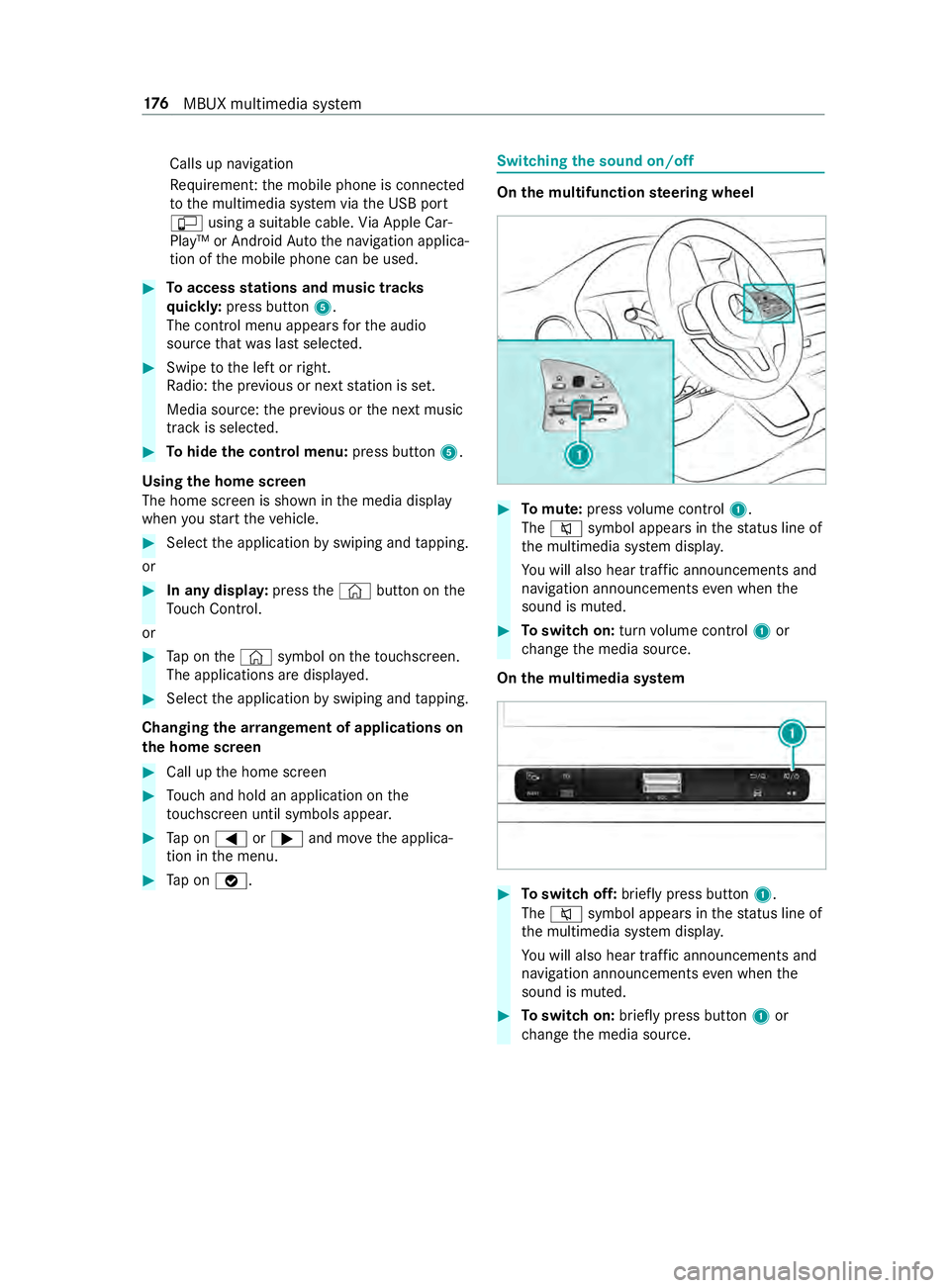
the sound on/off On
the multifunction steering wheel #
Tomute: pressvolume control 1.
The 0063 symbol appears in thest atus line of
th e multimedia sy stem displa y.
Yo u will also hear traf fic announcements and
navigation announcements even when the
sound is muted. #
Toswitch on: turnvolume control 1or
ch ange the media source.
On the multimedia sy stem #
Toswitch off: briefly press button 1.
The 0063 symbol appears in thest atus line of
th e multimedia sy stem displa y.
Yo u will also hear traf fic announcements and
navigation announcements even when the
sound is muted. #
Toswitch on: brieflypress button 1or
ch ange the media source. 176
MBUX multimedia sy stem
Page 201 of 354
Ad
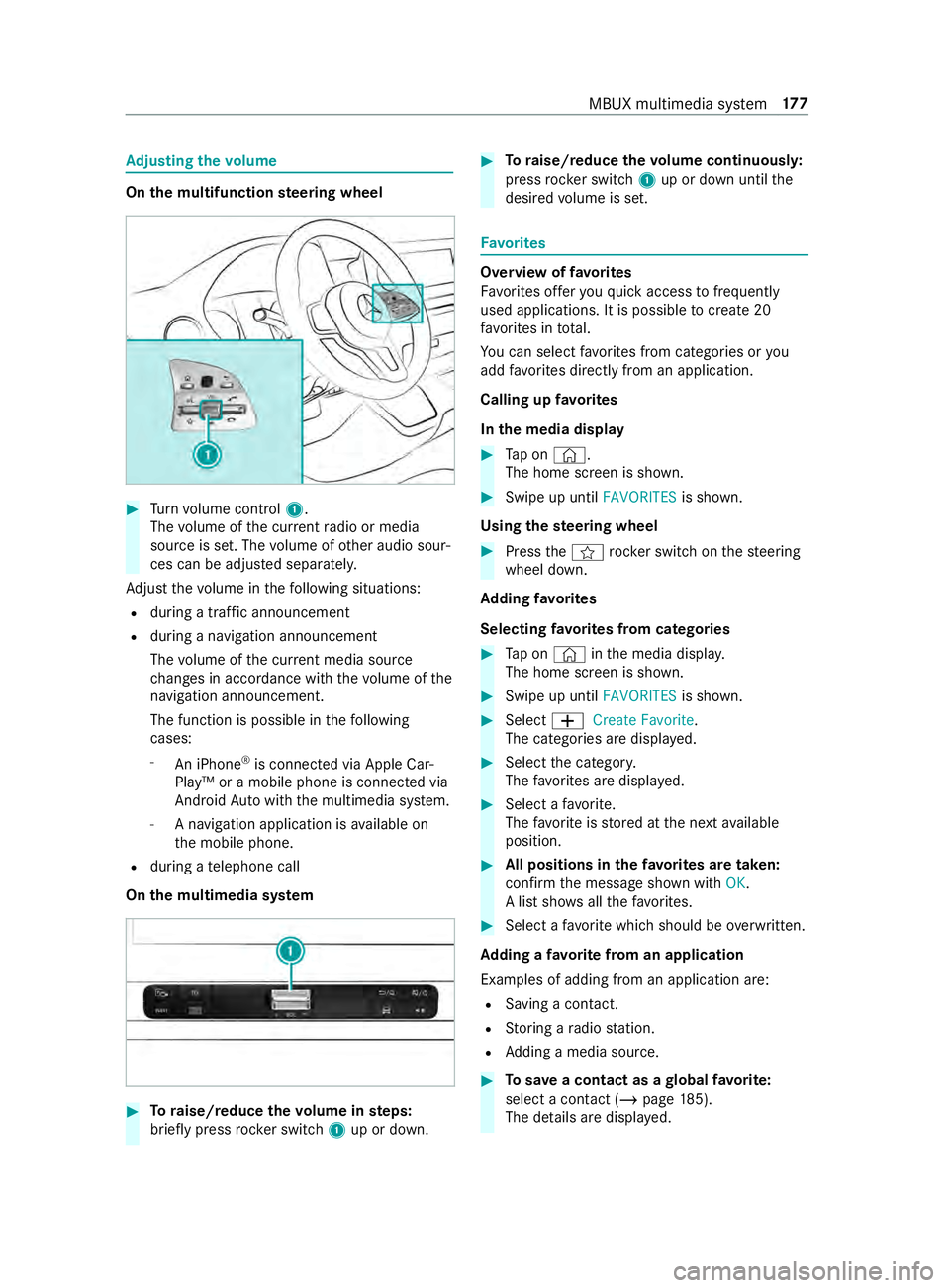
justing the volume On
the multifunction steering wheel #
Turn volume control 1.
The volume of the cur rent radio or media
source is set. The volume of other audio sour‐
ces can be adjus ted separately.
Ad just thevo lume in thefo llowing situations:
R during a traf fic announcement
R during a navigation announcement
The volume of the cur rent media sou rce
ch anges in accordance with thevo lume of the
navigation announcement.
The function is possible in thefo llowing
cases:
- An iPhone ®
is connec ted via Apple Car‐
Play™ or a mobile phone is connected via
Android Autowith the multimedia sy stem.
- A navigation application is available on
th e mobile phone.
R during a telephone call
On the multimedia sy stem #
Toraise/reduce thevo lume in steps:
brief lypress rocker switch 1up or down. #
Toraise/reduce thevo lume continuousl y:
press rocker switch 1up or down until the
desired volume is set. Favo
rites Overview of
favo rites
Favo rite s of feryo uqu ick access tofrequently
used applications. It is possible tocrea te20
fa vo rite s in tota l.
Yo u can select favo rite s from categories or you
add favo rite s directly from an application.
Calling up favo rites
In the media display #
Tap on ©.
The home screen is shown. #
Swipe up until FAVORITESis shown.
Using thest eering wheel #
Press the004B rocker switch on thesteering
wheel down.
Ad ding favo rites
Selecting favo rite s from categories #
Tap on © inthe media displa y.
The home screen is shown. #
Swipe up until FAVORITESis shown. #
Select 0081Create Favorite .
The categories are displa yed. #
Select the categor y.
The favo rite s are displa yed. #
Select a favo rite.
The favo rite isstored at the next available
position. #
All positions in thefa vo rite s are taken:
confirm the message shown with OK.
A list sho wsallthefa vo rite s. #
Select a favo rite which should be overwritten.
Ad ding a favo rite from an application
Examples of adding from an application are: R Saving a contact.
R Storing a radio station.
R Adding a media source. #
Tosave a contact as a global favo rite :
select a contact (/ page 185).
The de tails are displa yed. MBUX multimedia sy
stem 17 7
Page 202 of 354
#
Press on a phone number until theOPTIONS
menu is shown. #
Select Save as Favorite.
The contact is added as a favo rite. #
Tosto reara dio station as a global favo r‐
ite: set a radio station (/ page193). #
Press on thera dio station until theOPTIONS
menu is shown. #
Select Save as Favorite.
The radio station is added as a favo rite.
Re naming favo rites #
Tap on © inthe media displa y.
The home screen is shown. #
Swipe up until FAVORITESis shown. #
Press on a favo rite until theOPTIONS menu is
shown. #
Select Rename . #
Ente rth e name. #
Select OK.
Moving favo rites
Moving favo rite s in thefa vo rite s menu #
Tap on © inthe media displa y.
The home screen is shown. #
Swipe up until FAVORITESis shown. #
Press on a favo rite until theOPTIONS menu is
shown. #
Select Move. #
Movethefa vo rite to the new position. #
Tap on 00FB.
Deleting favo rites #
Tap on © inthe media displa y.
The home screen is shown. #
Swipe up until FAVORITESis shown. #
Press on a favo rite until theOPTIONS menu is
shown. #
Select Delete. #
Select Yes. Entering
characters Using
thech aracter input function &
WARNING Risk of distraction from infor‐
mation sy stems and communications
equipment
If yo u operate information and communica‐
tion equipment integ rated in theve hicle when
driving, you will be distracted from the tra ffic
situation. This could also cause youto lose
control of theve hicle. #
Only operate this equipment when the
traf fic situation permits. #
Ifyo u cannot be sure of this, stop the
ve hicle whilst paying attention toroad
and traf fic conditions and ope rate the
equipment with theve hicle stationar y. Yo
u must obse rveth e legal requirements forthe
country in whi chyou are cur rently driving when
ope rating the multimedia sy stem.
Character entry can be carried out with these
cont rol elements:
R Touch Control
R Touchsc reen (media display)
Character entry take s place bycursor control
when using theTo uch Control.
Character input can be star ted with a control ele‐
ment and resumed with ano ther. #
When theke yboard is shown, en terth ech ar‐
acters on the cont rol element byswiping and
pressing or bytapping (touchscreen).
or #
Write thech aracter on theto uchsc reen.
Examples of character ent ry:
R Renaming a favo rite
R Enter a telephone number 17 8
MBUX multimedia sy stem
Page 203 of 354
Entering
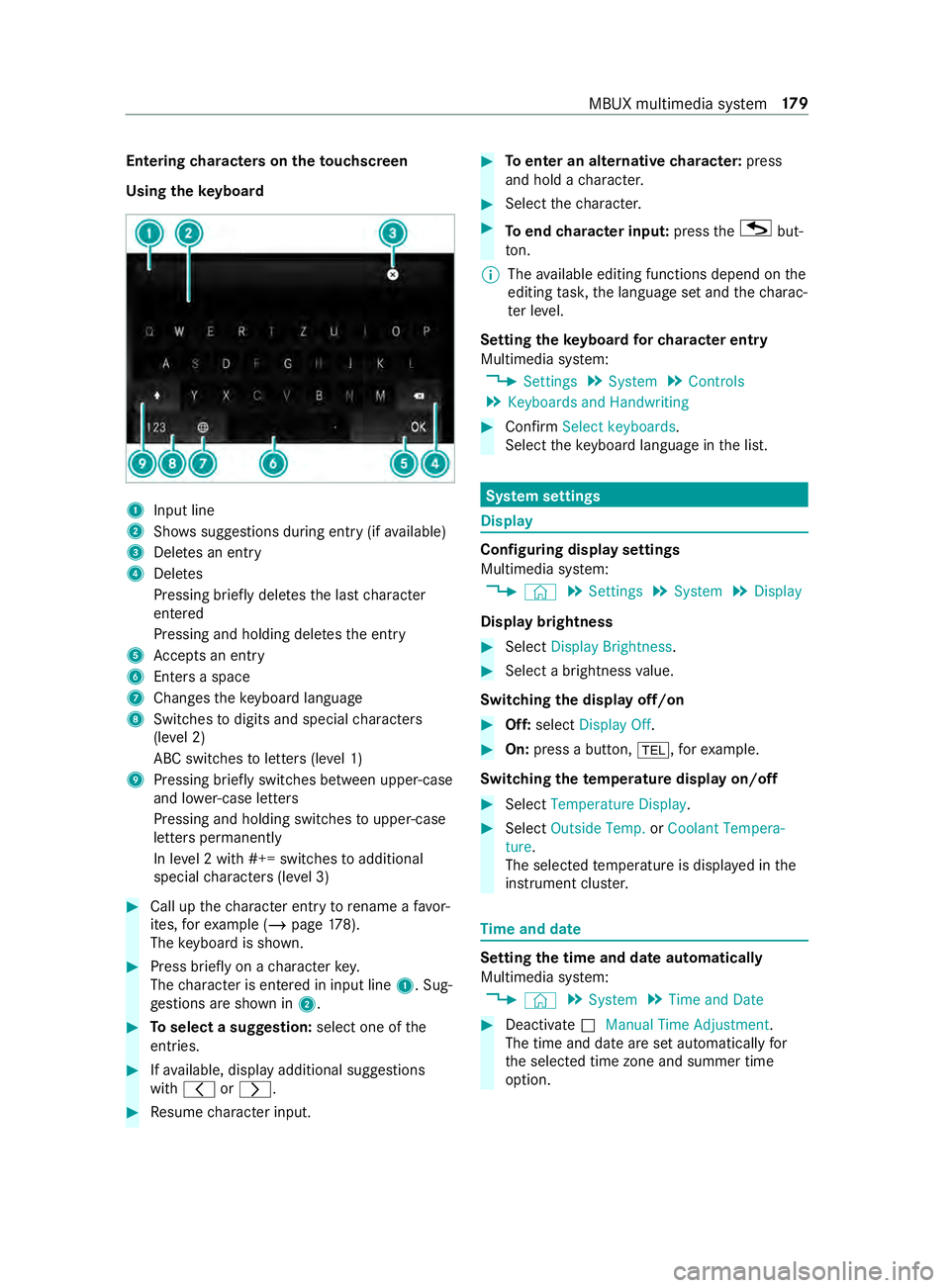
characters on theto uchscreen
Using theke yboard 1
Input line
2 Showssuggestions during entry (if available)
3 Deletes an entry
4 Deletes
Pressing brief lydele testh e last character
entered
Pressing and holding dele testh e entry
5 Accepts an entry
6 Enters a space
7 Changes theke yboard language
8 Switches todigits and special characters
(le vel 2)
ABC switches toletters (le vel 1)
9 Pressing brief lyswitches between upper-case
and lo wer-case letters
Pressing and holding switches toupper-case
letters permanent ly
In le vel 2 with #+= switches toadditional
special characters (le vel 3) #
Call up thech aracter ent ryto rename a favo r‐
ites, forex ample (/ page178).
The keyboard is shown. #
Press brief lyon a character key.
The character is entered in input line 1. Sug‐
ge stions are shown in 2. #
Toselect a suggestion: select one ofthe
entri es. #
Ifav ailable, display additional suggestions
with 0047 or0048. #
Resume character input. #
Toenter an alternative character: press
and hold a character. #
Select thech aracter. #
Toend character input: presstheG but‐
to n.
% The
available editing functions depend on the
editing task, the language set and thech arac‐
te r le vel.
Setting theke yboard forch aracter entry
Multimedia sy stem:
4 Settings 5
System 5
Controls
5 Keyboards and Handwriting #
Confirm Select keyboards.
Select theke yboard language in the list. Sy
stem settings Display
Configuring display settings
Multimedia sy
stem:
4 © 5
Settings 5
System 5
Display
Display brightness #
Select Display Brightness . #
Select a brightness value.
Switching the display off/on #
Off: select Display Off . #
On: press a button, 002B,forex ample.
Swit ching thetemp erature display on/off #
Select Temperature Display . #
Select Outside Temp. orCoolant Tempera-
ture.
The selec tedte mp erature is displa yed in the
instrument clus ter. Time
and date Setting
the time and da teautomatical ly
Multimedia sy stem:
4 © 5
System 5
Time and Date #
Deactivate 0053Manual Time Adjustment.
The time and date are set automatically for
th e selected time zone and summer time
option. MBUX multimedia sy
stem 17 9