low NISSAN GT-R 2013 R35 Multi Function Display User Guide
[x] Cancel search | Manufacturer: NISSAN, Model Year: 2013, Model line: GT-R, Model: NISSAN GT-R 2013 R35Pages: 315, PDF Size: 6.96 MB
Page 40 of 315
![NISSAN GT-R 2013 R35 Multi Function Display User Guide 2-12Navigation
3. Highlight [Change View] and push the rightbutton of the directional buttons.
4. Highlight the preferred map view and push <ENTER>. The indicator of the selected
map view illuminates.](/img/5/316/w960_316-39.png "NISSAN GT-R 2013 R35 Multi Function Display User Guide 2-12Navigation
3. Highlight [Change View] and push the rightbutton of the directional buttons.
4. Highlight the preferred map view and push <ENTER>. The indicator of the selected
map view illuminates.")
2-12Navigation
3. Highlight [Change View] and push the rightbutton of the directional buttons.
4. Highlight the preferred map view and push
map view illuminates.
5. The display automatically returns to the map screen.
Available views
. [2D Map]:
Switches to the 2D map.
. [Birdview (3D)]:
Switches to the Birdview
TMmap.
. [Split: 2D Map]:
Changes to the split screen mode and both
halves display maps in 2D.
. [Split: Birdview Map]:
Changes to the split screen mode and the
left half displays the map in 2D and the right
half displays the map in Birdview
TM.
INFO:
. When the split screen mode is selected, the
map settings for the left screen can be
changed independently.
“Setting left screen display”
(page 2-16)
. If the split screen mode is selected, the
normal map scrolling and scale adjustment
are set in the right screen. However, if an
icon is touched before adjusting the map
direction or scale, then each screen can be
adjusted independently.
Split: 2D Map
Split: BirdviewTMMap
Other settings
The map view can also be set by performing the
following procedure.
1. Push
2. Highlight [Navigation] and push
3. Highlight [Map View] and push
4. Highlight [Change View] and push
Page 42 of 315
![NISSAN GT-R 2013 R35 Multi Function Display User Guide 2-14Navigation
.[Long Range]:
Sets the long range map view display on/off.
“Settings long range map view”
(page 2-15)
. [Map Color]:
Changes the map color.
“Setting map color ” (page 2-15)
. [](/img/5/316/w960_316-41.png "NISSAN GT-R 2013 R35 Multi Function Display User Guide 2-14Navigation
.[Long Range]:
Sets the long range map view display on/off.
“Settings long range map view”
(page 2-15)
. [Map Color]:
Changes the map color.
“Setting map color ” (page 2-15)
. [")
2-14Navigation
.[Long Range]:
Sets the long range map view display on/off.
“Settings long range map view”
(page 2-15)
. [Map Color]:
Changes the map color.
“Setting map color ” (page 2-15)
. [Birdview Angle]:
Changes the Birdview
TMangle.“Changing BirdviewTMangle”
(page 2-16)
. [Left Split Map Settings]:
Sets the map settings for the left screen of
the split map.
“Setting left screen display”
(page 2-16)
. [Show all Freeway Exits on Route]/[Auto.
Show Turn List on Freeway]:
Sets the display of the freeway exit informa-
tion on/off.
“Show exit information on freeways”
(page 2-52)
Other settings:
The orientation of the map can also be set by
performing the following procedure.
1. Push
2. Highlight [Navigation] and push
3. Highlight [Map View] and push
Setting map orientation
The map direction (orientation) can also be
changed in the 2D map. These settings are
available only in the 2D map or 2D/2D split map.
1. Highlight [Map Orientation] and push
2. Highlight the preferred map orientation and push
selected map orientation illuminates.
3. Push
Page 43 of 315
INFO:
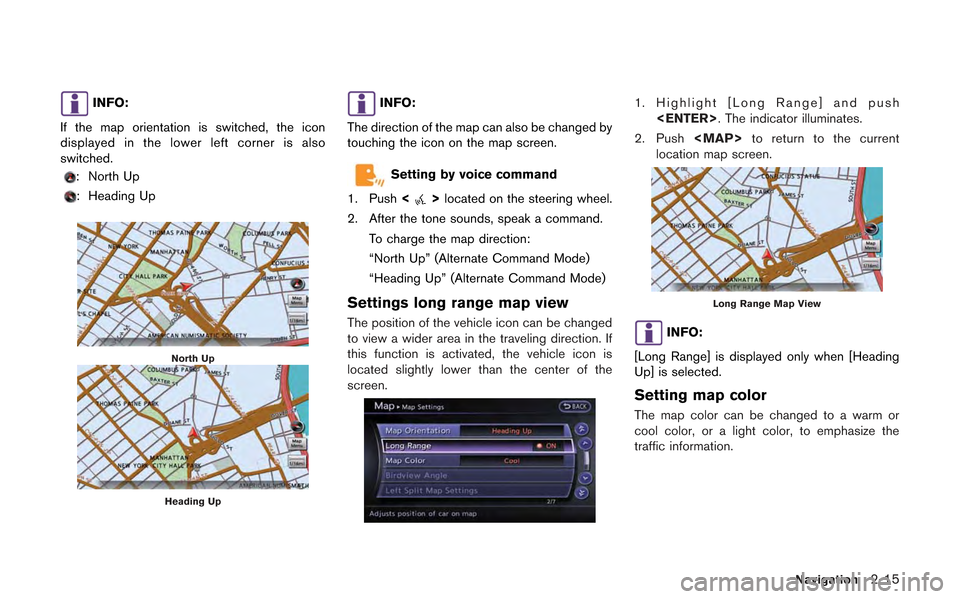
If the map orientation is switched, the icon
displayed in the lower left corner is also
switched.
: North Up
: Heading Up
North Up
Heading Up
INFO:
The direction of the map can also be changed by
touching the icon on the map screen.
Setting by voice command
1. Push <
>located on the steering wheel.
2. After the tone sounds, speak a command.
To charge the map direction:
“North Up” (Alternate Command Mode)
“Heading Up” (Alternate Command Mode)
Settings long range map view
The position of the vehicle icon can be changed
to view a wider area in the traveling direction. If
this function is activated, the vehicle icon is
located slightly lower than the center of the
screen.
1. Highlight [Long Range] and push
2. Push
Page 44 of 315
![NISSAN GT-R 2013 R35 Multi Function Display User Guide 2-16Navigation
1. Highlight [Map Color] and push<ENTER>.
2. Highlight the preferred map color and push
<ENTER>. The indicator light of the se-
lected color illuminates.
Available map colors
The follow](/img/5/316/w960_316-43.png "NISSAN GT-R 2013 R35 Multi Function Display User Guide 2-16Navigation
1. Highlight [Map Color] and push<ENTER>.
2. Highlight the preferred map color and push
<ENTER>. The indicator light of the se-
lected color illuminates.
Available map colors
The follow")
2-16Navigation
1. Highlight [Map Color] and push
2. Highlight the preferred map color and push
lected color illuminates.
Available map colors
The following map colors are available.
. [Warm]:
Sets warm colors for the map coloring. .
[Cool]:
Sets cool colors for the map coloring.
. [Traffic Emphasis]:
Sets light colors for the map coloring to
emphasize the traffic information.
INFO:
The effect of the setting changes can be
confirmed on the preview displayed on the right
side of the screen.
Changing BirdviewTMangle
The BirdviewTMangle can be changed.
This setting is available only in the BirdviewTM
map or 2D/BirdviewTMsplit map.
1. Highlight [Birdview Angle] and push
2. Adjust the BirdviewTMangle by pushing the
main directional buttons or rotating the
center dial.
3. Push
Page 45 of 315
![NISSAN GT-R 2013 R35 Multi Function Display User Guide 1. Highlight [Left Split Map Settings] and push<ENTER>.
2. Highlight the preferred map setting andpush <ENTER>.
3. Push <MAP>to return to the current
location map screen.
Available setting items
. [Ma](/img/5/316/w960_316-44.png "NISSAN GT-R 2013 R35 Multi Function Display User Guide 1. Highlight [Left Split Map Settings] and push<ENTER>.
2. Highlight the preferred map setting andpush <ENTER>.
3. Push <MAP>to return to the current
location map screen.
Available setting items
. [Ma")
1. Highlight [Left Split Map Settings] and push
2. Highlight the preferred map setting andpush
3. Push
Page 46 of 315
2-18Navigation
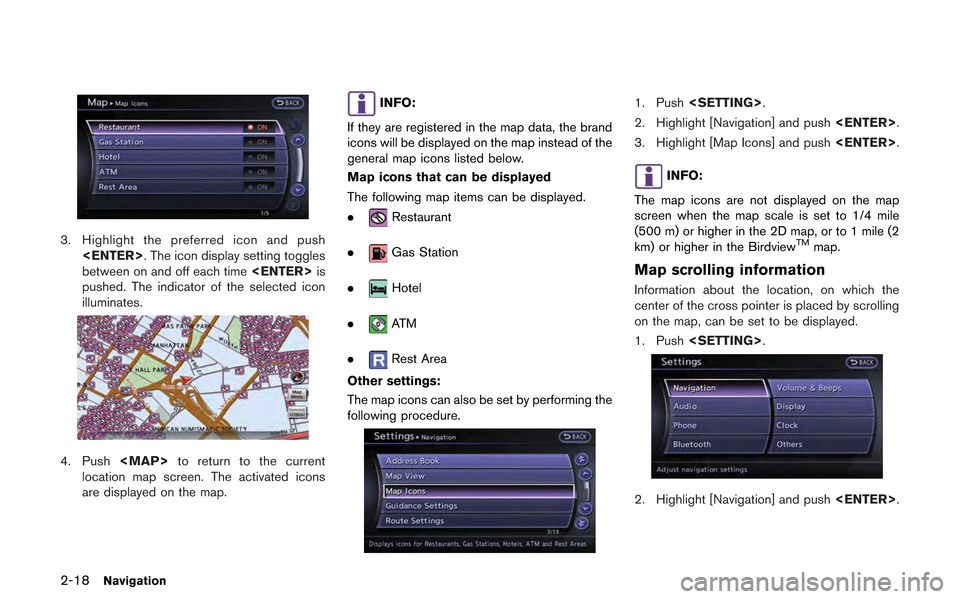
3. Highlight the preferred icon and push
between on and off each time
pushed. The indicator of the selected icon
illuminates.
4. Push
Page 47 of 315
![NISSAN GT-R 2013 R35 Multi Function Display User Guide 3. Highlight [Others] and push<ENTER>.
4. Highlight [Map Scrolling Information] and
push <ENTER>.
5. Highlight the preferred information item and
push <ENTER>. The indicator of the
selected informatio](/img/5/316/w960_316-46.png "NISSAN GT-R 2013 R35 Multi Function Display User Guide 3. Highlight [Others] and push<ENTER>.
4. Highlight [Map Scrolling Information] and
push <ENTER>.
5. Highlight the preferred information item and
push <ENTER>. The indicator of the
selected informatio")
3. Highlight [Others] and push
4. Highlight [Map Scrolling Information] and
push
5. Highlight the preferred information item and
push
selected information item illuminates.
The following information items are available.
.[Address Book Icons]
.[Destination/Waypoint Icons]
.[Latitude/Longitude Info]
6. Push
Page 48 of 315
![NISSAN GT-R 2013 R35 Multi Function Display User Guide 2-20Navigation
location map screen is displayed, the following
options are available.
.[Store Location]:
Stores the current vehicle location in the
Address Book. The stored location can be
retrieved a](/img/5/316/w960_316-47.png "NISSAN GT-R 2013 R35 Multi Function Display User Guide 2-20Navigation
location map screen is displayed, the following
options are available.
.[Store Location]:
Stores the current vehicle location in the
Address Book. The stored location can be
retrieved a")
2-20Navigation
location map screen is displayed, the following
options are available.
.[Store Location]:
Stores the current vehicle location in the
Address Book. The stored location can be
retrieved as necessary to set it as a
destination (waypoint) .
“Storing location” (page 2-72)
. [Nearby Places]:
Searches for points of interest near the
current vehicle location, such as restaurants
and gas stations, etc.
“Finding nearby place” (page 2-27)
. [Map View]:
Performs map operations such as the
switching of map type and the setting of
map orientation and scale.
“Map settings” (page 2-5)
. [Map Icons]:
Displays map icons of certain points of
interest (such as restaurants and gas sta-
tions, etc.) on the map around the current
vehicle location.
“Displaying map icons” (page 2-17)
. [Store Tracking]:
Stores in the Address Book the route
travelled from the starting point to the
current location.
“Storing tracked route” (page 2-76)
Scrolled location map screen
If
screen is displayed, the following options are
available.
. [New Dest.]:
Sets the destination to the map location
where
tion is already set, the location will be set as
the new destination.
“Setting point on map” (page 2-42)
. [Add to Route]:
Sets the map location where
was pushed as the destination or a way-
point. This is available only when a sug-
gested route is already set.
“Setting destination or waypoint”
(page 2-56) .
[Nearby Places]:
Searches for points of interest near the map
location where
sets them as a destination or waypoint.
Use the same search method as the one for
[Places].
“Finding nearby place” (page 2-27)
. [Store Location]:
Store the map location where
was pushed in the Address Book. The
stored location can be retrieved to set it as
a destination or waypoint.
“Storing location” (page 2-72)
. [Delete]:
Deletes a stored location. To delete, place
the cross pointer over the corresponding
icon.
. [Incident Detail]:
This function can be selected only when the
traffic information icon is displayed. Displays
the details of the traffic information icon.
Place the cross pointer over the icon to be
checked.
Page 51 of 315
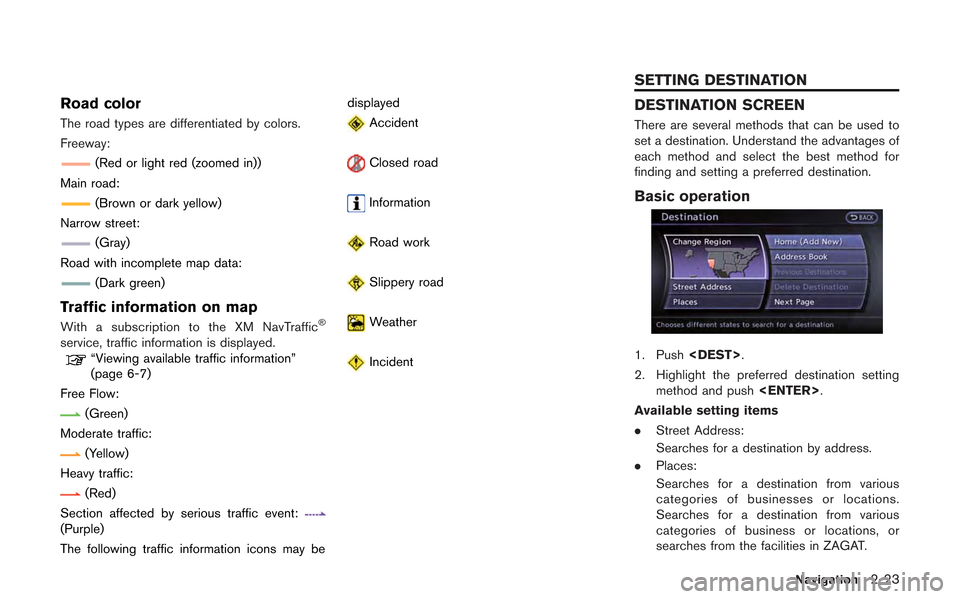
Road color
The road types are differentiated by colors.
Freeway:
(Red or light red (zoomed in))
Main road:
(Brown or dark yellow)
Narrow street:
(Gray)
Road with incomplete map data:
(Dark green)
Traffic information on map
With a subscription to the XM NavTraffic®
service, traffic information is displayed.“Viewing available traffic information”
(page 6-7)
Free Flow:
(Green)
Moderate traffic:
(Yellow)
Heavy traffic:
(Red)
Section affected by serious traffic event:
(Purple)
The following traffic information icons may be displayed
Accident
Closed road
Information
Road work
Slippery road
Weather
Incident
DESTINATION SCREEN
There are several methods that can be used to
set a destination. Understand the advantages of
each method and select the best method for
finding and setting a preferred destination.
Basic operation
1. Push
2. Highlight the preferred destination setting method and push
Available setting items
. Street Address:
Searches for a destination by address.
. Places:
Searches for a destination from various
categories of businesses or locations.
Searches for a destination from various
categories of business or locations, or
searches from the facilities in ZAGAT.
Navigation2-23
SETTING DESTINATION
Page 53 of 315
.Puerto Rico
. Virgin Islands
INFO:
. It is also possible to select a region by
touching the map on the right side of the
screen.
. It is not possible to search for a route from
the continental United States to Hawaii,
Puerto Rico and Virgin Islands.
Specifying city:
When searching for a destination with “Places”,
“Freeway Entrance/Exit”, “Intersection” or “City
Center”, the search can be narrowed down by
specifying the city.
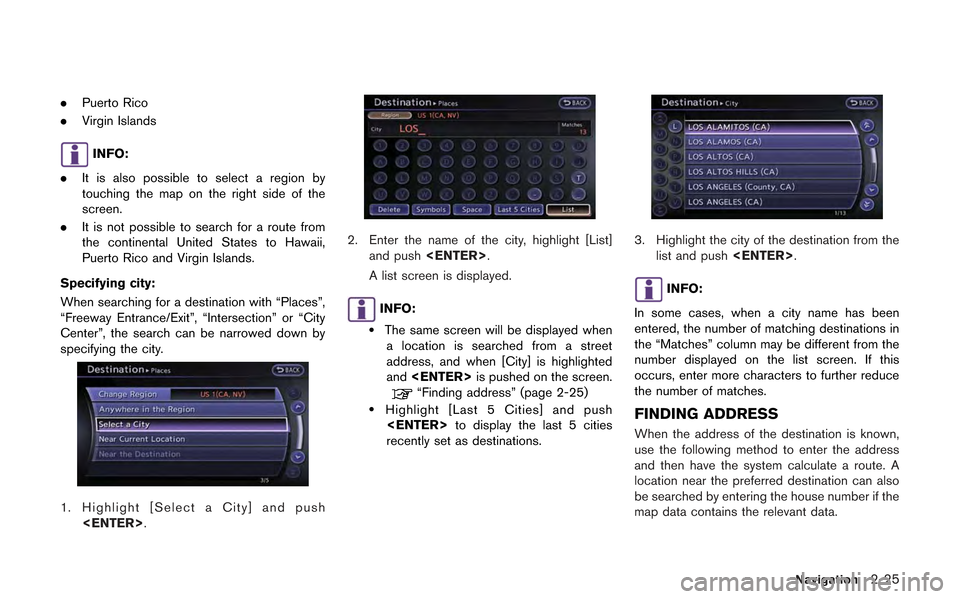
1. Highlight [Select a City] and push
2. Enter the name of the city, highlight [List]and push
A list screen is displayed.
INFO:
.The same screen will be displayed when a location is searched from a street
address, and when [City] is highlighted
and
“Finding address” (page 2-25).Highlight [Last 5 Cities] and push
recently set as destinations.
3. Highlight the city of the destination from the list and push
INFO:
In some cases, when a city name has been
entered, the number of matching destinations in
the “Matches” column may be different from the
number displayed on the list screen. If this
occurs, enter more characters to further reduce
the number of matches.
FINDING ADDRESS
When the address of the destination is known,
use the following method to enter the address
and then have the system calculate a route. A
location near the preferred destination can also
be searched by entering the house number if the
map data contains the relevant data.
Navigation2-25