low NISSAN GT-R 2013 R35 Multi Function Display Workshop Manual
[x] Cancel search | Manufacturer: NISSAN, Model Year: 2013, Model line: GT-R, Model: NISSAN GT-R 2013 R35Pages: 315, PDF Size: 6.96 MB
Page 154 of 315
![NISSAN GT-R 2013 R35 Multi Function Display Workshop Manual 3-26Audio system
Extreme temperature conditions [below
−48F(−208C) and above 1588F (708C)] could
affect the performance of the hard-disk.
NOTICE
If the audio system needs to be re-
placed due to a](/img/5/316/w960_316-153.png "NISSAN GT-R 2013 R35 Multi Function Display Workshop Manual 3-26Audio system
Extreme temperature conditions [below
−48F(−208C) and above 1588F (708C)] could
affect the performance of the hard-disk.
NOTICE
If the audio system needs to be re-
placed due to a")
3-26Audio system
Extreme temperature conditions [below
−48F(−208C) and above 1588F (708C)] could
affect the performance of the hard-disk.
NOTICE
If the audio system needs to be re-
placed due to a malfunction, all stored
music data will be erased.
Recording CDs
1. Operate the audio system to play a CD.“Compact Disc (CD) player operation”
(page 3-14)
2. Select [Start REC].
NOTICE
. The system starts playing and re-
cording the 1st track on the CD
when [Start REC] is selected.
. The recording process can be
stopped at any time. All tracks that
were played before the CD was
stopped are stored.
. Individual tracks can be deleted
from the hard-disk drive after the
CD is recorded.
If the title information of the track being recorded
is stored either in the in-vehicle memory or in the
CD, the title is automatically displayed on the
screen. For title acquisition from the in-vehicle
memory, music recognition technology and
related data are provided by Gracenote
®. If a track is not recorded successfully due to
skipping sounds, the
mark is displayed
behind the track number.
The “Music Box” cannot perform recording
under the following conditions.
. There is not enough space in-vehicle
memory
. The number of albums reaches the maximum
of 500.
. The number of tracks reaches the maximum
of 3,000.
Automatic recording:
If the “Automatic Recording” function is turned
to ON, recording starts when a CD is inserted.
“Music Box settings” (page 3-29)
Stopping recording:
To stop the recording, select [Stop REC].
If the CD is ejected, the audio system is turned
off or the ignition switch is pushed to the OFF
position, the recording also stops.
Page 155 of 315
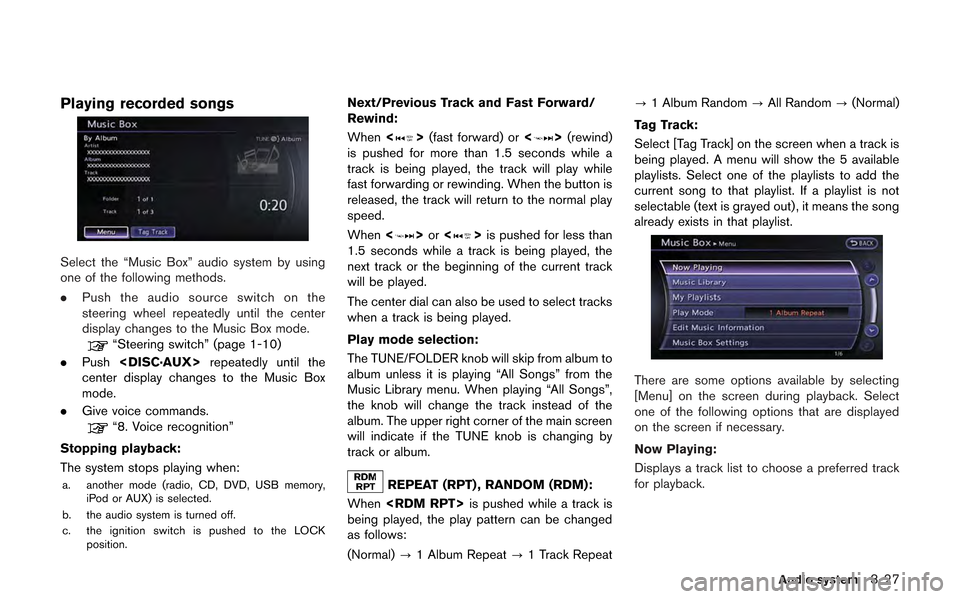
Playing recorded songs
Select the “Music Box” audio system by using
one of the following methods.
.Push the audio source switch on the
steering wheel repeatedly until the center
display changes to the Music Box mode.
“Steering switch” (page 1-10)
. Push
center display changes to the Music Box
mode.
. Give voice commands.
“8. Voice recognition”
Stopping playback:
The system stops playing when:
a. another mode (radio, CD, DVD, USB memory, iPod or AUX) is selected.
b. the audio system is turned off.
c. the ignition switch is pushed to the LOCK position.
Next/Previous Track and Fast Forward/
Rewind:
When <
>(fast forward) or <>(rewind)
is pushed for more than 1.5 seconds while a
track is being played, the track will play while
fast forwarding or rewinding. When the button is
released, the track will return to the normal play
speed.
When <
>or <>is pushed for less than
1.5 seconds while a track is being played, the
next track or the beginning of the current track
will be played.
The center dial can also be used to select tracks
when a track is being played.
Play mode selection:
The TUNE/FOLDER knob will skip from album to
album unless it is playing “All Songs” from the
Music Library menu. When playing “All Songs”,
the knob will change the track instead of the
album. The upper right corner of the main screen
will indicate if the TUNE knob is changing by
track or album.
REPEAT (RPT) , RANDOM (RDM):
When
being played, the play pattern can be changed
as follows:
(Normal) ?1 Album Repeat ?1 Track Repeat ?
1 Album Random ?All Random ?(Normal)
Tag Track:
Select [Tag Track] on the screen when a track is
being played. A menu will show the 5 available
playlists. Select one of the playlists to add the
current song to that playlist. If a playlist is not
selectable (text is grayed out), it means the song
already exists in that playlist.
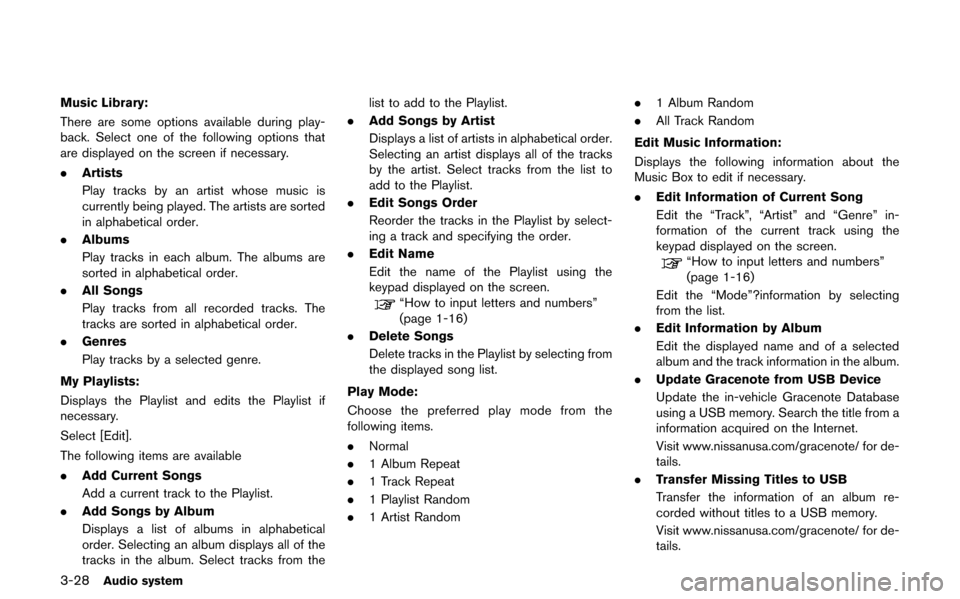
There are some options available by selecting
[Menu] on the screen during playback. Select
one of the following options that are displayed
on the screen if necessary.
Now Playing:
Displays a track list to choose a preferred track
for playback.
Audio system3-27
Page 156 of 315
3-28Audio system
Music Library:
There are some options available during play-
back. Select one of the following options that
are displayed on the screen if necessary.
.Artists
Play tracks by an artist whose music is
currently being played. The artists are sorted
in alphabetical order.
. Albums
Play tracks in each album. The albums are
sorted in alphabetical order.
. All Songs
Play tracks from all recorded tracks. The
tracks are sorted in alphabetical order.
. Genres
Play tracks by a selected genre.
My Playlists:
Displays the Playlist and edits the Playlist if
necessary.
Select [Edit].
The following items are available
. Add Current Songs
Add a current track to the Playlist.
. Add Songs by Album
Displays a list of albums in alphabetical
order. Selecting an album displays all of the
tracks in the album. Select tracks from the list to add to the Playlist.
. Add Songs by Artist
Displays a list of artists in alphabetical order.
Selecting an artist displays all of the tracks
by the artist. Select tracks from the list to
add to the Playlist.
. Edit Songs Order
Reorder the tracks in the Playlist by select-
ing a track and specifying the order.
. Edit Name
Edit the name of the Playlist using the
keypad displayed on the screen.
“How to input letters and numbers”
(page 1-16)
. Delete Songs
Delete tracks in the Playlist by selecting from
the displayed song list.
Play Mode:
Choose the preferred play mode from the
following items.
. Normal
. 1 Album Repeat
. 1 Track Repeat
. 1 Playlist Random
. 1 Artist Random .
1 Album Random
. All Track Random
Edit Music Information:
Displays the following information about the
Music Box to edit if necessary.
. Edit Information of Current Song
Edit the “Track”, “Artist” and “Genre” in-
formation of the current track using the
keypad displayed on the screen.
“How to input letters and numbers”
(page 1-16)
Edit the “Mode”?information by selecting
from the list.
. Edit Information by Album
Edit the displayed name and of a selected
album and the track information in the album.
. Update Gracenote from USB Device
Update the in-vehicle Gracenote Database
using a USB memory. Search the title from a
information acquired on the Internet.
Visit www.nissanusa.com/gracenote/ for de-
tails.
. Transfer Missing Titles to USB
Transfer the information of an album re-
corded without titles to a USB memory.
Visit www.nissanusa.com/gracenote/ for de-
tails.
Page 157 of 315
![NISSAN GT-R 2013 R35 Multi Function Display Workshop Manual .Update Gracenote from HDD
Search the title using the database in the
hard disk.
Music Box settings
To set the Music box to your preferred settings,
select [Menu] during playback, and [Music Box
Setti](/img/5/316/w960_316-156.png "NISSAN GT-R 2013 R35 Multi Function Display Workshop Manual .Update Gracenote from HDD
Search the title using the database in the
hard disk.
Music Box settings
To set the Music box to your preferred settings,
select [Menu] during playback, and [Music Box
Setti")
.Update Gracenote from HDD
Search the title using the database in the
hard disk.
Music Box settings
To set the Music box to your preferred settings,
select [Menu] during playback, and [Music Box
Settings] with the center dial, and then push
Music Box Used/Free Space:
Information about “Saved Album”, “Saved Track”
and “Remaining Time” is displayed.
Automatic Recording:
When this item is turned to ON, the Music Box
automatically starts recording when a CD is
inserted. Delete Songs from Music Box:
Deletes the current song, selected songs or
albums by choosing from the list, or all songs/
albums in the Music Box.
Recording Quality:
Set the recording quality of 105 kbps or 132
kbps. The default is set to 105 kbps.
CDDB Version:
The version of the built-in Gracenote Database
is displayed.
Gracenote
NOTICE
.
The information contained in the
Gracenote Database is not fully
guaranteed.
. The service of the Gracenote Data-
base on the Internet may be
stopped without prior notice for
maintenance.
End-User License Agreement
USE OF THIS PRODUCT IMPLIES ACCEP-
TANCE OF THE TERMS BELOW .
Gracenote
®MusicID®Terms of Use
This application or device contains software
from Gracenote, Inc. of Emeryville, California
(“Gracenote”) . The software from Gracenote
(the “Gracenote Software”) enables this appli-
cation to perform disc and/or file identification
and obtain music-related information, including
name, artist, track, and title information (“Grace-
note Data”) from online servers or embedded
databases (collectively, “Gracenote Servers”)
and to perform other functions. You may use
Gracenote Data only by means of the intended
End-User functions of this application or device.
You agree that you will use Gracenote Data, the
Gracenote Software, and Gracenote Servers for
your own personal non-commercial use only.
You agree not to assign, copy, transfer or
transmit the Gracenote Software or any Grace-
note Data to any third party. YOU AGREE NOT
TO USE OR EXPLOIT GRACENOTE DATA,
THE GRACENOTE SOFTWARE, OR GRACE-
NOTE SERVERS, EXCEPT AS EXPRESSLY
PERMITTED HEREIN.
You agree that your non-exclusive license to use
the Gracenote Data, the Gracenote Software,
and Gracenote Servers will terminate if you
Audio system3-29
Page 158 of 315
3-30Audio system
violate these restrictions. If your license termi-
nates, you agree to cease any and all use of the
Gracenote Data, the Gracenote Software, and
Gracenote Servers. Gracenote reserves all
rights in Gracenote Data, the Gracenote Soft-
ware, and the Gracenote Servers, including all
ownership rights. Under no circumstances will
Gracenote become liable for any payment to you
for any information that you provide.
You agree that Gracenote, Inc. may enforce its
rights under this Agreement against you directly
in its own name.
The Gracenote service uses a unique identifier
to track queries for statistical purposes. The
purpose of a randomly assigned numeric identi-
fier is to allow the Gracenote service to count
queries without knowing anything about who
you are. For more information, see the web page
for the Gracenote Privacy Policy for the Grace-
note service.
The Gracenote Software and each item of
Gracenote Data are licensed to you “AS IS.”
Gracenote makes no representations or warran-
ties, express or implied, regarding the accuracy
of any Gracenote Data from in the Gracenote
Servers. Gracenote reserves the right to delete
data from the Gracenote Servers or to change
data categories for any cause that Gracenote
deems sufficient. No warranty is made that theGracenote Software or Gracenote Servers are
error-free or that functioning of Gracenote
Software or Gracenote Servers will be unin-
terrupted. Gracenote is not obligated to provide
you with new enhanced or additional data types
or categories that Gracenote may provide in the
future and is free to discontinue its services at
any time.
GRACENOTE DISCLAIMS ALL WARRANTIES
EXPRESS OR IMPLIED, INCLUDING, BUT
NOT LIMITED TO, IMPLIED WARRANTIES OF
MERCHANTABILITY, FITNESS FOR A PARTI-
CULAR PURPOSE, TITLE, AND NON-INFRIN-
GEMENT. GRACENOTE DOES NOT
WARRANT THE RESULTS THAT WILL BE
OBTAINED BY YOUR USE OF THE GRACE-
NOTE SOFTWARE OR ANY GRACENOTE
SERVER. IN NO CASE WILL GRACENOTE
BE LIABLE FOR ANY CONSEQUENTIAL OR
INCIDENTAL DAMAGES OR FOR ANY LOST
PROFITS OR LOST REVENUES.
Copyright:
Music recognition technology and related data
are provided by Gracenote
®. Gracenote is the
industry standard in music recognition technol-
ogy and related content delivery. For more
information, please visit www.gracenote.com.
CD and music-related data from Gracenote,
Inc., copyright
*C2000-2009 Gracenote. Gracenote Software, copyright
*C2000-2009
Gracenote. This product and service may
practice one or more of the following U.S.
Patents: #5,987,525; #6,061,680;
#6,154,773, #6,161,132, #6,230,192,
#6,230,207, #6,240,459, #6,330,593, and
other patents issued or pending. Some services
supplied under license from Open Globe, Inc.
for U.S. Patent: #6,304,523.
Gracenote and CDDB are registered trade-
marks of Gracenote. The Gracenote logo and
logotype, and the “Powered by Gracenote” logo
are trademarks of Gracenote.
CD/DVD/USB MEMORY CARE AND
CLEANING
CD/DVD
Page 159 of 315
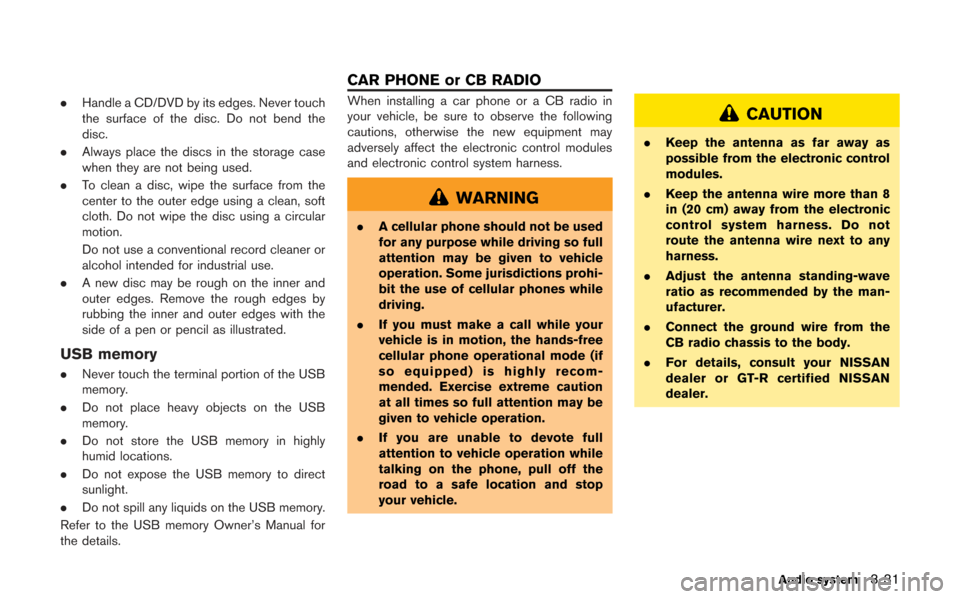
.Handle a CD/DVD by its edges. Never touch
the surface of the disc. Do not bend the
disc.
. Always place the discs in the storage case
when they are not being used.
. To clean a disc, wipe the surface from the
center to the outer edge using a clean, soft
cloth. Do not wipe the disc using a circular
motion.
Do not use a conventional record cleaner or
alcohol intended for industrial use.
. A new disc may be rough on the inner and
outer edges. Remove the rough edges by
rubbing the inner and outer edges with the
side of a pen or pencil as illustrated.
USB memory
.Never touch the terminal portion of the USB
memory.
. Do not place heavy objects on the USB
memory.
. Do not store the USB memory in highly
humid locations.
. Do not expose the USB memory to direct
sunlight.
. Do not spill any liquids on the USB memory.
Refer to the USB memory Owner’s Manual for
the details.
When installing a car phone or a CB radio in
your vehicle, be sure to observe the following
cautions, otherwise the new equipment may
adversely affect the electronic control modules
and electronic control system harness.
WARNING
. A cellular phone should not be used
for any purpose while driving so full
attention may be given to vehicle
operation. Some jurisdictions prohi-
bit the use of cellular phones while
driving.
. If you must make a call while your
vehicle is in motion, the hands-free
cellular phone operational mode (if
so equipped) is highly recom-
mended. Exercise extreme caution
at all times so full attention may be
given to vehicle operation.
. If you are unable to devote full
attention to vehicle operation while
talking on the phone, pull off the
road to a safe location and stop
your vehicle.
CAUTION
. Keep the antenna as far away as
possible from the electronic control
modules.
. Keep the antenna wire more than 8
in (20 cm) away from the electronic
control system harness. Do not
route the antenna wire next to any
harness.
. Adjust the antenna standing-wave
ratio as recommended by the man-
ufacturer.
. Connect the ground wire from the
CB radio chassis to the body.
. For details, consult your NISSAN
dealer or GT-R certified NISSAN
dealer.
Audio system3-31
CAR PHONE or CB RADIO
Page 162 of 315
4-2Bluetooth®Hands-Free Phone System
WARNING
.Use a phone after stopping your
vehicle in a safe location. If you
have to use a phone while driving,
exercise extreme caution at all
times so full attention may be given
to vehicle operation.
. If you are unable to devote full
attention to vehicle operation while
talking on the phone, pull off the
road to a safe location and stop
your vehicle.
CAUTION
To avoid draining the vehicle battery,
use a phone after starting the engine.
Your vehicle is equipped with Bluetooth
®
Hands-Free Phone System. If you are an owner
of a compatible Bluetooth®enabled cellular
phone, you can set up the wireless connection
between your cellular phone and the in-vehicle
phone module. With Bluetooth
®wireless tech-
nology, you can make or receive a telephone call
with your cellular phone in your pocket. Once a cellular phone is connected to the in-
vehicle phone module, no phone connecting
procedure is required anymore. Your phone is
automatically connected with the in-vehicle
phone module when the ignition switch is
pushed to the ON position with the registered
cellular phone turned on and carried in the
vehicle.
You can register up to 5 different Bluetooth
®
cellular phones in the in-vehicle phone module.
However, you can talk on only one cellular phone
at a time.
The NISSAN Voice Recognition system sup-
ports the phone commands, so dialing a phone
number using your voice is possible.
“8. Voice recognition”
Before using the Bluetooth®Hands-Free Phone
System, refer to the following notes.
. Set up the wireless connection between a
compatible cellular phone and the in-vehicle
phone module before using the Bluetooth
®
Hands-Free Phone System.
. Some Bluetooth®enabled cellular phones
may not be recognized by the in-vehicle
phone module. Please visit
www.nissanusa.com/bluetooth for a recom-
mended phone list. .
You will not be able to use a hands-free
phone under the following conditions:
— Your vehicle is outside of the telephone
service area.
— Your vehicle is in an area where it is difficult to receive radio waves; such as in
a tunnel, in an underground parking
garage, behind a tall building or in a
mountainous area.
— Your cellular phone is locked in order not to be dialed.
. When the radio wave condition is not ideal
or ambient sound is too loud, it may be
difficult to hear the other person’s voice
during a call.
. Immediately after the ignition switch is
pushed to the ON position, it may be
impossible to receive a call for a short
period of time.
. Do not place the cellular phone in an area
surrounded by metal or far away from the in-
vehicle phone module to prevent tone quality
degradation and wireless connection dis-
ruption.
. While a cellular phone is connected through
the Bluetooth
®wireless connection, the
battery power of the cellular phone may
discharge quicker than usual.
BLUETOOTH®HANDS-FREE PHONE
SYSTEM
Page 163 of 315
.If the Bluetooth®Hands-Free Phone System
seems to be malfunctioning, please visit
www.nissanusa.com/bluetooth for trouble-
shooting help.
. Some cellular phones or other devices may
cause interference or a buzzing noise to
come from the audio system speakers.
Storing the device in a different location
may reduce or eliminate the noise.
. Refer to the cellular phone Owner’s Manual
regarding the telephone pairing procedure
specific to your phone, battery charging,
cellular phone antenna, etc.
. The antenna display on the monitor will not
coincide with the antenna display of some
cellular phones.
. Keep the interior of the vehicle as quiet as
possible to hear the caller’s voice clearly as
well as to minimize its echoes.
. If reception between callers is unclear,
adjusting the incoming or outgoing call
volume may improve the clarity.REGULATORY INFORMATION
FCC Regulatory information
.CAUTION: To maintain compliance with
FCC’s RF exposure guidelines, use only
the supplied antenna. Unauthorized antenna,
modification, or attachments could damage
the transmitter and may violate FCC regula-
tions.
. Operation is subject to the following two
conditions:
1. this device may not cause interference and
2. this device must accept any interference, including interference that may cause un-
desired operation of the device
IC Regulatory information
.Operation is subject to the following two
conditions: (1) this device may not cause
interference, and (2) this device must accept
any interference, including interference that
may cause undesired operation of the
device.
. This Class B digital apparatus meets all
requirements of the Canadian Interference-
Causing Equipment Regulations. Bluetooth trademark:
BLUETOOTH®is a trademark
owned by Bluetooth SIG, Inc.,
VOICE COMMANDS
You can use voice commands to operate various
Bluetooth®Hands-Free Phone System features
using the NISSAN Voice Recognition system.
“8. Voice recognition”
Bluetooth®Hands-Free Phone System4-3
Page 164 of 315
![NISSAN GT-R 2013 R35 Multi Function Display Workshop Manual 4-4Bluetooth®Hands-Free Phone System
CONTROL BUTTONS
&1PHONE button&2button
CONNECTING PROCEDURE
1. Push<PHONE> or<>, and select
[Connect Phone].
2. When a PIN code appears on the screen, operate the](/img/5/316/w960_316-163.png "NISSAN GT-R 2013 R35 Multi Function Display Workshop Manual 4-4Bluetooth®Hands-Free Phone System
CONTROL BUTTONS
&1PHONE button&2button
CONNECTING PROCEDURE
1. Push<PHONE> or<>, and select
[Connect Phone].
2. When a PIN code appears on the screen, operate the")
4-4Bluetooth®Hands-Free Phone System
CONTROL BUTTONS
&1PHONE button&2button
CONNECTING PROCEDURE
1. Push
[Connect Phone].
2. When a PIN code appears on the screen, operate the compatible Bluetooth®cellular
phone to enter the PIN code.
The connecting procedure of the cellular
phone varies according to each cellular
phone. See the cellular phone Owner’s
Manual for the details. You can also visit
www.nissanusa.com/bluetooth or call NISSAN Consumer Affairs Department for
instructions on pairing NISSAN recom-
mended cellular phones.
When the connection process is completed,
the screen will return to the Phone menu
display.
PHONE SELECTION
Up to 5 cellular phones can be registered to the
system. To switch to connect another cellular
phone, push
Phone]. The registered cellular phones are
shown on the list. If you select a cellular phone
that is different from the one currently con-
nected, the newly selected phone will be
connected to the system.
VEHICLE PHONEBOOK
This vehicle has two phonebooks available for
hands-free use. Depending on the phone, the
system may automatically download the entire
cell phone’s phonebook into the “Handset
Phonebook”.
“Phone setting” (page 4-7)
If a phonebook does not automatically down-
load, the vehicle phonebook may be set for up to
1,000 entries. This phonebook allows the
recording of a name to speak while using voice
recognition.
Page 165 of 315
![NISSAN GT-R 2013 R35 Multi Function Display Workshop Manual 1. Push<PHONE> and select [Vehicle Pho-
nebook].
2. Select [Add New] at the top of the screen.
3. Choose the method for entering the phone- book entry. For this example, select [Enter
Number by Keypad](/img/5/316/w960_316-164.png "NISSAN GT-R 2013 R35 Multi Function Display Workshop Manual 1. Push<PHONE> and select [Vehicle Pho-
nebook].
2. Select [Add New] at the top of the screen.
3. Choose the method for entering the phone- book entry. For this example, select [Enter
Number by Keypad")
1. Push
nebook].
2. Select [Add New] at the top of the screen.
3. Choose the method for entering the phone- book entry. For this example, select [Enter
Number by Keypad].
4. Enter the digits and select the “OK” key.
“How to input letters and numbers”
(page 1-16)
5. Select [Voicetag] to record a name to speak when using NISSAN Voice Recognition
system.
6. Select [Store] and prepare to speak the name after the tone.
7. When the voicetag is successfully saved, select [OK] to save the phonebook entry.
8. After the phonebook entry is saved, it will show a screen that is ready to call the
number. Press
Vehicle Phonebook.
There are different methods to input a phone
number. Select one of the following options
instead of [Enter Number by Keypad] in step 3.
. [Copy from Call History]:
The system will show a list of incoming,
outgoing or missed calls that were down-
loaded from the connected cellular phone
(depending on the phone’s compatibility) .
Select one of these entries to save in the vehicle phonebook.
. [Copy from the Handset]:
The system will show the connected cellular
phone’s phonebook that was downloaded
(depending on the phone’s compatibility) .
Select one of these entries to save in the
vehicle phonebook.Editing the Vehicle Phonebook
1. Push
nebook].
2. Select the desired entry from the displayed list.
3. Select [Edit].
4. Select the desired item to change.
Bluetooth®Hands-Free Phone System4-5