set NISSAN GT-R 2015 R35 Multi Function Display Owners Manual
[x] Cancel search | Manufacturer: NISSAN, Model Year: 2015, Model line: GT-R, Model: NISSAN GT-R 2015 R35Pages: 298, PDF Size: 11.39 MB
Page 118 of 298
![NISSAN GT-R 2015 R35 Multi Function Display Owners Manual .[Keyboard Type]:
Switches the keyboard layout for the char-
acter input screen.
“Settings keyboard layout of character
input screen” (page 2-94)
. [North Up when Zoom Out]:
When this setting is O](/img/5/423/w960_423-117.png "NISSAN GT-R 2015 R35 Multi Function Display Owners Manual .[Keyboard Type]:
Switches the keyboard layout for the char-
acter input screen.
“Settings keyboard layout of character
input screen” (page 2-94)
. [North Up when Zoom Out]:
When this setting is O")
.[Keyboard Type]:
Switches the keyboard layout for the char-
acter input screen.
“Settings keyboard layout of character
input screen” (page 2-94)
. [North Up when Zoom Out]:
When this setting is ON, the orientation of
the map is automatically changed to North
Up when the widest map scale is selected.
The orientation is changed to North Up even
when Heading Up is set.
. [Adjust Current Location]:
Corrects the position of the current location.
“Adjusting current vehicle location”
(page 2-95)
Displaying audio information on
map screen
The operating status of audio functions can be
displayed on the map screen.
1. Highlight [Others] and push
2. Highlight [Audio Display on Map] and push
the item is set.
3. Push
Page 119 of 298
![NISSAN GT-R 2015 R35 Multi Function Display Owners Manual 2-94Navigation
4. Highlight a main category and push<ENTER>. The sub category list is dis-
played. Highlight [Category Search] and
push <ENTER>. The preferred category
can also be input directly.
5. H](/img/5/423/w960_423-118.png "NISSAN GT-R 2015 R35 Multi Function Display Owners Manual 2-94Navigation
4. Highlight a main category and push<ENTER>. The sub category list is dis-
played. Highlight [Category Search] and
push <ENTER>. The preferred category
can also be input directly.
5. H")
2-94Navigation
4. Highlight a main category and push
played. Highlight [Category Search] and
push
can also be input directly.
5. Highlight a sub category and push
ified.
6. Push
Page 120 of 298
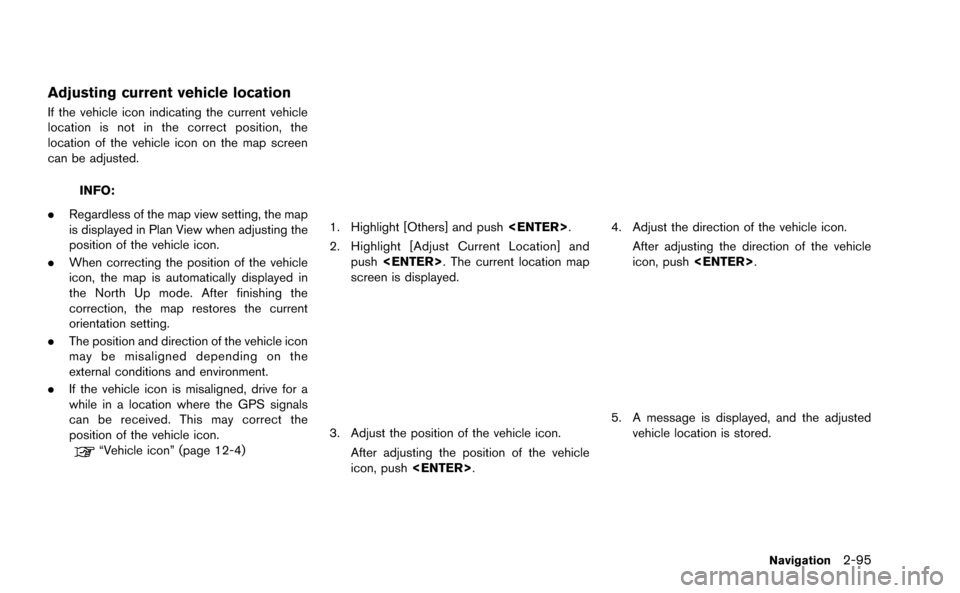
Adjusting current vehicle location
If the vehicle icon indicating the current vehicle
location is not in the correct position, the
location of the vehicle icon on the map screen
can be adjusted.
INFO:
. Regardless of the map view setting, the map
is displayed in Plan View when adjusting the
position of the vehicle icon.
. When correcting the position of the vehicle
icon, the map is automatically displayed in
the North Up mode. After finishing the
correction, the map restores the current
orientation setting.
. The position and direction of the vehicle icon
may be misaligned depending on the
external conditions and environment.
. If the vehicle icon is misaligned, drive for a
while in a location where the GPS signals
can be received. This may correct the
position of the vehicle icon.
“Vehicle icon” (page 12-4)
1. Highlight [Others] and push
2. Highlight [Adjust Current Location] and push
screen is displayed.
3. Adjust the position of the vehicle icon.
After adjusting the position of the vehicle
icon, push
4. Adjust the direction of the vehicle icon.
After adjusting the direction of the vehicle
icon, push
5. A message is displayed, and the adjusted
vehicle location is stored.
Navigation2-95
Page 121 of 298
![NISSAN GT-R 2015 R35 Multi Function Display Owners Manual 2-96Navigation
DELETE STORED ITEMS
Delete stored item from setting screen.
Basic Operation
1. Highlight [Navigation] and push<ENTER>.
2. Highlight the preferred item that you want to delete and push <](/img/5/423/w960_423-120.png "NISSAN GT-R 2015 R35 Multi Function Display Owners Manual 2-96Navigation
DELETE STORED ITEMS
Delete stored item from setting screen.
Basic Operation
1. Highlight [Navigation] and push<ENTER>.
2. Highlight the preferred item that you want to delete and push <")
2-96Navigation
DELETE STORED ITEMS
Delete stored item from setting screen.
Basic Operation
1. Highlight [Navigation] and push
2. Highlight the preferred item that you want to delete and push
Available items
. [Deletes Stored Information]:
Delete the stored location and home.
. [Delete All Previous Destinations]:
Delete all previous destinations.
. [Delete Previous Start Point]:
Delete all previous start point.
RESET ALL NAVIGATION SETTINGS
TO DEFAULT
This restores various settings (display, volume
level, etc.) to the default settings.
INFO:
The memory contents, such as the stored
locations, will not be deleted.
1. Highlight [Navigation] and push
2. Highlight [Reset All Navigation Settings to Default] and push
3. A confirmation message is displayed. Con-
firm the contents of the message, highlight
[Yes] and push
Page 123 of 298
3-2Audio system
AUDIO OPERATION PRECAUTIONS
Radio
Push the ignition switch to the ACC or ON
position and push the radio band select button
to turn on the radio. If you listen to the radio with
the engine not running, the ignition switch
should be pushed to the ACC position.
Radio reception is affected by station signal
strength, distance from radio transmitter, build-
ings, bridges, mountains and other external
influences. Intermittent changes in reception
quality normally are caused by these external
influences.
Using a cellular phone in or near the
vehicle may influence radio reception
quality.
Radio reception:
Your NISSAN radio system is equipped with
state-of-the-art electronic circuits to enhance
radio reception. These circuits are designed to
extend reception range, and to enhance the
quality of that reception.
However there are some general characteristics
of both FM and AM radio signals that can affect
radio reception quality in a moving vehicle, even
when the finest equipment is used. These
characteristics are completely normal in a givenreception area, and do not indicate any mal-
function in your NISSAN radio system.
Reception conditions will constantly change
because of vehicle movement. Buildings, terrain,
signal distance and interference from other
vehicles can work against ideal reception.
Described below are some of the factors that
can affect your radio reception.
Some cellular phones or other devices may
cause interference or a buzzing noise to come
from the audio system speakers. Storing the
device in a different location may reduce or
eliminate the noise.
FM radio reception:
Range: FM range is normally limited to 25 to 30
miles (40 to 48 km) , with monaural (single
channel) FM having slightly more range than
stereo FM. External influences may sometimes
interfere with FM station reception even if the
FM station is within 25 miles (40 km). The
strength of the FM signal is directly related to the
distance between the transmitter and receiver.
FM signals follow a line-of-sight path, exhibiting
many of the same characteristics as light. For
example they will reflect off objects.
Fade and drift: As your vehicle moves away from
a station transmitter, the signals will tend to fade
and/or drift.
Static and flutter: During signal interference from
buildings, large hills or due to antenna position,
usually in conjunction with increased distance
from the station transmitter, static or flutter can
be heard. This can be reduced by lowering the
treble setting to reduce the treble response.
Multipath reception: Because of the reflective
characteristics of FM signals, direct and re-
flected signals reach the receiver at the same
time. The signals may cancel each other,
resulting in momentary flutter or loss of sound.
AUDIO SYSTEM
Page 127 of 298
3-6Audio system
Parental level (parental control):
DVDs with the parental control setting can be
played with this system. Please use your own
judgement to set the parental control with the
system.
Disc selection:
The following disc formats can be played with
the DVD drive.
.DVD-VIDEO
. VIDEO-CD
. CD-DA (Conventional Compact Disc)
. DTS-CD
USB (Universal Serial Bus)
WARNING
Do not connect, disconnect or operate
the USB device while driving. Doing so
can be a distraction. If distracted you
could lose control of your vehicle and
cause an accident or serious injury.
CAUTION
.Do not force the USB device into the
USB port. Inserting the USB device
tilted or up-side-down into the port
may damage the port. Make sure
that the USB device is connected
correctly into the USB port.
. Do not grab the USB port cover (if
so equipped) when pulling the USB
device out of the port. This could
damage the port and the cover.
. Do not leave the USB cable in a
place where it can be pulled unin-
tentionally. Pulling the cable may
damage the port.
The vehicle is not equipped with a USB device.
USB devices should be purchased separately
as necessary.
This system cannot be used to format USB
devices. To format a USB device, use a personal
computer.
In some states/area, the USB device for the
front seats plays only sound without images for
regulatory reasons, even when the vehicle is
parked.
This system supports various USB devices, USB hard drives and iPod
®players. Some
USB devices may not be supported by this
system.
. Partitioned USB devices may not be played
correctly.
. Some characters used in other languages
(Chinese, Japanese, etc.) are not displayed
properly on display. Using English language
characters with a USB device is recom-
mended.
General notes for USB use:
Refer to your device manufacturer’s owner
information regarding the proper use and care
of the device.
Notes for iPod
®use:
iPod®is a trademark of Apple Inc., registered in
the U.S. and other countries.
. Improperly plugging in the iPod
®may cause
a checkmark to be displayed on and off
(flickering) . Always make sure that the iPod
®
is connected properly.
. An iPod nano®(1st Generation) may remain
in fast forward or rewind mode if it is
connected during a seek operation. In this
case, please manually reset the iPod
®.
Page 131 of 298
3-10Audio system
Compressed Video Files
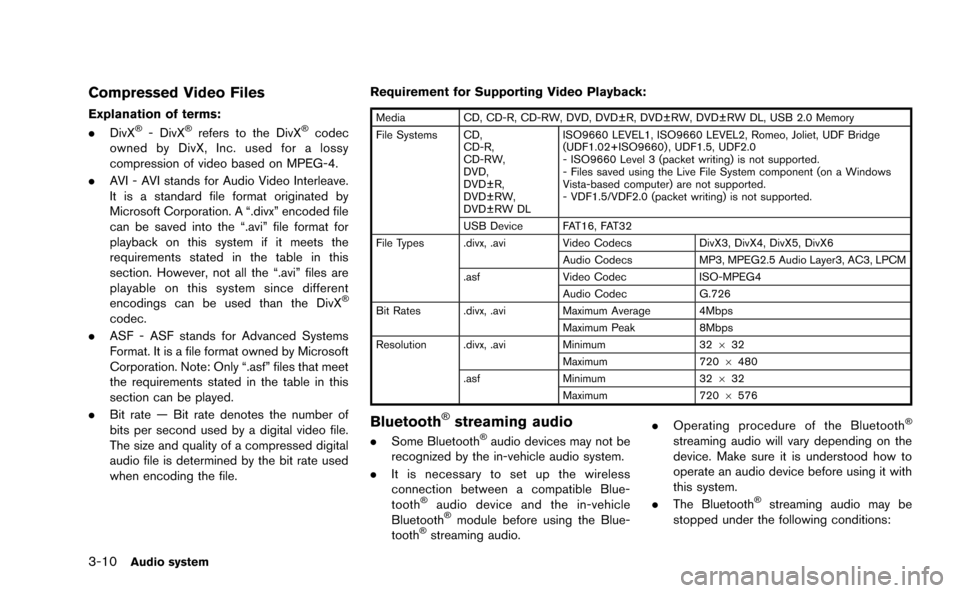
Explanation of terms:
.DivX®- DivX®refers to the DivX®codec
owned by DivX, Inc. used for a lossy
compression of video based on MPEG-4.
. AVI - AVI stands for Audio Video Interleave.
It is a standard file format originated by
Microsoft Corporation. A “.divx” encoded file
can be saved into the “.avi” file format for
playback on this system if it meets the
requirements stated in the table in this
section. However, not all the “.avi” files are
playable on this system since different
encodings can be used than the DivX
®
codec.
. ASF - ASF stands for Advanced Systems
Format. It is a file format owned by Microsoft
Corporation. Note: Only “.asf” files that meet
the requirements stated in the table in this
section can be played.
. Bit rate — Bit rate denotes the number of
bits per second used by a digital video file.
The size and quality of a compressed digital
audio file is determined by the bit rate used
when encoding the file. Requirement for Supporting Video Playback:
Media
CD, CD-R, CD-RW, DVD, DVD±R, DVD±RW, DVD±RW DL, USB 2.0 Memory
File Systems CD, CD-R,
CD-RW,
DVD,
DVD±R,
DVD±RW,
DVD±RW DL ISO9660 LEVEL1, ISO9660 LEVEL2, Romeo, Joliet, UDF Bridge
(UDF1.02+ISO9660) , UDF1.5, UDF2.0
- ISO9660 Level 3 (packet writing) is not supported.
- Files saved using the Live File System component (on a Windows
Vista-based computer) are not supported.
- VDF1.5/VDF2.0 (packet writing) is not supported.
USB Device FAT16, FAT32
File Types .divx, .avi Video CodecsDivX3, DivX4, DivX5, DivX6
Audio Codecs MP3, MPEG2.5 Audio Layer3, AC3, LPCM
.asf Video Codec ISO-MPEG4
Audio Codec G.726
Bit Rates .divx, .avi Maximum Average 4Mbps
Maximum Peak 8Mbps
Resolution .divx, .avi Minimum32632
Maximum 7206480
.asf Minimum 32632
Maximum 7206576
Bluetooth®streaming audio
. Some Bluetooth®audio devices may not be
recognized by the in-vehicle audio system.
. It is necessary to set up the wireless
connection between a compatible Blue-
tooth
®audio device and the in-vehicle
Bluetooth®module before using the Blue-
tooth®streaming audio. .
Operating procedure of the Bluetooth
®
streaming audio will vary depending on the
device. Make sure it is understood how to
operate an audio device before using it with
this system.
. The Bluetooth
®streaming audio may be
stopped under the following conditions:
Page 133 of 298
3-12Audio system
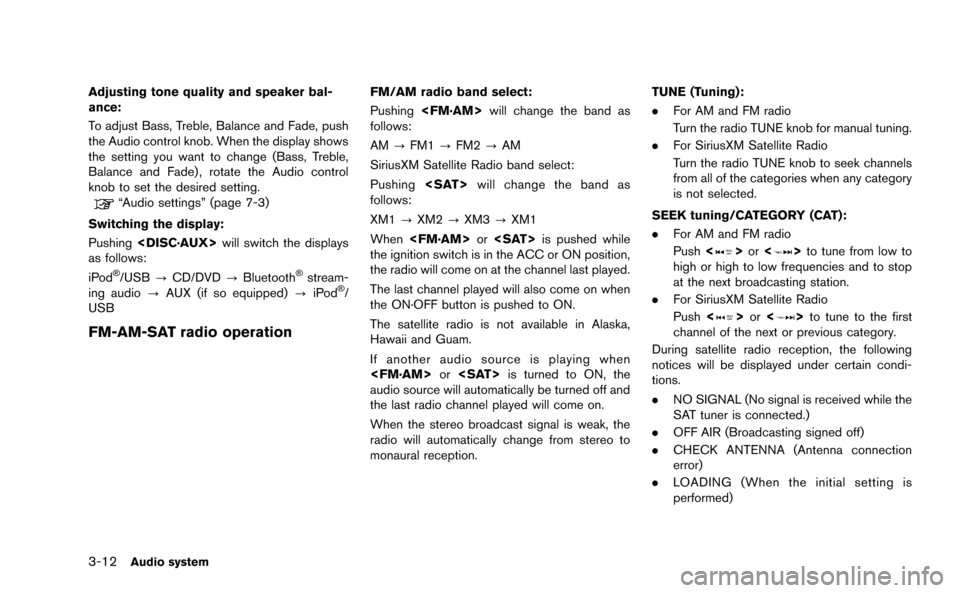
Adjusting tone quality and speaker bal-
ance:
To adjust Bass, Treble, Balance and Fade, push
the Audio control knob. When the display shows
the setting you want to change (Bass, Treble,
Balance and Fade) , rotate the Audio control
knob to set the desired setting.
“Audio settings” (page 7-3)
Switching the display:
Pushing
as follows:
iPod
®/USB ?CD/DVD ?Bluetooth®stream-
ing audio ?AUX (if so equipped) ?iPod®/
USB
FM-AM-SAT radio operation
FM/AM radio band select:
Pushing
follows:
AM ?FM1 ?FM2 ?AM
SiriusXM Satellite Radio band select:
Pushing
follows:
XM1 ?XM2 ?XM3 ?XM1
When
the ignition switch is in the ACC or ON position,
the radio will come on at the channel last played.
The last channel played will also come on when
the ON·OFF button is pushed to ON.
The satellite radio is not available in Alaska,
Hawaii and Guam.
If another audio source is playing when
audio source will automatically be turned off and
the last radio channel played will come on.
When the stereo broadcast signal is weak, the
radio will automatically change from stereo to
monaural reception. TUNE (Tuning):
.
For AM and FM radio
Turn the radio TUNE knob for manual tuning.
. For SiriusXM Satellite Radio
Turn the radio TUNE knob to seek channels
from all of the categories when any category
is not selected.
SEEK tuning/CATEGORY (CAT):
. For AM and FM radio
Push <
>or <>to tune from low to
high or high to low frequencies and to stop
at the next broadcasting station.
. For SiriusXM Satellite Radio
Push <
>or <>to tune to the first
channel of the next or previous category.
During satellite radio reception, the following
notices will be displayed under certain condi-
tions.
. NO SIGNAL (No signal is received while the
SAT tuner is connected.)
. OFF AIR (Broadcasting signed off)
. CHECK ANTENNA (Antenna connection
error)
. LOADING (When the initial setting is
performed)
Page 134 of 298
.UPDATING (When the satellite radio sub-
scription is not active)
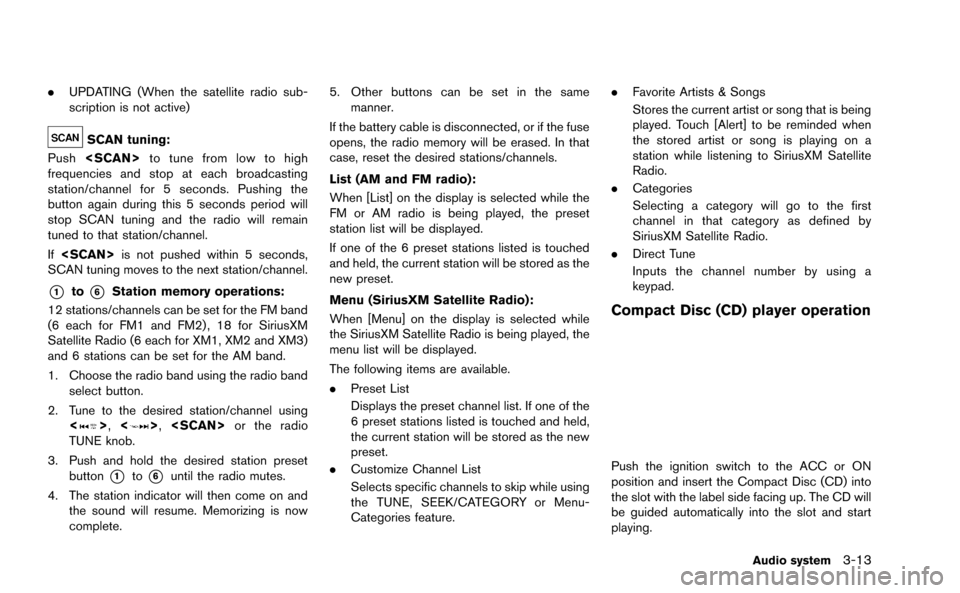
SCAN tuning:
Push
frequencies and stop at each broadcasting
station/channel for 5 seconds. Pushing the
button again during this 5 seconds period will
stop SCAN tuning and the radio will remain
tuned to that station/channel.
If
SCAN tuning moves to the next station/channel.
*1to*6Station memory operations:
12 stations/channels can be set for the FM band
(6 each for FM1 and FM2) , 18 for SiriusXM
Satellite Radio (6 each for XM1, XM2 and XM3)
and 6 stations can be set for the AM band.
1. Choose the radio band using the radio band select button.
2. Tune to the desired station/channel using <
>, <>,
TUNE knob.
3. Push and hold the desired station preset button
*1to*6until the radio mutes.
4. The station indicator will then come on and the sound will resume. Memorizing is now
complete. 5. Other buttons can be set in the same
manner.
If the battery cable is disconnected, or if the fuse
opens, the radio memory will be erased. In that
case, reset the desired stations/channels.
List (AM and FM radio):
When [List] on the display is selected while the
FM or AM radio is being played, the preset
station list will be displayed.
If one of the 6 preset stations listed is touched
and held, the current station will be stored as the
new preset.
Menu (SiriusXM Satellite Radio):
When [Menu] on the display is selected while
the SiriusXM Satellite Radio is being played, the
menu list will be displayed.
The following items are available.
. Preset List
Displays the preset channel list. If one of the
6 preset stations listed is touched and held,
the current station will be stored as the new
preset.
. Customize Channel List
Selects specific channels to skip while using
the TUNE, SEEK/CATEGORY or Menu-
Categories feature. .
Favorite Artists & Songs
Stores the current artist or song that is being
played. Touch [Alert] to be reminded when
the stored artist or song is playing on a
station while listening to SiriusXM Satellite
Radio.
. Categories
Selecting a category will go to the first
channel in that category as defined by
SiriusXM Satellite Radio.
. Direct Tune
Inputs the channel number by using a
keypad.
Compact Disc (CD) player operation
Push the ignition switch to the ACC or ON
position and insert the Compact Disc (CD) into
the slot with the label side facing up. The CD will
be guided automatically into the slot and start
playing.
Audio system3-13
Page 136 of 298
DVD (Digital Versatile Disc) PLAYER
OPERATION
Precautions
Start the engine when using the DVD entertain-
ment system.
Movies will not be shown on the front display
while the vehicle is in any drive position to
reduce driver distraction. Audio is available
when a movie is played. To view movies in the
front display, stop the vehicle in a safe location,
move the shift lever to the P (Park) position and
apply the parking brake.
WARNING
.The driver must not attempt to
operate the DVD system or wear
the headphones while the vehicle is
in motion so that full attention may
be given to vehicle operation.
. Do not attempt to modify the system
to display a movie on the front
screen while the vehicle is being
driven. Doing so may distract the
driver and may cause a collision and
serious personal injury or death.
CAUTION
.Only operate the DVD while the
vehicle engine is running. Operating
the DVD for extended periods of
time with the engine OFF can dis-
charge the vehicle battery.
. Do not allow the system to get wet.
Excessive moisture such as spilled
liquids may cause the system to
malfunction.
. While playing VIDEO-CD media, this
DVD player does not guarantee
complete functionality of all VI-
DEO-CD formats.
Display settings
To adjust the front display mode, push
select [Others] and then select [Display].
To adjust the display ON/OFF, brightness, tint,
color and contrast, select [Display Adjustment]
and then select each key.
Then you can adjust each item using the center
dial. After changes have been made push
Playing a DVD
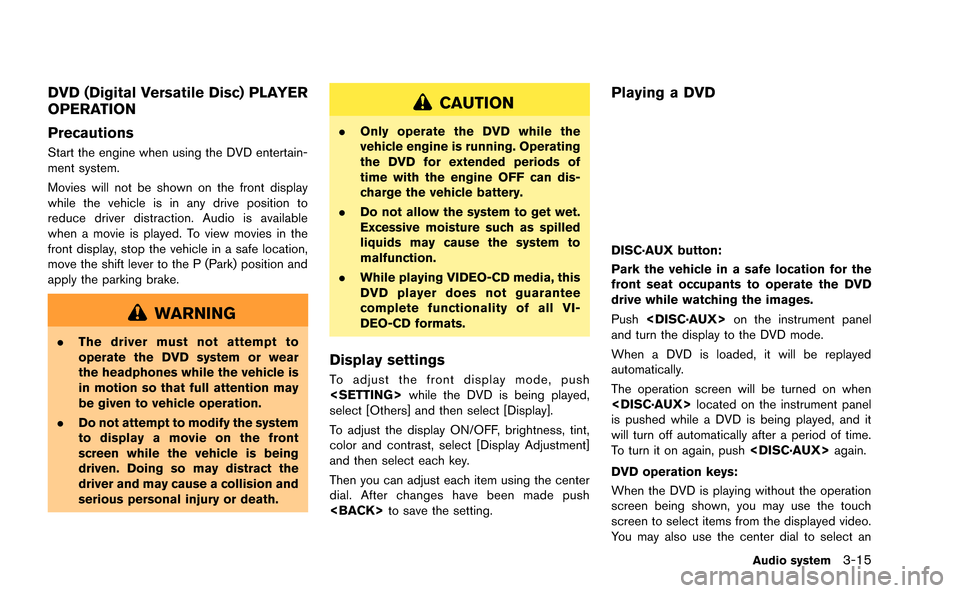
DISC·AUX button:
Park the vehicle in a safe location for the
front seat occupants to operate the DVD
drive while watching the images.
Push
and turn the display to the DVD mode.
When a DVD is loaded, it will be replayed
automatically.
The operation screen will be turned on when
is pushed while a DVD is being played, and it
will turn off automatically after a period of time.
To turn it on again, push
DVD operation keys:
When the DVD is playing without the operation
screen being shown, you may use the touch
screen to select items from the displayed video.
You may also use the center dial to select an
Audio system3-15