display NISSAN MURANO 2010 Owner´s Manual
[x] Cancel search | Manufacturer: NISSAN, Model Year: 2010, Model line: MURANO, Model: NISSAN MURANO 2010Pages: 425, PDF Size: 3.62 MB
Page 235 of 425
Black plate (231,1)
Model "Z51-D" EDITED: 2009/ 8/ 3
This vehicle is equipped with the mobile
entertainment system, which enables you to
play a Digital Versatile Disc (DVD) , providing the
images and sounds both in the front and rear
display screens.
WARNING
.The driver must not attempt to
operate or view the Mobile Enter-
tainment System (MES) while the
vehicle is in motion so that full
attention may be given to vehicle
operation.
. Do not attempt to modify the system
to display a movie on the front
screen while the vehicle is being
driven. Doing so may distract the
driver and may cause a collision and
serious personal injury or death.
CAUTION
.The glass screen on the liquid
crystal display may break if hit with
a hard or sharp object. If the glass
breaks, do not touch the liquid
crystalline material, which contains
a small amount of mercury. In case of contact with skin, wash immedi-
ately with soap and water.
. Use a damp, soft cloth when clean-
ing the Mobile Entertainment Sys-
tem components. Do not use
solvents or cleaning solutions.
. Do not attempt to use the system in extreme
temperature conditions [below 48F
( 20 8C) or above 158 8F (70 8C)].
. To avoid discharging the vehicle battery, do
not operate the system more than 15
minutes without starting the engine.
Movies will not be shown on the front display
while the vehicle is in any drive position to
reduce driver distraction. Audio is available
when a movie is played. To view movies in the
front display, stop the vehicle in a safe location,
move the selector lever to the P (Park) position
and apply the parking brake.
LHA0484
DVD player operation precautionsDo not use the following DVD’s as they
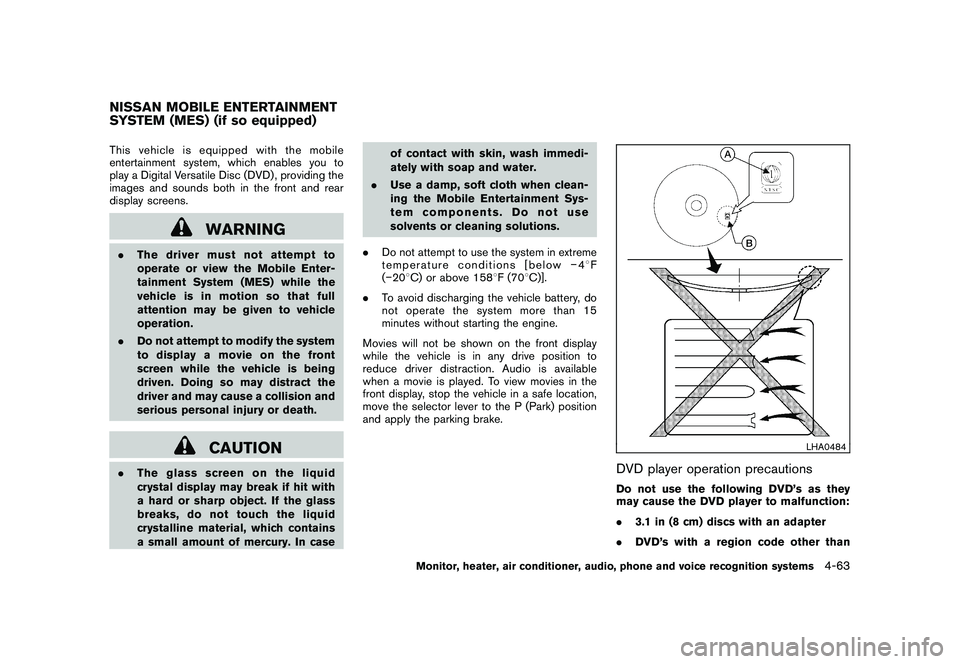
may cause the DVD player to malfunction:
. 3.1 in (8 cm) discs with an adapter
. DVD’s with a region code other than
NISSAN MOBILE ENTERTAINMENT
SYSTEM (MES) (if so equipped)
Monitor, heater, air conditioner, audio, phone and voice recognition systems
4-63
Page 236 of 425
Black plate (232,1)
Model "Z51-D" EDITED: 2009/ 8/ 3
“1”. The region code
*A
is displayed in
a small symbol printed on the top of
the DVD
*B
.
. DVD’s that are not round
. DVD’s with a paper label
. DVD’s that are warped, scratched, or
have unequal edges
. Recordable digital video discs (DVD-R)
. Rewritable digital video discs (DVD-
RW)
SAA1863
DIGITAL VERSATILE DISC (DVD) SYS-
TEM COMPONENTS
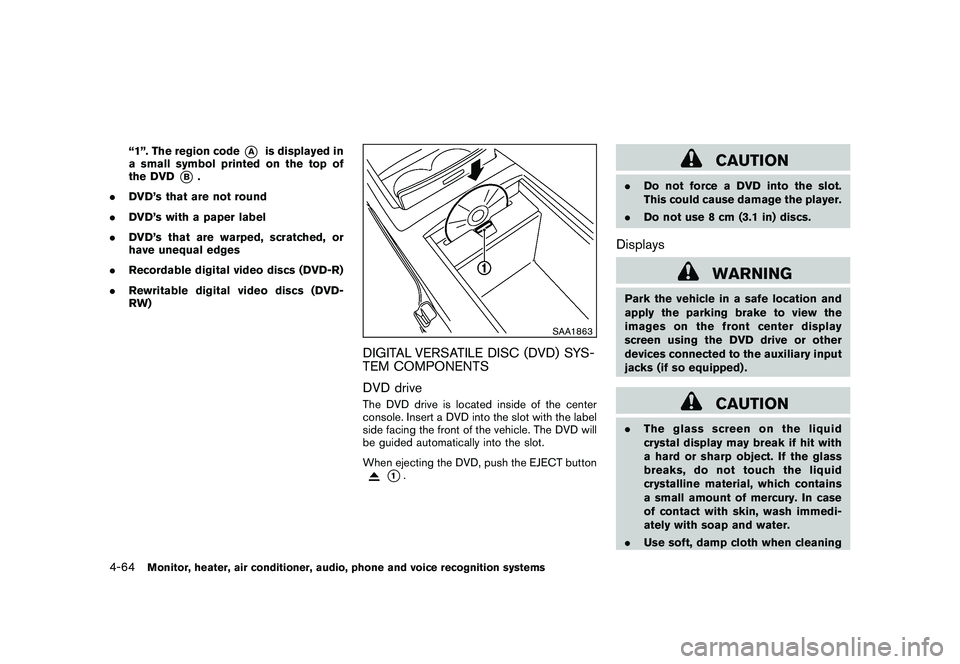
DVD driveThe DVD drive is located inside of the center
console. Insert a DVD into the slot with the label
side facing the front of the vehicle. The DVD will
be guided automatically into the slot.
When ejecting the DVD, push the EJECT button
*1.
CAUTION
.Do not force a DVD into the slot.
This could cause damage the player.
. Do not use 8 cm (3.1 in) discs.Displays
WARNING
Park the vehicle in a safe location and
apply the parking brake to view the
images on the front center display
screen using the DVD drive or other
devices connected to the auxiliary input
jacks (if so equipped) .
CAUTION
.The glass screen on the liquid
crystal display may break if hit with
a hard or sharp object. If the glass
breaks, do not touch the liquid
crystalline material, which contains
a small amount of mercury. In case
of contact with skin, wash immedi-
ately with soap and water.
. Use soft, damp cloth when cleaning
4-64
Monitor, heater, air conditioner, audio, phone and voice recognition systems
Page 237 of 425
Black plate (233,1)
Model "Z51-D" EDITED: 2009/ 8/ 3
the Mobile Entertainment System
components. Do not use solvents
or cleaning solutions.
. Be sure to stow the rear display
when it is not used.
SAA2002
Flip-down screen
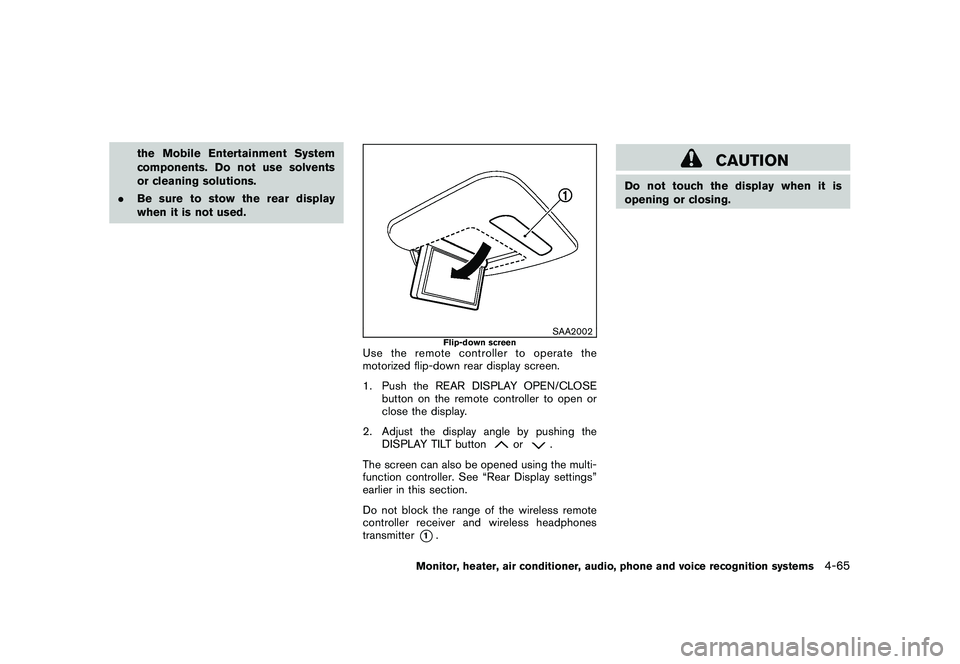
Use the remote controller to operate the
motorized flip-down rear display screen.
1. Push the REAR DISPLAY OPEN/CLOSE
button on the remote controller to open or
close the display.
2. Adjust the display angle by pushing the DISPLAY TILT button
or
.
The screen can also be opened using the multi-
function controller. See “Rear Display settings”
earlier in this section.
Do not block the range of the wireless remote
controller receiver and wireless headphones
transmitter
*1.
CAUTION
Do not touch the display when it is
opening or closing.
Monitor, heater, air conditioner, audio, phone and voice recognition systems
4-65
Page 238 of 425
Black plate (234,1)
Model "Z51-D" EDITED: 2009/ 8/ 3
SAA0720
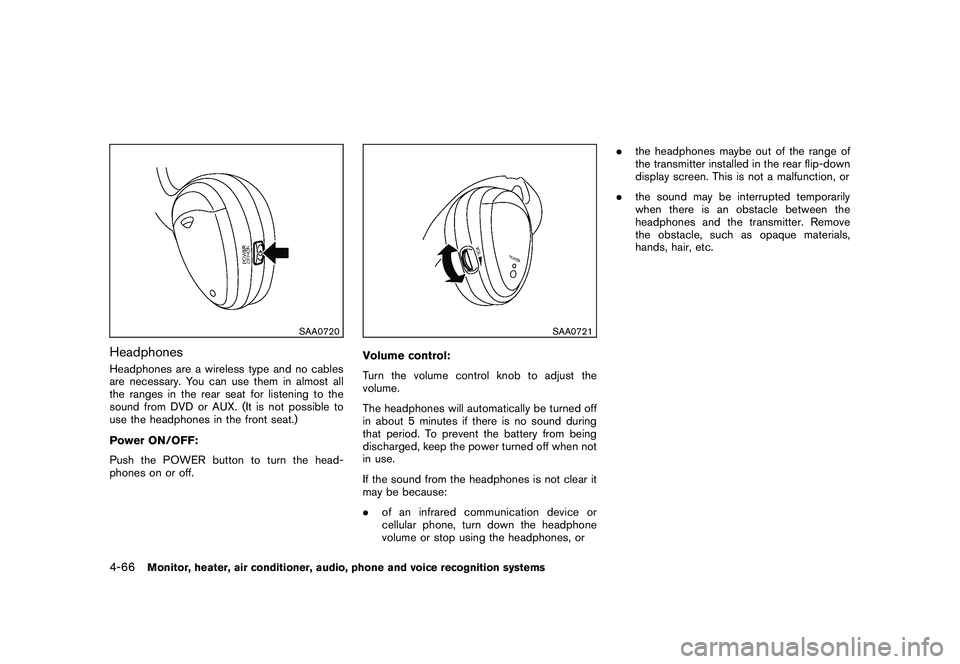
HeadphonesHeadphones are a wireless type and no cables
are necessary. You can use them in almost all
the ranges in the rear seat for listening to the
sound from DVD or AUX. (It is not possible to
use the headphones in the front seat.)
Power ON/OFF:
Push the POWER button to turn the head-
phones on or off.
SAA0721
Volume control:
Turn the volume control knob to adjust the
volume.
The headphones will automatically be turned off
in about 5 minutes if there is no sound during
that period. To prevent the battery from being
discharged, keep the power turned off when not
in use.
If the sound from the headphones is not clear it
may be because:
.of an infrared communication device or
cellular phone, turn down the headphone
volume or stop using the headphones, or .
the headphones maybe out of the range of
the transmitter installed in the rear flip-down
display screen. This is not a malfunction, or
. the sound may be interrupted temporarily
when there is an obstacle between the
headphones and the transmitter. Remove
the obstacle, such as opaque materials,
hands, hair, etc.
4-66
Monitor, heater, air conditioner, audio, phone and voice recognition systems
Page 239 of 425
Black plate (235,1)
Model "Z51-D" EDITED: 2009/ 8/ 3
SAA1861
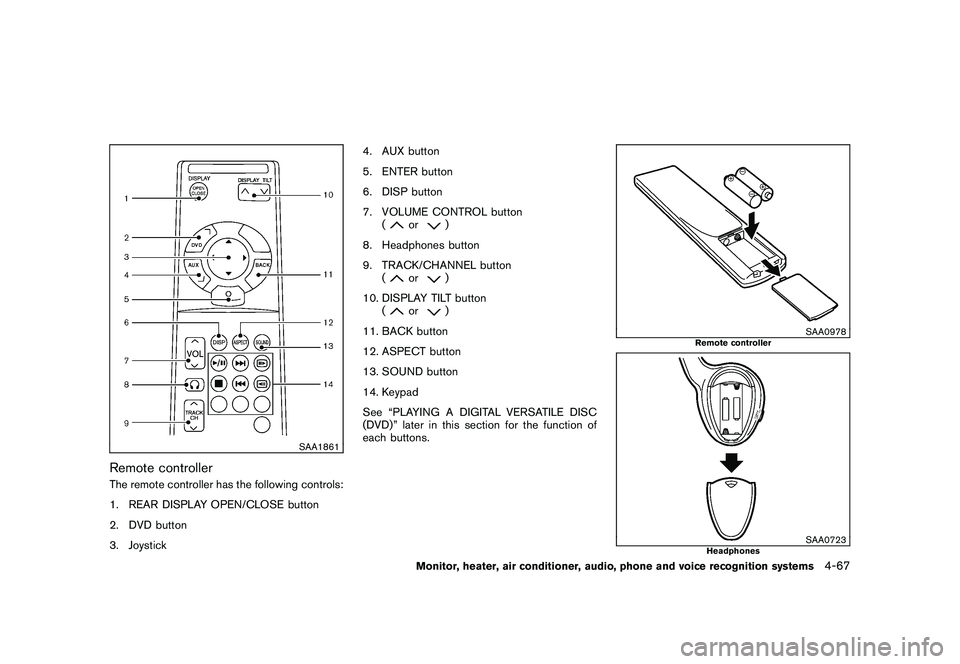
Remote controllerThe remote controller has the following controls:
1. REAR DISPLAY OPEN/CLOSE button
2. DVD button
3. Joystick4. AUX button
5. ENTER button
6. DISP button
7. VOLUME CONTROL button
(
or
)
8. Headphones button
9. TRACK/CHANNEL button (
or
)
10. DISPLAY TILT button (
or
)
11. BACK button
12. ASPECT button
13. SOUND button
14. Keypad
See “PLAYING A DIGITAL VERSATILE DISC
(DVD)” later in this section for the function of
each buttons.
SAA0978
Remote controller
SAA0723
Headphones
Monitor, heater, air conditioner, audio, phone and voice recognition systems
4-67
Page 241 of 425
Black plate (237,1)
Model "Z51-D" EDITED: 2009/ 8/ 3
etc., as long as the permit from Macrovision
Corporation is not issued.
. Modifying or disassembling is prohibited.
. Dolby digital is manufactured under license
from Dolby Laboratories, Inc.
. Dolby and the double D mark “
” are
trademarks of Dolby Laboratories, Inc.
. DTS and DTS Digital Surround “” are
registered trademarks of DTS, Inc.
Parental level (parental control)DVDs with the parental control setting can be
played with this system. Please use your own
judgement to set the parental control with the
system.Disc selectionYou can play the following disc formats with the
DVD drive:
. DVD-VIDEO
. VIDEO-CD
. CD-DA (Conventional Compact Disc) (CD
with MP3/WMA cannot be played.)
Use DVDs with a region code “1”, “ALL” or “1
included” for your DVD entertainment system.
(The region code is displayed as a small symbol
printed on the top of the DVD.) This vehicle- installed DVD player cannot play DVDs with a
region code other than “1” or “ALL”.
Display settingsFront display:
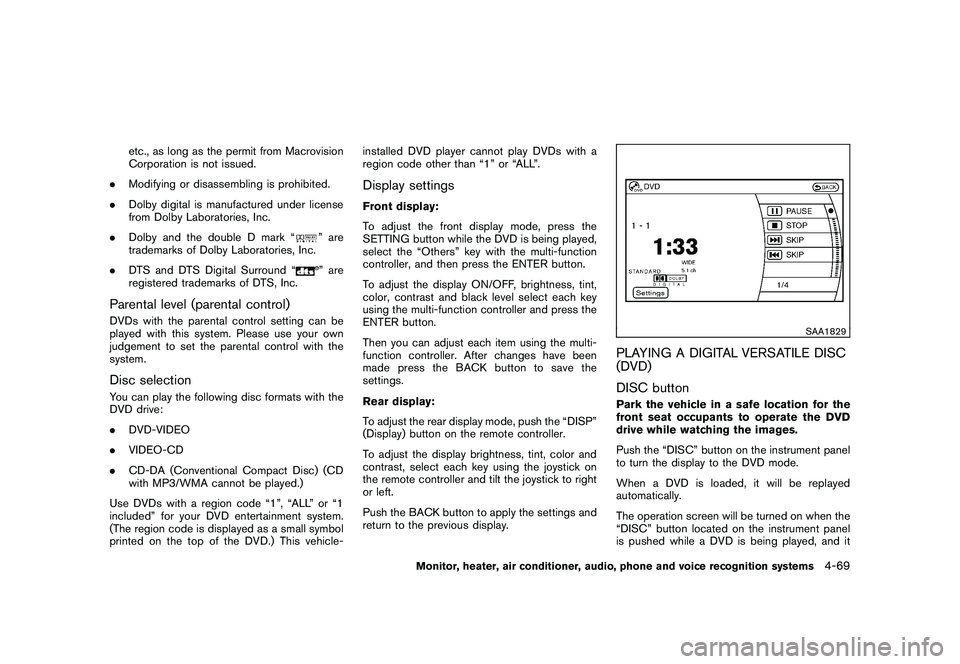
To adjust the front display mode, press the
SETTING button while the DVD is being played,
select the “Others” key with the multi-function
controller, and then press the ENTER button.
To adjust the display ON/OFF, brightness, tint,
color, contrast and black level select each key
using the multi-function controller and press the
ENTER button.
Then you can adjust each item using the multi-
function controller. After changes have been
made press the BACK button to save the
settings.
Rear display:
To adjust the rear display mode, push the “DISP”
(Display) button on the remote controller.
To adjust the display brightness, tint, color and
contrast, select each key using the joystick on
the remote controller and tilt the joystick to right
or left.
Push the BACK button to apply the settings and
return to the previous display.
SAA1829
PLAYING A DIGITAL VERSATILE DISC
(DVD)
DISC buttonPark the vehicle in a safe location for the
front seat occupants to operate the DVD
drive while watching the images.
Push the “DISC” button on the instrument panel
to turn the display to the DVD mode.
When a DVD is loaded, it will be replayed
automatically.
The operation screen will be turned on when the
“DISC” button located on the instrument panel
is pushed while a DVD is being played, and it
Monitor, heater, air conditioner, audio, phone and voice recognition systems
4-69
Page 242 of 425
Black plate (238,1)
Model "Z51-D" EDITED: 2009/ 8/ 3
will turn off automatically after a period of time.
To turn it on again, push the “DISC” button once
more.DVD operation keysTo operate the DVD drive, select the preferred
key displayed on the operation screen using the
multi-function controller.
PAUSE:
Select the “
” key and push the ENTER
button to pause the DVD. To resume playing the
DVD, use the “PLAY” key.
To pause the DVD, it is also possible to push the
“
” button on the keypad of the remote
controller.PLAY:
Select the “
” key and push the ENTER
button to start playing the DVD, for example,
after pausing the DVD.
To start playing the DVD, it is also possible to
push the “” button on the keypad of the
remote controller.
STOP:
Select the “
” key and push the ENTER
button to stop playing the DVD. To stop playing the DVD, it is also possible to
push the “
” button on the keypad of the
remote controller.
SKIP (FORWARD):
Select the “
” key and push the ENTER
button to skip the chapter(s) of the disc forward.
The chapters will advance the number of times
the ENTER button is pushed.
To skip the chapter(s) forward, it is also possible
to push the “” button on the keypad of the
remote controller.
SKIP (REWIND):
Select the “
” key and push the ENTER
button to skip the chapter(s) of the disc back-
ward. The chapters will go back the number of
times the ENTERbutton is pushed.
To skip the chapter(s) backward, it is also
possible to push the “
” button on the
keypad of the remote controller.
SAA2003
Setting (front) — DVD VIDEO-1
SAA1831
Setting (front) — DVD VIDEO-2
4-70
Monitor, heater, air conditioner, audio, phone and voice recognition systems
Page 243 of 425
Black plate (239,1)
Model "Z51-D" EDITED: 2009/ 8/ 3
SAA2013
Setting (front) — DVD VIDEO-3
SAA2014
Setting (rear) — DVD VIDEO-1
SAA1194
Setting (rear) — DVD VIDEO-2
SAA1195
Setting (rear) — DVD VIDEO-3
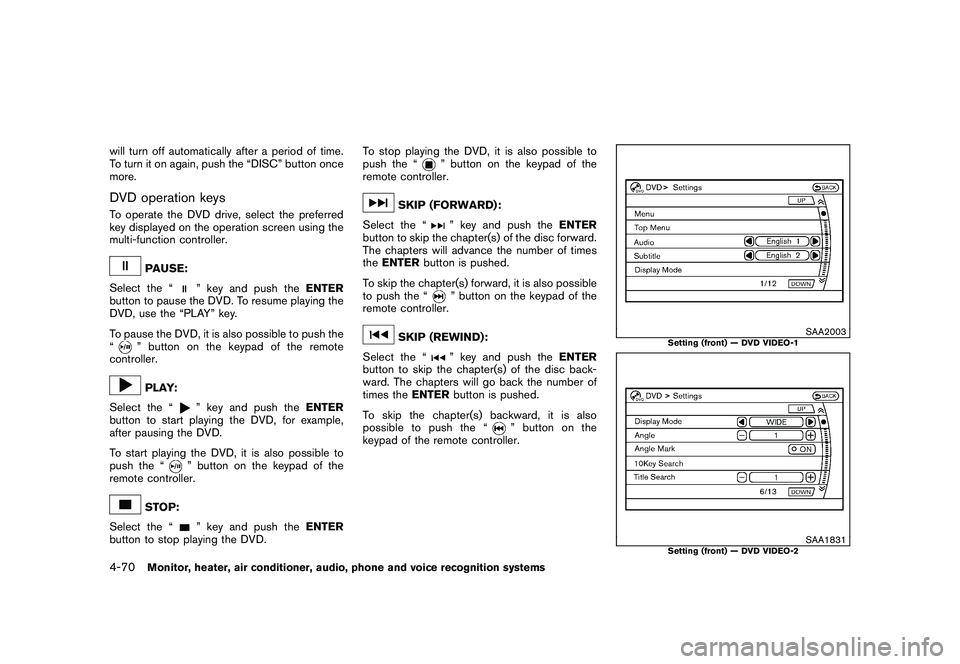
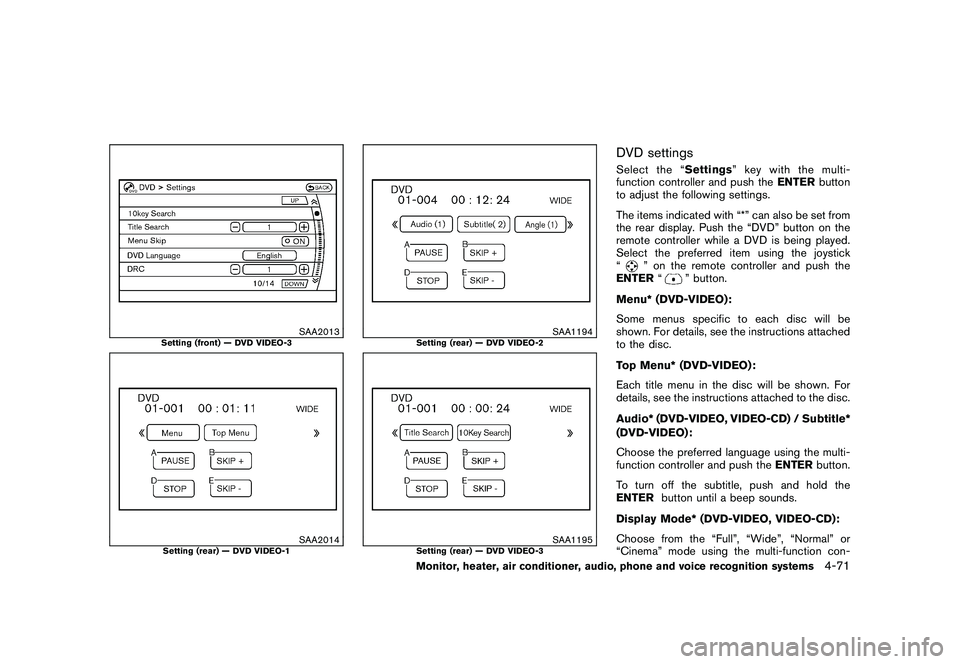
DVD settingsSelect the “Settings” key with the multi-
function controller and push the ENTERbutton
to adjust the following settings.
The items indicated with “*” can also be set from
the rear display. Push the “DVD” button on the
remote controller while a DVD is being played.
Select the preferred item using the joystick
“
” on the remote controller and push the
ENTER “
” button.
Menu* (DVD-VIDEO):
Some menus specific to each disc will be
shown. For details, see the instructions attached
to the disc.
Top Menu* (DVD-VIDEO):
Each title menu in the disc will be shown. For
details, see the instructions attached to the disc.
Audio* (DVD-VIDEO, VIDEO-CD) / Subtitle*
(DVD-VIDEO):
Choose the preferred language using the multi-
function controller and push the ENTERbutton.
To turn off the subtitle, push and hold the
ENTER button until a beep sounds.
Display Mode* (DVD-VIDEO, VIDEO-CD):
Choose from the “Full”, “Wide”, “Normal” or
“Cinema” mode using the multi-function con-
Monitor, heater, air conditioner, audio, phone and voice recognition systems
4-71
Page 244 of 425
Black plate (240,1)
Model "Z51-D" EDITED: 2009/ 8/ 3
troller and push theENTERbutton again.
Angle* (DVD-VIDEO):
If the DVD contains different angles (such as
moving images) , the current image angle can be
switched to another one.
Select the “ Angle” key and push the ENTER
button. When the “+” side or “ ” side is
selected, the angle will change.
Angle Mark (DVD-VIDEO):
When this item is turned on, an angle mark will
be shown on the bottom of the screen if the
scene can be seen from a different angle.
10 Key Search* (DVD-VIDEO, VIDEO-CD,
CD-DA):
Select the “10 Key Search ” key and push the
ENTER button to open the number entry screen.
Input the number you want to search for and
select the “OK ” key with the multi-function
controller. Then push the ENTERbutton. The
specified Title/Chapter or Group/Track will be
played.
Title Search* (DVD-VIDEO) :
The scene with the specified title will be
displayed the number of times the “+” side or
“ ” side is selected. Select No.* (VIDEO-CD):
Select the “Select No.
” key and push the
ENTER button to open the number entry screen.
Input the number you wish to search for and
select the “OK ” key with the multi-function
controller, and then push the ENTERbutton.
The specified scene will be played.
Menu Skip (DVD-VIDEO):
DVD menus are automatically configured and
the contents will be played directly when the
“Menu Skip ” key is turned on. Note that some
discs may not be played directly even if this item
is turned on.
DVD Language (DVD-VIDEO, VIDEO-CD):
Select the “DVD Language” key and push the
ENTER button to open the number entry screen.
Input the number corresponding to the preferred
language and select the “OK ” key with the multi-
function controller. Then push the ENTER
button. The DVD top menu language will be
changed to the one specified.
DRC (DVD-VIDEO) :
DRC (Dynamic Range Compression) allows you
to tune the dynamic range of the sound
recorded in the Dolby Digital format.
Remote controller operationUse the remote controller to adjust the following
items.
Rear display open/close:
To open or close the flip-down rear display, push
the “
” button on the remote controller.
Joystick:
Use the joystick “
” to select the items
displayed on the rear screen.
ENTER button:
Push the ENTER“” button to make the
selected item complete on the rear screen.
BACK button:
Press to go back to the previous screen or
cancel the selection.
Display tilt:
Adjust the display angle by pushing the “DIS-
PLAY TILT” buttonor
.
DVD mode:
To select the DVD mode, push the DVD button.
AUX mode:
To select the AUX (Auxiliary input jacks) mode,
push the AUX button.
4-72
Monitor, heater, air conditioner, audio, phone and voice recognition systems
Page 245 of 425
Black plate (241,1)
Model "Z51-D" EDITED: 2009/ 8/ 3
Volume:
To control the volume level, push the “VOL”
button
or
.
Display:
Press to adjust the rear display screen bright-
ness, tint, contrast, etc.
Aspect:
To change the display size, push the “ASPECT”
button. Each time the button is pushed, the
display size will change to “Cinema”, “Wide”,
“Full” or “Normal”.
Sound:
To change the language, push the “SOUND”
button. Each time the button is pushed, the
language will change to each language stored in
the DVD.
Headphones:
The DVD sound can be heard through the
headphones.
Push the “
” button. Each time the button is
pushed the mode will switch to ON or OFF.
To control the volume of sound from the
headphones, use the VOLUME CONTROL
knob attached to the headphones. Track/Channel:
Press to skip to the previous or next DVD scene
selection.
Keypad:
: PLAY/PAUSE button: STOP button: FORWARD button: REWIND button: FORWARD button for still images (for
DVD-AUDIO): REWIND button for still images (for DVD-AUDIO)
CARE AND MAINTENANCEUse a lightly dampened, lint free cloth to clean
the surfaces of your Mobile Entertainment
System. (DVD player face, screen, remote
controller, etc.)
CAUTION
. Do not use any solvents or cleaning
solutions when cleaning the video
system.
. Do not use excessive force on the
monitor screen. .
Avoid touching or scratching the
monitor screen as it may become
dirty or damaged.
. Do not attempt to operate the
system in extreme temperature con-
ditions [below 48F( 208 C) and
above 158 8F (70 8C)].
. Do not attempt to operate the
system in extreme humidity condi-
tions (less than 10% or more than
75%) .
Monitor, heater, air conditioner, audio, phone and voice recognition systems
4-73