fuel NISSAN ROGUE 2021 Owner´s Manual
[x] Cancel search | Manufacturer: NISSAN, Model Year: 2021, Model line: ROGUE, Model: NISSAN ROGUE 2021Pages: 556, PDF Size: 2.7 MB
Page 100 of 556
2-12Instruments and controls
: The average fuel economy since the
last reset will be displayed.
: The best fuel economy of the past
history will be displayed.
When the “See Tire Pressure” message
appears in the ECO Drive Report, the
display can be switched to the Tire
Pressures display by pushing the scroll
dial on the steering wheel to show an
additional message.
Page 107 of 556
accident and could result in ser-
ious personal injury. Check the
tire pressure for all four tires.
Adjust the tire pressure to the
recommended COLD tire pressure
shown on the Tire and Loading
Information label to turn the low
tire pressure warning light OFF. If
the light still illuminates while
driving after adjusting the tire
pressure, a tire may be flat or
the TPMS may be malfunctioning.
If you have a flat tire, replace it
with a spare tire as soon as
possible. If no tire is flat and all
tires are properly inflated, it is
recommended you consult a
NISSAN dealer.
. Since the spare tire is not
equipped with the TPMS, when a
spare tire is mounted or a wheel
is replaced, the TPMS will not
function and the low tire pressure
warning light will flash for ap-
proximately 1 minute. The light
will remain on after 1 minute.
Have your tires replaced and/or
TPMS system reset as soon as
possible. It is recommended you
visit a NISSAN dealer for these
services. .
Replacing tires with those not
originally specified by NISSAN
could affect the proper operation
of the TPMS.
CAUTION
.The TPMS is not a substitute for
the regular tire pressure check.
Be sure to check the tire pressure
regularly.
. If the vehicle is being driven at
speeds of less than 16 MPH (25
km/h), the TPMS may not operate
correctly.
. Be sure to install the specified
size of tires to the four wheels
correctly.
Malfunction Indicator Light
(MIL)
If the malfunction indicator light comes
on steady or blinks while the engine is
running, it may indicate a potential emis-
sion control and/or Continuously Variable
Transmission (CVT) malfunction.
The malfunction indicator light may also
illuminate steady if the vehicle runs out of
fuel. Check to make sure that the vehicle
has at least 3 US gallons (11.4 liters) of fuel
in the fuel tank.
After a few driving trips, the
light
should turn off if no other potential
emission control system malfunction ex-
ists.
If this indicator light remains on for 20
seconds and then blinks for 10 seconds
when the engine is not running, it indi-
cates that the vehicle is not ready for an
emission control system inspection/
maintenance test. (See “Readiness for
Inspection/Maintenance (I/M) test” (P.10-
29).)
Operation:
The malfunction indicator light will come
on in one of two ways:
. Malfunction indicator light on steady
— An emission control system and/or
CVT malfunction has been detected. It
Instruments and controls2-19
Page 108 of 556

2-20Instruments and controls
is recommended you visit a NISSAN
dealer for this service. You do not
need to have your vehicle towed to
the dealer.
. Malfunction indicator light blinking —
An engine misfire has been detected
which may damage the emission
control system.
To reduce or avoid emission control
system damage:
1) Do not drive at speeds above 45
MPH (72 km/h).
2) Avoid hard acceleration or decel- eration.
3) Avoid steep uphill grades.
4) If possible, reduce the amount of cargo being hauled or towed.
The malfunction indicator light may
stop blinking and remain on.
Have the vehicle inspected. It is re-
commended you visit a NISSAN dealer
for this service. You do not need to
have your vehicle towed to the dealer.
CAUTION
Continued vehicle operation without
having the emission control system
and/or CVT system checked and
repaired as necessary could lead to
poor driveability, reduced fuel econ- omy, and possible damage to the
emission control system.
Master warning light
When the ignition switch is in the ON
position, the master warning light illumi-
nates if a warning message appears in
the vehicle information display.
See “Vehicle information display” (P.2-22).
Rear Automatic Braking (RAB)
system OFF warning light
This light comes on when the ignition
switch is placed in the ON position. It
turns off after the engine is started.
This light illuminates when the RAB sys-
tem is turned off in the vehicle informa-
tion display.
If the light illuminates when the RAB
system is on, it may indicate that the
system is unavailable. For additional in-
formation, see “Rear Automatic Braking
(RAB)” (P.5-143).
Slip indicator light
When the ignition switch is in the ON
position, the slip indicator light illumi-
nates and then turns off.
The light will blink when the Vehicle
Dynamic Control (VDC) system or the
traction control system is operating, thus
alerting the driver that the vehicle is
nearing its traction limits. The road sur-
face may be slippery.
If the light illuminates while the VDC
system is on, this light alerts the driver
to the fact that the VDC system’s fail-safe
mode is operating, for example the VDC
system may not be functioning properly.
Have the system checked. It is recom-
mended you visit a NISSAN dealer for this
service. If a malfunction occurs in the
system, the VDC system function will be
canceled but the vehicle is still driveable.
For additional information, see “Vehicle
Dynamic Control (VDC) system” (P.5-157)
of this manual.
Vehicle Dynamic Control (VDC)
off indicator light
The light comes on when the VDC is
turned OFF. This indicates that the VDC
system and traction control system are
not operating.
Page 111 of 556
.Audio information
. Navigation - turn by turn
. Indicators and warnings
. Tire pressure information
. Other information
CHANGING THE METER SCREEN
VIEW (models with full-screen dis-
play)
For the model with full-screen display, the
meter screen view can be changed to
expand the vehicle information display
area. See “Changing the meter screen
view (models with full-screen display)”
(P.2-7) for how to change the view.
WAC0313X
HOW TO USE THE VEHICLE INFOR-
MATION DISPLAY
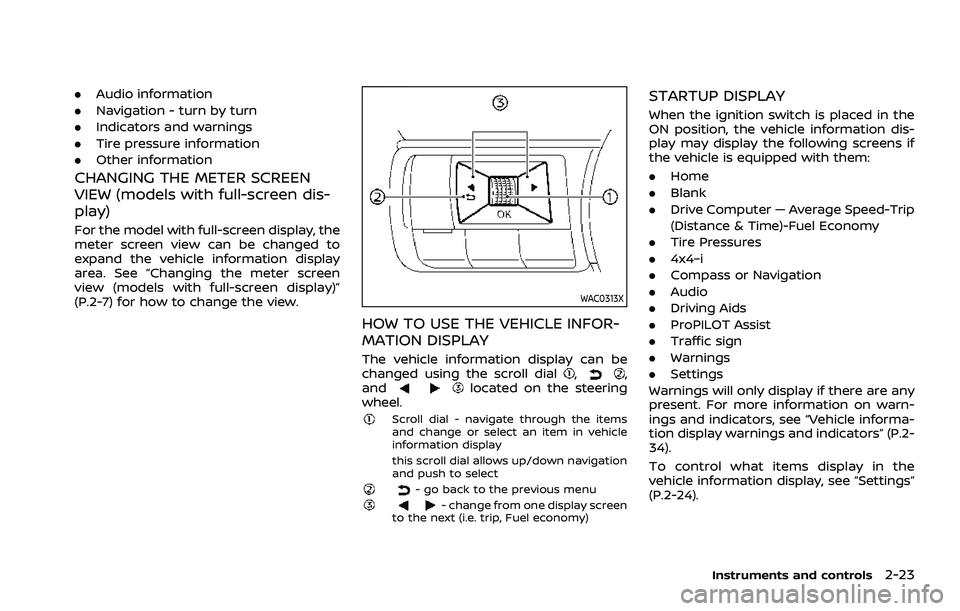
The vehicle information display can be
changed using the scroll dial,,
andlocated on the steering
wheel.
Scroll dial - navigate through the items
and change or select an item in vehicle
information display
this scroll dial allows up/down navigation
and push to select
- go back to the previous menu- change from one display screen
to the next (i.e. trip, Fuel economy)
STARTUP DISPLAY
When the ignition switch is placed in the
ON position, the vehicle information dis-
play may display the following screens if
the vehicle is equipped with them:
. Home
. Blank
. Drive Computer — Average Speed-Trip
(Distance & Time)-Fuel Economy
. Tire Pressures
. 4x4–i
. Compass or Navigation
. Audio
. Driving Aids
. ProPILOT Assist
. Traffic sign
. Warnings
. Settings
Warnings will only display if there are any
present. For more information on warn-
ings and indicators, see “Vehicle informa-
tion display warnings and indicators” (P.2-
34).
To control what items display in the
vehicle information display, see “Settings”
(P.2-24).
Instruments and controls2-23
Page 113 of 556
.Rear
Allows user to turn the Rear Auto-
matic Braking (RAB) system ON/OFF.
(See “Automatic Emergency Braking (AEB)
with pedestrian detection system” (P.5-
122), “Intelligent Forward Collision Warn-
ing (I-FCW)” (P.5-132) and “Rear Automatic
Braking (RAB)” (P.5-143).)
Speed Limit Sign (if so equipped):
Allows user to turn the Traffic Sign
Recognition (TSR) ON/OFF. (See “Traffic
Sign Recognition (TSR)” (P.5-43).)
Speed Adjust by Route (if so equipped):
Allows user to turn the Speed Adjust by
Route (ProPILOT Assist with Navi-link)
function ON/OFF. (See “Speed Limit Assist
- a feature of ProPILOT Assist with Navi-
link” (P.5-102).)
Spd.Limit Assist (if so equipped):
Allows user to customize the Speed Limit
Assist (ProPILOT Assist with Navi-link)
options.
. OFF
. Manual
. Auto
(See “Speed Limit Assist - a feature of
ProPILOT Assist with Navi-link” (P.5-102).) Parking Aids:
To change the status or turn on or off any
of the systems displayed in the “Parking
Aids” menu, use the scroll dial
to select
and change a menu item:
. Moving Object (if so equipped)
Allows user to turn the Moving Object
Detection (MOD) ON/OFF.
. Auto Show Sonar (if so equipped)
Allows user to turn the sonar system
or the Rear Sonar System (RSS) display
ON/OFF.
. Front (if so equipped)
Allows user to turn the front sonar
sensors ON/OFF.
. Rear
Allows user to turn the rear sonar
sensors ON/OFF.
. Side (if so equipped)
Allows user to turn the side sonar
sensors ON/OFF.
. Distance (if so equipped)
Allows user to select the sonar sen-
sor’s detection distance (Long, Med-
ium or Short).
. Volume
Allows user to select the volume of the
sonar tone (High, Medium or Low).
(See “Moving Object Detection (MOD)”
(P.4-22), “Sonar system” (P.5-162) and “Rear Sonar System (RSS)” (P.5-168).)
Cross Traffic Alert:
Allows user to turn the Rear Cross Traffic
Alert (RCTA) system ON/OFF. (See “Rear
Cross Traffic Alert (RCTA)” (P.5-76).)
Driver Attention Alert:
Allows user to turn the Intelligent Driver
Alertness (I-DA) on or off. (See “Intelligent
Driver Alertness (I-DA)” (P.5-141).)
Timer Alert:
Allows user to adjust the Timer Alert or
reset.
.
(Current Time)/(Set Time)
. Reset
Low Temp. Alert:
Allows user to turn the Low Temperature
Alert function ON/OFF.
Personal Display (if so equipped)
To change the display in the “Personal
Display” menu, use the scroll dialto
select and change a menu item:
. Blank
. Navigation
. Time to Destination
. Fuel Economy
— Manual Reset1
Instruments and controls2-25
Page 114 of 556
2-26Instruments and controls
— Manual Reset2
— Auto Refuel
. Trip
— Manual Reset1
— Manual Reset2
— Auto Refuel
. Gear position
. Average speed
— Manual Reset1
— Manual Reset2
— Auto Refuel
Head-Up Display (if so equipped)
To change the status or turn on or off any
of the systems displayed in the “Head-Up
Display” menu, use the scroll dial
to
select and change a menu item:
. Brightness
. Height
. Rotation
. Contents selection
— Navigation (if so equipped)
— Driving Assist
— Speed Limit Sign
— Audio
— TEL/SMS
. Reset
(See “Head Up Display (HUD)” (P.2-47).)
ECO Mode Setting
This setting allows user to change the
ECO mode system settings.
To change the status or turn on or off any
of the systems displayed in the “ECO
Mode Settings” menu, use the scroll dial
to select and change a menu item:
. ECO Customize
— Cruise Control
. ECO Drive Assist
— ECO Indicator
— ECO Drive Report
. View History
To reset the View History:
1) Select “View History” using the
scroll dial
and push it.
2) Push the scroll dial
.
3) Select “Yes” by pushing the scroll dial
.
. Tire Pres ECO advice
Push the scroll dial
to turn the “Tire
Pres ECO advice” ON/OFF.
TPMS Setting
The following submenu appears.
Page 118 of 556
2-30Instruments and controls
and intervals, refer to the “9. Maintenance
and schedules” section.
Tire:
This indicator appears when the user set
distance comes for replacing tires. You
can set or reset the distance for replacing
tires.
WARNING
The tire replacement indicator is not
a substitute for regular tire checks,
including tire pressure checks. (See
“Changing wheels and tires” (P.8-
33).) Many factors including tire in-
flation, alignment, driving habits and
road conditions affect tire wear and
when tires should be replaced.
Setting the tire replacement indica-
tor for a certain driving distance
does not mean your tires will last
that long. Use the tire replacement
indicator as a guide only and always
perform regular tire checks. Failure
to perform regular tire checks, in-
cluding tire pressure checks could
result in tire failure. Serious vehicle
damage could occur and may lead to
a collision, which could result in
serious personal injury or death.Other:
This indicator appears when the user set
distance comes for checking or replacing
maintenance items other than the engine
oil, oil filter and tires. Other maintenance
items can include such things as air filter
or tire rotation. You can set or reset the
distance for checking or replacing the
items.
Customize Display
The display settings allows user to
choose from the various meter selections.
The display settings can be changed
using the scroll dial
.
Main Menu Selection:
Displays available screens that can be
shown in the vehicle information display.
Route Guidance (if so equipped):
To change the setting, use the scroll dial
to select and push it.
. Alerts
The “Alerts” allows user to turn the
Navigation Settings alerts on or off.
Transition (Cruise) (if so equipped):
The ”Transition (Cruise)” allows user to
turn the cruise screen transition on or off. Welcome Effect:
The “Welcome Effect” displays the avail-
able welcome effect settings.
. Gauges (if so equipped)
. Animation
Operation guidance:
The “Operation guidance” displays the
available operation guidance settings.
. Lights
. Wiper
. Seat Memory (if so equipped)
. Cruise Control (if so equipped)
Unit/Language
The units that are shown in the vehicle
information display can be changed:
.Mileage/Fuel
. Tire Pressure
. Temperature
. Language
Use the scroll dial
to select and change
the units of the vehicle information dis-
play.
Mileage/Fuel:
The unit for the mileage that is shown in
the vehicle information display can be
changed.
Page 122 of 556
2-34Instruments and controls
VEHICLE INFORMATION DISPLAY
WARNINGS AND INDICATORS
The displayed images may differ depend-
ing on the model.
1. Engine start operation indicator
This indicator appears when the shift
position is in the P (Park) position.
This indicator means that the engine will
start by pushing the ignition switch with
the brake pedal depressed. You can start
the engine directly in any position of the
ignition switch.
2. No Key Detected warning
This warning appears when the door is
closed with the Intelligent Key left outside
the vehicle and the engine is running.
Make sure that the Intelligent Key is inside
the vehicle.
See “Intelligent Key system” (P.3-7) for
more details.
3. Shift to Park warning (if so
equipped)
This warning appears when the door is
opened while the shift position is other
than P (Park).
If this warning appears, push the park
button to engage the P (Park) position.
An inside warning chime will also sound.(See “Intelligent Key system” (P.3-7).)
4. Key Battery Low warning
This warning appears when the Intelli-
gent Key battery is running out of power.
If this indicator appears, replace the
battery with a new one. See “Intelligent
Key battery replacement” (P.8-20).
5. Engine start operation for Intelli-
gent Key system indicator
This indicator appears when the Intelli-
gent Key battery is running out of power
and when the Intelligent Key system and
vehicle are not communicating normally.
If this indicator appears, touch the igni-
tion switch with the Intelligent Key while
depressing the brake pedal. (See “Intelli-
gent Key battery discharge” (P.5-16).)
6. Key System Error: See Owner’s
Manual warning
This warning appears if there is a mal-
function in the Intelligent Key system.
If this warning appears while the engine is
stopped, the engine cannot be started. If
this warning appears while the engine is
running, the vehicle can be driven. How-
ever, it is recommended that you visit a
NISSAN dealer for repair as soon as
possible.
7. Release Parking Brake warning
This warning appears when the accel-
erator pedal is depressed when the
electronic parking brake automatic re-
lease function cannot be used. Release
the electronic parking brake manually.
8. Low Fuel warning
This warning appears when the fuel level
in the fuel tank is getting low. Refuel as
soon as it is convenient, preferably before
the fuel gauge reaches 0 (Empty). There
will be a small reserve of fuel in the tank
when the fuel gauge needle reaches 0
(Empty).
9. Low Washer Fluid warning (if so
equipped)
This warning appears when the window
washer fluid is at a low level. Add window
washer fluid as necessary. For additional
information, refer to “Window washer
fluid” (P.8-9).
10. Door/liftgate open warning
This warning appears if any of the doors
and/or the liftgate are open or not closed
securely. The vehicle icon indicates which
door or the liftgate is open on the display.
Page 132 of 556
2-44Instruments and controls
WAC0313X
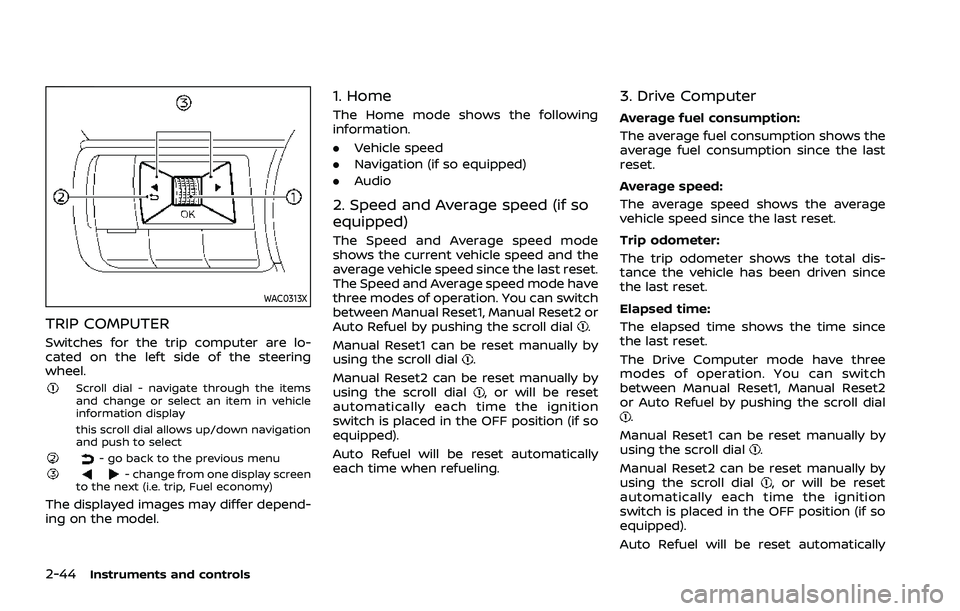
TRIP COMPUTER
Switches for the trip computer are lo-
cated on the left side of the steering
wheel.
Scroll dial - navigate through the items
and change or select an item in vehicle
information display
this scroll dial allows up/down navigation
and push to select
- go back to the previous menu- change from one display screen
to the next (i.e. trip, Fuel economy)
The displayed images may differ depend-
ing on the model.
1. Home
The Home mode shows the following
information.
. Vehicle speed
. Navigation (if so equipped)
. Audio
2. Speed and Average speed (if so
equipped)
The Speed and Average speed mode
shows the current vehicle speed and the
average vehicle speed since the last reset.
The Speed and Average speed mode have
three modes of operation. You can switch
between Manual Reset1, Manual Reset2 or
Auto Refuel by pushing the scroll dial
.
Manual Reset1 can be reset manually by
using the scroll dial
.
Manual Reset2 can be reset manually by
using the scroll dial
, or will be reset
automatically each time the ignition
switch is placed in the OFF position (if so
equipped).
Auto Refuel will be reset automatically
each time when refueling.
3. Drive Computer
Average fuel consumption:
The average fuel consumption shows the
average fuel consumption since the last
reset.
Average speed:
The average speed shows the average
vehicle speed since the last reset.
Trip odometer:
The trip odometer shows the total dis-
tance the vehicle has been driven since
the last reset.
Elapsed time:
The elapsed time shows the time since
the last reset.
The Drive Computer mode have three
modes of operation. You can switch
between Manual Reset1, Manual Reset2
or Auto Refuel by pushing the scroll dial
.
Manual Reset1 can be reset manually by
using the scroll dial
.
Manual Reset2 can be reset manually by
using the scroll dial
, or will be reset
automatically each time the ignition
switch is placed in the OFF position (if so
equipped).
Auto Refuel will be reset automatically
Page 133 of 556
each time when refueling.
4. Fuel economy display
Current fuel consumption:
The Fuel economy display mode shows
the current fuel consumption.
Average fuel consumption:
The Fuel economy display mode shows
the average fuel consumption since the
last reset.
The Fuel economy display mode have
three modes of operation. You can switch
between Manual Reset1, Manual Reset2 or
Auto Refuel by pushing the scroll dial
.
Manual Reset1 can be reset manually by
using the scroll dial
.
Manual Reset2 can be reset manually by
using the scroll dial
, or will be reset
automatically each time the ignition
switch is placed in the OFF position (if so
equipped).
Auto Refuel will be reset automatically
each time when refueling.
5. ECO Pedal Guide
When the ECO mode is selected, you can
view the ECO Pedal Guide function for
improving fuel economy.
The ECO Pedal Guide mode have three
modes of operation. You can switch
between Manual Reset1, Manual Reset2
or Auto Refuel by pushing the scroll dial
.
Manual Reset1 can be reset manually by
using the scroll dial
.
Manual Reset2 can be reset manually by
using the scroll dial
, or will be reset
automatically each time the ignition
switch is placed in the OFF position (if so
equipped).
Auto Refuel will be reset automatically
each time when refueling.
(See “ECO Pedal Guide function” (P.5-33).)
6. Tire Pressures
The tire pressure mode shows the pres-
sure of all four tires while the vehicle is
driven.
With the “Tire Pres ECO advice” function
ON, when the tire pressure is getting low,
”Check Tire Pressures for Best Fuel Econ-
omy” or ”Add air for Best Fuel Economy”
appears. (See “ECO Mode Setting” (P.2-26)
and “Tire Pres ECO advice” (P.5-33).) When the Tire Pressure Low — Add Air
warning appears, the display can be
switched to the tire pressure mode by
pushing the scroll dial
to reveal addi-
tional details on the displayed warning.
7. Intelligent 4x4 torque distribution
display (if so equipped)
When the Intelligent 4x4 torque distribu-
tion display is selected, you can view the
distribution ratio of the transmission
torque to the front and rear wheels
during driving.
8. Compass (if so equipped)
This display indicates the heading direc-
tion of the vehicle.
9. Navigation (if so equipped)
When the route guidance is set in the
navigation system, this item shows the
navigation route information.
10. Audio
The audio mode shows the status of
audio information.
Instruments and controls2-45