reset OLDSMOBILE SILHOUETTE 2003 User Guide
[x] Cancel search | Manufacturer: OLDSMOBILE, Model Year: 2003, Model line: SILHOUETTE, Model: OLDSMOBILE SILHOUETTE 2003Pages: 466, PDF Size: 21.55 MB
Page 238 of 466
Finding a Station
AM FM: Press this button to switch between AM, FM1
and FM2. The display
will show your selection.
TUNE: Turn this knob to select radio stations.
k SEEK >I : Press the right or the left arrow to go to
the next or
to the previous station and stay there.
The radio will seek only
to stations that are in the
selected band and only to those with a strong signal.
k SCAN >I : Press and hold either SCAN arrow
for two seconds until SC appears on the display and
you hear a beep. The radio will go
to a station, play
for a few seconds, then go on to the next station.
Press either SCAN arrow again to stop scanning.
To scan preset stations, press and hold either SCAN
arrow for more than four seconds. PRESET SCAN will
appear on the display. You will hear a double beep.
The radio will go to a preset station stored on your
pushbuttons, play for a few seconds, then go on to the
next preset station. Press either SCAN arrow again
to stop scanning presets.
The radio will scan only to stations that are in the
selected band and only
to those with a strong signal.
Setting Preset Stations
The six numbered pushbuttons let you return to your
favorite stations. You can set up to
18 stations (six AM,
six FMI and six FM2) by performing the following steps:
1. Turn the radio on.
2. Press AM FM to select
AM, FMI or FM2.
3. Tune in the desired station.
4. Press AUTO EQ to select the equalization that
best suits the type of station selected.
5. Press and hold one of the six numbered
pushbuttons until you hear a beep. Whenever you
press that numbered pushbutton, the station
you set will return and the equalization that you
selected will also be automatically selected for
that pushbutton.
6. Repeat the steps for each pushbutton.
3-8 1
Page 241 of 466
SCAN: You can also scan through the channels within
a category by performing the following:
1. Press the P-TYPE button. P-TYPE and the last
selected PTY will be displayed on the screen.
2. Select a category by turning the P-TYPE knob.
3. Once the desired category is displayed, press and
hold either SCAN arrow, and the radio will begin
scanning within your chosen category.
particular station.
4. Press either SCAN arrow again to stop at a
AM FM (Alternate Frequency): Alternate frequency
allows the radio to switch to a stronger station with the
same program type. Press and hold AM FM for two
seconds to turn alternate frequency
on. AF ON
will appear on the display. The radio may switch to
stronger stations. Press and hold AM FM again for two
seconds to turn alternate frequency
off. AF OFF will
appear on the display. The radio will not switch to other
stations. When you turn the ignition
off and then on
again, the alternate frequency feature will automatically
be turned on.
Setting Preset PTYs
The six numbered pushbuttons let you return to your
favorite PTYs. These buttons have factory PTY presets.
You can set up
to 12 PTYs (six FMI and six FM2) by
performing the following steps:
1. Press BAND to select FMI or FM2.
2. Press the P-TYPE button to activate program type
3. Turn the P-TYPE knob to select a PTY.
select
mode.
4. Press and hold one of the six numbered pushbuttons
until you hear a beep. Whenever you press that
numbered pushbutton, the PTY you set will return.
5. Repeat the steps for each pushbutton
3-84
Page 244 of 466
Playing a Specific Loaded
Compact Disc
For every CD loaded, a number will appear on the radio
display. To play a specific CD, first press the CD AUX
button to start playing a CD. Then press the numbered
pushbutton that corresponds to the CD you want to
play. A small bar will appear under the CD number that
is playing, and the track number will appear.
If an error appears on the radio display, see “Compact
Disc Messages’’ later in this section.
LOAD CD A (Eject): Pressing the CD eject side of
this button will eject a single disc or multiple discs.
To eject the disc that is currently playing, press
and release this button. To eject multiple discs, press
and hold this button for two seconds. You will hear
a beep and the light will flash to let you know when a
disc is being ejected.
REMOVE CD will be displayed. You can now remove
the disc. If the disc is not removed, after 25 seconds, the
disc
will be automatically pulled back into the receiver.
If you try to push the disc back into the receiver,
before the 25 second time period
is complete, the
receiver will sense an error and will try to eject the disc
several times before stopping.
Do not repeatedly press the CD eject side of the
LOAD CD eject button to eject a disc after you have
tried to push
it in manually. The receivers 25-second
eject timer will reset at each press
of eject, which
will cause the receiver to not eject the disc until the
25-second time period has elapsed.
Once the player stops and the disc is ejected, remove the
disc. After removing the disc, press the PWR knob
off and
then on again. This will clear the disc-sensing feature and
enable discs to be loaded into the player again.
< REV (Reverse): Press and hold this button to
reverse quickly within a track. You will hear sound at a
reduced volume. Release it to play the passage.
The display will show elapsed time.
FWD >> (Forward): Press and hold this button to
advance quickly within a track. You will hear sound
a reduced volume. Release it to play the passage.
The display will show elapsed time. at
RPT (Repeat): With repeat, you can repeat one track
or
an entire disc. To use repeat, do the following:
@ To repeat the track you are listening to, press and
release the RPT button. RPT will appear on the
display. Press RPT again to turn it
off.
@ To repeat the disc you are listening to, press and
hold the RPT button for two seconds. RPT will
appear on the display. Press RPT again to turn it
off.
3-87
Page 256 of 466
AM FM: Press this button to switch between AM, FM1
and
FM2. If the front passengers are already listening
to the radio, the RSA controller will not switch between
the bands and cannot change the frequency. Press
this button to play a cassette tape or a compact
disc when listening to the radio.
SEEK v : While listening to the radio, press the up
or the down arrow to tune to the next or the previous
station and stay there. The SEEK button is inactive
if the
front radio is in use.
While listening to a cassette tape, press the up or the
down arrow to hear the next or the previous selection.
The SEEK button is inactive
if the tape mode on
the front radio is in use.
While listening to a CD, press the up arrow to hear the
next track on the CD. Press the down arrow to go
back to the start
of the current track (if more than eight
seconds have played). The SEEK button is inactive
if the CD mode on the front radio is in use.
Tn enmn et-tinne mcn~c- rr-4 hnlrl nmn nJ +hn CCCW I w JbUI I O~U~1VI to, P' Gad Ul IU I IWlU VI Ici VI LI 1-z ULLl
arrows until the radio goes into scan mode. The radio
will scan to
a station, play for a few seconds, then go on
to the next station. Press SEEK again to stop scanning.
The scan function is inactive
if front radio is in use. PSET
PROG (Preset Program): The front passengers
must be listening to something different for each of
these functions to work:
0 Press this button to scan through the preset radio
stations set on the pushbuttons on the main radio.
The radio will go to a preset station stored on
your pushbuttons, play for a few seconds, then go
on to the next preset station. Press this button
again to stop scanning presets.
When a cassette tape is playing, press this button
to go to the other side
of the tape.
When a CD is playing, press this button to select a
disc.
TAPE CD: Press this button to switch between playing
a cassette tape or a compact disc when listening to
the radio. The inactive tape or compact disc will remain
safely inside the radio for future listening.
3-99
Page 258 of 466
While listening to a cassette tape, press the right arrow to
hear the next selection on the tape. Press the left arrow to
go back to the previous selection. These arrows are
inactive
if the tape mode on the front radio is in use.
While listening to a CD, press the right arrow to hear the
next track on the CD. Press the left arrow to go back to
the start of the current track (if more than eight seconds
have played). These arrows are inactive
if the CD mode
on the front radio is in use.
P.SET SCAN (Preset
Scan): The front passengers
must be listening to something different for each of
these functions to work:
Press and hold this button to scan through the
preset radio stations set on the pushbuttons on the
main radio. The radio will go to a preset station
stored on your pushbuttons, play for a few seconds,
then go on to the next preset station. This feature
will only scan the presets that are in the selected
band. The selected radio station frequency will
appear on the display above the video screen.
Przss this !x::sn zgzi;; tz step scznzizcj pi-esek
If your vehicle is equipped with the AM-FM Radio
with Cassette Tape and Compact Disc Player
with Radio Data System (RDS) and Automatic Tone
Control, press this button to go to the other side
of the tape when a cassette tape is playing.
0 If your vehicle has the AM-FM Radio with Six-Disc
Compact Disc Player with Equalization and Radio
Data System (RDS), press this button to switch
to playing a different CD when multiple CDs
are loaded into the CD player.
CD TAPE: Press this button to switch between playing
a cassette tape, a compact disc, a DVD or an auxiliary
device when the headphones are on channel
B. If one
of the devices is not loaded, the system will skip
over the device when this button is pressed.
Theft-Deterrent Feature
THEFTLOCK@ is designed to discourage theft of your
radio. The feature works automatically by learning
a portion of the Vehicle Identification Number
(VIN).
If the radio is moved to a different vehicle, it will
not operate and LOCKED will be displayed.
When the radio and vehicle are turned
off, your radio
may have a blinking red light that indicates that
THEFTLQCK IC 2rme.l.
With THEFPLOCK activated, your radio will not operate
if stolen.
3-1 01
Page 259 of 466
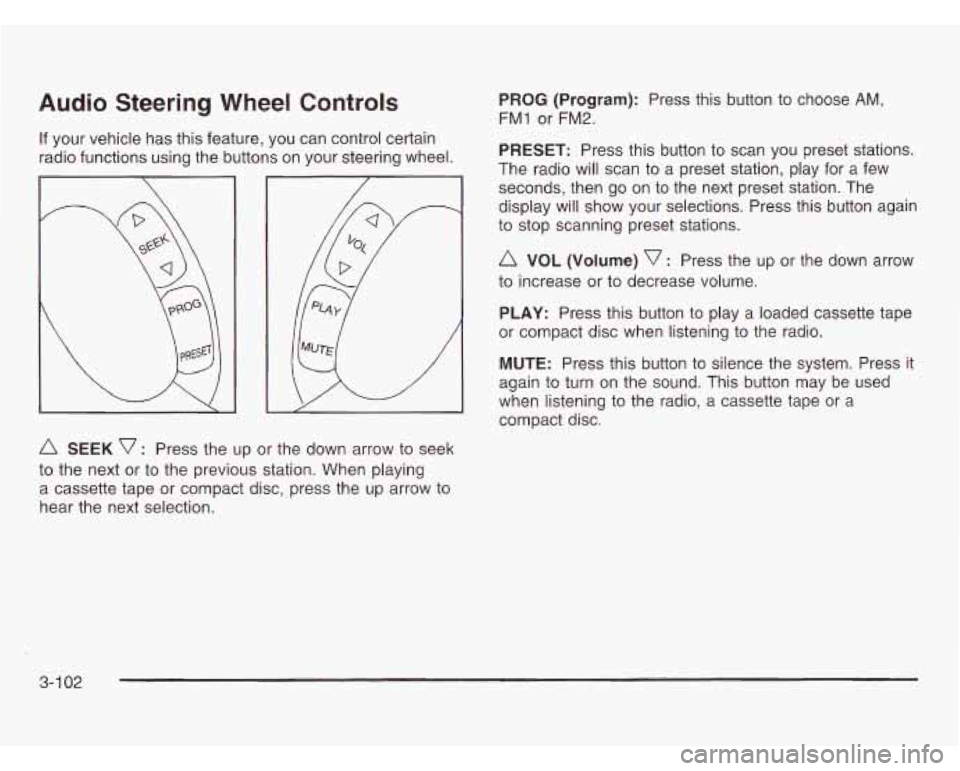
Audio Steering Wheel Controls
If your vehicle has this feature, you can control certain
radio functions using the buttons on your steering wheel.
A SEEK v : Press the up or the down arrow to seek
to the next or to the previous station. When playing
a cassette tape
or compact disc, press the up arrow to
hear the next selection.
PROG (Program): Press this button to choose AM,
FM1 or FM2.
PRESET: Press this button to scan you preset stations.
The radio will scan to a preset station, play for a few
seconds, then go on to the next preset station. The
display will show your selections. Press this button again
to stop scanning preset stations.
A VOL (Volume) v : Press the up or the down arrow
to increase or to decrease volume.
PLAY: Press this button to play a loaded cassette tape
or compact disc when listening to the radio.
MUTE: Press this button to silence the system. Press it
again to turn on the sound. This button may be used
when listening to the radio, a cassette tape or a
compact disc.
3-1 02
Page 260 of 466
DVD Distortion
You may experience video distortion when operating
cellular phones, scanners, CB radios, Global Position
Systems (GPS)*, two-way radios, mobile fax, or
wal kie talkies.
It may be necessary to turn
off the DVD player when
operating one of these devices in or near the vehicle.
*Excludes the Onstar@ System.
Understanding Radio Reception
AM
The range for most AM stations is greater than for FM,
especially at night. The longer range, however, can
cause stations to interfere with each other. AM can pick
up noise from things like storms and power lines. Try
reducing the treble to reduce this noise
if you ever get it.
FM
FM stereo will give you the best sound, but FM signals
will reach only about
10 to 40 miles (16 to 65 km).
Tall buildings or hills can interfere with
FM signals,
causing the sound to come and go.
Care of Your Cassette Tape Player
A tape player that is not cleaned regularly can cause
reduced sound quality, ruined cassettes or a damaged
mechanism. Cassette tapes should be stored
in their
cases away from contaminants, direct sunlight and
extreme heat. If they aren’t, they may not operate
properly or may cause failure
of the tape player.
Your tape player should be cleaned regularly after
every
50 hours of use. Your radio may display CLEAN
to indicate that you have used your tape player for
50 hours without resetting the tape clean timer.
If this message appears on the display, your cassette
tape player needs to be cleaned. It will still play
tapes, but you should clean it as soon as possible
to prevent damage to your tapes and player. If you
notice a reduction in sound quality, try a known good
cassette to see
if the tape or the tape player is at fault.
If this other cassette has no improvement in sound
quality, clean the tape player.
For best results, use a scrubbing action, non-abrasive
cieaning casseiie wirn pads wnicn scrub tne tape
head as the hubs of the cleaner cassette turn.
The recommended cleaning cassette is available
through your dealership.
3-1 03
Page 261 of 466
The broken tape detection feature of your cassette
tape player may identify the cleaning cassette as
a damaged tape, in error. To prevent the cleaning
cassette from being ejected, use the following steps:
1. Turn the ignition on.
2. Turn the radio off.
3. Press and hold the TAPE CD button for five
seconds. READY will appear on the display and
a cassette symbol will flash for five seconds.
4. Insert the scrubbing action cleaning cassette.
5. Eject the cleaning cassette after the manufacturer’s
recommended cleaning time.
After the cleaning cassette is ejected, the broken tape
detection feature will be active again.
You may also choose a non-scrubbing action, wet-type
cleaner which uses a cassette with a fabric belt to
clean the tape head. This type of cleaning cassette will
not eject on its own. A non-scrubbing action cleaner
may not clean as thoroughly as the scrubbing type
cleaner. The use of a non-scrubbing action, dry-type
cleaning cassette is not recommended. After you
clean the player, press and hold the EJT
button for five seconds to reset the CLEAN indicator.
The radio will display CLEANED to show the indicator
was reset.
Cassettes are subject to wear and the sound quality
may degrade over time. Always make sure the cassette
tape is in good condition before you have your tape
player serviced.
Care of Your CDs and DVDs
Handle discs carefully. Store them in their original cases
or other protective cases and away from direct sunlight
and dust. If the surface of a disc is soiled, dampen
a clean, soft cloth in a mild, neutral detergent solution
and clean it, wiping from the center to the edge.
Be sure never to touch the side without writing when
handling discs. Pick up discs by grasping the outer
edges or the edge of the hole and the outer edge.
Care of Your CD and DVD Player
The use of CD lens cleaner discs is not advised, due to
the risk of contaminating the lens of the CD optics
with lubricants internal to the CD mechanism.
3-1 04
Page 324 of 466
As in the chart shown previously, SAE 5W-30 is the
only viscosity grade recommended for your vehicle.
You should look for and use only oils which have the
API Starburst symbol and which are also identified
as SAE 5W-30. If you cannot find such SAE 5W-30 oils,
you can use an SAE
1OW-30 oil which has the
API Starburst symbol,
if it's going to be 0°F (-18°C)
or above. Do not use other viscosity grade oils, such as
SAE 1OW-40 or SAE 20W-50 under any conditions.
Notice: Use only engine oil with the American
Petroleum Institute Certified For Gasoline Engines
starburst symbol. Failure to use the recommended
oil can result in engine damage not covered by
your warranty.
GM Goodwrench@ oil meets all the requirements for
your vehicle.
If you are in an area of extreme cold, where the
temperature falls below -20°F (-29"C), it is
recommended that you use either an SAE 5W-30
synthetic oil or an SAE OW-30 oil. Both will provide
easier cold starting and better protection for your engine
at extremely low temperatures.
Engine Oil Additives
Don't add anything to your oil. The recommended oils
with the starburst symbol are all you will need for
good pe;formance and engifie prs:ection.
When to Change Engine Oil
(GM Oil Life System)
Your vehicle has a computer system that lets you know
when to change the engine oil and filter. This is based
on engine revolutions and engine temperature, and
not on mileage. Based on driving conditions, the mileage
at which an oil change will be indicated can vary
considerably. For the oil life system to work properly,
you must reset the system every time the oil
is changed.
When the system has calculated that oil life has
been diminished,
it will indicate that an oil change is
necessary. A change engine oil message will come on.
Change your oil as soon as possible within the next
two times you stop for fuel. It is possible that,
if you are
driving under the best conditions, the oil life system
may not indicate that an oil change is necessary for
over a year. However, your engine oil and filter must
be changed at least once a year and at this time
the system must be reset. It is also important to check
. .- . ..- -:I .I - ..I. . - - -1 I-- - - :r -I rl- - .- .- - ._ I -. ,-I yuul UII I cyular IY a1 IU ncep 11 a1 11 le IJI upcl eve^.
If the system is ever reset accidentally, you must change
your oil at 3,000 miles
(5 000 km) since your last oil
change. Remember to reset the oil life system
whenever the oil is changed.
5-1 7
Page 325 of 466
How to Reset the Change Engine
Oil Message
The GM Oil Life System calculates when to change your
engine oil and filter based on vehicle use. Anytime your
oil is changed, reset the system
so it can calculate when
the next oil change is required.
If a situation occurs where
you change your oil prior to a change engine oil message
being turned on, reset the system.
1. With the ignition key in RUN but the engine off,
repeatedly push the tripheset button until OIL is
displayed on the Driver Information Center (DIC).
2. Once OIL is displayed, push and hold the tripheset
button for five seconds. The number will disappear
and be replaced by
100 (indicating 100% oil life
remaining).
3. Turn the key to OFF.
If the change engine oil message comes back on,
the engine oil life monitor has not reset. Repeat the
procedure.
What to Do with Used Oil
Used engine oil contains certain elements that may be
unhealthy for your skin and could even cause cancer.
Don’t let used oil stay on your skin for very long.
Clean your skin and nails with soap and water, or a
good hand cleaner. Wash or properly dispose of
clothing or rags containing used engine oil. See the
manufacturer’s warnings about the use and disposal
of oil products.
Used oil can be a threat to the environment. If you
change your own oil, be sure to drain all the oil from
the filter before disposal. Never dispose of oil by putting
it in the trash, pouring it on the ground, into sewers,
or into streams or bodies of water. Instead, recycle it
by taking it to a place that collects used oil.
If you
have a problem properly disposing of your used oil,
ask your dealer, a service station or a local recycling
center for help.
5-1 8