display Peugeot 308 2015 Owners Manual
[x] Cancel search | Manufacturer: PEUGEOT, Model Year: 2015, Model line: 308, Model: Peugeot 308 2015Pages: 416, PDF Size: 11.81 MB
Page 329 of 416
327
308_en_Chap10c_SMegplus_ed01-2015
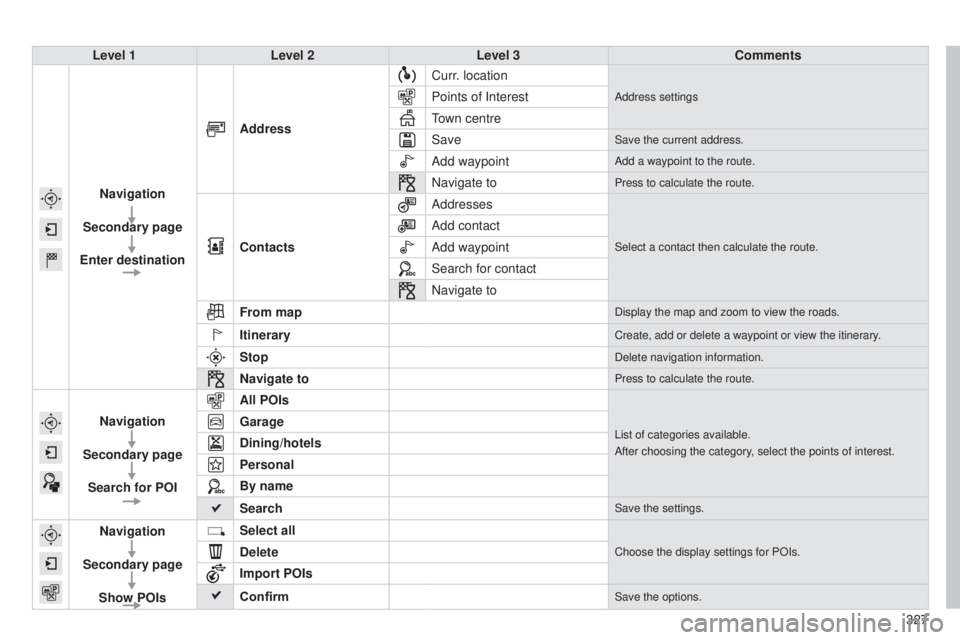
Level 1Level 2 Level 3 Comments
Navigation
Secondary page
Enter destination Address
Curr. location
Address settingsPoints of Interest
town centre
Save
Save the current address.
Add waypointAdd a waypoint to the route.
Navigate toPress to calculate the route.
Contacts AddressesSelect a contact then calculate the route.
Add contact
Add waypoint
Search for contact
Navigate to
From map
Display the map and zoom to view the roads.
ItineraryCreate, add or delete a waypoint or view the itinerary.
StopDelete navigation information.
Navigate toPress to calculate the route.
Navigation
Secondary page Search for POI All POIsList of categories available.
After choosing the category, select the points of interest.Garage
Dining/hotels
Personal
By name
Search
Save the settings.
Navigation
Secondary page Show POIs Select all
Choose the display settings for POIs.Delete
Import POIs
Confirm
Save the options.
Page 331 of 416
329
308_en_Chap10c_SMegplus_ed01-2015
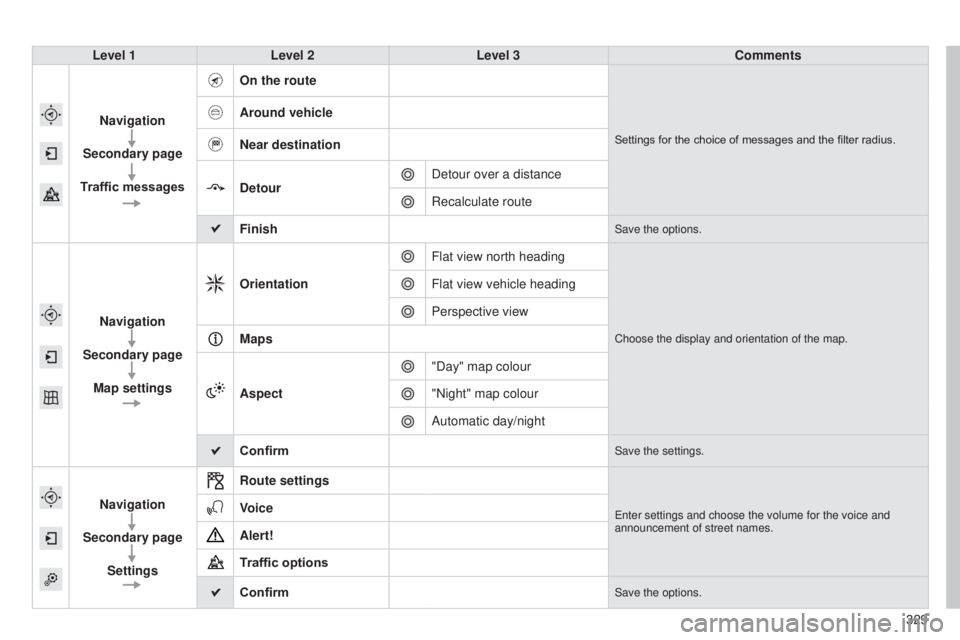
Level 1Level 2 Level 3 Comments
Navigation
Secondary page
Traffic messages On the route
Settings for the choice of messages and the filter radius.
Around vehicle
Near destination
Detour
Detour over a distance
Recalculate route
Finish
Save the options.
Navigation
Secondary page Map settings Orientation
Flat view north heading
Choose the display and orientation of the map.
Flat view vehicle heading
Perspective view
Maps
Aspect "Day" map colour
"Night" map colour
Automatic day/night
Confirm
Save the settings.
Navigation
Secondary page Settings Route settingsenter settings and choose the volume for the voice and
announcement of street names.Voice
Alert!
Traffic options
Confirm
Save the options.
Page 332 of 416
05
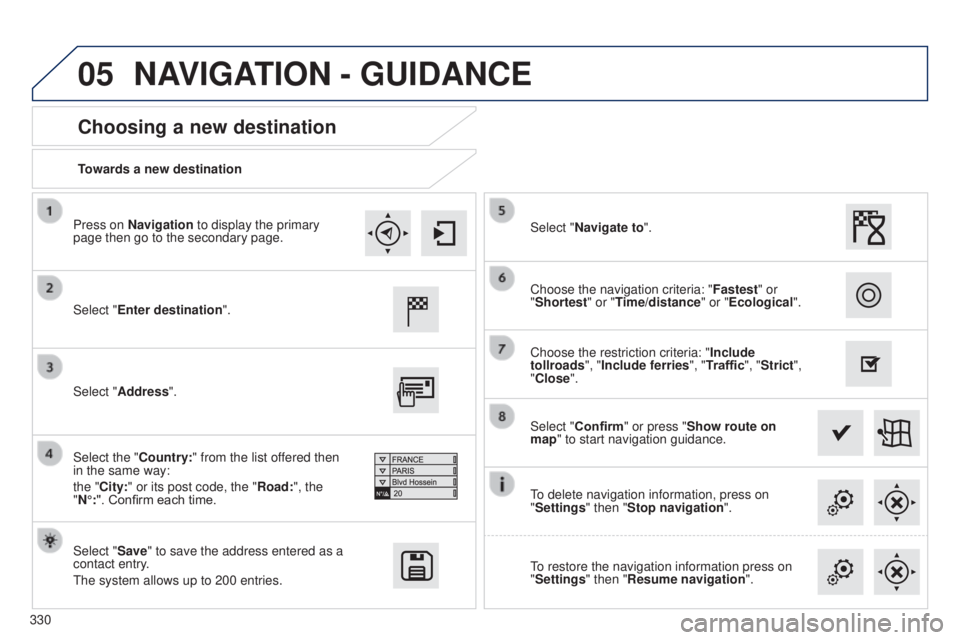
330Towards a new destination
Choosing a new destination
Select "Enter destination".
Select "Save" to save the address entered as a
contact entry.
t
he system allows up to 200 entries. Select "Confirm" or press "Show route on
map" to start navigation guidance.
Select "Address".
Select the "Country:" from the list offered then
in the same way:
the "City:" or its post code, the "Road:", the
"N°:". Confirm each time. Select "Navigate to".
Choose the restriction criteria: "
Include
tollroads", "Include ferries", "Traffic", "Strict",
"Close". Choose the navigation criteria: " Fastest" or
"Shortest" or "Time/distance" or "Ecological ".
to delete navigation information, press on
"
Settings" then "Stop navigation".
to restore the navigation information press on
"
Settings" then "Resume navigation".
Press on Navigation to display the primary
page then go to the secondary page.
NAVIGATION - GUIDANCE
Page 333 of 416
05
331
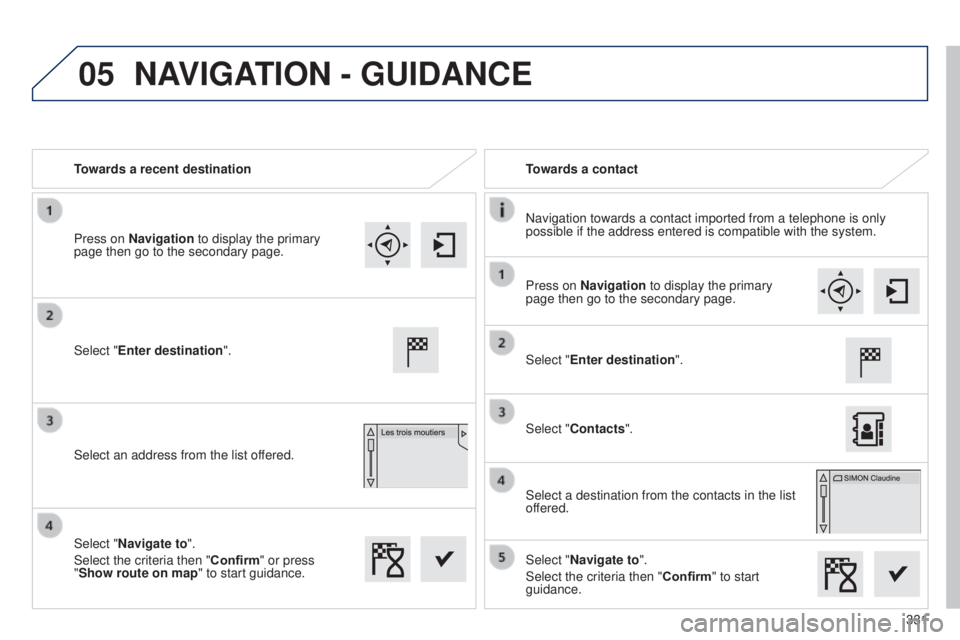
Towards a recent destination
Towards a contact
Navigation towards a contact imported from a telephone is only
possible if the address entered is compatible with the system.
Select "Enter destination".
Select an address from the list offered. Select "Enter destination".
Select "Contacts".
Select a destination from the contacts in the list
offered.
Select "Navigate to".
Select the criteria then "Confirm" to start
guidance.
Select "Navigate to".
Select the criteria then "Confirm" or press
"Show route on map
" to start guidance.
Press on Navigation to display the primary
page then go to the secondary page.
Press on Navigation to display the primary
page then go to the secondary page.
NAVIGATION - GUIDANCE
Page 334 of 416
05
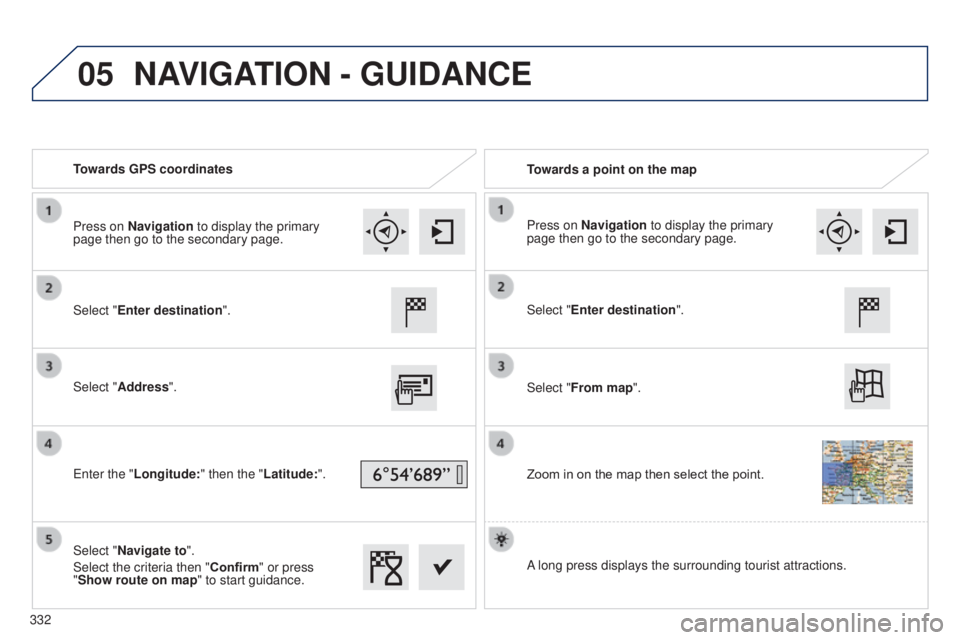
Towards GPS coordinatesTowards a point on the map
Select "Enter destination".
Select "Address".
e
nter the "Longitude: " then the "Latitude:".
Select "Navigate to".
Select the criteria then "Confirm" or press
"Show route on map " to start guidance. Select "Enter destination".
Select "From map".
Zoom in on the map then select the point.
Press on Navigation to display the primary
page then go to the secondary page.
Press on Navigation to display the primary
page then go to the secondary page.
A long press displays the surrounding tourist attractions.
NAVIGATION - GUIDANCE
332
Page 335 of 416

Points of Interest (POI) show all of the locations of services nearby \
(hotels,
retail outlet, airports, ...).
Select \"Search for POI\".
Select \"Al")
05
333
Towards points of interest (POI)
Points of Interest (POI) show all of the locations of services nearby \
(hotels,
retail outlet, airports, ...).
Select "Search for POI".
Select "All POIs" or "Garage" or "Dining/
hotels" or "Personal" or "By name".
Select a category from the list offered.
Select "Search". Select a point of interest from the list offered.
Select "Navigate to".
Press on Navigation to display the primary
page then go to the secondary page.
NAVIGATION - GUIDANCE
An annual mapping update allows new points of interest to be
presented to you.
You can also update the Risk areas / Danger areas every month.
t
he detailed procedure is available on:
http://peugeot.navigation.com.
Page 336 of 416
05
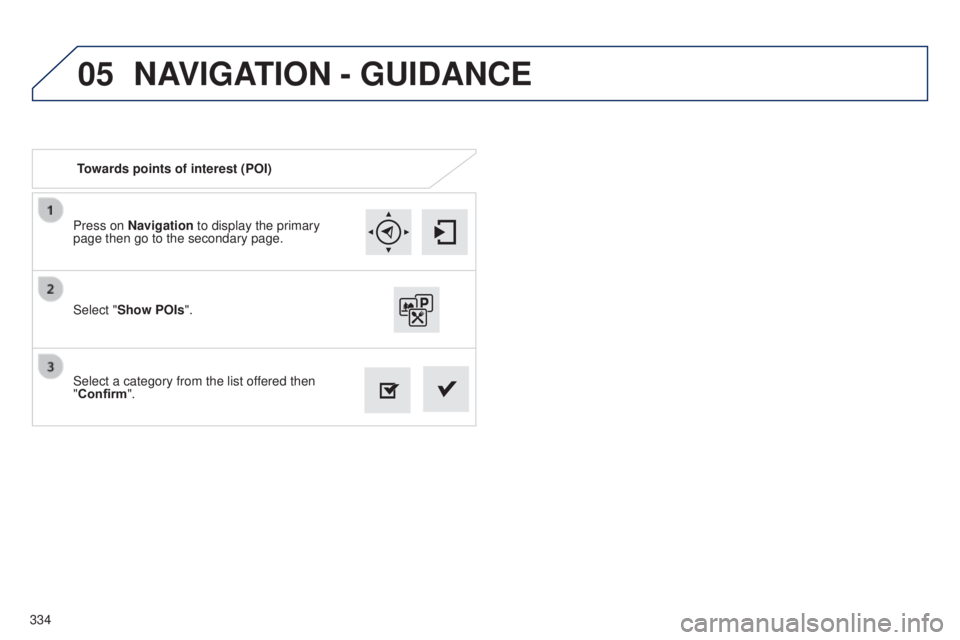
334Press on Navigation to display the primary
page then go to the secondary page.
Select a category from the list offered then
"Confirm". Select "Show POIs
".
Towards points of interest (POI)
NAVIGATION - GUIDANCE
Page 337 of 416
05
335
t
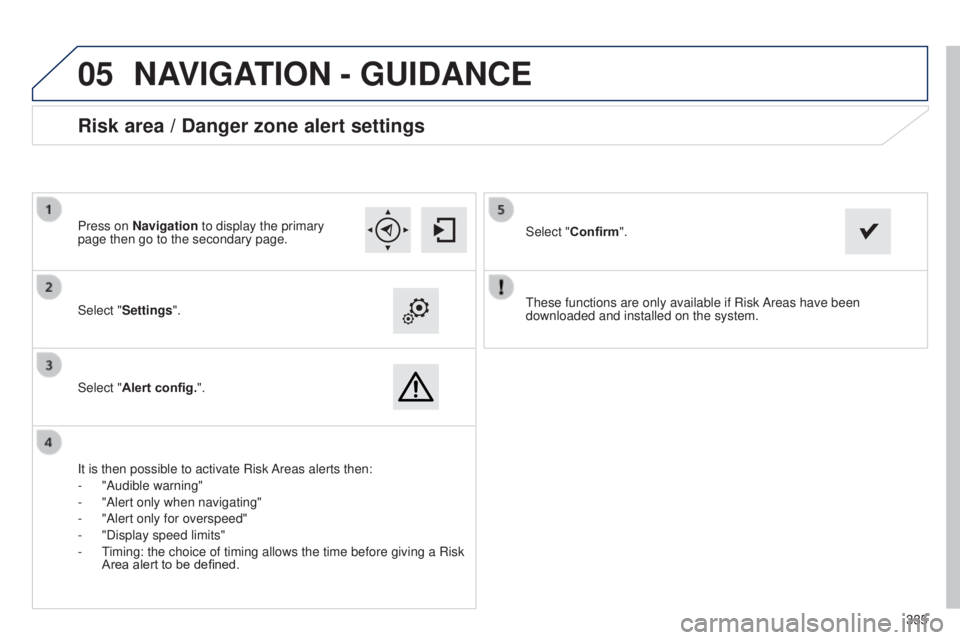
hese functions are only available if Risk Areas have been
downloaded and installed on the system.
Select "Settings".
Select "Alert config.".
Risk area / Danger zone alert settings
It is then possible to activate Risk Areas alerts then:
-
"Audible warning"
-
"Alert only when navigating"
-
"Alert only for overspeed"
-
"Display speed limits"
-
t
iming: the choice of timing allows the time before giving a Risk
Area alert to be defined. Select "
Confirm".
Press on Navigation to display the primary
page then go to the secondary page.
NAVIGATION - GUIDANCE
Page 338 of 416
05
336
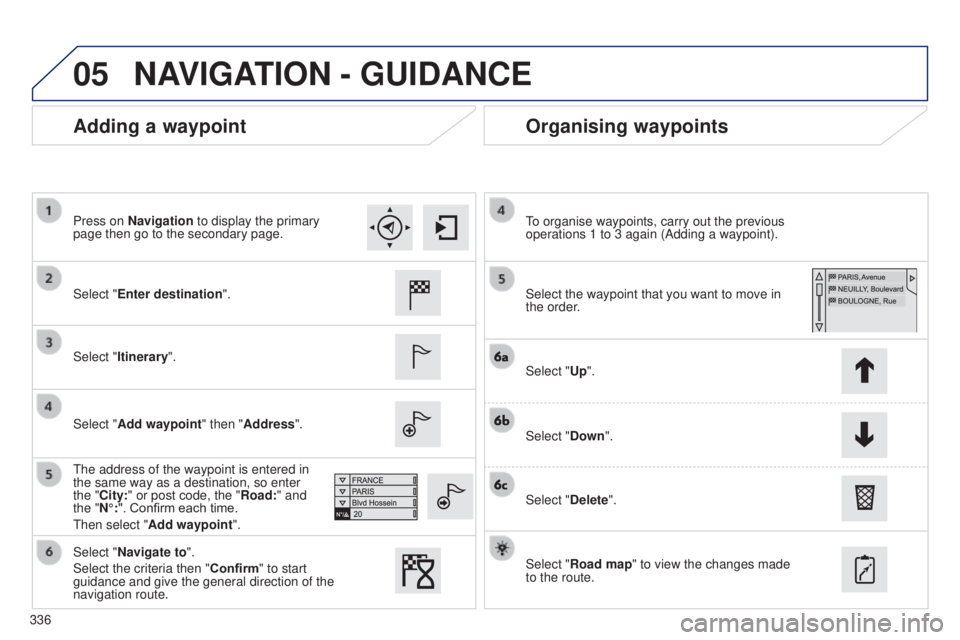
Adding a waypointOrganising waypoints
Select "Enter destination".
Select "Itinerary".
Select "Add waypoint" then "Address".
t
he address of the waypoint is entered in
the same way as a destination, so enter
the "City:" or post code, the "Road:" and
the "N°:". Confirm each time.
t
hen select "Add waypoint ". Select the waypoint that you want to move in
the order.
to organise waypoints, carry out the previous
operations
1 to 3 again (Adding a waypoint).
Select "Up".
Select "Down".
Select "Delete".
Select "Road map" to view the changes made
to the route.
Select "Navigate to".
Select the criteria then "Confirm" to start
guidance and give the general direction of the
navigation route. Press on Navigation to display the primary
page then go to the secondary page.
NAVIGATION - GUIDANCE
Page 339 of 416

05
337
Route options
Calculation criteria
Select "Settings".
Select "Criteria".It is then possible to choose:
-
the navigation criteria: "Fastest
", "Shortest", "Time/distance",
"Ecological ".
-
the exclusion criteria: "Include tollroads", "
Include ferries",
"Traffic", "Strict", "Close".
Select "Confirm".
Press Navigation to display the primary page
then go to the secondary page.
NAVIGATION - GUIDANCE
the ecological calculation is based on mapping data but this may
not always be correct.