display Peugeot 308 2015 Manual Online
[x] Cancel search | Manufacturer: PEUGEOT, Model Year: 2015, Model line: 308, Model: Peugeot 308 2015Pages: 416, PDF Size: 11.81 MB
Page 314 of 416
 may prevent reception, even in RDS station tracking mode. this phenomenon is normal in the propa")
04
Selecting a station
the exterior environment (hills, buildings, tunnel, car park, below grou\
nd...) may prevent reception, even in RDS station tracking mode. this phenomenon is normal in the propagation of radio waves and is in no \
way indicative of a fault with the audio system.
Select "List" in the primary page.
or
Select "Radio list" in the secondary page. Press on Media to display the primary page.
or
Press on Media to display the primary page
then go to the secondary page.
Select a radio station from the list offered.
If necessary, select change of source.Press Media to display the primary
page then select "
Preset".
Select "FM Radio" or "AM Radio".
OR
Select "Update list" to refresh the list.
RADIO
Select a preset radio station in the list.
312
Page 315 of 416
04
313
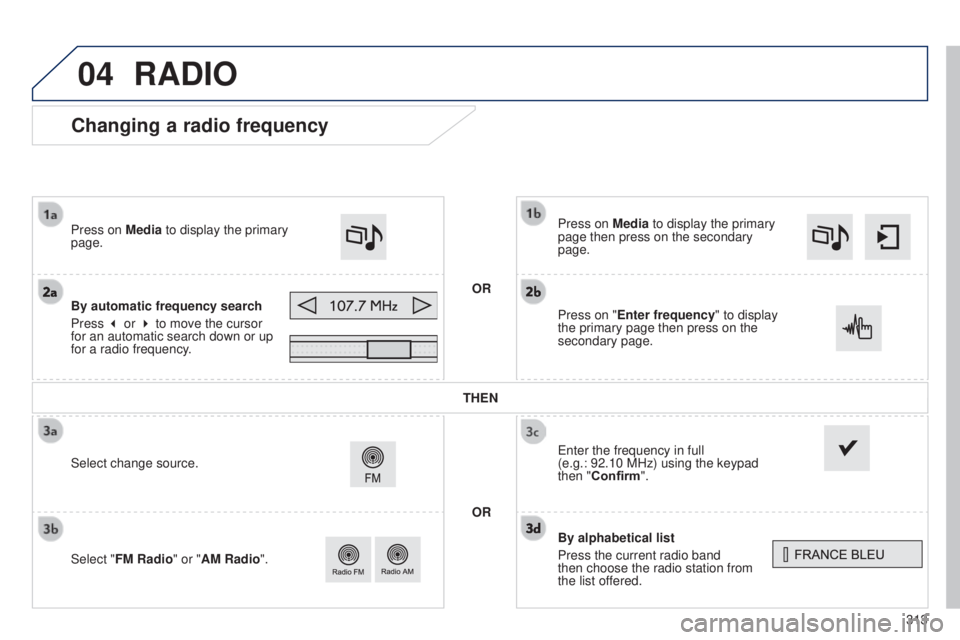
Changing a radio frequency
By alphabetical list
Press the current radio band
then choose the radio station from
the
list offered.
Press on Media to display the primary
page then press on the secondary
page.
e
nter the frequency in full
(e.g.: 92.10 MHz) using the keypad
then "Confirm".
By automatic frequency search
Press 3 or 4 to move the cursor
for an automatic search down or up
for a radio frequency. Press on Media to display the primary
page.
Press on "Enter frequency" to display
the primary page then press on the
secondary page.
OR
RADIO
Select change source.
Select "FM Radio" or "AM Radio". THEN
OR
Page 316 of 416
04
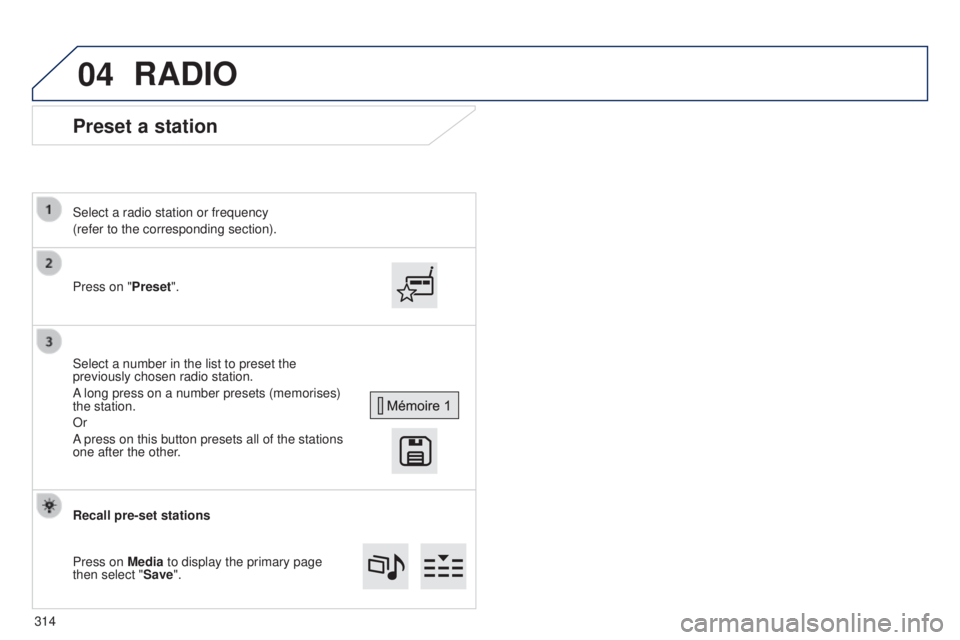
Preset a station
Press on "Preset".
Select a radio station or frequency
(refer to the corresponding section).
Select a number in the list to preset the
previously chosen radio station.
A long press on a number presets (memorises)
the station.
Or
A press on this button presets all of the stations
one after the other.
Recall pre-set stations
Press on Media to display the primary page
then select "Save".
RADIO
314
Page 317 of 416
04
315
RADIO
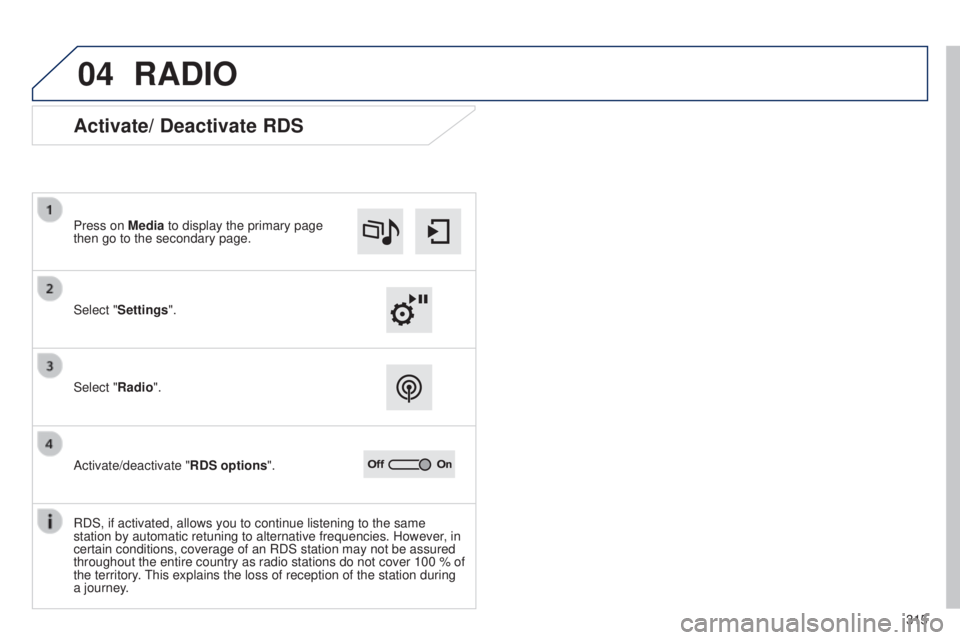
Activate/ Deactivate RDS
Select "Settings". Press on Media to display the primary page
then go to the secondary page.
Select "Radio".
Activate/deactivate "RDS options".
RDS, if activated, allows you to continue listening to the same
station by automatic retuning to alternative frequencies. However, in
certain conditions, coverage of an RDS station may not be assured
throughout the entire country as radio stations do not cover 100 % of
the territory.
t
his explains the loss of reception of the station during
a journey.
Page 318 of 416
04
316
RADIO
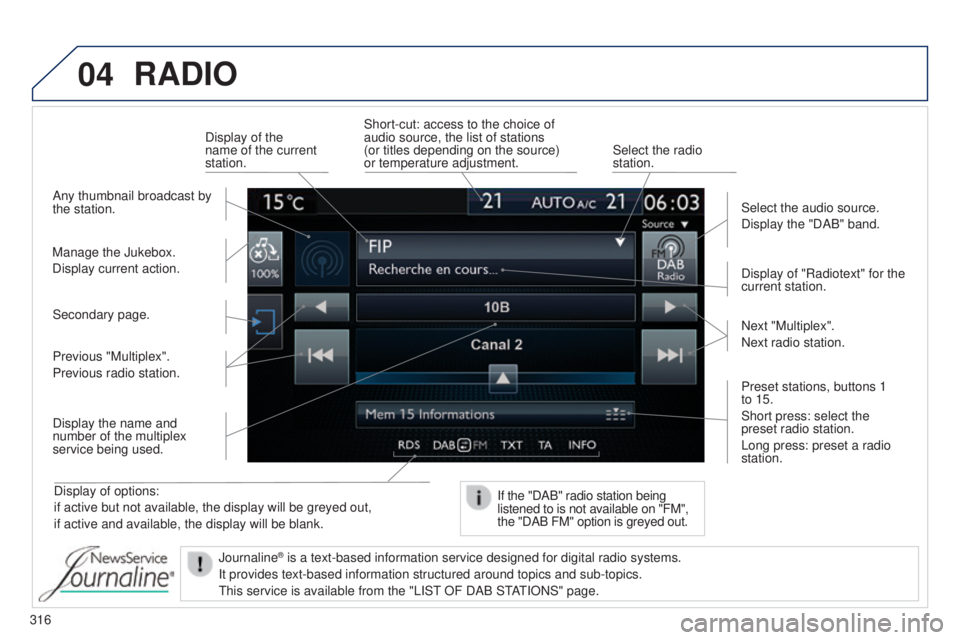
Display of options:
if active but not available, the display will be greyed out,
if active and available, the display will be blank.Display of "Radiotext" for the
current station.
Manage the Jukebox.
Display current action. Select the audio source.
Display the "DAB" band.
Display of the
name of the current
station.
Short-cut: access to the choice of
audio source, the list of stations
(or titles depending on the source)
or temperature adjustment.
Select the radio
station.
If the "DAB" radio station being
listened to is not available on "FM",
the "DAB FM" option is greyed out.
Any thumbnail broadcast by
the station.
Preset stations, buttons 1
to 15.
Short press: select the
preset radio station.
Long press: preset a radio
station. Next "Multiplex".
Next radio station.
Secondary page.
Display the name and
number of the multiplex
service being used. Previous "Multiplex".
Previous radio station.
Journaline
® is a text-based information service designed for digital radio systems.
It provides text-based information structured around topics and sub-topi\
cs.
t
his service is available from the "LIS t
OF DAB S
t
At
IONS" page.
Page 319 of 416
04
317
RADIO
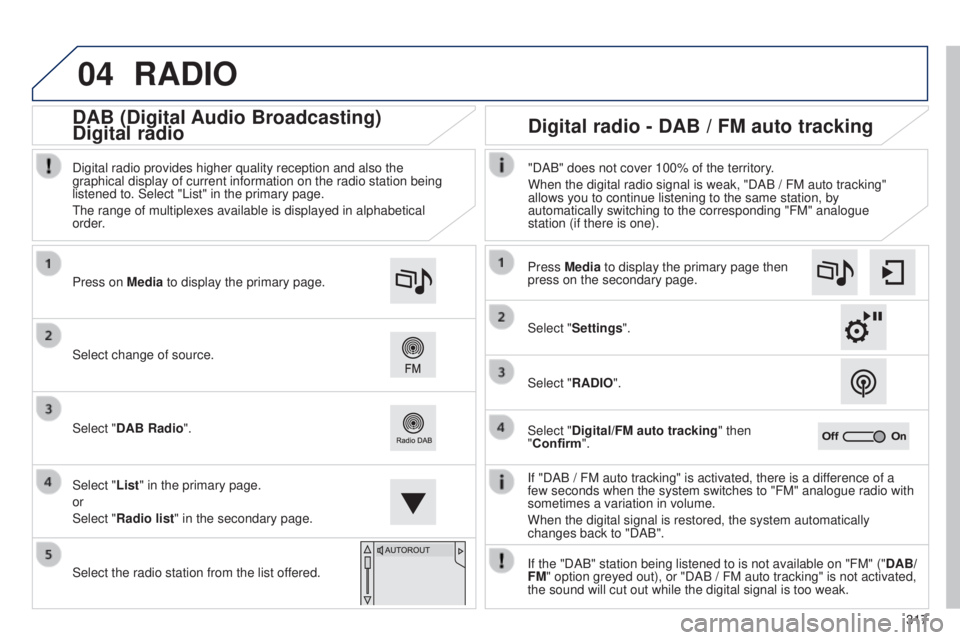
If "DAB / FM auto tracking" is activated, there is a difference of a
few seconds when the system switches to "FM" analogue radio with
sometimes a variation in volume.
When the digital signal is restored, the system automatically
changes back to "DAB".
Select change of source. Press on
Media to display the primary page.
Select "DAB Radio".
Select "List" in the primary page.
or
Select "Radio list" in the secondary page.
Select the radio station from the list offered. Digital radio provides higher quality reception and also the
graphical display of current information on the radio station being
listened to. Select "List" in the primary page.
t
he range of multiplexes available is displayed in alphabetical
order.
Press Media to display the primary page then
press on the secondary page.
Select "Settings".
Select "RADIO".
Select "Digital/FM auto tracking" then
"Confirm". "DAB" does not cover 100% of the territory.
When the digital radio signal is weak, "DAB / FM auto tracking"
allows you to continue listening to the same station, by
automatically switching to the corresponding "FM" analogue
station (if there is one).
If the "DAB" station being listened to is not available on "FM" (" DAB/
FM" option greyed out), or "DAB / FM auto tracking" is not activated,
the sound will cut out while the digital signal is too weak.
Digital radio - DAB / FM auto tracking
DAB (Digital Audio Broadcasting)
Digital radio
Page 320 of 416
04
318
CD, MP3 CD, USB player, auxiliary input
Insert the CD in the player, insert the uSB
memory stick in the u SB player or connect the
u
SB peripheral to the u SB port using a suitable
cable (not supplied).
t
he system builds playlists (in temporary
memory), an operation which can take from
a few seconds to several minutes at the first
connection.
Reduce the number of non-music files and the
number of folders to reduce the waiting time.
t
he playlists are updated every time the ignition
is switched off or connection of a
u SB memory
stick. However, the system memorises these
lists and if they are not modified, the loading
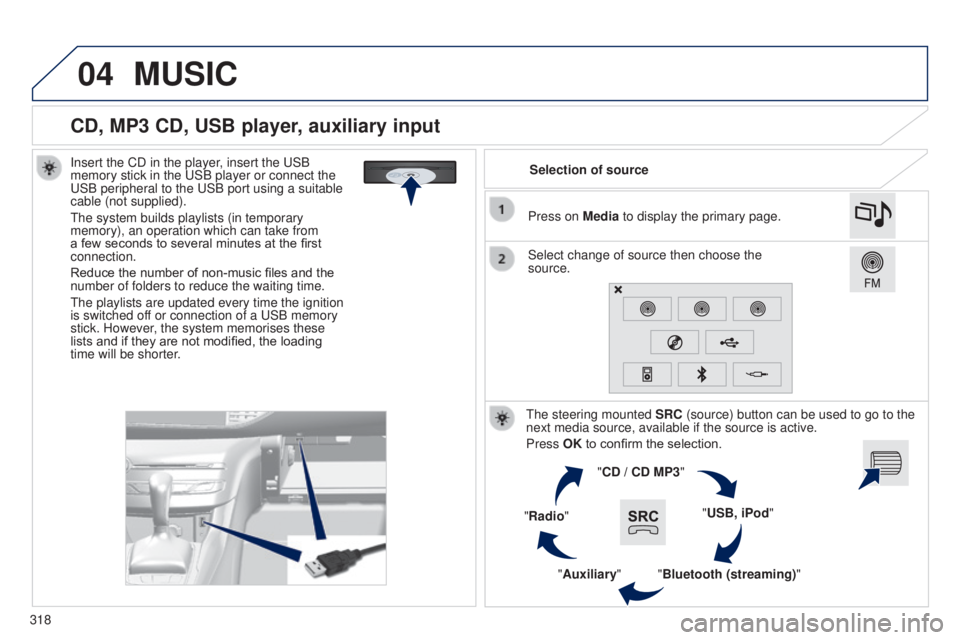
time will be shorter. Selection of source
t
he steering mounted SRC (source) button can be used to go to the
next media source, available if the source is active.
Press OK to confirm the selection.
"CD / CD MP3"
"USB, iPod"
"Bluetooth (streaming)"
"Auxiliary"
"Radio" Select change of source then choose the
source. Press on Media to display the primary page.
MUSIC
Page 324 of 416
04
Using the auxiliary input (AUX)
(cable not supplied)
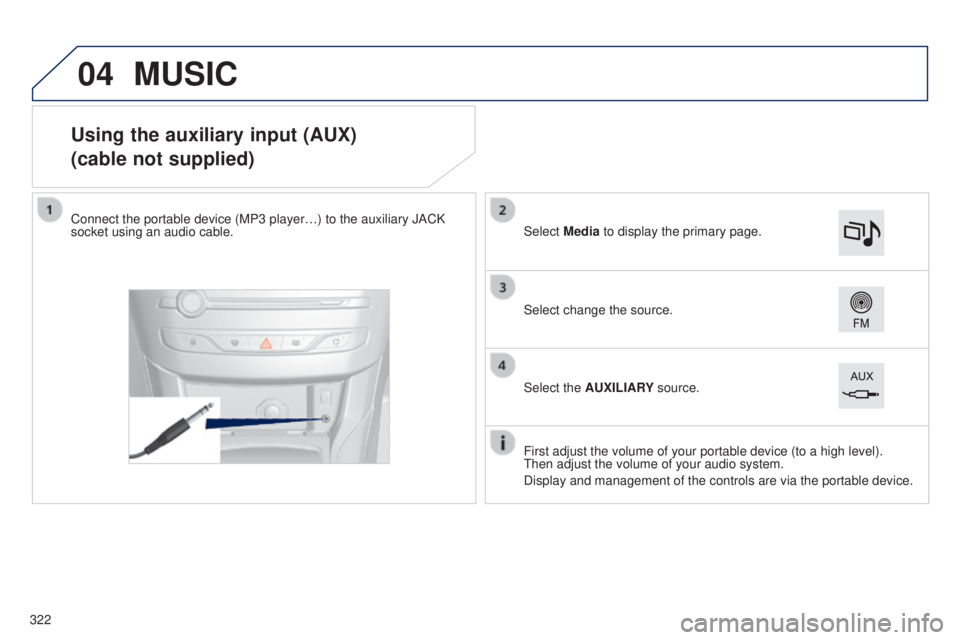
Connect the portable device (MP3 player…) to the auxiliary JACK
socket using an audio cable.
First adjust the volume of your portable device (to a high level).
t
hen adjust the volume of your audio system.
Display and management of the controls are via the portable device. Select change the source. Select Media to display the primary page.
Select the AUXILIARY source.
MUSIC
322
Page 327 of 416
325
308_en_Chap10c_SMegplus_ed01-2015
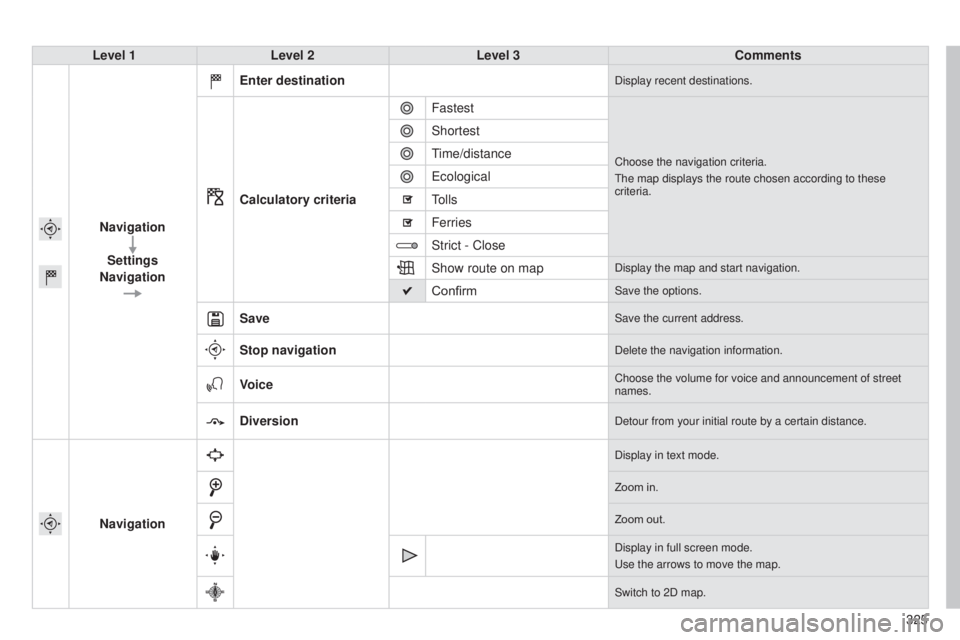
Level 1Level 2 Level 3 Comments
Navigation Settings
Navigation Enter destination
Display recent destinations.
Calculatory criteria
Fastest
Choose the navigation criteria.
t
he map displays the route chosen according to these
criteria.
Shortest
time/distance
e
cological
tolls
Ferries
Strict - Close
Show route on map
Display the map and start navigation.
ConfirmSave the options.
SaveSave the current address.
Stop navigationDelete the navigation information.
VoiceChoose the volume for voice and announcement of street
names.
DiversionDetour from your initial route by a certain distance.
Navigation
Display in text mode.
Zoom in.
Zoom out.
Display in full screen mode.
u
se the arrows to move the map.
Switch to 2D map.
Page 328 of 416
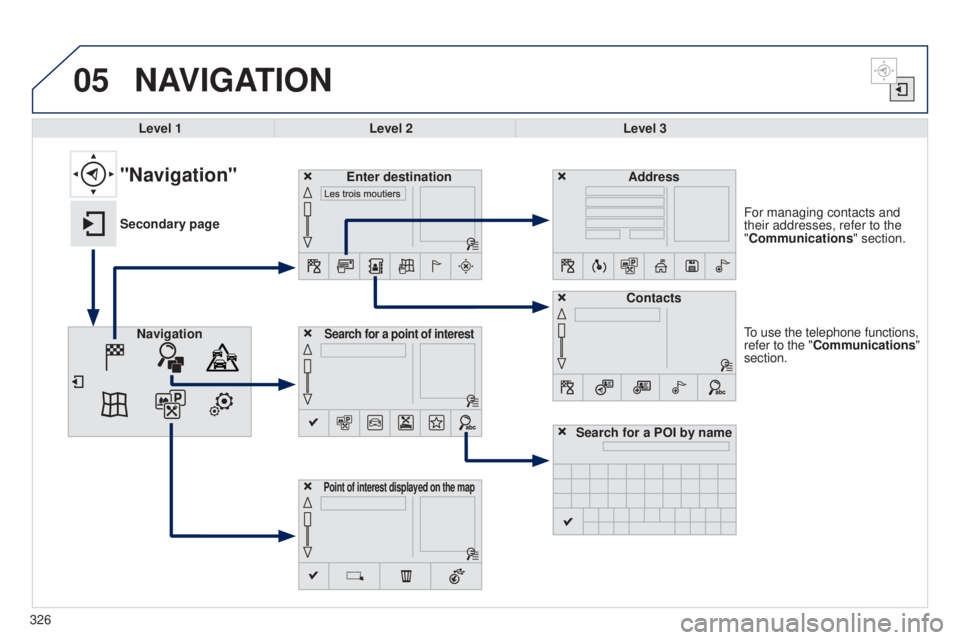
05
326
to use the telephone functions,
refer to the "Communications"
section. For managing contacts and
their addresses, refer to the
"Communications" section.
NAVIGATION
Search for a point of interestNavigation Address
Enter destination
Contacts
Point of interest displayed on the map
Level 1Level 2 Level 3
"Navigation"
Secondary page
Search for a POI by name