display Peugeot 308 2015 Owner's Manual
[x] Cancel search | Manufacturer: PEUGEOT, Model Year: 2015, Model line: 308, Model: Peugeot 308 2015Pages: 416, PDF Size: 11.81 MB
Page 340 of 416
05
338
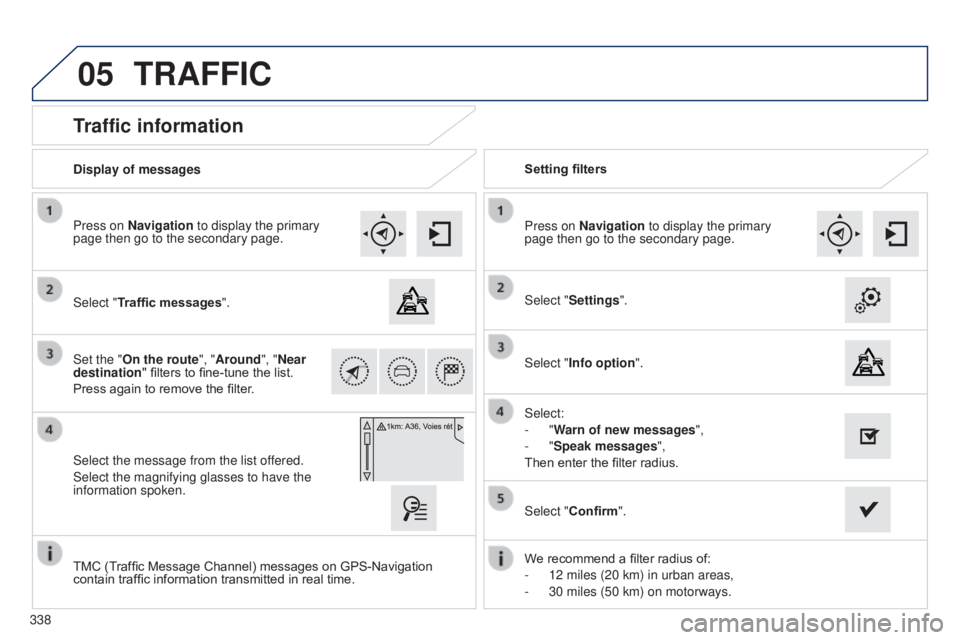
Traffic information
Select "Traffic messages".
Press on Navigation to display the primary
page then go to the secondary page.
Select the message from the list offered.
Select the magnifying glasses to have the
information spoken. Set the "On the route
", "Around", "Near
destination " filters to fine-tune the list.
Press again to remove the filter. Select "Settings".
Select:
-
"Warn of new messages",
-
"Speak messages",
Then enter the filter radius. Press on Navigation to display the primary
page then go to the secondary page.
Display of messages
Setting filters
We recommend a filter radius of:
-
12 miles (20 km) in urban areas,
-
30 miles (50 km) on motorways.
TMC (T
raffic Message Channel) messages on GPS-Navigation
contain traffic information transmitted in real time. Select "Confirm".
TRAFFIC
Select "Info option
".
Page 341 of 416
05
339
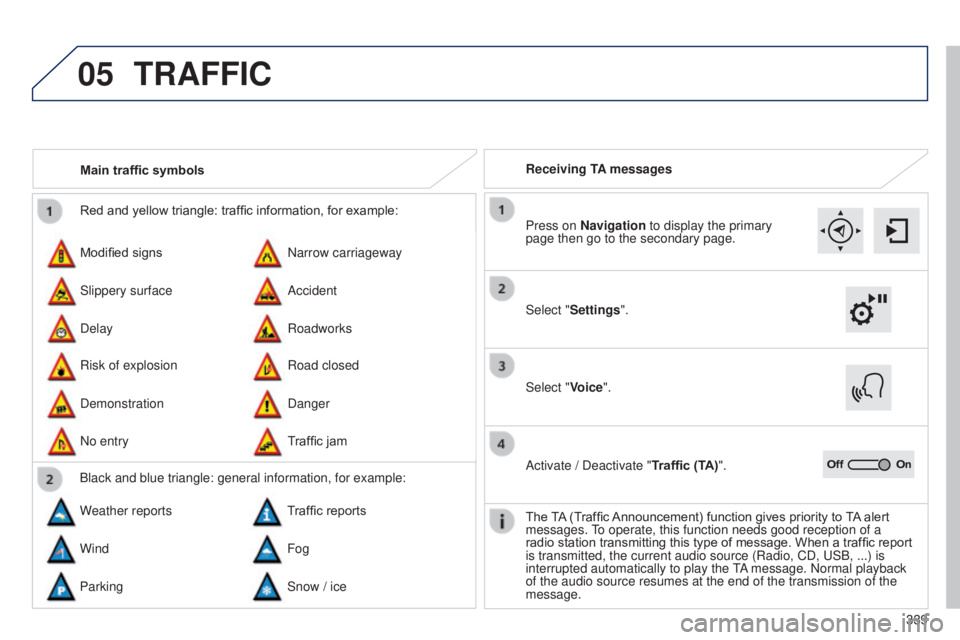
Red and yellow triangle: traffic information, for example:
Modified signs
Risk of explosion Narrow carriageway
Road closed
Slippery surface
Demonstration Accident
Danger
Delay
No entry Roadworks
Traffic jam
Main traffic symbols
Black and blue triangle: general information, for example:
Weather reports Traffic reports
Wind Fog
Parking Snow / ice Receiving TA messages
TRAFFIC
Select "Settings". Press on Navigation to display the primary
page then go to the secondary page.
Select "Voice".
Activate / Deactivate "Traffic (TA)".
The TA (Traffic Announcement) function gives priority to TA alert
messages.
to operate, this function needs good reception of a
radio station transmitting this type of message. When a traffic report
is transmitted, the current audio source (Radio, CD,
u SB, ...) is
interrupted automatically to play the
tA
message. Normal playback
of the audio source resumes at the end of the transmission of the
message.
Page 342 of 416

05
Diverting from a route
Press on Navigation to display the primary
page then go to the secondary page.
Select "Traffic messages".
Select "Diversion".
Select the diversion distance by pressing + or -.Select "Recalculate route".
t he route
will be modified in time and distance.
Select "Confirm".
The route may be diverted following the reception of a traffic
information message.
TRAFFIC
340
Page 343 of 416
05
341
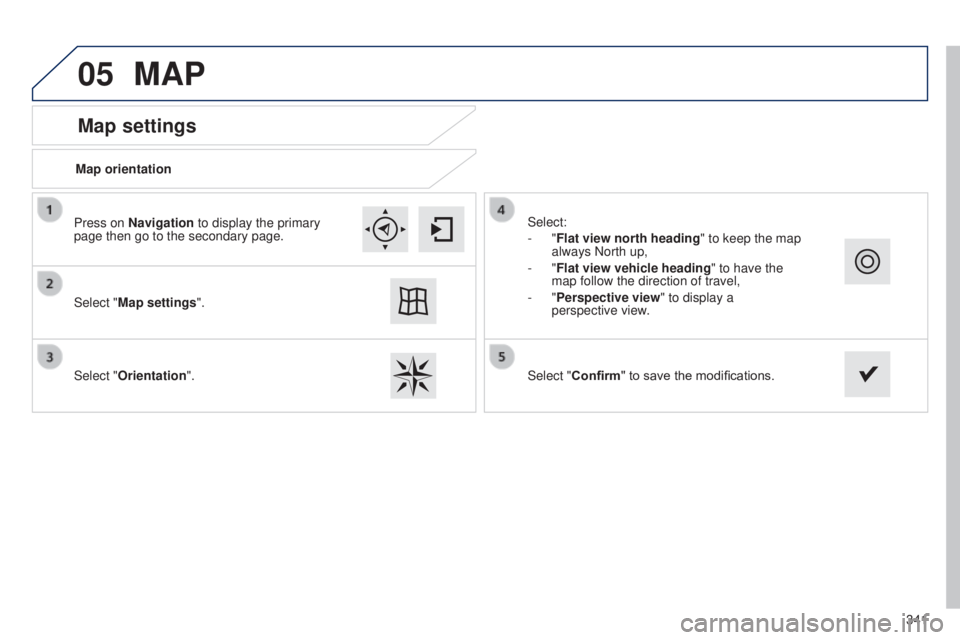
Map settings
MAP
Map orientation
Select "Map settings".
Select "Orientation". Select:
-
"Flat view north heading" to keep the map
always North up,
-
"Flat view vehicle heading" to have the
map follow the direction of travel,
-
"Perspective view" to display a
perspective view.
Press on Navigation to display the primary
page then go to the secondary page.
Select "Confirm" to save the modifications.
Page 344 of 416

05
Street names are visible on the map from the 100 m scale.
Configure
Select "
Aspect". Select:
- ""Day" map colour" to have the map
always in day mode.
- ""Night" map colour
" to have the map
always in night mode.
- "Automatic day/night
" to have
the brightness of the map adjusted
automatically according to the ambient light
level.
t his mode makes use of the vehicle's
sunshine sensor or by manual operation of
the vehicle's lighting.
Select "Map settings". Press on Navigation to display the primary
page then go to the secondary page.
MAP
then "Confirm" to save the modifications.
342
Page 345 of 416
05
343
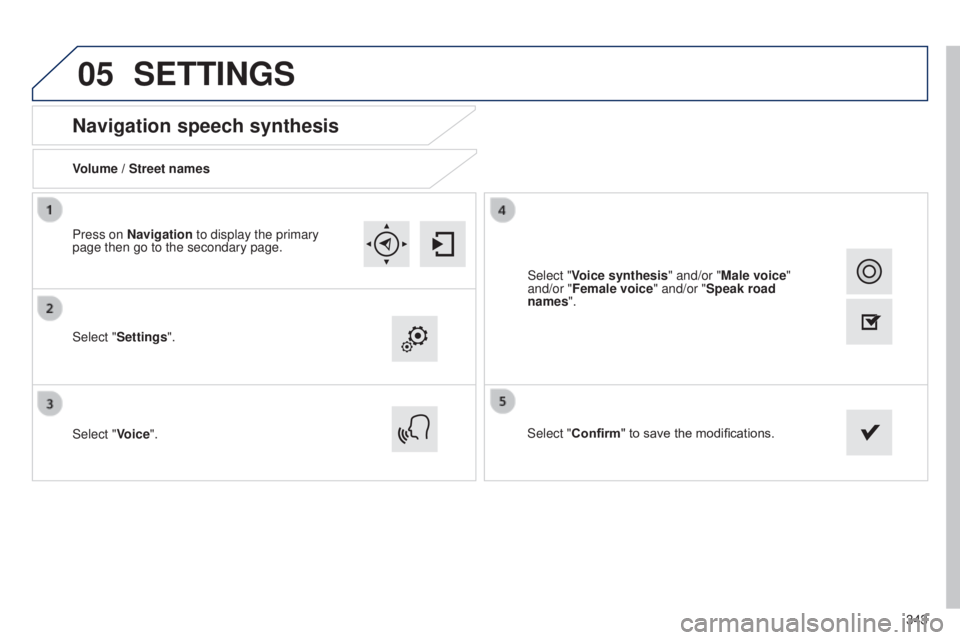
Navigation speech synthesis
Volume / Street names
Select "Settings".
Select "Voice".Select "Confirm" to save the modifications.
Press on Navigation to display the primary
page then go to the secondary page.
SETTINGS
Select "Voice synthesis" and/or "Male voice"
and/or "Female voice" and/or "Speak road
names".
Page 347 of 416
345
308_en_Chap10c_SMegplus_ed01-2015
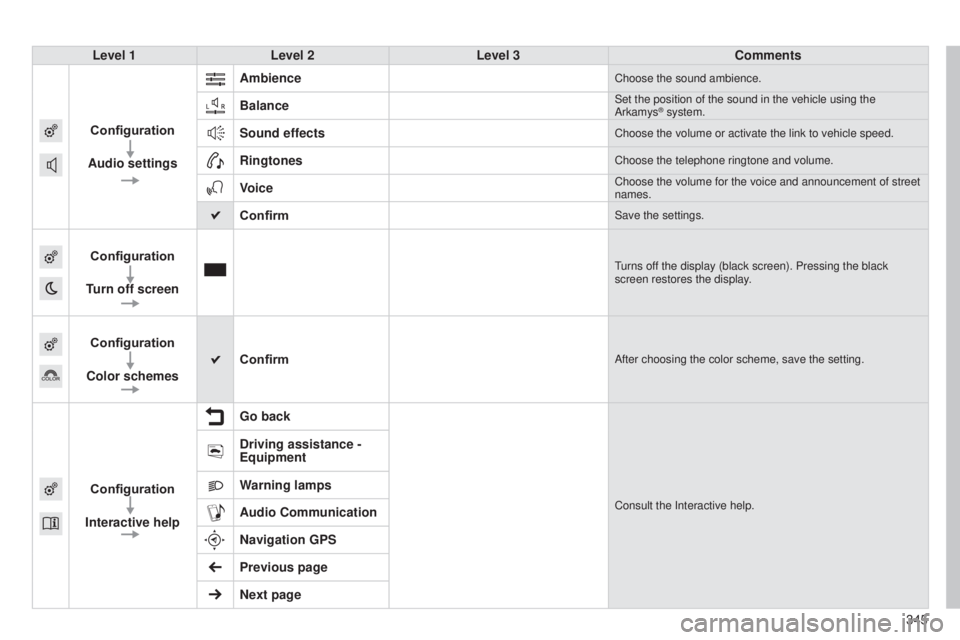
Level 1Level 2 Level 3 Comments
Configuration
Audio settings Ambience
Choose the sound ambience.
BalanceSet the position of the sound in the vehicle using the
Arkamys® system.
Sound effectsChoose the volume or activate the link to vehicle speed.
RingtonesChoose the telephone ringtone and volume.
VoiceChoose the volume for the voice and announcement of street
names.
ConfirmSave the settings.
Configuration
Turn off screenturns off the display (black screen). Pressing the black
screen restores the display.
Configuration
Color schemes ConfirmAfter choosing the color scheme, save the setting.
Configuration
Interactive help Go backConsult the Interactive help.
Driving assistance -
Equipment
Warning lamps
Audio Communication
Navigation GPS
Previous page
Next page
Page 348 of 416
06
346
CONFIGURATION
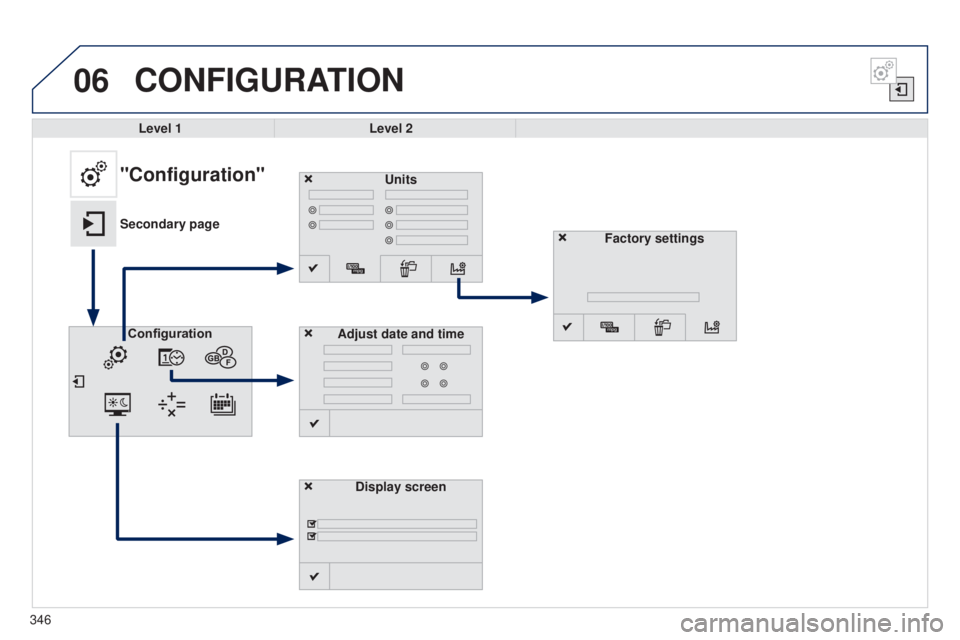
Level 1Level 2
Units
Display screen
Configuration
Adjust date and time
"Configuration"
Secondary page
Factory settings
Page 349 of 416
347
308_en_Chap10c_SMegplus_ed01-2015
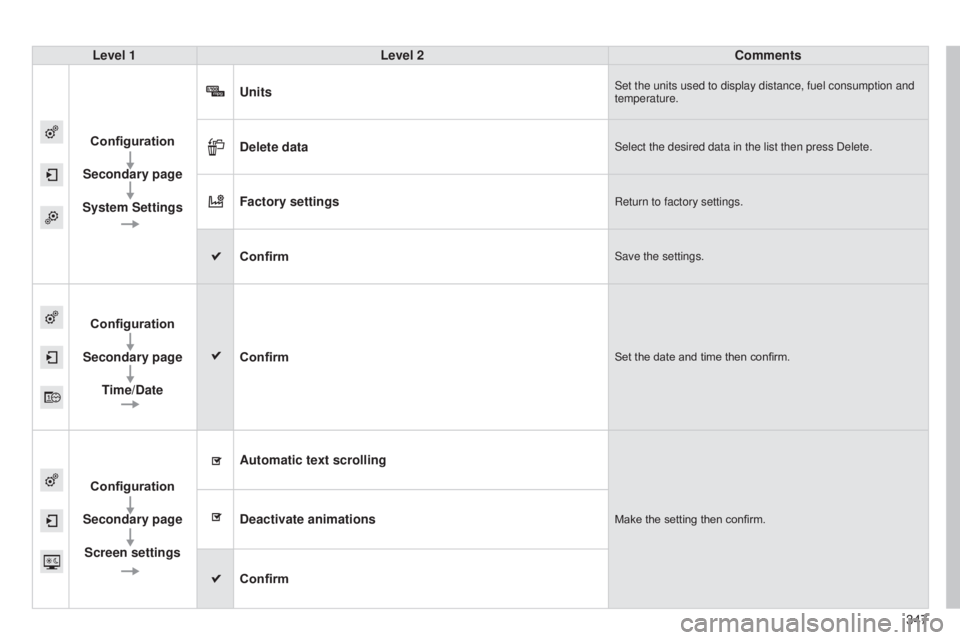
Level 1Level 2 Comments
Configuration
Secondary page
System Settings Units
Set the units used to display distance, fuel consumption and
temperature.
Delete dataSelect the desired data in the list then press Delete.
Factory settingsReturn to factory settings.
ConfirmSave the settings.
Configuration
Secondary page Time/Date Confirm
Set the date and time then confirm.
Configuration
Secondary page Screen settings Automatic text scrolling
Make the setting then confirm.Deactivate animations
Confirm
Page 352 of 416
06CONFIGURATION
- "Ambience" (choice of 6 musical ambiences)
- "Bass "
-
"Treble"
-
"Loudness" (Activate/Deactivate)
-
"Balance" ("Driver ", "All passengers", "Front only ")
-
"Audio setting on touch screen "
-
"Volume linked to vehicle speed: " (Activate/Deactivate)
t
he audio settings ( Ambience, Bass, Treble and Loudness) are
different and independent for each sound source.
t
he settings for distribution and balance are common to all
sources.
t
he distribution (or spatialisation using the Arkamys
© system)
of sound is an audio process that allows the audio quality to be
adapted to the number of listeners in the vehicle.
Available only with the 6-speaker configuration. On-board audio: Arkamys
© Sound Staging.
With Sound Staging, the driver and passengers are immersed in an
"audio scene" recreating the natural atmosphere of an auditorium:
truly a part of the scene and its surroundings.
t
his new sensation is made possible by software in the audio
system which processes the digital signals from the media players
(radio, CD, MP3…) without changing the audio settings.
t
his
processing takes account of the characteristics of the passenger
compartment to produce optimum results.
t
he Arkamys
© software installed in your audio system processes
the digital signal from the media players (radio, CD, MP3, ...) and
recreates a natural musical scene, with harmonious placement of
instruments and voices in the space in front of passengers, level with
the windscreen.
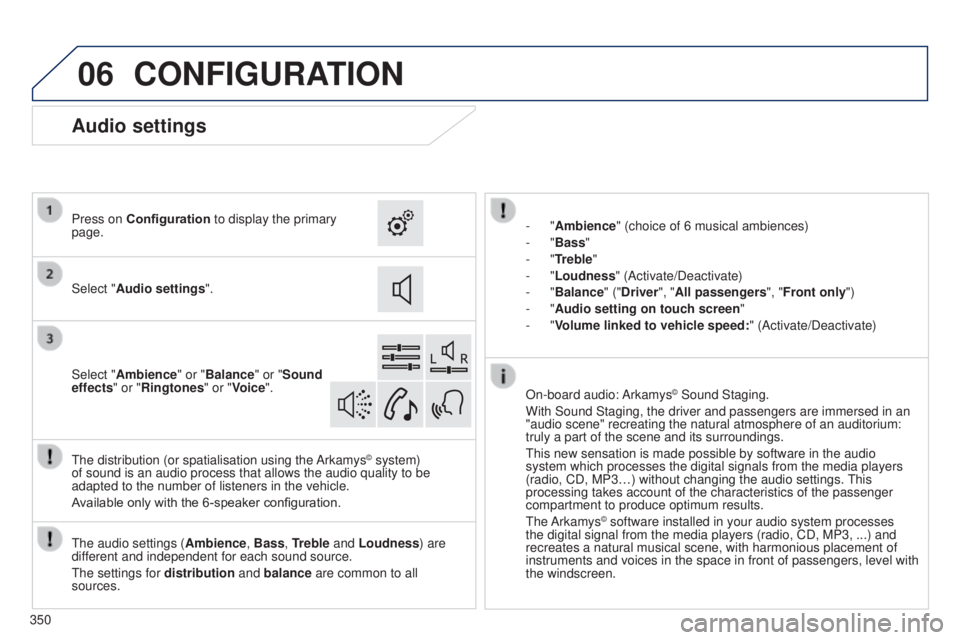
Audio settings
Select "Audio settings ".
Press on Configuration
to display the primary
page.
Select "Ambience" or "Balance" or "Sound
effects " or "Ringtones" or "Voice".
350