display PEUGEOT 5008 2014 Owners Manual
[x] Cancel search | Manufacturer: PEUGEOT, Model Year: 2014, Model line: 5008, Model: PEUGEOT 5008 2014Pages: 404, PDF Size: 23.34 MB
Page 303 of 404
301
08
2ABC3DEF5JKL4GHI6MNO8TUV7PQR S9WXYZ0*#
1RADIO MEDIA NA
V TRAFFIC
SETUPADDR
BOOK
2ABC3DEF5JKL4GHI6MNO8TUV7PQR S9WXYZ0*#
1RADIO MEDIA NA
V TRAFFIC
SETUPADDR
BOOK
2ABC3DEF5JKL4GHI6MNO8TUV7PQR S9WXYZ0*#
1RADIO MEDIA NA
V TRAFFIC
SETUPADDR
BOOK
2ABC3DEF5JKL4GHI6MNO8TUV7PQR S9WXYZ0*#
1RADIO MEDIA NA
V TRAFFIC
SETUPADDR
BOOK
2ABC3DEF5JKL4GHI6MNO8TUV7PQR S9WXYZ0*#
1RADIO MEDIA NA
V TRAFFIC
SETUPADDR
BOOK
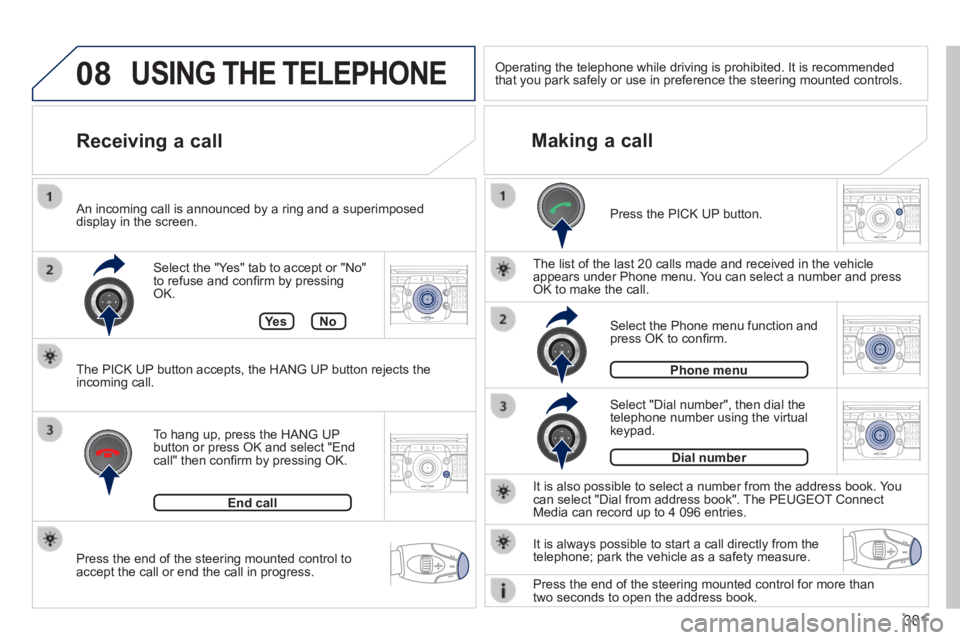
Press the end of the steering mounted control to accept the call or end the call in progress.
Select the "Yes" tab to accept or "No" to refuse and confi rm by pressing OK.
Receiving a call Making a call
An incoming call is announced by a ring and a superimposed display in the screen.
To hang up, press the HANG UP button or press OK and select "End call" then confi rm by pressing OK.
End call
Press the PICK UP button.
It is also possible to select a number from the address book. You can select "Dial from address book". The PEUGEOT Connect Media can record up to 4 096 entries.
Select "Dial number", then dial the telephone number using the virtual keypad.
Select the Phone menu function and press OK to confi rm.
Dial number
Phone menu
The list of the last 20 calls made and received in the vehicle appears under Phone menu. You can select a number and press OK to make the call.
Ye sNo
The PICK UP button accepts, the HANG UP button rejects the incoming call.
USING THE TELEPHONE
It is always possible to start a call directly from the telephone; park the vehicle as a safety measure.
Operating the telephone while driving is prohibited. It is recommended that you park safely or use in preference the steering mounted controls.\
Press the end of the steering mounted control for more than two seconds to open the address book.
Page 304 of 404
302
09
MEDIA
TRAFFIC
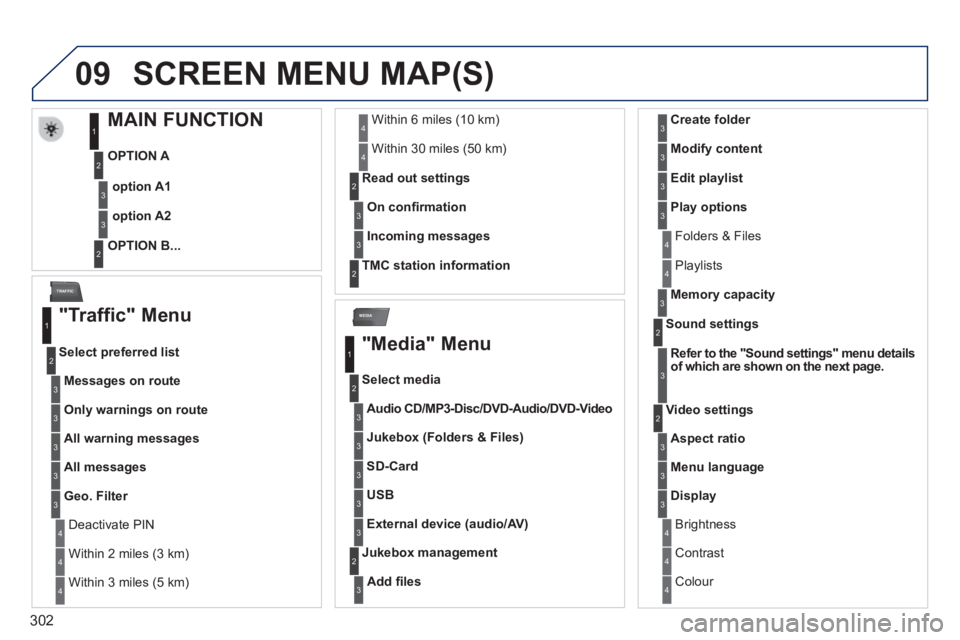
SCREEN MENU MAP(S)
MAIN FUNCTION
OPTION A
OPTION B...
option A1
option A2
1
2
3
2
3
"Traffic" Menu
Messages on route
Select preferred list
1
2
3
Deactivate PIN 4
Only warnings on route3
All warning messages3
All messages3
Geo. Filter3
Within 2 miles (3 km) 4
Within 3 miles (5 km) 4
Within 6 miles (10 km) 4
Within 30 miles (50 km) 4
On confi rmation
Read out settings 2
3
Incoming messages3
TMC station information 2
"Media" Menu
Audio CD/MP3-Disc / Audio CD/MP3-Disc / Audio CD/MP3-DiscDVD-Audio / DVD-Audio / DVD-AudioDVD-Video
Select media
1
2
3
Jukebox (Folders & Files)3
SD-Card3
USB3
External device (audio/AV)3
Add fi les
Jukebox management 2
3
Folders & Files 4
Create folder3
Modify content3
Edit playlist3
Play options3
Playlists 4
Memory capacity3
Refer to the "Sound settings" menu details of which are shown on the next page.
Sound settings 2
3
Aspect ratio
Video settings 2
3
Menu language3
Display3
Brightness 4
Contrast 4
Colour 4
Page 308 of 404
306
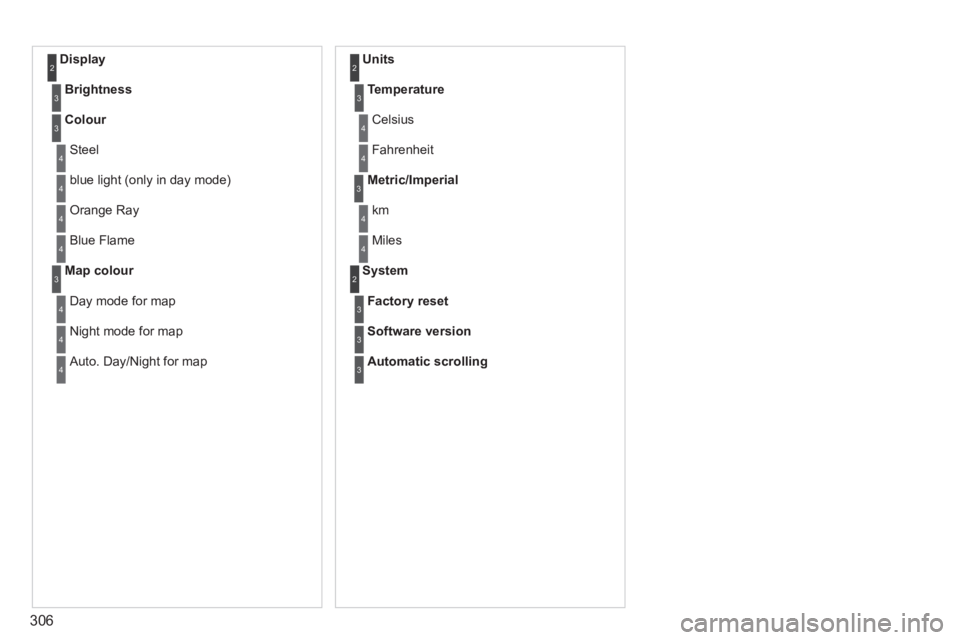
Display 2
Brightness3
Colour3
Steel 4
blue light (only in day mode) 4
Orange Ray 4
Blue Flame 4
Map colour3
Day mode for map 4
Night mode for map 4
Auto. Day/Night for map 4
Units 2
Temperature3
Celsius 4
Fahrenheit 4
Metric/Imperial3
km 4
Miles 4
System 2
Factory reset3
Software version3
Automatic scrolling3
Page 310 of 404
308
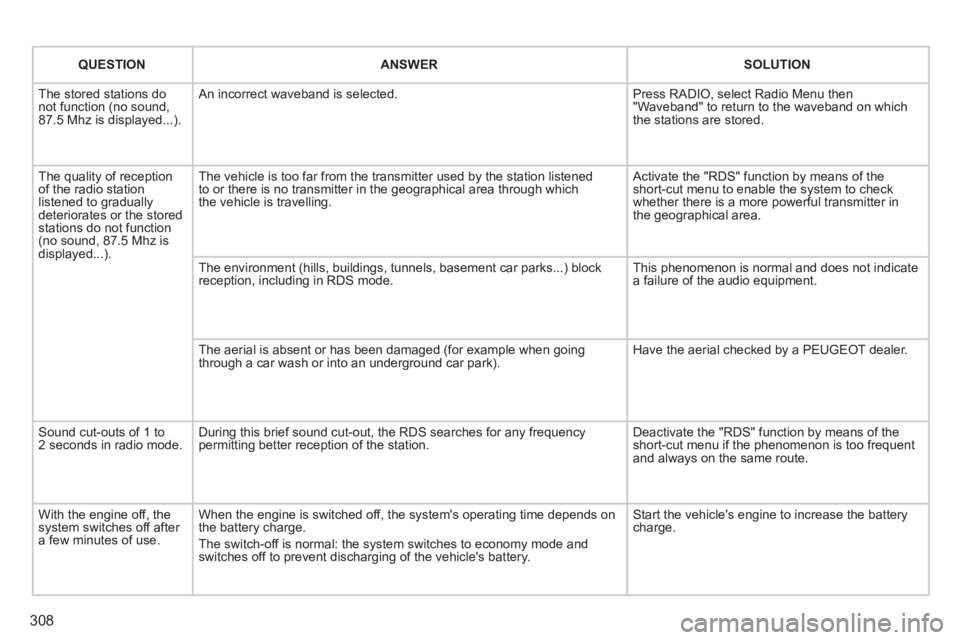
QUESTION ANSWER SOLUTION
The stored stations do not function (no sound, 87.5 Mhz is displayed...).
An incorrect waveband is selected. Press RADIO, select Radio Menu then "Waveband" to return to the waveband on which the stations are stored.
The quality of reception of the radio station listened to gradually deteriorates or the stored stations do not function (no sound, 87.5 Mhz is displayed...).
The vehicle is too far from the transmitter used by the station listened\
to or there is no transmitter in the geographical area through which the vehicle is travelling.
Activate the "RDS" function by means of the short-cut menu to enable the system to check whether there is a more powerful transmitter in the geographical area.
The environment (hills, buildings, tunnels, basement car parks...) blo\
ck reception, including in RDS mode. This phenomenon is normal and does not indicate a failure of the audio equipment.
The aerial is absent or has been damaged (for example when going through a car wash or into an underground car park). Have the aerial checked by a PEUGEOT dealer.
Sound cut-outs of 1 to 2 seconds in radio mode. During this brief sound cut-out, the RDS searches for any frequency permitting better reception of the station. Deactivate the "RDS" function by means of the short-cut menu if the phenomenon is too frequent and always on the same route.
With the engine off, the system switches off after a few minutes of use.
When the engine is switched off, the system's operating time depends on the battery charge.
The switch-off is normal: the system switches to economy mode and switches off to prevent discharging of the vehicle's battery.
Start the vehicle's engine to increase the battery charge.
Page 311 of 404
309
QUESTIONANSWERSOLUTION
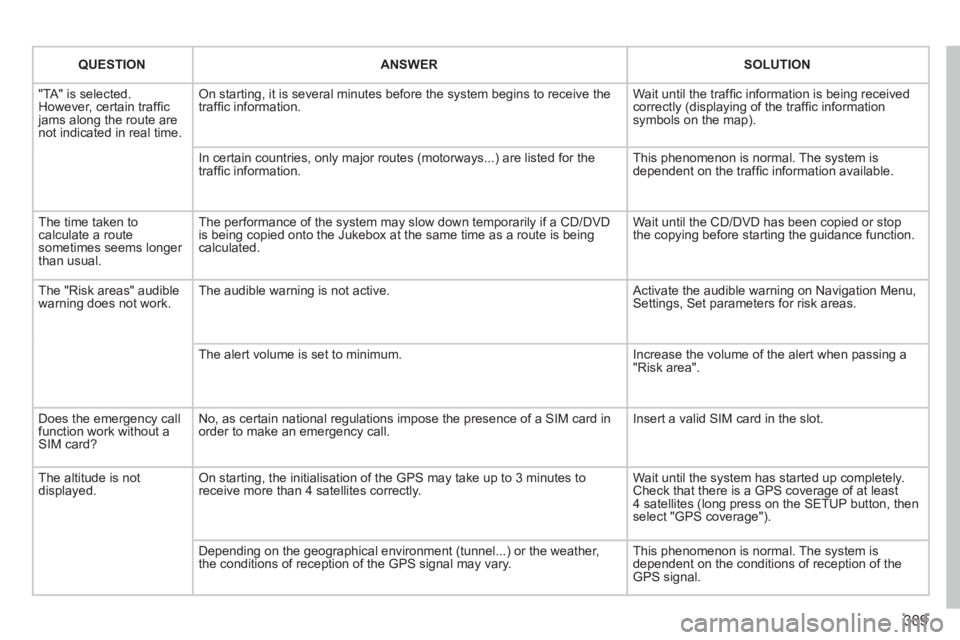
"TA" is selected. However, certain traffi c jams along the route are not indicated in real time.
On starting, it is several minutes before the system begins to receive t\
he traffi c information. Wait until the traffi c information is being received correctly (displaying of the traffi c information symbols on the map).
In certain countries, only major routes (motorways...) are listed for \
the traffi c information. This phenomenon is normal. The system is dependent on the traffi c information available.
The time taken to calculate a route sometimes seems longer than usual.
The performance of the system may slow down temporarily if a CD/DVD is being copied onto the Jukebox at the same time as a route is being calculated.
Wait until the CD/DVD has been copied or stop the copying before starting the guidance function.
The "Risk areas" audible warning does not work. The audible warning is not active. Activate the audible warning on Navigation Menu, Settings, Set parameters for risk areas.
The alert volume is set to minimum. Increase the volume of the alert when passing a "Risk area".
Does the emergency call function work without a SIM card?
No, as certain national regulations impose the presence of a SIM card in\
order to make an emergency call. Insert a valid SIM card in the slot.
The altitude is not displayed. On starting, the initialisation of the GPS may take up to 3 minutes to receive more than 4 satellites correctly. Wait until the system has started up completely. Check that there is a GPS coverage of at least 4 satellites (long press on the SETUP button, then select "GPS coverage").
Depending on the geographical environment (tunnel...) or the weather, the conditions of reception of the GPS signal may vary. This phenomenon is normal. The system is dependent on the conditions of reception of the GPS signal.
Page 313 of 404
3 11
QUESTIONANSWERSOLUTION
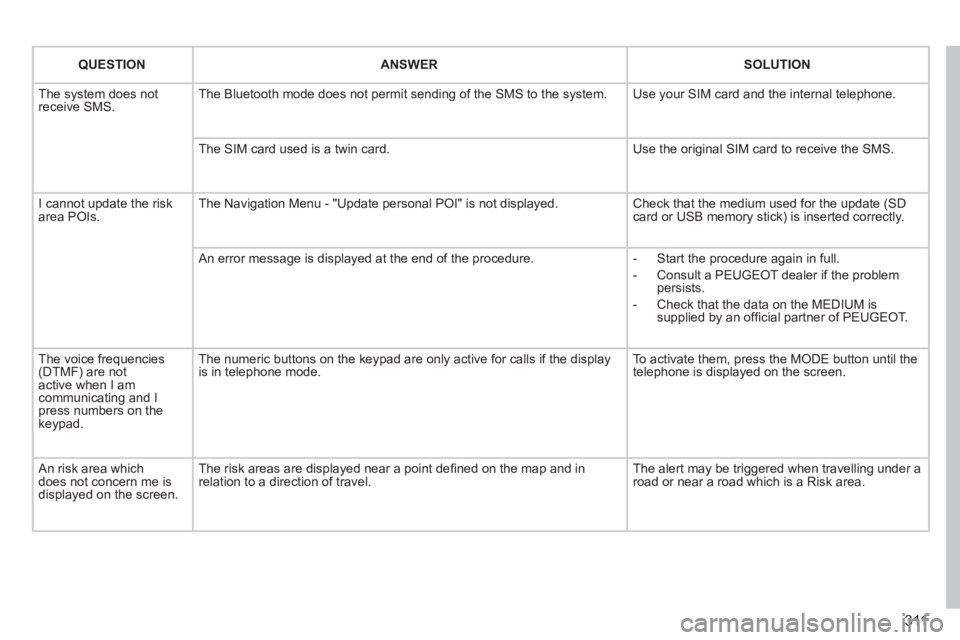
The system does not receive SMS. The Bluetooth mode does not permit sending of the SMS to the system. Use your SIM card and the internal telephone.
The SIM card used is a twin card. Use the original SIM card to receive the SMS.
I cannot update the risk area POIs. The Navigation Menu - "Update personal POI" is not displayed. Check that the medium used for the update (SD card or USB memory stick) is inserted correctly.
An error message is displayed at the end of the procedure. - Start the procedure again in full.
- Consult a PEUGEOT dealer if the problem persists.
- Check that the data on the MEDIUM is supplied by an offi cial partner of PEUGEOT.
The voice frequencies (DTMF) are not active when I am communicating and I press numbers on the keypad.
The numeric buttons on the keypad are only active for calls if the displ\
ay is in telephone mode. To activate them, press the MODE button until the telephone is displayed on the screen.
An risk area which does not concern me is displayed on the screen.
The risk areas are displayed near a point defi ned on the map and in relation to a direction of travel. The alert may be triggered when travelling under a road or near a road which is a Risk area.
Page 316 of 404
314
01
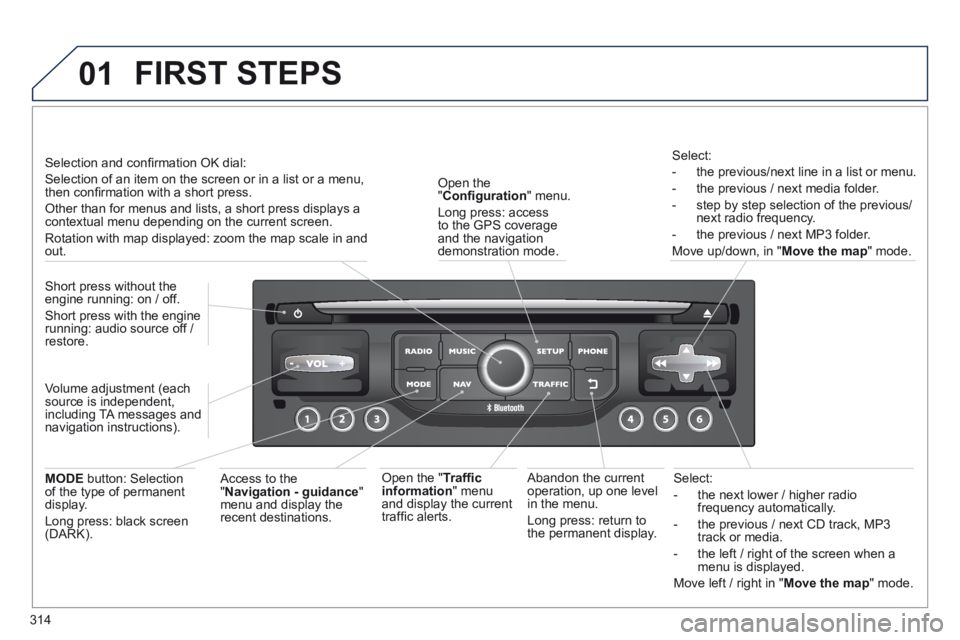
Select:
- the next lower / higher radio frequency automatically.
- the previous / next CD track, MP3 track or media.
- the left / right of the screen when a menu is displayed.
Move left / right in " Move the map " mode.
Abandon the current operation, up one level in the menu.
Long press: return to the permanent display.
Open the " Confi guration " menu.
Long press: access to the GPS coverage and the navigation demonstration mode.
Open the " Traffi c information " menu and display the current traffi c alerts.
Select:
- the previous/next line in a list or menu.
- the previous / next media folder.
- step by step selection of the previous/next radio frequency.
- the previous / next MP3 folder.
Move up/down, in " Move the map " mode.
FIRST STEPS
Access to the " Navigation - guidance " menu and display the recent destinations.
Short press without the engine running: on / off.
Short press with the engine running: audio source off / restore.
MODE button: Selection of the type of permanent display.
Long press: black screen (DARK).
Selection and confi rmation OK dial:
Selection of an item on the screen or in a list or a menu, then confi rmation with a short press.
Other than for menus and lists, a short press displays a contextual menu depending on the current screen.
Rotation with map displayed: zoom the map scale in and out.
Volume adjustment (each source is independent, including TA messages and navigation instructions).
Page 317 of 404
315
01
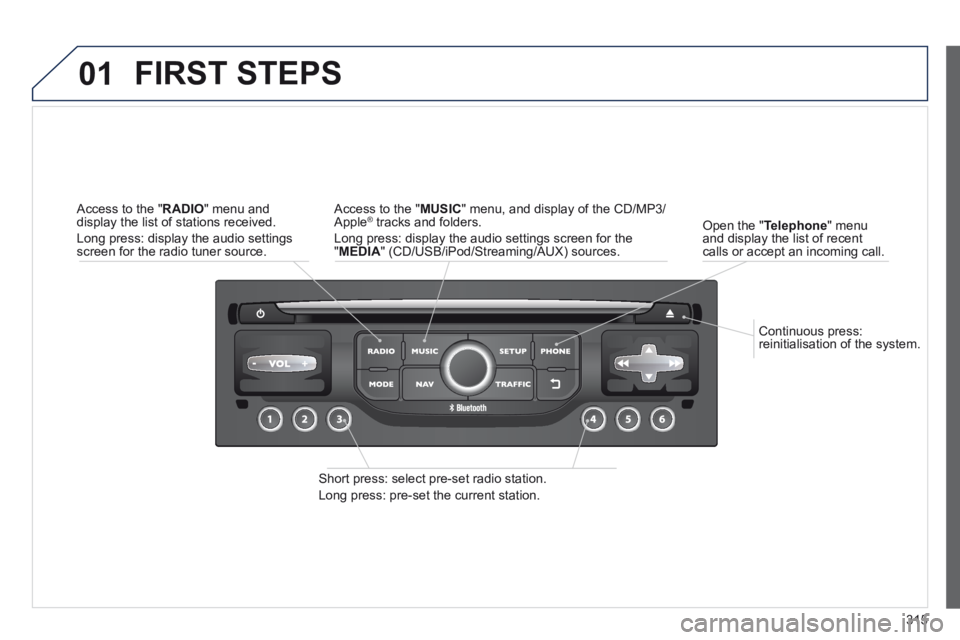
Continuous press: reinitialisation of the system.
Open the " Telephone " menu and display the list of recent calls or accept an incoming call.
FIRST STEPS
Short press: select pre-set radio station.
Long press: pre-set the current station.
Access to the " MUSIC " menu, and display of the CD/MP3/Apple ® tracks and folders. ® tracks and folders. ®
Long press: display the audio settings screen for the " MEDIA " (CD/USB/iPod/Streaming/AUX) sources.
Access to the " RADIO " menu and display the list of stations received.
Long press: display the audio settings screen for the radio tuner source.
Page 319 of 404
317
03
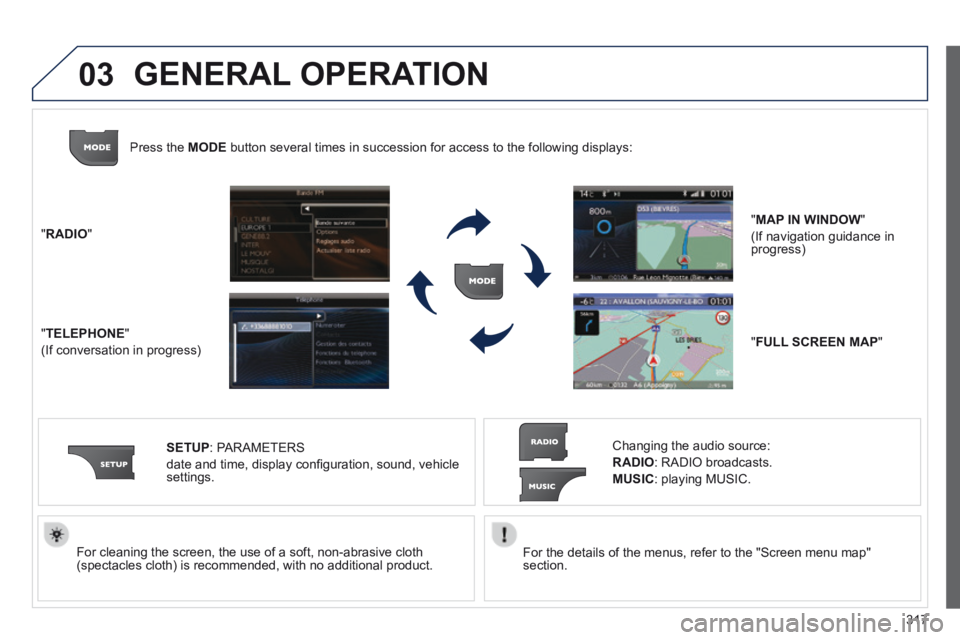
For the details of the menus, refer to the "Screen menu map" section. For cleaning the screen, the use of a soft, non-abrasive cloth (spectacles cloth) is recommended, with no additional product.
" RADIO "
" TELEPHONE "
(If conversation in progress)
SETUP : PARAMETERS
date and time, display confi guration, sound, vehicle settings.
Changing the audio source:
RADIO : RADIO broadcasts.
MUSIC : playing MUSIC.
Press the MODE button several times in succession for access to the following displays\
:
" FULL SCREEN MAP "
" MAP IN WINDOW "
(If navigation guidance in progress)
GENERAL OPERATION
Page 320 of 404
318
03
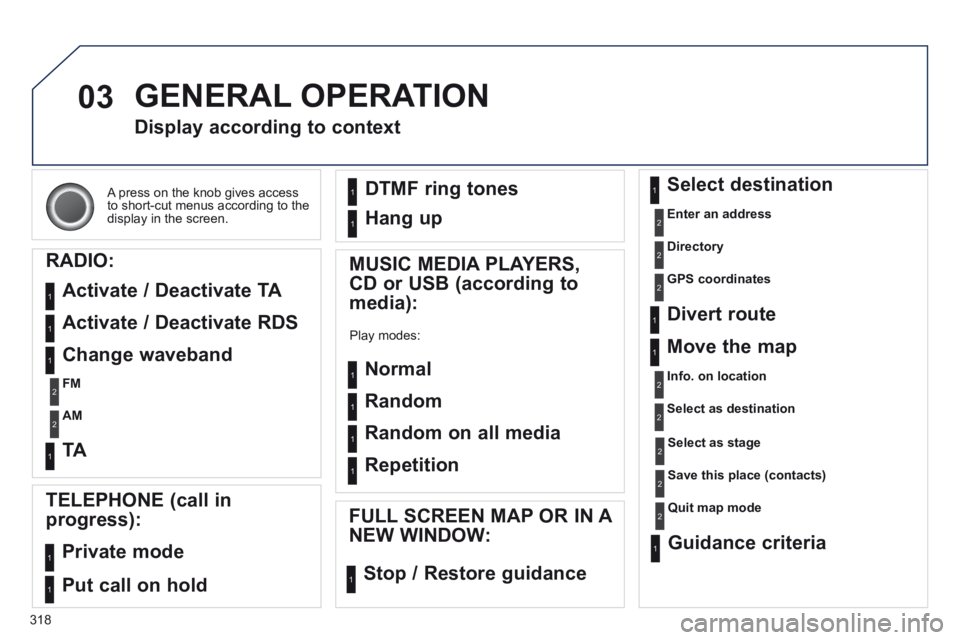
A press on the knob gives access to short-cut menus according to the display in the screen.
Display according to context
RADIO:
Activate / Deactivate TA
Activate / Deactivate RDS
MUSIC MEDIA PLAYERS,
CD or USB (according to
media):
Play modes:
Normal
Random
Random on all media
Repetition
TELEPHONE (call in
progress):
Private mode
FULL SCREEN MAP OR IN A
NEW WINDOW:
Stop / Restore guidance
Select destination
Enter an address
Directory
GPS coordinates
Divert route
Move the map
Info. on location
Select as destination
Select as stage
Save this place (contacts)
Quit map mode
Guidance criteria
Put call on hold
DTMF ring tones
Hang up
1
1
1
1
1
1
1
1
2
2
2
2
2
1
2
2
2
1
1
1
1
1
1
Change waveband
FM
AM
2
2
1
TA 1
GENERAL OPERATION