phone PEUGEOT 5008 2014 Owner's Manual
[x] Cancel search | Manufacturer: PEUGEOT, Model Year: 2014, Model line: 5008, Model: PEUGEOT 5008 2014Pages: 404, PDF Size: 23.34 MB
Page 301 of 404
299
08
2ABC3DEF5JKL4GHI6MNO8TUV7PQR S9WXYZ0*#
1RADIO MEDIA NA
V TRAFFIC
SETUPADDR
BOOK
* The services available via the telephone depend on the network, the SIM card and the compatibility of the Bluetooth equipment used. Refer to\
your telephone's manual and your operator to check which services you have access to. A list of mobile telephones which offer the best range of services is available from dealers.
USING THE TELEPHONE
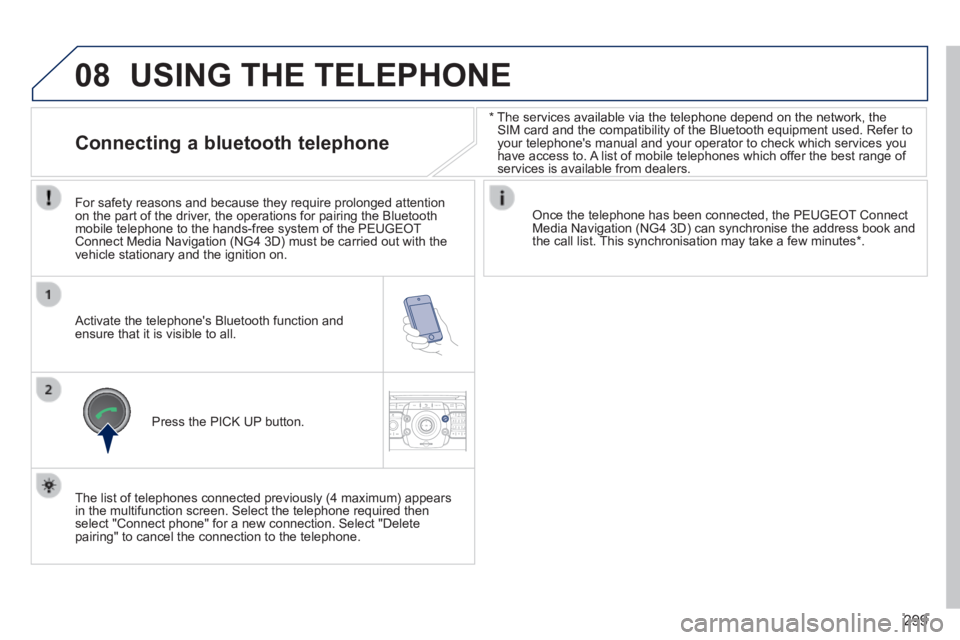
Connecting a bluetooth telephone
For safety reasons and because they require prolonged attention on the part of the driver, the operations for pairing the Bluetooth mobile telephone to the hands-free system of the PEUGEOT Connect Media Navigation (NG4 3D) must be carried out with the vehicle stationary and the ignition on.
Activate the telephone's Bluetooth function and ensure that it is visible to all.
Once the telephone has been connected, the PEUGEOT Connect Media Navigation (NG4 3D) can synchronise the address book and the call list. This synchronisation may take a few minutes * .
Press the PICK UP button.
The list of telephones connected previously (4 maximum) appears in the multifunction screen. Select the telephone required then select "Connect phone" for a new connection. Select "Delete pairing" to cancel the connection to the telephone.
Page 302 of 404
300
08
2ABC3DEF5JKL4GHI6MNO8TUV7PQRS9WXYZ0*#
1
2ABC3DEF5JKL4GHI6MNO8TUV7PQR S9WXYZ0*#
1RADIO MEDIA NA
V TRAFFIC
SETUPADDR
BOOK
2ABC3DEF5JKL4GHI6MNO8TUV7PQR S9WXYZ0*#
1NAV TRAFFICADDR
BOOKSETUP2ABC3DEF5JKL4GHI6MNO8TUV7PQRS9WXYZ0*#
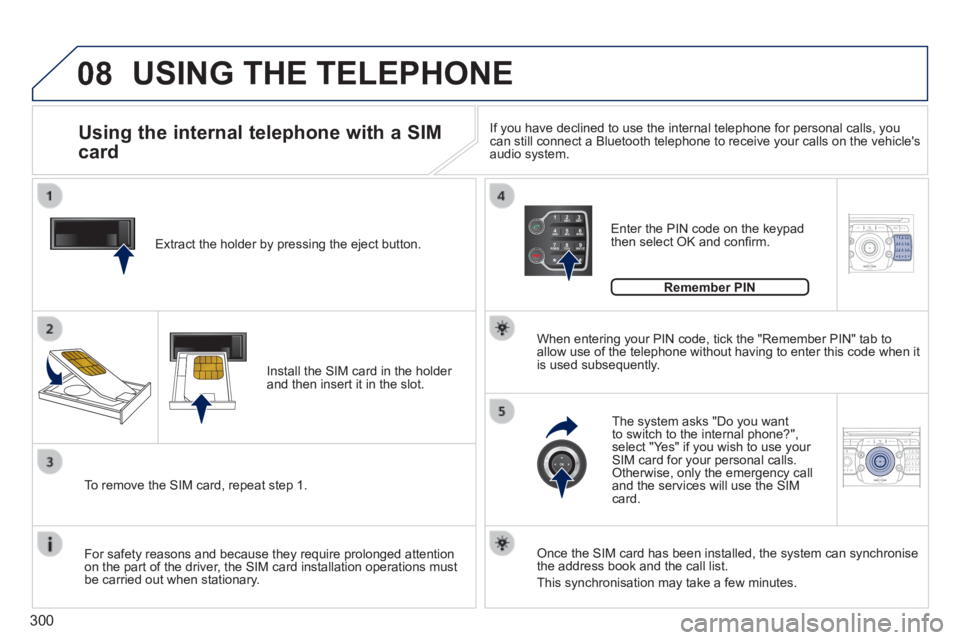
1 Extract the holder by pressing the eject button.
Install the SIM card in the holder and then insert it in the slot.
To remove the SIM card, repeat step 1.
For safety reasons and because they require prolonged attention on the part of the driver, the SIM card installation operations must be carried out when stationary.
Enter the PIN code on the keypad then select OK and confi rm.
The system asks "Do you want to switch to the internal phone?", select "Yes" if you wish to use your SIM card for your personal calls. Otherwise, only the emergency call and the services will use the SIM card.
Remember PIN
When entering your PIN code, tick the "Remember PIN" tab to allow use of the telephone without having to enter this code when it is used subsequently.
Using the internal telephone with a SIM
card
USING THE TELEPHONE
Once the SIM card has been installed, the system can synchronise the address book and the call list.
This synchronisation may take a few minutes.
If you have declined to use the internal telephone for personal calls, y\
ou can still connect a Bluetooth telephone to receive your calls on the veh\
icle's audio system.
Page 303 of 404
301
08
2ABC3DEF5JKL4GHI6MNO8TUV7PQR S9WXYZ0*#
1RADIO MEDIA NA
V TRAFFIC
SETUPADDR
BOOK
2ABC3DEF5JKL4GHI6MNO8TUV7PQR S9WXYZ0*#
1RADIO MEDIA NA
V TRAFFIC
SETUPADDR
BOOK
2ABC3DEF5JKL4GHI6MNO8TUV7PQR S9WXYZ0*#
1RADIO MEDIA NA
V TRAFFIC
SETUPADDR
BOOK
2ABC3DEF5JKL4GHI6MNO8TUV7PQR S9WXYZ0*#
1RADIO MEDIA NA
V TRAFFIC
SETUPADDR
BOOK
2ABC3DEF5JKL4GHI6MNO8TUV7PQR S9WXYZ0*#
1RADIO MEDIA NA
V TRAFFIC
SETUPADDR
BOOK
Press the end of the steering mounted control to accept the call or end the call in progress.
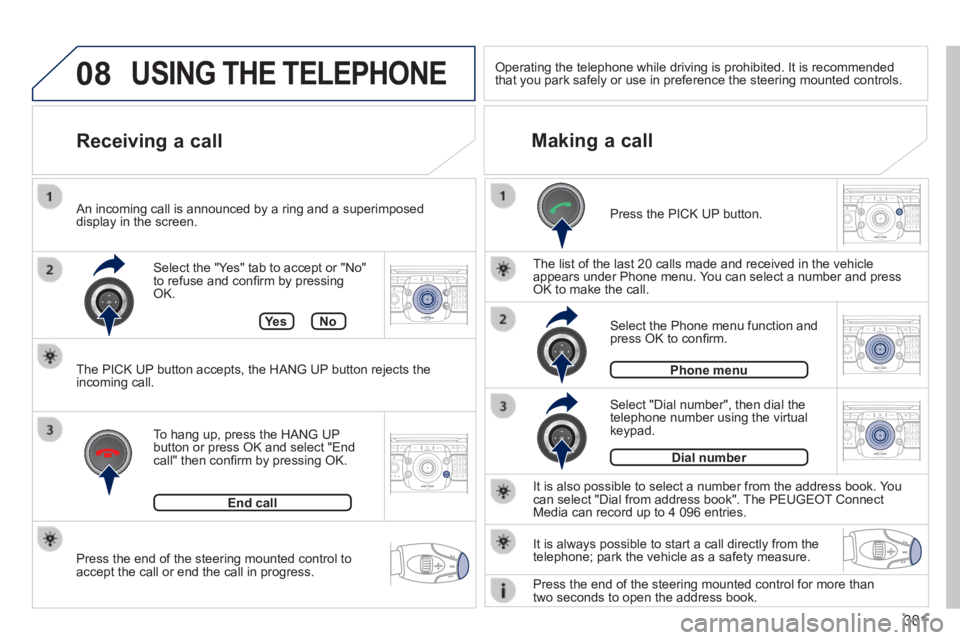
Select the "Yes" tab to accept or "No" to refuse and confi rm by pressing OK.
Receiving a call Making a call
An incoming call is announced by a ring and a superimposed display in the screen.
To hang up, press the HANG UP button or press OK and select "End call" then confi rm by pressing OK.
End call
Press the PICK UP button.
It is also possible to select a number from the address book. You can select "Dial from address book". The PEUGEOT Connect Media can record up to 4 096 entries.
Select "Dial number", then dial the telephone number using the virtual keypad.
Select the Phone menu function and press OK to confi rm.
Dial number
Phone menu
The list of the last 20 calls made and received in the vehicle appears under Phone menu. You can select a number and press OK to make the call.
Ye sNo
The PICK UP button accepts, the HANG UP button rejects the incoming call.
USING THE TELEPHONE
It is always possible to start a call directly from the telephone; park the vehicle as a safety measure.
Operating the telephone while driving is prohibited. It is recommended that you park safely or use in preference the steering mounted controls.\
Press the end of the steering mounted control for more than two seconds to open the address book.
Page 306 of 404
304
ADDR
BOOK
Recalculate3
Fast route 4
Short route 4
Optimized route 4
POI nearby
POI search 2
3
POI near destination3
POI in city3
POI in country3
POI near route3
Route type
Route options 2
3
POI near destination 4
Short route 4
Optimized route 4
Subscr. service 4
Route dynamics
Settings 2
3
Traffi c independent 4
Semi-dynamic 4
Dynamic 4
Avoidance criteria3
Avoid motorways 4
Avoid toll roads 4
Avoid tunnels 4
Avoid ferries 4
Recalculate3
"Address book" Menu
Create new entry
1
2
Show memory status 2
Export address book 2
Delete all voice entries 2
Delete all entries 2
Delete folder "My Addresses" 2
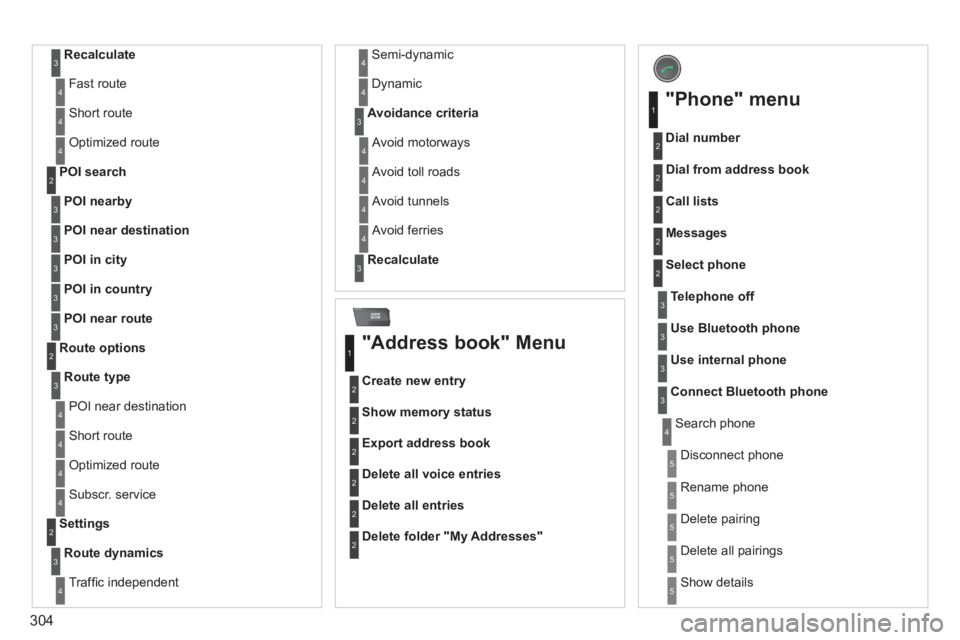
"Phone" menu
Dial number
1
2
Dial from address book 2
Call lists 2
Messages 2
Select phone 2
Search phone 4
Telephone off3
Use Bluetooth phone3
Use internal phone3
Connect Bluetooth phone3
Disconnect phone 5
Rename phone 5
Delete pairing 5
Delete all pairings 5
Show details 5
Page 307 of 404
305
SETUP
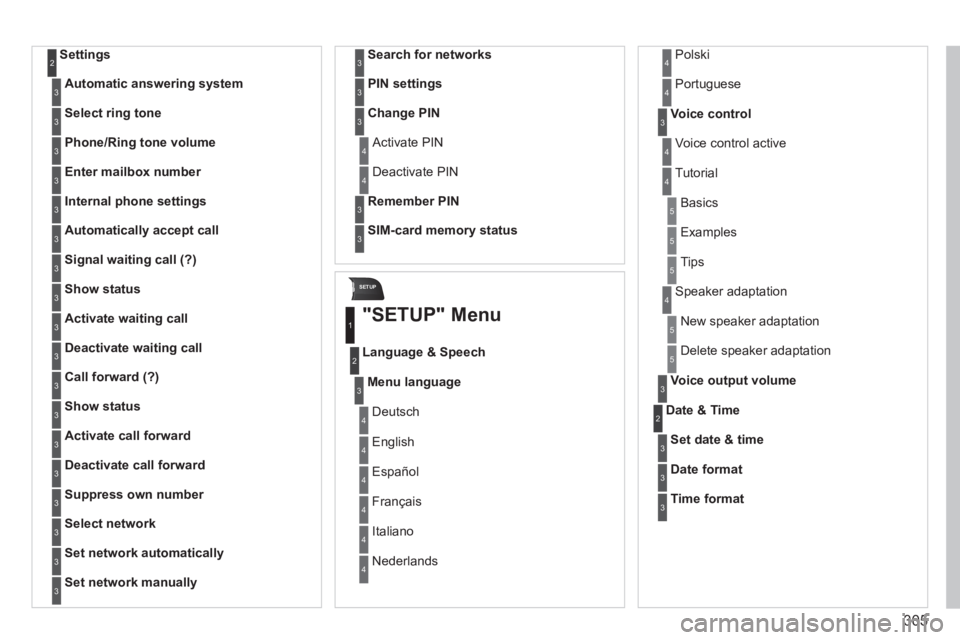
Settings 2
Automatic answering system3
Select ring tone3
Phone/Ring tone volume3
Enter mailbox number3
Internal phone settings3
Automatically accept call3
Signal waiting call (?)3
Show status3
Activate waiting call3
Deactivate waiting call3
Call forward (?)3
Show status3
Activate call forward3
Deactivate call forward3
Suppress own number3
Select network3
Set network automatically3
Set network manually3
Search for networks3
PIN settings3
Change PIN3
Activate PIN 4
Deactivate PIN 4
Remember PIN3
SIM-card memory status3
"SETUP" Menu
Menu language
Language & Speech
1
2
3
Deutsch 4
English 4
Español 4
Français 4
Italiano 4
Nederlands 4
Polski 4
Voice control3
Voice control active 4
Tutorial 4
Portuguese 4
Basics 5
Examples 5
Tips 5
Speaker adaptation 4
New speaker adaptation 5
Delete speaker adaptation 5
Voice output volume3
Date & Time 2
Set date & time3
Date format3
Time format3
Page 312 of 404
310
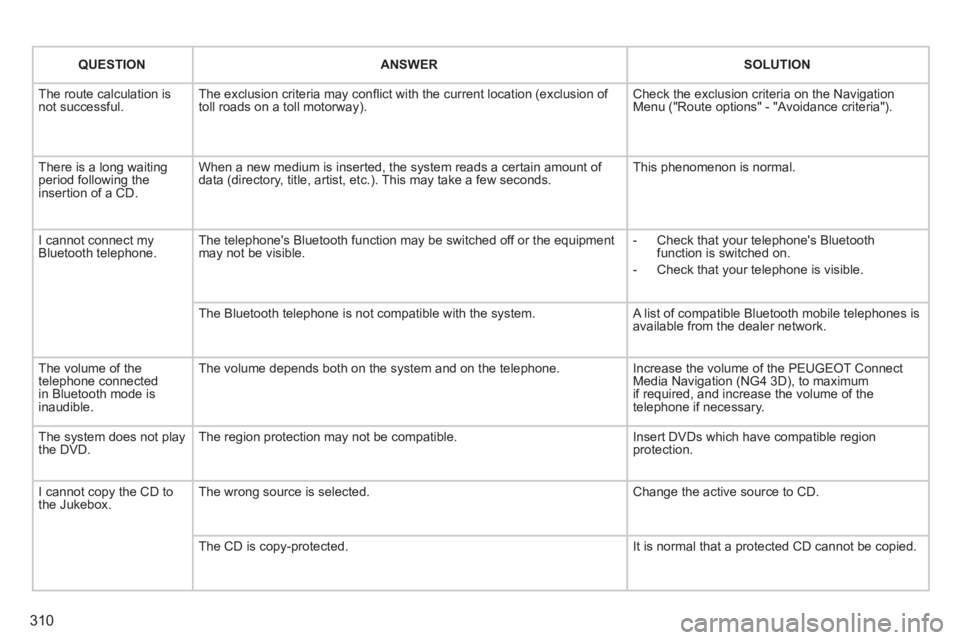
QUESTIONANSWERSOLUTION
The route calculation is not successful. The exclusion criteria may confl ict with the current location (exclusion of toll roads on a toll motorway). Check the exclusion criteria on the Navigation Menu ("Route options" - "Avoidance criteria").
There is a long waiting period following the insertion of a CD.
When a new medium is inserted, the system reads a certain amount of data (directory, title, artist, etc.). This may take a few seconds. This phenomenon is normal.
I cannot connect my Bluetooth telephone. The telephone's Bluetooth function may be switched off or the equipment may not be visible. - Check that your telephone's Bluetooth function is switched on.
- Check that your telephone is visible.
The Bluetooth telephone is not compatible with the system. A list of compatible Bluetooth mobile telephones is available from the dealer network.
The volume of the telephone connected in Bluetooth mode is inaudible.
The volume depends both on the system and on the telephone. Increase the volume of the PEUGEOT Connect Media Navigation (NG4 3D), to maximum if required, and increase the volume of the telephone if necessary.
The system does not play the DVD. The region protection may not be compatible. Insert DVDs which have compatible region protection.
I cannot copy the CD to the Jukebox. The wrong source is selected. Change the active source to CD.
The CD is copy-protected. It is normal that a protected CD cannot be copied.
Page 313 of 404
3 11
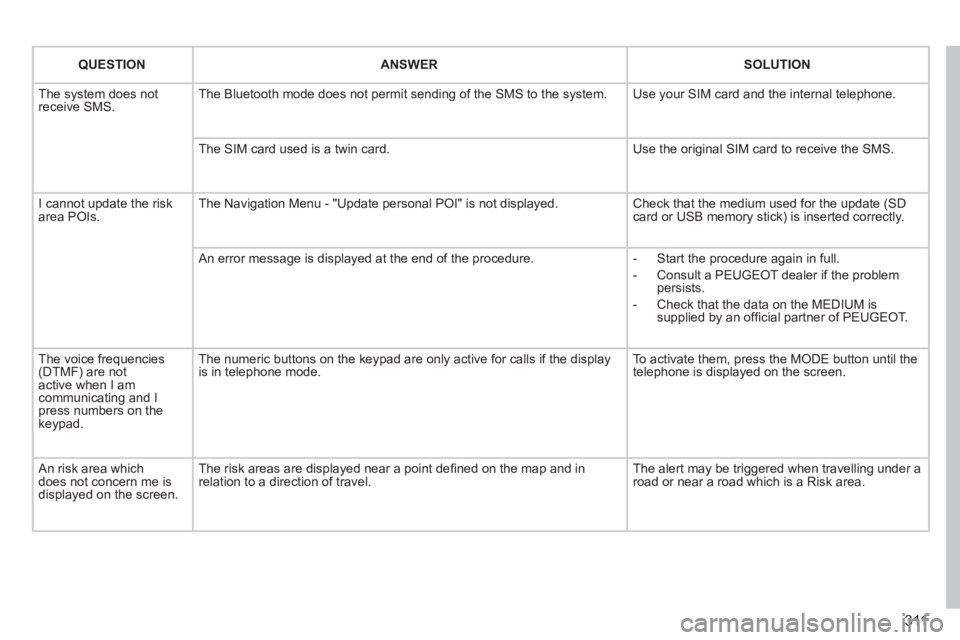
QUESTIONANSWERSOLUTION
The system does not receive SMS. The Bluetooth mode does not permit sending of the SMS to the system. Use your SIM card and the internal telephone.
The SIM card used is a twin card. Use the original SIM card to receive the SMS.
I cannot update the risk area POIs. The Navigation Menu - "Update personal POI" is not displayed. Check that the medium used for the update (SD card or USB memory stick) is inserted correctly.
An error message is displayed at the end of the procedure. - Start the procedure again in full.
- Consult a PEUGEOT dealer if the problem persists.
- Check that the data on the MEDIUM is supplied by an offi cial partner of PEUGEOT.
The voice frequencies (DTMF) are not active when I am communicating and I press numbers on the keypad.
The numeric buttons on the keypad are only active for calls if the displ\
ay is in telephone mode. To activate them, press the MODE button until the telephone is displayed on the screen.
An risk area which does not concern me is displayed on the screen.
The risk areas are displayed near a point defi ned on the map and in relation to a direction of travel. The alert may be triggered when travelling under a road or near a road which is a Risk area.
Page 315 of 404
313
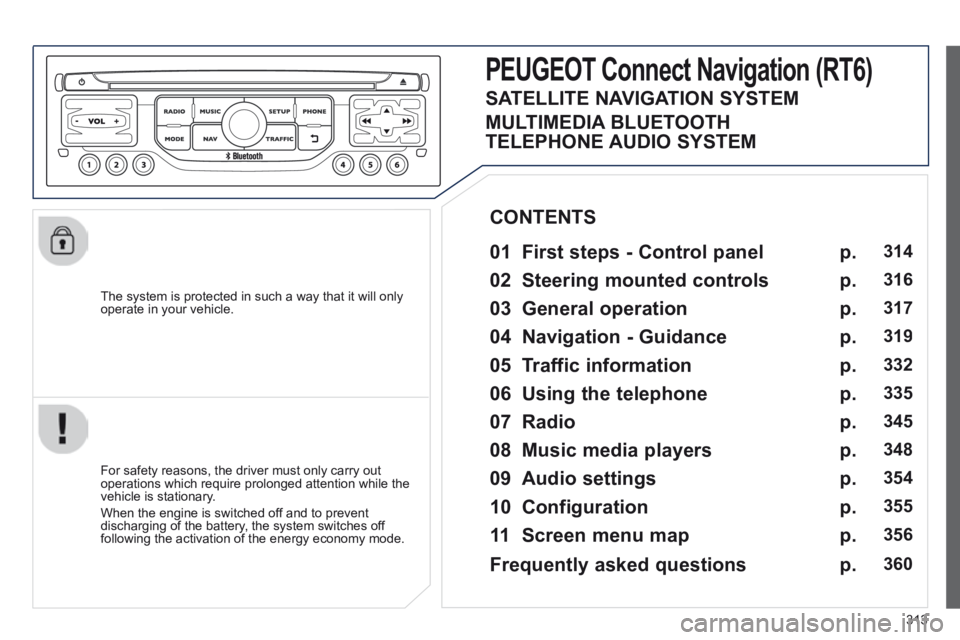
The system is protected in such a way that it will only operate in your vehicle.
PEUGEOT Connect Nonnect Nonnectavigation (RT6)
01 First steps - Control panel
For safety reasons, the driver must only carry out operations which require prolonged attention while the vehicle is stationary.
When the engine is switched off and to prevent discharging of the battery, the system switches off following the activation of the energy economy mode.
CONTENTS
02 Steering mounted controls
03 General operation
04 Navigation - Guidance
05 Traffic information
06 Using the telephone
07 Radio
08 Music media players
09 Audio settings
10 Configuration
11 Screen menu map
p.
p.
p.
p.
p.
p.
p.
p.
p.
p.
p.
314
316
317
319
332
335
345
348
354
355
356
SATELLITE NAVIGATION SYSTEM
MULTIMEDIA BLUETOOTH
TELEPHONE AUDIO SYSTEM
Frequently asked questions p. 360
Page 317 of 404
315
01
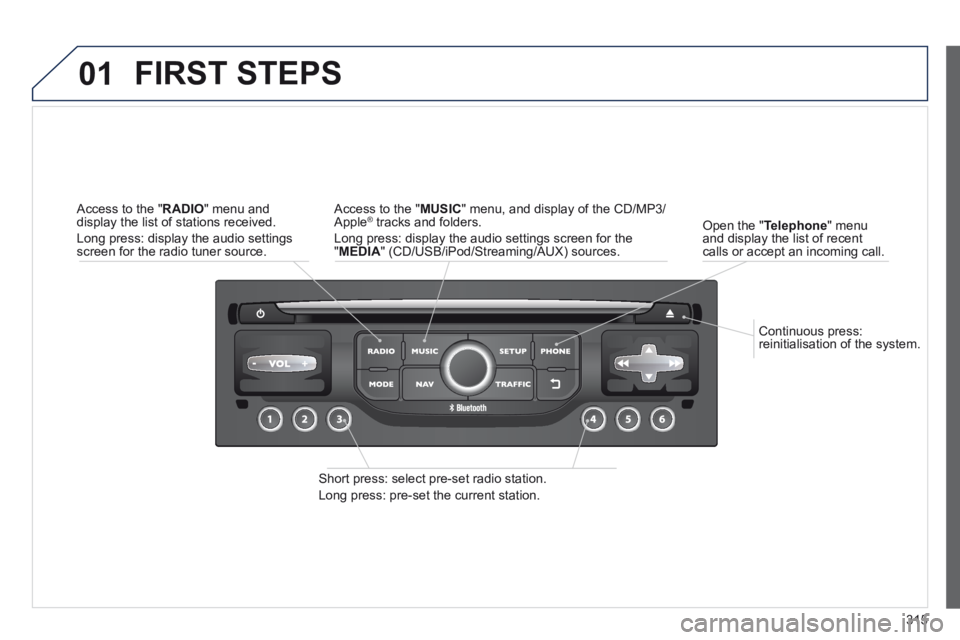
Continuous press: reinitialisation of the system.
Open the " Telephone " menu and display the list of recent calls or accept an incoming call.
FIRST STEPS
Short press: select pre-set radio station.
Long press: pre-set the current station.
Access to the " MUSIC " menu, and display of the CD/MP3/Apple ® tracks and folders. ® tracks and folders. ®
Long press: display the audio settings screen for the " MEDIA " (CD/USB/iPod/Streaming/AUX) sources.
Access to the " RADIO " menu and display the list of stations received.
Long press: display the audio settings screen for the radio tuner source.
Page 318 of 404
316
02
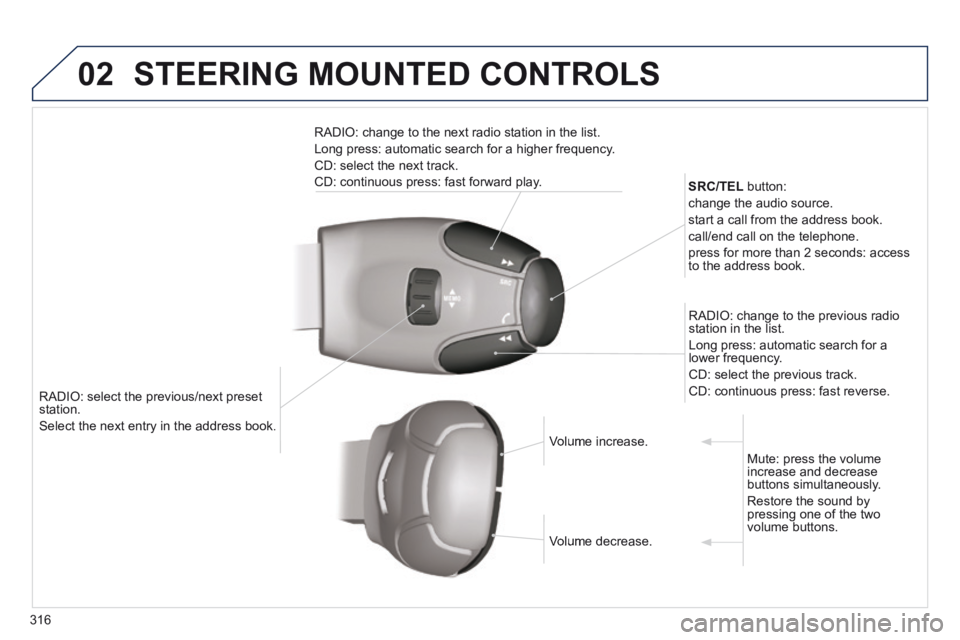
RADIO: select the previous/next preset station.
Select the next entry in the address book. Select the next entry in the address book.
SRC/TEL button:
change the audio source.
start a call from the address book.
call/end call on the telephone.
press for more than 2 seconds: access to the address book.
RADIO: change to the previous radio station in the list.
Long press: automatic search for a lower frequency.
CD: select the previous track.
CD: continuous press: fast reverse.
RADIO: change to the next radio station in the list.
Long press: automatic search for a higher frequency.
CD: select the next track.
CD: continuous press: fast forward play.
Volume increase. Volume increase.
Volume decrease. Volume decrease.
Mute: press the volume increase and decrease buttons simultaneously.
Restore the sound by pressing one of the two volume buttons.
STEERING MOUNTED CONTROLS