audio PEUGEOT 5008 2014 Owner's Guide
[x] Cancel search | Manufacturer: PEUGEOT, Model Year: 2014, Model line: 5008, Model: PEUGEOT 5008 2014Pages: 404, PDF Size: 23.34 MB
Page 295 of 404
293
07
MEDIA
2ABC3DEF5JKL4GHI6MNO8TU V7PQRS9WXYZ0*#
1RADIOM EDIA NA
V ESC TRAFFIC
SETUPADDR
BOOK
2AB C3DEF5JKL4GHI6MNO8TUV7PQR S9WXYZ0*#
1RADIO MEDIA NA
V TRAFFIC
SETUPADDR
BOOK
2ABC3DEF5JKL4GHI6MNO8TUV7PQR S9WXYZ0*#
1RADIO MEDIA NA
V TRAFFIC
SETUPADDR
BOOK
2ABC3DEF5JKL4GHI6MNO8TUV7PQR S9WXYZ0*#
1RADIO MEDIA NA
V TRAFFIC
SETUPADDR
BOOK
2ABC3DEF5JKL4GHI6MNO8TUV7PQR S9WXYZ0*#
1RADIO MEDIA NA
V TRAFFIC
SETUPADDR
BOOK
2ABC3DEF5JKL4GHI6MNO8TUV7PQR S9WXYZ0*#
1RADIO MEDIA NA
V TRAFFIC
SETUPADDR
BOOK
RADIO NA
V TRAFFICMEDIA
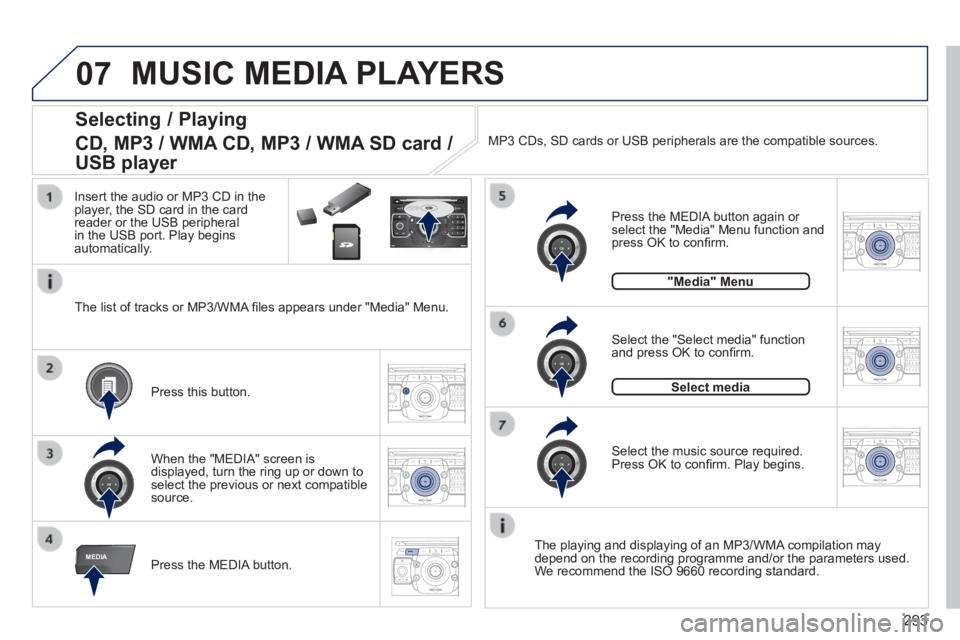
Selecting / Playing
CD, MP3 / WMA CD, MP3 / WMA SD card /
USB player
The playing and displaying of an MP3/WMA compilation may depend on the recording programme and/or the parameters used. We recommend the ISO 9660 recording standard. Press the MEDIA button.
Select the "Select media" function and press OK to confi rm.
Press this button.
Select the music source required. Press OK to confi rm. Play begins.
Select media
Press the MEDIA button again or select the "Media" Menu function and press OK to confi rm.
When the "MEDIA" screen is displayed, turn the ring up or down to select the previous or next compatible source.
"Media" Menu
The list of tracks or MP3/WMA fi les appears under "Media" Menu.
Insert the audio or MP3 CD in the player, the SD card in the card reader or the USB peripheral in the USB port. Play begins automatically.
MP3 CDs, SD cards or USB peripherals are the compatible sources.
MUSIC MEDIA PLAYERS
Page 296 of 404
294
07
MEDIA
2ABC3DEF5JKL4GHI6MNO8TU V7PQRS9WXYZ0*#
1RADIOM EDIA NA
V ESC TRAFFIC
SETUPADDR
BOOK
2AB C3DEF5JKL4GHI6MNO8TUV7PQR S9WXYZ0*#
1RADIO MEDIA NA
V TRAFFIC
SETUPADDR
BOOK
2ABC3DEF5JKL4GHI6MNO8TUV7PQR S9WXYZ0*#
1RADIO MEDIA NA
V TRAFFIC
SETUPADDR
BOOK
2ABC3DEF5JKL4GHI6MNO8TUV7PQR S9WXYZ0*#
1RADIO MEDIA NA
V TRAFFIC
SETUPADDR
BOOK
2ABC3DEF5JKL4GHI6MNO8TUV7PQR S9WXYZ0*#
1RADIO MEDIA NA
V TRAFFIC
SETUPADDR
BOOK
2ABC3DEF5JKL4GHI6MNO8TUV7PQR S9WXYZ0*#
1RADIO MEDIA NA
V TRAFFIC
SETUPADDR
BOOK
2ABC3DEF5JKL4GHI6MNO8TUV7PQR S9WXYZ0*#
1RADIO MEDIA NA
V TRAFFIC
SETUPADDR
BOOK
2ABC3DEF5JKL4GHI6MNO8TUV7PQR S9WXYZ0*#
1RADIO MEDIA NA
V TRAFFIC
SETUPADDR
BOOK
RADIO NA
V TRAFFICMEDIA
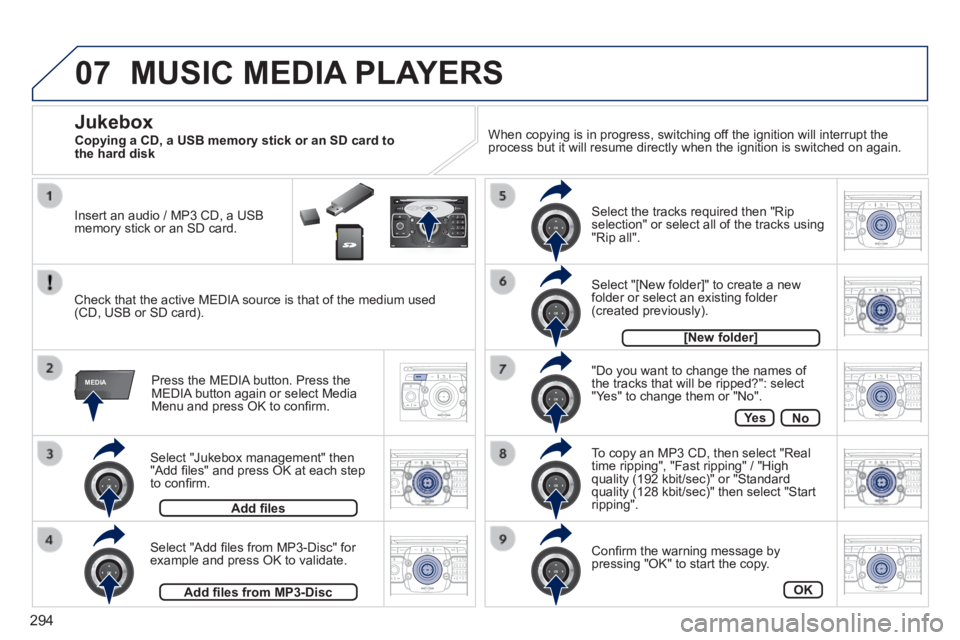
Select "Jukebox management" then "Add fi les" and press OK at each step to confi rm.
Press the MEDIA button. Press the MEDIA button again or select Media Menu and press OK to confi rm.
Insert an audio / MP3 CD, a USB memory stick or an SD card.
Jukebox
Add fi les
Check that the active MEDIA source is that of the medium used (CD, USB or SD card).
Select "Add fi les from MP3-Disc" for example and press OK to validate.
Select the tracks required then "Rip selection" or select all of the tracks using "Rip all".
Select "[New folder]" to create a new folder or select an existing folder (created previously).
Add fi les from MP3-Disc
[New folder]
"Do you want to change the names of the tracks that will be ripped?": select "Yes" to change them or "No".
To copy an MP3 CD, then select "Real time ripping", "Fast ripping" / "High quality (192 kbit/sec)" or "Standard quality (128 kbit/sec)" then select "Start ripping".
Confi rm the warning message by pressing "OK" to start the copy.
OK
Ye sNo
When copying is in progress, switching off the ignition will interrupt the process but it will resume directly when the ignition is switched on aga\
in.
MUSIC MEDIA PLAYERS
Copying a CD, a USB memory stick or an SD card to the hard disk
Page 298 of 404
296
07
MEDIA
2ABC3DEF5JKL4GHI6MNO8TU V7PQRS9WXYZ0*#
1RADIOM EDIA NA
V ESC TRAFFIC
SETUPADDR
BOOK
MEDIA
2AB C3DEF5JKL4GHI6MNO8TUV7PQR S9WXYZ0*#
1RADIO MEDIA NA
V TRAFFIC
SETUPADDR
BOOK
2ABC3DEF5JKL4GHI6MNO8TUV7PQR S9WXYZ0*#
1RADIO MEDIA NA
V TRAFFIC
SETUPADDR
BOOK
2ABC3DEF5JKL4GHI6MNO8TUV7PQR S9WXYZ0*#
1RADIO MEDIA NA
V TRAFFIC
SETUPADDR
BOOK
RADIO NA
V TRAFFICMEDIA
RADIO NA
V TRAFFICMEDIA
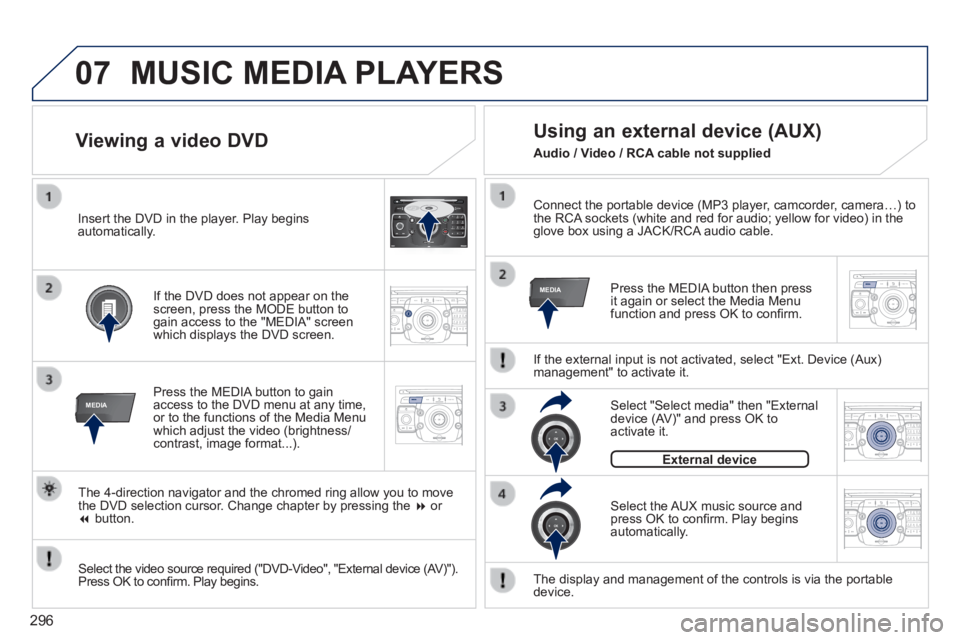
Connect the portable device (MP3 player, camcorder, camera…) to the RCA sockets (white and red for audio; yellow for video) in the glove box using a JACK/RCA audio cable.
Press the MEDIA button then press it again or select the Media Menu function and press OK to confi rm.
Select the AUX music source and press OK to confi rm. Play begins automatically.
Select "Select media" then "External device (AV)" and press OK to activate it.
External device
The display and management of the controls is via the portable device.
Using an external device (AUX)
If the external input is not activated, select "Ext. Device (Aux) management" to activate it.
Viewing a video DVD
Select the video source required ("DVD-Video", "External device (AV)"). Press OK to confi rm. Play begins.
Press the MEDIA button to gain access to the DVD menu at any time, or to the functions of the Media Menu which adjust the video (brightness/contrast, image format...).
If the DVD does not appear on the screen, press the MODE button to gain access to the "MEDIA" screen which displays the DVD screen.
Insert the DVD in the player. Play begins automatically.
The 4-direction navigator and the chromed ring allow you to move the DVD selection cursor. Change chapter by pressing the or button.
MUSIC MEDIA PLAYERS
Audio / Video / RCA cable not supplied
Page 302 of 404
300
08
2ABC3DEF5JKL4GHI6MNO8TUV7PQRS9WXYZ0*#
1
2ABC3DEF5JKL4GHI6MNO8TUV7PQR S9WXYZ0*#
1RADIO MEDIA NA
V TRAFFIC
SETUPADDR
BOOK
2ABC3DEF5JKL4GHI6MNO8TUV7PQR S9WXYZ0*#
1NAV TRAFFICADDR
BOOKSETUP2ABC3DEF5JKL4GHI6MNO8TUV7PQRS9WXYZ0*#
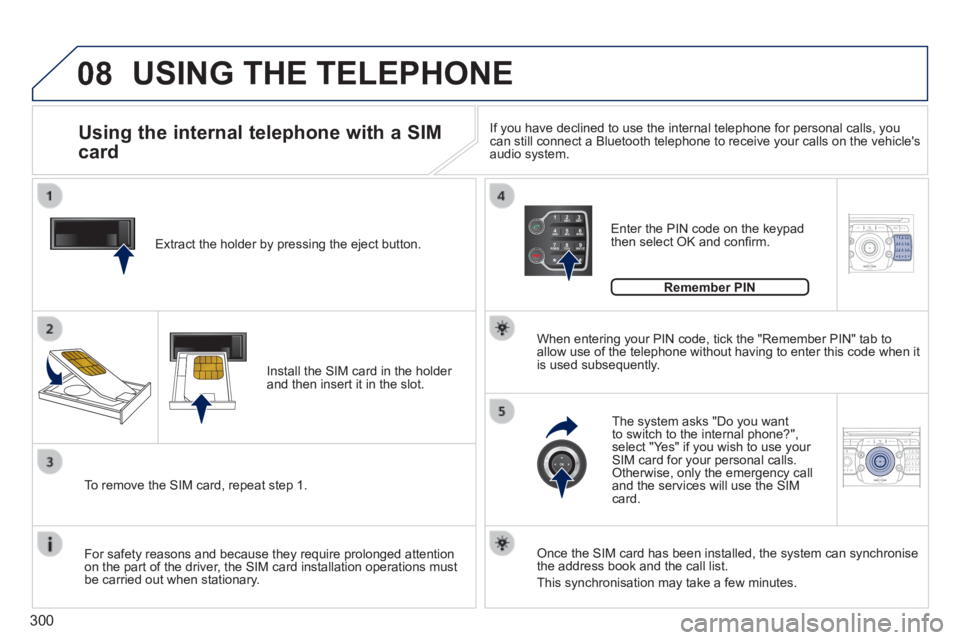
1 Extract the holder by pressing the eject button.
Install the SIM card in the holder and then insert it in the slot.
To remove the SIM card, repeat step 1.
For safety reasons and because they require prolonged attention on the part of the driver, the SIM card installation operations must be carried out when stationary.
Enter the PIN code on the keypad then select OK and confi rm.
The system asks "Do you want to switch to the internal phone?", select "Yes" if you wish to use your SIM card for your personal calls. Otherwise, only the emergency call and the services will use the SIM card.
Remember PIN
When entering your PIN code, tick the "Remember PIN" tab to allow use of the telephone without having to enter this code when it is used subsequently.
Using the internal telephone with a SIM
card
USING THE TELEPHONE
Once the SIM card has been installed, the system can synchronise the address book and the call list.
This synchronisation may take a few minutes.
If you have declined to use the internal telephone for personal calls, y\
ou can still connect a Bluetooth telephone to receive your calls on the veh\
icle's audio system.
Page 304 of 404
302
09
MEDIA
TRAFFIC
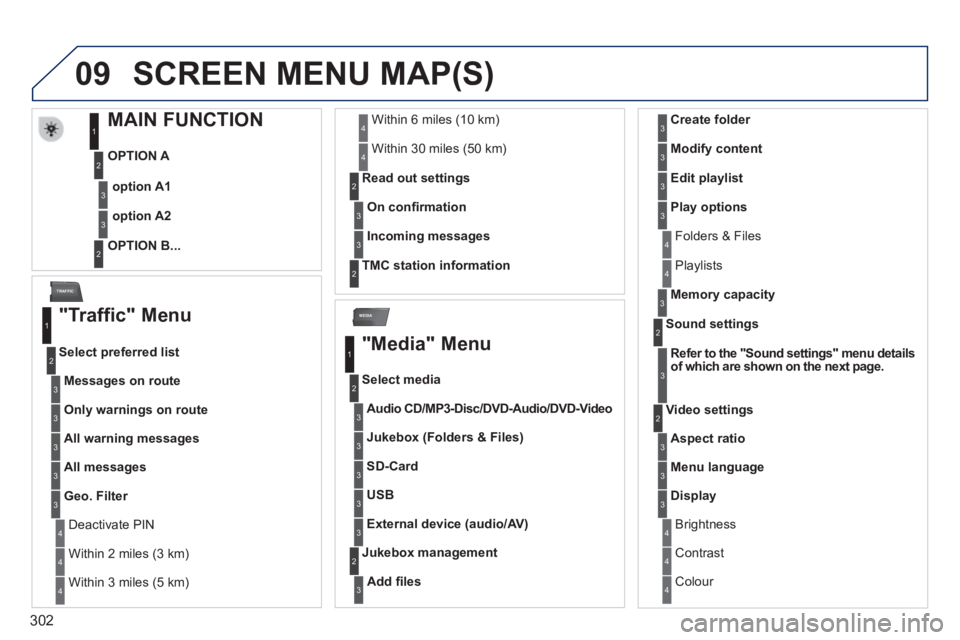
SCREEN MENU MAP(S)
MAIN FUNCTION
OPTION A
OPTION B...
option A1
option A2
1
2
3
2
3
"Traffic" Menu
Messages on route
Select preferred list
1
2
3
Deactivate PIN 4
Only warnings on route3
All warning messages3
All messages3
Geo. Filter3
Within 2 miles (3 km) 4
Within 3 miles (5 km) 4
Within 6 miles (10 km) 4
Within 30 miles (50 km) 4
On confi rmation
Read out settings 2
3
Incoming messages3
TMC station information 2
"Media" Menu
Audio CD/MP3-Disc / Audio CD/MP3-Disc / Audio CD/MP3-DiscDVD-Audio / DVD-Audio / DVD-AudioDVD-Video
Select media
1
2
3
Jukebox (Folders & Files)3
SD-Card3
USB3
External device (audio/AV)3
Add fi les
Jukebox management 2
3
Folders & Files 4
Create folder3
Modify content3
Edit playlist3
Play options3
Playlists 4
Memory capacity3
Refer to the "Sound settings" menu details of which are shown on the next page.
Sound settings 2
3
Aspect ratio
Video settings 2
3
Menu language3
Display3
Brightness 4
Contrast 4
Colour 4
Page 305 of 404
303
NAV
RADI O
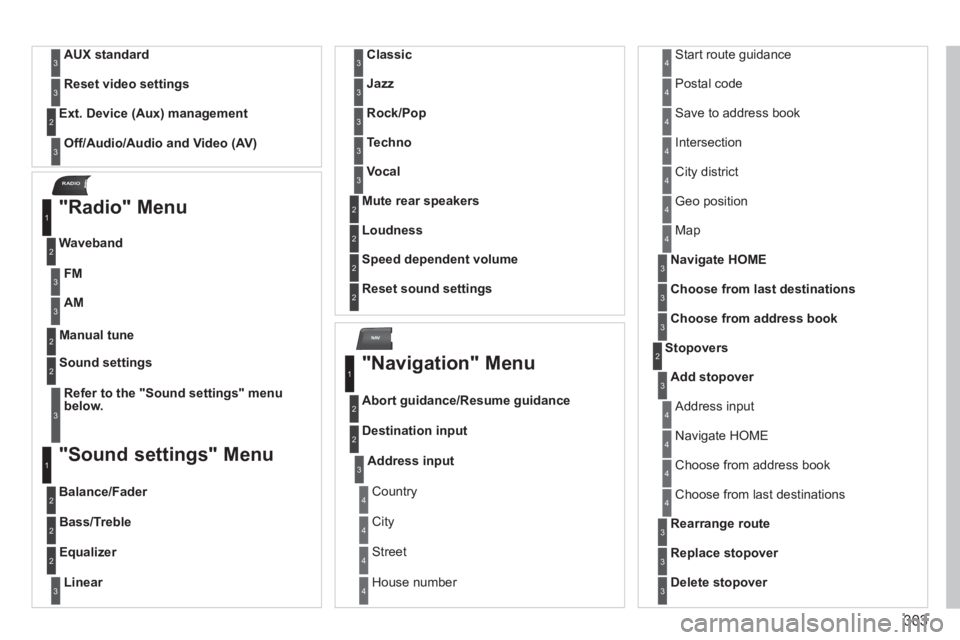
AUX standard3
Reset video settings3
Off/Audio/Audio and Video (AV)
Ext. Device (Aux) management 2
3
"Radio" Menu
Waveband
1
2
Manual tune 2
Refer to the "Sound settings" menu below.
Sound settings 2
3
"Sound settings" Menu
Balance/Fader
1
2
Bass/Treble 2
Equalizer 2
Linear3
Classic3
Jazz3
Rock/Pop3
Techno3
Vocal3
Mute rear speakers 2
Loudness 2
Speed dependent volume 2
Reset sound settings 2
"Navigation" Menu
Abort guidance/Resume guidance
1
2
Destination input 2
Address input3
Country 4
City 4
Street 4
House number 4
Start route guidance 4
Postal code 4
Save to address book 4
Intersection 4
City district 4
Geo position 4
Map 4
Navigate HOME3
Choose from last destinations3
Choose from address book3
Stopovers 2
Add stopover3
Address input 4
Navigate HOME 4
Choose from address book 4
Choose from last destinations 4
Rearrange route3
Replace stopover3
Delete stopover3
FM3
AM3
Page 309 of 404
307
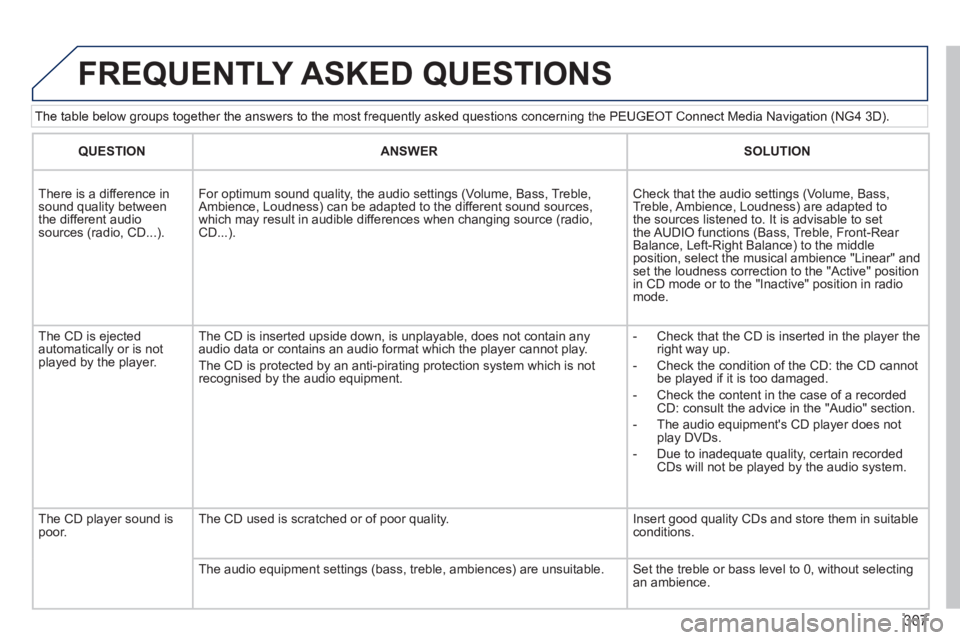
The table below groups together the answers to the most frequently asked questions concerning the PEUGEOT Connect Media Navigation (NG4 3D).
FREQUENTLY ASKED QUESTIONS
QUESTIONANSWERSOLUTION
There is a difference in sound quality between the different audio sources (radio, CD...).
For optimum sound quality, the audio settings (Volume, Bass, Treble, Ambience, Loudness) can be adapted to the different sound sources, which may result in audible differences when changing source (radio, CD...).
Check that the audio settings (Volume, Bass, Treble, Ambience, Loudness) are adapted to the sources listened to. It is advisable to set the AUDIO functions (Bass, Treble, Front-Rear Balance, Left-Right Balance) to the middle position, select the musical ambience "Linear" and set the loudness correction to the "Active" position in CD mode or to the "Inactive" position in radio mode.
The CD is ejected automatically or is not played by the player.
The CD is inserted upside down, is unplayable, does not contain any audio data or contains an audio format which the player cannot play.
The CD is protected by an anti-pirating protection system which is not recognised by the audio equipment.
- Check that the CD is inserted in the player the right way up.
- Check the condition of the CD: the CD cannot be played if it is too damaged.
- Check the content in the case of a recorded CD: consult the advice in the "Audio" section.
- The audio equipment's CD player does not play DVDs.
- Due to inadequate quality, certain recorded CDs will not be played by the audio system.
The CD player sound is poor. The CD used is scratched or of poor quality. Insert good quality CDs and store them in suitable conditions.
The audio equipment settings (bass, treble, ambiences) are unsuitable.\
Set the treble or bass level to 0, without selecting an ambience.
Page 310 of 404
308
QUESTION ANSWER SOLUTION
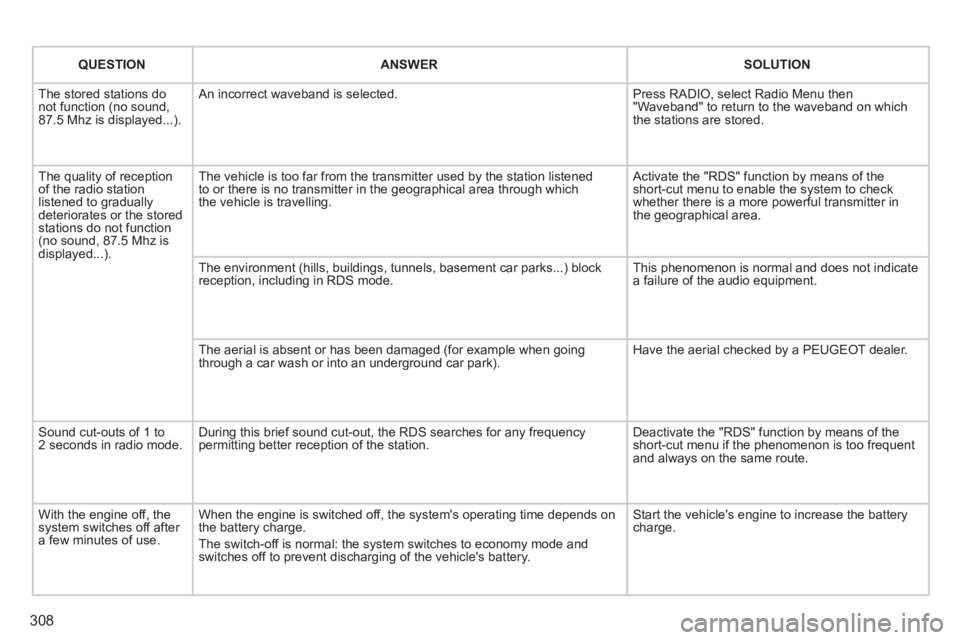
The stored stations do not function (no sound, 87.5 Mhz is displayed...).
An incorrect waveband is selected. Press RADIO, select Radio Menu then "Waveband" to return to the waveband on which the stations are stored.
The quality of reception of the radio station listened to gradually deteriorates or the stored stations do not function (no sound, 87.5 Mhz is displayed...).
The vehicle is too far from the transmitter used by the station listened\
to or there is no transmitter in the geographical area through which the vehicle is travelling.
Activate the "RDS" function by means of the short-cut menu to enable the system to check whether there is a more powerful transmitter in the geographical area.
The environment (hills, buildings, tunnels, basement car parks...) blo\
ck reception, including in RDS mode. This phenomenon is normal and does not indicate a failure of the audio equipment.
The aerial is absent or has been damaged (for example when going through a car wash or into an underground car park). Have the aerial checked by a PEUGEOT dealer.
Sound cut-outs of 1 to 2 seconds in radio mode. During this brief sound cut-out, the RDS searches for any frequency permitting better reception of the station. Deactivate the "RDS" function by means of the short-cut menu if the phenomenon is too frequent and always on the same route.
With the engine off, the system switches off after a few minutes of use.
When the engine is switched off, the system's operating time depends on the battery charge.
The switch-off is normal: the system switches to economy mode and switches off to prevent discharging of the vehicle's battery.
Start the vehicle's engine to increase the battery charge.
Page 315 of 404
313
The system is protected in such a way that it will only operate in your vehicle.
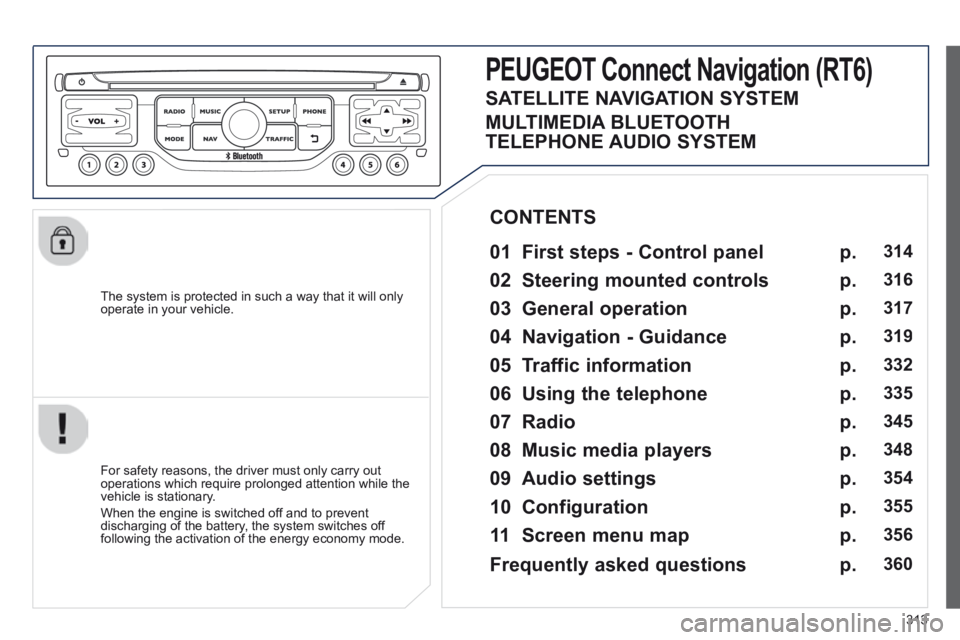
PEUGEOT Connect Nonnect Nonnectavigation (RT6)
01 First steps - Control panel
For safety reasons, the driver must only carry out operations which require prolonged attention while the vehicle is stationary.
When the engine is switched off and to prevent discharging of the battery, the system switches off following the activation of the energy economy mode.
CONTENTS
02 Steering mounted controls
03 General operation
04 Navigation - Guidance
05 Traffic information
06 Using the telephone
07 Radio
08 Music media players
09 Audio settings
10 Configuration
11 Screen menu map
p.
p.
p.
p.
p.
p.
p.
p.
p.
p.
p.
314
316
317
319
332
335
345
348
354
355
356
SATELLITE NAVIGATION SYSTEM
MULTIMEDIA BLUETOOTH
TELEPHONE AUDIO SYSTEM
Frequently asked questions p. 360
Page 316 of 404
314
01
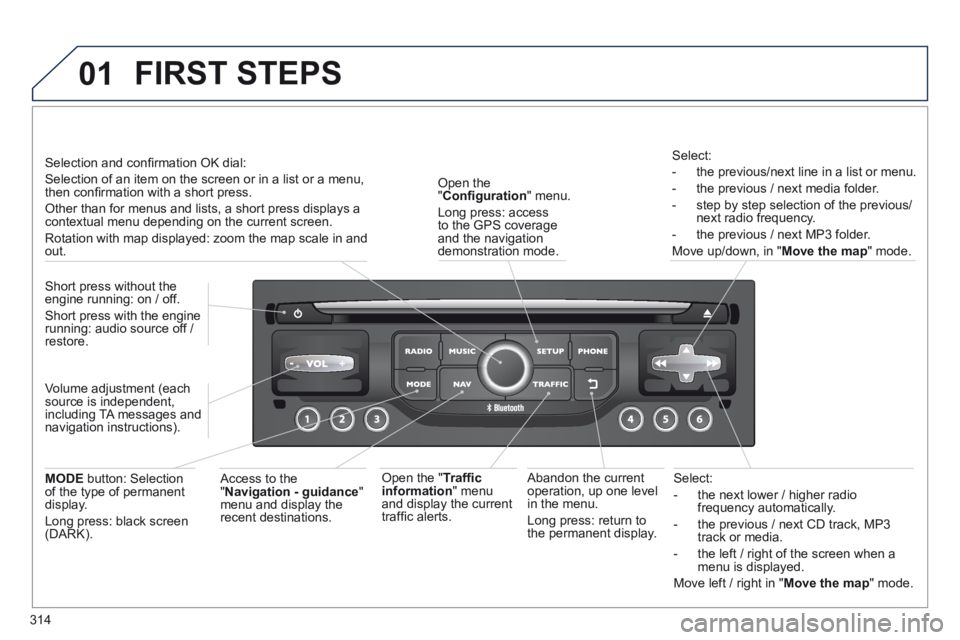
Select:
- the next lower / higher radio frequency automatically.
- the previous / next CD track, MP3 track or media.
- the left / right of the screen when a menu is displayed.
Move left / right in " Move the map " mode.
Abandon the current operation, up one level in the menu.
Long press: return to the permanent display.
Open the " Confi guration " menu.
Long press: access to the GPS coverage and the navigation demonstration mode.
Open the " Traffi c information " menu and display the current traffi c alerts.
Select:
- the previous/next line in a list or menu.
- the previous / next media folder.
- step by step selection of the previous/next radio frequency.
- the previous / next MP3 folder.
Move up/down, in " Move the map " mode.
FIRST STEPS
Access to the " Navigation - guidance " menu and display the recent destinations.
Short press without the engine running: on / off.
Short press with the engine running: audio source off / restore.
MODE button: Selection of the type of permanent display.
Long press: black screen (DARK).
Selection and confi rmation OK dial:
Selection of an item on the screen or in a list or a menu, then confi rmation with a short press.
Other than for menus and lists, a short press displays a contextual menu depending on the current screen.
Rotation with map displayed: zoom the map scale in and out.
Volume adjustment (each source is independent, including TA messages and navigation instructions).