wiper PEUGEOT 5008 2014 Owners Manual
[x] Cancel search | Manufacturer: PEUGEOT, Model Year: 2014, Model line: 5008, Model: PEUGEOT 5008 2014Pages: 404, PDF Size: 23.34 MB
Page 4 of 404
.
.
Contents
Interior fi ttings 117Centre console 119Rear multimedia 122Panoramic sunroof 124Boot fi ttings 5 seat version 125Boot fi ttings 7 seat version 126
Fittings
Child seats 132Deactivating the passenger's front airbag 13 4ISOFIX mountings 144Child lock 151
Child safety
Instrument panels 27Indicator and warning lamps 30Indicators 39Adjustment buttons 43
Monitoring
Familiarisation
Screen A without audio equipment 44Screen A with audio equipment
46Screen C (PEUGEOT Connect Sound (RD5)) 4816/9 retractable colour screen (PEUGEOT Connect Navigation (RT6) or PEUGEOT Connect Media Navigation (NG4 3D)) 51Trip computer 54
Multifunction screens
Heating and Ventilation 58Manual air conditioning 60Rear screen demist - defrost 62Dual-zone digital air conditioning 63Front seats 66Rear seats, 2nd row 72Access to the 3rd row 74Rear seats, 3rd row 75Seat modularity 77Mirrors 78Steering wheel adjustment 80
Comfort
Remote control key 81Alarm 87Electric windows 89Doors 91Boot 94Fuel tank 96Misfuel prevention (Diesel) 99
Access
Lighting controls 100Daytime running lamps 104Automatic illumination of headlamps 106Headlamp adjustment 107Directional lighting 108Wiper controls 109Automatic rain sensitive wipers 112Courtesy lamps 114Interior mood lighting 115
Visibility
Eco-driving
Page 5 of 404
.
.
Contents
Direction indicators 152Hazard warning lamps 152Hor n 152Tyre under-infl ation detection 153ESC system 155Front seat belts 158Airbags 162
Safety
Electric parking brake 166Hill start assist 170Head-up display 173Distance alert 175Speed limiter 178Cruise control 181Manual gearbox 184Gear shift indicator 185Electronic gearbox 186Automatic gearbox 191Stop & Start 195Parking sensors 198Reversing camera 200Parking space sensors 201
Driving
Emergency or assistance 265PEUGEOT Connect Media Navigation (NG4 3D) 269PEUGEOT Connect Navigation (RT6) 313PEUGEOT Connect Sound (RD5) 367
Audio equipment and telematics
Visual search
Alphabetical index
Bonnet
204Running out of fuel (Diesel) 205Petrol engines 206Diesel engines 207Checking levels 208C h e c k s 2 11
Checks
Temporary puncture repair kit 213Changing a wheel 223Snow chains 230Changing a bulb 231Changing a fuse 23712 V battery 244Energy economy mode 247Changing a wiper blade 248Towing the vehicle 248Towing a trailer 250Fitting roof bars 252Very cold climate screen 253Accessories 254
Practical information
Petrol engines 256Petrol weights 257Diesel engines 258Diesel weights 259Dimensions 263Identifi cation markings 264
Technical data
Page 16 of 404
101
102152
109
11 0
Familiarisation
14
Seeing clearly
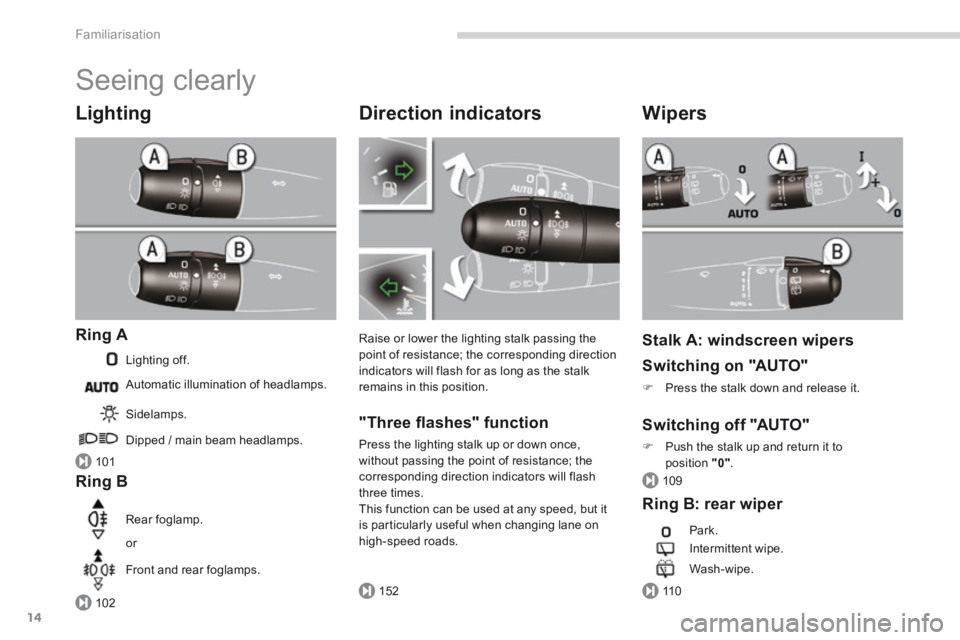
Lighting
Ring A
Lighting off.
Ring B
Sidelamps.
Dipped / main beam headlamps.
Rear foglamp.
or
Front and rear foglamps.
Automatic illumination of headlamps.
Direction indicators
Raise or lower the lighting stalk passing the point of resistance; the corresponding direction indicators will flash for as long as the stalk remains in this position.
"Three fl ashes" function
Press the lighting stalk up or down once, without passing the point of resistance; the corresponding direction indicators will flash three times. This function can be used at any speed, but it is particularly useful when changing lane on
high-speed roads.
Wipers
Stalk A: windscreen wipers
Switching on "AUTO"
Press the stalk down and release it.
Switching off "AUTO"
Push the stalk up and return it to position "0" .
Ring B: rear wiper
Park.
Intermittent wipe.
Wash-wipe.
Page 31 of 404
1
Monitoring29
Vehicle parameters
This menu allows you to activate or deactivate
certain driving and comfort equipment * : - wiper linked with reverse gear (refer to the "Visibility" section), - selective unlocking (refer to the "Access" section), - guide-me-home and welcome lighting (refer to the " Visibility" section), - interior mood lighting (refer to the "Visibility" section), - directional headlamps (refer to the "Visibility" section), - automatic or manual parking brake (refer to the "Driving" section).
Choice of units
This menu allows you to select the units: temperature (°Celsius or °Fahrenheit) and fuel consumption (l/100 km, mpg or km/l).
Choice of language
This menu allows you to select the display language.
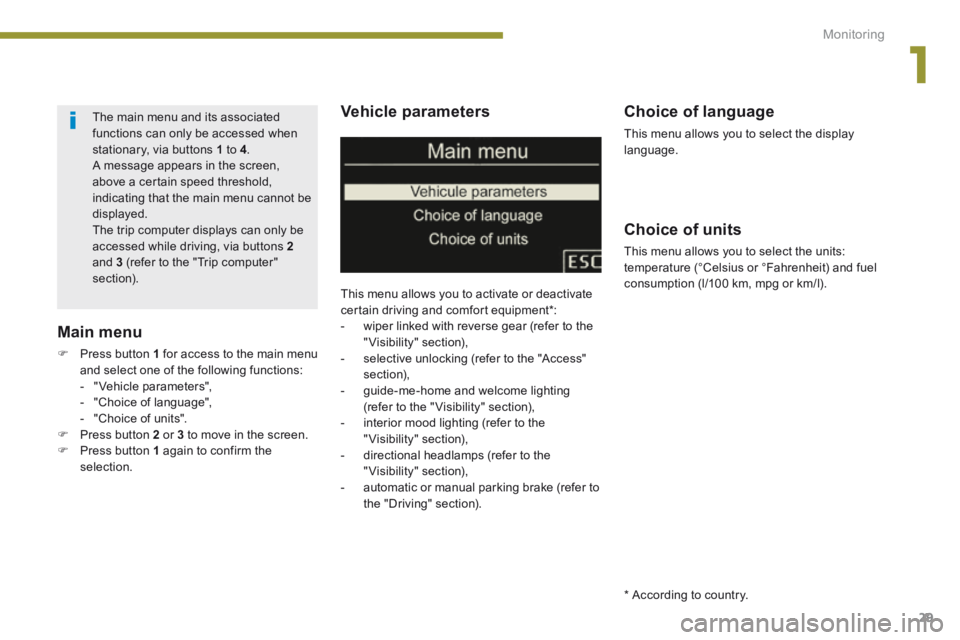
Main menu
Press button 1 for access to the main menu and select one of the following functions: - " Vehicle parameters", - "Choice of language", - "Choice of units".
Press button 2 or 3 to move in the screen. Press button 1 again to confirm the selection.
The main menu and its associated functions can only be accessed when stationary, via buttons 1 to 4 . A message appears in the screen, above a certain speed threshold, indicating that the main menu cannot be displayed. The trip computer displays can only be accessed while driving, via buttons 2and 3 (refer to the "Trip computer" section).
* According to country.
Page 47 of 404
2
Multifunction screens45
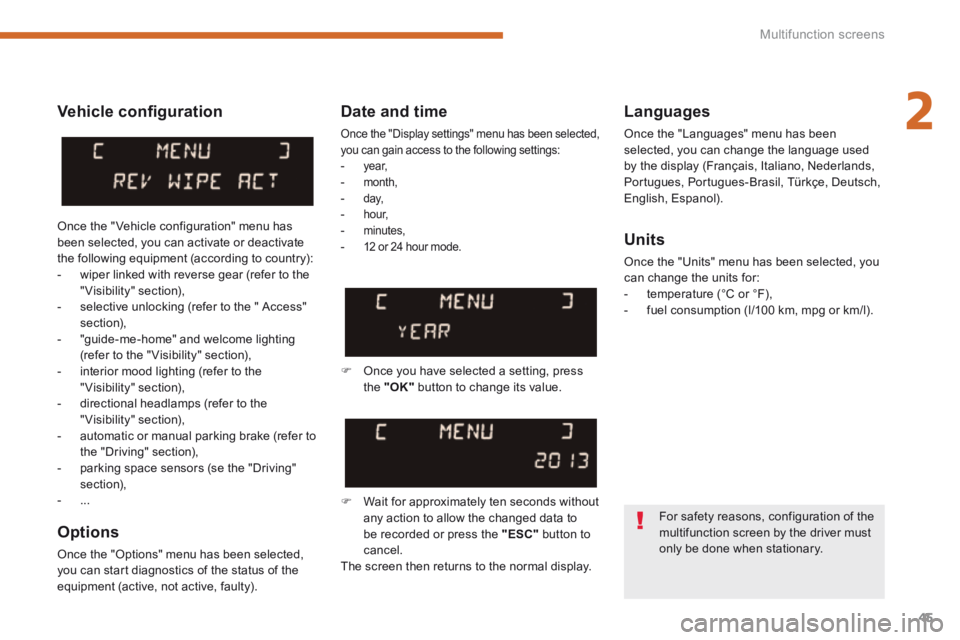
Vehicle confi guration
Options
Once the "Options" menu has been selected, you can start diagnostics of the status of the equipment (active, not active, faulty).
Languages
Once the "Languages" menu has been selected, you can change the language used by the display (Français, Italiano, Nederlands, Portugues, Portugues-Brasil, Türkçe, Deutsch, English, Espanol).
Date and time
Once the "Display settings" menu has been selected, you can gain access to the following settings: - ye a r, - month, - d ay, - h o u r, - minutes, - 12 or 24 hour mode. Units
Once the "Units" menu has been selected, you can change the units for: - temperature (°C or °F), - fuel consumption (l/100 km, mpg or km/l).
Once you have selected a setting, press the "OK" button to change its value.
Wait for approximately ten seconds without any action to allow the changed data to be recorded or press the "ESC" button to cancel. The screen then returns to the normal display.
Once the " Vehicle configuration" menu has been selected, you can activate or deactivate the following equipment (according to country): - wiper linked with reverse gear (refer to the "Visibility" section), - selective unlocking (refer to the " Access" section), - "guide-me-home" and welcome lighting (refer to the " Visibility" section), - interior mood lighting (refer to the "Visibility" section), - directional headlamps (refer to the "Visibility" section), - automatic or manual parking brake (refer to the "Driving" section), - parking space sensors (se the "Driving" section), - ...
For safety reasons, configuration of the multifunction screen by the driver must only be done when stationary.
Page 49 of 404
2
Multifunction screens47
Date and time
Once the "DATE AND TIME" menu has been selected, you can gain access to the following settings: - ye a r, - month, - d ay, - h o u r, - minutes, - 12 or 24 hour mode.
Languages
Once the "Languages" menu has been selected, you can change the language used by the display.
Units
Once the "Units" menu has been selected, you can change the units of the following parameters: - temperature (°C or °F), - fuel consumption (l/100 km, mpg or km/l).
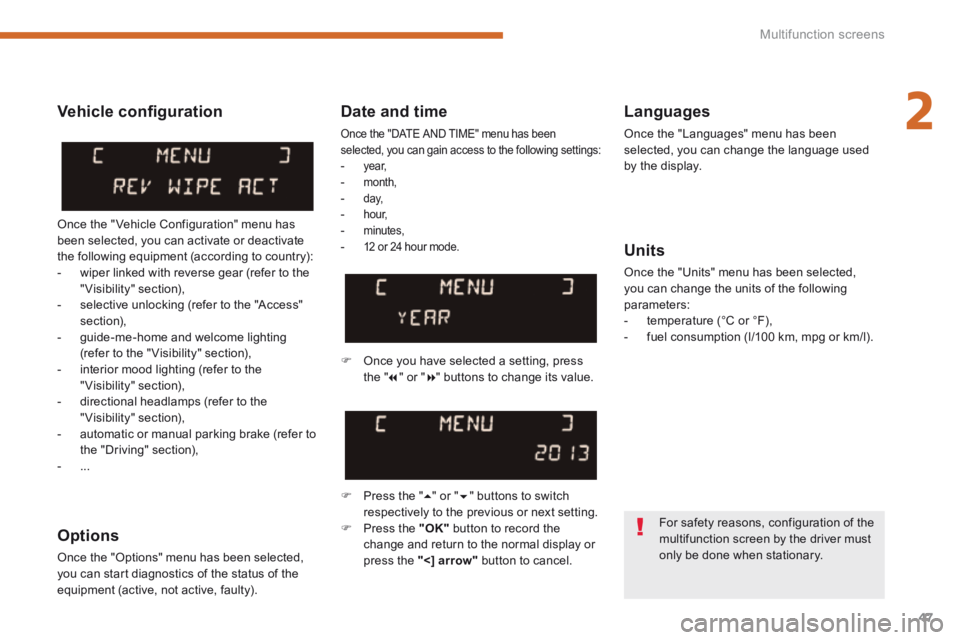
Once you have selected a setting, press t h e " " or " " buttons to change its value.
Press the " " or " " buttons to switch respectively to the previous or next setting. Press the "OK" button to record the change and return to the normal display or press the " < ] arrow" button to cancel.
Vehicle confi guration
Once the " Vehicle Configuration" menu has been selected, you can activate or deactivate the following equipment (according to country): - wiper linked with reverse gear (refer to the "Visibility" section), - selective unlocking (refer to the "Access" section), - guide-me-home and welcome lighting (refer to the " Visibility" section), - interior mood lighting (refer to the "Visibility" section), - directional headlamps (refer to the "Visibility" section), - automatic or manual parking brake (refer to the "Driving" section), - ...
Options
Once the "Options" menu has been selected, you can start diagnostics of the status of the equipment (active, not active, faulty).
For safety reasons, configuration of the multifunction screen by the driver must only be done when stationary.
Page 51 of 404
2
Multifunction screens49
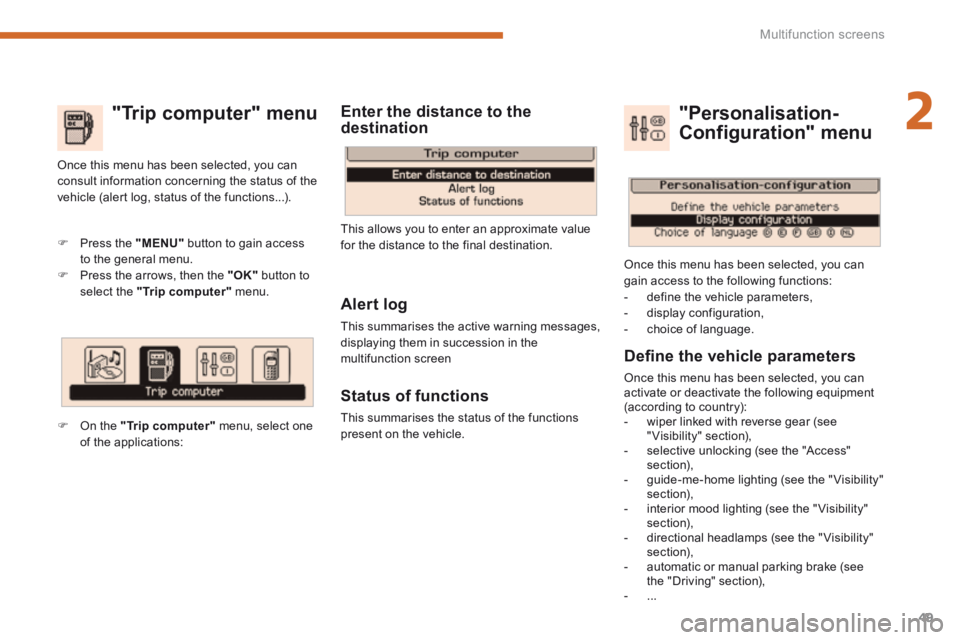
"Trip computer" menu
Alert log
This summarises the active warning messages, displaying them in succession in the multifunction screen
Status of functions
This summarises the status of the functions present on the vehicle.
Press the "MENU" button to gain access to the general menu. Press the arrows, then the "OK" button to select the "Trip computer" menu.
Once this menu has been selected, you can consult information concerning the status of the vehicle (alert log, status of the functions...).
Defi ne the vehicle parameters
Once this menu has been selected, you can activate or deactivate the following equipment (according to country): - wiper linked with reverse gear (see "Visibility" section), - selective unlocking (see the "Access" section), - guide-me-home lighting (see the " Visibility" section), - interior mood lighting (see the " Visibility" section), - directional headlamps (see the "Visibility" section), - automatic or manual parking brake (see the "Driving" section), - ...
"Personalisation-
Configuration" menu
Once this menu has been selected, you can gain access to the following functions: - define the vehicle parameters, - display configuration, - choice of language.
On the "Trip computer" menu, select one of the applications:
This allows you to enter an approximate value for the distance to the final destination.
Enter the distance to the destination
Page 54 of 404
Multifunction screens
52
"SETUP" menu (PEUGEOT Connect PEUGEOT Connect PEUGEOT
Media Navigation (NG4 3D))
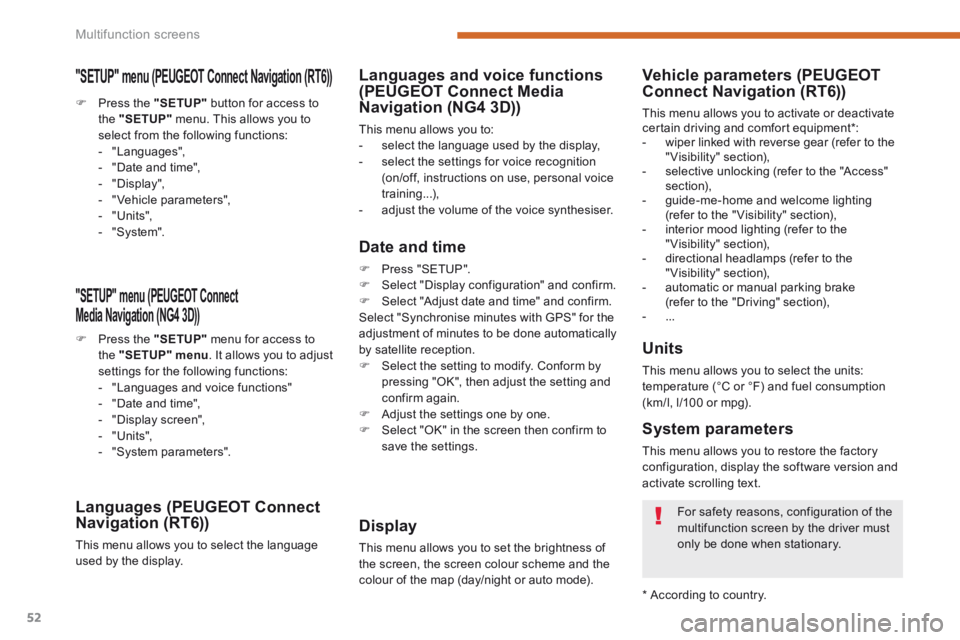
Press the "SETUP" menu for access to the "SETUP" menu . It allows you to adjust settings for the following functions: - "Languages and voice functions" - "Date and time", - "Display screen", - "Units", - "System parameters".
Languages (PEUGEOT Connect Navigation (RT6))
This menu allows you to select the language used by the display.
Languages and voice functions (PEUGEOT Connect Media Navigation (NG4 3D))
This menu allows you to: - select the language used by the display, - select the settings for voice recognition (on/off, instructions on use, personal voice training...), - adjust the volume of the voice synthesiser.
Date and time
Press "SETUP". Select "Display configuration" and confirm. Select "Adjust date and time" and confirm. Select "Synchronise minutes with GPS" for the adjustment of minutes to be done automatically by satellite reception. Select the setting to modify. Conform by pressing "OK", then adjust the setting and confirm again. Adjust the settings one by one.
Select "OK" in the screen then confirm to save the settings.
Display
This menu allows you to set the brightness of the screen, the screen colour scheme and the colour of the map (day/night or auto mode).
Units
This menu allows you to select the units: temperature (°C or °F) and fuel consumption (km/l, l/100 or mpg).
System parameters
This menu allows you to restore the factory configuration, display the software version and activate scrolling text.
For safety reasons, configuration of the multifunction screen by the driver must
only be done when stationary.
* According to country.
Vehicle parameters (PEUGEOTConnect Navigation (RT6))
This menu allows you to activate or deactivate certain driving and comfort equipment * : - wiper linked with reverse gear (refer to the "Visibility" section), - selective unlocking (refer to the "Access" section), - guide-me-home and welcome lighting (refer to the " Visibility" section), - interior mood lighting (refer to the "Visibility" section), - directional headlamps (refer to the "Visibility" section), - automatic or manual parking brake (refer to the "Driving" section), - ...
Press the "SETUP" button for access to the "SETUP" menu. This allows you to select from the following functions: - "Languages", - "Date and time", - "Display", - " Vehicle parameters", - "Units", - "System".
"SETUP" menu (PEUGEOT Connect Navigation (RT6)) PEUGEOT Connect Navigation (RT6)) PEUGEOT
Page 56 of 404
Multifunction screens
54
Trip computer
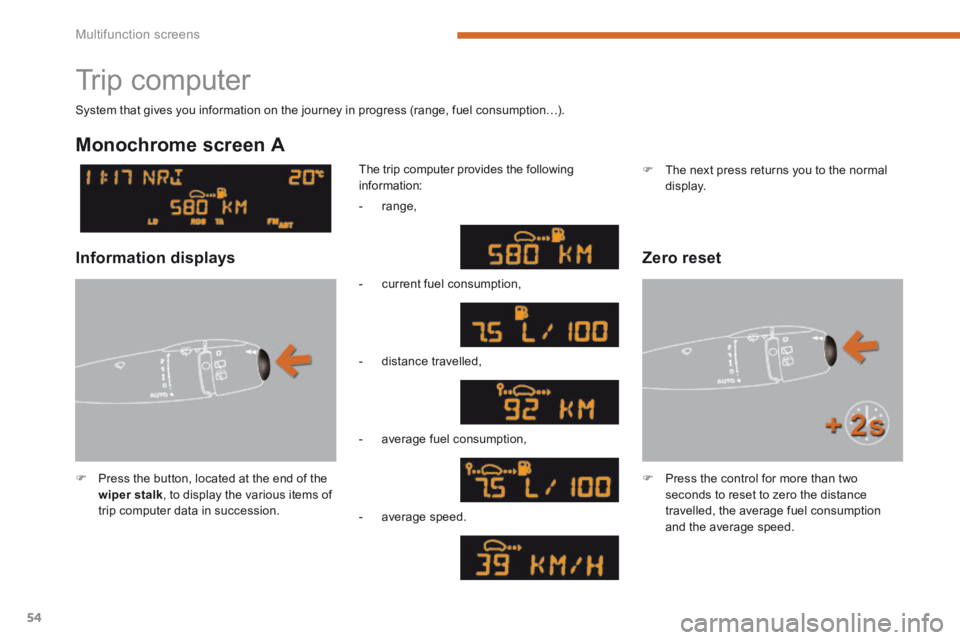
Press the button, located at the end of the wiper stalk , to display the various items of trip computer data in succession.
The trip computer provides the following information:
System that gives you information on the journey in progress (range, fuel consumption…).
Press the control for more than two seconds to reset to zero the distance travelled, the average fuel consumption and the average speed.
Monochrome screen A
Zero reset Information displays
- range,
- current fuel consumption,
- distance travelled,
- average fuel consumption,
- average speed.
The next press returns you to the normal display.
Page 57 of 404
2
Multifunction screens55
Monochrome screen C
Instrument panel screen
16/9 colour screen
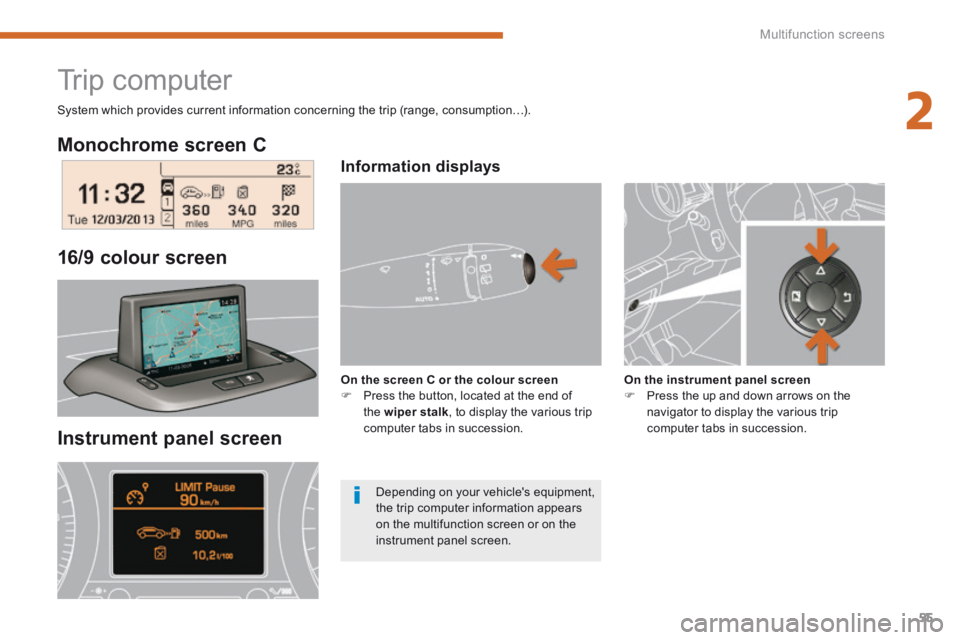
Trip computer
Information displays
On the screen C or the colour screen Press the button, located at the end of the wiper stalk , to display the various trip computer tabs in succession.
On the instrument panel screen Press the up and down arrows on the navigator to display the various trip computer tabs in succession.
System which provides current information concerning the trip (range, consumption…).
Depending on your vehicle's equipment, the trip computer information appears on the multifunction screen or on the instrument panel screen.