display Peugeot 508 2016 Owners Manual
[x] Cancel search | Manufacturer: PEUGEOT, Model Year: 2016, Model line: 508, Model: Peugeot 508 2016Pages: 371, PDF Size: 12.12 MB
Page 327 of 371
325
508_en_Chap10c_SMegplus_ed01-2016
the services available depend on
the network, the SIM card and the
compatibility of the Bluetooth telephone
used. Check the telephone manual and
with your network provider for details of
the services available to you.
th
e ability of the system to connect
with only one profile depends on the
telephone.
t
h
e three profiles may all
connect by default.
Visit www.peugeot.co.uk for more information
(compatibility, additional help, ...).
the
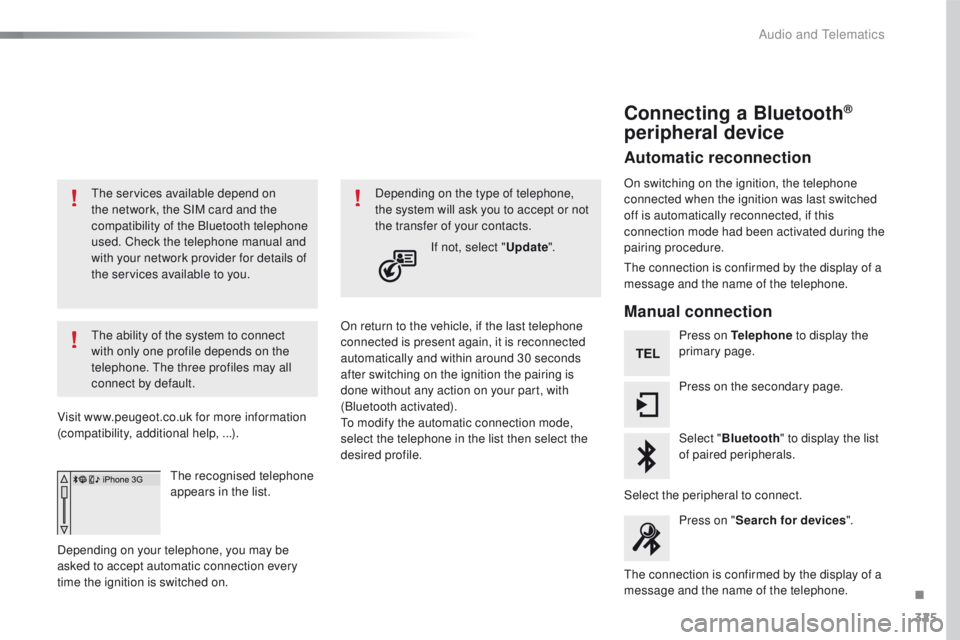
recognised telephone
appears in the list.
Depending on your telephone, you may be
asked to accept automatic connection every
time the ignition is switched on. On return to the vehicle, if the last telephone
connected is present again, it is reconnected
automatically and within around 30 seconds
after switching on the ignition the pairing is
done without any action on your part, with
(Bluetooth activated).
to m
odify the automatic connection mode,
select the telephone in the list then select the
desired profile. Depending on the type of telephone,
the system will ask you to accept or not
the transfer of your contacts.
If not, select " Update".
Connecting a Bluetooth®
peripheral device
Automatic reconnection
On switching on the ignition, the telephone
connected when the ignition was last switched
off is automatically reconnected, if this
connection mode had been activated during the
pairing procedure.
th
e connection is confirmed by the display of a
message and the name of the telephone.
Manual connection
Press on Telephone to display the
primary page.
Press on the secondary page.
Select " Bluetooth " to display the list
of paired peripherals.
Select the peripheral to connect. Press on " Search for devices ".
th
e connection is confirmed by the display of a
message and the name of the telephone.
.
Audio and telematics
Page 328 of 371
326
508_en_Chap10c_SMegplus_ed01-2016
Managing paired
telephones
this function allows the connection or
disconnection of a peripheral device as
well as the deletion of a pairing.using the telephone is not
recommended while driving.
Park the vehicle.
Make the call using the steering
mounted controls.
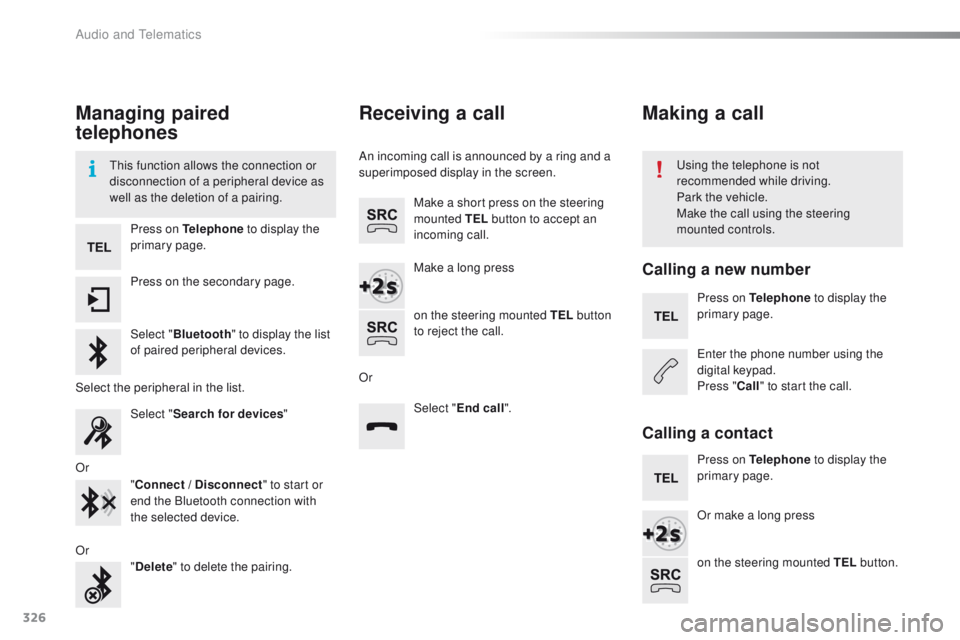
Press on Telephone
to display the
primary page.
Press on the secondary page.
Select " Bluetooth " to display the list
of paired peripheral devices.
Select the peripheral in the list. Select "Search for devices "
Or "Connect
/ Disconnect" to start or
end the Bluetooth connection with
the selected device.
Or "Delete " to delete the pairing.
Receiving a call
An incoming call is announced by a ring and a
superimposed display in the screen.
Make a short press on the steering
mounted TEL button to accept an
incoming call.
Make a long press
on the steering mounted TEL button
to reject the call.
Or Select "End call".
Making a call
Calling a new number
Press on Telephone to display the
primary page.
en
ter the phone number using the
digital keypad.
Press " Call" to start the call.
Calling a contact
Press on Telephone to display the
primary page.
Or make a long press
on the steering mounted TEL button.
Audio and telematics
Page 329 of 371
327
508_en_Chap10c_SMegplus_ed01-2016
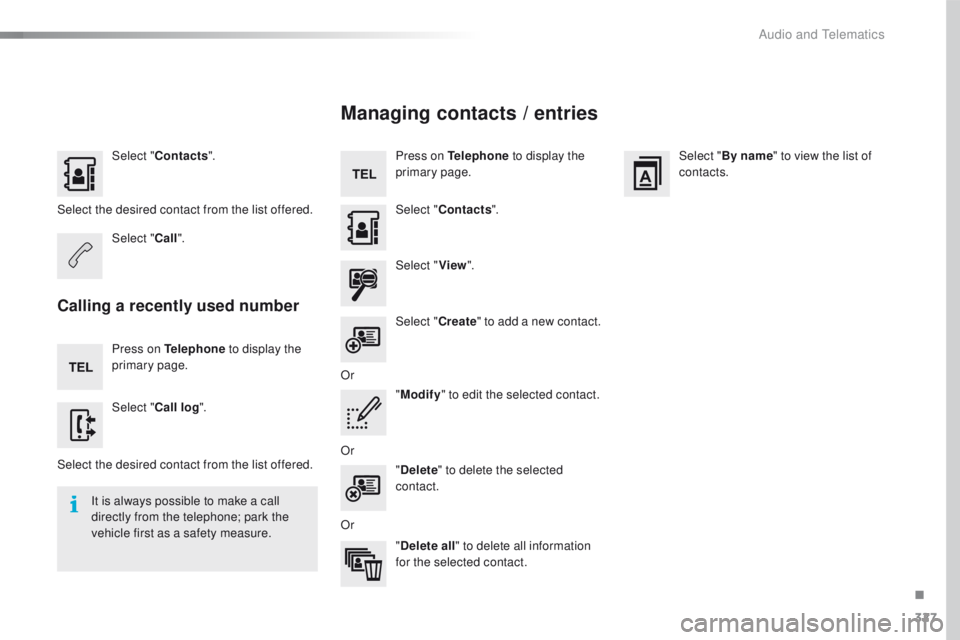
Select "Contacts ".
Select the desired contact from the list offered. Select "Call".
Calling a recently used number
Press on Telephone to display the
primary page.
Select " Call log ".
Select the desired contact from the list offered. It is always possible to make a call
directly from the telephone; park the
vehicle first as a safety measure.
Managing contacts / entries
Press on Telephone to display the
primary page.
Select " Contacts ".
Select " View".
Select " Create" to add a new contact.
Or "Modify " to edit the selected contact.
Or "Delete " to delete the selected
contact.
Or "Delete all " to delete all information
for the selected contact. Select "
By name" to view the list of
contacts.
.
Audio and telematics
Page 331 of 371
329
508_en_Chap10c_SMegplus_ed01-2016
QUESTIONANSWER SOLUTION
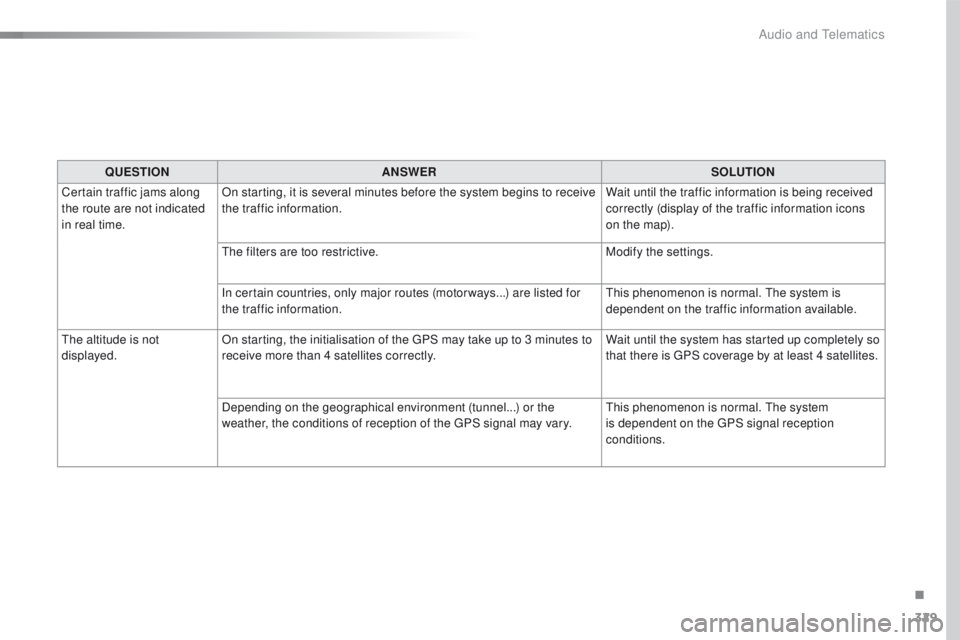
Certain traffic jams along
the route are not indicated
in real time. On starting, it is several minutes before the system begins to receive
the traffic information.
Wait until the traffic information is being received
correctly (display of the traffic information icons
on the map).
th
e filters are too restrictive. Modify the settings.
In certain countries, only major routes (motor ways...) are listed for
the traffic information.
th
is phenomenon is normal. t
he
system is
dependent on the traffic information available.
th
e altitude is not
displayed. On starting, the initialisation of the
g
P
S may take up to 3 minutes to
receive more than 4 satellites correctly. Wait until the system has started up completely so
that there is
g
P
S coverage by at least 4 satellites.
Depending on the geographical environment (tunnel...) or the
weather, the conditions of reception of the
g
P
S signal may vary.
th
is phenomenon is normal. t
he
system
is dependent on the
g
P
S signal reception
conditions.
.
Audio and telematics
Page 332 of 371
330
508_en_Chap10c_SMegplus_ed01-2016
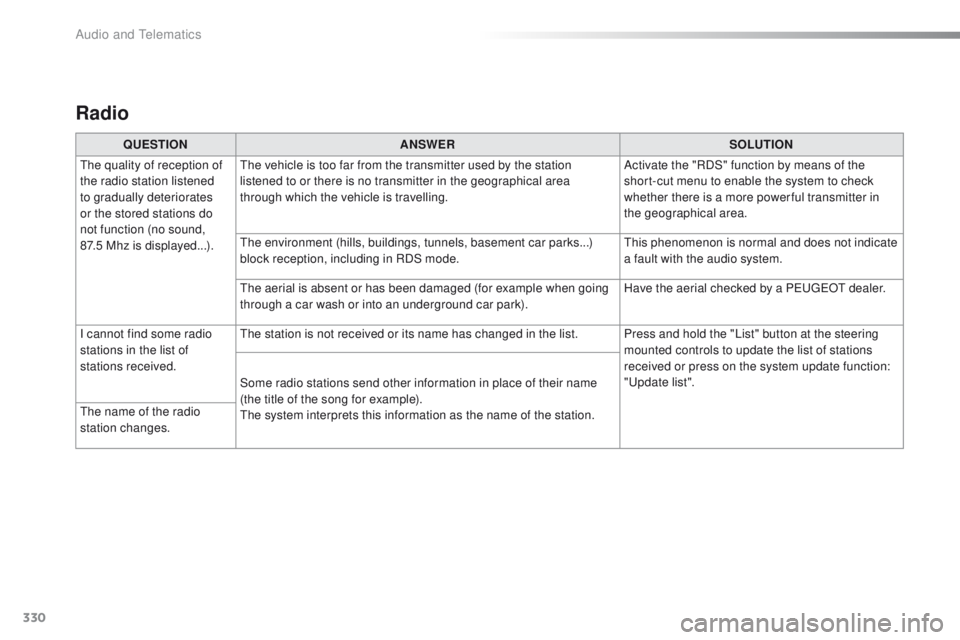
Radio
QUESTIONANSWER SOLUTION
th
e quality of reception of
the radio station listened
to gradually deteriorates
or the stored stations do
not function (no sound,
87.5
Mhz is displayed...).
th
e vehicle is too far from the transmitter used by the station
listened to or there is no transmitter in the geographical area
through which the vehicle is travelling. Activate the "RDS" function by means of the
short-cut menu to enable the system to check
whether there is a more power ful transmitter in
the geographical area.
th
e environment (hills, buildings, tunnels, basement car parks...)
block reception, including in RDS mode.
th
is phenomenon is normal and does not indicate
a fault with the audio system.
th
e aerial is absent or has been damaged (for example when going
through a car wash or into an underground car park). Have the aerial checked by a P
e
uge
Ot
dealer.
I cannot find some radio
stations in the list of
stations received.
th
e station is not received or its name has changed in the list. Press and hold the "List" button at the steering mounted controls to update the list of stations
received or press on the system update function:
"
up
date list".
Some radio stations send other information in place of their name
(the title of the song for example).
th
e system interprets this information as the name of the station.
th
e name of the radio
station changes.
Audio and telematics
Page 334 of 371
332
508_en_Chap10c_SMegplus_ed01-2016
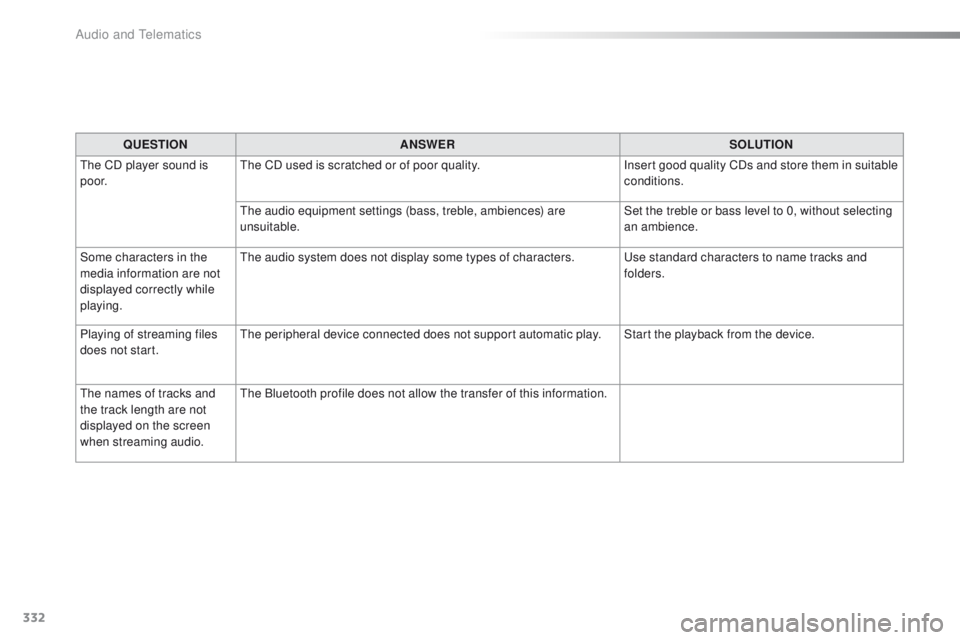
QUESTIONANSWER SOLUTION
th
e CD player sound is
p o o r.
th
e CD used is scratched or of poor quality. Insert good quality CDs and store them in suitable
conditions.
th
e audio equipment settings (bass, treble, ambiences) are
unsuitable. Set the treble or bass level to 0, without selecting
an ambience.
Some characters in the
media information are not
displayed correctly while
playing.
th
e audio system does not display some types of characters.
u
se standard characters to name tracks and
folders.
Playing of streaming files
does not start.
th
e peripheral device connected does not support automatic play. Start the playback from the device.
th
e names of tracks and
the track length are not
displayed on the screen
when streaming audio.
th
e Bluetooth profile does not allow the transfer of this information.
Audio and telematics
Page 337 of 371
335
508_en_Chap10c_SMegplus_ed01-2016
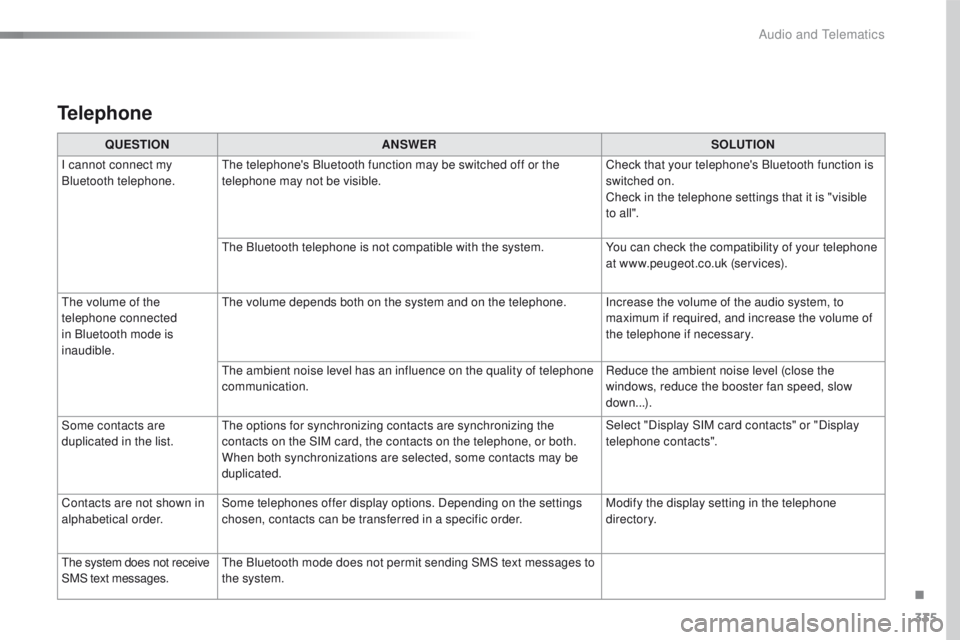
Telephone
QUESTIONANSWER SOLUTION
I cannot connect my
Bluetooth telephone.
th
e telephone's Bluetooth function may be switched off or the
telephone may not be visible. Check that your telephone's Bluetooth function is
switched on.
Check in the telephone settings that it is "visible
to all ".
th
e Bluetooth telephone is not compatible with the system. You can check the compatibility of your telephone
at www.peugeot.co.uk (services).
th
e volume of the
telephone connected
in Bluetooth mode is
inaudible.
th
e volume depends both on the system and on the telephone. Increase the volume of the audio system, to maximum if required, and increase the volume of
the telephone if necessary.
th
e ambient noise level has an influence on the quality of telephone
communication. Reduce the ambient noise level (close the
windows, reduce the booster fan speed, slow
down...).
Some contacts are
duplicated in the list.
th
e options for synchronizing contacts are synchronizing the
contacts on the SIM card, the contacts on the telephone, or both.
When both synchronizations are selected, some contacts may be
duplicated. Select "Display SIM card contacts" or "Display
telephone contacts".
Contacts are not shown in
alphabetical order. Some telephones offer display options. Depending on the settings
chosen, contacts can be transferred in a specific order. Modify the display setting in the telephone
di r e c to r y.
th
e system does not receive
SMS text messages.
th
e Bluetooth mode does not permit sending SMS text messages to
the system.
.
Audio and telematics
Page 340 of 371
338
508_en_Chap10d_RD5_ed01-2016
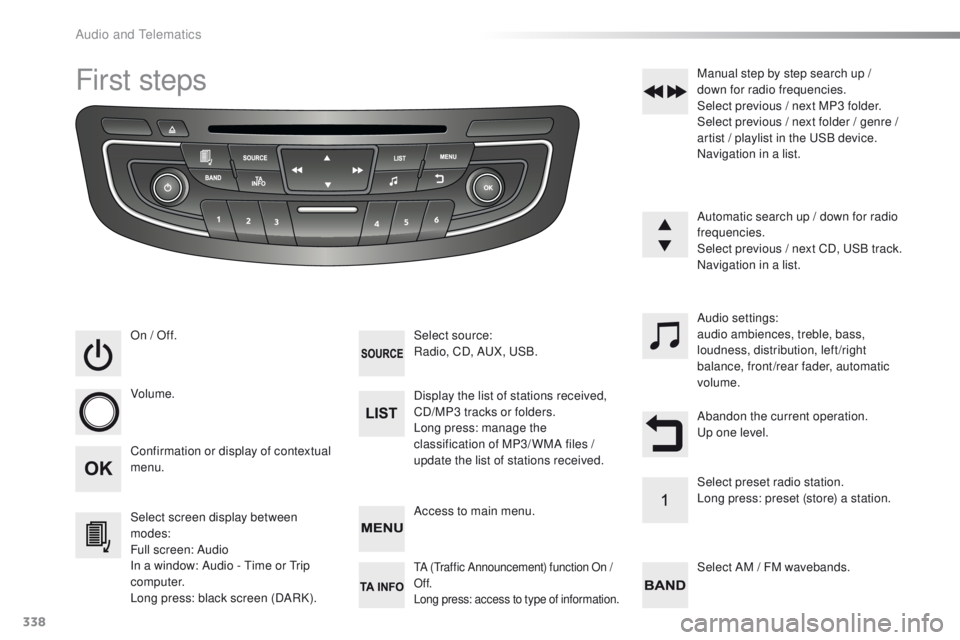
First steps
On / Off.
Volume.
Select screen display between
modes:
Full screen: Audio
In a window: Audio - t
i
me or t
r
ip
computer.
Long press: black screen (DARK). Select source:
Radio, CD, AuX
, uS B.
Confirmation or display of contextual
menu. Display the list of stations received,
CD/MP3 tracks or folders.
Long press: manage the
classification of MP3/ WMA files /
update the list of stations received.Audio settings:
audio ambiences, treble, bass,
loudness, distribution, left/right
balance, front/rear fader, automatic
volume.
Access to main menu. Select AM / FM wavebands. Manual step by step search up /
down for radio frequencies.
Select previous / next MP3 folder.
Select previous / next folder / genre /
artist / playlist in the u
S
B device.
Navigation in a list.
Automatic search up / down for radio
frequencies.
Select previous / next CD, u
S
B track.
Navigation in a list.
tA (traffic Announcement) function On /
Of f.
Long press: access to type of information.
Abandon the current operation.up o ne level.
Select preset radio station.
Long press: preset (store) a station.
Audio and telematics
Page 341 of 371
339
508_en_Chap10d_RD5_ed01-2016
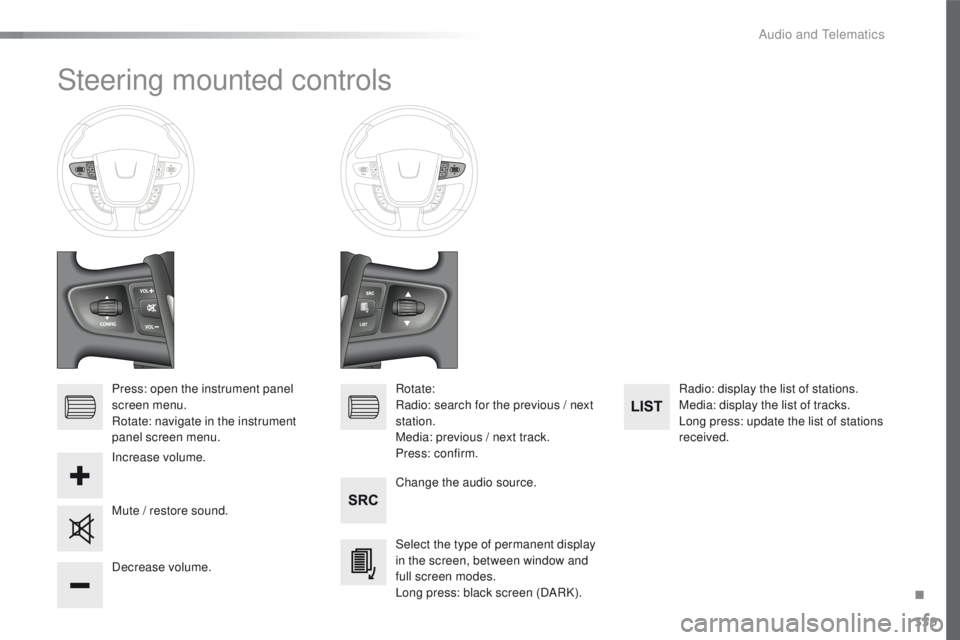
Steering mounted controls
Press: open the instrument panel
screen menu.
Rotate: navigate in the instrument
panel screen menu.Change the audio source.
Select the type of permanent display
in the screen, between window and
full screen modes.
Long press: black screen (DARK).Radio: display the list of stations.
Media: display the list of tracks.
Long press: update the list of stations
received.
Decrease volume. Rotate:
Radio: search for the previous / next
station.
Media: previous / next track.
Press: confirm.
Increase volume.
Mute / restore sound.
.
Audio and telematics
Page 342 of 371
340
508_en_Chap10d_RD5_ed01-2016
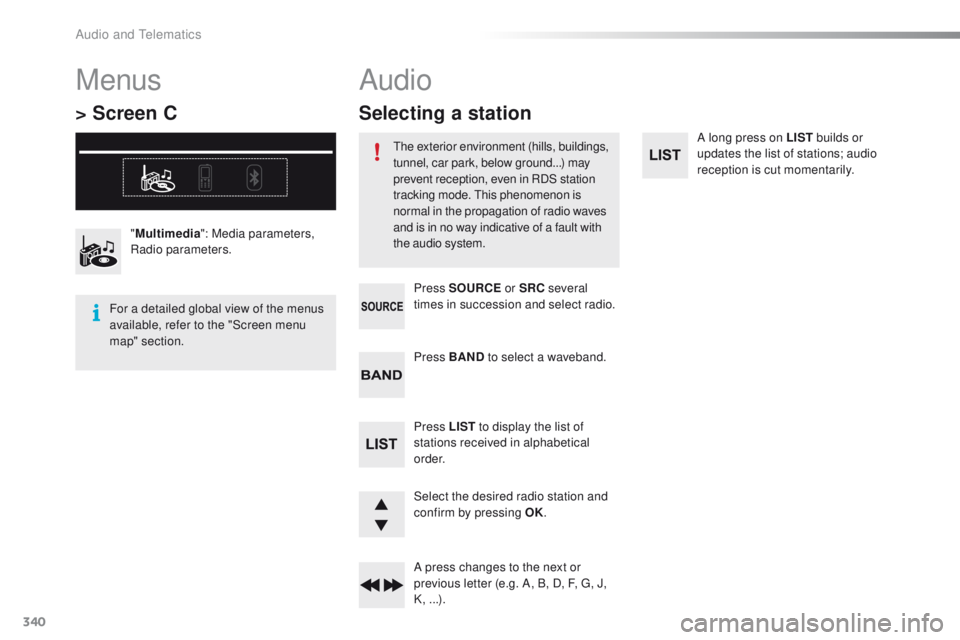
A long press on LIST builds or
updates the list of stations; audio
reception is cut momentarily.
Select the desired radio station and
confirm by pressing OK.
A press changes to the next or
previous letter (e.g. A, B, D, F,
g
, J
,
K, ...). Press BAND to select a waveband.
Press LIST to display the list of
stations received in alphabetical
o r d e r. Press SOURCE or SRC several
times in succession and select radio.
"
Multimedia ": Media parameters,
Radio parameters.
Menus
> Screen C
For a detailed global view of the menus
available, refer to the "Screen menu
map" section.
Audio
the exterior environment (hills, buildings,
tunnel, car park, below ground...) may
prevent reception, even in RDS station
tracking mode.
t
h
is phenomenon is
normal in the propagation of radio waves
and is in no way indicative of a fault with
the audio system.
Selecting a station
Audio and telematics