display Peugeot 508 2016 Repair Manual
[x] Cancel search | Manufacturer: PEUGEOT, Model Year: 2016, Model line: 508, Model: Peugeot 508 2016Pages: 371, PDF Size: 12.12 MB
Page 201 of 371
199
508_en_Chap06_conduite_ed01-2016
Reversing camera
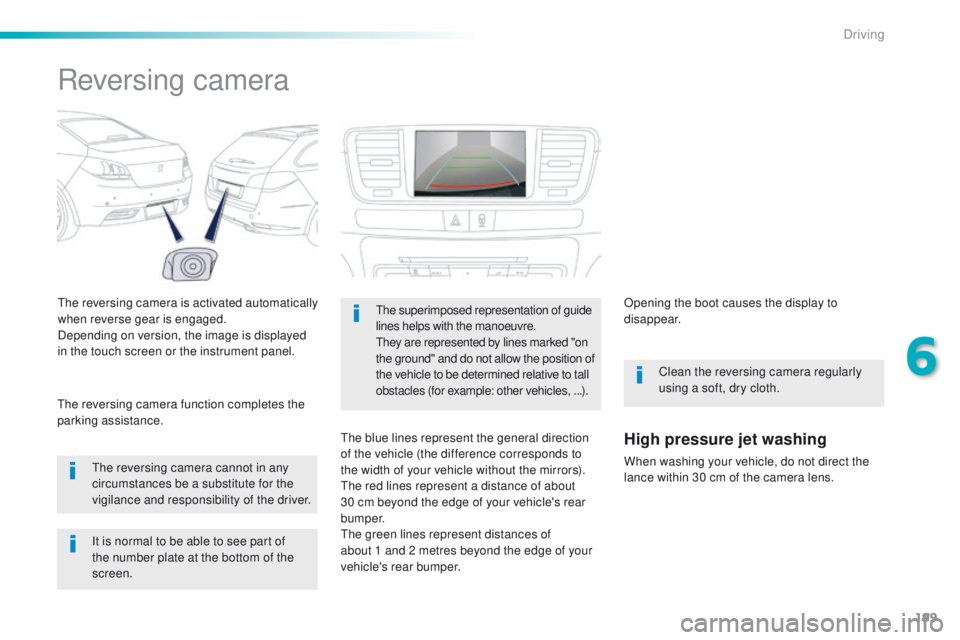
the reversing camera is activated automatically
when reverse gear is engaged.
Depending on version, the image is displayed
in the touch screen or the instrument panel.
th
e reversing camera cannot in any
circumstances be a substitute for the
vigilance and responsibility of the driver.
th
e reversing camera function completes the
parking assistance.the superimposed representation of guide
lines helps with the manoeuvre.
th
ey are represented by lines marked "on
the ground" and do not allow the position of
the vehicle to be determined relative to tall
obstacles (for example: other vehicles, ...).
the blue lines represent the general direction
of the vehicle (the difference corresponds to
the width of your vehicle without the mirrors).
th
e red lines represent a distance of about
30 cm beyond the edge of your vehicle's rear
b u m p e r.
th
e green lines represent distances of
about 1
and 2 metres beyond the edge of your
vehicle's rear bumper. Opening the boot causes the display to
disappear.
Clean the reversing camera regularly
using a soft, dry cloth.High pressure jet washing
When washing your vehicle, do not direct the
lance within 30 cm of the camera lens.
It is normal to be able to see part of
the number plate at the bottom of the
screen.
6
Driving
Page 279 of 371
277
508_en_Chap10c_SMegplus_ed01-2016
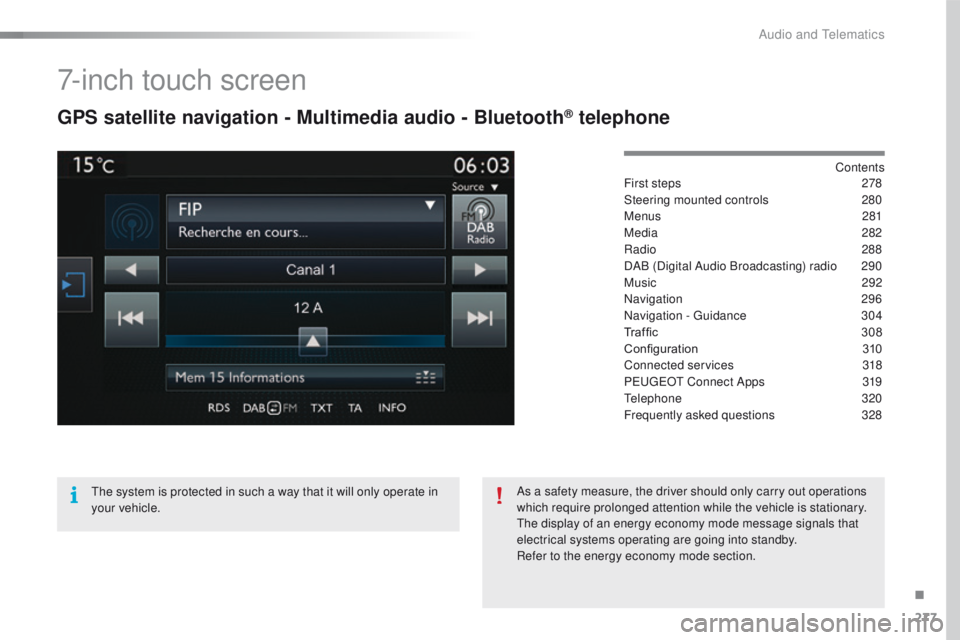
7-inch touch screen
GPS satellite navigation - Multimedia audio - Bluetooth® telephone
Contents
First steps
2 78
Steering mounted controls
2
80
Menus
281
Media
282
Radio
288
DAB (Digital Audio Broadcasting) radio
2
90
Music
292
Navigation
296
Navigation -
g
u
idance
3
04
Traffic
3
08
Configuration
3
10
Connected services
3
18
P
e
uge
Ot
Connect Apps
3
19
te
lephone
320
Frequently asked questions
3
28
th
e system is protected in such a way that it will only operate in
your vehicle. As a safety measure, the driver should only carry out operations
which require prolonged attention while the vehicle is stationary.
th
e display of an energy economy mode message signals that
electrical systems operating are going into standby.
Refer to the energy economy mode section.
.
Audio and telematics
Page 280 of 371
278
508_en_Chap10c_SMegplus_ed01-2016
First steps
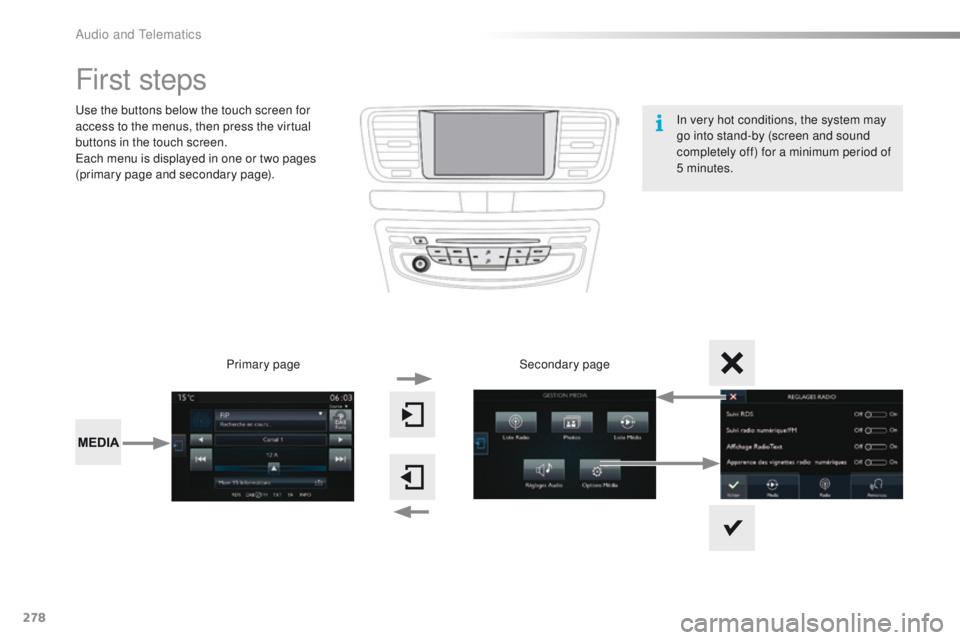
use the buttons below the touch screen for
access to the menus, then press the virtual
buttons in the touch screen.
ea
ch menu is displayed in one or two pages
(primary page and secondary page).
Secondary page
Primary page In very hot conditions, the system may
go into stand-by (screen and sound
completely off) for a minimum period of
5 minutes.
Audio and telematics
Page 282 of 371
280
508_en_Chap10c_SMegplus_ed01-2016
Steering mounted controls
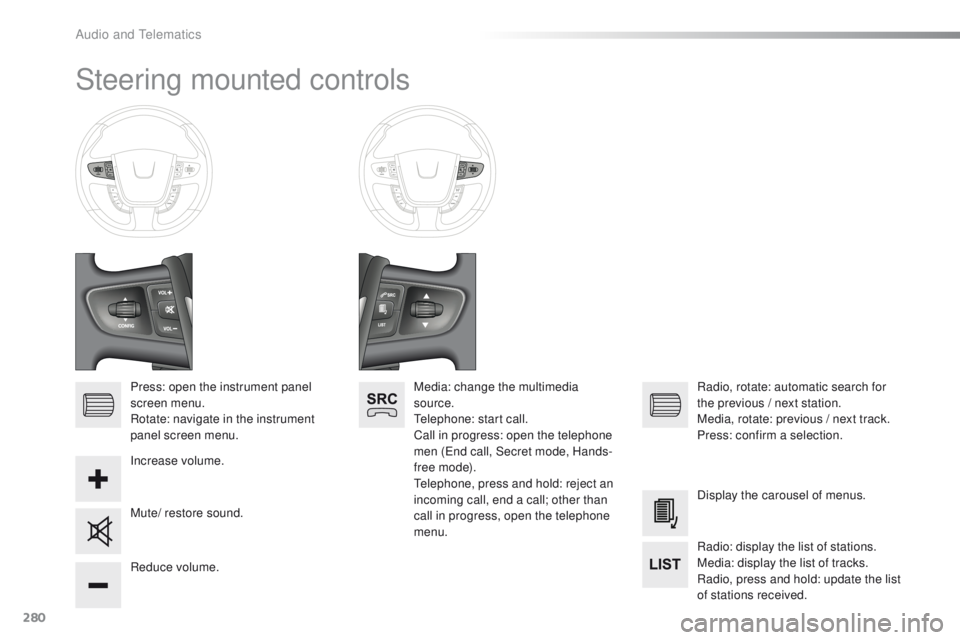
Press: open the instrument panel
screen menu.
Rotate: navigate in the instrument
panel screen menu.
Increase volume.
Reduce volume.Media: change the multimedia
source.
te
lephone: start call.
Call in progress: open the telephone
men (
en
d call, Secret mode, Hands-
free mode).
te
lephone, press and hold: reject an
incoming call, end a call; other than
call in progress, open the telephone
menu. Radio, rotate: automatic search for
the previous
/ next station.
Media, rotate: previous
/ next track.
Press: confirm a selection.
Mute/ restore sound. Display the carousel of menus.
Radio: display the list of stations.
Media: display the list of tracks.
Radio, press and hold: update the list
of stations received.
Audio and telematics
Page 283 of 371
281
508_en_Chap10c_SMegplus_ed01-2016
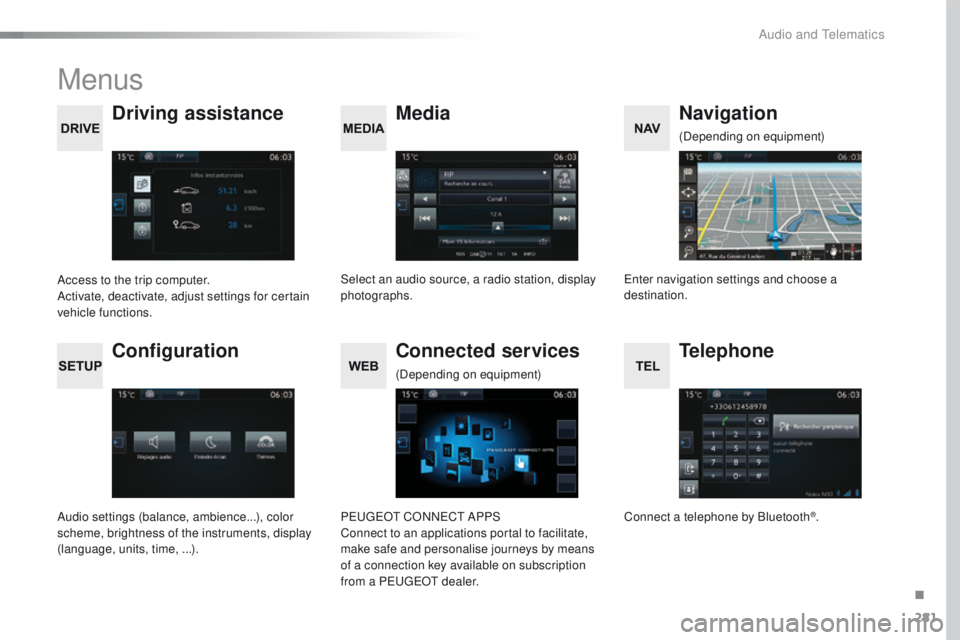
Menus
Media
Driving assistance Navigation
Select an audio source, a radio station, display
photographs.
Access to the trip computer.
Activate, deactivate, adjust settings for certain
vehicle functions.en
ter navigation settings and choose a
destination. (Depending on equipment)
Configuration
Audio settings (balance, ambience...), color
scheme, brightness of the instruments, display
(language, units, time, ...).
Connected services
PeugeOt C
ONNeCt A PPS
Connect to an applications portal to facilitate,
make safe and personalise journeys by means
of a connection key available on subscription
from a P
e
uge
Ot
dealer.
(Depending on equipment)
Telephone
Connect a telephone by Bluetooth®.
.
Audio and telematics
Page 287 of 371
285
508_en_Chap10c_SMegplus_ed01-2016
Level 1Level 2 Level 3 Comments
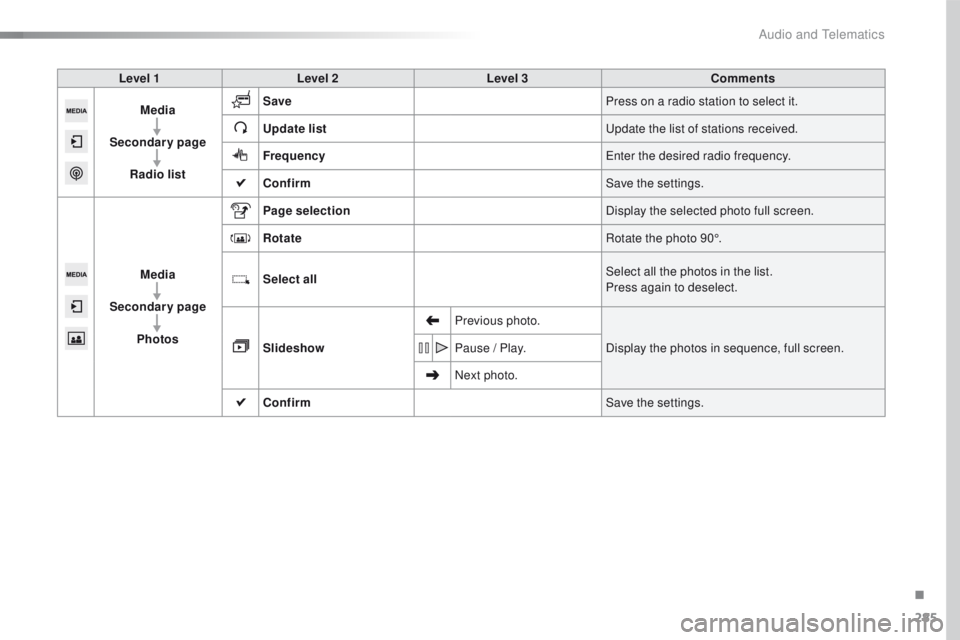
Media
Secondary page Radio list Save
Press on a radio station to select it.
Update list
up
date the list of stations received.
Frequency
en
ter the desired radio frequency.
Confirm Save the settings.
Media
Secondary page Photos Page selection
Display the selected photo full screen.
Rotate Rotate the photo 90°.
Select all Select all the photos in the list.
Press again to deselect.
Slideshow Previous photo.
Display the photos in sequence, full screen.
Pause
/ Play.
Next photo.
Confirm Save the settings.
.
Audio and telematics
Page 289 of 371
287
508_en_Chap10c_SMegplus_ed01-2016
Level 1Level 2 Level 3 Comments
Media
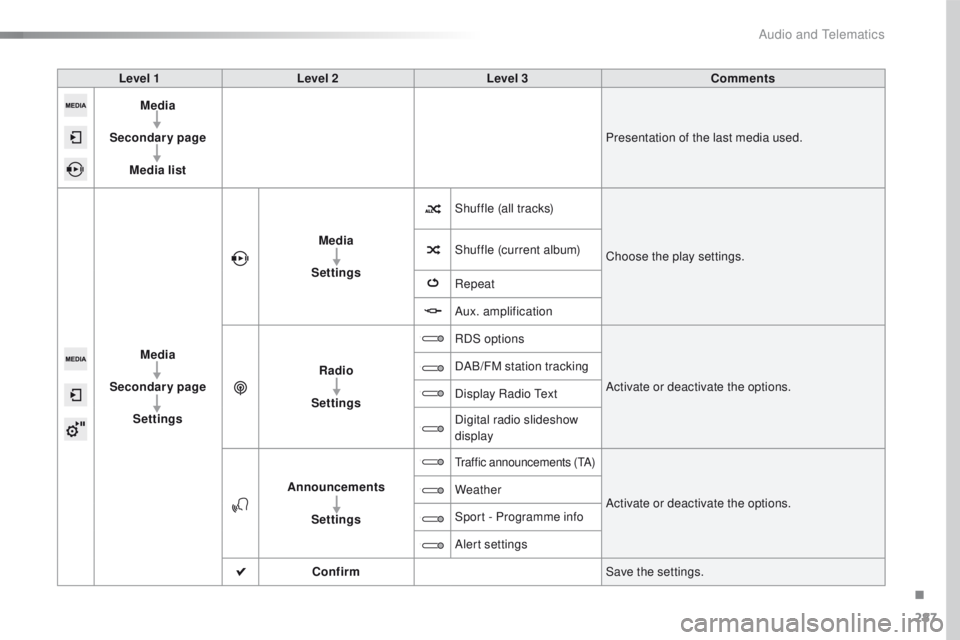
Secondary page Media list Presentation of the last media used.
Media
Secondary page Settings Media
Settings Shuffle (all tracks)
Choose the play settings.
Shuffle (current album)
Repeat
Aux. amplification
Radio
Settings RDS options
Activate or deactivate the options.
DAB/FM station tracking
Display Radio
t
e
xt
Digital radio slideshow
display
Announcements Settings
traffic announcements (tA )
Activate or deactivate the options.
Weather
Sport - Programme info
Alert settings
Confirm Save the settings.
.
Audio and telematics
Page 290 of 371
288
508_en_Chap10c_SMegplus_ed01-2016
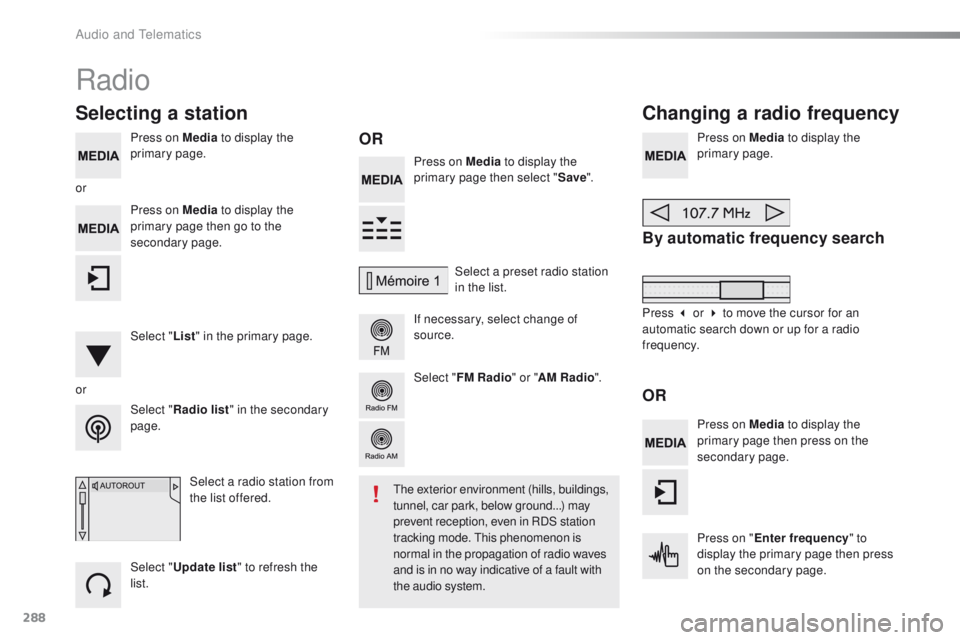
Press on Media to display the
primary page. Press on Media to display the
primary page then select " Save".
If necessary, select change of
source. Press on Media
to display the
primary page.
By automatic frequency search
Select " Radio list " in the secondary
page. Select a preset radio station
in the list.
Select " FM Radio " or "AM Radio ".
Select a radio station from
the list offered.
Select " Update list " to refresh the
list. Press on Media to display the
primary page then go to the
secondary page.
Select " List" in the primary page.
Radio
Changing a radio frequency
Selecting a station
OR
orOR
the exterior environment (hills, buildings,
tunnel, car park, below ground...) may
prevent reception, even in RDS station
tracking mode.
t
h
is phenomenon is
normal in the propagation of radio waves
and is in no way indicative of a fault with
the audio system.
or
Press 3 or 4 to move the cursor for an
automatic search down or up for a radio
frequency.Press on Media to display the
primary page then press on the
secondary page.
Press on " Enter frequency " to
display the primary page then press
on the secondary page.
Audio and telematics
Page 291 of 371
289
508_en_Chap10c_SMegplus_ed01-2016
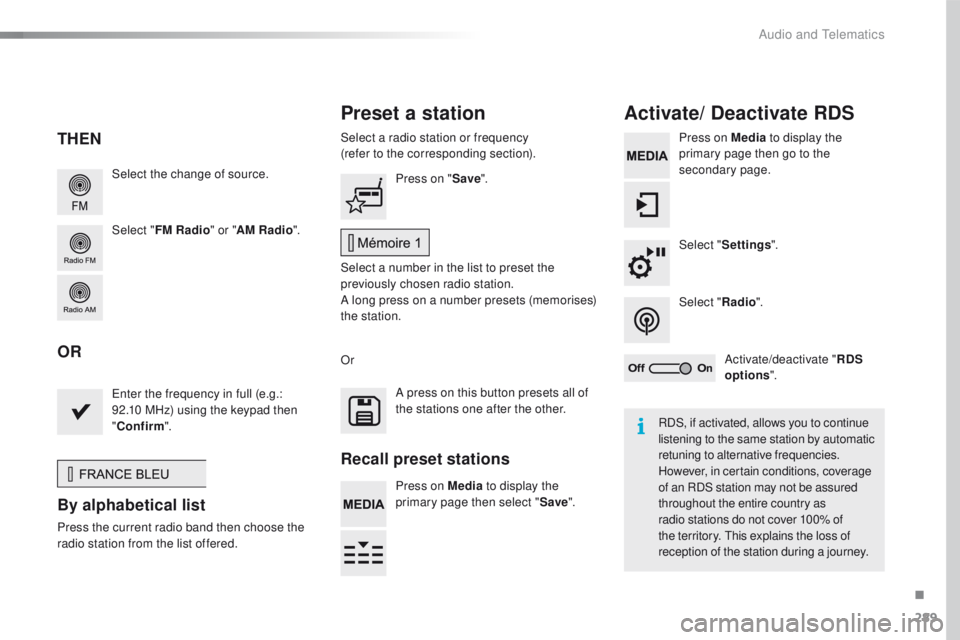
Select the change of source.
Select "FM Radio " or "AM Radio ".Select a radio station or frequency
(refer to the corresponding section).
Press on Media
to display the
primary page then go to the
secondary page.
Select " Settings ".
Select " Radio".
Activate/deactivate " RDS
options ".
Press on "
Save".
Select a number in the list to preset the
previously chosen radio station.
A long press on a number presets (memorises)
the station.
en
ter the frequency in full (e.g.:
92.10 MHz) using the keypad then
" Confirm ".
By alphabetical list
Press the current radio band then choose the
radio station from the list offered. Or
Press on Media to display the
primary page then select " Save".
Preset a station Activate/ Deactivate RDS
THEN
OR
A press on this button presets all of
the stations one after the other.
Recall preset stations
RDS, if activated, allows you to continue
listening to the same station by automatic
retuning to alternative frequencies.
However, in certain conditions, coverage
of an RDS station may not be assured
throughout the entire country as
radio stations do not cover 100% of
the territory.
t
h
is explains the loss of
reception of the station during a journey.
.
Audio and telematics
Page 292 of 371
290
508_en_Chap10c_SMegplus_ed01-2016
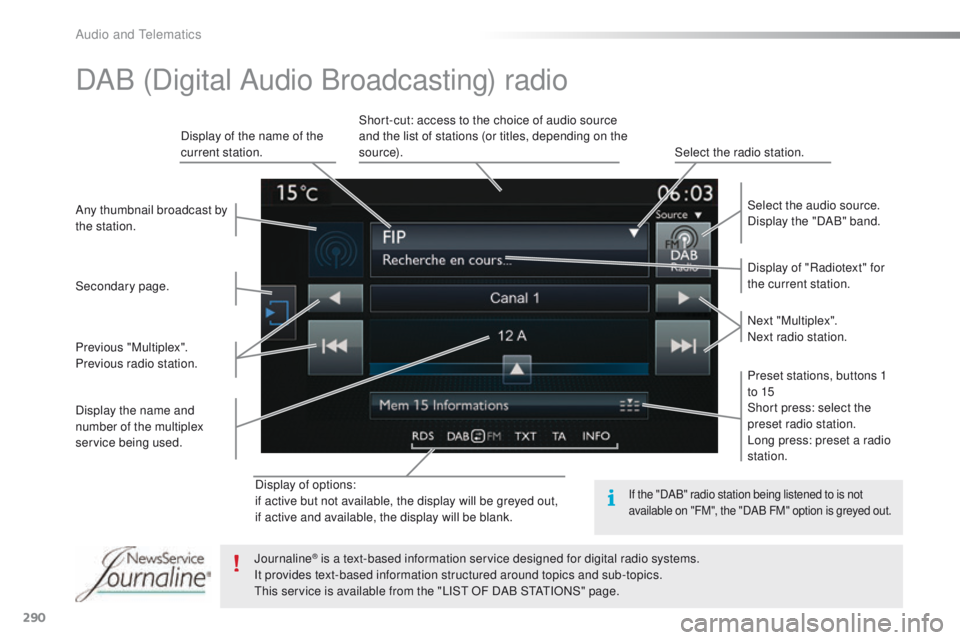
Display of options:
if active but not available, the display will be greyed out,
if active and available, the display will be blank.Display of "Radiotext" for
the current station. Select the audio source.
Display the "DAB" band.
Display of the name of the
current station.
Short-cut: access to the choice of audio source
and the list of stations (or titles, depending on the
s o u r c e).
Select the radio station.
Any thumbnail broadcast by
the station.
Preset stations, buttons 1
to 15
Short press: select the
preset radio station.
Long press: preset a radio
station. Next "Multiplex".
Next radio station.
Secondary page.
Display the name and
number of the multiplex
service being used. Previous "Multiplex".
Previous radio station.
DAB (Digital Audio Broadcasting) radio
If the "DAB" radio station being listened to is not
available on "FM", the "DAB FM" option is greyed out.
Journaline® is a text-based information service designed for digital radio systems.
I
t provides text-based information structured around topics and sub-topics.
th
is service is available from the "LIS
t
OF DAB S
tAtI
ONS" page.
Audio and telematics