light PONTIAC GRAND AM 2003 Service Manual
[x] Cancel search | Manufacturer: PONTIAC, Model Year: 2003, Model line: GRAND AM, Model: PONTIAC GRAND AM 2003Pages: 354, PDF Size: 16.3 MB
Page 144 of 354
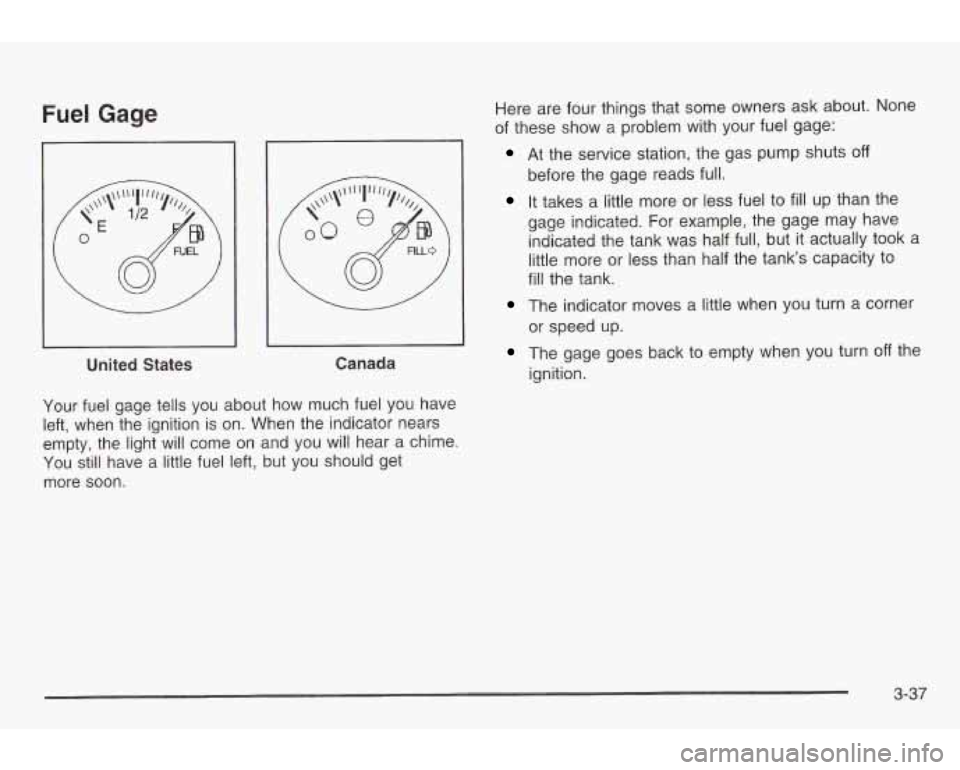
Fuel Gage
I
United States Canada
Your fuel gage tells you about how much fuel
you have
left, when the ignition
is on. When the indicator nears
empty, the light will come on and you will hear a chime.
You still have a little fuel left, but you should get
more
soon.
Here are four things that some owners ask about. None
of these show a problem with your fuel gage:
At the service station, the gas pump shuts off
before the gage reads full.
It takes a little more or less fuel to fill up than the
gage indicated. For example, the gage may have indicated the tank was half full, but it actually took a
little more or less than half the tank’s capacity
to
fill the tank.
The indicator moves a little when you turn a corner
The gage goes back to empty when you turn off the
or
speed up.
ignition.
3-37
Page 154 of 354
4. Press EQ to select the equalization.
5. Press and hold one of the six numbered
pushbuttons until you hear a beep. Whenever you
press that numbered pushbutton, the station
you set will return and the equalization that you
selected will also be automatically selected for that
pushbutton.
6. Repeat the steps for each pushbutton.
Setting the Tone (BasdTreble)
TONE: Press and release this button until BASS, MID
or TREB appears on the display. The SELECT LED
indicator will light
to show that the tone control can be
adjusted. Turn the SELECT knob to increase or to
decrease. If a station is weak or noisy, you may want
to
decrease the treble.
To adjust all of the tone controls
to the middle position,
press and hold TONE until FLAT appears on the
display.
EQ (Equalizer): Press this button to select customized
bass, mid and treble equalization settings.
You can set up
to six customized equalization settings
by performing the following steps:
1. Turn the radio on.
2. Use the PONE button and the SELECT knob to
3. Press and hold the EQ button for two seconds.
create
the desired equalization.
SELECT EQ
# will appear on the display and the
EQ symbol will flash.
4. Press EQ or turn the SELECT knob
to select the
desired
EQ number.
5. Press and hold the EQ button or push the SELECT
knob to store the equalization setting and the
number. You will hear a beep and EQ SAVED will
appear on the display.
numbers.
6. Repeat the steps for the other EQ settings and
EQ
5 has been programmed at the factory for use with
talk radio,
but it can be preset to a different tone.
3-47
Page 155 of 354
Adjusting the Speakers (Balance/Fade)
BAL (Balance): Press and release this button until
BAL appears on the display. The SELECT LED indicator
will light
to show that the speakers can be adjusted.
Turn the SELECT knob
to move the sound toward the
left or the right speakers.
FADE: Press and release this button until FADE
appears on the display. The SELECT LED indicator will
light to show that the speakers can be adjusted.
Turn the SELECT knob to move the sound toward the
front or the speakers.
Pressing and holding the BAL FADE button for two
seconds will return all speaker settings
to the middle
position.
Finding a PTY Station (RDS, XMTM
and DAB)
To select and find a desired PTY perform the following:
1. Press PROG TYPE. PTY will be displayed on
the screen.
3. Once the desired category is displayed, press either
SEEK arrow to select the category and take you
to
the category’s first station.
4. If you want to go to another station within that
category and the category is displayed, press
either SEEK arrow once. If the category is not
displayed, press either SEEK arrow twice
to display
the category and then
to go to another station.
SCAN: You can also scan through the channels within
a category by performing the following:
1. Press PROG TYPE. PTY will be displayed on the
2. Select a category by turning the SELECT knob.
3. Once the desired category is displayed, press and
hold either SCAN arrow, and the radio will begin
scanning within your chosen category.
particular station.
screen.
4. Press either SCAN arrow again to stop at
a
2. Select a category by turning the SELECT knob.
3-48
Page 165 of 354
Setting Preset Stations
The six numbered pushbuttons let you return to your
favorite stations.
You can set up to 30 stations (six AM,
six
FM1 and six FM2, six XM1 and six XM2 (USA
only, if your radio is equipped with the XMTM Satellite
Radio Service) or DAB1 and DAB2 (Canada only,
if your
radio is equipped with DAB), by performing the
following
steps:
1. Turn the radio on.
2. Press BAND
to select AM, FM1 or FM2, or XM1,
XM2, or DABI, DAB2
3. Tune in the desired station.
4. Press EQ to select the equalization.
5. Press and hold one of the six numbered
pushbuttons until you hear a beep. Whenever you
press that numbered pushbutton, the station
you set will return and the equalization that you
selected will also be automatically selected for that
pushbutton.
6. Repeat the steps for each pushbutton.
Setting the Tone (BassRreble)
TONE: Press and release this button until BASS, MID
or TREB appears
on the display. The SELECT LED
indicator will light
to show that the tone control can be
adjusted. Turn the SELECT knob
to increase or to
decrease. If a station is weak or noisy, you may want to
decrease the treble.
To adjust all of the tone controls
to the middle position,
press and hold TONE until
FLAT appears on the
display.
EQ (Equalizer): Press this button to select customized
bass, mid and treble equalization settings.
You can set up
to six customized equalization settings
by performing the following steps:
1. Turn the radio on.
2. Use the TONE button and the SELECT knob to
3. Press and hold the EQ button for two seconds.
create the desired equalization.
SELECT
EQ # will appear on the display and the
EQ symbol will flash.
4. Press the EQ button or turn the SELECT knob to
select the desired EQ setting number.
3-58
Page 166 of 354
5. Press and hold the EQ button or push the SELECT
knob to store the equalization setting and the
number. You will hear a beep and EQ SAVED will
appear on the display.
6. Repeat the steps for the other EQ settings and
numbers.
EQ 5 has been programmed at the factory for use with
talk radio, but it can be set to a different tone.
Adjusting the Speakers (BalancdFade)
BAL (Balance): Press and release this button until
BAL appears on the display. The SELECT LED indicator
will light to show that the speakers can be adjusted.
Turn the SELECT knob to move the sound toward the
left or the right speakers.
FADE: Press and release this button until FADE
appears on the display. The SELECT LED indicator will
light to show that the speakers can be adjusted.
Turn the SELECT knob to move the sound toward the
front or the rear speakers.
Pressing and holding the BAL FADE button for two
seconds will return all tone settings to flat regardless of
tone selected. FLAT will appear on the display.
Finding a PTY Station (RIDS, XMTM
and DAB)
To select and find a desired PTY perform the following:
I. Press PROG TYPE. PTY will be displayed on
the screen.
2. Select a category by turning the SELECT knob.
3. Once the desired category is displayed, press either
SEEK arrow to select the category and take you to
the category's first station.
4. If you want to go to another station within that
category and the category is displayed, press
either SEEK arrow once. If the category is not
displayed, press either
SEEK arrow twice to display
the category and then to go to another station.
SCAN: You can also scan through the channels within
a category by performing the following:
1. Press PROG TYPE. PTY will be displayed on the
screen.
3. Once the desired category is displayed, press and
hold either SCAN arrow, and the radio will begin
scanning within your chosen category.
4. Press either SCAN arrow again to stop at a
particular statio!?.
3-59
Page 175 of 354
Compact Disc Messages
CHECK CD: If this message appears on the radio
display and the disc comes out, it could be for one of
the following reasons:
You’re driving on a very rough road. When the road
The disc is dirty, scratched, wet or upside down.
becomes smoother,
the disc should play.
The air is very humid. If so, wait about an hour and
try again.
If the CD is not playing correctly, for any other reason,
try a known good
CD.
If any error occurs repeatedly or if an error can’t be
corrected, contact your dealer. If your radio displays an
error message, write it down and provide
it to your
dealer when reporting the problem.
Theft-Deterrent Feature
(Non-RDS Radios)
THEFTLOCK@ is designed to discourage theft of your
radio. The feature works automatically by learning
a portion of the Vehicle Identification Number (VIN).
If the radio is moved to a different vehicle, it will
not operate and LOC will be displayed.
with THEFTLOCK@ activated, your radio will not
operate
if stolen.
Theft-Deterrent Feature
(RDS Radios)
THEFTLOCK@ is designed to discourage theft of your
radio. The feature works automatically by learning
a portion of the Vehicle Identification Number (VIN).
If the radio is moved to a different vehicle, it will
not operate and LOCKED will be displayed.
When the radio and vehicle are turned
off, the blinking
red light indicates that THEFTLOCK@ is armed.
With THEFTLOCK@ activated, your radio
will not operate
if stolen.
3-68
Page 177 of 354
Understanding Radio Reception
The range for most AM stations is greater than for FM,
especially at night. The longer range, however, can
cause stations to interfere with each other. AM can pick
up noise from things like storms and power lines. Try
reducing the treble
to reduce this noise if you ever get it.
FM Stereo
FM stereo will give you the best sound, but FM signals
will reach only about
10 to 40 miles (16 to 65 km).
Tall buildings or hills can interfere with FM signals,
causing the sound
to come and go.
XMTM Satellite Radio Service
XMTM Satellite Radio gives you digital radio reception
from coast
to coast. Just as with FM, tall buildings
or hills can interfere with Satellite radio signals, causing
the sound
to come and go. Your radio may display
"NO SIGNAL"
to indicate interference.
DAB Radio
DAB gives you digital radio reception. Just as with FM,
tall buildings or hills can interfere with radio signals,
causing the sound
to come and go. Your radio
may display
"NO SIGNAL" to indicate interference.
Care of Your Cassette Tape Player
A tape player that is not cleaned regularly can cause
reduced sound quality, ruined cassettes or a damaged
mechanism. Cassette tapes should be stored in their
cases away from contaminants, direct sunlight and
extreme heat. If they aren't, they may not operate
properly or may cause failure of the tape player.
Your tape player should be cleaned regularly after every
50 hours of use. Your radio will display CLEAN
PLAYER to indicate that you have used your tape
player for
50 hours without resetting the tape clean
timer. If this message appears on the display, your
cassette tape player needs
to be cleaned. It will still play
tapes, but you should clean it as soon as possible
to
prevent damage to your tapes and player. If you notice
a reduction in sound quality, try a known good
cassette to see
if the tape or the tape player is at fault.
If this other cassette has no improvement in sound
quality, clean the tape player.
3-70
Page 178 of 354
For best results, use a scrubbing action, non-abrasive
cleaning cassette with pads which scrub the tape
head as the hubs of the cleaner cassette turn. The
recommended cleaning cassette is available through
your dealership.
The broken tape detection feature of your cassette tape
player may identify the cleaning cassette as
a
damaged tape, in error. To prevent the cleaning cassette
from being ejected, use the following steps:
1. Turn the ignition on.
2. Turn the radio off.
3. Press and hold the CD TAPE button for five
seconds. READY
will appear on the display for five
seconds.
4. Insert the scrubbing action cleaning cassette.
5. Eject the cleaning cassette after the manufacturer’s
recommended cleaning time.
After the cleaning cassette is ejected, the broken tape
detection feature will be active again.
You may also choose a non-scrubbing action, wet-type
cleaner which uses a cassette with a fabric belt
to
clean the tape head. This type of cleaning cassette will not eject on
its own. A non-scrubbing action cleaner
may not clean as thoroughly as the scrubbing type
cleaner. The use
of a non-scrubbing action, dry-type
cleaning cassette is not recommended.
After you clean the player, press and hold the eject
button for five seconds
to reset the CLEAN PLAYER
indicator. The radio will display CLEANED
to show the
indicator was reset.
Cassettes are subject
to wear and the sound quality
may degrade over time. Always make sure the cassette
tape is in good condition before you have your tape
player serviced.
Care of Your CDs
Handle discs carefully. Store them in their original cases
or other protective cases and away from direct sunlight
and dust.
If the surface of a disc is soiled, dampen
a clean, soft cloth in a mild, neutral detergent solution
and clean it, wiping from the center
to the edge.
Be sure never
to touch the side without writing when
nanaiing aiscs. Pick up aiscs by grasping ihe ouier
edges or the edge of the hole and the outer edge.
3-71
Page 179 of 354
Care of Your CD Player
The use of CD lens cleaner discs is not advised, due to
the risk of contaminating the lens of the CD optics
with lubricants internal
to the CD mechanism.
Fixed Mast Antenna
The fixed mast antenna can withstand most car washes
without being damaged. If the mast should ever
become slightly bent, you can straighten it
out by hand.
If the mast is badly bent, as it might be by vandals,
you should replace it.
Check occasionally
to be sure the mast is still tightened
to the fender. If tightening is required, tighten by
hand, then with
a wrench one quarter turn.
XM Satellite Radio Antenna System
Your XMTM Satellite Radio antenna is located on the
roof of your vehicle. Keep this antenna clear of
snow and ice build up for clear radio reception.
The performance of your XM system may be affected
if
your sunroof is open.
DAB Radio Antenna System
Your DAB antenna is located on the roof of your
vehicle. Keep this antenna clear of snow and ice build
up for clear radio reception.
If your vehicle is purchased in Canada and driven
into the United Stated the DAB radio antenna system
will not function. DAB radio reception is available
in Canada only.
The performance of your DAB antenna may be affected
if your sunroof is open.
Chime Level Adjustment
Chime level adjustment is only available on RDS radios.
The volume level of the vehicle’s chimes can be
controlled by the radio. To change the volume level,
press and hold pushbutton
6 with the ignition on and the
radio power
off. The chime volume level will change
from the normal level
to loud, and LOUD will be
displayed on the radio. To change back
to the default or
normal setting, press and hold pushbutton
6 again.
The chime level will change from the loud level
to normal, and NORMAL will be displayed.
3-72
Page 186 of 354
And, of course, actual stopping distances vary greatly
with the surface of the road (whether it’s pavement
or gravel); the condition of the road (wet, dry, icy); tire
tread; the condition of your brakes; the weight of
the vehicle and the amount of brake force applied.
Avoid needless heavy braking. Some people drive
in spurts
- heavy acceleration followed by heavy
braking
- rather than keeping pace with traffic. This is
a mistake. Your brakes may not have time to cool
between hard stops. Your brakes will wear out much
faster
if you do a lot of heavy braking. If you keep pace
with the traffic and allow realistic following distances,
you will eliminate a
lot of unnecessary braking.
That means better braking and longer brake life.
If your engine ever stops while you’re driving, brake
normally but don’t pump your brakes. If you do,
the pedal may get harder
to push down. If your engine
stops, you will still have some power brake assist.
But you will use it when you brake. Once the power
assist is used up, it may take longer
to stop and
the brake pedal will be harder
to push.
Anti-lock Brake System (ABS)
Your vehicle may have anti-lock brakes. ABS is an
advanced electronic braking system that will help
prevent a braking skid.
If your vehicle has anti-lock
brakes, this warning light
on the instrument panel will
come on briefly when
you start your vehicle.
When you start your engine, or when you begin
to drive
away, your anti-lock brake system will check itself.
You may hear a momentary motor or clicking noise while
this test is going on, and you may even notice that
your brake pedal moves or pulses a little. This is normal.
4-7