trailer RAM 1500 2021 Owner's Manual
[x] Cancel search | Manufacturer: RAM, Model Year: 2021, Model line: 1500, Model: RAM 1500 2021Pages: 496, PDF Size: 20.89 MB
Page 162 of 496

160STARTING AND OPERATING
Electronic Range Select (ERS)
To exit ERS mode, simply push and hold the +
button until the gear limit display disappears
from the instrument cluster.
When to Use TOW/HAUL Mode
Select TOW/HAUL mode when driving in
conditions such as: driving in hilly areas, towing
a trailer, carrying a heavy load, etc. This mode
will improve performance and reduce the
potential for transmission overheating or failure
due to excessive shifting.
TOW/HAUL Switch
The “TOW/HAUL Indicator Light” will illuminate
in the instrument cluster to indicate that TOW/
HAUL mode has been activated. Pushing the
switch a second time restores normal
operation. Normal operation is always the
default at engine start-up. If TOW/HAUL mode is
desired, the switch must be pushed each time
the engine is started.
1 — Shift Up (+)
2 — Shift Down (–)
WARNING!
Do not downshift for additional engine brak
-
ing on a slippery surface. The drive wheels
could lose their grip and the vehicle could
skid, causing a collision or personal injury.
WARNING!
Do not use the “TOW/HAUL” feature when
driving in icy or slippery conditions. The
increased engine braking can cause the rear
wheels to slide, and the vehicle to swing
around with the possible loss of vehicle con -
trol, which may cause an accident possibly
resulting in personal injury or death.
21_DT_OM_EN_USC_t.book Page 160
Page 182 of 496

180STARTING AND OPERATING
(Continued)
Adaptive Cruise Control (ACC) Operation
The buttons on the right side of the steering
wheel operate the Adaptive Cruise Control
system.
Adaptive Cruise Control Buttons
Adaptive Cruise Control (ACC) Menu
The instrument cluster display will show the
current ACC system settings. The information it
displays depends on ACC system status.
Push the Adaptive Cruise Control (ACC) on/off
button until one of the following appears in the
instrument cluster display:
Adaptive Cruise Control Off
When ACC is deactivated, the display will read
“Adaptive Cruise Control Off.”
The ACC system:
Does not react to pedestrians,
oncoming vehicles, and stationary
objects (e.g., a stopped vehicle in a
traffic jam or a disabled vehicle).
Cannot take street, traffic, and weather
conditions into account, and may be
limited upon adverse sight distance
conditions.
Does not always fully recognize
complex driving conditions, which can
result in wrong or missing distance
warnings.
Will bring your vehicle to a complete
stop while following a vehicle ahead
and hold your vehicle for approximately
three minutes in the stop position. If the
vehicle ahead does not start moving
within three minutes the parking brake
will be activated, and the ACC system
will be cancelled.
WARNING!
(Continued)
You should switch off the ACC system:
When driving in fog, heavy rain, heavy
snow, sleet, heavy traffic, and complex
driving situations (i.e., in highway construc -
tion zones).
When entering a turn lane or highway off
ramp; when driving on roads that are
winding, icy, snow-covered, slippery, or
have steep uphill or downhill slopes.
When towing a trailer up or down steep
slopes.
When circumstances do not allow safe
driving at a constant speed.
WARNING! (Continued)
1 — Distance Setting Increase
2 — Adaptive Cruise Control (ACC) On/Off
3 — Distance Setting Decrease
21_DT_OM_EN_USC_t.book Page 180
Page 184 of 496

182STARTING AND OPERATING
To Set A Desired ACC Speed
When the vehicle reaches the speed desired,
push the SET (+) button or the SET (-) button
and release. The instrument cluster display will
show the set speed.
NOTE:
Fixed Speed Cruise Control can be used without
an ACC distance set. To change between the
different modes, push the ACC on/off button
which turns the ACC and the Fixed Speed Cruise
Control off. Pushing the Fixed Speed Cruise
Control on/off button will result in turning on
(changing to) Fixed Speed Cruise Control mode. If ACC is set when the vehicle speed is
below
20 mph (32 km/h), the set speed will default to
20 mph (20 km/h).
NOTE:
Fixed Speed Cruise Control cannot be set below
20 mph (32 km/h).
If either system is set when the vehicle speed is
above 20 mph (32 km/h), the set speed shall
be the current speed of the vehicle.
NOTE:
Keeping your foot on the accelerator pedal
can cause the vehicle to continue to accel -
erate beyond the set speed. If this occurs, the
message “ACC DRIVER OVERRIDE” will
display in the instrument cluster display.
If you continue to accelerate beyond the set
speed while an ACC distance is also set, the
system will not be controlling the distance
between your vehicle and the vehicle ahead.
The vehicle speed will only be determined by
the position of the accelerator pedal.
To Cancel
The following conditions cancel the ACC or Fixed
Speed Cruise Control systems:
The brake pedal is applied
The CANC (cancel) button is pushed
The Anti-Lock Brake system (ABS) activates
The trailer brake is applied manually (if
equipped)
The gear selector is removed from the DRIVE
position
The Electronic Stability Control/Traction
Control System (ESC/TCS) activates
The vehicle parking brake is applied
The Trailer Sway Control (TSC) activates
The driver switches ESC to Full Off mode
The braking temperature exceeds normal
range (overheated)
The following conditions will only cancel the ACC
system:
Driver seat belt is unbuckled at low speeds
Driver door is opened at low speeds
WARNING!
In the Fixed Speed Cruise Control mode, the
system will not react to vehicles ahead. In
addition, the proximity warning does not
activate and no alarm will sound even if you
are too close to the vehicle ahead since
neither the presence of the vehicle ahead nor
the vehicle-to-vehicle distance is detected. Be
sure to maintain a safe distance between
your vehicle and the vehicle ahead. Always be
aware which mode is selected.
21_DT_OM_EN_USC_t.book Page 182
Page 189 of 496

STARTING AND OPERATING187
If weather conditions are not a factor, the driver
should examine the windshield and the camera
located on the back side of the inside rear view
mirror. They may require cleaning or removal of
an obstruction.
When the condition that created limited
functionality is no longer present, the system
will return to full functionality.
NOTE:
If the “ACC/FCW Limited Functionality Clean
Front Windshield” message occurs frequently
(e.g. more than once on every trip) without any
snow, rain, mud, or other obstruction, have the
windshield and forward facing camera
inspected at an authorized dealer.
Service ACC/FCW Warning
If the system turns off, and the instrument
cluster displays “ACC/FCW Unavailable Service
Required” or “Cruise/FCW Unavailable Service
Required”, there may be an internal system
fault or a temporary malfunction that limits ACC
functionality. Although the vehicle is still
drivable under normal conditions, ACC will be
temporarily unavailable. If this occurs, try
activating ACC again later, following an ignition
cycle. If the problem persists, see an authorized
dealer.Precautions While Driving With ACC
NOTE:
Aftermarket add-ons such as snow plows, lift
kits, and brush/grille bars can hinder module
performance. Ensure the radar/camera has
no obstructions in the field of view.
Height modifications can limit module perfor -
mance and functionality.
Do not put stickers or easy passes over the
camera/radar field of view.
Any modifications to the vehicle that may
obstruct the field of view of the radar/camera
are not recommended.
In certain driving situations, ACC may have
detection issues. In these cases, ACC may
brake late or unexpectedly. The driver needs to
stay alert and may need to intervene. The
following are examples of these types of
situations:
Towing A Trailer
ACC while towing a trailer is recommended only
with an Integrated Trailer Brake Controller.
Aftermarket trailer brake controllers will not
activate the trailer brakes when ACC is braking. Offset Driving
ACC may not detect a vehicle in the same lane
that is offset from your direct line of travel, or a
vehicle merging in from a side lane. There may
not be sufficient distance to the vehicle ahead.
The offset vehicle may move in and out of the
line of travel, which can cause your vehicle to
brake or accelerate unexpectedly.
Offset Driving Condition Example
Turns And Bends
When driving on a curve with ACC engaged, the
system may decrease the vehicle speed and
acceleration for stability reasons, with no
vehicle in front detected. Once the vehicle is out
of the curve the system will resume your original
set speed. This is a part of normal ACC system
functionality.
4
21_DT_OM_EN_USC_t.book Page 187
Page 191 of 496

STARTING AND OPERATING189
Stationary Objects And Vehicles
ACC does not react to stationary objects and
stationary vehicles. For example, ACC will not
react in situations where the vehicle you are
following exits your lane and the vehicle ahead
is stopped in your lane. Always be attentive and
ready to apply the brakes if necessary
Úpage 482.
Stationary Object And Stationary Vehicle Example
PARKSENSE FRONT/REAR PARK ASSIST
SYSTEM — IF EQUIPPED
The ParkSense Park Assist system provides
visual and audible indications of the distance
between the rear and/or front fascia/bumper
and a detected obstacle when backing up or
moving forward (e.g. during a parking maneuver). If your vehicle is equipped with the
automatic braking function, the vehicle brakes
may be automatically applied and released
when the vehicle is in REVERSE if the system
detects a possible collision with an obstacle.
NOTE:
The driver can disable the automatic braking
function by turning ParkSense off via the
ParkSense switch. The driver can also over
-
ride automatic braking by changing the gear
or by pressing the gas pedal over 90% of its
capacity during the braking event.
Automatic brakes will not be available if the
vehicle is in 4WD Low.
Automatic brakes will not be available if ESC
is not available.
Automatic brakes will not be available if there
is a faulted condition detected with the Park -
Sense Park Assist system or the Braking
System.
The automatic braking function may only be
applied if the vehicle deceleration is not
enough to avoid colliding with a detected
obstacle.
The automatic braking function may not be
applied fast enough for obstacles that move
toward the rear of the vehicle from the left
and/or right sides.
The automatic braking function can be
enabled/disabled from the Customer
Programmable Features section of the
Uconnect system.
ParkSense will retain its last known configu -
ration state for the automatic braking func -
tion through ignition cycles.
Trailer hitch ball assembly may cause false
braking events if left attached after towing.
The automatic braking function is intended to
assist the driver in avoiding possible collisions
with detected obstacles when backing up in
REVERSE gear.
NOTE:
The system is provided to assist the driver
and not to substitute the driver.
The driver must stay in full control of the
vehicle's acceleration and braking and is
responsible for the vehicle's movements.
4
21_DT_OM_EN_USC_t.book Page 189
Page 196 of 496

194STARTING AND OPERATING
NOTE:
Water from a car wash or road slush in freezing
weather may also cause sensors to become
blocked.
If the "PARKSENSE UNAVAILABLE SERVICE
REQUIRED" message appears in the instrument
cluster display, see your authorized dealer.
CLEANING THE PARKSENSE SYSTEM
Clean the ParkSense sensors with water, car
wash soap and a soft cloth. Do not use rough or
hard cloths. Do not scratch or poke the sensors.
PARKSENSE SYSTEM USAGE
P
RECAUTIONS
NOTE:
Ensure that the front and rear fascias/
bumpers are free of snow, ice, mud, dirt and
debris to keep the ParkSense system oper -
ating properly.
Jackhammers, large trucks, and other vibra -
tions could affect the performance of Park -
Sense.
When you turn Front or Rear ParkSense off,
the instrument cluster display will show a
vehicle graphic of the Front or Rear Park -
Sense on/off state for two seconds. Further -
more, once you turn Front or Rear ParkSense
off, it remains off until you turn it on again,
even if you cycle the ignition.
When you move the gear selector to the
REVERSE position and Front or Rear Park -
Sense is turned off, the instrument cluster
display will show a vehicle graphic with "OFF"
in the corresponding side. This vehicle
graphic will be displayed for as long as the
vehicle is in REVERSE.
ParkSense, when on, will reduce the volume
of the radio when it is sounding a tone.
Clean the ParkSense sensors regularly,
taking care not to scratch or damage them.
The sensors must not be covered with ice,
snow, slush, mud, dirt or debris. Failure to do
so can result in the system not working prop -
erly. The ParkSense system might not detect
an obstacle behind or in front of the fascia/
bumper, or it could provide a false indication
that an obstacle is behind or in front of the
fascia/bumper.
Use the ParkSense switch to turn the Park -
Sense system off if obstacles such as bicycle
carriers, trailer hitches, etc. are placed near
the rear fascia/bumper. Failure to do so can
result in the system misinterpreting a close
obstacle as a sensor problem, causing the
“PARKSENSE UNAVAILABLE SERVICE
REQUIRED” message to be appear in the
instrument cluster display.
ParkSense should be disabled when the tail -
gate is in the lowered or open position. A
lowered tailgate could provide a false indica -
tion that an obstacle is behind the vehicle
and could also cause a false braking event.
The Rear ParkSense system will automati -
cally disable when the system detects that a
trailer with trailer brakes has been connected
to the Integrated Trailer Brake Module.
The Front ParkSense system will automati -
cally disable if a snow plow has been
connected to the vehicle.
21_DT_OM_EN_USC_t.book Page 194
Page 206 of 496

204STARTING AND OPERATING
AUX CAMERA — IF EQUIPPED
Your vehicle may be equipped with one or two
AUX Cameras, which display rearview and side
view images from the trailer on the
touchscreen.
Activation
The AUX Camera is activated by first pressing
the Backup Camera or Surround View Camera
(if equipped) button on the touchscreen,
followed by the AUX button located in the upper
left corner of the rearview display. The AUX
camera can also be activated when the vehicle
is in REVERSE by pressing the AUX button.
If equipped with two AUX Cameras, you can
switch between each camera by pressing the
AUX1 or AUX2 buttons on the Trailer Camera
display.
AUX1 Camera Button
AUX2 Camera Button Deactivation
The AUX Camera is deactivated by pressing the
“X” in the upper right corner of the touchscreen.
This will return the display back to the
previously displayed screen.
NOTE:
If the AUX button is pressed and no AUX
Camera is connected, the touchscreen will
display a blue screen along with the message
“Camera System Unavailable.” The screen
can be exited out by pressing the “X” in the
upper right hand corner. This will return the
display back to the previously displayed
screen.
Zoom View is not available with the AUX
Camera feature.
The display will always default to the Trailer
Camera display (AUX 1).
SURROUND VIEW CAMERA SYSTEM — IF
EQUIPPED
The Surround View Camera system allows you
to see an on-screen image of the surroundings
and the Top View of your vehicle. This occurs
whenever the gear selector is in REVERSE or when enabled through the Uconnect system.
The Top View of the vehicle will also show if any
doors are open. The image will be displayed on
the touchscreen along with a caution note
“Check Entire Surroundings”. After five
seconds, this note will disappear. The Surround
View Camera system is comprised of four
cameras located in the front grille, rear tailgate
and side mirrors.
NOTE:
The Surround View Camera system has
programmable settings that may be selected
through the Uconnect system Ú
page 237.
Press this button on the touchscreen
to enter the Surround View Camera
menu in the Uconnect system.
When the vehicle is shifted into REVERSE, the
Rear View and Top View is the default view of
the system.
If the camera delay is turned on, the camera
image will display for up to 10 seconds after
shifting out of REVERSE. The camera image will
not display for 10 seconds if the vehicle speed
exceeds 8 mph (13 km/h), the vehicle is shifted
into PARK, or the ignition is placed in the OFF
position. The “X” button on the touchscreen
disables the display of the camera image.
21_DT_OM_EN_USC_t.book Page 204
Page 210 of 496
208STARTING AND OPERATING
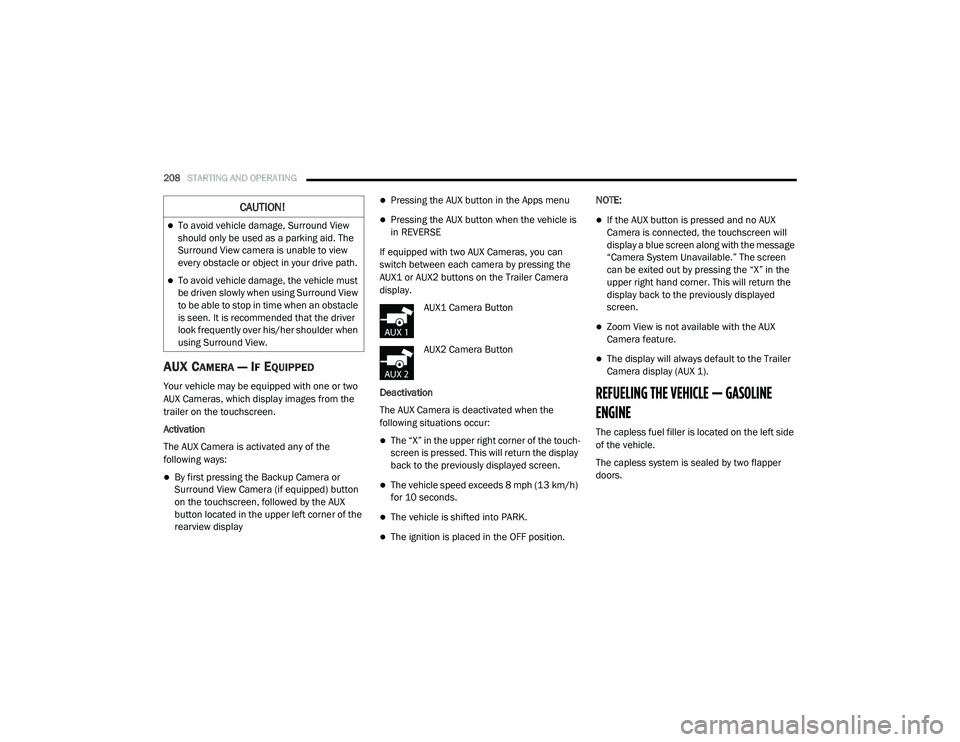
AUX CAMERA — IF EQUIPPED
Your vehicle may be equipped with one or two
AUX Cameras, which display images from the
trailer on the touchscreen.
Activation
The AUX Camera is activated any of the
following ways:
By first pressing the Backup Camera or
Surround View Camera (if equipped) button
on the touchscreen, followed by the AUX
button located in the upper left corner of the
rearview display
Pressing the AUX button in the Apps menu
Pressing the AUX button when the vehicle is
in REVERSE
If equipped with two AUX Cameras, you can
switch between each camera by pressing the
AUX1 or AUX2 buttons on the Trailer Camera
display. AUX1 Camera Button
AUX2 Camera Button
Deactivation
The AUX Camera is deactivated when the
following situations occur:
The “X” in the upper right corner of the touch -
screen is pressed. This will return the display
back to the previously displayed screen.
The vehicle speed exceeds 8 mph (13 km/h)
for 10 seconds.
The vehicle is shifted into PARK.
The ignition is placed in the OFF position. NOTE:
If the AUX button is pressed and no AUX
Camera is connected, the touchscreen will
display a blue screen along with the message
“Camera System Unavailable.” The screen
can be exited out by pressing the “X” in the
upper right hand corner. This will return the
display back to the previously displayed
screen.
Zoom View is not available with the AUX
Camera feature.
The display will always default to the Trailer
Camera display (AUX 1).
REFUELING THE VEHICLE — GASOLINE
ENGINE
The capless fuel filler is located on the left side
of the vehicle.
The capless system is sealed by two flapper
doors.
CAUTION!
To avoid vehicle damage, Surround View
should only be used as a parking aid. The
Surround View camera is unable to view
every obstacle or object in your drive path.
To avoid vehicle damage, the vehicle must
be driven slowly when using Surround View
to be able to stop in time when an obstacle
is seen. It is recommended that the driver
look frequently over his/her shoulder when
using Surround View.
21_DT_OM_EN_USC_t.book Page 208
Page 216 of 496
214STARTING AND OPERATING
RIM SIZE
This is the rim size that is appropriate for the tire
size listed.
INFLATION PRESSURE
This is the cold tire inflation pressure for your
vehicle for all loading conditions up to full Gross
Axle Weight Rating (GAWR).
CURB WEIGHT
The curb weight of a vehicle is defined as the
total weight of the vehicle with all fluids,
including vehicle fuel, at full capacity
conditions, and with no occupants or cargo
loaded into the vehicle. The front and rear curb
weight values are determined by weighing your
vehicle on a commercial scale before any
occupants or cargo are added.
LOADING
The actual total weight and the weight of the
front and rear of your vehicle at the ground can
best be determined by weighing it when it is
loaded and ready for operation.
The entire vehicle should first be weighed on a
commercial scale to insure that the Gross
Vehicle Weight Rating (GVWR) has not been exceeded. The weight on the front and rear of
the vehicle should then be determined
separately to be sure that the load is properly
distributed over the front and rear axle.
Weighing the vehicle may show that the Gross
Axle Weight Rating (GAWR) of either the front or
rear axles has been exceeded but the total load
is within the specified GVWR. If so, weight must
be shifted from front to rear or rear to front as
appropriate until the specified weight
limitations are met. Store the heavier items
down low and be sure that the weight is
distributed equally. Stow all loose items
securely before driving.
Improper weight distributions can have an
adverse effect on the way your vehicle steers
and handles and the way the brakes operate.
TRAILER TOWING
In this section you will find safety tips and
information on limits to the type of towing you
can reasonably do with your vehicle. Before
towing a trailer, carefully review this information
to tow your load as efficiently and safely as
possible.
To maintain the New Vehicle Limited Warranty
coverage, follow the requirements and
recommendations in this manual concerning
vehicles used for trailer towing.
COMMON TOWING DEFINITIONS
The following trailer towing related definitions
will assist you in understanding the following
information:
Gross Vehicle Weight Rating (GVWR)
The GVWR is the total allowable weight of your
vehicle. This includes driver, passengers, cargo
and tongue weight. The total load must be
limited so that you do not exceed the GVWR
Ú
page 213.CAUTION!
Do not load your vehicle any heavier than the
GVWR or the maximum front and rear GAWR.
If you do, parts on your vehicle can break, or
it can change the way your vehicle handles.
This could cause you to lose control. Also
overloading can shorten the life of your
vehicle.
21_DT_OM_EN_USC_t.book Page 214
Page 217 of 496

STARTING AND OPERATING215
Gross Trailer Weight (GTW)
The GTW is the weight of the trailer plus the
weight of all cargo, consumables and
equipment (permanent or temporary) loaded in
or on the trailer in its “loaded and ready for
operation” condition.
The recommended way to measure GTW is to
put your fully loaded trailer on a vehicle scale.
The entire weight of the trailer must be
supported by the scale.
Gross Combination Weight Rating (GCWR)
The GCWR is the total allowable weight of your
vehicle and trailer when weighed in
combination.
Gross Axle Weight Rating (GAWR)
The GAWR is the maximum capacity of the front
and rear axles. Distribute the load over the front and rear axles evenly. Make sure that you do
not exceed either front or rear GAWR
Ú
page 213.
Tongue Weight (TW)
The TW is the downward force exerted on the
hitch ball by the trailer. You must consider this
as part of the load on your vehicle.
Trailer Frontal Area
The frontal area is the maximum height
multiplied by the maximum width of the front of
a trailer.
Trailer Sway Control (TSC)
The TSC can be a mechanical telescoping link
that can be installed between the hitch receiver
and the trailer tongue that typically provides
adjustable friction associated with the
telescoping motion to dampen any unwanted
trailer swaying motions while traveling. If equipped, the electronic TSC recognizes a
swaying trailer and automatically applies
individual wheel brakes and/or reduces engine
power to attempt to eliminate the trailer sway.
Weight-Carrying Hitch
A weight-carrying hitch supports the trailer
tongue weight, just as if it were luggage located
at a hitch ball or some other connecting point of
the vehicle. These kinds of hitches are
commonly used to tow small and medium sized
trailers.
Weight-Distributing Hitch
A weight-distributing system works by applying
leverage through spring (load) bars. They are
typically used for heavier loads to distribute
trailer tongue weight to the tow vehicle's front
axle and the trailer axle(s). When used in
accordance with the manufacturer's directions,
it provides for a more level ride, offering more
consistent steering and brake control, thereby
enhancing towing safety. The addition of a
friction/hydraulic sway control also dampens
sway caused by traffic and crosswinds and
contributes positively to tow vehicle and trailer
stability. Trailer sway control and a weight
distributing (load equalizing) hitch are
WARNING!
If the gross trailer weight is 5,000 lbs (2,267 kg)
or more, it is recommended to use a weight-dis
-
tributing hitch to ensure stable handling of your
vehicle. If you use a standard weight-carrying
hitch, you could lose control of your vehicle and
cause a collision.
WARNING!
It is important that you do not exceed the
maximum front or rear GAWR. A dangerous
driving condition can result if either rating is
exceeded. You could lose control of the vehi -
cle and have a collision.
4
21_DT_OM_EN_USC_t.book Page 215