service RAM 1500 2021 Manual PDF
[x] Cancel search | Manufacturer: RAM, Model Year: 2021, Model line: 1500, Model: RAM 1500 2021Pages: 496, PDF Size: 20.89 MB
Page 303 of 496
MULTIMEDIA301
To get started with Uconnect Market on the
touchscreen:
1. Press the Market button in the Uconnect
App drawer.
2. Press “Get Started”.
3. Press “Text Me A Link” and enter your phone number to receive a text message
with instructions on how to set up Uconnect
Market.
NOTE:
If the text message does not come through,
press the Resend Text button. It might take a
minute to receive the text message.
4. Once you receive the text message, press the link provided. You will be directed to a
Sign-in screen. Enter your email and
password. You will now be able to use
Uconnect Market.
5. If you do not have an account, press “Register Now” to create one.
6. Accept the Uconnect market Terms of Service.
7. Enter your credit card information, and press “Next”. 8. Enter your phone number, and press “Next”.
9. The system will verifying the phone number.
Once verified, Uconnect Market will be
available to use. Press the OK button.
From the online portal, https://
market.mopar.com/home, you can link loyalty
accounts and start receiving benefits from them
while still using Uconnect Market and view your
purchase history.
MANAGE MY SIRIUSXM GUARDIAN™
A
CCOUNT
To manage your SiriusXM Guardian™ account,
press the ASSIST button in your vehicle, or call
SiriusXM Guardian™ Customer Care.
NOTE:
It is recommended, when selling your vehicle, or
turning in your lease, to call SiriusXM
Guardian™ Care to remove your personal data.
CONNECTED SERVICES FAQS
For additional information about SiriusXM
Guardian™, active subscribers can push the
ASSIST button and then select SiriusXM
Guardian™ Call on your in-vehicle touchscreen
to contact SiriusXM Guardian™. Your call will be directed to a SiriusXM Guardian™ agent or held
in a queue until an agent is available. If you do
not have an active subscription, push the
ASSIST button and click the Activate button on
the touchscreen to activate services.
CONNECTED SERVICES SOS FAQS
1.
What happens if I accidentally push the SOS
Call button on the mirror?
You have
10 seconds after pushing the SOS Call
button to cancel the call. To cancel the call,
either push the SOS Call button again, or
press the Cancel button on the in-vehicle
touchscreen.
2. What type of information is sent when I use
the SOS Call button from my vehicle?
Certain vehicle information, such as make
and model, is transmitted along with the
last known GPS location.
3. When could I use the SOS Call button? You
can use the SOS Call button to make a call
if you or someone else needs emergency
assistance.
5
21_DT_OM_EN_USC_t.book Page 301
Page 304 of 496
302MULTIMEDIA
CONNECTED SERVICES REMOTE DOOR
L
OCK/UNLOCK FAQS
1.
How long does it take to unlock or lock the
door?
Depending on various conditions, it
can take up to three minutes or more for
the request to get to your vehicle.
2. Which is faster, my key fob or the Uconnect
App? Your key fob will lock/unlock the door
more quickly, however its range is limited
and your Uconnect App comes in handy for
these and other situations.
3. Will my vehicle be safe if I lose my device?
People sometimes lose their mobile
devices, which is why security measures
have been engineered into the Uconnect
App. Asking for your username, password
and SiriusXM Guardian™ Security PIN are
required for the activation of Remote
services through your mobile device. It is
your responsibility to protect your
passwords and PINs.
4. Why can’t all mobile devices use the
Uconnect App? The Uconnect App is
compatible with most devices with the
Apple® and Android™ operating systems. The capabilities of these devices allow us to
remotely command your vehicle. Other
operating systems may be supported in the
future.
5. Why is the Uconnect App running slow? The
Uconnect App relies on a mobile network
connection from your device to send
commands to your vehicle which must have
an operable LTE (voice/data) or 3G, 4G
(data), or 5G (data) network connection. If
either your device or your vehicle is in an
area with below average coverage, it may
take longer to log in and send commands.
CONNECTED SERVICES ROADSIDE
A
SSISTANCE FAQS
1.
What is the phone number for roadside
assistance call? The phone number is:
US: 1-800-521-2779
Canada: 1-800-363-4869
2. If I am subscribed to SiriusXM Guardian™,
does it cover towing or other expenses
incurred by using roadside assistance? No,
however your new vehicle may include
Roadside Assistance Call services.
CONNECTED SERVICES SEND & GO
FAQ
S
1.
How long does it take to send the route and
destination to my vehicle?
Depending on
various conditions, it can take up to three
minutes for the request to get through to
your vehicle.
2. Can I cancel a route I sent to my vehicle?
Yes, once you enter your vehicle, and start
the engine, the pop-up message stating that
you have a new route will appear. There is
an exit button on the pop-up that will cancel
the route if selected.
3. Can I select a different route than the most
recent one I sent to my vehicle? Yes, once
you enter the vehicle, and start the engine,
the pop-up message offers a “Locations”
option. Once “Locations” is selected, you
can choose from a list of recently sent
destinations.
21_DT_OM_EN_USC_t.book Page 302
Page 305 of 496
MULTIMEDIA303
CONNECTED SERVICES VEHICLE FINDER
FAQ
S
1.
Can someone else locate my vehicle?
Your
vehicle may be located by anyone who has
your PIN and access to your account. It is
your responsibility to guard your PIN
accordingly. See the Uconnect and
SiriusXM Guardian™ terms of service for
more information.
2. How long does it take to sound my horn and
flash the lights? Depending on various
conditions, it can take three minutes or
more for the request to get through to your
vehicle.
3. How do I turn off the horn and lights after I
turn them on? If you are close enough to the
vehicle, you can use the key fob to turn off
the horn and lights by pressing the red
Panic button.
CONNECTED SERVICES STOLEN VEHICLE
A
SSISTANCE FAQS
1.
Can someone locate my vehicle?
To
enhance your privacy, and the privacy of
others using your vehicle, a stolen vehicle police report is required for you to activate
this service. You must involve local law
enforcement to have SiriusXM Guardian™
locate your vehicle. We may also locate the
vehicle for other law enforcement or
government agencies, subject to a valid
court order telling SiriusXM Guardian™ to
do so. We will also provide the service for
FCA entities to locate a vehicle that you
have purchased through them.
2. How will I know if my vehicle is recovered?
After you provide the SiriusXM Guardian™
Customer Care agent with the stolen vehicle
report, the agent will work together with law
enforcement to try to locate your vehicle. If
your vehicle is recovered, you will be
contacted by law enforcement.
3. Can SiriusXM Guardian™ lower my
insurance rates? Some insurance providers
offer lower rates on vehicles equipped with
systems that can deter auto theft. When
shopping for insurance, be sure to inform
the insurance provider of your SiriusXM
Guardian™ services subscription to find out
if the insurance provider can offer you a
lower rate. NOTE:
Neither FCA nor SiriusXM® are insurance
companies, and SiriusXM Guardian™ is not an
insurance product. You are responsible for
obtaining insurance coverage for your vehicle
and yourself.
CONNECTED SERVICES REMOTE VEHICLE
S
TART FAQS
1.
How long does it take to remotely start my
vehicle?
Depending on various conditions,
it can take three minutes or more for the
request to get through to your vehicle.
2. Which is faster, my key fob or the Uconnect
App? Your key fob will remote start your
vehicle more quickly. However its range is
limited. For example, when you are leaving
the stadium after the game, you can use the
Uconnect App to remote start your vehicle
and have the inside of your vehicle
comfortable by the time you get to it.
3. Will my vehicle be safe if I lose my wireless
device? People sometimes lose their
wireless devices, which is why security
measures have been engineered into the
Uconnect App. Asking for your username,
5
21_DT_OM_EN_USC_t.book Page 303
Page 306 of 496
304MULTIMEDIA
password and SiriusXM Guardian™ Security
PIN help to ensure that nobody can start
your vehicle if they happen to find your
device.
4. Can someone drive off with my vehicle
using the App? No. Driving your vehicle still
requires the keys to be in the vehicle. The
Remote Start feature simply starts the
engine to warm up or cool down the interior
before you arrive.
5. Can I stop a vehicle that is being driven with
the cancel Remote Vehicle Start command?
No. If the vehicle is in motion, the cancel
Remote Vehicle Start button will not stop
the vehicle.
6. Why can’t all mobile devices use the
Uconnect App? The Uconnect App has been
designed to work on most devices with the
Apple® and Android™ operating systems.
The capabilities of these devices allow us to
remotely command your vehicle. Other
operating systems may be supported in the
future.CONNECTED SERVICES REMOTE HORN
& L
IGHTS FAQS
1.
How long does it take to sound my horn and
flash the lights?
Depending on various
conditions, it can take three minutes or
more for the request to get through to your
vehicle.
2. Which is faster, my key fob or the Uconnect
App? Your key fob will sound the horn and
flash the lights quicker; however its range is
limited.
3. How do I turn off the horn and lights after I
turn them on? If you are close enough to the
vehicle, you can use the key fob to turn off
the horn and lights by pressing the red
Panic button. Otherwise, Remote Horn &
Lights will continue for a maximum of three
minutes.
4. Why can’t all mobile devices use the
Uconnect App? The Uconnect App has been
designed to work on most devices with the
Apple® and Android™ operating systems.
The capabilities of these devices allow us to
remotely command your vehicle. Other
operating systems may be supported in the
future.
CONNECTED SERVICES ACCOUNT FAQS
1.
How do I register for my SiriusXM
Guardian™ account? There are three ways
that you can register your SiriusXM
Guardian™ Account:
Push the Assist button. A call will be
placed to an agent who can assist in
registering your new account.
Press the Activate Services icon in the
Apps menu. Select the button to speak
with an agent, who can assist in regis -
tering your new account.
Press the Activate Services icon in the
Apps menu. Enter your email on the
touchscreen and then follow the prompts
from the provided email. You will receive
an email with an activation link that will
be good for 72 hours. Once you click the
activation link, you will be prompted to fill
out your information and accept Terms
and Conditions. Then, you will be directed
to the SiriusXM Guardian™ home page to
complete your profile and demo the
remote services.
21_DT_OM_EN_USC_t.book Page 304
Page 307 of 496
MULTIMEDIA305
2.Why do I need an email address? Without
an email address, customers cannot
register for SiriusXM Guardian™. Customers
need to register so they can subscribe to
receive additional services and create a
SiriusXM Guardian™ Security PIN for
remote command requests.
3. How do I create a SiriusXM Guardian™
security PIN? Set up your SiriusXM
Guardian™ Security PIN during the
registration process. The SiriusXM
Guardian™ Security PIN will be required to
authenticate you when accessing your
account via SiriusXM Guardian™ Call or
performing any remote services, such as
Remote Door Lock/Unlock, Remote Horn &
Lights, or Remote Vehicle Start.
4. What if I forgot my SiriusXM Guardian™
security PIN? If you’ve already activated
services and forgot your SiriusXM
Guardian™ Security PIN, you can reset the
PIN by selecting Edit Profile on your Owner’s
Site.
5. How do I update my SiriusXM Guardian™
payment account address? Your SiriusXM
Guardian™ Payment Account address can be updated online, or by calling SiriusXM
Guardian™ Customer Care from ASSIST in
your vehicle. To update online: login to your
Owner’s Site, and select Edit Profile >
SiriusXM Guardian™ Payment Account.
6. How do I update my SiriusXM Guardian™
profile? Your name, home address, phone
number, email address and SiriusXM
Guardian™ Security PIN can be updated
online on your Owner’s Site. Log in to your
Owner’s Site then select Edit Profile to edit
your personal information. Make your edits
and click Save.
7. Can I try features or packages before I buy
them? Your new vehicle purchase may have
come with an included trial period for
certain Apps and services.
8. Can I access every App and service while
driving? No, some applications and services
are not available while driving. For your own
safety, it is not possible to use some of the
touchscreen features while the vehicle is in
motion (e.g. key pad).
9. What happens when my subscription
comes up for renewal? If you have added a
credit card to your account information, your subscription will be automatically
renewed for a term length in accordance
with the service plan that you have selected
at the then current subscription rate and on
every renewal date thereafter, unless you
cancel your subscription by calling SiriusXM
Guardian™ Care. If you have not added a
credit card to your account, SiriusXM
Guardian™ will send you an email or letter
in advance of your expiration date to remind
you that your subscription is ending soon.
10. How do I manage my SiriusXM Guardian™
notification preferences? Contact SiriusXM
Guardian™ Customer Care, or go to your
Owner’s Site and then update your
preferences on the SiriusXM Guardian™
customer web portal.
11. How do I purchase a subscription? Contact
SiriusXM Guardian™ Customer Care by
pushing the ASSIST button on your rearview
mirror.
12. How do I update my credit card
information? Login to your Owner’s Site,
and select Edit Profile, then select SiriusXM
Guardian™ Payment Account.
5
21_DT_OM_EN_USC_t.book Page 305
Page 308 of 496
306MULTIMEDIA
13.How do I find out how much longer I have on
my subscription? Contact SiriusXM
Guardian™ Customer Care.
You also can visit your Owner’s Site and
choose a subscription to view its expiration
date. When your subscription is about to ex -
pire, you will receive an email or letter of no -
tification.
14. Can I get a refund if I have not used the
entire subscription? Prorated refunds are
provided from the date of cancellation for
annual plans or longer. Please see the
Uconnect and SiriusXM Guardian™ Terms &
Conditions for refunds related to billing
plans of other lengths and other circum -
stances.
15. Can I cancel a subscription before it
expires? Yes. If you have an annual
subscription, your subscription will be
canceled the day you cancel. If you have a
monthly subscription, your subscription will
be canceled on the last day of the month in
which you choose to cancel. 16.
What should I do if I want to sell my vehicle?
Before your vehicle is sold to a new owner,
you’ll want to remove your account
information. This process removes all
personal information, returns the Uconnect
system to its original factory settings,
removes all SiriusXM Guardian™ services
and account information. To remove your
account information from the Uconnect
system, contact SiriusXM Guardian™
Customer Care.
17. What if I forgot to remove my account
information before I returned my lease
vehicle or sold it? Contact SiriusXM
Guardian™ Customer Care.
18. What will happen if an operable LTE (voice/
data), 4G (data), or 5G (data) network
connection compatible with my device is
temporarily unavailable? The SOS Call and
ASSIST buttons will NOT function if you are
not connected to an operable LTE (voice/
data) or 3G, 4G (data), 5G (data) network.
Services that required your smartphone
only direct calls to Roadside Assistance Call
may be functioning if you have an operable
network.DATA COLLECTION & PRIVACY
The Uconnect system collects and transmits
data which may include information about your
vehicle, your vehicle’s health and performance,
your vehicle’s location, your utilization of the
features in your vehicle, and other data. The
collection, use and sharing of this information is
required to provide the SiriusXM Guardian™
services and is further described by the
Uconnect Privacy Policy, which can be found at
www.driveuconnect.com/connectedservices/
privacy (US Residents) or
www.driveuconnect.ca (Canadian Residents).
This information may be collected by SiriusXM®
Connected Vehicle Services Inc. and shared
with FCA US LLC for the purposes stated in the
Uconnect Privacy Policy. Vehicle health and
diagnostic information including location data
may be used by Uconnect to provide a Vehicle
Health Report to you.
Even if you cancel your SiriusXM Guardian™
subscription, this vehicle diagnostic health
information, including location data, may still be
transmitted from your vehicle and you may still
have a Vehicle Health Report sent to you.
21_DT_OM_EN_USC_t.book Page 306
Page 309 of 496
MULTIMEDIA307
Use of any of the Uconnect Services including
SiriusXM Guardian™ is deemed to be your
consent to the collection, use and disclosure of
this information in accordance with the
Uconnect Privacy Policy. If you do not want this
information to be collected, used, or shared,
you must cancel your Uconnect services in their
entirety by contacting us as referenced in the
Uconnect Privacy Policy.
OFF-ROAD PAGES — IF EQUIPPED
Your vehicle may be equipped with Off-Road
Pages which display vehicle information related
to the drivetrain, transfer case, and coolant/oil
gauges.
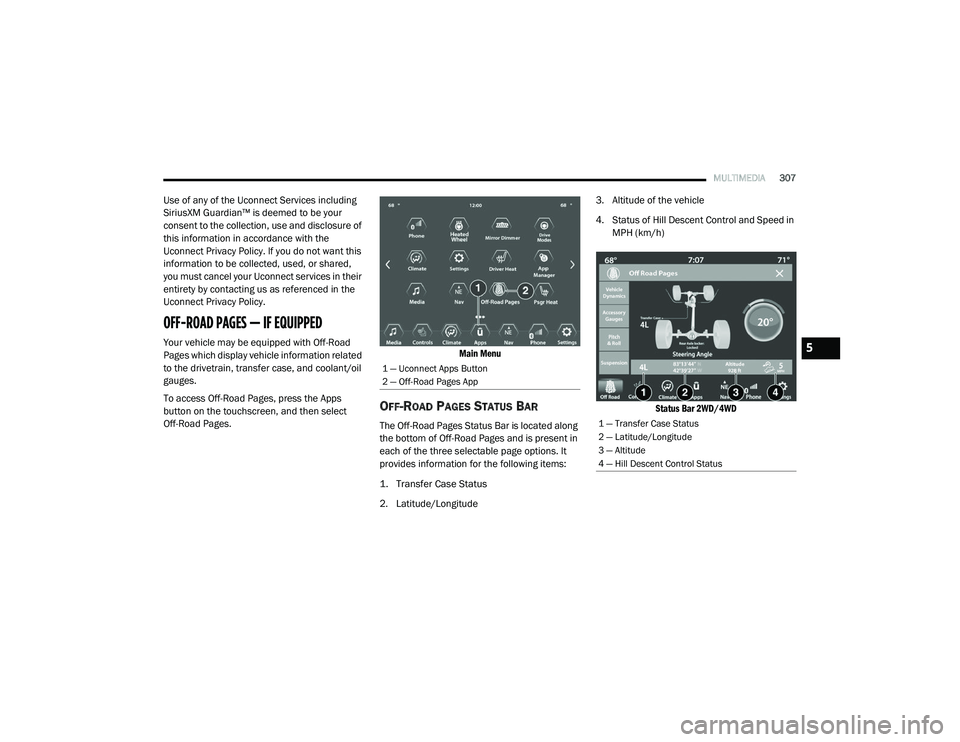
To access Off-Road Pages, press the Apps
button on the touchscreen, and then select
Off-Road Pages.
Main Menu
OFF-ROAD PAGES STATUS BAR
The Off-Road Pages Status Bar is located along
the bottom of Off-Road Pages and is present in
each of the three selectable page options. It
provides information for the following items:
1. Transfer Case Status
2. Latitude/Longitude3. Altitude of the vehicle
4. Status of Hill Descent Control and Speed in
MPH (km/h)
Status Bar 2WD/4WD
1 — Uconnect Apps Button
2 — Off-Road Pages App
1 — Transfer Case Status
2 — Latitude/Longitude
3 — Altitude
4 — Hill Descent Control Status
5
21_DT_OM_EN_USC_t.book Page 307
Page 313 of 496

SAFETY311
Anti-Lock Brake System (ABS) Warning
Light
The yellow ABS Warning Light will turn on when
the ignition is placed in the ON/RUN mode and
may stay on for as long as four seconds.
If the ABS Warning Light remains on or comes
on while driving, it indicates that the anti-lock
portion of the brake system is not functioning
and that service is required. However, the
conventional brake system will continue to
operate normally if the ABS Warning Light is on.
If the ABS Warning Light is on, the brake system
should be serviced as soon as possible to
restore the benefits of anti-lock brakes. If the
ABS Warning Light does not come on when the
ignition is placed in the ON/RUN mode, have
the light repaired as soon as possible.
ELECTRONIC BRAKE CONTROL (EBC)
S
YSTEM
Your vehicle is equipped with an advanced
Electronic Brake Control (EBC) system. This
system includes Anti-Lock Brake System (ABS),
Brake Assist System (BAS), Electronic Brake
Force Distribution (EBD), Electronic Roll
Mitigation (ERM), Electronic Stability Control
(ESC), Hill Start Assist (HSA), and Traction Control System (TCS). These systems work
together to enhance both vehicle stability and
control in various driving conditions.
Your vehicle may also be equipped with Trailer
Sway Control (TSC) and Hill Descent Control
(HDC).
Brake Assist System (BAS)
The BAS is designed to optimize the vehicle’s
braking capability during emergency braking
maneuvers. The system detects an emergency
braking situation by sensing the rate and
amount of brake application, and then applies
optimum pressure to the brakes. This can help
reduce braking distances. The BAS
complements the Anti-Lock Brake System
(ABS). Applying the brakes very quickly results
in the best BAS assistance. To receive the
benefit of the system, you must apply
continuous braking pressure during the
stopping sequence (do not “pump” the brakes).
Do not reduce brake pedal pressure unless
braking is no longer desired. Once the brake
pedal is released, the BAS is deactivated.
Brake System Warning Light
The red Brake System Warning Light will turn on
when the ignition is placed in the ON/RUN
mode and may stay on for as long as four
seconds.
If the Brake System Warning Light remains on or
comes on while driving, it indicates that the
brake system is not functioning properly and
that immediate service is required. If the Brake
System Warning Light does not come on when
the ignition is placed in the ON/RUN mode,
have the light repaired as soon as possible.
WARNING!
The Brake Assist System (BAS) cannot
prevent the natural laws of physics from
acting on the vehicle, nor can it increase the
traction afforded by prevailing road
conditions. BAS cannot prevent collisions,
including those resulting from excessive
speed in turns, driving on very slippery
surfaces, or hydroplaning. The capabilities of
a BAS-equipped vehicle must never be
exploited in a reckless or dangerous manner,
which could jeopardize the user's safety or
the safety of others.
6
21_DT_OM_EN_USC_t.book Page 311
Page 322 of 496
320SAFETY
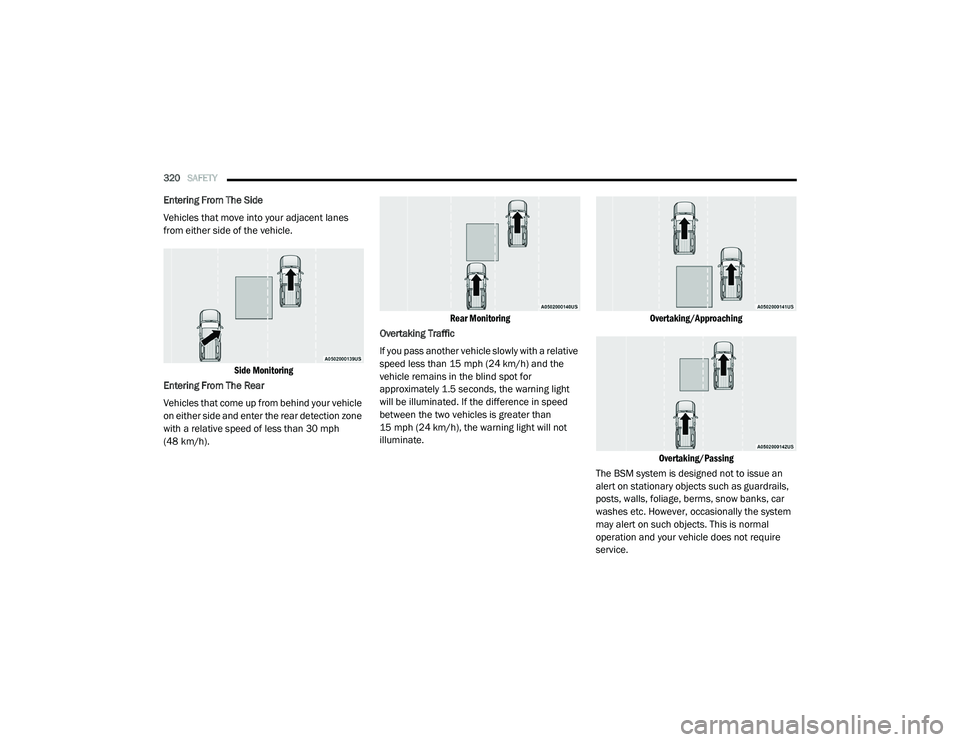
Entering From The Side
Vehicles that move into your adjacent lanes
from either side of the vehicle.
Side Monitoring
Entering From The Rear
Vehicles that come up from behind your vehicle
on either side and enter the rear detection zone
with a relative speed of less than 30 mph
(48 km/h).
Rear Monitoring
Overtaking Traffic
If you pass another vehicle slowly with a relative
speed less than 15 mph (24 km/h) and the
vehicle remains in the blind spot for
approximately 1.5 seconds, the warning light
will be illuminated. If the difference in speed
between the two vehicles is greater than
15 mph (24 km/h), the warning light will not
illuminate.
Overtaking/Approaching
Overtaking/Passing
The BSM system is designed not to issue an
alert on stationary objects such as guardrails,
posts, walls, foliage, berms, snow banks, car
washes etc. However, occasionally the system
may alert on such objects. This is normal
operation and your vehicle does not require
service.
21_DT_OM_EN_USC_t.book Page 320
Page 328 of 496
326SAFETY
When FCW status is set to “Warning and
Braking”, this allows the system to warn the
driver of a possible collision with the vehicle
in front using audible/visual warnings and it
applies autonomous braking.
The FCW system state is defaulted to “Full
On” from one ignition cycle to the next. If the
system is turned off, it will reset to “Full On”
when the vehicle is restarted.
FCW Braking Status And Sensitivity
The FCW Sensitivity and Active Braking status
are programmable through the Uconnect
system Ú page 237.
Far
When the sensitivity of FCW is set to the
“Far” setting and the system status is
“Only Warning”, this allows the system to
warn the driver of a possible more distant
collision with the vehicle in front using
audible/visual warnings.
More cautious drivers that do not mind
frequent warnings may prefer this
setting.
Medium
When the sensitivity of FCW is set to the
“Medium” setting and the system status
is “Only Warning”, this allows the system
to warn the driver of a possible collision
with the vehicle in front using audible/
visual warnings.
Near
When the sensitivity of FCW is set to the
“Near” setting and the system status is
“Only Warning”, this allows the system to
warn the driver of a possible closer colli -
sion with the vehicle in front using
audible/visual warnings.
This setting provides less reaction time
than the “Far” and “Medium” settings,
which allows for a more dynamic driving
experience.
More dynamic or aggressive drivers that
want to avoid frequent warnings may
prefer this setting.
FCW Limited Warning
If the instrument cluster displays “ACC/FCW
Limited Functionality” or “ACC/FCW Limited
Functionality Clean Front Windshield”
momentarily, there may be a condition that
limits FCW functionality. Although the vehicle is
still driveable under normal conditions, the
active braking may not be fully available. Once
the condition that limited the system
performance is no longer present, the system
will return to its full performance state. If the
problem persists, see an authorized dealer.
Service FCW Warning
If the system turns off, and the instrument
cluster displays:
ACC/FCW Unavailable Service Required
Cruise/FCW Unavailable Service Required
This indicates there is an internal system fault.
Although the vehicle is still drivable under
normal conditions, have the system checked by
an authorized dealer.
21_DT_OM_EN_USC_t.book Page 326