service RAM 1500 2021 Workshop Manual
[x] Cancel search | Manufacturer: RAM, Model Year: 2021, Model line: 1500, Model: RAM 1500 2021Pages: 496, PDF Size: 20.89 MB
Page 264 of 496
262MULTIMEDIA
No Subscription
Radios equipped with a Satellite receiver
require a subscription to the SiriusXM® Service.
When the Radio does not have the necessary
subscription, the Radio is able to receive the
Preview channel only.
Acquiring SiriusXM® Subscription
To activate the SiriusXM® Satellite Radio
subscription, US visit siriusxm.com/
getallaccess or call: 1-800-643-2112
Canada visit https://www.siriusxm.ca/ or call:
1-800-465-2001 (English) or 1-800-387-9983
(French).
NOTE:
You will need to provide the SiriusXM® ID (RID)
located at the bottom of the Channel 0 screen.
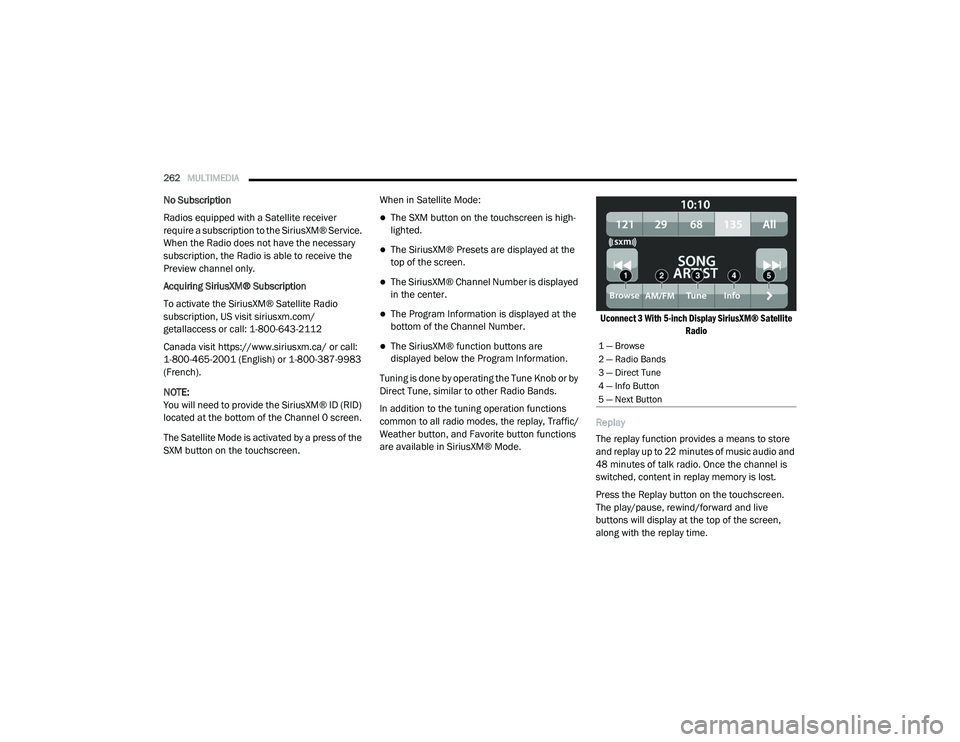
The Satellite Mode is activated by a press of the
SXM button on the touchscreen. When in Satellite Mode:
The SXM button on the touchscreen is high
-
lighted.
The SiriusXM® Presets are displayed at the
top of the screen.
The SiriusXM® Channel Number is displayed
in the center.
The Program Information is displayed at the
bottom of the Channel Number.
The SiriusXM® function buttons are
displayed below the Program Information.
Tuning is done by operating the Tune Knob or by
Direct Tune, similar to other Radio Bands.
In addition to the tuning operation functions
common to all radio modes, the replay, Traffic/
Weather button, and Favorite button functions
are available in SiriusXM® Mode.
Uconnect 3 With 5-inch Display SiriusXM® Satellite
Radio
Replay
The replay function provides a means to store
and replay up to 22 minutes of music audio and
48 minutes of talk radio. Once the channel is
switched, content in replay memory is lost.
Press the Replay button on the touchscreen.
The play/pause, rewind/forward and live
buttons will display at the top of the screen,
along with the replay time.1 — Browse
2 — Radio Bands
3 — Direct Tune
4 — Info Button
5 — Next Button
21_DT_OM_EN_USC_t.book Page 262
Page 278 of 496
276MULTIMEDIA
phonebook. Specific Bluetooth® Phones with
Phonebook Access Profile may support this
feature. Your mobile phone may receive a
pop-up asking for permission for the Uconnect
system to access your messages and contacts.
Selecting “Ok” or “Allow” will sync your contacts
with the Uconnect system.
See the Uconnect website,
UconnectPhone.com, for supported phones.
To call a name from a downloaded mobile
phonebook, follow the procedure in the
“Voice Command” in this section.
Automatic download and update of a phone -
book, if supported, begins as soon as the
Bluetooth® wireless phone connection is
made to the Uconnect Phone, for example,
after you start the vehicle.
A maximum of 5,000 contact names with
four numbers per contact will be downloaded
and updated every time a phone is
connected to the Uconnect Phone.
Depending on the maximum number of entries
downloaded, there may be a short delay before
the latest downloaded names can be used.
Until then, if available, the previously down -
loaded phonebook is available for use.
Only the phonebook of the currently
connected mobile phone is accessible.
This downloaded phonebook cannot be
edited or deleted on the Uconnect Phone.
These can only be edited on the mobile
phone. The changes are transferred and
updated to Uconnect Phone on the next
phone connection.
Managing Your Favorites — If Equipped
There are two ways you can add an entry to your
favorites:
1. After loading the mobile phonebook, press the Favorites button on the touchscreen,
and then press one of the +Add Favorite
Contact buttons that appears on the list.
2. After loading the mobile phonebook, select “Contacts” from the Phone main screen,
and then select the appropriate number.
Press the Down Arrow button next to the
selected number to display the option’s
pop-up. In the pop-up, select “Add to
Favorites”.
NOTE:
If the Favorites list is full, you will be asked to
remove an existing favorite. To Remove A Favorite — If Equipped
1. To remove a Favorite, select “Favorites”
from the Phone main screen.
2. Next, select the Down Arrow icon next to the contact you want to remove from your
favorites. This will bring up the options for
that Favorite contact.
3. Deselect the Star icon to delete the Favorite.
Phone Call Features
The following features can be accessed through
the Uconnect Phone if the feature(s) are
available and supported by Bluetooth® on your
mobile service plan. For example, if your mobile
service plan provides three-way calling, this
feature can be accessed through the Uconnect
Phone. Check with your mobile service provider
for the features that you have.
Listed below are the phone options with
Uconnect:
Redial
Dial by pressing in the number
21_DT_OM_EN_USC_t.book Page 276
Page 284 of 496
282MULTIMEDIA
CONNECTED VEHICLE SERVICES — IF
EQUIPPED
IS MY VEHICLE CONNECTED?
Vehicles with an Assist and an SOS button are
connected vehicles. These buttons will be
located on either the rearview mirror or
overhead console, depending on the vehicle. If
these buttons are present in your vehicle, you
have a connected radio and can take
advantage of the many connected vehicle
features.
For further information about the ASSIST and
SOS buttons Ú page 373.
INTRODUCTION TO CONNECTED VEHICLE
S
ERVICES
One of the many benefits of your vehicle’s
Uconnect system is that you can now take
advantage of SiriusXM Guardian™ connected
vehicle services. To unlock the full potential of
SiriusXM Guardian™ in your vehicle, you first
need to activate SiriusXM Guardian™ services. NOTE:
SiriusXM Guardian™ involves the collection,
transmission and use of data from your vehicle
Ú
page 306.
SiriusXM Guardian™ Contact Information
And Business Hours
SiriusXM Guardian™/Care
US residents visit: https://www.driveucon -
nect.com/sirius-xm-guardian.html or call
1-844-796-4827
Canadian residents visit: https://www.siri -
usxm.ca/guardian-v1/ or call
1-877-324-9091 Uconnect Phone Customer Support
UconnectPhone.com or for US residents call:
1-877-855-8400.
Canadian residents call: 1-800-465-2001
(English) or call: 1-800-387-9983 (French).
Business Hours
Central Time
Monday through Friday – 7:00 am to 10:00 pm
Saturday – 8:00 am to 9:00 pm
What Is SiriusXM Guardian™?
SiriusXM Guardian™ uses an embedded device
in the Uconnect system installed in your vehicle,
which receives GPS signals and communicates
with the SiriusXM Guardian™ Customer Care
center via wireless and landline
communications networks. Depending on the
type of device in your vehicle, some SiriusXM
Guardian™ services require an operable LTE
(voice/data) or 3G or 4G (data) network
compatible with your device. SiriusXM
Guardian™ is available only on equipped
vehicles purchased within the continental
United States, Alaska, Hawaii, Puerto Rico and
Canada.
WARNING!
ALWAYS obey traffic laws and pay attention to
the road. ALWAYS drive safely with your hands
on the steering wheel. You have full
responsibility and assume all risks related to
the use of the features and applications in
this vehicle. Only use the features and
applications when it is safe to do so. Failure
to comply may result in an accident involving
serious injury or death.
21_DT_OM_EN_USC_t.book Page 282
Page 285 of 496
MULTIMEDIA283
NOTE:
Certain SiriusXM Guardian™ services are
dependent upon an operative telematics
device, a cellular connection, navigation map
data, and GPS satellite signal reception, which
can limit the ability to reach the response
center or reach emergency support.
Not all features of SiriusXM Guardian™ are
available everywhere at all times, particularly
in remote or enclosed areas.
Other factors outside the control of SiriusXM
Guardian™ that may limit or prevent service
delivery are hills, structures, buildings,
tunnels, weather, damage to the electrical
system or other important parts of your
vehicle, network congestion, civil distur-
bances, actions of third parties or the govern -
ment, Internet failure, and/or the physical
location of your vehicle, such as in an under -
ground parking structure or under a bridge.
Not all SiriusXM Guardian™ features are
available for all models.
SiriusXM Guardian™ provides:
The ability to remotely lock/unlock and remote
start your vehicle from virtually anywhere by
using the Uconnect App or your computer.
Send & Go capability with the Uconnect App.
Use the Uconnect App to easily search, map
and send your locations directly to your
Uconnect Navigation.
The ability to locate your vehicle, when you
forget where you parked, using the Vehicle
Finder function of the Uconnect App.
Before you drive, familiarize yourself with the
easy-to-use Uconnect system and SiriusXM
Guardian™ services.
The ASSIST and SOS Call Buttons On Your
Rearview Mirror Or Overhead Console
The ASSIST Button is used for contacting
Roadside Assistance, Vehicle Care, Uconnect
Care, and SiriusXM Guardian™ Customer Care.
The SOS Call button connects you directly to
SiriusXM Guardian™ Customer Care for
assistance in an emergency.
Activation
To unlock the full potential of SiriusXM
Guardian™ in your vehicle, you must activate
your SiriusXM Guardian™ services.
1. Press the Apps icon on the bottom of your in-vehicle touchscreen.
2. Select the Activate Services icon from your
list of apps.
3. For customers in the United States , select
“Customer Care” to speak with a SiriusXM
Guardian™ Customer Care agent who will
activate services in your vehicle, or select
“Enter Email” to activate on the web.
For customers in Canada , enter your email
address to activate services in your vehicle.
Included Trial Period For New Vehicles
Your new vehicle may come with an included
trial period for use of the SiriusXM Guardian™
services starting on the date of vehicle
purchase. To get started with your trial,
enrollment in SiriusXM Guardian™ is required.
The Uconnect 4C/4C NAV includes a trial* of
SiriusXM Guardian™ services from your date of
purchase.
* Included trial applies to new vehicles only.
Features And Packages
After the trial period, you must purchase a
subscription to continue your services by calling
a SiriusXM Guardian™ Customer Care agent.
5
21_DT_OM_EN_USC_t.book Page 283
Page 286 of 496

284MULTIMEDIA
GETTING STARTED WITH CONNECTED
V
EHICLE SERVICES
Download The Uconnect App
Once you have activated your services, you’re
only a few steps away from using connected
services.
Uconnect Mobile App
Download the Uconnect app to your mobile
device.
Use your Owner Account login and password
to open the app and then set up a PIN.
For customers in the United States, visit
www.mopar.com, and click the Sign In/
Register button in the upper right-hand
corner to register your account online.a. Click the Register button
b. Select the correct country and email address then click “Register”.
c. You will then receive an email notification to confirm/verify your newly created
account.
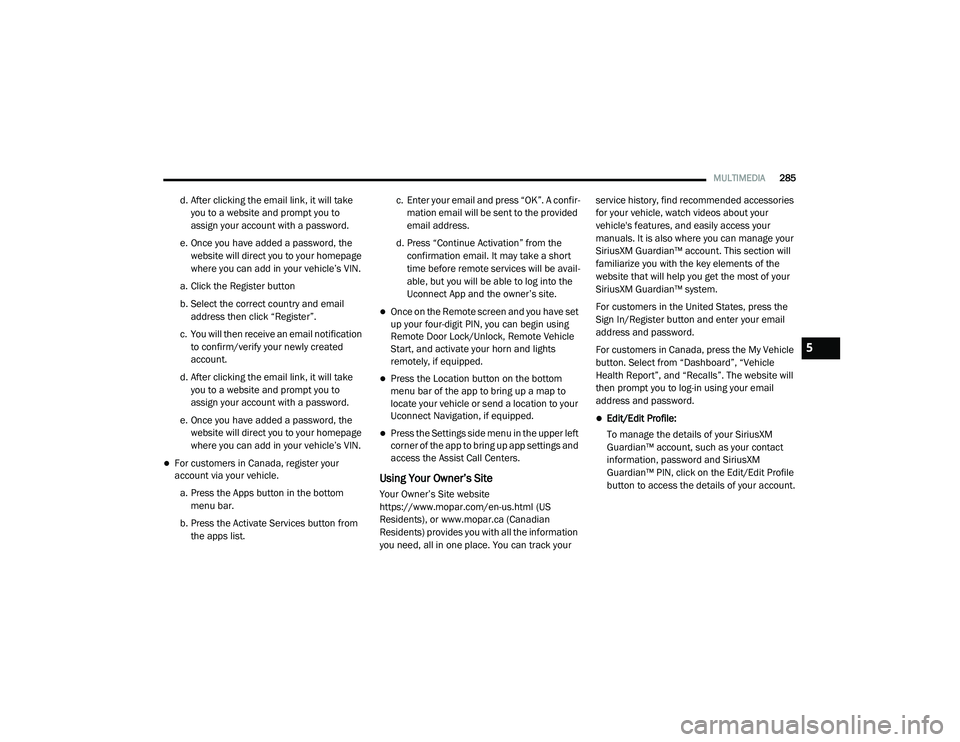
1 — Settings
2 — Vehicle Info
3 —Remote Commands
4 — Location And Send & Go
21_DT_OM_EN_USC_t.book Page 284
Page 287 of 496
MULTIMEDIA285
d. After clicking the email link, it will take
you to a website and prompt you to
assign your account with a password.
e. Once you have added a password, the website will direct you to your homepage
where you can add in your vehicle’s VIN.
a. Click the Register button
b. Select the correct country and email address then click “Register”.
c. You will then receive an email notification to confirm/verify your newly created
account.
d. After clicking the email link, it will take you to a website and prompt you to
assign your account with a password.
e. Once you have added a password, the website will direct you to your homepage
where you can add in your vehicle’s VIN.
For customers in Canada, register your
account via your vehicle.
a. Press the Apps button in the bottom menu bar.
b. Press the Activate Services button from the apps list. c. Enter your email and press “OK”. A confir
-
mation email will be sent to the provided
email address.
d. Press “Continue Activation” from the confirmation email. It may take a short
time before remote services will be avail -
able, but you will be able to log into the
Uconnect App and the owner’s site.
Once on the Remote screen and you have set
up your four-digit PIN, you can begin using
Remote Door Lock/Unlock, Remote Vehicle
Start, and activate your horn and lights
remotely, if equipped.
Press the Location button on the bottom
menu bar of the app to bring up a map to
locate your vehicle or send a location to your
Uconnect Navigation, if equipped.
Press the Settings side menu in the upper left
corner of the app to bring up app settings and
access the Assist Call Centers.
Using Your Owner’s Site
Your Owner’s Site website
https://www.mopar.com/en-us.html (US
Residents), or www.mopar.ca (Canadian
Residents) provides you with all the information
you need, all in one place. You can track your service history, find recommended accessories
for your vehicle, watch videos about your
vehicle's features, and easily access your
manuals. It is also where you can manage your
SiriusXM Guardian™ account. This section will
familiarize you with the key elements of the
website that will help you get the most of your
SiriusXM Guardian™ system.
For customers in the United States, press the
Sign In/Register button and enter your email
address and password.
For customers in Canada, press the My Vehicle
button. Select from “Dashboard”, “Vehicle
Health Report”, and “Recalls”. The website will
then prompt you to log-in using your email
address and password.
Edit/Edit Profile:
To manage the details of your SiriusXM
Guardian™ account, such as your contact
information, password and SiriusXM
Guardian™ PIN, click on the Edit/Edit Profile
button to access the details of your account.
5
21_DT_OM_EN_USC_t.book Page 285
Page 288 of 496
286MULTIMEDIA
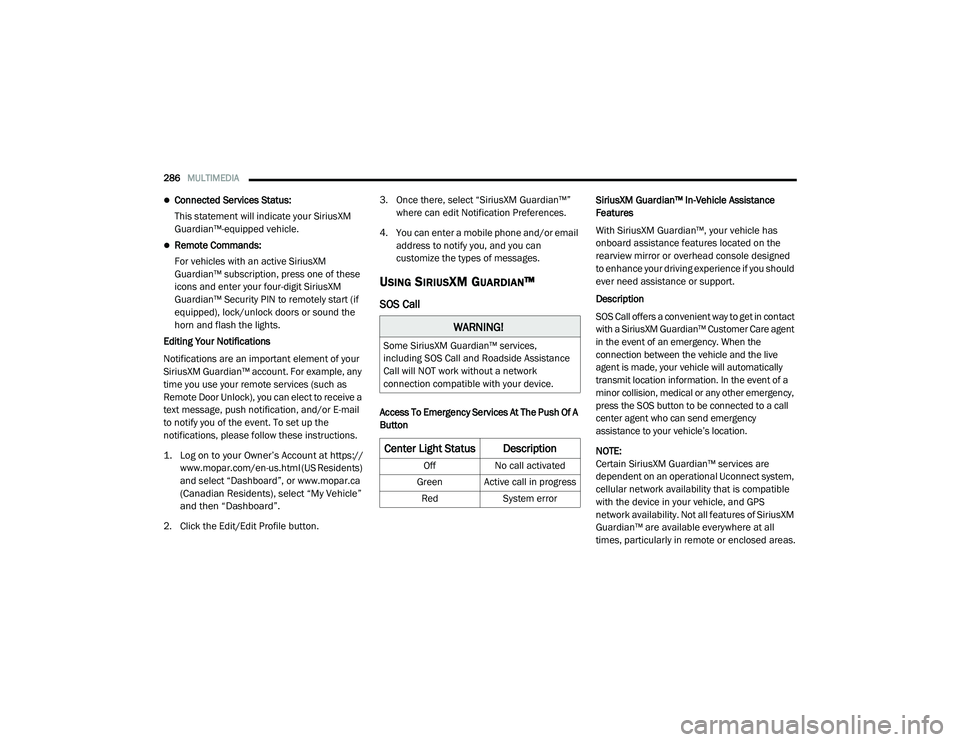
Connected Services Status:
This statement will indicate your SiriusXM
Guardian™-equipped vehicle.
Remote Commands:
For vehicles with an active SiriusXM
Guardian™ subscription, press one of these
icons and enter your four-digit SiriusXM
Guardian™ Security PIN to remotely start (if
equipped), lock/unlock doors or sound the
horn and flash the lights.
Editing Your Notifications
Notifications are an important element of your
SiriusXM Guardian™ account. For example, any
time you use your remote services (such as
Remote Door Unlock), you can elect to receive a
text message, push notification, and/or E-mail
to notify you of the event. To set up the
notifications, please follow these instructions.
1. Log on to your Owner’s Account at
https://
www.mopar.com/en-us.html (US Residents)
and select “Dashboard”, or www.mopar.ca
(Canadian Residents), select “My Vehicle”
and then “Dashboard”.
2. Click the Edit/Edit Profile button. 3. Once there, select “SiriusXM Guardian™”
where can edit Notification Preferences.
4. You can enter a mobile phone and/or email address to notify you, and you can
customize the types of messages.
USING SIRIUSXM GUARDIAN™
SOS Call
Access To Emergency Services At The Push Of A
Button SiriusXM Guardian™ In-Vehicle Assistance
Features
With SiriusXM Guardian™, your vehicle has
onboard assistance features located on the
rearview mirror or overhead console designed
to enhance your driving experience if you should
ever need assistance or support.
Description
SOS Call offers a convenient way to get in contact
with a SiriusXM Guardian™ Customer Care agent
in the event of an emergency. When the
connection between the vehicle and the live
agent is made, your vehicle will automatically
transmit location information. In the event of a
minor collision, medical or any other emergency,
press the SOS button to be connected to a call
center agent who can send emergency
assistance to your vehicle’s location.
NOTE:
Certain SiriusXM Guardian™ services are
dependent on an operational Uconnect system,
cellular network availability that is compatible
with the device in your vehicle, and GPS
network availability. Not all features of SiriusXM
Guardian™ are available everywhere at all
times, particularly in remote or enclosed areas.
WARNING!
Some SiriusXM Guardian™ services,
including SOS Call and Roadside Assistance
Call will NOT work without a network
connection compatible with your device.
Center Light Status Description
Off
No call activated
Green Active call in progress Red System error
21_DT_OM_EN_USC_t.book Page 286
Page 289 of 496
MULTIMEDIA287
How It Works
1. Push the SOS Call button; the indicator light will turn green indicating a call has
been placed.
NOTE:
In case the SOS Call button is accidentally
pushed, there is a 10-second delay before
the SOS call is placed. The system will
verbally alert you that a call is about to be
made. To cancel the SOS Call connection,
push the SOS Call button on the rearview
mirror or press the Cancel button on the
touchscreen within 10 seconds.
During an SOS Call, the Bluetooth® paired
phone is disconnected so incoming or
outgoing calls will go through your mobile
device versus the hands-free system which is
not available due to the SOS Call.
2. Once a connection between the vehicle and a SiriusXM Guardian™ Customer Care agent is
made, the agent will stay on the line with you.
NOTE:
Calls between the vehicle occupants and the
SiriusXM Guardian™ Customer Care center may
be recorded or monitored for quality assurance purposes. Through your enrollment in and use
of the SiriusXM Guardian™ services, you
consent to being recorded.
SOS Call System Limitations
Vehicles that have been purchased in the US
and that travel into Mexico and Canada may
have limited services. In particular, responses
to SOS calls or other emergency services may
be unavailable or very limited. Vehicles
purchased outside the United States and
Canada are unable to receive SiriusXM
Guardian™ services.
If the SOS Call system detects a malfunction,
any of the following may occur at the time the
malfunction is detected:
The light will continuously be illuminated red.
The screen will display the following message
“Vehicle phone requires service. Please
contact your dealer.”
An in-vehicle audio message will state
“Vehicle phone requires service. Please
contact your dealer.”
Even if the SOS Call system is fully functional,
factors beyond FCA US LLC’s control may
prevent or stop SOS Call system operation. These include, but are not limited to, the
following factors:
The ignition key is in OFF position.
The vehicle’s electrical systems are not
intact.
The vehicle battery loses power or becomes
disconnected during a vehicle crash.
The SOS Call system software and/or hard
-
ware is damaged during a vehicle crash.
LTE (voice/data) or 3G or 4G (data) coverage
and/or GPS signals are unavailable or
obstructed.
Network congestion.
Weather conditions.
Buildings, structures, geographic terrain, or
tunnels.
If your vehicle loses battery power for any
reason (including during or after an accident)
the SOS Call System, among other vehicle
systems, will not operate.
5
21_DT_OM_EN_USC_t.book Page 287
Page 290 of 496
288MULTIMEDIA
(Continued)
(Continued)
Requirements
This feature is available only on vehicles sold
in the US or Canada.
Vehicle must be properly equipped with the
SiriusXM Guardian™ system. Vehicle must be
registered with SiriusXM Guardian™ and
have an active subscription that includes the
applicable feature.
Vehicle must have an operable LTE (voice/
data) or 3G or 4G (data) network connection
compatible with your device.
Vehicle must be powered in the ON/RUN or
ACC (Accessory) position with a properly func -
tioning electrical system.
WARNING!
Never place anything on or near the
vehicle’s LTE (voice/data) or 3G or 4G
(data) and GPS antennas. You could
prevent LTE (voice/data) or 4G (data) and
GPS signal reception, which can prevent
your vehicle from placing an emergency
call.
Do not add any aftermarket electrical equip -
ment to the vehicle’s electrical system. This
may prevent your vehicle from sending a
signal to initiate an emergency call. To avoid
interference that can cause the SOS Call
system to fail, never add aftermarket equip -
ment (e.g., two-way mobile radio, CB radio,
data recorder, etc.) to your vehicle’s elec -
trical system or modify the antennas on your
vehicle. IF YOUR VEHICLE LOSES POWER
FOR ANY REASON (INCLUDING DURING OR
AFTER AN ACCIDENT), NEITHER THE UCON-
NECT APPS NOR THE SIRIUSXM
GUARDIAN™ SERVICES WILL OPERATE.
The Occupant Restraint Controller (ORC)
turns on the Air Bag Warning Light on the
instrument panel if a malfunction in any part
of the air bag system is detected. If the Air Bag
Warning Light is illuminated, the air bag
system may not be working properly and the
SOS Call system may not be able to send a
signal to the SiriusXM Guardian™ Customer
Care center. If the Air Bag Warning Light is illu -
minated, have an authorized dealer service
your vehicle immediately.
WARNING! (Continued)
Ignoring the Rearview Mirror Light could
mean you will not have SOS Call services if
needed. If the Rearview Mirror Light is illu -
minated, have an authorized dealer service
the SOS Call system immediately.
If anyone in the vehicle could be in danger
(e.g., fire or smoke is visible, dangerous
road conditions or location), do not wait for
voice contact from a SiriusXM Guardian™
Customer Care agent. All occupants should
exit the vehicle immediately and move to a
safe location.
Failure to perform scheduled maintenance
and regular inspection of your vehicle may
result in vehicle damage, accident or injury.
WARNING! (Continued)
21_DT_OM_EN_USC_t.book Page 288
Page 292 of 496
290MULTIMEDIA
activated your SiriusXM Guardian™
system). Enter the SiriusXM Guardian™
Security PIN on the keypad.
3. It may take 30 seconds or more for the command to go through to your vehicle.
4. A message will let you know if the command was received by your vehicle.
Using A Remote Command Through Your
Owner’s Site
1. Log on to your Owner’s Site using the username and password you used when
activating your SiriusXM Guardian™
services in your vehicle.
NOTE:
If you forgot your username or password, links
are provided on the website to help you retrieve
them.
2. If you have more than one vehicle registered into your Owner’s Site, select the
vehicle you want to send the command to by
clicking on its image along the top.
3. On your dashboard, you will see remote commands. Press the desired icon to
activate that feature. 4. You will then be asked to enter your
SiriusXM Guardian™ Security PIN (this is the
same four-digit code established when you
activated your SiriusXM Guardian™
system). Please enter your SiriusXM
Guardian™ Security PIN.
5. A message will appear on the screen to let you know if the command was received by
your vehicle.
Contacting SiriusXM Guardian™ Customer Care
(for example, in case of an accidental lock-out):
1. Contact SiriusXM Guardian™ Customer Care if you are unable to lock your vehicle
through the Uconnect App or your key fob.
2. For security purposes, the SiriusXM Guardian™ Customer Care agent will verify
your identity by asking for your four-digit
SiriusXM Guardian™ Security PIN.
3. After providing your SiriusXM Guardian™ Security PIN, you can ask them to perform a
remote command.
NOTE:
Anyone with access to your PIN may request
Remote Door Lock/Unlock. It is your responsi -
bility to protect your PIN appropriately.Remote Door Lock/Unlock
Description
The Remote Door Lock/Unlock feature provides
you the ability to lock or unlock the door on your
vehicle without the keys and from virtually any
distance.
Working Vehicle Conditions
The vehicle must in PARK or at a standstill.
The vehicle must be in an open area with cell
tower reception.
Your mobile device must have a cellular or
Wi-Fi connection.
Requirements
Vehicle must be properly equipped with the
SiriusXM Guardian™ system.
Vehicle must have an operable LTE (voice/
data) or 3G or 4G (data) network connection.
If using the Uconnect App to command your
vehicle, your device must be compatible and
be connected to an operable LTE (voice/
data) or 3G or 4G (data) network connection.
Vehicle must be registered with SiriusXM
Guardian™ and have an active subscription
that includes the applicable feature.
21_DT_OM_EN_USC_t.book Page 290