AUX RAM CHASSIS CAB 2021 User Guide
[x] Cancel search | Manufacturer: RAM, Model Year: 2021, Model line: CHASSIS CAB, Model: RAM CHASSIS CAB 2021Pages: 463, PDF Size: 21.5 MB
Page 190 of 463
188STARTING AND OPERATING
NOTE:
If snow, ice, mud, or any foreign substance
builds up on the camera lens, clean the lens,
rinse with water, and dry with a soft cloth.
Do not cover the lens.
Zoom View
When the Rear View Camera image is
being displayed, and the vehicle
speed is below 8 mph (13 km/h)
while in any gear selector position,
Zoom View is available. By pressing the
“magnifying glass” icon in the upper left of the
display screen, the image will zoom in to four
times the standard view. Pressing the icon a
second time will return the view to the standard
Backup Camera display.
When Zoom View is selected while the vehicle is
in REVERSE, then shifted to DRIVE, the camera
delay view will display the standard Backup
Camera view. If the vehicle is then returned to
REVERSE gear from DRIVE, the Zoom View
selection will automatically resume.
Shifting to NEUTRAL from any gear will maintain
the selected view (Zoom or Standard) as long as
the vehicle is below 8 mph (13 km/h). If the vehicle is in PARK, Zoom View is available
until the gear selector is placed in DRIVE or
REVERSE.
NOTE:
If the vehicle is in DRIVE, NEUTRAL, or
REVERSE, and speed is greater than or equal
to 8 mph (13 km/h), Zoom View is unavail
-
able and the icon will appear gray.
While in Zoom View, the guidelines will not be
visible.
AUX CAMERA — IF EQUIPPED
Your vehicle may be equipped with one or two
AUX Cameras, which display a rearview image
from the trailer on the touchscreen.
Activation
The AUX Camera is activated by first pressing the
Backup Camera, Cargo Camera (if equipped), or
Surround View Camera (if equipped) button on
the touchscreen, followed by the AUX button
located in the upper left corner of the rearview
display. The AUX camera can also be activated
when the vehicle is in REVERSE by pressing the
AUX button.
If equipped with two AUX Cameras, you can
switch between each camera by pressing the
AUX1 or AUX2 buttons on the Trailer Camera
display.
AUX1 Camera Button
AUX2 Camera Button
Deactivation
The AUX Camera is deactivated by pressing the
“X” in the upper right corner of the touchscreen.
This will return the display back to the
previously displayed screen.
NOTE:
If the AUX button is pressed and no AUX
Camera is connected, the touchscreen will
display a blue screen along with the message
“Camera System Unavailable.” The screen
can be exited out by pressing the “X” in the
upper right hand corner. This will return the
display back to the previously displayed
screen.
21_DPF_OM_EN_USC_t.book Page 188
Page 191 of 463
STARTING AND OPERATING189
Zoom View is not available with the AUX
Camera feature.
The display will always default to the Trailer
Camera display (AUX 1).
SURROUND VIEW CAMERA SYSTEM — IF
EQUIPPED
Your vehicle may be equipped with the Surround
View Camera system that allows you to see an
on-screen image of the surroundings and Top
View of your vehicle whenever the gear selector is
put into REVERSE or manually activated via the
Uconnect system. The Top View of the vehicle will
show which doors are open. The image will be
displayed on the touchscreen display along with
a caution note “Check Entire Surroundings”
across the top of the screen. After five seconds,
this note will disappear. The Surround View
Camera system is comprised of three sequential
cameras located in the front grille and side
mirrors, in addition to a fourth Rear Back Up
Camera.
NOTE:
For the 3500, 4500, and 5500 Chassis Cab vehi
-
cles, the Rear Backup Camera is shipped loose
and not installed. Please refer to the Ram Body
Builder’s Guide for more information.
The Surround View Camera system has
programmable settings that may be selected
through the Uconnect system Ú page 228.
Press this button on the touchscreen
to enter the Surround View Camera
menu in the Uconnect system.
When the vehicle is shifted into REVERSE, the
Rear View and Top View is the default view of
the system.
If the camera delay is turned on, the camera
image will display for up to 10 seconds after
shifting out of REVERSE. The camera image will
not display for 10 seconds if the vehicle speed
exceeds 8 mph (13 km/h), the vehicle is shifted
into PARK, or the ignition is placed in the OFF
position. The “X” button on the touchscreen
disables the display of the camera image.
If the camera delay is turned off, the camera
image will close and display the previous screen
after shifting out of REVERSE. If active guidelines are enabled, the lines are
overlaid on the image in the Rear View to
illustrate the width of the vehicle. The view
will also include the side view mirrors and its
projected back up path based on the steering
wheel position.
There are different colored zones to indicate the
distance to the rear of the vehicle. Refer to the
chart below:
Modes Of Operation
Standard Rear View can be manually activated
by selecting “Back Up Camera” through the
Controls menu within the Uconnect system.
Top View
The Top View will show in the Uconnect system
with Rear View and Front View in a split screen
display. There are integrated ParkSense arcs in
the image at the front and rear of the vehicle.
Zone
Distance To The Rear Of The
Vehicle
Red 0 - 1 ft (0 - 30 cm)
Yellow 1 ft - 6.5 ft (30 cm - 2 m)
Green 6.5 ft or greater
(2 m or greater)
4
21_DPF_OM_EN_USC_t.book Page 189
Page 196 of 463
194STARTING AND OPERATING
NOTE:
If the vehicle is not equipped with a Pickup Box:
The bottom wedge of the Top View will be
displayed in black.
The Rear Cross Path soft button will be
grayed out.
The guidelines will not be overlaid on Top
View/Rear View and Full Screen of Rear View.
Black video will be displayed for the right side
of the Top and Rear View, and full screen of
the Rear View when the Rear View Camera is
not connected.
AUX CAMERA — IF EQUIPPED
Your vehicle may be equipped with one or two
AUX Cameras, which display a rearview image
from the trailer on the touchscreen.
Activation
The AUX Camera is activated by first pressing the
Backup Camera, Cargo Camera (if equipped), or
Surround View Camera (if equipped) button on
the touchscreen, followed by the AUX button
located in the upper left corner of the rearview
display. The AUX camera can also be activated
when the vehicle is in REVERSE by pressing the
AUX button.
If equipped with two AUX Cameras, you can
switch between each camera by pressing the
AUX1 or AUX2 buttons on the Trailer Camera
display.
AUX1 Camera Button
AUX2 Camera Button Deactivation
The AUX Camera is deactivated by pressing the
“X” in the upper right corner of the touchscreen.
This will return the display back to the
previously displayed screen.
NOTE:
If the AUX button is pressed and no AUX
Camera is connected, the touchscreen will
display a blue screen along with the message
“Camera System Unavailable.” The screen
can be exited out by pressing the “X” in the
upper right hand corner. This will return the
display back to the previously displayed
screen.
Zoom View is not available with the AUX
Camera feature.
The display will always default to the Trailer
Camera display (AUX 1).
CAUTION!
To avoid vehicle damage, Surround View
should only be used as a parking aid. The
Surround View camera is unable to view
every obstacle or object in your drive path.
To avoid vehicle damage, the vehicle must
be driven slowly when using Surround View
to be able to stop in time when an obstacle
is seen. It is recommended that the driver
look frequently over his/her shoulder when
using Surround View.
21_DPF_OM_EN_USC_t.book Page 194
Page 223 of 463
MULTIMEDIA221
NOTE:
FCA US LLC or your dealer may contact you
directly regarding software updates.
To help further improve vehicle security and
minimize the potential risk of a security
breach, vehicle owners should:
Routinely check www.driveuconnect.com
(US Residents) or www.driveuconnect.ca
(Canadian Residents) to learn about
available Uconnect software updates.
Only connect and use trusted media
devices (e.g. personal mobile phones,
USBs, CDs).
Privacy of any wireless and wired
communications cannot be assured. Third
parties may unlawfully intercept information
and private communications without your
consent Ú page 116.
UCONNECT 3.0
INTRODUCTION
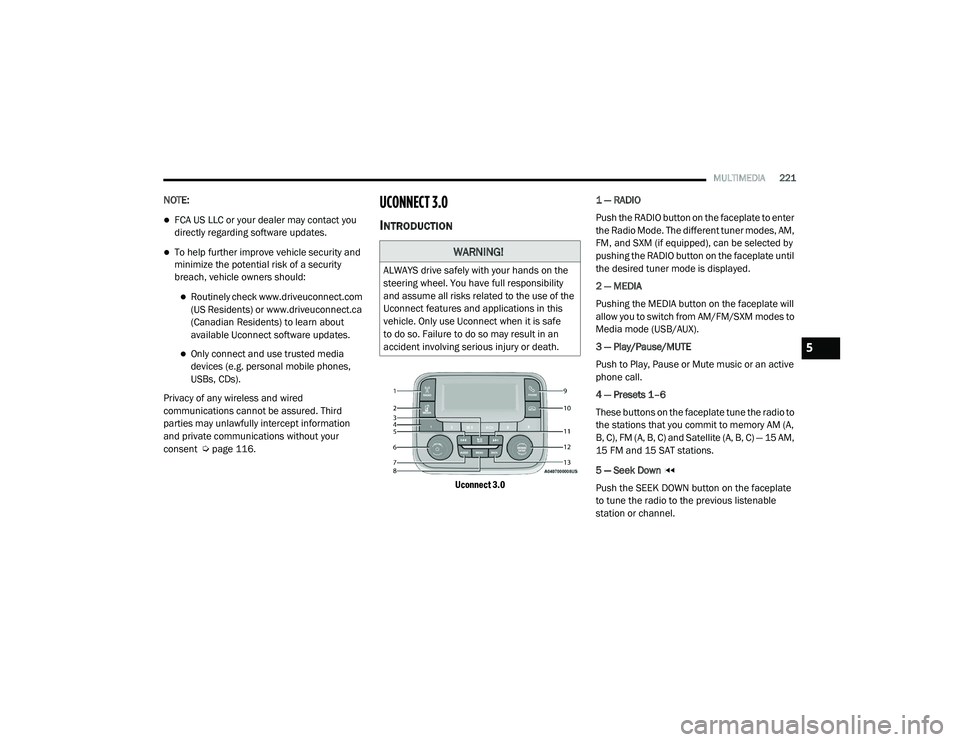
Uconnect 3.0
1 — RADIO
Push the RADIO button on the faceplate to enter
the Radio Mode. The different tuner modes, AM,
FM, and SXM (if equipped), can be selected by
pushing the RADIO button on the faceplate until
the desired tuner mode is displayed.
2 — MEDIA
Pushing the MEDIA button on the faceplate will
allow you to switch from AM/FM/SXM modes to
Media mode (USB/AUX).
3 — Play/Pause/MUTE
Push to Play, Pause or Mute music or an active
phone call.
4 — Presets 1–6
These buttons on the faceplate tune the radio to
the stations that you commit to memory AM (A,
B, C), FM (A, B, C) and Satellite (A, B, C) — 15 AM,
15 FM and 15 SAT stations.
5 — Seek Down
Push the SEEK DOWN button on the faceplate
to tune the radio to the previous listenable
station or channel.
WARNING!
ALWAYS drive safely with your hands on the
steering wheel. You have full responsibility
and assume all risks related to the use of the
Uconnect features and applications in this
vehicle. Only use Uconnect when it is safe
to do so. Failure to do so may result in an
accident involving serious injury or death.
5
21_DPF_OM_EN_USC_t.book Page 221
Page 226 of 463
224MULTIMEDIA
Audio
Push Audio button. Turning the Tune/Scroll
knob highlights the desired selection.
The Audio Menu shows the following options for
you to customize the audio settings:
Treble, Mid, Bass, Fade And Balance — Select
the desired setting to adjust, then push the
Enter/Browse button. Turn the Tune/Scroll
knob to adjust the setting + or – 9. Push the
BACK button on the faceplate when done.
Speed Adjusted Volume (if equipped) —
Select Speed Adjusted Volume and push the
Enter/Browse button. Turn the Tune/Scroll
knob to adjust the setting to Off, 1, 2, or 3.
Push the Back button on the faceplate when
done.
Loudness (if equipped) — Select Loudness
and push the Enter/Browse button to mark
the check box on or off. Push the Back button
on the faceplate when done.
AUX Volume Offset (if equipped) — Select AUX
Volume Offset and push the Enter/Browse
button. Turn the Tune/Scroll knob to adjust
the setting + or – 3. Push the Back button on
the faceplate when done.
Clock Setting
1. Push the Menu button at the bottom of the
radio, and push the Enter/Browse button
for System Settings. Next, select the Time
and Format setting and then select Set
Time by pushing the Enter/Browse button.
2. Adjust the hours or minutes by turning the Tune/Scroll knob, then pushing the
Enter/Browse button to move to the next
entry. You can also select 12 hr or 24 hr
format by turning the Tune/Scroll knob,
then pushing the Enter/Browse button on
the desired selection.
3. Once the time is set, press the Back button to exit the time screen.
MEDIA MODE
Operating Media Mode
Media Mode is entered by pushing the Media
button on the faceplate located to the left of the
display. Once in Media Mode, press the Media
button in order to select the desired media
source. Audio Source Selection
Push the Media button on the faceplate to
select the desired audio source, AUX, USB or
Bluetooth® audio device.
Seek Up/Seek Down
Push and release the Seek Up button on the
faceplate for the next selection.
Push and release the Seek Down button on
the faceplate to return to the beginning of the
current selection, or return to the beginning of
the previous selection if the Media is within the
first three seconds of the current selection.
Fast Seek Up
Push and hold the Seek Up button on the
faceplate and the desired mode will begin to
fast forward through the current track until the
button on the faceplate is released.
Fast Seek Down
Push and hold the Seek Down button on the
faceplate and the desired mode will begin to
rewind through the current track until the
button on the faceplate is released.
21_DPF_OM_EN_USC_t.book Page 224
Page 227 of 463
MULTIMEDIA225
USB Mode
USB Mode is entered by either inserting a USB
device into the USB port, or by pushing the
Media button. Once in Media Mode, push the
Media button and select USB. The display will
show the track number, and track time in
minutes and seconds. Play will begin at the start
of track one.
Bluetooth® Mode
Bluetooth® Streaming Audio (BTSA) or
Bluetooth® Mode is entered by pairing a
Bluetooth® device containing music to the
Uconnect system.
Before proceeding, the Bluetooth® device
must be paired with the Uconnect Phone to
communicate with the Uconnect system.
Once the Bluetooth® device is paired to the
Uconnect system, push the Media button
located on the faceplate. Once in Media Mode,
push the Media button and then select
Bluetooth®.
For mobile phone compatibility and pairing
instructions, please visit UconnectPhone.com.
AUX Mode
AUX Mode is entered by inserting an AUX device
using a cable with a 3.5 mm stereo audio jack
into the AUX port, or by pushing Media button.
Once in Media Mode, push the Media button
and select AUX.
If you insert an auxiliary device with the ignition
ON/RUN and the radio On, the unit will switch to
AUX Mode and begin to play when you insert the
device cable.
Controlling The Auxiliary Device
The control of the auxiliary device (e.g.,
selecting playlists, play, fast forward, etc.)
cannot be provided by the radio. Use the device
controls instead. Adjust the volume with the
On/Off Volume rotary knob or with the volume
of the attached device.
NOTE:
The vehicle radio unit is acting as the amplifier
for audio output from the auxiliary device.
Therefore, if the volume control on the auxiliary
device is set too low, there will be insufficient
audio signal for the radio unit to play music from
the device.
PHONE MODE
Operating Phone Mode
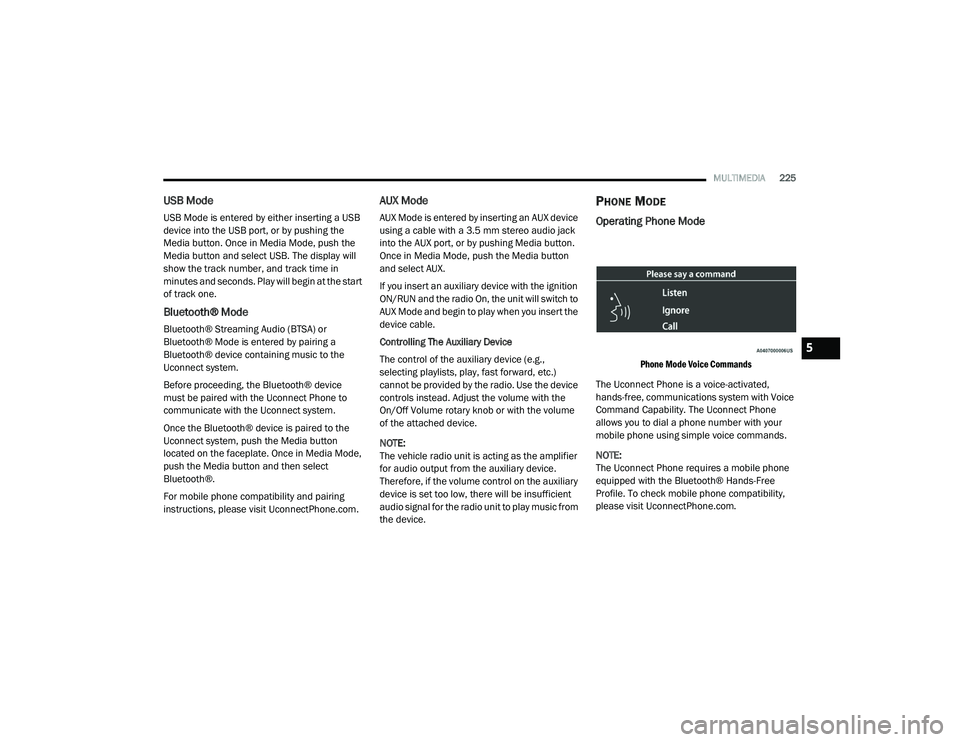
Phone Mode Voice Commands
The Uconnect Phone is a voice-activated,
hands-free, communications system with Voice
Command Capability. The Uconnect Phone
allows you to dial a phone number with your
mobile phone using simple voice commands.
NOTE:
The Uconnect Phone requires a mobile phone
equipped with the Bluetooth® Hands-Free
Profile. To check mobile phone compatibility,
please visit UconnectPhone.com.
5
21_DPF_OM_EN_USC_t.book Page 225
Page 242 of 463

240MULTIMEDIA
AUX Switches — If Equipped
When the AUX Switches button is pressed on the touchscreen, the system displays the options related to the four vehicle AUX switches.Aero Mode
This setting will automatically adjust the vehicle ride height depending on the vehicle speed.
Tire Jack Mode This setting will disable the air suspension system to assist in changing a spare tire.
Transport Mode This setting will disable the air suspension system for flat towing.
Wheel Alignment Mode This setting must be activated before performing a wheel alignment. Refer to an authorized
dealer for further information.
Four Corner Air Suspension Modes There are three air suspension modes designed to protect the system in unique situations.
Tire Jack Mode is selected to assist in changing a spare tire. Transport Mode is selected to
assist when the vehicle is being flat bed towed. Wheel Alignment Mode is selected before
performing a wheel alignment. Refer to an authorized dealer for information.
Setting Name
Description
Setting NameDescription
AUX 1-4This setting will adjust the type and power source for the four vehicle AUX switches. There are
two types: “Latching” and “Momentary”. The power source for the AUX switches can either be
set to run off the “Battery” or from the “Ignition”. In addition to setting the type and power
source, you can set if the vehicle will recall the previous state at which the AUX switches were
set. The Recalled Last State setting can be set to “On” or “Off”. Last state conditions are met
only if the type is set to Latching and the power source is set to Ignition.
21_DPF_OM_EN_USC_t.book Page 240
Page 244 of 463
242MULTIMEDIA
Phone/Bluetooth®
When the Phone/Bluetooth® button is pressed on the touchscreen, the system displays the options related to Bluetooth® connectivity from an external
audio device or smartphone. The list of paired audio devices or smartphones can be accessed from this menu.AUX Volume Offset
This setting will tune the audio levels from a device connected through the AUX port.
The available settings are “+” and “-”.
Auto Play This setting will automatically begin playing audio from a connected device.
Loudness This setting will improve audio quality at lower volumes.
Setting Name Description
Phone Pop-Ups Displayed In ClusterThis setting will activate phone message pop-ups in the Instrument Cluster Display.
Do Not Disturb This setting will open the “Do Not Disturb” settings menu. The settings are “Auto Reply” (both,
text, call), “Auto Reply Message” (custom, default), and “Custom Auto Reply Message” (create
message).
Paired Phones This setting will show the list of paired phones.
Paired Audio Sources This setting will show the list of paired audio sources.
Paired Phones And Audio Devices This setting will show the list of paired phones and audio devices.
Setting Name Description
21_DPF_OM_EN_USC_t.book Page 242
Page 249 of 463
MULTIMEDIA247
UCONNECT MODES
STEERING WHEEL AUDIO CONTROLS
The remote sound system controls are located
on the rear surface of the steering wheel at the
three and nine o’clock positions.
Remote Sound System Controls
The right-hand control is a rocker-type switch with
a push button in the center and controls the
volume and mode of the sound system. Pushing
the top of the rocker switch will increase the
volume, and pushing the bottom of the rocker
switch will decrease the volume.
Pushing the center button will make the radio
switch between the various modes available
(AM/FM/SXM or Media, etc.). The left-hand control is a rocker-type switch with
a push button in the center. The function of the
left-hand control is different depending on
which mode you are in.
The following describes the left-hand control
operation in each mode:
Radio Operation
Pushing the top of the switch will Seek Up for
the next available station and pushing the
bottom of the switch will Seek Down for the next
available station.
The button located in the center of the left-hand
control will tune to the next preset station that
you have programmed in the radio presets.
Media Mode
Pushing the top of the switch skips to the
next track on the selected media (AUX/USB/
Bluetooth®). Pushing the switch up twice will go
forward two tracks. Pushing the bottom switch
goes to the beginning of the current track, or the
beginning of the previous track if it is within eight
seconds after the current track begins to play.
Double pressing the bottom button switch will
skip to the previous track if it is after eight
seconds into the current track.
RADIO MODE
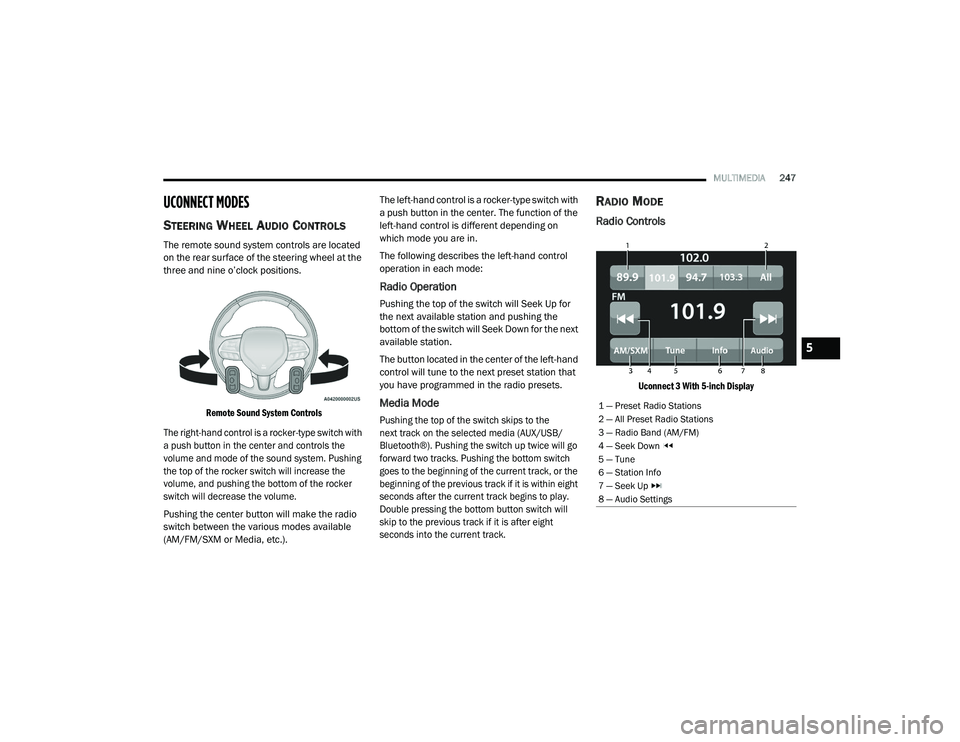
Radio Controls
Uconnect 3 With 5-inch Display
1 — Preset Radio Stations
2 — All Preset Radio Stations
3 — Radio Band (AM/FM)
4 — Seek Down
5 — Tune
6 — Station Info
7 — Seek Up
8 — Audio Settings
5
21_DPF_OM_EN_USC_t.book Page 247
Page 255 of 463
MULTIMEDIA253
Add/Delete — If Equipped
Press the Add/Delete button on the touchscreen to
activate the League Scroll list. Press the chosen
league and a scroll list of all teams within the league
will appear, then you can select a team by pressing
the corresponding box. A check mark appears for all
teams that are chosen.
Remove Selection/Trash Can Icon
Press the Remove Selection tab at the top of
the screen. Press the Delete All button on the
touchscreen to delete all of the selections or press
the Trash Can icon next to the selection to be
deleted.
Alert Settings
Press the Alert Setting tab at the top of the
screen. The Alert Settings menu allows you to
choose from “Alert me to on-air games upon
start” or “Alert upon score update” or both when
one or more of your selections is airing on any
of the SiriusXM® channels.
Tune Start
Tune Start begins playing the current song from
the beginning when you tune to a music channel
using one of the 12 presets. This feature occurs
the first time the preset is selected during that
current song.
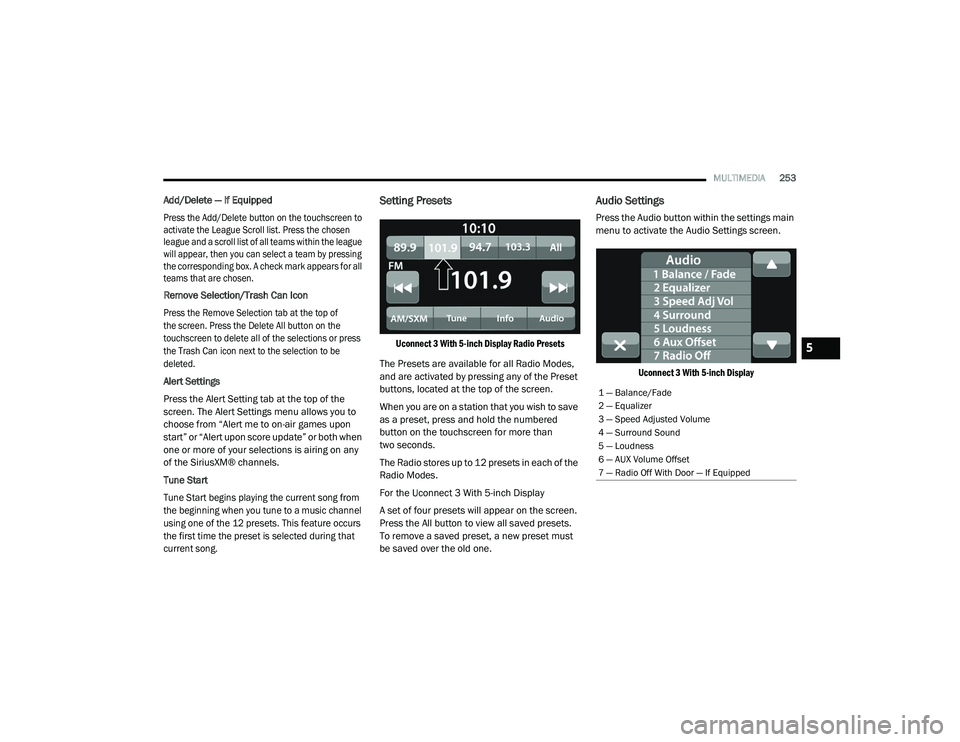
Setting Presets
Uconnect 3 With 5-inch Display Radio Presets
The Presets are available for all Radio Modes,
and are activated by pressing any of the Preset
buttons, located at the top of the screen.
When you are on a station that you wish to save
as a preset, press and hold the numbered
button on the touchscreen for more than
two seconds.
The Radio stores up to 12 presets in each of the
Radio Modes.
For the Uconnect 3 With 5-inch Display
A set of four presets will appear on the screen.
Press the All button to view all saved presets.
To remove a saved preset, a new preset must
be saved over the old one.
Audio Settings
Press the Audio button within the settings main
menu to activate the Audio Settings screen.
Uconnect 3 With 5-inch Display
1 — Balance/Fade
2 — Equalizer
3 — Speed Adjusted Volume
4 — Surround Sound
5 — Loudness
6 — AUX Volume Offset
7 — Radio Off With Door — If Equipped
5
21_DPF_OM_EN_USC_t.book Page 253