lock RAM CHASSIS CAB 2021 Owner's Guide
[x] Cancel search | Manufacturer: RAM, Model Year: 2021, Model line: CHASSIS CAB, Model: RAM CHASSIS CAB 2021Pages: 463, PDF Size: 21.5 MB
Page 58 of 463

56GETTING TO KNOW YOUR VEHICLE
Dimmer Controls
With the parking lights or headlights on, rotating
the right dimmer control upward will increase
the brightness of the instrument panel lights.
Rotating the left dimmer control will adjust the
interior and ambient light levels.
NOTE:
The ambient lights are only active when the
headlights or parking lights are on.
ILLUMINATED ENTRY
The courtesy lights will turn on when you use the
key fob to unlock the doors (if the vehicle is
equipped with remote power door locks) or
open any door.
This feature also turns on the puddle
lamps located beneath the outside mirrors
(if equipped).
The lights will fade to off after approximately
30 seconds, or they will immediately fade to off
once the ignition switch is turned to ON/RUN
from the OFF position.
The front courtesy overhead console and door
courtesy lights will not turn off if the Dome On
button on the overhead console is pushed.
The illuminated entry system will not operate if
the Dome Off button on the overhead console is
pushed.
NOTE:
If your vehicle is equipped with Illuminated
Approach lights under the outside mirrors, they
will also be turned off by pushing the Dome Off
button.
WINDSHIELD WIPERS AND WASHERS
The windshield wiper/washer controls are
located on the multifunction lever on the left
side of the steering column. The front wipers are
operated by rotating a switch, located on the
end of the lever.
Windshield Wiper/Washer Lever
1 — Ambient Light Control
2 — Instrument Panel Dimmer Control
21_DPF_OM_EN_USC_t.book Page 56
Page 63 of 463
GETTING TO KNOW YOUR VEHICLE61
NOTE:
The numbers within the temperature display
will only appear if the system is equipped
with an automatic climate control system.
Up and down buttons are only available on
vehicles equipped with a 12-inch display.
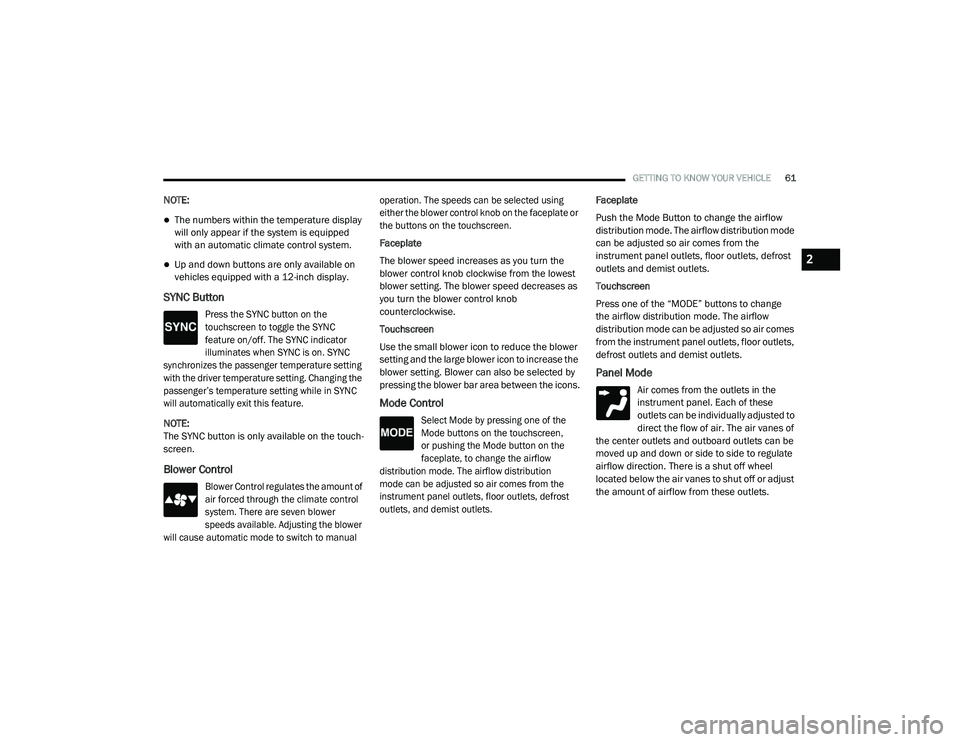
SYNC Button
Press the SYNC button on the
touchscreen to toggle the SYNC
feature on/off. The SYNC indicator
illuminates when SYNC is on. SYNC
synchronizes the passenger temperature setting
with the driver temperature setting. Changing the
passenger’s temperature setting while in SYNC
will automatically exit this feature.
NOTE:
The SYNC button is only available on the touch -
screen.
Blower Control
Blower Control regulates the amount of
air forced through the climate control
system. There are seven blower
speeds available. Adjusting the blower
will cause automatic mode to switch to manual operation. The speeds can be selected using
either the blower control knob on the faceplate or
the buttons on the touchscreen.
Faceplate
The blower speed increases as you turn the
blower control knob clockwise from the lowest
blower setting. The blower speed decreases as
you turn the blower control knob
counterclockwise.
Touchscreen
Use the small blower icon to reduce the blower
setting and the large blower icon to increase the
blower setting. Blower can also be selected by
pressing the blower bar area between the icons.
Mode Control
Select Mode by pressing one of the
Mode buttons on the touchscreen,
or pushing the Mode button on the
faceplate, to change the airflow
distribution mode. The airflow distribution
mode can be adjusted so air comes from the
instrument panel outlets, floor outlets, defrost
outlets, and demist outlets.
Faceplate
Push the Mode Button to change the airflow
distribution mode. The airflow distribution mode
can be adjusted so air comes from the
instrument panel outlets, floor outlets, defrost
outlets and demist outlets.
Touchscreen
Press one of the “MODE” buttons to change
the airflow distribution mode. The airflow
distribution mode can be adjusted so air comes
from the instrument panel outlets, floor outlets,
defrost outlets and demist outlets.
Panel Mode
Air comes from the outlets in the
instrument panel. Each of these
outlets can be individually adjusted to
direct the flow of air. The air vanes of
the center outlets and outboard outlets can be
moved up and down or side to side to regulate
airflow direction. There is a shut off wheel
located below the air vanes to shut off or adjust
the amount of airflow from these outlets.
2
21_DPF_OM_EN_USC_t.book Page 61
Page 65 of 463
GETTING TO KNOW YOUR VEHICLE63
Attempting to use Recirculation while in this
mode causes the LED in the control button to
link, and then turn off.
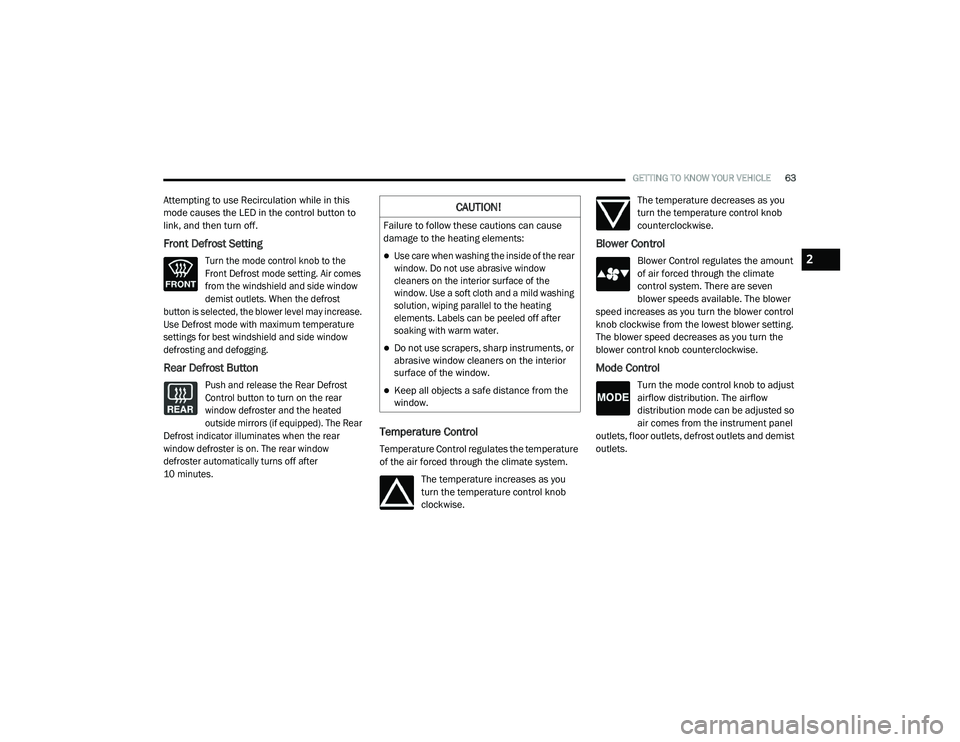
Front Defrost Setting
Turn the mode control knob to the
Front Defrost mode setting. Air comes
from the windshield and side window
demist outlets. When the defrost
button is selected, the blower level may increase.
Use Defrost mode with maximum temperature
settings for best windshield and side window
defrosting and defogging.
Rear Defrost Button
Push and release the Rear Defrost
Control button to turn on the rear
window defroster and the heated
outside mirrors (if equipped). The Rear
Defrost indicator illuminates when the rear
window defroster is on. The rear window
defroster automatically turns off after
10 minutes.
Temperature Control
Temperature Control regulates the temperature
of the air forced through the climate system.
The temperature increases as you
turn the temperature control knob
clockwise. The temperature decreases as you
turn the temperature control knob
counterclockwise.
Blower Control
Blower Control regulates the amount
of air forced through the climate
control system. There are seven
blower speeds available. The blower
speed increases as you turn the blower control
knob clockwise from the lowest blower setting.
The blower speed decreases as you turn the
blower control knob counterclockwise.
Mode Control
Turn the mode control knob to adjust
airflow distribution. The airflow
distribution mode can be adjusted so
air comes from the instrument panel
outlets, floor outlets, defrost outlets and demist
outlets.
CAUTION!
Failure to follow these cautions can cause
damage to the heating elements:
Use care when washing the inside of the rear
window. Do not use abrasive window
cleaners on the interior surface of the
window. Use a soft cloth and a mild washing
solution, wiping parallel to the heating
elements. Labels can be peeled off after
soaking with warm water.
Do not use scrapers, sharp instruments, or
abrasive window cleaners on the interior
surface of the window.
Keep all objects a safe distance from the
window.
2
21_DPF_OM_EN_USC_t.book Page 63
Page 78 of 463
76GETTING TO KNOW YOUR VEHICLE
WIRELESS CHARGING PAD — IF
E
QUIPPED
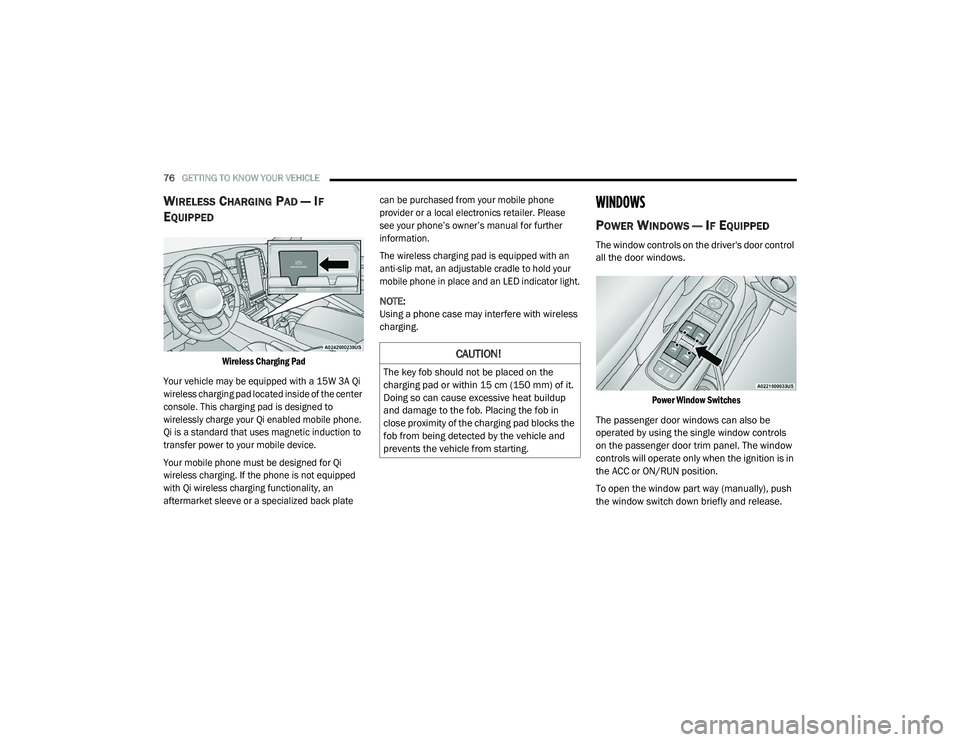
Wireless Charging Pad
Your vehicle may be equipped with a 15W 3A Qi
wireless charging pad located inside of the center
console. This charging pad is designed to
wirelessly charge your Qi enabled mobile phone.
Qi is a standard that uses magnetic induction to
transfer power to your mobile device.
Your mobile phone must be designed for Qi
wireless charging. If the phone is not equipped
with Qi wireless charging functionality, an
aftermarket sleeve or a specialized back plate can be purchased from your mobile phone
provider or a local electronics retailer. Please
see your phone’s owner’s manual for further
information.
The wireless charging pad is equipped with an
anti-slip mat, an adjustable cradle to hold your
mobile phone in place and an LED indicator light.
NOTE:
Using a phone case may interfere with wireless
charging.
WINDOWS
POWER WINDOWS — IF EQUIPPED
The window controls on the driver's door control
all the door windows.
Power Window Switches
The passenger door windows can also be
operated by using the single window controls
on the passenger door trim panel. The window
controls will operate only when the ignition is in
the ACC or ON/RUN position.
To open the window part way (manually), push
the window switch down briefly and release.
CAUTION!
The key fob should not be placed on the
charging pad or within 15 cm (150 mm) of it.
Doing so can cause excessive heat buildup
and damage to the fob. Placing the fob in
close proximity of the charging pad blocks the
fob from being detected by the vehicle and
prevents the vehicle from starting.
21_DPF_OM_EN_USC_t.book Page 76
Page 80 of 463
78GETTING TO KNOW YOUR VEHICLE
WINDOW LOCKOUT SWITCH — IF
E
QUIPPED
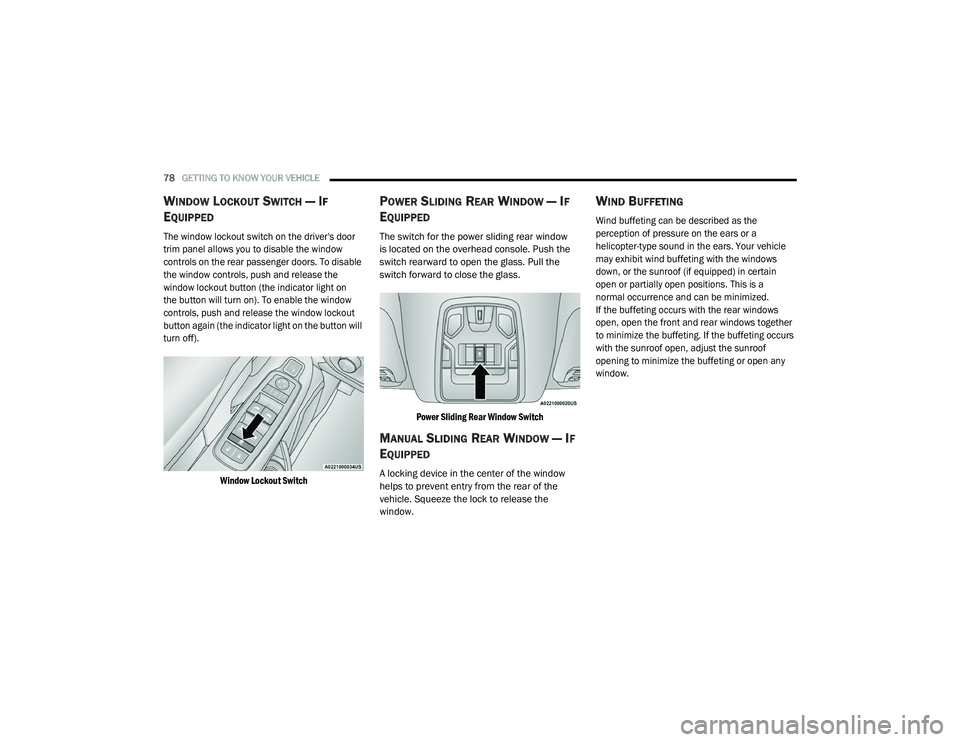
The window lockout switch on the driver's door
trim panel allows you to disable the window
controls on the rear passenger doors. To disable
the window controls, push and release the
window lockout button (the indicator light on
the button will turn on). To enable the window
controls, push and release the window lockout
button again (the indicator light on the button will
turn off).
Window Lockout Switch
POWER SLIDING REAR WINDOW — IF
E
QUIPPED
The switch for the power sliding rear window
is located on the overhead console. Push the
switch rearward to open the glass. Pull the
switch forward to close the glass.
Power Sliding Rear Window Switch
MANUAL SLIDING REAR WINDOW — IF
E
QUIPPED
A locking device in the center of the window
helps to prevent entry from the rear of the
vehicle. Squeeze the lock to release the
window.
WIND BUFFETING
Wind buffeting can be described as the
perception of pressure on the ears or a
helicopter-type sound in the ears. Your vehicle
may exhibit wind buffeting with the windows
down, or the sunroof (if equipped) in certain
open or partially open positions. This is a
normal occurrence and can be minimized.
If the buffeting occurs with the rear windows
open, open the front and rear windows together
to minimize the buffeting. If the buffeting occurs
with the sunroof open, adjust the sunroof
opening to minimize the buffeting or open any
window.
21_DPF_OM_EN_USC_t.book Page 78
Page 81 of 463
GETTING TO KNOW YOUR VEHICLE79
HOOD
TO OPEN THE HOOD
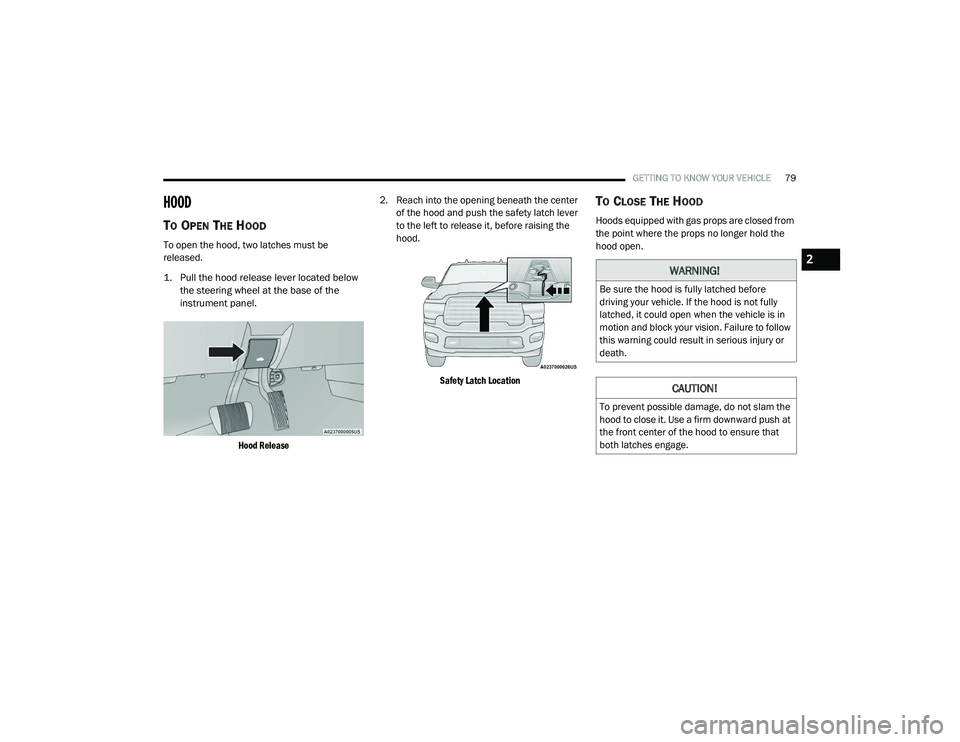
To open the hood, two latches must be
released.
1. Pull the hood release lever located below
the steering wheel at the base of the
instrument panel.
Hood Release
2. Reach into the opening beneath the center
of the hood and push the safety latch lever
to the left to release it, before raising the
hood.
Safety Latch Location
TO CLOSE THE HOOD
Hoods equipped with gas props are closed from
the point where the props no longer hold the
hood open.
WARNING!
Be sure the hood is fully latched before
driving your vehicle. If the hood is not fully
latched, it could open when the vehicle is in
motion and block your vision. Failure to follow
this warning could result in serious injury or
death.
CAUTION!
To prevent possible damage, do not slam the
hood to close it. Use a firm downward push at
the front center of the hood to ensure that
both latches engage.
2
21_DPF_OM_EN_USC_t.book Page 79
Page 94 of 463

92GETTING TO KNOW YOUR INSTRUMENT PANEL
4. Push and hold the right arrow button to
select “Reset”.
5. Push and release the down arrow button
to select “Yes,” then push and release the
right arrow button to reset the Oil Life to
100%.
6. Push and release the up arrow button to
exit the instrument cluster display screen.
Secondary Method Of Resetting Engine Oil Life
1. Without pressing the brake pedal, push the ENGINE START/STOP button and place the
ignition to the ON/RUN position (do not
start the engine).
2. Fully press the accelerator pedal, slowly, three times within ten seconds.
3. Without pushing the brake pedal, push the ENGINE START/STOP button once to return
the ignition to the OFF/LOCK position.
NOTE:
If the indicator message illuminates when
you start the vehicle, the oil change indicator
system did not reset. If necessary, repeat this
procedure.DISPLAY MENU ITEMS
Push and release the up or down arrow
button until the desired selectable menu icon is
highlighted in the instrument cluster display.
Speedometer
Push and release the up or down arrow
button until the speedometer menu item is
highlighted in the instrument cluster display.
Push and release the right arrow button to
cycle the display between mph and km/h.
Vehicle Info
Push and release the up or down arrow
button until the Vehicle Info menu item is
highlighted in the instrument cluster display.
Push and release the right arrow button to
enter the submenus items of Vehicle Info.
Follow the directional prompts to access or
reset any of the following Vehicle Info submenu
items:
Tire Pressure
Coolant Temperature
Transmission Temperature — If Equipped
Oil Temperature
Oil Pressure
Exhaust Brake — If Equipped
Boost Pressure — If Equipped
Diesel Particulate Filter (DPF) — If Equipped
Oil Life
Fuel Filter Life — If Equipped
Battery Voltage
Gauge Summary
Engine Hours
Off-Road
Push and release the up or down arrow
button until the Off-Road menu icon is displayed
in the instrument cluster display. Push and
release the left or right arrow button to
scroll through the information submenus.
Drivetrain
Front Wheel Angle: displays the graphical
and numerical value of calculated
average front wheel angle from the
steering wheel orientation.
21_DPF_OM_EN_USC_t.book Page 92
Page 95 of 463

GETTING TO KNOW YOUR INSTRUMENT PANEL93
Transfer Case Lock Status: displays
“Lock” graphic only during 4WD High,
4WD High Part Time, 4WD Low status.
Axle Lock And Sway Bar Status (If Equipped):
displays front and rear or rear only axle
locker graphic, and sway bar connection
graphic with text message (connected or
disconnected).
Pitch And Roll
Displays the pitch and roll of the vehicle
in the graphic with the angle number on
the screen.
NOTE:
When vehicle speed becomes too high to
display the pitch and roll, “- -” will display in
place of the numbers, and the graphic will be
greyed out. A message indicating the necessary
speed for the feature to become available will
also display.
Driver Assist — If Equipped
The Driver Assist menu displays the status of
the ACC system.
Push and release the up or down arrow
button until the Driver Assist menu is displayed
in the instrument cluster display. Adaptive Cruise Control (ACC) Feature
The instrument cluster display displays the
current ACC system settings. The information
displayed depends on ACC system status.
Push the ACC on/off button (located on the
steering wheel) until one of the following
displays in the instrument cluster display:
Adaptive Cruise Control Off
When ACC is deactivated, the display will read
“Adaptive Cruise Control Off.”
Adaptive Cruise Control Ready
When ACC is activated but the vehicle speed
setting has not been selected, the display will
read “Adaptive Cruise Control Ready.”
Push the SET + or the SET- button (located on
the steering wheel) and the following will display
in the instrument cluster display:
ACC SET
When ACC is set, the set speed will display in
the instrument cluster.
The ACC screen may display once again if any
ACC activity occurs, which may include any of
the following:
Distance Setting Change
System Cancel
Driver Override
System Off
ACC Proximity Warning
ACC Unavailable Warning
NOTE:
The instrument cluster display will return to the
last display selected after five seconds of no
ACC display activity Ú page 166.
LaneSense — If Equipped
The instrument cluster display displays
the current LaneSense system settings.
The information displayed depends on
LaneSense system status and the conditions
that need to be met Ú page 183.
3
21_DPF_OM_EN_USC_t.book Page 93
Page 100 of 463
98GETTING TO KNOW YOUR INSTRUMENT PANEL
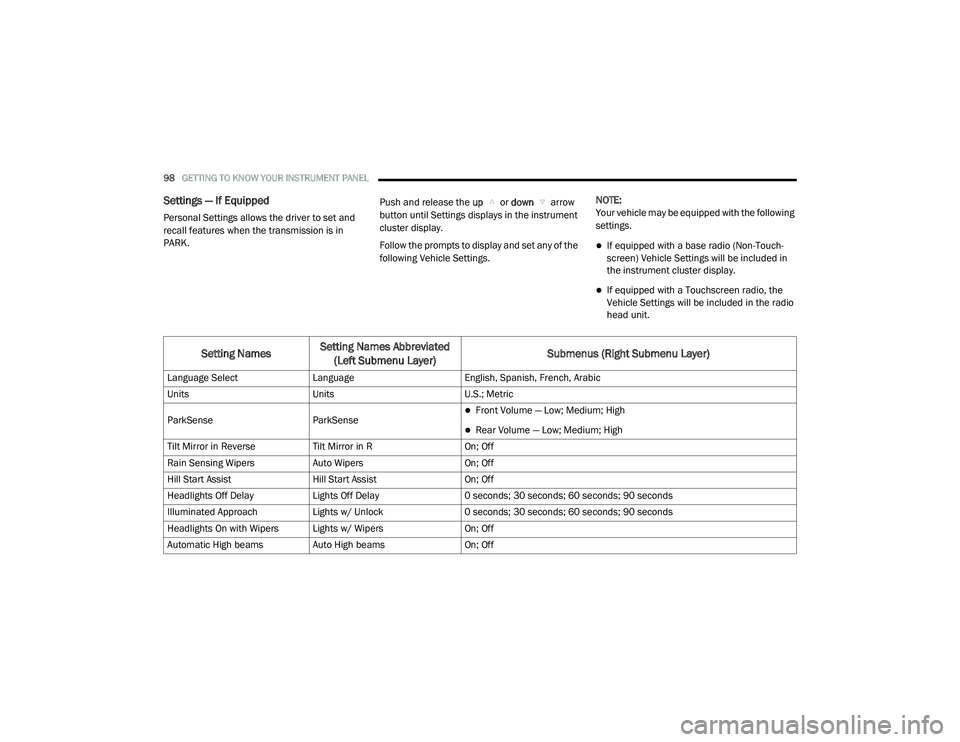
Settings — If Equipped
Personal Settings allows the driver to set and
recall features when the transmission is in
PARK. Push and release the
up or down arrow
button until Settings displays in the instrument
cluster display.
Follow the prompts to display and set any of the
following Vehicle Settings. NOTE:
Your vehicle may be equipped with the following
settings.
If equipped with a base radio (Non-Touch
-
screen) Vehicle Settings will be included in
the instrument cluster display.
If equipped with a Touchscreen radio, the
Vehicle Settings will be included in the radio
head unit.
Setting Names Setting Names Abbreviated
(Left Submenu Layer) Submenus (Right Submenu Layer)
Language Select
Language English, Spanish, French, Arabic
Units Units U.S.; Metric
ParkSense ParkSense
Front Volume — Low; Medium; High
Rear Volume — Low; Medium; High
Tilt Mirror in Reverse Tilt Mirror in R On; Off
Rain Sensing Wipers Auto Wipers On; Off
Hill Start Assist Hill Start Assist On; Off
Headlights Off Delay Lights Off Delay 0 seconds; 30 seconds; 60 seconds; 90 seconds
Illuminated Approach Lights w/ Unlock 0 seconds; 30 seconds; 60 seconds; 90 seconds
Headlights On with Wipers Lights w/ Wipers On; Off
Automatic High beams Auto High beams On; Off
21_DPF_OM_EN_USC_t.book Page 98
Page 101 of 463

GETTING TO KNOW YOUR INSTRUMENT PANEL99
Daytime Running Lights Daytime Lights On; Off
Flash Lights with Lock Lights w/ Lock On; Off
Auto Lock Doors Auto Lock Doors On; Off
Auto Unlock Doors Auto Unlock Doors On; Off
Sound Horn with Remote Start Horn w/ Rmt Start On; Off
Sound Horn with Remote Lock Horn w/ Rmt Lock Off; 1st Press; 2nd Press
Remote Unlock Sequence Remote Unlock Driver Door; All Doors
Key Fob Linked to Memory Key in Memory On; Off
Passive Entry Passive Entry On; Off
Remote Start Comfort System Rmt Start Comfort Off; Remote Start; All starts
Easy Exit Seat Easy Exit Seat On; Off
Key-off Power Delay Power Off Delay Off; 45 seconds; 5 minutes; 10 minutes
Commercial Settings Commercial
Aux Switches
Power Take-Off
PIN Setup
NOTE:
If the vehicle’s PIN is forgotten or not known, see an authorized dealer to have
the PIN reset.
Trailer Select Trailer Select Trailer 1; Trailer 2; Trailer 3; Trailer 4
Setting NamesSetting Names Abbreviated
(Left Submenu Layer) Submenus (Right Submenu Layer)
3
21_DPF_OM_EN_USC_t.book Page 99